Page 269 of 340
267
2008_en_Chap12b_SMEGplus_ed01-2015
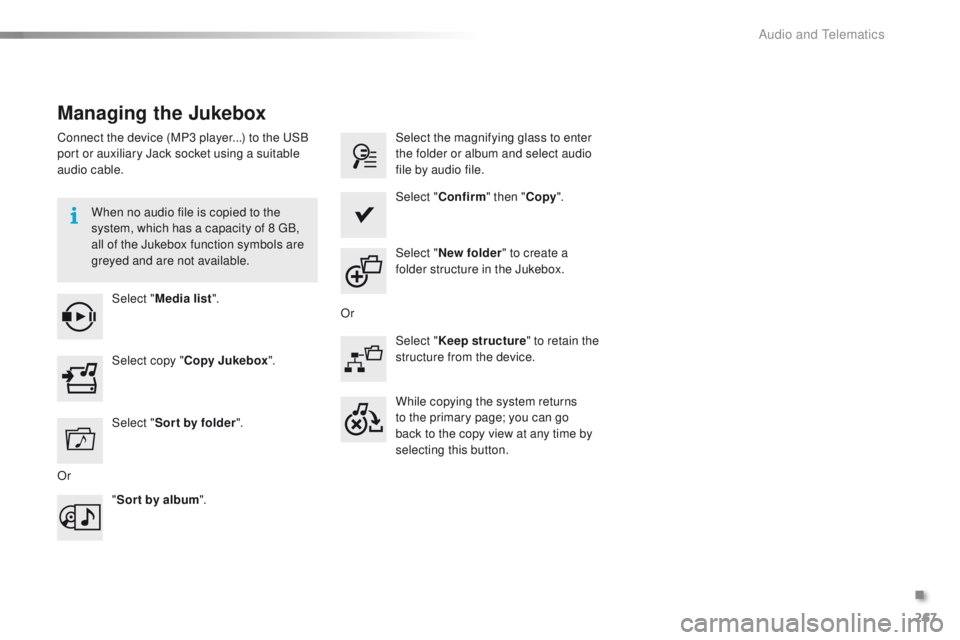
Managing the Jukebox
Connect the device (MP3 player...) to the USB
port or auxiliary Jack socket using a suitable
audio cable.When no audio file is copied to the
system, which has a capacity of 8 GB,
all of the Jukebox function symbols are
greyed and are not available.Select " Media list ". Select the magnifying glass to enter
the folder or album and select audio
file by audio file.
Select copy " Copy Jukebox ". Select "
Confirm " then "Copy".
Select " Sor t by folder ". Select "
New folder " to create a
folder structure in the Jukebox.
" Sor t by album ". Select "
Keep structure " to retain the
structure from the device.
While copying the system returns
to the primary page; you can go
back to the copy view at any time by
selecting this button.
Or Or
.
Audio and Telematics
Page 281 of 340
279
2008_en_Chap12b_SMEGplus_ed01-2015
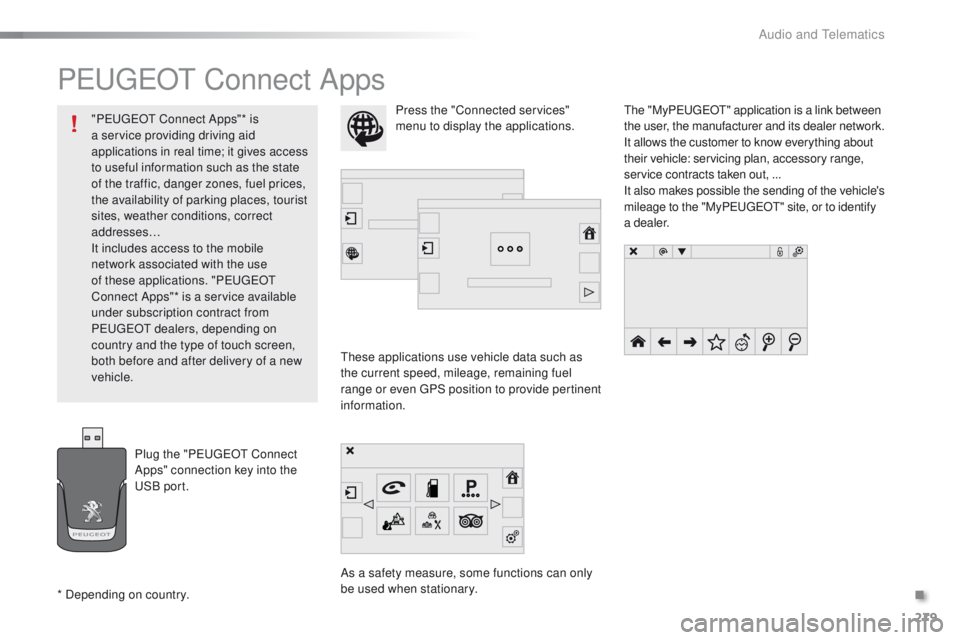
PEUGEOT Connect Apps
These applications use vehicle data such as
the current speed, mileage, remaining fuel
range or even GPS position to provide pertinent
information.
As a safety measure, some functions can only
be used when stationary.The "My
P
E
UGEOT
" a
pplication is a link between
the user, the manufacturer and its dealer network.
It allows the customer to know everything about
their vehicle: servicing plan, accessory range,
service contracts taken out, ...
It also makes possible the sending of the vehicle's
mileage to the "MyP
E
UGEOT
" s
ite, or to identify
a dealer.
Press the "Connected services"
menu to display the applications.
Plug the "PEUGEOT Connect
Apps" connection key into the
USB port.
* Depending on country. "PEUGEOT Connect Apps"* is
a service providing driving aid
applications in real time; it gives access
to useful information such as the state
of the traffic, danger zones, fuel prices,
the availability of parking places, tourist
sites, weather conditions, correct
addresses…
It includes access to the mobile
network associated with the use
of these applications. "PEUGEOT
Connect Apps"* is a service available
under subscription contract from
PEUGEOT dealers, depending on
country and the type of touch screen,
both before and after delivery of a new
vehicle.
.
Audio and Telematics
Page 293 of 340
291
2008_en_Chap12b_SMEGplus_ed01-2015
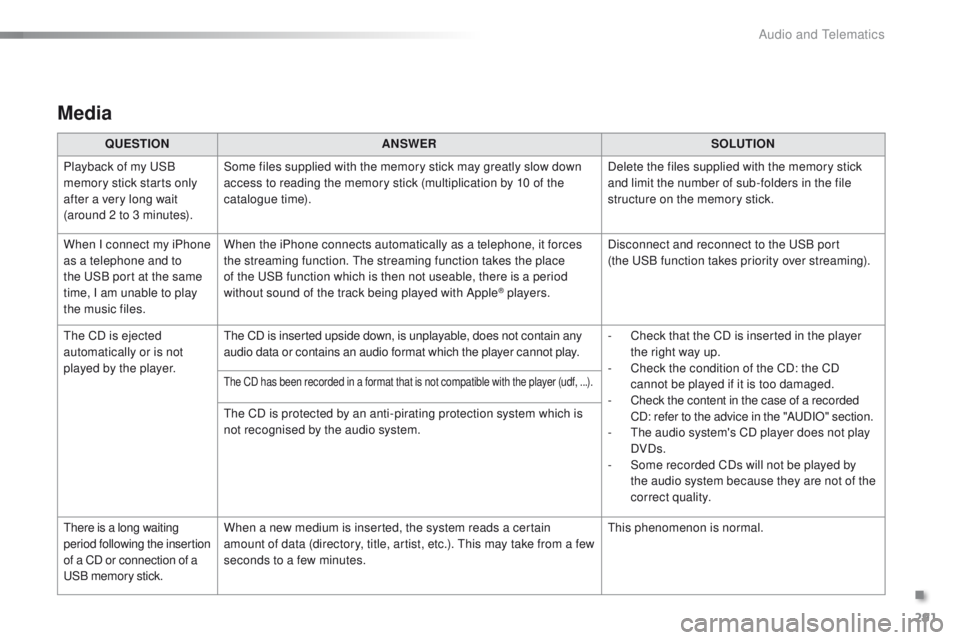
Media
QUESTIONANSWER SOLUTION
Playback of my USB
memory stick starts only
after a very long wait
(around 2 to 3 minutes). Some files supplied with the memory stick may greatly slow down
access to reading the memory stick (multiplication by 10 of the
catalogue time).
Delete the files supplied with the memory stick
and limit the number of sub-folders in the file
structure on the memory stick.
When I connect my iPhone
as a telephone and to
the USB port at the same
time, I am unable to play
the music files. When the iPhone connects automatically as a telephone, it forces
the streaming function. The streaming function takes the place
of the USB function which is then not useable, there is a period
without sound of the track being played with Apple
® players.
Disconnect and reconnect to the USB port
(the
USB function takes priority over streaming).
The CD is ejected
automatically or is not
played by the player. The CD is inserted upside down, is unplayable, does not contain any
audio data or contains an audio format which the player cannot play.
-
C
heck that the CD is inserted in the player
the right way up.
-
C
heck the condition of the CD: the CD
cannot be played if it is too damaged.
-
C
heck the content in the case of a recorded
CD: refer to the advice in the "AUDIO" section.
-
T
he audio system's CD player does not play
DVDs.
-
S
ome recorded CDs will not be played by
the audio system because they are not of the
correct quality.
The CD has been recorded in a format that is not compatible with the player (udf, ...).
The CD is protected by an anti-pirating protection system which is
not recognised by the audio system.
There is a long waiting
period following the insertion
of a CD or connection of a
USB memory stick. When a new medium is inserted, the system reads a certain
amount of data (directory, title, artist, etc.). This may take from a few
seconds to a few minutes.
This phenomenon is normal.
.
Audio and Telematics
Page 300 of 340
298
2008_en_Chap12c_RDE2_ed01-2015
First steps
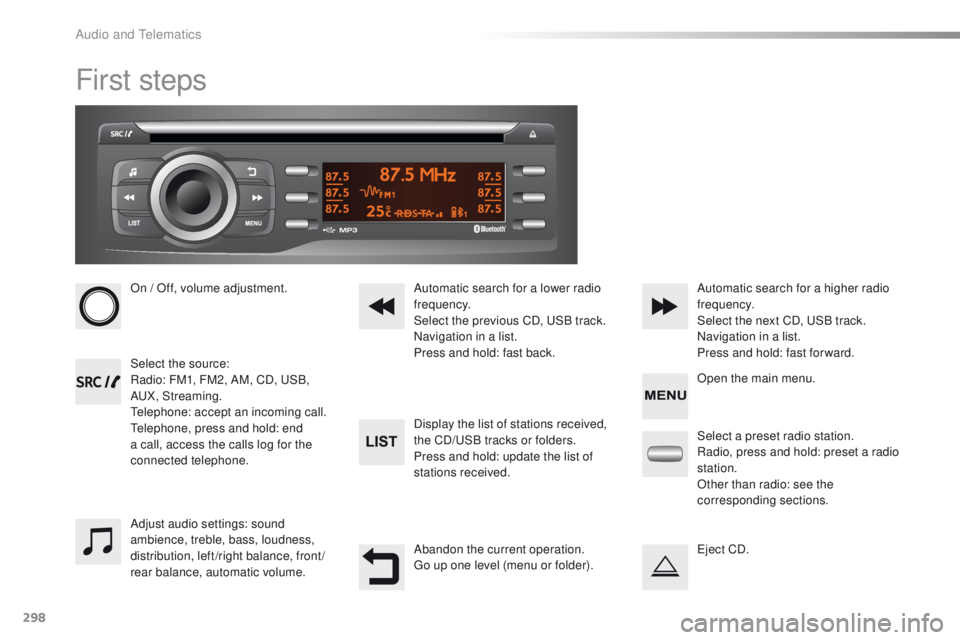
On / Off, volume adjustment.
Select the source:
Radio: FM1, FM2, AM, CD, USB,
AUX, Streaming.
Telephone: accept an incoming call.
Telephone, press and hold: end
a call, access the calls log for the
connected telephone.Display the list of stations received,
the CD/USB tracks or folders.
Press and hold: update the list of
stations received. Automatic search for a lower radio
frequency.
Select the previous CD, USB track.
Navigation in a list.
Press and hold: fast back.Automatic search for a higher radio
frequency.
Select the next CD, USB track.
Navigation in a list.
Press and hold: fast for ward.
Adjust audio settings: sound
ambience, treble, bass, loudness,
distribution, left/right balance, front/
rear balance, automatic volume. Abandon the current operation.
Go up one level (menu or folder).Select a preset radio station.
Radio, press and hold: preset a radio
station.
Other than radio: see the
corresponding sections.
Eject CD. Open the main menu.
Audio and Telematics
Page 301 of 340
299
2008_en_Chap12c_RDE2_ed01-2015
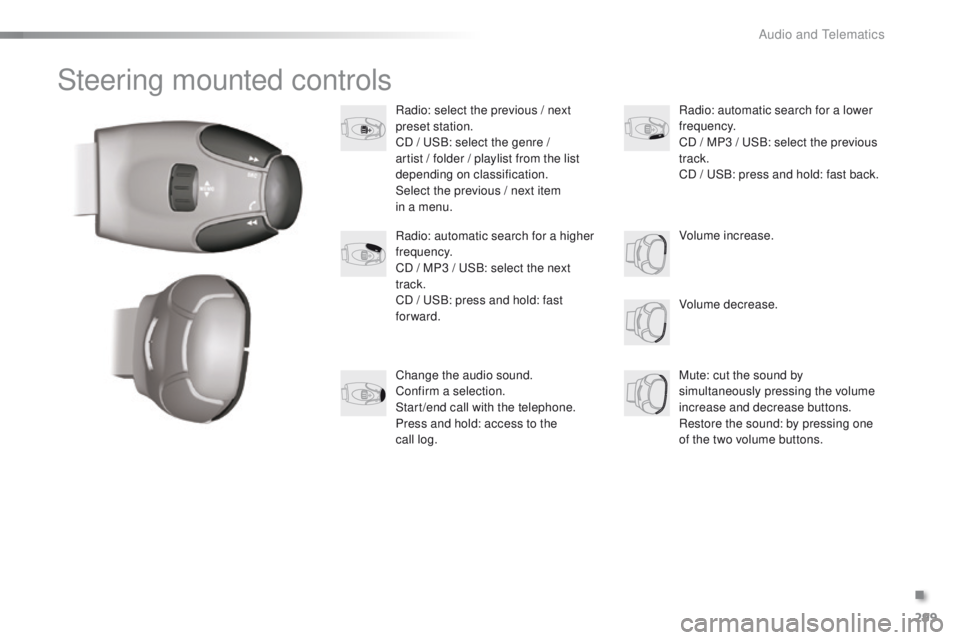
Steering mounted controls
Radio: select the previous / next
preset station.
CD / USB: select the genre /
artist / folder / playlist from the list
depending on classification.
Select the previous / next item
in a menu.Volume decrease.
Radio: automatic search for a higher
frequency.
CD / MP3 / USB: select the next
track.
CD / USB: press and hold: fast
forward.
Mute: cut the sound by
simultaneously pressing the volume
increase and decrease buttons.
Restore the sound: by pressing one
of the two volume buttons. Radio: automatic search for a lower
frequency.
CD / MP3 / USB: select the previous
track.
CD / USB: press and hold: fast back.
Change the audio sound.
Confirm a selection.
Start /end call with the telephone.
Press and hold: access to the
call
log. Volume increase.
.
Audio and Telematics
Page 303 of 340
301
2008_en_Chap12c_RDE2_ed01-2015
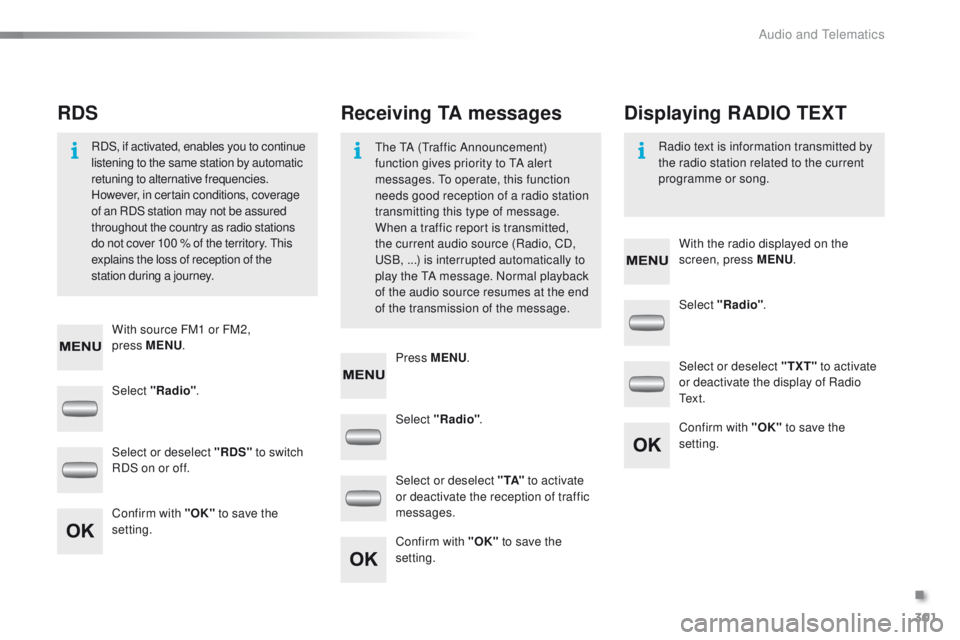
Select "Radio". Select "Radio"
.
Select "Radio" .
Select or deselect "RDS" to switch
RDS on or off. Select or deselect "
TXT" to activate
or deactivate the display of Radio
Te x t .
Select or deselect " TA" to activate
or deactivate the reception of traffic
messages.
Confirm with "OK" to save the
setting. Confirm with "OK"
to save the
setting.
Confirm with "OK" to save the
setting.
Receiving TA messages
RDS Displaying RADIO TEXT
The TA (Traffic Announcement)
function gives priority to TA alert
messages. To operate, this function
needs good reception of a radio station
transmitting this type of message.
When a traffic report is transmitted,
the current audio source (Radio, CD,
USB,
...) is interrupted automatically to
play the TA message. Normal playback
of the audio source resumes at the end
of the transmission of the message.
RDS, if activated, enables you to continue
listening to the same station by automatic
retuning to alternative frequencies.
However, in certain conditions, coverage
of an RDS station may not be assured
throughout the country as radio stations
do not cover 100
% of the territory. This
explains the loss of reception of the
station during a journey. Radio text is information transmitted by
the radio station related to the current
programme or song.
With source FM1 or FM2,
press
MENU . With the radio displayed on the
screen, press MENU
.
Press MENU .
.
Audio and Telematics
Page 304 of 340
302
2008_en_Chap12c_RDE2_ed01-2015
Media
USB player
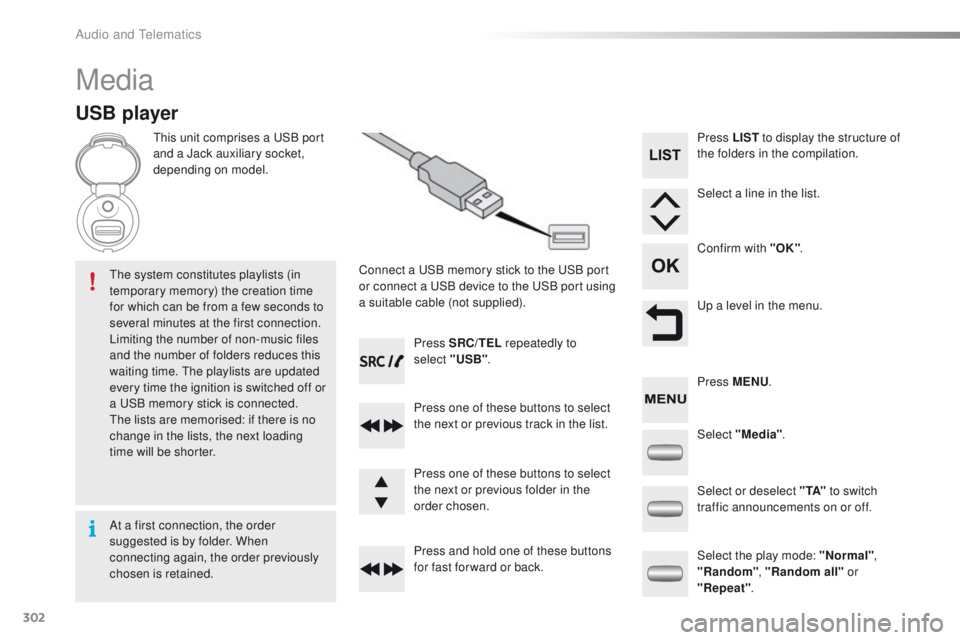
This unit comprises a USB port
and a Jack auxiliary socket,
depending on model.Connect a USB memory stick to the USB port
or connect a USB device to the USB port using
a suitable cable (not supplied).
The system constitutes playlists (in
temporary memory) the creation time
for which can be from a few seconds to
several minutes at the first connection.
Limiting the number of non-music files
and the number of folders reduces this
waiting time. The playlists are updated
every time the ignition is switched off or
a USB memory stick is connected.
The lists are memorised: if there is no
change in the lists, the next loading
time will be shorter. Press SRC/TEL
repeatedly to
select "USB" .
Press one of these buttons to select
the next or previous track in the list.
Press and hold one of these buttons
for fast for ward or back. Press one of these buttons to select
the next or previous folder in the
order chosen. Press LIST
to display the structure of
the folders in the compilation.
Select a line in the list.
Confirm with "OK" .
Up a level in the menu.
Select "Media" .
Select the play mode: "Normal" ,
"Random" , "Random all" or
"Repeat" .
Select or deselect " TA"
to switch
traffic announcements on or off. Press MENU .
At a first connection, the order
suggested is by folder. When
connecting again, the order previously
chosen is retained.
Audio and Telematics
Page 305 of 340
303
2008_en_Chap12c_RDE2_ed01-2015
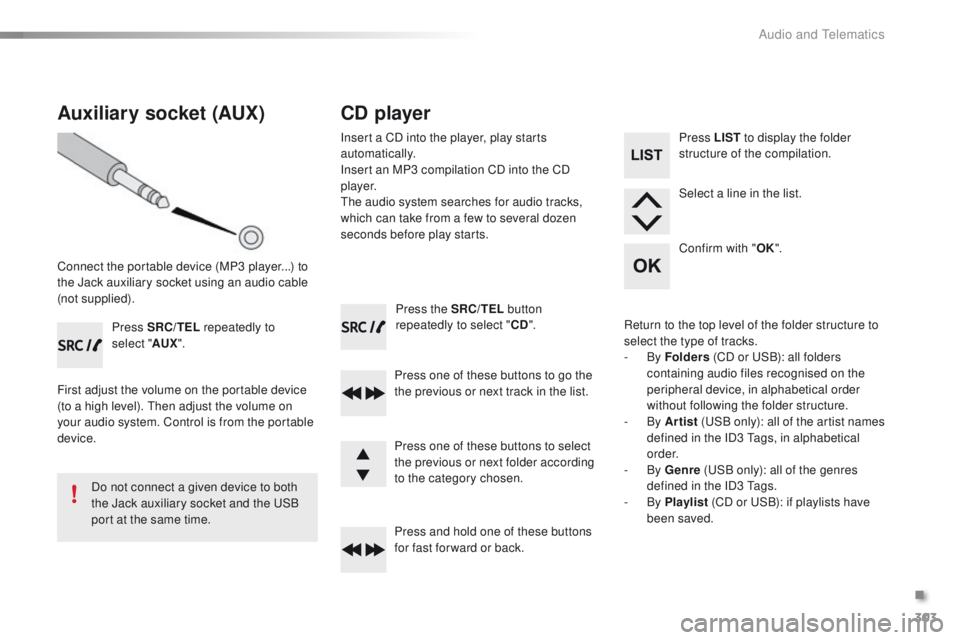
Press the SRC/TEL button
repeatedly to select " CD".
Press one of these buttons to go the
the previous or next track in the list.
Press and hold one of these buttons
for fast for ward or back.
Auxiliary socket (AUX)
Connect the portable device (MP3 player...) to
the Jack auxiliary socket using an audio cable
(not supplied). Press SRC/TEL repeatedly to
select " AUX".
First adjust the volume on the portable device
(to a high level). Then adjust the volume on
your audio system. Control is from the portable
device.
Do not connect a given device to both
the Jack auxiliary socket and the USB
port at the same time.
CD player
Insert a CD into the player, play starts
automatically.
Insert an MP3 compilation CD into the CD
p l aye r.
The audio system searches for audio tracks,
which can take from a few to several dozen
seconds before play starts.
Press one of these buttons to select
the previous or next folder according
to the category chosen. Press LIST
to display the folder
structure of the compilation.
Select a line in the list.
Confirm with " OK".
Return to the top level of the folder structure to
select the type of tracks.
-
By Folders (CD or USB): all folders
containing audio files recognised on the
peripheral device, in alphabetical order
without following the folder structure.
-
By Artist (USB only): all of the artist names
defined in the ID3 Tags, in alphabetical
o r d e r.
-
By Genre (USB only): all of the genres
defined in the ID3 Tags.
-
By Playlist (CD or USB): if playlists have
been saved.
.
Audio and Telematics