2015 NISSAN TITAN change time
[x] Cancel search: change timePage 234 of 457
3. The channel indicator will then come on andthe sound will resume. Programming is now
complete.
4. Other buttons can be set in the same man- ner.
If the battery cable is disconnected, or if the fuse
opens, the radio memory will be canceled. In that
case, reset the desired stations.
Compact disc (CD) player operation
If the radio is already operating, it automatically
turns off and the compact disc begins to play.
MEDIA button
With a CD loaded, press the MEDIA button until
the CD mode is displayed on the screen.
CD/MP3 display mode
While listening to an MP3/WMA CD, certain text
may be displayed on the screen if the CD has
been encoded with text information. Depending
on how the MP3/WMA CD is encoded, informa-
tion such as Artist, Song and Folder will be dis-
played.
The track number and the total number of tracks
in the current folder or on the current disc are
displayed on the screen as well.
SEEK and TRACK (Fast Forward, Rewind) buttons
When the
SEEK button orTRACK
button is pressed while the compact disc is play-
ing, the compact disc plays at an increased
speed while fast forwarding or rewinding. When
the button is released, the compact disc returns
to normal play speed.
SEEK and TRACK buttons
When the
SEEK button is pressed while
the compact disc is playing, the next track follow-
ing the present one starts to play from the begin-
ning. Press the
SEEK button several times
to skip several tracks. Each time the button is
pressed, the CD advances one additional track.
The track number appears in the display window.
When the last track on the compact disc is
skipped, the first track is played.
When the
TRACK button is pressed, the
track being played returns to the beginning.
Press the
TRACK button several times to
skip back several tracks. Each time the button is
pressed the CD moves back one track. TUNE/SCROLL knob (MP3/WMA CD only)
If a MP3/WMA CD with multiple folders is play-
ing, turn the TUNE/SCROLL knob to change
folders. Turn the knob to the left to skip back a
folder. Turn the knob to the right to skip ahead a
folder.
RPT (repeat) button
When the RPT (repeat) button is pressed while a
compact disc is playing, the play pattern can be
changed as follows:
CD:
1 Track Repeat
←→OFF
CD with MP3 or WMA:
1 Folder Repeat →1 Track Repeat →OFF
1 Track Repeat: the current track will be re-
peated.
1 Folder Repeat: the current folder will be re-
peated.
OFF: No repeat play pattern is applied. The indi-
cator on the display will turn off.
The current play pattern of the CD is displayed on
the screen unless no pattern is applied.
4-46Monitor, climate, audio, phone and voice recognition systems
Page 243 of 457
CAUTION
●To avoid damage and loss of function
when using a USB device, note the fol-
lowing precautions.
● Do not force the USB device into the
USB port. Inserting the USB device
tilted or up-side-down into the port may
damage the port. Make sure that the
USB device is connected correctly into
the USB port.
● Do not grab the USB port cover (if so
equipped) when pulling the USB device
out of the port. This could damage the
port and the cover.
● Do not leave the USB cable in a place
where it can be pulled unintentionally.
Pulling the cable may damage the port.
Refer to your device manufacturer’s owner infor-
mation regarding the proper use and care of the
device.
The USB connection port is located on the center
console beneath the heater and air conditioner
controls. Insert the USB device into the connec-
tion port. When a compatible storage device is plugged
into the connection port, compatible audio files
on the storage device can be played through the
vehicle’s audio system.
Audio file operation
MEDIA button
Place the ignition switch in the ON or ACC
position and press the MEDIA button to switch to
the USB input mode. If a CD is playing or another
audio source is plugged in through the AUX IN
jack, the MEDIA button toggles between the
three sources.
Play information
Information about the audio files being played
can be displayed on the display screen of the
vehicle’s audio system. Depending on how the
audio files are encoded, information such as
Folder, Song and Artist will be displayed.
The track number and number of total tracks in
the folder are displayed on the screen as well.
SEEK/CAT (Reverse or
Fast Forward) buttons
Press and hold the
orSEEK/CAT
buttons for 1.5 seconds while an audio file on the
USB device is playing to reverse or fast forward
the track being played. The track plays at an increased speed while reversing or fast forward-
ing. When the button is released, the audio file
returns to normal play speed.
SEEK/CAT and TRACK
buttons
Press the SEEK/CAT button
while an au-
dio file on the USB device is playing to return to
the beginning of the current track. Press the
SEEK/CAT button
several times to skip
backward several tracks.
Press the TRACK button
while an audio
file on the USB device is playing to advance one
track. Press the TRACK button
several
times to skip forward several tracks. If the last
track in a folder on the USB device is skipped, the
first track of the next folder is played.
RDM (random) button
When the RDM (random) button is pressed while
an audio file on the USB device is playing, the
play pattern can be changed as follows:
All Random →1 Folder Random →OFF
All Random: all tracks on the USB device will be
played randomly.
1 Folder Random: all tracks in the current folder
will be played randomly.
Monitor, climate, audio, phone and voice recognition systems4-55
Page 245 of 457
CAUTION
●To avoid damage and loss of function
when using a USB device, note the fol-
lowing precautions.
● Do not force the USB device into the
USB port. Inserting the USB device
tilted or up-side-down into the port may
damage the port. Make sure that the
USB device is connected correctly into
the USB port.
● Do not grab the USB port cover (if so
equipped) when pulling the USB device
out of the port. This could damage the
port and the cover.
● Do not leave the USB cable in a place
where it can be pulled unintentionally.
Pulling the cable may damage the port.
Refer to your device manufacturer’s owner infor-
mation regarding the proper use and care of the
device.
The USB connection port is located on the center
console beneath the heater and air conditioner
controls. Insert the USB device into the connec-
tion port. When a compatible storage device is plugged
into the connection port, compatible audio files
on the storage device can be played through the
vehicle’s audio system.
Audio file operation
AUX (auxiliary) button
Place the ignition switch in the ON or ACC
position and press the AUX button to switch to
the USB input mode. If another audio source is
playing and a USB connection port device is
inserted, press the AUX button until the center
display changes to the USB memory mode.
If the system has been turned off while the USB
memory was playing, push the ON-OFF/VOL
control knob to restart the USB memory.
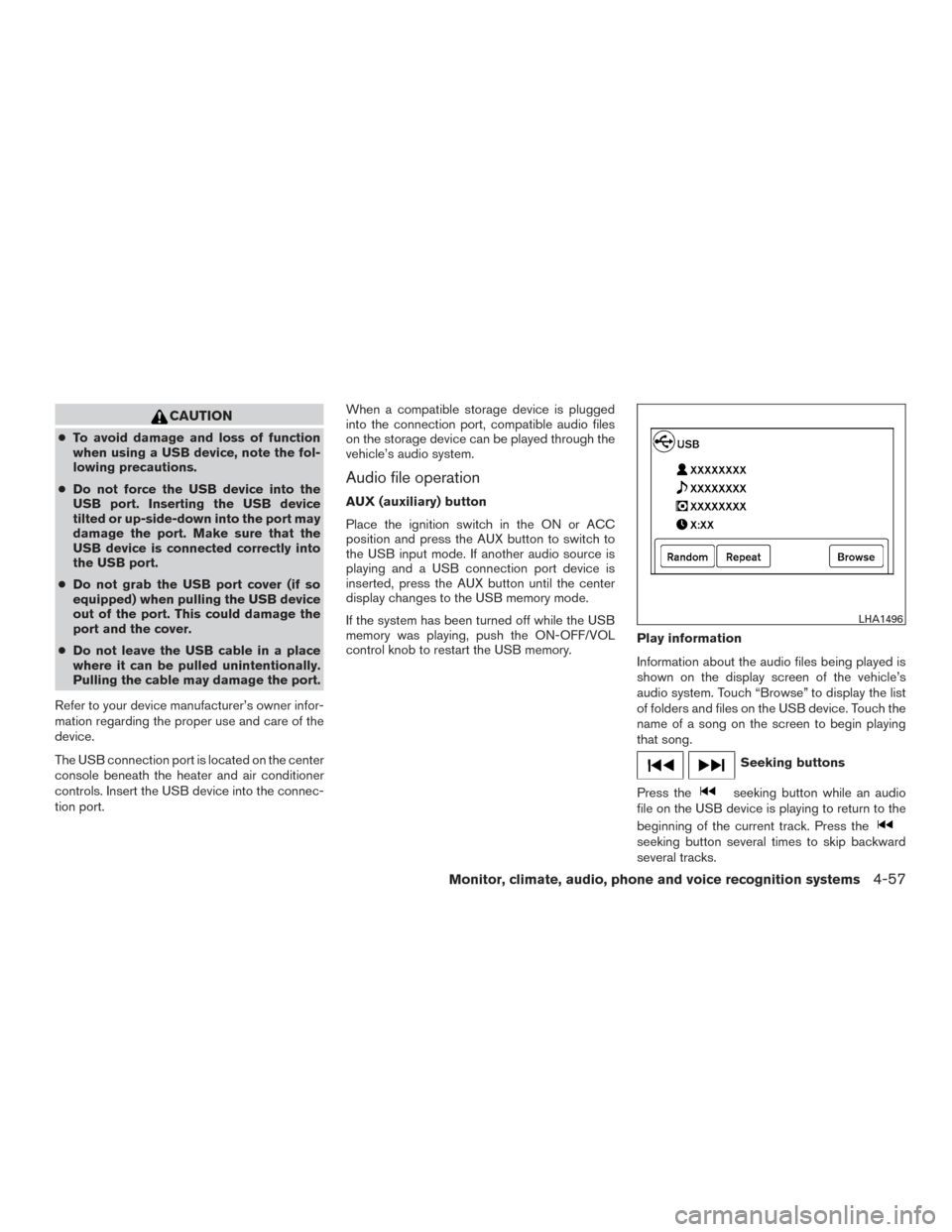
Play information
Information about the audio files being played is
shown on the display screen of the vehicle’s
audio system. Touch “Browse” to display the list
of folders and files on the USB device. Touch the
name of a song on the screen to begin playing
that song.
Seeking buttons
Press the
seeking button while an audio
file on the USB device is playing to return to the
beginning of the current track. Press the
seeking button several times to skip backward
several tracks.
LHA1496
Monitor, climate, audio, phone and voice recognition systems4-57
Page 261 of 457
It is possible to operate the DVD player by remote
control.
Headphones are a wireless type and no cables
are necessary. You can use them in almost all the
ranges in the rear seat. (It is not possible to use
the headphones in the front seat.)
POWER on/off button
With the ignition switch placed in the ACC or ON
position, press the POWER button to turn the
DVD player on or off.
Insert the DVD into the slot with the label side
facing up. The DVD will be guided automatically
into the slot.
If the DVD player is off and a DVD is inserted, the
DVD player will automatically turn on.
CAUTION
Do not force the compact disc into the
slot. This could damage the player.
MODE select button
Press the MODE button to select Audio/Video
source between DVD and AUX input (input jacks
on the faceplate, Red = right channel audio input,
White = left channel audio input, and Yellow =
Video input) . The display will show the “AUX” in the upper left
corner of the display for 4 seconds once the
mode is changed to AUX.
For additional information on how to use the input
jacks, refer to “Auxiliary input jacks” in this sec-
tion.
orPLAY
When the PLAY/PAUSE button on the player or
the PLAY button on the remote control is
pressed, the player will play.
In play mode, the display will briefly show
on the upper left corner of the display.
FF (Fast Forward) , REW (Remote control only)
Press the FAST FORWARD/FAST REVERSE
buttons to carry out the fast forward or fast re-
verse presentation at 5 times normal play speed.
Press the FAST FORWARD/FAST REVERSE
buttons again or PLAY button to resume the
normal play speed.
NEXT CHAPTER/PREVIOUS
CHAPTER (Remote con-
trol only)
When the
(NEXT CHAPTER) button is
pressed while the DVD is playing, the program
next to the present one will start to play from its
beginning. Press several times to skip through
programs. The DVD will advance the number of
times the button is pressed. When the
(PREVIOUS CHAPTER) button is pressed, the
program being played returns to its beginning.
Press several times to skip back through pro-
grams. The DVD will go back the number of times
the button is pressed.
orPAUSE
When the PLAY/PAUSE button on the player or
the PAUSE button on the remote control is
pressed, the player will pause playing of the
media. In pause mode, the player will show
on the upper left corner of the display until the
player is changed to another mode.
Monitor, climate, audio, phone and voice recognition systems4-73
Page 266 of 457
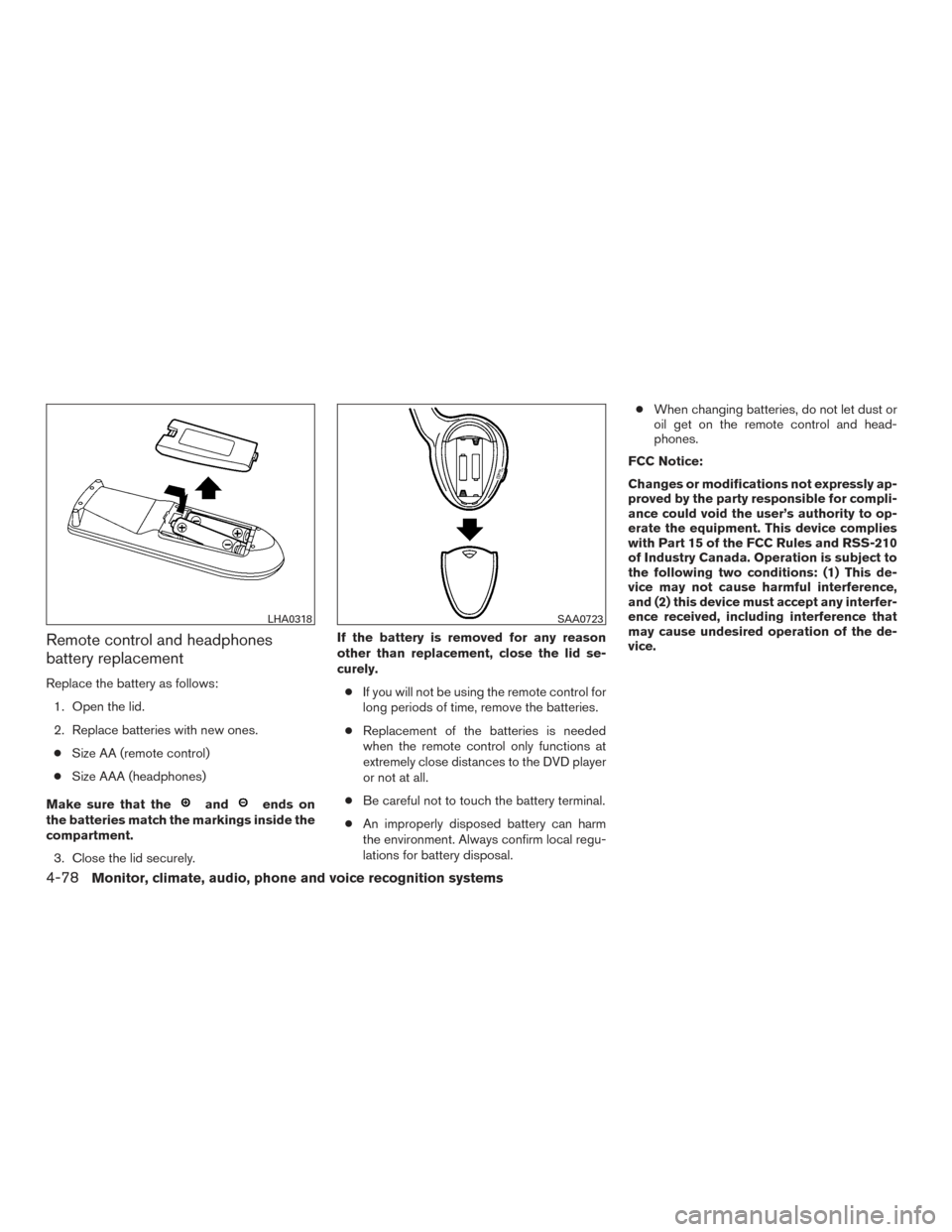
Remote control and headphones
battery replacement
Replace the battery as follows:1. Open the lid.
2. Replace batteries with new ones.● Size AA (remote control)
● Size AAA (headphones)
Make sure that the
andends on
the batteries match the markings inside the
compartment.
3. Close the lid securely. If the battery is removed for any reason
other than replacement, close the lid se-
curely.
● If you will not be using the remote control for
long periods of time, remove the batteries.
● Replacement of the batteries is needed
when the remote control only functions at
extremely close distances to the DVD player
or not at all.
● Be careful not to touch the battery terminal.
● An improperly disposed battery can harm
the environment. Always confirm local regu-
lations for battery disposal. ●
When changing batteries, do not let dust or
oil get on the remote control and head-
phones.
FCC Notice:
Changes or modifications not expressly ap-
proved by the party responsible for compli-
ance could void the user’s authority to op-
erate the equipment. This device complies
with Part 15 of the FCC Rules and RSS-210
of Industry Canada. Operation is subject to
the following two conditions: (1) This de-
vice may not cause harmful interference,
and (2) this device must accept any interfer-
ence received, including interference that
may cause undesired operation of the de-
vice.
LHA0318SAA0723
4-78Monitor, climate, audio, phone and voice recognition systems
Page 275 of 457
●“Phone Number” — Speak this command to
place a call by inputting numbers. For 7– to
10–digit phone number, speak the numbers.
Say “Correction” at any time in the process
to correct a misspoken or misinterpreted
number. For phone numbers with more dig-
its or special characters, say “Special Num-
ber”, then speak the digits. Up to 24 digits
can be entered. Available special characters
are “start”, “pound”, “plus”, and “pause”.
When finished, say “Dial” to initiate the call.
Say “Correction” at any time in the process
to correct a misspoken or misinterpreted
number or character.
● “Redial” – Speak this command to dial the
number of the last outgoing call. The system
will display “Re-dialing
The name of the phonebook entry will be
displayed if it available, otherwise the num-
ber being re-dialed will be displayed.
● “Call Back” – Speak this command to dial
the number of the last incoming call. The
system will display “Calling back
book entry will be displayed if it available,
otherwise the number being called back will
be displayed.RECEIVING A CALL
When a call is received by the phone connected
to the vehicle’s Bluetooth® Hands-Free Phone
System, the call information is displayed on either
the vehicle information display or both the vehicle
information display and he control panel display.
Press the
button to accept the call. Press
the
button to reject the call.
DURING A CALL
While a call is active, press thebutton to
access additional options. Speak one of the fol-
lowing commands:
● “(numbers)” – Speak numbers and then say
“Send” or say “Correction” to change the
numbers entered.
● “Mute On” or “Mute Off” – Speak the com-
mand to mute or unmute the system.
● “Transfer Call” – Speak this command to
transfer the call to the handset. To transfer
the call back from the handset to the
Bluetooth® Hands-Free Phone System,
press the
button and confirm when
prompted. If supported by the phone, the Bluetooth®
Hands-Free Phone System allows for call waiting
functionality. If a call is received while another call
is already active, a message will be displayed on
the screen. Press the
button to hold the
active call and switch to the second call. Press
the
button to reject the second call.
While the second call is active, pressing
the
button will allow the same commands
that are available during any call and additional
commands:
● “Switch Call” – Speak this command to hold
the second call and switch back to the origi-
nal call.
● “End Other Call” – Speak this command to
stay with the second call and end the original
call.
Press the
button to accept the call. Press
the
button to reject the call.
ENDING A CALL
To end an active call, press thebutton.
Monitor, climate, audio, phone and voice recognition systems4-87
Page 278 of 457
●New Text Sound
Select to adjust the volume of the sound that
plays when a new text is received by a phone
connected to the Bluetooth® Hands-Free
Phone System. The setting all the way to the
left indicates that the new text sound will be
muted.
● Show Incoming Text
Select “Driver Only” to have incoming text
messages displayed only in the vehicle infor-
mation display. Select “Both” to have incom-
ing text messages displayed in both the ve-
hicle information display and the center
display screen. Select “None” to have no
display of incoming text messages.
● Edit Custom Messages
Select to set a custom message that will be
available with the standard options when
sending a text message. To set a custom
message, send a text message to your own
phone number while the phone is connected
to the system. Three custom messages can
be set. Custom messages can only be set
while the vehicle is stationary. ●
Auto Reply
Select to turn on or off the Auto Reply func-
tion. When enabled, the vehicle will auto-
matically send a predefined text message to
the sender when a text message is received
while driving.
● Auto Reply Message
Select to choose the message that is sent
when the Auto Reply function is enabled.
Choose from “I’m Driving” or one of the three
custom messages stored in the system.
● Vehicle Signature On/Off
Select to choose whether or not the vehicle
signature is added to outgoing text mes-
sages from the vehicle. This message can-
not be changed or customized.
MANUAL CONTROL
While using the Voice Recognition system, it is
possible to select menu options by using the
steering wheel controls instead of speaking voice
commands. The manual control mode does not
allow dialing a phone number by digits. The user
may select an entry from the Phonebook or Re-
cent Calls lists. To re-activate Voice Recognition,
exit the manual control mode by pressing and
holding the PHONE/END (
) button. At that
time, pressing the PHONE/SEND (
) button
will start the Hands Free Phone System.
WARNING
● Use a phone after stopping your vehicle
in a safe location. If you have to use a
phone while driving, exercise extreme
caution at all times so full attention may
be given to vehicle operation.
● If you are unable to devote full attention
to vehicle operation while talking on
the phone, pull off the road to a safe
location and stop your vehicle.
CAUTION
To avoid discharging the vehicle battery,
use a phone after starting the engine.
BLUETOOTH® HANDS-FREE PHONE
SYSTEM WITH NAVIGATION SYSTEM
(if so equipped)
4-90Monitor, climate, audio, phone and voice recognition systems
Page 282 of 457
MAKING A CALL
To make a call, follow the procedure below:1. Press the
button on the control panel.
The “Phone” screen will appear on the dis-
play.
2. Select one of the following options to make a call:
● “Phonebook”: Select the name from an entry
stored in the vehicle phonebook.
● “Call Lists”: Select the name from the in-
coming, outgoing or missed.
● “Redial”: Dial the last outgoing call from the
vehicle.
● “
”Input the phone number manually
using a keypad displayed on the screen. For
additional information on how to use the
touch-screen, refer to “How to use the
touch-screen” in this section.
RECEIVING A CALL
When a call is placed to the connected phone,
the display will change to phone mode.
To accept the incoming call, either:
● Press the
button on the steering
wheel, or ●
Touch the green phone icon on the screen.
To reject the incoming call, either:
● Press the
button on the steering
wheel, or
● Touch the red phone icon on the screen.
DURING A CALL
While a call is active, the following options are
available on the screen:
● “Handset”
Select this option to switch control of the
phone call over to the handset.
● “Mute Mic.”
Select this option to mute the microphone.
Select again to unmute the microphone.
● Red phone (
) icon
Select to end the phone call.
ENDING A CALL
To end a phone call, select the red phone ()
icon on the screen or press the
button on
the steering wheel.
TEXT MESSAGING
WARNING
● Laws in some jurisdictions may restrict
the use of “Text-to-Speech.” Check lo-
cal regulations before using the
feature.
● Laws in some jurisdictions may restrict
the use of some of the applications and
features, such as social networking and
texting. Check local regulations for any
requirements.
● Use the text messaging feature after
stopping your vehicle in a safe location.
If you have to use the feature while
driving, exercise extreme caution at all
times so full attention may be given to
vehicle operation.
● If you are unable to devote full attention
to vehicle operation while using the text
messaging feature, pull off the road to a
safe location and stop your vehicle.
NOTE:
Some features may or may not be sup-
ported depending on connected device.
The system allows for the sending and receiving
of text messages through the vehicle interface.
4-94Monitor, climate, audio, phone and voice recognition systems