2015 NISSAN TITAN CD player
[x] Cancel search: CD playerPage 230 of 457
SEEK and TRACK buttons
When the
SEEK button is pressed while
the compact disc is playing, the next track follow-
ing the present one starts to play from the begin-
ning. Press the
SEEK button several times
to skip several tracks. Each time the button is
pressed, the CD advances one additional track.
The track number appears in the display window.
When the last track on the compact disc is
skipped, the first track is played.
When the
TRACK button is pressed, the
track being played returns to the beginning.
Press the
TRACK button several times to
skip back several tracks. Each time the button is
pressed the CD moves back one track.
RPT (repeat) /RDM (random) button
Press the RPT (repeat) /RDM (random) button
while a compact disc is playing to change the
play pattern as follows:
CD:
TRACK REPEAT →DISC RANDOM →DISC
REPEAT MP3/WMA CD:
FOLDER REPEAT
→TRACK REPEAT →DISC
RANDOM →FOLDER RANDOM →DISC RE-
PEAT
TRACK REPEAT: The track that is currently play-
ing will be repeated.
DISC RANDOM: The order of the tracks on the
disc will be mixed during play.
DISC REPEAT: The disc currently playing will be
repeated.
FOLDER REPEAT: The tracks in the current
folder will be repeated.
FOLDER RANDOM: The order of the tracks in
the folder will be mixed during play.
SCAN (CDs) button
Press the SCAN button for less than 1.5 seconds
to scan all tracks of the current disc for 10 sec-
onds per track. The SCAN icon is flashed during
scan mode.
The scan mode is canceled once it scans through
all tracks on the disc, or if the SCAN button is
pressed during scan mode.
CD EJECT button
When the
CD EJECT button is pressed
with a compact disc loaded, the compact disc
will eject and the last source will be played.
When the
CD EJECT button is pressed
twice with a compact disc loaded, the compact
disc will be ejected further for easier CD removal.
If the disc is not removed within 20 seconds, the
disc will reload.
AUX (Auxiliary) button
The AUX IN jack is located on the CD player. The
AUX IN audio input jack accepts any standard
analog audio input such as from a portable cas-
sette tape/CD player, MP3 player or laptop com-
puters.
Press the AUX button to play a compatible device
when it is plugged into the AUX IN jack.
Press the MENU button repeatedly until “AUX IN
Volume” appears on the screen to control the
incoming volume level of the auxiliary input de-
vice. Turn the TUNE/FOLDER knob to adjust the
level between 0 and +3.
4-42Monitor, climate, audio, phone and voice recognition systems
Page 231 of 457
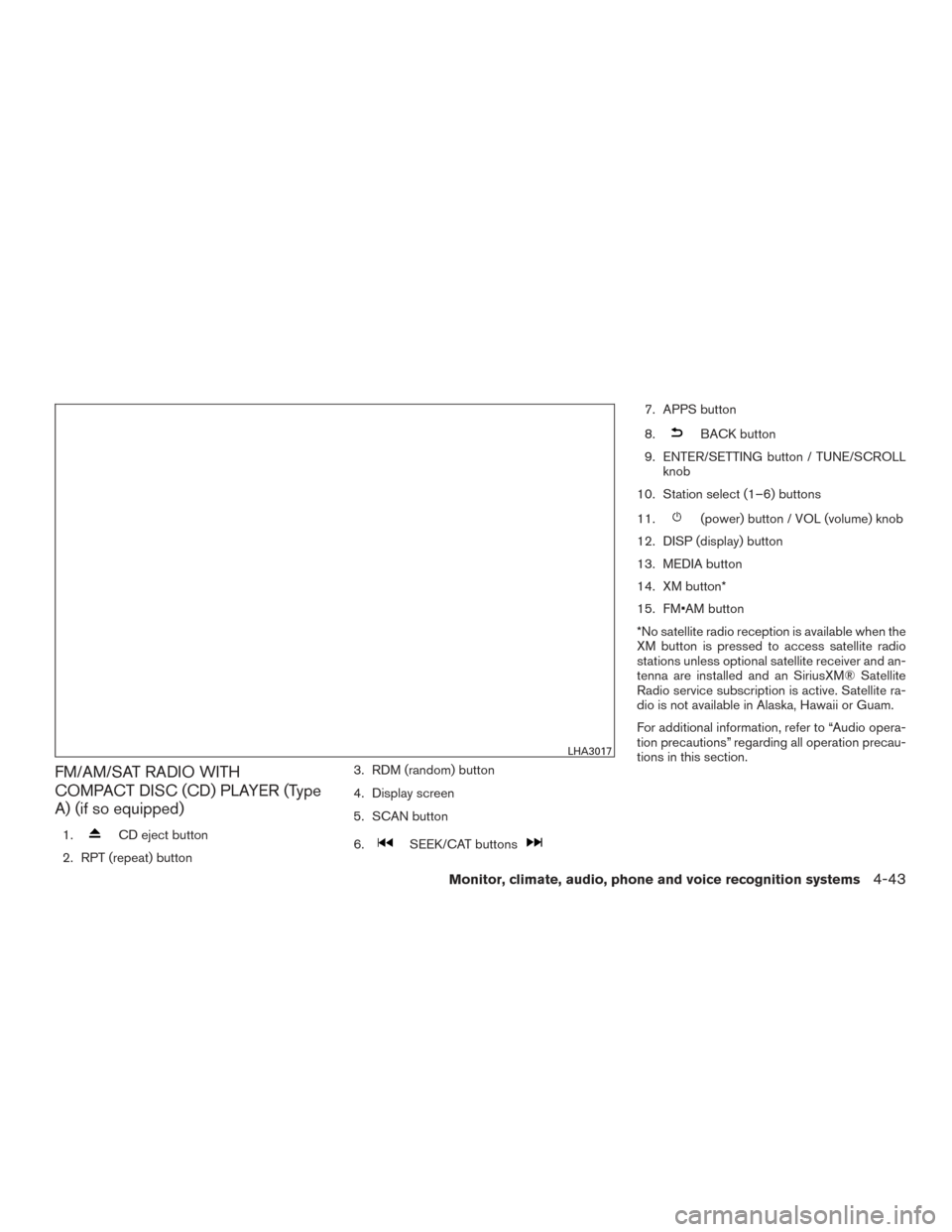
FM/AM/SAT RADIO WITH
COMPACT DISC (CD) PLAYER (Type
A) (if so equipped)
1.CD eject button
2. RPT (repeat) button 3. RDM (random) button
4. Display screen
5. SCAN button
6.SEEK/CAT buttons
7. APPS button
8.
BACK button
9. ENTER/SETTING button / TUNE/SCROLL knob
10. Station select (1–6) buttons
11.
(power) button / VOL (volume) knob
12. DISP (display) button
13. MEDIA button
14. XM button*
15. FM•AM button
*No satellite radio reception is available when the
XM button is pressed to access satellite radio
stations unless optional satellite receiver and an-
tenna are installed and an SiriusXM® Satellite
Radio service subscription is active. Satellite ra-
dio is not available in Alaska, Hawaii or Guam.
For additional information, refer to “Audio opera-
tion precautions” regarding all operation precau-
tions in this section.
LHA3017
Monitor, climate, audio, phone and voice recognition systems4-43
Page 234 of 457
3. The channel indicator will then come on andthe sound will resume. Programming is now
complete.
4. Other buttons can be set in the same man- ner.
If the battery cable is disconnected, or if the fuse
opens, the radio memory will be canceled. In that
case, reset the desired stations.
Compact disc (CD) player operation
If the radio is already operating, it automatically
turns off and the compact disc begins to play.
MEDIA button
With a CD loaded, press the MEDIA button until
the CD mode is displayed on the screen.
CD/MP3 display mode
While listening to an MP3/WMA CD, certain text
may be displayed on the screen if the CD has
been encoded with text information. Depending
on how the MP3/WMA CD is encoded, informa-
tion such as Artist, Song and Folder will be dis-
played.
The track number and the total number of tracks
in the current folder or on the current disc are
displayed on the screen as well.
SEEK and TRACK (Fast Forward, Rewind) buttons
When the
SEEK button orTRACK
button is pressed while the compact disc is play-
ing, the compact disc plays at an increased
speed while fast forwarding or rewinding. When
the button is released, the compact disc returns
to normal play speed.
SEEK and TRACK buttons
When the
SEEK button is pressed while
the compact disc is playing, the next track follow-
ing the present one starts to play from the begin-
ning. Press the
SEEK button several times
to skip several tracks. Each time the button is
pressed, the CD advances one additional track.
The track number appears in the display window.
When the last track on the compact disc is
skipped, the first track is played.
When the
TRACK button is pressed, the
track being played returns to the beginning.
Press the
TRACK button several times to
skip back several tracks. Each time the button is
pressed the CD moves back one track. TUNE/SCROLL knob (MP3/WMA CD only)
If a MP3/WMA CD with multiple folders is play-
ing, turn the TUNE/SCROLL knob to change
folders. Turn the knob to the left to skip back a
folder. Turn the knob to the right to skip ahead a
folder.
RPT (repeat) button
When the RPT (repeat) button is pressed while a
compact disc is playing, the play pattern can be
changed as follows:
CD:
1 Track Repeat
←→OFF
CD with MP3 or WMA:
1 Folder Repeat →1 Track Repeat →OFF
1 Track Repeat: the current track will be re-
peated.
1 Folder Repeat: the current folder will be re-
peated.
OFF: No repeat play pattern is applied. The indi-
cator on the display will turn off.
The current play pattern of the CD is displayed on
the screen unless no pattern is applied.
4-46Monitor, climate, audio, phone and voice recognition systems
Page 235 of 457
RDM (random) button
When the RDM (random) button is pressed while
a compact disc is playing, the play pattern can be
changed as follows:
CD:
1 Disc Random←→OFF
CD with MP3 or WMA:
1 Disc Random →1 Folder Random →OFF
1 Disc Random: all tracks on the disc will be
played randomly.
1 Folder Random: all tracks in the current folder
will be played randomly.
OFF: No random play pattern is applied. The
indicator on the display will turn off.
The current play pattern of the CD is displayed on
the screen unless no pattern is applied.CD EJECT button
When the
CD EJECT button is pressed
with a compact disc loaded, the compact disc
will eject and the last source will be played.
When the
CD EJECT button is pressed
twice with a compact disc loaded, the compact
disc will be ejected further for easier CD removal.
If the disc is not removed within 20 seconds, the
disc will reload.
Additional features
For additional information, refer to “iPod® player
operation without Navigation System” regarding
the iPod® player available with this system in this
section.
For additional information, refer to “USB (Univer-
sal Serial Bus) Connection Port (models without
Navigation System)” regarding the USB connec-
tion port available with this system in this section.
For additional information, refer to “Bluetooth®
streaming audio without Navigation System”
about the Bluetooth® audio interface available
with this system in this section.
Monitor, climate, audio, phone and voice recognition systems4-47
Page 236 of 457
FM/AM/SAT RADIO WITH
COMPACT DISC (CD) PLAYER (Type
B) (if so equipped)
1.CD eject button
2. FM-AM button 3. AUX button
4. CD insert slot
5.Backward seek button andForward seek button
6. BACK button 7. AUDIO button / TUNE knob
8. Display screen
9. ON-OFF button / VOL (volume) control
knob
10. CD button
11. SXM button*
*No satellite radio reception is available when the
SXM button is pressed to access satellite radio
stations unless optional satellite receiver and an-
tenna are installed and an SiriusXM® Satellite
Radio service subscription is active. Satellite ra-
dio is not available in Alaska, Hawaii and Guam.
For additional information, refer to “Audio opera-
tion precautions” regarding all operation precau-
tions in this section.
Audio main operation
ON-OFF button / VOL (volume) control knob
Place the ignition switch in the ACC or ON
position and press the ON-OFF button while the
system is off to call up the mode (radio, CD, AUX,
Bluetooth® audio, USB or iPod®) that was play-
ing immediately before the system was turned off.
To turn the system off, press the ON-OFF button.
Turn the VOL (volume) control knob to adjust the
volume.LHA2895
4-48Monitor, climate, audio, phone and voice recognition systems
Page 241 of 457
REWIND/
FAST
FOR-
WARDTo rewind/ fast forward a
track, hold the
or
seek/track button.
Compact disc (CD) player operation
If the radio is already operating, it automatically
turns off and the compact disc begins to play.
CD button
When the CD button is pressed with the system
off and the compact disc loaded, the system will
turn on and the compact disc will start to play. When the CD button is pressed with a compact
disc loaded and the radio playing, the radio will
automatically be turned off and the compact disc
will start to play.
CD/MP3 display mode
Menu item
CD/MP3 display mode While listening to a CD or an MP3/WMA CD, certain text may be displayed (when a CD encoded with text is
being used) . Depending on how the CD or MP3/WMA CD is encoded, the text is displayed listing the artist,
album and song title. There are other keys displayed on the screen when a CD is playing:
Random/Mix Touch the “Random” key to apply a random play pattern to the CD. If an MP3 CD is playing, touching “Ran-
dom” or alternates between Random Folder, and Random All. This text will appear on the display. To cancel
Random/Mix mode, touch the “Random” or “Mix” key until the key is no longer highlighted.
Repeat Touch the “Repeat” key to apply a repeat play pattern to the CD. If an MP3 CD is playing, touching “Repeat”
alternates between repeating the current song and repeating the current folder. This text will appear on the
display. To cancel Repeat mode, touch the “Repeat” key until the key is no longer highlighted
Browse Touch the “Browse” key to display the titles on the CD in list format. Touch the title of a song in the list to begin
playing that song. If an MP3 CD is playing, touching the “Browse” key will also list the folders on the disc. Fol-
low the procedure for selecting a song with the touch-screen to choose a folder.
Monitor, climate, audio, phone and voice recognition systems4-53
Page 242 of 457
SEEK (Reverse or FastForward) buttons
Press and hold the
orseek buttons
for 1.5 seconds while the compact disc is playing
to reverse or fast forward the track being played.
The compact disc plays at an increased speed
while reversing or fast forwarding. When the but-
ton is released, the compact disc returns to nor-
mal play speed.
SEEK buttons
Press the
seek button while a CD or
MP3/WMA CD is playing to return to the begin-
ning of the current track. Press the
seek
button several times to skip backward several
tracks.
Press the
seek button while a CD or
MP3/WMA CD is playing to advance one track.
Press the
seek button several times to skip
forward several tracks. If the last track on a CD is
skipped, the first track on the disc is played. If the
last track in a folder of an MP3/WMA CD is
skipped, the first track of the next folder is played. AUX button
The AUX IN audio input port accepts any stan-
dard analog audio input such as from a portable
cassette tape/CD player, MP3 player or a laptop
computer. Press the AUX button to play a com-
patible device plugged into the AUX IN port.
CD EJECT button
When the
CD EJECT button is pressed
with a compact disc loaded, the compact disc
will eject and the last source will be played.
If the disc is not removed within 10 seconds, the
disc will reload.
Additional features
For additional information, refer to “iPod® player
operation with Navigation System” regarding the
iPod® player available with this system in this
section.
For additional information, refer to “USB (Univer-
sal Serial Bus) Connection Port (models with
Navigation System)” regarding the USB (Univer-
sal Serial Bus) Connection Port available with
this system in this section.
For additional information, refer to “Bluetooth®
streaming audio with Navigation System” regard-
ing the Bluetooth® audio interface available with
this system in this section.USB (Universal Serial Bus)
CONNECTION PORT (models
without Navigation System) (if so
equipped)
Connecting a device to the USB
Connection Port
WARNING
Do not connect, disconnect, or operate the
USB device while driving. Doing so can be
a distraction. If distracted you could lose
control of your vehicle and cause an acci-
dent or serious injury.
LHA2455
4-54Monitor, climate, audio, phone and voice recognition systems
Page 246 of 457
Press theseeking button while an audio
file on the USB device is playing to advance one
track. Press the
seeking button several
times to skip forward several tracks. If the last
track in a folder on the USB device is skipped, the
first track of the next folder is played.
Random and repeat play mode
While files on a USB device are playing, the play
pattern can be altered so that songs are repeated
or played randomly.
Random
Touch the “Random” key to apply a random play
pattern to the USB device. When the random
mode is active, the
icon is displayed to the
left of the song title or album name to denote
which random pattern is applied. To cancel Ran-
dom mode, touch the “Random” key until
no
icon is displayed.
Repeat
Touch the “Repeat” key to apply a repeat play
pattern to the USB device. When the repeat
mode is active, the
icon is displayed to the
left of the song title or album name to denote
which repeat pattern is applied. To cancel Repeat
mode, touch the “Repeat” key until no
icon
is displayed.
iPod®* PLAYER OPERATION
WITHOUT NAVIGATION SYSTEM (if
so equipped)
Connecting iPod®
WARNING
Do not connect, disconnect, or operate the
USB device while driving. Doing so can be
a distraction. If distracted you could lose
control of your vehicle and cause an acci-
dent or serious injury.
CAUTION
● Do not force the USB device into the
USB port. Inserting the USB device
tilted or up-side-down into the port may
damage the port. Make sure that the
USB device is connected correctly into
the USB port.
● Do not grab the USB port cover (if so
equipped) when pulling the USB device
out of the port. This could damage the
port and the cover.
● Do not leave the USB cable in a place
where it can be pulled unintentionally.
Pulling the cable may damage the port.
Refer to your device manufacturer’s owner infor-
mation regarding the proper use and care of the
device.
To connect an iPod® to the vehicle so that the
iPod® can be controlled with the audio system
controls and display screen, use the USB con-
nection port located on the center console below
the heater and air conditioner controls. Connect
the iPod®-specific end of the cable to the iPod®
and the USB end of the cable to the USB con-
nection port on the vehicle. If your iPod® sup-
ports charging via a USB connection, its battery
LHA2455
4-58Monitor, climate, audio, phone and voice recognition systems