Page 133 of 506
SEATBACK POCKETS
The seatback pockets are located on the back of
the driver and front passenger seat. The pockets
can be used to store maps.
GLOVE BOX
Open the glove box by pulling the handle. Use the
master key when locking
�1or unlocking�2the
glove box.
WARNING
Keep glove box lid closed while driving to
help prevent injury in an accident or a
sudden stop.
CONSOLE BOX
Upper half
Pull up on the driver’s side latch to open the
upper half of the console box.
The upper half of the console box may be used for
storage of cellular phones. An access hole is
provided at the front of the upper half of the
console box for a phone or iPod® cord routing to
the power outlet.
LIC2782LIC2243WIC1120
2-46Instruments and controls
Page 134 of 506
Lower half
Pull up on the passenger’s side latch to open the
lower half of the console box. A power outlet is
located inside the console box and there is stor-
age for compact discs.
SUNGLASSES HOLDER
To open the sunglasses holder, push and release.
Only store one pair of sunglasses in the holder.
WARNING
Keep the sunglasses holder closed while
driving to prevent an accident.
CAUTION
●Do not use for anything other than
sunglasses.
● Do not leave sunglasses in the sun-
glasses holder while parking in direct
sunlight. The heat may damage the
sunglasses.
LIC0702LIC2312
Instruments and controls2-47
Page 135 of 506
CUP HOLDERSCAUTION
Do not recline the rear seatback when you
use the cup holders on the rear armrest.
Doing so may cause the beverages to spill
over, and if they are hot, they may scald
the passengers.
Front console
LIC2387
Rear door
LIC2395
2nd row
LIC2212
2-48Instruments and controls
Page 143 of 506
CAUTION
●Remove water drops, snow, ice or sand
from the moonroof before opening.
● Do not place heavy objects on the
moonroof or surrounding area.
Sunshade
Open and close the sunshade by sliding it for-
ward or backward.
If the moonroof does not close
Have your NISSAN dealer check and repair the
moonroof.
PANORAMIC SUNSHADE (if so
equipped)
The panoramic sunshade operates when the ig-
nition switch is in the ON position. The sunshade
switch is located near the roof console. When
opening or closing the sunshade the switch need
not be held.
To open the sunshade:
● To fully open the sunshade, push the switch
�1toward the open position. To close the sunshade:
● To fully close the sunshade, push the switch
�2toward the close position.
WARNING
●To avoid personal injury, keep your
hands, fingers and head away from the
sunshade arm, the arm rail and sun-
shade inlet port.
● Do not allow children near the rear sun-
shade system. They could be injured.
● Do not place objects on or near the rear
sunshade. This could cause improper
operation or damage it.
● Do not pull or push the rear sunshade.
This could cause improper operation or
damage it.
CAUTION
● Do not place objects (such as newspa-
pers, handkerchiefs, etc.) on the sun-
shade inlet port. Doing so may entangle
these objects in the sunshade when it is
extending or retracting, causing im-
proper operation or damage to the
sunshade.
LIC2228
2-56Instruments and controls
Page 145 of 506
When the ON switch�1is pressed, the footwell
lights (if so equipped) , step lights (if so
equipped) , map lights and rear personal lights
will automatically turn on and stay on for a period
of time when:
● The doors are unlocked by the Intelligent
Key, a key or the request switch (if so
equipped) while all doors are closed and the
ignition switch is in the OFF position.
● When individually pushed.
When the OFF switch
�2is pushed, the interior
lights do not illuminate. NOTE:
The footwell lights and step lights illumi-
nate when the driver and passenger doors
are open regardless of the interior light
switch position. These lights will turn off
automatically after a period of time while
doors are open to prevent the battery from
becoming discharged.
CAUTION
Do not use for extended periods of time
with the engine stopped. This could result
in a discharged battery.
CONSOLE LIGHT
The console light will turn on whenever the park-
ing lights or headlights are illuminated.
The console light brightness can be adjusted
with the illumination brightness control.
LIC2302LIC2303
INTERIOR LIGHT
2-58Instruments and controls
Page 208 of 506
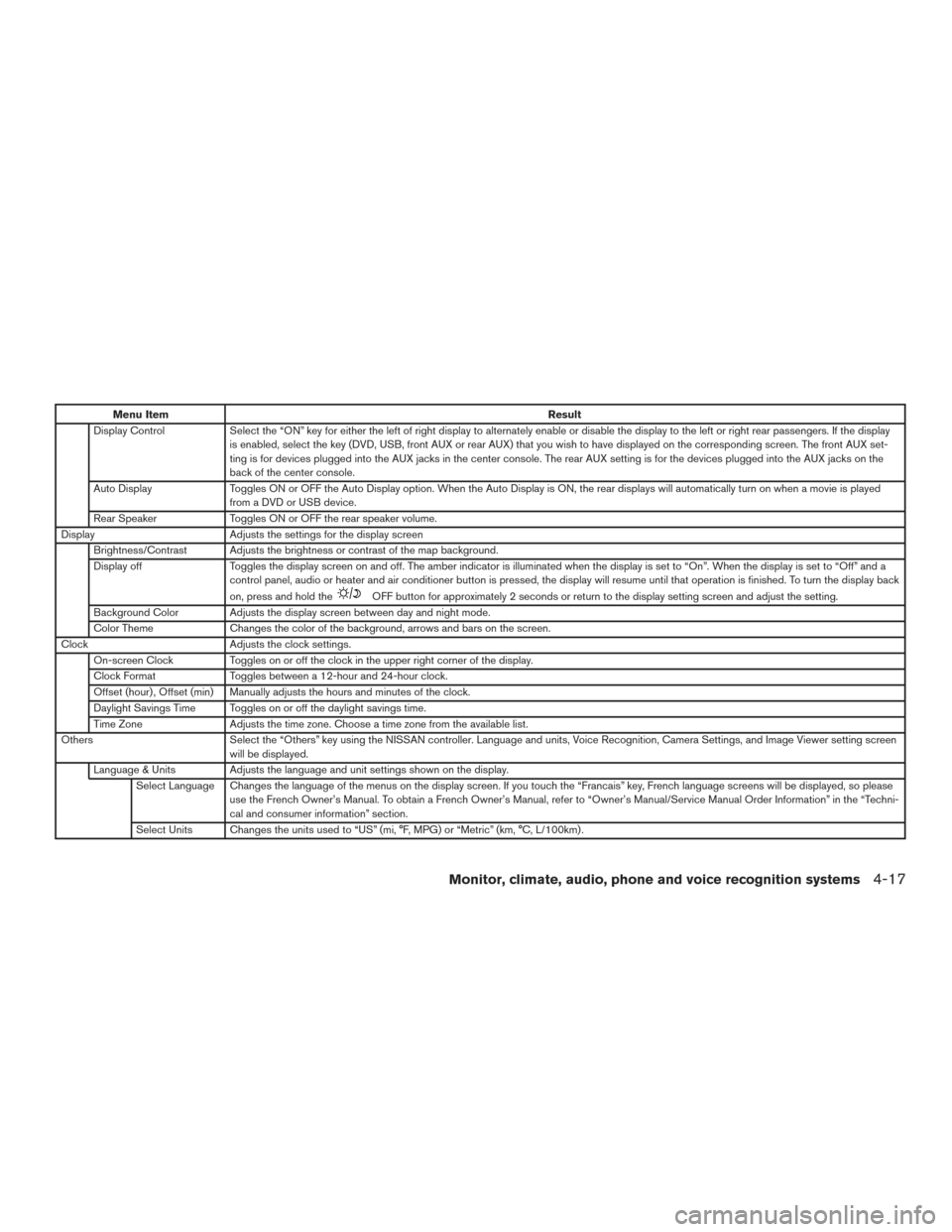
Menu ItemResult
Display Control Select the “ON” key for either the left of right display to alternately enable or disable the display to the left or right rear passengers. If the display
is enabled, select the key (DVD, USB, front AUX or rear AUX) that you wish to have displayed on the corresponding screen. The front AUX set-
ting is for devices plugged into the AUX jacks in the center console. The rear AUX setting is for the devices plugged into the AUX jacks on the
back of the center console.
Auto Display Toggles ON or OFF the Auto Display option. When the Auto Display is ON, the rear displays will automatically turn on when a movie is played
from a DVD or USB device.
Rear Speaker Toggles ON or OFF the rear speaker volume.
Display Adjusts the settings for the display screen
Brightness/Contrast Adjusts the brightness or contrast of the map background.
Display off Toggles the display screen on and off. The amber indicator is illuminated when the display is set to “On”. When the display is set to “Off” and a
control panel, audio or heater and air conditioner button is pressed, the display will resume until that operation is finished. To turn the display bac k
on, press and hold the
OFF button for approximately 2 seconds or return to the display setting screen and adjust the setting.
Background Color Adjusts the display screen between day and night mode.
Color Theme Changes the color of the background, arrows and bars on the screen.
Clock Adjusts the clock settings.
On-screen Clock Toggles on or off the clock in the upper right corner of the display.
Clock Format Toggles between a 12-hour and 24-hour clock.
Offset (hour) , Offset (min) Manually adjusts the hours and minutes of the clock.
Daylight Savings Time Toggles on or off the daylight savings time.
Time Zone Adjusts the time zone. Choose a time zone from the available list.
Others Select the “Others” key using the NISSAN controller. Language and units, Voice Recognition, Camera Settings, and Image Viewer setting screen
will be displayed.
Language & Units Adjusts the language and unit settings shown on the display. Select Language Changes the language of the menus on the display screen. If you touch the “Francais” key, French language screens will be displayed, so please use the French Owner’s Manual. To obtain a French Owner’s Manual, refer to “Owner’s Manual/Service Manual Order Information” in the “Techni-
cal and consumer information” section.
Select Units Changes the units used to “US” (mi, °F, MPG) or “Metric” (km, °C, L/100km) .
Monitor, climate, audio, phone and voice recognition systems4-17
Page 210 of 506
USING THE IMAGE VIEWER
When a compatible portable storage device is
plugged into the USB connection port located in
the center console, compatible image files stored
on the device can be viewed on the control panel
display.
Connecting the portable storage
device
To connect a portable storage device to the sys-
tem so that images stored on it can be viewed,
insert the device into the USB connection port
located in the center console.
Viewing images
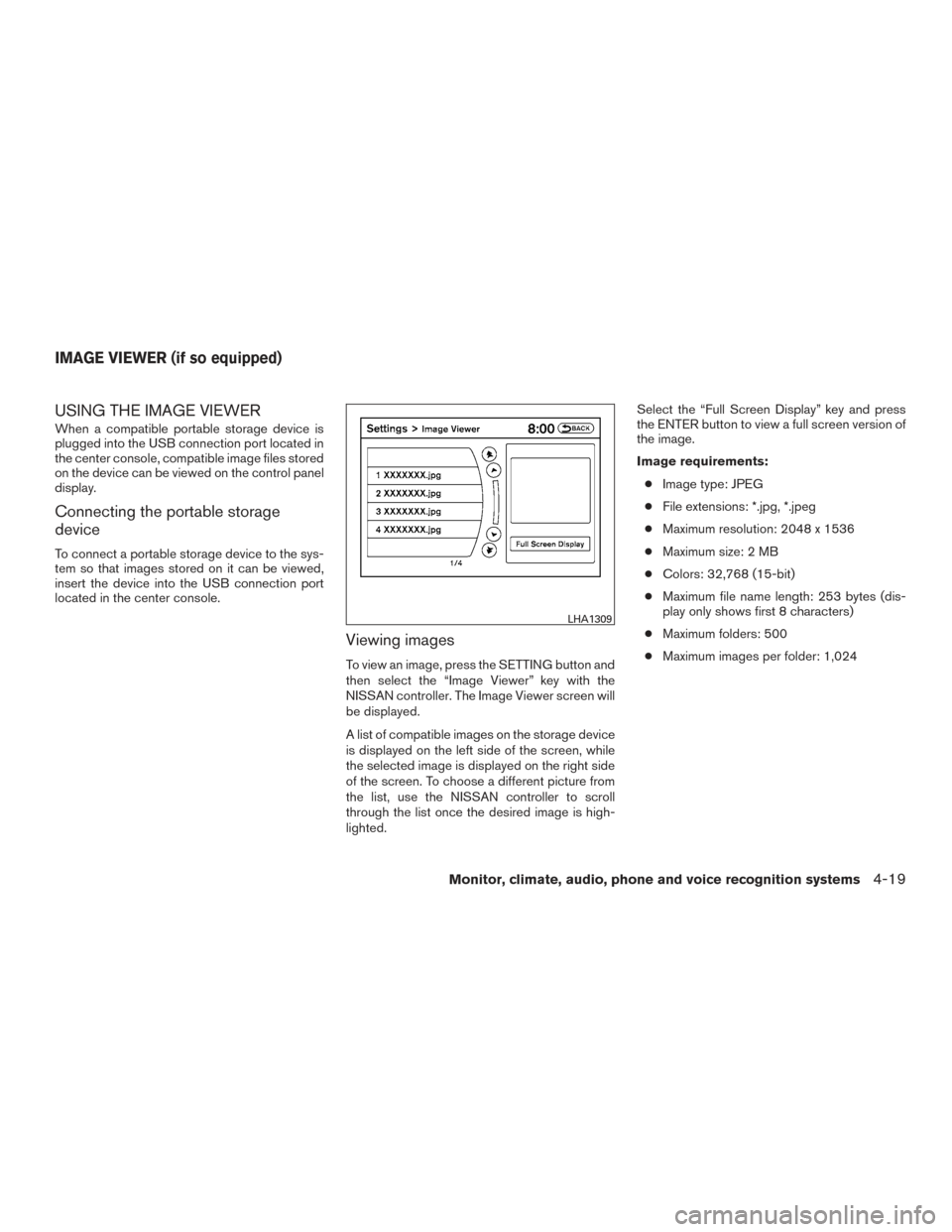
To view an image, press the SETTING button and
then select the “Image Viewer” key with the
NISSAN controller. The Image Viewer screen will
be displayed.
A list of compatible images on the storage device
is displayed on the left side of the screen, while
the selected image is displayed on the right side
of the screen. To choose a different picture from
the list, use the NISSAN controller to scroll
through the list once the desired image is high-
lighted.Select the “Full Screen Display” key and press
the ENTER button to view a full screen version of
the image.
Image requirements:
● Image type: JPEG
● File extensions: *.jpg, *.jpeg
● Maximum resolution: 2048 x 1536
● Maximum size: 2 MB
● Colors: 32,768 (15-bit)
● Maximum file name length: 253 bytes (dis-
play only shows first 8 characters)
● Maximum folders: 500
● Maximum images per folder: 1,024
LHA1309
IMAGE VIEWER (if so equipped)
Monitor, climate, audio, phone and voice recognition systems4-19
Page 234 of 506
Rear control buttons1. OFF button
2.
(fan speed increase) button
3. AUTO button
4.
(temperature increase) button
5.
(temperature decrease) button
6. Display
7.
(fan speed decrease) button The rear seat passengers can adjust the rear
automatic air conditioning system using the con-
trol switches at the rear of the center console.
The rear control buttons do not function when the
Rear Air-conditioning screen is shown on the
front display. To activate the rear control buttons,
press the REAR button on the front air condi-
tioner control panel and switch the screen on the
front display.
● OFF button Turns rear automatic air condi-
tioning system off. ●
Fan speed increase and decrease but-
tons Adjusts the rear fan speed up or down.
● AUTO button Turns rear automatic air con-
ditioning system on, AUTO mode on.
● Temperature increase and decrease
buttons Adjusts the rear temperature up or
down.
OPERATING TIPS
● When the engine coolant temperature and
outside air temperature are low, the air flow
from the foot outlets may not operate for a
maximum of 150 seconds. However, this is
not a malfunction. After the coolant tempera-
ture warms up, air flow from the foot outlets
will operate normally.
Rear Controls
LHA2134
Monitor, climate, audio, phone and voice recognition systems4-43