2015 NISSAN MURANO ECO mode
[x] Cancel search: ECO modePage 145 of 424
matically stop transmitting. Continue to
press and hold the desired HomeLink® but-
ton while you press and re-press (“cycle”)
your hand-held transmitter every 2 seconds
until the frequency signal has been learned.
The HomeLink® indicator light will flash
slowly and then rapidly after several seconds
upon successful training. DO NOT release
until the HomeLink® indicator light flashes
slowly and then rapidly. When the indicator
light flashes rapidly, both buttons may be
released. The rapid flashing indicates suc-
cessful training.
Proceed with “Programming HomeLink®”
step 3 to complete.
If the device was unplugged during the pro-
gramming procedure, remember to plug it
back in when programming is completed.
OPERATING THE HOMELINK®
UNIVERSAL TRANSCEIVER
The HomeLink® Universal Transceiver, after it is
programmed, can be used to activate the pro-
grammed device. To operate, simply press and
release the appropriate programmed
HomeLink® Universal Transceiver button. The
amber indicator light will illuminate while the sig-
nal is being transmitted.
For convenience, the hand-held transmitter of the
device may also be used at any time.
PROGRAMMING TROUBLE-
DIAGNOSIS
If the HomeLink® does not quickly learn the
hand-held transmitter information:● replace the hand-held transmitter batteries
with new batteries.
● position the hand-held transmitter with its
battery area facing away from the
HomeLink® surface.
● press and hold both the HomeLink® and
hand-held transmitter buttons without inter-
ruption.
● position the hand-held transmitter1-3in
(26 - 76 mm) away from the HomeLink®
surface. Hold the transmitter in that position
for up to 15 seconds. If HomeLink® is not
programmed within that time, try holding the
transmitter in another position – keeping the
indicator light in view at all times.
If you have any questions or are having difficulty
programming your HomeLink® buttons, refer to
the HomeLink® web site at: www.homelink.com
or call 1-800-355-3515.
CLEARING THE PROGRAMMED
INFORMATION
The following procedure clears the programmed
information from both buttons. Individual buttons
cannot be cleared. However, individual buttons
can be reprogrammed. For additional informa-
tion, refer to “Reprogramming a single
HomeLink® button” in this section.
To clear all programming: 1. Press and hold the two outer HomeLink® buttons until the indicator light begins to
flash in approximately 10 seconds. Do not
hold for longer than 20 seconds.
2. Release both buttons.
HomeLink® is now in the programming mode
and can be programmed at any time beginning
with “Programming HomeLink®” - Step 1.
2-54Instruments and controls
Page 163 of 424
NOTE:
If you change the answer back horn and
light flash feature with the Intelligent Key,
the vehicle information display screen will
show the current mode after the ignition
switch has been cycled from the OFF to the
ON position. The vehicle information dis-
play screen can also be used to change the
answer back horn mode.
To deactivate:Press and hold the
andbuttonsfor at least 2 seconds.
The hazard warning lights will flash three times to
confirm that the answer back horn feature has
been deactivated.
To activate: Press and hold the
andbuttonsfor at least 2 seconds once
more.
The hazard warning lights will flash once and the
horn will sound once to confirm that the horn
beep feature has been reactivated.
Deactivating the horn beep feature does not si-
lence the horn if the alarm is triggered.
WARNING SIGNALS
To help prevent the vehicle from moving unex-
pectedly by erroneous operation of the Intelligent
Key or to help prevent the vehicle from being
stolen, a chime or buzzer sounds from inside and
outside the vehicle and a warning is displayed in
the instrument panel.
When a chime or beep sounds or a warning is
displayed, be sure to check the vehicle and the
Intelligent Key.
For additional information, refer to the “Trouble-
shooting guide” in this section and “Vehicle infor-
mation display” in the “Instruments and controls”
section of this manual.
3-16Pre-driving checks and adjustments
Page 172 of 424
open or full close position. If a second obstacle is
detected, the liftgate motion will stop and the
liftgate will enter manual mode.
A pinch strip is mounted on each side of the
liftgate. If an obstacle is detected by a pinch strip
during power close, the liftgate will reverse direc-
tion and return to the full open position.
NOTE:
If the pinch strip is damaged or removed,
the power close function will not operate.
WARNING
There are some small distances immedi-
ately before the closed position which
cannot be detected. Make sure that all
passengers have their hands, etc., inside
the vehicle before closing the liftgate.Manual Mode:
If power operation is not available, the liftgate
may be operated manually. Power operation may
not be available if the power liftgate main switch
is in the ON position, if multiple obstacles have
been detected in a single power cycle, or if
battery voltage is low.
If the power liftgate opener switch is pushed
during power open or close, the power operation
will be canceled and the liftgate can be operated
manually.
To open the liftgate manually, press the liftgate
opener switch and lift the liftgate. To close, lower and push the liftgate down se-
curely.
Auto Power Back Door System Battery
Power Saving Mode:
The vehicle goes into power saving mode when
the liftgate is open for a long time (approximately
12 hours) . This is to prevent deterioration of the
battery. The power saving mode automatically
cuts the power supply of the power liftgate door.
When the power to the liftgate is cut off, the
manual mode must be performed. After the
manual mode is performed, the power liftgate
function is restored.
NOTE:
When a battery voltage is lower than ap-
proximately 11V, the power back door may
not operate after automatic return.LPD2297
Pre-driving checks and adjustments3-25 ** Click HERE to see the "Owner's Manual Supplement" beginning on page 2.
**
Page 211 of 424
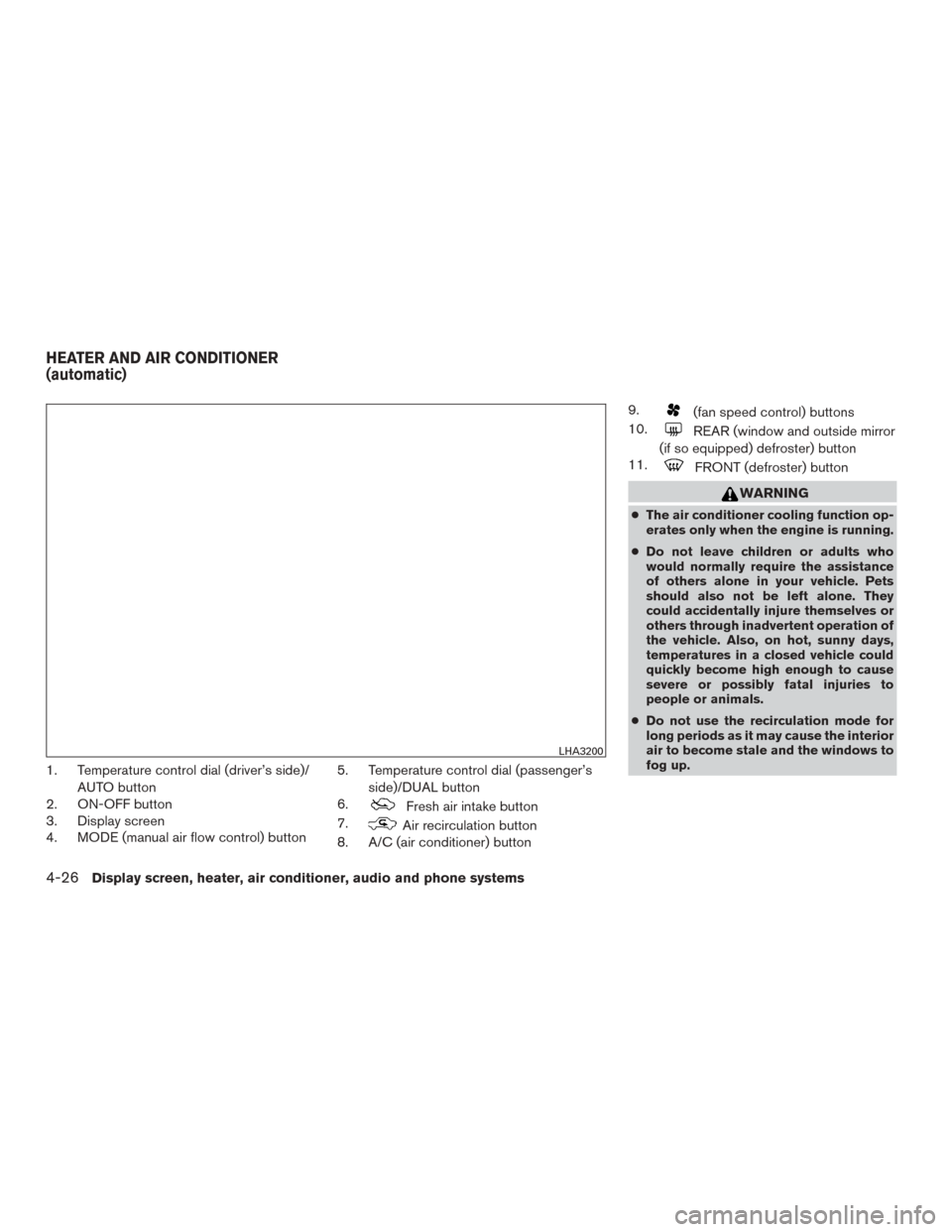
1. Temperature control dial (driver’s side)/AUTO button
2. ON-OFF button
3. Display screen
4. MODE (manual air flow control) button 5. Temperature control dial (passenger’s
side)/DUAL button
6.
Fresh air intake button
7.
Air recirculation button
8. A/C (air conditioner) button 9.
(fan speed control) buttons
10.
REAR (window and outside mirror
(if so equipped) defroster) button
11.
FRONT (defroster) button
WARNING
● The air conditioner cooling function op-
erates only when the engine is running.
● Do not leave children or adults who
would normally require the assistance
of others alone in your vehicle. Pets
should also not be left alone. They
could accidentally injure themselves or
others through inadvertent operation of
the vehicle. Also, on hot, sunny days,
temperatures in a closed vehicle could
quickly become high enough to cause
severe or possibly fatal injuries to
people or animals.
● Do not use the recirculation mode for
long periods as it may cause the interior
air to become stale and the windows to
fog up.
LHA3200
HEATER AND AIR CONDITIONER
(automatic)
4-26Display screen, heater, air conditioner, audio and phone systems
Page 212 of 424
NOTE:● Odors from inside and outside the ve-
hicle can build up in the air conditioner
unit. Odor can enter the passenger
compartment through the vents.
● When parking, set the heater and air
conditioner controls to turn off air re-
circulation to allow fresh air into the
passenger compartment. This should
help reduce odors inside the vehicle.
AUTOMATIC OPERATION
Cooling and/or dehumidified heating
(AUTO)
This mode may be used all year round as the
system automatically works to keep a constant
temperature. Air flow distribution and fan speed
are also controlled automatically.
1. Press the AUTO button on. The indicator on the button will illuminate.
2. Turn the temperature control dial to the left or right to set the desired temperature.
● The temperature of the passenger compart-
ment will be maintained automatically. Air
flow distribution and fan speed are also con-
trolled automatically. ●
A visible mist may be seen coming from the
vents in hot, humid conditions as the air is
cooled rapidly. This does not indicate a mal-
function.
3. You can individually set driver’s and front passenger’s side temperature using each
temperature control dial. When the DUAL
button is pressed or passenger’s side tem-
perature dial is turned, the DUAL indicator
will come on. To turn off the passenger’s
side temperature control, press the DUAL
button.
Heating (A/C OFF)
The air conditioner does not activate. When you
need to heat only, use this mode.
1. Press the AUTO button. The indicator light comes on.
2. Turn the temperature control dial to set the desired temperature.
● The temperature of the passenger compart-
ment will be maintained automatically. Air
flow distribution and fan speed are also con-
trolled automatically.
● Do not set the temperature lower than the
outside air temperature. Otherwise, the sys-
tem may not work properly. ●
Not recommended if windows fog up.
Dehumidified defrosting or defogging
1. Press thefront defroster button on.
The indicator light on the button will come
on.
2. Turn the temperature control dial to set the maximum temperature to aid in defrosting or
defogging.
● To quickly remove ice from the outside of the
windows, use the fan speed control buttons
to set the fan speed to maximum.
● As soon as possible after the windshield is
clean, press the AUTO button to return to
the automatic mode.
Display screen, heater, air conditioner, audio and phone systems4-27
Page 213 of 424
●When thefront defroster button is
pressed, the air conditioner will automati-
cally be turned on at outside temperatures
above 36°F (2°C) . The air recirculate mode
automatically turns off, allowing outside air
to be drawn into the passenger compart-
ment to further improve the defogging per-
formance. When the air recirculate mode
automatically turns off, the air fresh mode will
automatically turn on.
Remote engine start logic (if so
equipped)
Vehicles equipped with automatic climate con-
trols and remote start function may go into auto-
matic heating or cooling mode when remote start
is activated depending on outside and cabin tem-
peratures. Automatic temperature depends on
outside and cabin temperatures. During this pe-
riod, the climate control display and buttons will
be inoperable until ignition switch is turned on.
MANUAL OPERATION
Fan speed control
Press the fan speed control buttonsto
manually control the fan speed.
Press the AUTO button to return to automatic
control of the fan speed.
Air recirculation
Press theair recirculation button to recir-
culate interior air inside the vehicle. The
indicator light on the button will come on.
The air recirculation cannot be activated when
the air conditioner is in the
front defrosting
mode.
Fresh air intake
Press thefresh air intake button to draw
outside air into the passenger compartment.
Air flow control
Pressing the MODE button manually controls air
flow and selects the air outlet:
— Air flows mainly from center and
side vents.
— Air flows mainly from center andside vents and foot outlets.
— Air flows mainly from foot outletsand partly from defroster.
— Air flows mainly from defrosterand foot outlets.
To turn system off
Press the ON-OFF button.
Rear window and outside mirror (if so
equipped) defroster button
For additional information, refer to “Rear window
and outside mirror (if so equipped) defroster
switch” in the “Instruments and controls” section
of this manual.
OPERATING TIPS
●When the engine coolant temperature and
outside air temperature are low, the air flow
from the foot outlets may not operate for a
maximum of 150 seconds. However, this is
not a malfunction. After the coolant tempera-
ture warms up, air flow from the foot outlets
will operate normally.
● Keep the moonroof (if so equipped) closed
while the air conditioner is in operation.
● If you feel that the air flow mode you have
selected and the outlets the air is coming out
do not match, select the
mode.
● When you change the air flow mode, you
may feel air flow from the feet vents for just a
moment. This is not a malfunction.
4-28Display screen, heater, air conditioner, audio and phone systems
Page 221 of 424
USB (Universal Serial Bus)
Connection Port
WARNING
Do not connect, disconnect, or operate the
USB device while driving. Doing so can be
a distraction. If distracted you could lose
control of your vehicle and cause an acci-
dent or serious injury.
CAUTION
●Do not force the USB device into the
USB port. Inserting the USB device
tilted or up-side-down into the port may
damage the port. Make sure that the
USB device is connected correctly into
the USB port.
● Do not grab the USB port cover (if so
equipped) when pulling the USB device
out of the port. This could damage the
port and the cover.
● Do not leave the USB cable in a place
where it can be pulled unintentionally.
Pulling the cable may damage the port.
The vehicle is not equipped with a USB device.
USB devices should be purchased separately as
necessary. This system cannot be used to format USB de-
vices. To format a USB device, use a personal
computer.
In some jurisdictions, the USB device for the front
seats plays only sound without images for regu-
latory reasons, even when the vehicle is parked.
This system supports various USB connection
port devices, USB hard drives and iPod® play-
ers. Some USB devices may not be supported by
this system.
● Partitioned USB devices may not play cor-
rectly.
● Some characters used in other languages
(Chinese, Japanese, etc.) may not appear
properly in the display. Using English lan-
guage characters with a USB device is rec-
ommended.
● Not all Android devices are supported for
USB audio.
● For Apple products, only Apple or Apple
certified USB cables are supported. Some
aftermarket cables may not be supported.
General notes for USB use ● Refer to your device manufacturer’s owner
information regarding the proper use and
care of the device. Notes for iPod® use
iPod® is a trademark of Apple Inc., registered in
the U.S. and other countries.
● Improperly plugging in the iPod® may cause
a checkmark to be displayed on and off
(flickering) . Always make sure that the
iPod® is connected properly.
● An iPod® nano (1st Generation) may remain
in fast forward or rewind mode if it is con-
nected during a seek operation. In this case,
please manually reset the iPod®.
● An iPod® nano (2nd Generation) will con-
tinue to fast-forward or rewind if it is discon-
nected during a seek operation.
● An incorrect song title may appear when the
Play Mode is changed while using an iPod®
nano (2nd Generation) .
● Audiobooks may not play in the same order
as they appear on an iPod®.
● Large video files cause slow responses in an
iPod®. The vehicle center display may mo-
mentarily black out, but will soon recover.
● If an iPod® automatically selects large video
files while in the shuffle mode, the vehicle
center display may momentarily black out,
but will soon recover.
4-36Display screen, heater, air conditioner, audio and phone systems
Page 224 of 424
Audio main operation
(power) button / VOL (volume) con-trol knob
Place the ignition switch in the ACC or ON position
and press the
(power) button while the sys-
tem is off to call up the mode (radio, CD, AUX,
Bluetooth® audio, USB or iPod®) that was playing
immediately before the system was turned off.
To turn the system off, press the(power)
button.
Turn the VOL (volume) control knob to adjust the
volume.
This vehicle may be equipped with Speed Sen-
sitive Volume. When this feature is active, the
audio volume changes as the driving speed
changes. ENTER/SETTING button
Press the ENTER/SETTING button to show the
Settings screen on the display. Turn the TUNE-
SCROLL knob to navigate the options and then
press the ENTER button to make a selection.
Settings
Bluetooth For additional information on Bluetooth settings, refer to “Bluetooth® Hands-Free Phone System without Navi- gation System” in this section.
Bass Adjusts the bass to the desired level.
Treble Adjusts the treble to the desired level.
Balance Adjusts the balance to the desired level. Balance adjusts the sound level between the left and right speakers.
Fade Adjusts the fade to the desired level. Fade adjusts the sound level between the front and rear speakers.
Brightness Adjust the brightness to adjust the appearance of the display screen.
Contrast Adjust the contrast to adjust the appearance of the display screen.
Clock adjust Press the ENTER/SETTING button to highlight the hours or minutes and then use the TUNE/FOLDER knob to adjust the value. Press the ENTER/SETTING button again to set the value.
On-Screen Clock Toggles ON or OFF the clock display on the upper right corner of the display screen.
RDS Display Toggles ON or OFF the RDS information displayed on the screen while the radio is playing.
Speed Sens Vol. (Speed Sensitive Volume) Adjusts the speed sensitive volume function, which increases the volume of the audio system as the speed of the vehicle increases. Set to “OFF” to disable the feature. The higher the setting, the more the volume in-
creases in relation to vehicle speed.
AUX Vol. Choose a setting from 0 to +3 to control the boost of incoming auxiliary device volume. A setting of 0 provides no additional boost in volume. A setting of +3 provides the greatest boost in volume.
Language select Select the desired language for the system from the available options.
Bass, treble, balance and fade can also be adjusted by pressing the ENTER/SETTING button and turning the TUNE-SCROLL control knob to select the item
to adjust. When the desired item is shown on the display, turn the tuning to adjust and then press the ENTER/SETTING button until the display returns to
the main audio screen. If the button is not pressed for approximately 10 seconds, the radio or CD display will automatically reappear.
Display screen, heater, air conditioner, audio and phone systems4-39