Page 20 of 466
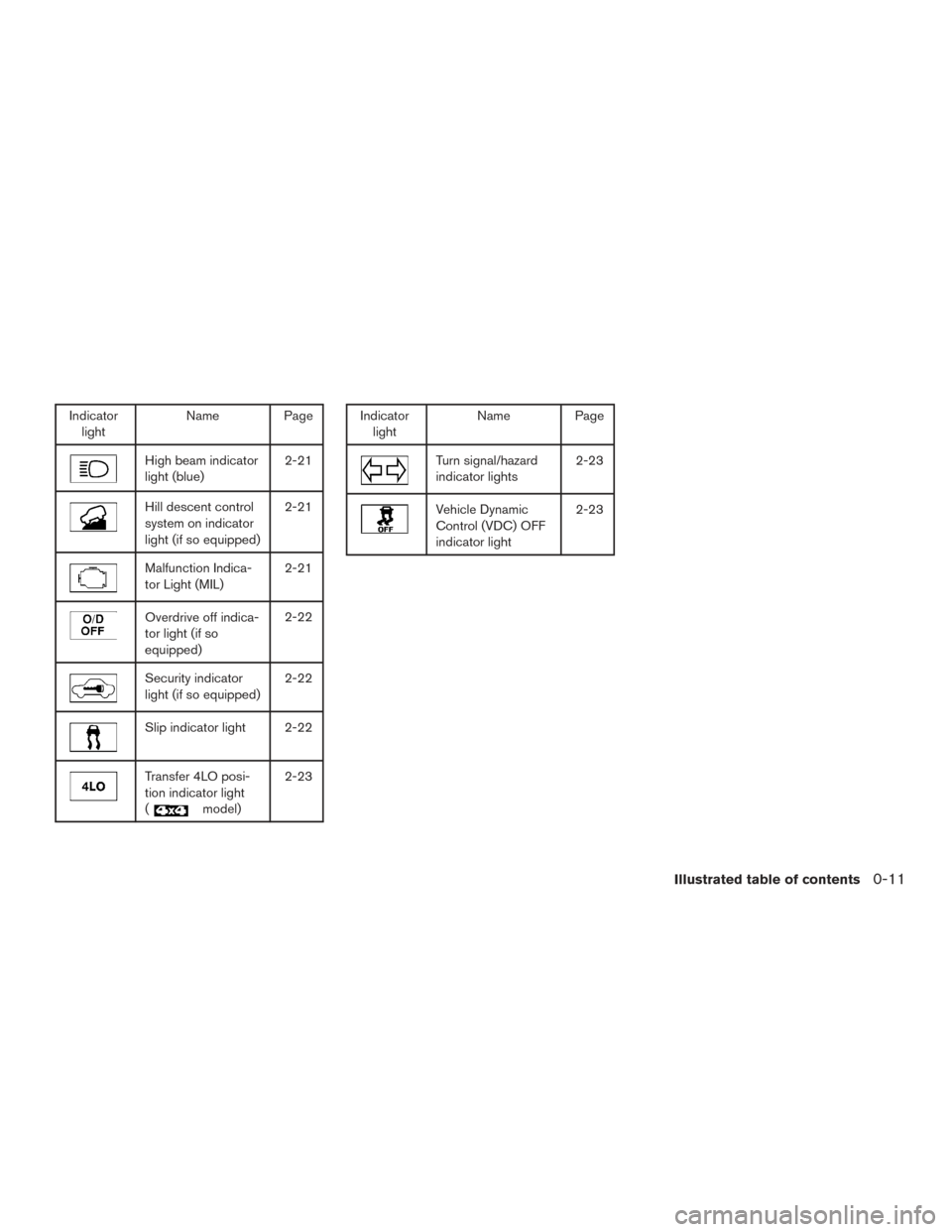
Indicatorlight Name Page
High beam indicator
light (blue) 2-21
Hill descent control
system on indicator
light (if so equipped)2-21
Malfunction Indica-
tor Light (MIL)
2-21
Overdrive off indica-
tor light (if so
equipped)2-22
Security indicator
light (if so equipped)
2-22
Slip indicator light 2-22
Transfer 4LO posi-
tion indicator light
(
model)2-23
Indicator
light Name Page
Turn signal/hazard
indicator lights 2-23
Vehicle Dynamic
Control (VDC) OFF
indicator light2-23
Illustrated table of contents0-11
Page 197 of 466
Touch-screen operation
Menu ItemResult
Selecting the item Touch an item to select . To select the “Audio” key, touch the “Audio” key
�1on the screen. Press the BACK button to return to
the previous screen.
Adjusting the item Touch the “+” key or the “�” key to adjust the settings of an item. Touch the up arrow to scroll up the page one item at a time,
or touch the double up arrow to scroll up an entire page. Touch the down arrow to scroll down the page one item at a time, or
touch the double down arrow to scroll down an entire page.
Inputting characters Touch the letter or number key. There are some options available when inputting characters.
123/ABC Changes the available character set to numbers.
Space Inserts a space.
Delete Deletes the last inputted character with one touch. Touch and hold the “Delete” key to delete all of the characters.
OK Completes the character input.
LHA2916
4-6Monitor, climate, audio, phone and voice recognition systems
Page 270 of 466
the following groups: three-digit area code,
three-digit prefix and the last 4 digits. For
example, 555-121-3354 can be said as
“five five five” as the 1st group, then “one two
one” as the 2nd group, and “three three five
four” as the 3rd group. For dialing more than
10 digits or any special characters, say
“Special Number”. For additional informa-
tion, refer to “How to say numbers” in this
section.
5. When you have finished speaking the phone number, the system repeats it back and an-
nounces the available commands.
6. Say: “Dial”
�D. The system acknowledges
the command and makes the call.
For additional command options, refer to “List of
voice commands” in this section.
Receiving a call
When you hear the ring tone, press thebutton on the steering wheel.
Once the call has ended, press the
button
on the steering wheel. NOTE:
If you do not wish to take the call when you
hear the ring tone, press the
button
on the steering wheel.
For additional command options, refer to “List of
voice commands” in this section.
LIST OF VOICE COMMANDS
Main Menu
“Call”
“Phonebook”
“Recent Calls”
“Connect Phone”
“Help”
When you press and release thebutton on
the steering wheel, you can choose from the
commands on the Main Menu. The following
pages describe these commands and the com-
mands in each sub-menu.
Remember to wait for the tone before
speaking.
After the main menu, you can say “Help” to hear
the list of commands currently available any time
the system is waiting for a response. If you want to end an action without completing it,
you can say “Cancel” or “Quit” at any time the
system is waiting for a response. The system will
end the VR session. Whenever the VR session is
cancelled, a double beep is played to indicate
you have exited the system.
If you want to go back to the previous command,
you can say “Go back” or “Correction” any time
the system is waiting for a response.
“Call”
Main Menu
“Call” (Speak name)
�A
“Phone Number”(Speak Digits)
�B
“Special Number”�C
“Redial”�D
“Call Back”�E
(Speak name)�A
If you have stored entries in the phonebook, you
can dial a number associated with a name.
For additional information, refer to “Phonebook”
in this section.
Monitor, climate, audio, phone and voice recognition systems4-79
Page 298 of 466
●Dial Number
Allows for up to 24 digits to be dialed. After
the number is entered, say “Dial” to initiate
dialing. Say “Correction” to correct the num-
ber entered. Say “Go Back” to return to the
main menu.
● List Phonebook
Starting with the first alphabetical entry in
the vehicle phonebook, the system prompts
for an additional command. Say “Dial” to call
the number of the phonebook entry. Say
“Send Text” to send a text message to the
number of the phonebook entry. Say “Next
Entry” to skip to the next alphabetical entry in
the vehicle phonebook, where the same op-
tions will then be available.
● Recent Calls
The system prompts for an additional com-
mand. Say “Missed Calls”, “Incoming Calls”
or “Outgoing Calls” to display a list of such
calls on the screen.
Speak the number of the entry displayed on
the screen to dial that number or say “Next
Page” to view entries on the next page (if
available) .
● Redial
Redials the last called number. ●
Read Text
Reads an incoming text message. For addi-
tional information about text messaging with
the Bluetooth® Hands-Free Phone System,
refer to “Bluetooth® Hands-Free Phone
System with Navigation System” in this sec-
tion.
● Send Text
Sends a text message. For additional infor-
mation about text messaging with the
Bluetooth® Hands-Free Phone System, re-
fer to “Bluetooth® Hands-Free Phone Sys-
tem with Navigation System” in this section.
● Select Phone
The system replies “Please use manual con-
trols to continue”. Use manual controls to
change the active phone from among the
listed phones connected to the vehicle.
For additional information about the Bluetooth®
Hands-Free Phone System, refer to “Bluetooth®
Hands-Free Phone System with Navigation Sys-
tem” in this section.NAVIGATION SYSTEM VOICE
COMMANDS
The following voice commands are available for
the Navigation System: ● Street Address (address)
● Points of Interest (name)
● POI by Category
● Home
● Address Book
● Previous Destinations
● Enter Address in Steps
● Cancel Route
For additional information, refer to the separate
Navigation System Owner’s Manual.
AUDIO SYSTEM VOICE
COMMANDS
To access the audio system voice commands: 1. Press the button.
2. Say “Audio”
Monitor, climate, audio, phone and voice recognition systems4-107
Page 315 of 466
CAUTION
●Except in an emergency, do not shift to
the N (Neutral) position while driving.
Coasting with the transmission in the N
(Neutral) position may cause serious
damage to the transmission.
● When stopping the vehicle on an uphill
grade, do not hold the vehicle by de-
pressing the accelerator pedal. The foot
brake should be used for this purpose.
The automatic transmission in your vehicle is
electronically controlled to produce maximum
power and smooth operation.
The recommended operating procedures for this
transmission are shown on the following pages.
Follow these procedures for maximum vehicle
performance and driving enjoyment.
Starting the vehicle
1. After starting the engine, fully depress the foot brake pedal before moving the shift
lever out of the P (Park) position.
2. Keep the foot brake pedal depressed and move the shift lever into a driving gear.
3. Release the foot brake, then gradually start the vehicle in motion. The automatic transmission is designed so
the foot brake pedal MUST be depressed
before shifting from P (Park) to any drive
position while the ignition switch is in the
ON position.
The shift lever cannot be moved out of the
P (Park) position and into any of the other
gear positions if the ignition switch is
placed in the LOCK or OFF position.
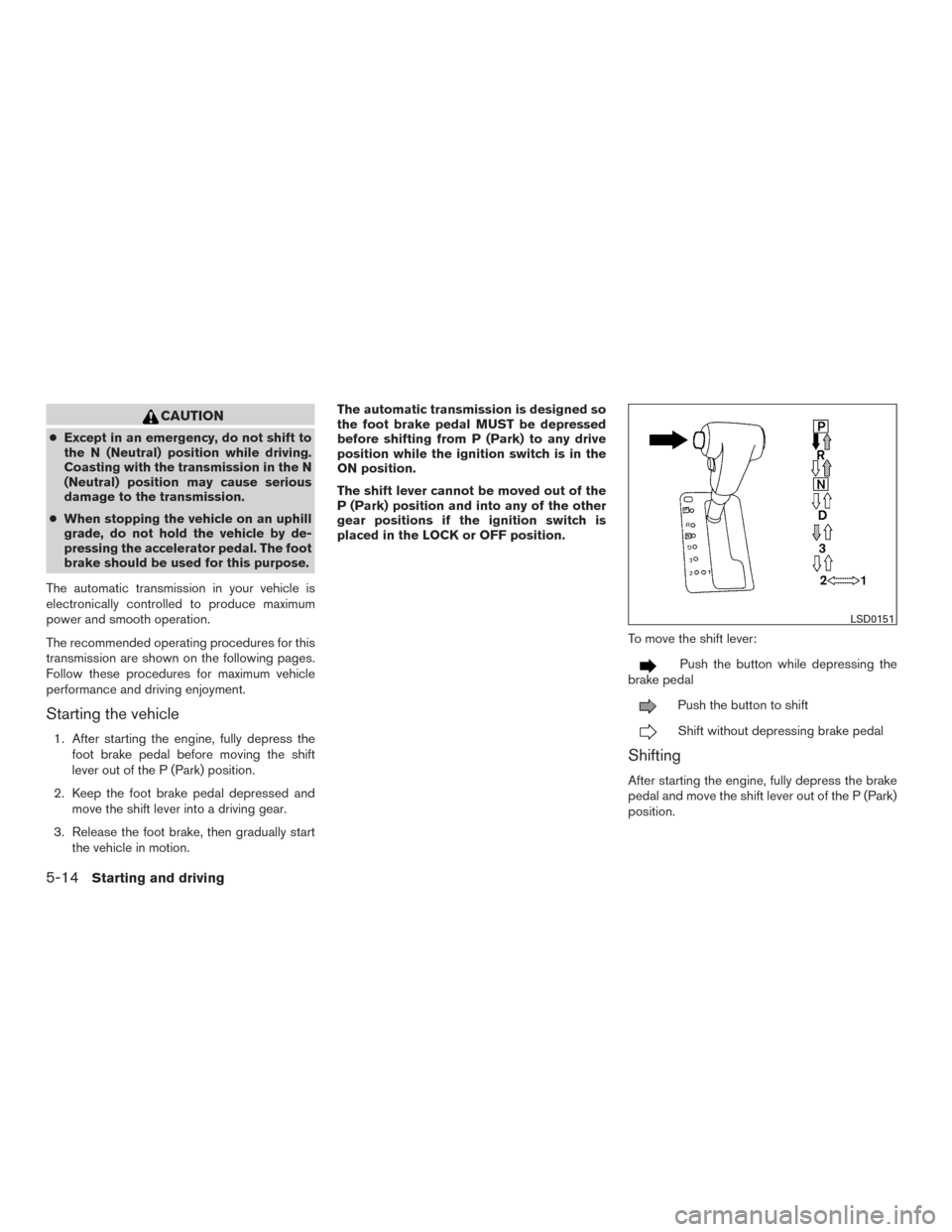
To move the shift lever:
Push the button while depressing the
brake pedal
Push the button to shift
Shift without depressing brake pedal
Shifting
After starting the engine, fully depress the brake
pedal and move the shift lever out of the P (Park)
position.
LSD0151
5-14Starting and driving