Page 277 of 510
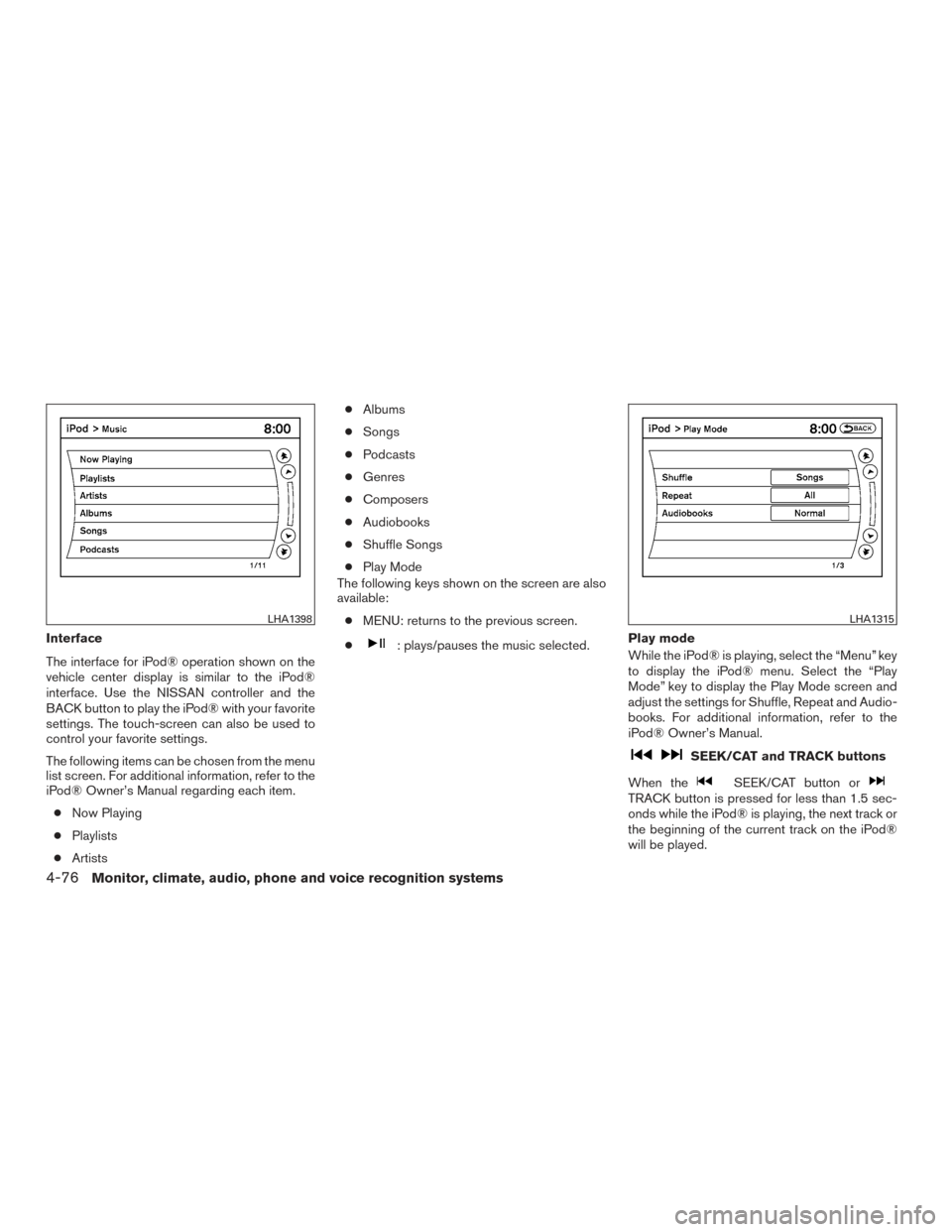
Interface
The interface for iPod® operation shown on the
vehicle center display is similar to the iPod®
interface. Use the NISSAN controller and the
BACK button to play the iPod® with your favorite
settings. The touch-screen can also be used to
control your favorite settings.
The following items can be chosen from the menu
list screen. For additional information, refer to the
iPod® Owner’s Manual regarding each item.● Now Playing
● Playlists
● Artists ●
Albums
● Songs
● Podcasts
● Genres
● Composers
● Audiobooks
● Shuffle Songs
● Play Mode
The following keys shown on the screen are also
available:
● MENU: returns to the previous screen.
●: plays/pauses the music selected. Play mode
While the iPod® is playing, select the “Menu” key
to display the iPod® menu. Select the “Play
Mode” key to display the Play Mode screen and
adjust the settings for Shuffle, Repeat and Audio-
books. For additional information, refer to the
iPod® Owner’s Manual.
SEEK/CAT and TRACK buttons
When the
SEEK/CAT button orTRACK button is pressed for less than 1.5 sec-
onds while the iPod® is playing, the next track or
the beginning of the current track on the iPod®
will be played.
LHA1398LHA1315
4-76Monitor, climate, audio, phone and voice recognition systems
Page 278 of 510
When theSEEK/CAT button orTRACK button is pressed for more than 1.5 sec-
onds while the iPod® is playing, the iPod® will
play while fast forwarding or rewinding. When the
button is released, the iPod® will return to the
normal play speed.
The NISSAN controller can also be used to se-
lect tracks when the iPod® is playing.Scrolling menus
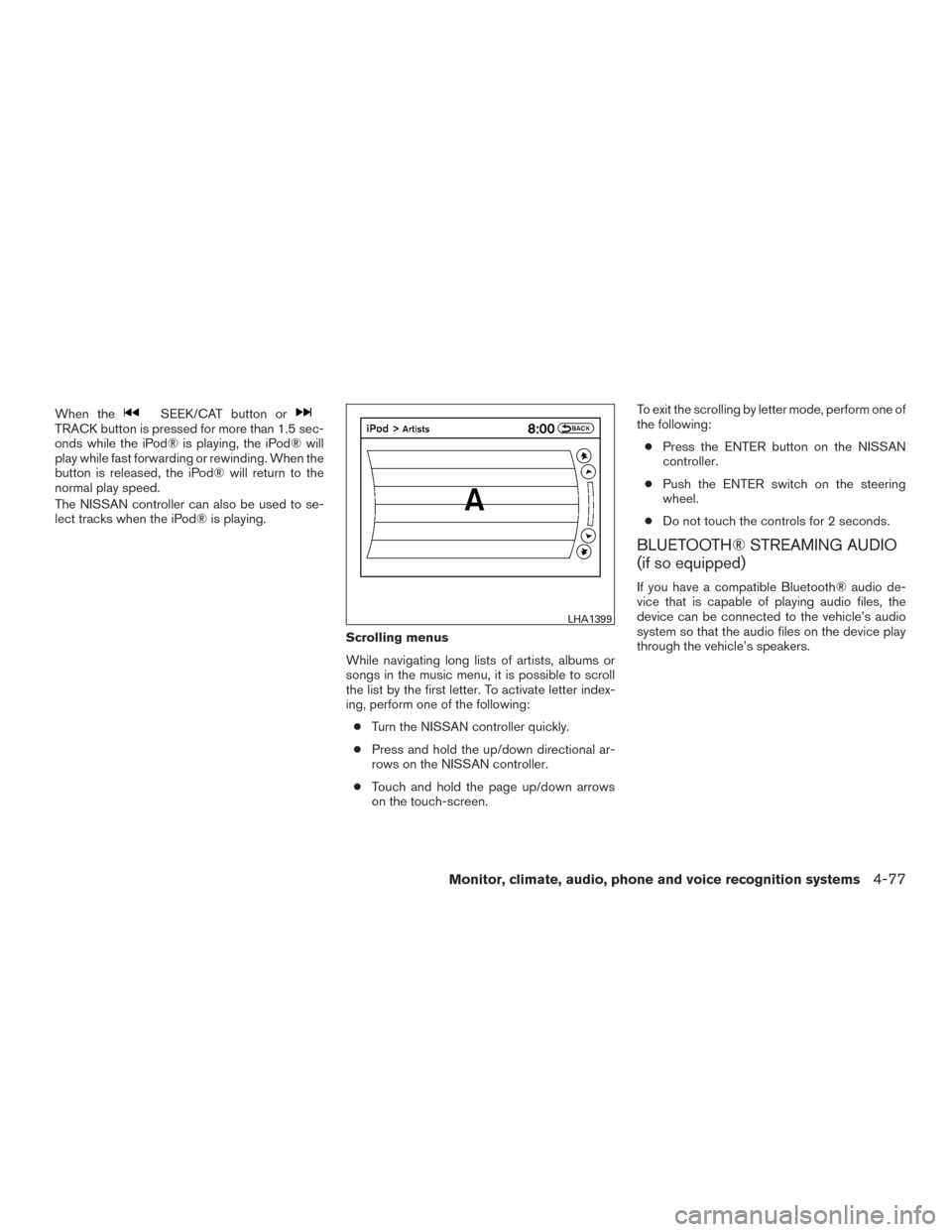
While navigating long lists of artists, albums or
songs in the music menu, it is possible to scroll
the list by the first letter. To activate letter index-
ing, perform one of the following:● Turn the NISSAN controller quickly.
● Press and hold the up/down directional ar-
rows on the NISSAN controller.
● Touch and hold the page up/down arrows
on the touch-screen. To exit the scrolling by letter mode, perform one of
the following:
● Press the ENTER button on the NISSAN
controller.
● Push the ENTER switch on the steering
wheel.
● Do not touch the controls for 2 seconds.
BLUETOOTH® STREAMING AUDIO
(if so equipped)
If you have a compatible Bluetooth® audio de-
vice that is capable of playing audio files, the
device can be connected to the vehicle’s audio
system so that the audio files on the device play
through the vehicle’s speakers.
LHA1399
Monitor, climate, audio, phone and voice recognition systems4-77
Page 279 of 510
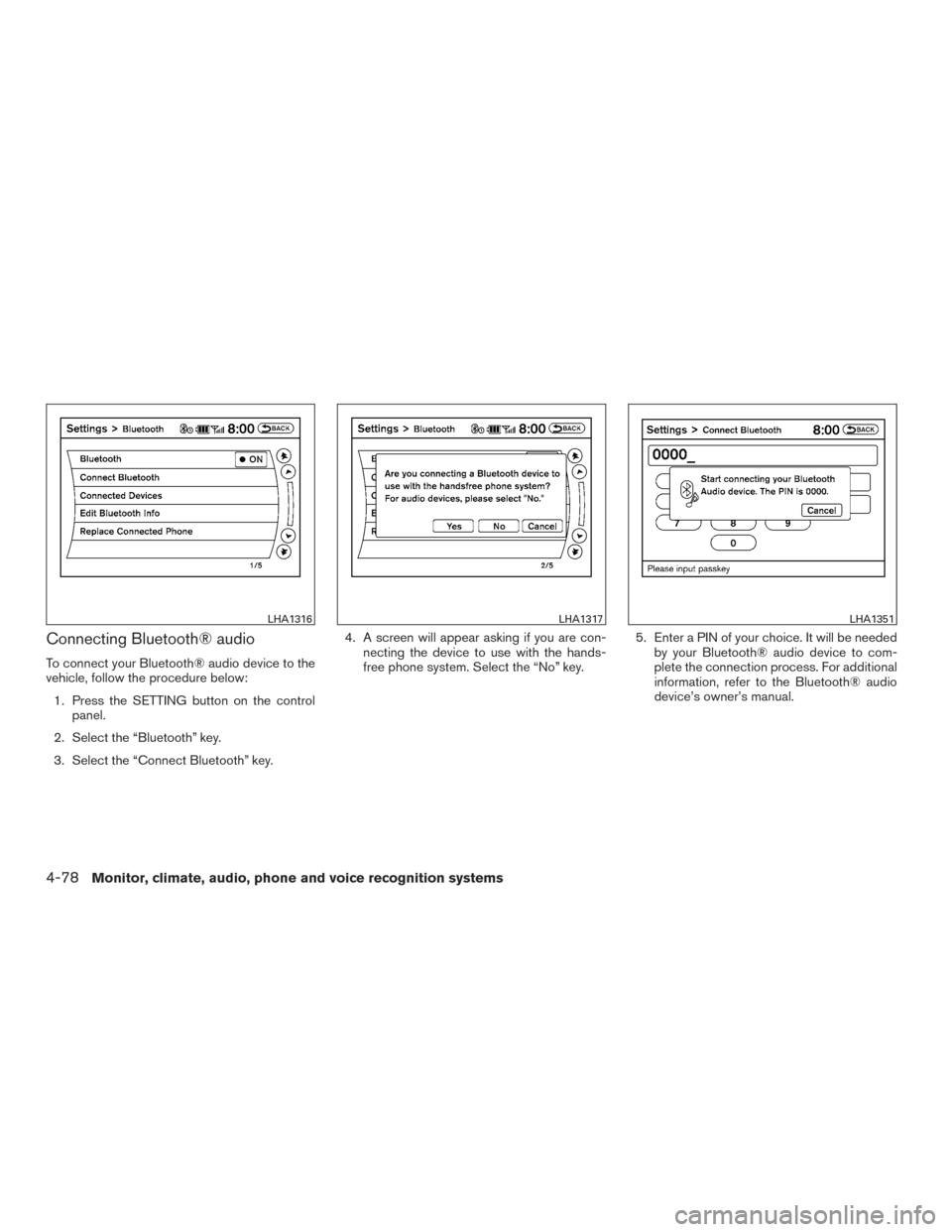
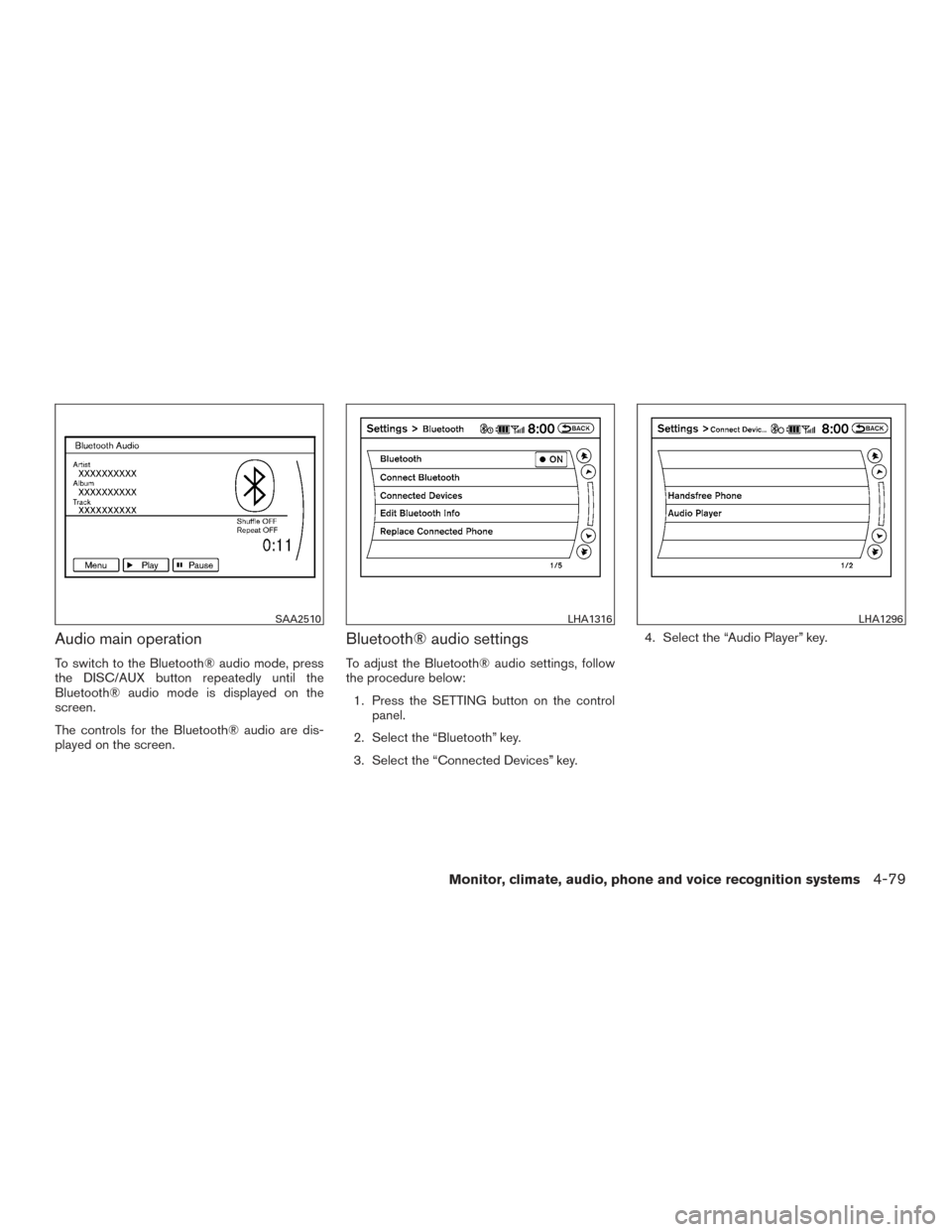
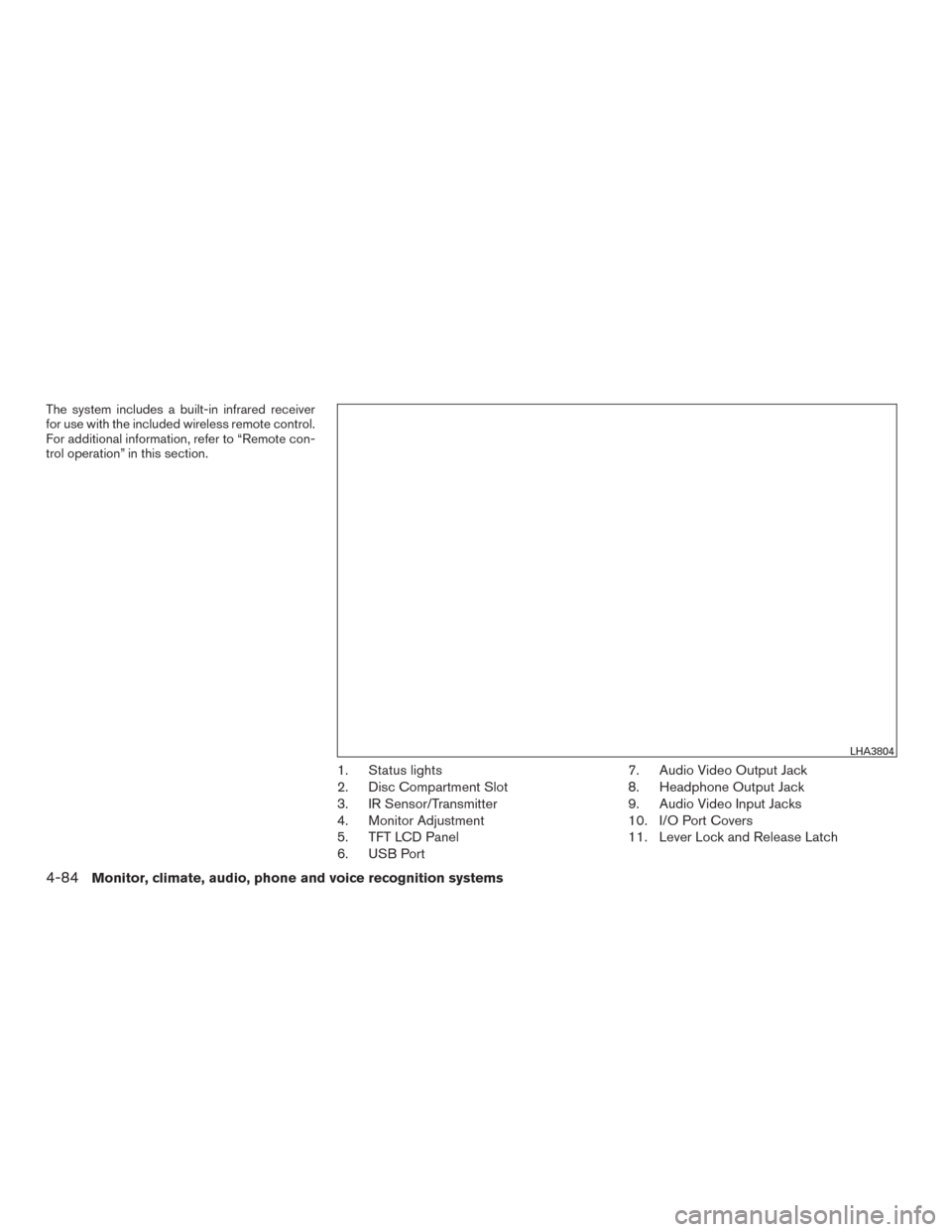
Connecting Bluetooth® audio
To connect your Bluetooth® audio device to the
vehicle, follow the procedure below:1. Press the SETTING button on the control panel.
2. Select the “Bluetooth” key.
3. Select the “Connect Bluetooth” key. 4. A screen will appear asking if you are con-
necting the device to use with the hands-
free phone system. Select the “No” key. 5. Enter a PIN of your choice. It will be needed
by your Bluetooth® audio device to com-
plete the connection process. For additional
information, refer to the Bluetooth® audio
device’s owner’s manual.
LHA1316LHA1317LHA1351
4-78Monitor, climate, audio, phone and voice recognition systems
Page 280 of 510
Audio main operation
To switch to the Bluetooth® audio mode, press
the DISC/AUX button repeatedly until the
Bluetooth® audio mode is displayed on the
screen.
The controls for the Bluetooth® audio are dis-
played on the screen.
Bluetooth® audio settings
To adjust the Bluetooth® audio settings, follow
the procedure below:1. Press the SETTING button on the control panel.
2. Select the “Bluetooth” key.
3. Select the “Connected Devices” key. 4. Select the “Audio Player” key.
SAA2510LHA1316LHA1296
Monitor, climate, audio, phone and voice recognition systems4-79
Page 282 of 510
●A new disc may be rough on the inner and
outer edges. Remove the rough edges by
rubbing the inner and outer edges with the
side of a pen or pencil as illustrated.
STEERING WHEEL SWITCH FOR
AUDIO CONTROL
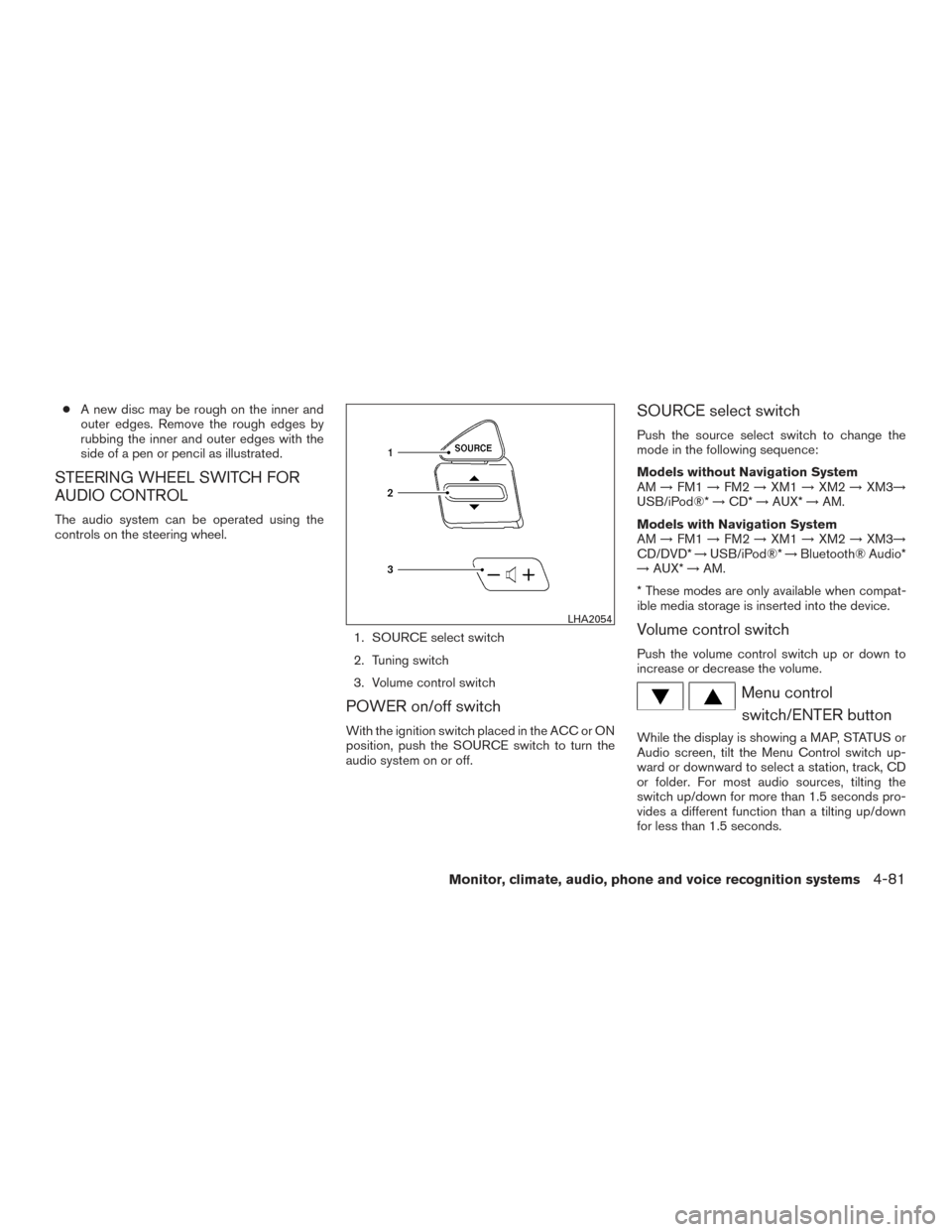
The audio system can be operated using the
controls on the steering wheel.
1. SOURCE select switch
2. Tuning switch
3. Volume control switch
POWER on/off switch
With the ignition switch placed in the ACC or ON
position, push the SOURCE switch to turn the
audio system on or off.
SOURCE select switch
Push the source select switch to change the
mode in the following sequence:
Models without Navigation System
AM→FM1 →FM2 →XM1 →XM2 →XM3→
USB/iPod®* →CD* →AUX* →AM.
Models with Navigation System
AM →FM1 →FM2 →XM1 →XM2 →XM3→
CD/DVD* →USB/iPod®* →Bluetooth® Audio*
→ AUX* →AM.
* These modes are only available when compat-
ible media storage is inserted into the device.
Volume control switch
Push the volume control switch up or down to
increase or decrease the volume.
Menu control switch/ENTER button
While the display is showing a MAP, STATUS or
Audio screen, tilt the Menu Control switch up-
ward or downward to select a station, track, CD
or folder. For most audio sources, tilting the
switch up/down for more than 1.5 seconds pro-
vides a different function than a tilting up/down
for less than 1.5 seconds.
LHA2054
Monitor, climate, audio, phone and voice recognition systems4-81
Page 283 of 510
AM and FM● Tilt up/down for less than 1.5 seconds to
increase or decrease the preset station.
● Tilt up/down for more than 1.5 seconds to
seek up or down to the next station.
● Press the ENTER button to show the list of
preset stations.
XM ● Tilt up/down for less than 1.5 seconds to
increase or decrease the preset station.
● Tilt up/down for more than 1.5 seconds to
go to the next or previous category.
● Press the ENTER button to show the XM
Menu.
iPod® ● Tilt up/down for less than 1.5 seconds to
increase or decrease the track number.
● Press the ENTER button to show the iPod
Menu. CD
● Tilt up/down for less than 1.5 seconds to
increase or decrease the track number.
● Tilt up/down for more than 1.5 seconds to
increase or decrease the folder number (if
playing compressed audio files) .
● Press the ENTER button to show the CD
Menu.
DVD (if so equipped) ● Tilt up/down for less than 1.5 seconds to
increase or decrease the track number.
● Tilt up/down for more than 1.5 seconds to
increase or decrease the title number.
● Press the ENTER button to select an item
from the DVD display.
● When the transparent operation menu ap-
pears, the switch will control the menu.
USB ● Tilt up/down for less than 1.5 seconds to
increase or decrease the track number.
● Tilt up/down for more than 1.5 seconds to
increase or decrease the folder number.
● Press the ENTER button to show the USB
Menu. Bluetooth® Audio (if so equipped)
● Tilt up/down for less than 1.5 seconds to
increase or decrease the track number.
AUX ● Press the ENTER button to show the AUX
Menu.
ANTENNA
Window antenna
The antenna pattern is printed inside the rear
passenger and driver side windows.
CAUTION
● Do not place metalized film near the
rear driver or passenger side window
glass or attach any metal parts to it. This
may cause poor reception or noise.
● When cleaning the inside of the rear
driver or passenger side window, be
careful not to scratch or damage the
window antenna. Lightly wipe along the
antenna with a dampened soft cloth.
4-82Monitor, climate, audio, phone and voice recognition systems
Page 284 of 510
WARNING
●The Mobile Entertainment System is
designed for rear seat passenger view-
ing only.
● It is unlawful in most jurisdictions for a
person to drive a motor vehicle which is
equipped with a television viewer or
screen that is located in the motor ve-
hicle at any point forward of the back of
the driver’s seat, or that is visible, di-
rectly or indirectly, to the driver while
operating the vehicle.
● In the interest of safety, the monitors
should never be installed where they
will be visible, directly or indirectly, by
the operator of the motor vehicle.
● If your vehicle is equipped with a wire-
less rear seat audio system or any other
wireless infrared device, make sure it is
powered off when operating the Rear
Seat Entertainment System. If both sys-
tems are powered on at the same time,
the two systems may obstruct each
other, possibly creating undesirable au-
dio interference through the wireless
headphones. ●
For safety reasons, when changing
video discs it is recommended that the
vehicle is not in motion, and that you do
not allow children to unfasten safety
belts to change discs or make any ad-
justments to the system. System adjust-
ments can be accomplished using the
remote control unit, while safety belts
remain fastened.
CAUTION
● Be sure to run the vehicle engine while
using the system. Using this system
without running the engine can result in
a battery drain. To avoid the risk of
battery drain, please remember to turn
off the system when the vehicle is not in
use. Do not touch the inner pins of the
jacks on the front panel. Electrostatic
discharge may cause permanent dam-
age to the system. NOTE:
Depending on the USB device, it may or
may not charge when connected to the USB
connection port. Not all devices are able to
charge when connected to the USB connec-
tion port.
Each monitor includes a built-in dual channel
infrared transmitter for use with wireless head-
phones. The wireless headphones must be used
within a line of sight from the transmitter as infra-
red transmission, like visible light, travels only in a
straight line.
When placing the headphones on your head,
make sure to observe the Left and Right orienta-
tion. The headphones must be oriented correctly
(facing forward) in order to receive the audio
signal. Press the power button on the head-
phones, then select channel “A” to listen to moni-
tor A, or channel “B” to listen to monitor B. Adjust
the audio level using the volume control on each
headphone.
There is a 3.5mm stereo headphone output jack
on each monitor which can be used with any
standard stereo headphone with an in-line vol-
ume control (wired headphones sold separately) .
NISSAN MOBILE ENTERTAINMENT
SYSTEM (MES) (if so equipped)
Monitor, climate, audio, phone and voice recognition systems4-83
Page 285 of 510
The system includes a built-in infrared receiver
for use with the included wireless remote control.
For additional information, refer to “Remote con-
trol operation” in this section.
1. Status lights
2. Disc Compartment Slot
3. IR Sensor/Transmitter
4. Monitor Adjustment
5. TFT LCD Panel
6. USB Port7. Audio Video Output Jack
8. Headphone Output Jack
9. Audio Video Input Jacks
10. I/O Port Covers
11. Lever Lock and Release Latch
LHA3804
4-84Monitor, climate, audio, phone and voice recognition systems