2015 NISSAN ARMADA buttons
[x] Cancel search: buttonsPage 221 of 510
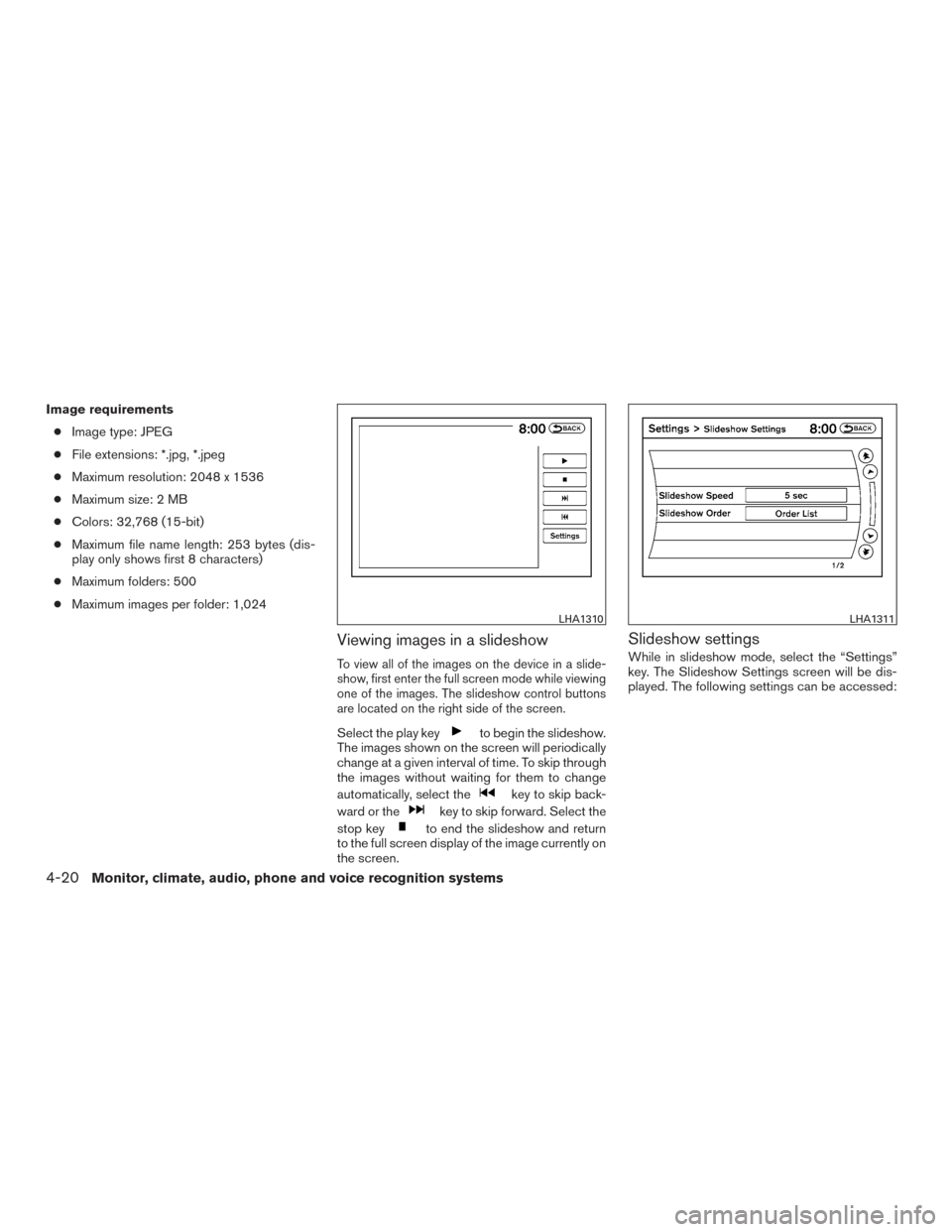
Image requirements● Image type: JPEG
● File extensions: *.jpg, *.jpeg
● Maximum resolution: 2048 x 1536
● Maximum size: 2 MB
● Colors: 32,768 (15-bit)
● Maximum file name length: 253 bytes (dis-
play only shows first 8 characters)
● Maximum folders: 500
● Maximum images per folder: 1,024
Viewing images in a slideshow
To view all of the images on the device in a slide-
show, first enter the full screen mode while viewing
one of the images. The slideshow control buttons
are located on the right side of the screen.
Select the play keyto begin the slideshow.
The images shown on the screen will periodically
change at a given interval of time. To skip through
the images without waiting for them to change
automatically, select the
key to skip back-
ward or the
key to skip forward. Select the
stop key
to end the slideshow and return
to the full screen display of the image currently on
the screen.
Slideshow settings
While in slideshow mode, select the “Settings”
key. The Slideshow Settings screen will be dis-
played. The following settings can be accessed:
LHA1310LHA1311
4-20Monitor, climate, audio, phone and voice recognition systems
Page 231 of 510
2. Turn the driver’s side temperature controldial to the left or right to set the desired
temperature. Driver and passenger tem-
peratures can be set independently. Press
DUAL to activate dual climate control func-
tions. Turn the passenger’s side temperature
control dial to the left or right to set the
desired passenger’s temperature.
● Adjust the temperature dial to about 75°F
(24°C) for normal operation.
● The temperature of the passenger compart-
ment will be maintained automatically. Air
flow distribution, fan speed and A/C on/off
are also controlled automatically.
● A visible mist may be seen coming from the
vents in hot, humid conditions as the air is
cooled rapidly. This does not indicate a mal-
function.
Dehumidified defrosting or defogging
1. Press the defroster control buttonto
turn the system on. The display will show the
defrost icon.
2. Turn the temperature dial to the left or right to set the desired temperature.
● To quickly remove ice from the outside of the
windows, press the fan control speed button
until it reaches the maximum speed
. ●
As soon as possible after the windshield is
clean, press the AUTO button to return to
the auto mode.
● When the defroster control button
is
activated, the air conditioner will automati-
cally be turned on at outside temperatures
above 36°F (2°C) . If in defrost mode for
more than 1 minute, the air conditioning
system will continue to operate until the fan
control is turned OFF, the vehicle is shut off,
or the A/C button is pressed even if the air
flow MODE control button is used to select a
position other than the
position. This
dehumidifies the air which helps defog the
windshield. The air recirculation mode auto-
matically turns off, allowing outside air to be
drawn into the passenger compartment to
further improve the defogging performance.
MANUAL OPERATION
Fan speed control buttons
Press the fan speed control buttons+/–
to manually control the fan speed.
Press OFF to turn the system off.
Press the AUTO button to return to automatic
control of the fan speed.
Air recirculation
Themode automatically turns off, allowing
outside air to be drawn into the passenger com-
partment to prevent fogging in defrost, floor or
def/floor modes.
Push the air recirculation button
to recir-
culate interior air inside the vehicle. Push the
AUTO button to return to automatic mode.
Air flow control
Pressing the MODE button manually controls air
flow and selects the air outlet:
— Air flows from center and side
vents.
— Air flows from center and sidevents and foot outlets.
— Air flows mainly from foot outlets.
— Air flows from defroster and footoutlets.
— Air flows from defroster outlets.
To turn system off
Press the OFF button.
4-30Monitor, climate, audio, phone and voice recognition systems
Page 233 of 510
1. Rear fan speed control dial
2. Rear airflow mode buttons
3. Rear temperature control dial
CONTROLS
Fan control dial
The fan control dial turns the rear vent fan on and
off and controls fan speed.
Airflow mode buttons
The airflow mode buttons select where the air
flow is directed from.
Temperature control dial
The temperature control dial allows rear passen-
gers to adjust the temperature of the outlet air.
Front seat overhead console controls
LHA3118
Rear seat overhead console controls
LHA3119
4-32Monitor, climate, audio, phone and voice recognition systems
Page 251 of 510
7. RPT (repeat) button
8. RDM (random) button
9. AUDIO button / TUNE/FLDR knob
10. AUX button
11. XM button*
12. Station select (1 - 6) buttons
13.
CD eject button
14. ON·OFF button / VOL (volume) control knob
15. FLDR
button
16.
TUNE button
*No satellite radio reception is available when the
XM button is pressed to access satellite radio
stations unless optional satellite receiver and an-
tenna are installed and a SiriusXM® Satellite
Radio service subscription is active. Satellite ra-
dio is not available in Alaska, Hawaii and Guam.
Audio main operation
ON·OFF button / VOL (volume) control
knob
Place the ignition switch in the ACC or ON
position and push the ON·OFF button while the
system is off to call up the mode that was playing
immediately before the system was turned off. To turn the system off, press the ON·OFF button.
Turn the VOL (volume) control knob to adjust the
volume.
This vehicle has Speed Sensitive Volume (SSV)
for audio. The audio volume changes as the driv-
ing speed changes.
AUDIO button/ TUNE/FLDR (folder) knob
Press the AUDIO button to change the mode as
follows:
Bass
→Treble →Balance →Fade
To adjust Bass, Treble, Balance and Fade, press
the AUDIO button until the desired mode ap-
pears in the display. Turn the TUNE/FLDR (folder)
knob to adjust Bass and Treble to the desired
level. You can also use the TUNE/FLDR (folder)
knob to adjust Fade and Balance modes. Fade
adjusts the sound level between the front and
rear speakers and Balance adjusts the sound
between the right and left speakers.
Once you have adjusted the sound quality to the
desired level, press the AUDIO button repeatedly
until the radio or CD display reappears. If the
AUDIO button is not pressed for approximately
10 seconds, the radio or CD display will auto-
matically reappear. Speed Sensitive Volume (SSV)
To change the SSV mode from OFF to 5, press
the SETTING button. Then select the “Audio” key
using the NISSAN controller; the audio settings
screen will be displayed. Select the “–” key or “+”
key to change the SSV.
While in this screen you can also adjust the other
audio settings by selecting the corresponding
key.
Once you have adjusted the sound quality to the
desired level, press the BACK button.
For additional information, refer to “How to use
the NISSAN controller” in this section regarding
how to use the NISSAN controller.
Clock operation
For additional information, refer to “How to use
the setting button” regarding setting the clock in
this section.
4-50Monitor, climate, audio, phone and voice recognition systems
Page 253 of 510
When the XM button is pressed with the ignition
switch in the ACC or ON position, the radio will
come on at the station last played.
The last station played will also come on when
the ON·OFF button is pressed ON.
*When the XM button is pressed, the satellite
radio mode will not be available unless an op-
tional satellite receiver and antenna are installed
and a SiriusXM® Satellite Radio service sub-
scription is active. Satellite radio is not available
in Alaska, Hawaii and Guam.
If a compact disc is playing when the XM button
is pressed, the compact disc will automatically be
turned off and the last radio station played will
come on.
Manual tuning
To manually tune the radio, turn the TUNE/FLDR
knob to the right or left or use the
TUNE
and FLDR
buttons.
SEEK/CAT and TRACK
tuning buttons
Press the SEEK/CAT
button or the
TRACK
button to tune from high to low or
low to high frequencies and stop at the next
broadcasting station. SCAN tuning
Press the SCAN button to stop at each broad-
casting station for 5 seconds. Pressing the
SCAN button again during this 5 second period
will stop scan tuning and the radio will remain
tuned to that station. If the SCAN button is not
pressed within 5 seconds, scan tuning moves to
the next station.
1 to 6 Station memory operations
Six stations can be set for the AM band. Twelve
stations can be set for the FM band (six for FM1,
six for FM2) . Eighteen stations can be set for the
XM band (six for XM1, six for XM2, six for XM3) .
1. Choose the radio band AM, FM1 or FM2 using the AM or FM buttons or choose the
satellite band XM1, XM2 or XM3 using the
XM button.
2. Tune to the desired station using manual, SEEK or SCAN tuning. Press and hold any
of the desired station memory buttons (1 –
6) until a beep sound is heard.
3. The channel indicator will then come on and the sound will resume. Programming is now
complete.
4. Other buttons can be set in the same man- ner. If the battery cable is disconnected, or if the fuse
opens, the radio memory will be canceled. In that
case, reset the desired stations.
Radio data system (RDS)
RDS stands for Radio Data System, and is a data
information service transmitted by some radio
stations on the FM band (not AM band) . Cur-
rently, most RDS stations are in large cities, but
many stations are now considering broadcasting
RDS data.
RDS can display:
● Station call sign, such as “WHFR 98.3”.
● Station name, such as “The Groove”.
● Music or programming type such as “Clas-
sical”, “Country”, or “Rock”.
When the “Text” key is selected with the NISSAN
controller on the display while the radio is playing,
additional information is displayed on the screen.
If the station broadcasts RDS information, the
RDS icon is displayed.
4-52Monitor, climate, audio, phone and voice recognition systems
Page 254 of 510
Compact disc (CD) player operation
Place the ignition in the ACC or ON position and
insert the compact disc into the slot with the label
side facing up. The compact disc will be guided
automatically into the slot and start playing.
If the radio is already operating, it will automati-
cally turn off and the compact disc will play.
If the system has been turned off while the com-
pact disc was playing, pressing the ON·OFF
button will start the compact disc.
DISC button
When the DISC button is pressed with the sys-
tem off and a compact disc loaded, the system
will turn on and the compact disc will start to play.
When the DISC button is pressed with a com-
pact disc loaded with the radio playing, the radio
will automatically be turned off and the compact
disc will start to play.
SEEK/CAT and TRACKbuttons
When the SEEK/CAT
button is pressed
while a compact disc is playing, the track being
played returns to its beginning. Press several
times to skip back through tracks. The compact
disc will go back the number of times the button
is pressed. When the TRACK
button is pressed while
a compact disc is playing, the next track will start
to play from its beginning. Press several times to
skip through tracks. The compact disc will ad-
vance the number of times the button is pressed.
(When the last track on the compact disc is
skipped through, the first track will be played.)
The NISSAN controller can also be used to se-
lect tracks when a CD is playing.
SEEK/CAT and TRACK
(Rewind and Fast For-
ward) buttons
Press and hold the SEEK/CAT
(rewind)
button or the TRACK
(fast forward) button
while a compact disc is playing; the compact disc
will play while rewinding or fast forwarding. When
the button is released, the compact disc will
return to normal play speed.
TUNE/FLDR (folder) knob
While playing an MP3/WMA CD, turn the
TUNE/FLDR knob right or left to scan forward or
backward through available folders. This can also
be performed using the
TUNE and
FLDR
buttons.
RPT (repeat) button
Press the RPT button to change the play pattern
as follows: CD
Repeat All
←→1 Track Repeat
CD with compressed audio files
Repeat All →1 Folder Repeat →1 Track Repeat
→ Repeat All
Repeat All: Normal play mode. All tracks will
constantly play in sequential order.
1 Folder Repeat: The folder that is currently being
accessed will be repeated.
1 Track Repeat: The track that is currently playing
will be repeated.
RDM (random) button
Press the RDM button to change the play pattern
as follows:
CD
Repeat All ←→1 Disc Random
CD with compressed audio files
Repeat All →1 Disc Random →1 Folder Ran-
dom →Repeat All
Repeat All: Normal play mode. All tracks will
constantly play in sequential order.
1 Disc Random: The tracks on the disc that is
currently playing will be played in a mixed order.
1 Folder Random: The tracks in the folder that is
currently playing will be played in a mixed order.
Monitor, climate, audio, phone and voice recognition systems4-53
Page 257 of 510
9. DISC/AUX button
10. Station select (1 - 6) buttons
11.
CD eject button
12. ON·OFF button / VOL (volume) control knob
13. FLDR
button
14.
TUNE button
*No satellite radio reception is available when the
XM button is pressed to access satellite radio
stations unless optional satellite receiver and an-
tenna are installed and a SiriusXM® Satellite
Radio service subscription is active. Satellite ra-
dio is not available in Alaska, Hawaii and Guam.
Audio main operation
ON·OFF button / VOL (volume) control
knob
Place the ignition switch in the ACC or ON
position and push the ON·OFF button while the
system is off to call up the mode that was playing
immediately before the system was turned off.
To turn the system off, press the ON·OFF button.
Turn the VOL (volume) control knob to adjust the
volume. This vehicle has Speed Sensitive Volume (SSV)
for audio. The audio volume changes as the driv-
ing speed changes.
AUDIO button/ TUNE/FLDR (folder) knob
Press the AUDIO button to change the mode as
follows:
Bass
→Treble →Balance →Fade
To adjust Bass, Treble, Balance and Fade, press
the AUDIO button until the desired mode ap-
pears in the display. Turn the TUNE/FLDR (folder)
knob to adjust Bass and Treble to the desired
level. You can also use the TUNE/FLDR (folder)
knob to adjust Fade and Balance modes. Fade
adjusts the sound level between the front and
rear speakers and Balance adjusts the sound
between the right and left speakers.
Once you have adjusted the sound quality to the
desired level, press the AUDIO button repeatedly
until the radio or CD display reappears. If the
AUDIO button is not pressed for approximately
10 seconds, the radio or CD display will auto-
matically reappear. Speed Sensitive Volume (SSV)
To change the SSV mode from OFF to 5, press
the SETTING button. Then select the “Audio” key
using the NISSAN controller; the audio settings
screen will be displayed. Select the “–” key or “+”
key to change the SSV.
While in this screen you can also adjust the other
audio settings by selecting the corresponding
key.
Once you have adjusted the sound quality to the
desired level, press the BACK button.
For additional information, refer to “How to use
the NISSAN controller” in this section regarding
how to use the NISSAN controller.
4-56Monitor, climate, audio, phone and voice recognition systems
Page 259 of 510
XM band select
Press the XM button to change the band as
follows:
XM1*→XM2* →XM3* →XM1*
When the XM button is pressed with the ignition
switch in the ACC or ON position, the radio will
come on at the station last played.
The last station played will also come on when
the ON·OFF button is pressed ON.
*When the XM button is pressed, the satellite
radio mode will not be available unless an op-
tional satellite receiver and antenna are installed
and a SiriusXM® Satellite Radio service sub-
scription is active. Satellite radio is not available
in Alaska, Hawaii and Guam.
If a compact disc is playing when the XM button
is pressed, the compact disc will automatically be
turned off and the last radio station played will
come on.
Manual tuning
To manually tune the radio, turn the TUNE/FLDR
knob to the right or left or use the
TUNE
and FLDR
buttons.
SEEK/CAT and TRACK
tuning buttons
For AM or FM:
Press the SEEK/CAT
button or the
TRACK
button to tune from high to low or
low to high frequencies and stop at the next
broadcasting station.
For XM:
Press the SEEK/CAT
button or the
TRACK
button to go to the first channel of
the previous or next category.
SCAN tuning
Press the SCAN button to stop at each broad-
casting station for 5 seconds. Pressing the
SCAN button again during this 5 second period
will stop scan tuning and the radio will remain
tuned to that station. If the SCAN button is not
pressed within 5 seconds, scan tuning moves to
the next station.
1 to 6 Station memory operations
Six stations can be set for the AM band. Twelve
stations can be set for the FM band (six for FM1,
six for FM2) . Eighteen channels can be set for the
SAT radio (six for XM1, six for XM2, six for XM3 –
if so equipped) . 1. Choose the radio band AM, FM1 or FM2
using the AM·FM button, or choose the sat-
ellite band XM1, XM2 or XM3 using the SAT
button.
2. Tune to the desired station using manual, SEEK or SCAN tuning. Press and hold any
of the desired station memory buttons (1 –
6) until the preset number is updated on the
display and the sound is briefly muted.
3. The channel indicator will then come on and the sound will resume. Programming is now
complete.
4. Other buttons can be set in the same man- ner.
If the battery cable is disconnected, or if the fuse
opens, the radio memory will be canceled. In that
case, reset the desired stations.
List (AM and FM)
Select the “List” key using the NISSAN controller
or touch-screen to see a list of the presets in the
AM, FM1 or FM2 preset banks.
4-58Monitor, climate, audio, phone and voice recognition systems