2015 NISSAN ARMADA CD player
[x] Cancel search: CD playerPage 280 of 510
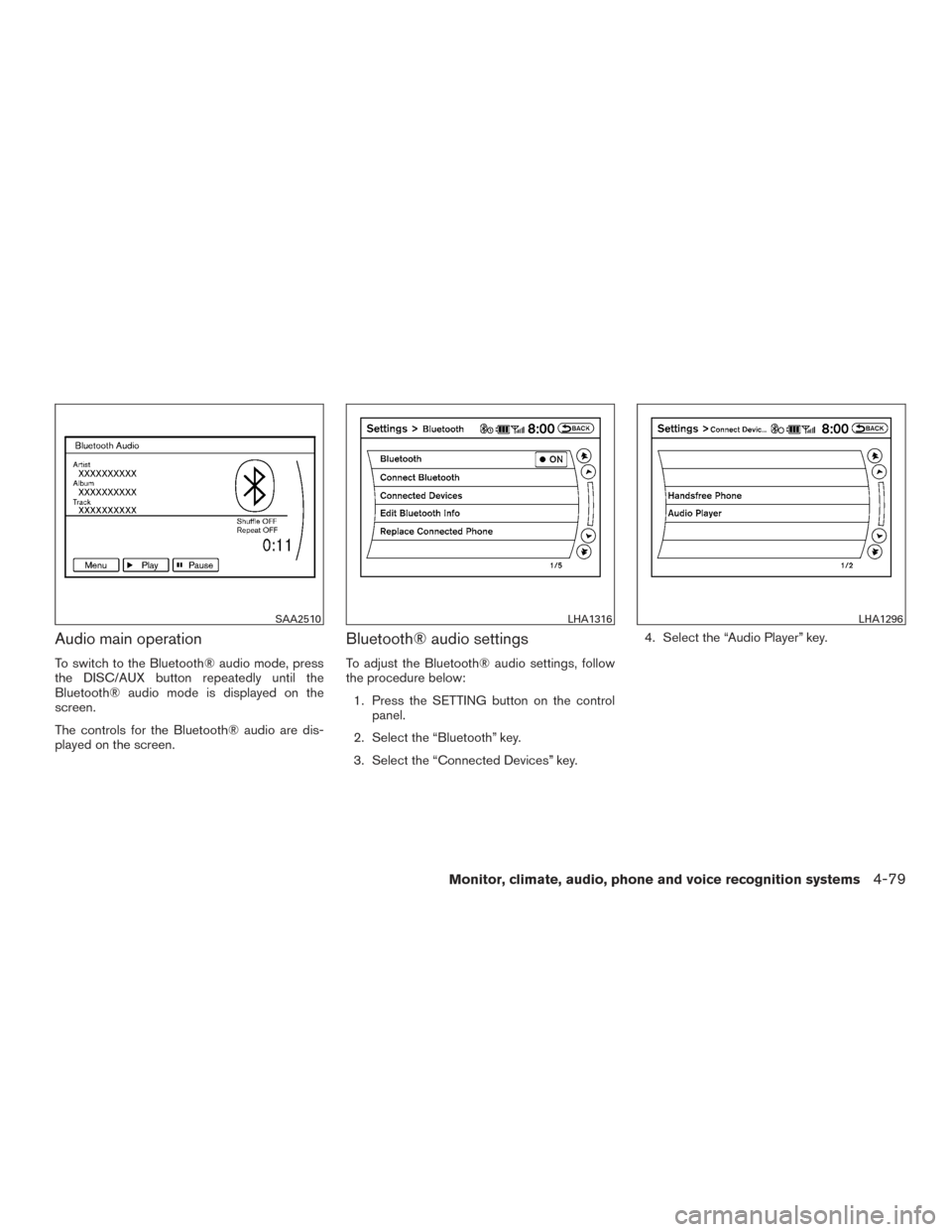
Audio main operation
To switch to the Bluetooth® audio mode, press
the DISC/AUX button repeatedly until the
Bluetooth® audio mode is displayed on the
screen.
The controls for the Bluetooth® audio are dis-
played on the screen.
Bluetooth® audio settings
To adjust the Bluetooth® audio settings, follow
the procedure below:1. Press the SETTING button on the control panel.
2. Select the “Bluetooth” key.
3. Select the “Connected Devices” key. 4. Select the “Audio Player” key.
SAA2510LHA1316LHA1296
Monitor, climate, audio, phone and voice recognition systems4-79
Page 281 of 510
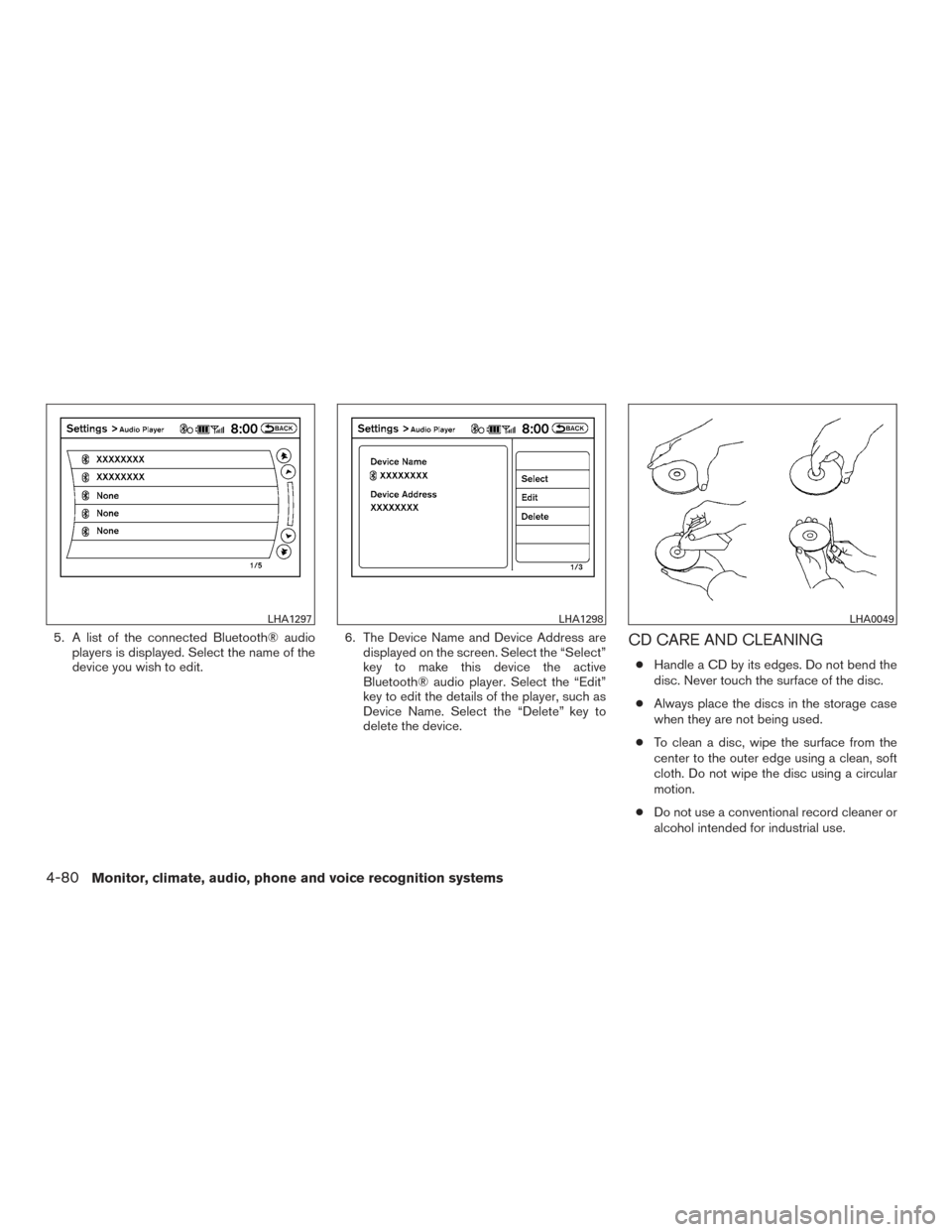
5. A list of the connected Bluetooth® audioplayers is displayed. Select the name of the
device you wish to edit. 6. The Device Name and Device Address are
displayed on the screen. Select the “Select”
key to make this device the active
Bluetooth® audio player. Select the “Edit”
key to edit the details of the player, such as
Device Name. Select the “Delete” key to
delete the device.CD CARE AND CLEANING
●Handle a CD by its edges. Do not bend the
disc. Never touch the surface of the disc.
● Always place the discs in the storage case
when they are not being used.
● To clean a disc, wipe the surface from the
center to the outer edge using a clean, soft
cloth. Do not wipe the disc using a circular
motion.
● Do not use a conventional record cleaner or
alcohol intended for industrial use.
LHA1297LHA1298LHA0049
4-80Monitor, climate, audio, phone and voice recognition systems
Page 293 of 510
Listening through vehicle speakers
Press the AUX button on the factory radio and
toggle through AUX screens to select VTRF —
Jack to listen to the audio from monitor A.
Sharing sources between Monitor A
and Monitor B
The source button on your monitor unit or remote
control allows viewing monitor A video on moni-
tor B and vice versa. Press the source button to
cycle through available video sources.
Disc/DVD Basic Operation
To get the most use out of each disc, make sure
you read this section completely.
For additional information, refer to “CD care and
cleaning” in this section.
Regional coding
Both the DVD player and discs are coded by
region. These regional codes must match in order
for the disc to play. The system is preset to the
region code designated for your area by the DVD
Copy Control Association. Other regions may not
be played in this system.Supported Disc Types
● DVD-Video: DVD contains video
● DVD +/- R: DVD contains video
● CD-DA: CD contains audio
● CD-Video: CD contains video
● CD-R/+RW: CD contains audio
Unsupported Disc Types
Before you load a disc, make sure that it is
compatible with the player. Note that the follow-
ing disc CANNOT be used with this system:
Optical disc- CD-1, CD-ROM, and DVD-ROM
Mini disc- CDG (audio only, not graphics) , and
Blu-ray (list is not all inclusive) .
Loading and Playing Discs
Press the POWER button to turn the monitor on.
Insert the disc about halfway into the disc com-
partment slot, with the disc’s label facing the rear
of the vehicle. Do NOT insert the disc at an angle.
The Disc must be inserted straight into the player.
The disc will load automatically and begin to play.
Some discs may start at the root menu, where
playback must be selected to start a movie. De-
pending on the disc and playback location on the
disc, a “
” icon may be displayed in the
upper-left hand corner of the screen indicating
that playback is not possible during certain times.
Additional information on Media
Compatibility
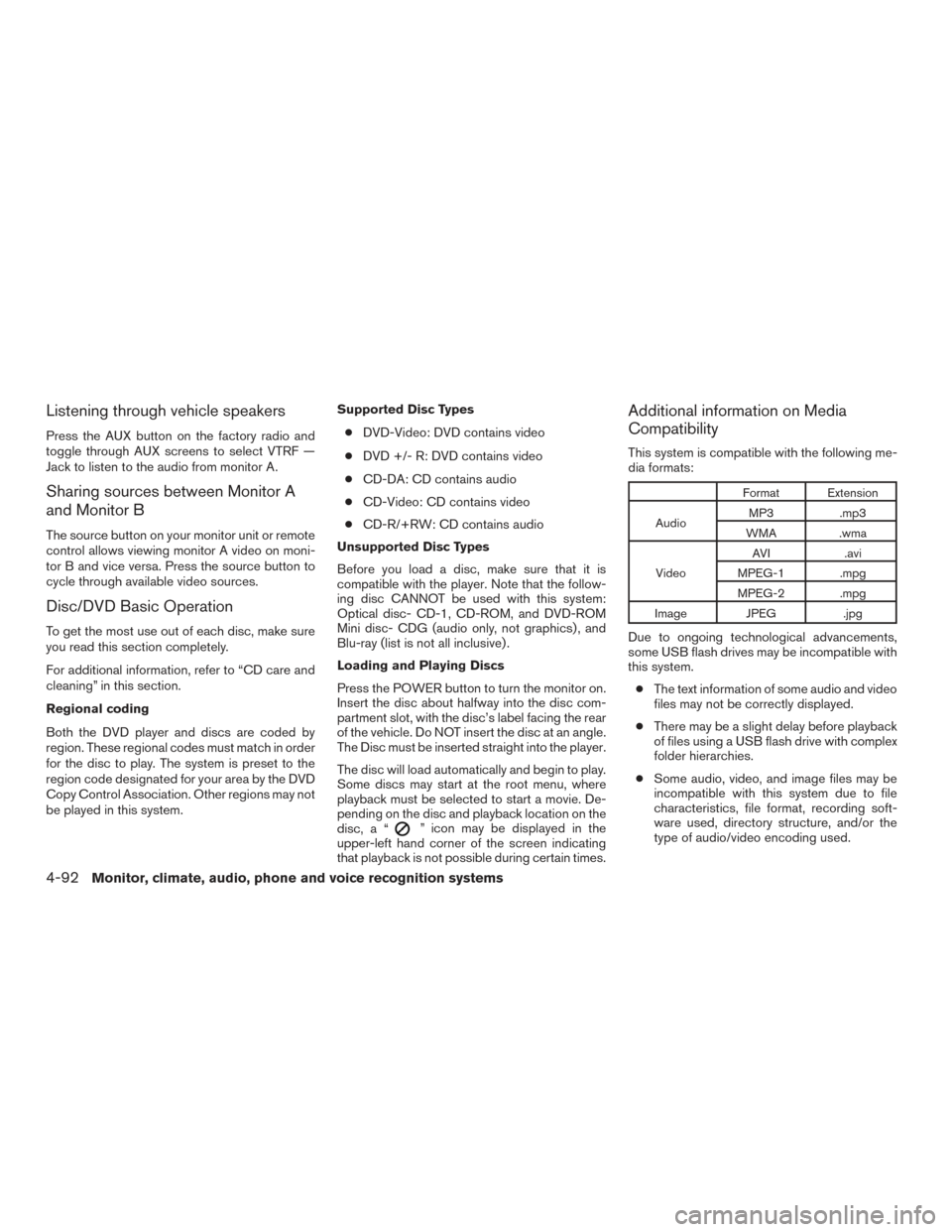
This system is compatible with the following me-
dia formats:
Format Extension
Audio MP3 .mp3
WMA .wma
Video AVI
.avi
MPEG-1 .mpg
MPEG-2 .mpg
Image JPEG .jpg
Due to ongoing technological advancements,
some USB flash drives may be incompatible with
this system.
● The text information of some audio and video
files may not be correctly displayed.
● There may be a slight delay before playback
of files using a USB flash drive with complex
folder hierarchies.
● Some audio, video, and image files may be
incompatible with this system due to file
characteristics, file format, recording soft-
ware used, directory structure, and/or the
type of audio/video encoding used.
4-92Monitor, climate, audio, phone and voice recognition systems
Page 304 of 510
When a disc or USB device with video files is
inserted, playback will begin automatically. When
a disc or USB device with mixed
audio/video/image files is inserted, the file list
screen may appear first.
Selecting Files
1. To select files during the video playback,press the MENU button on the remote con-
trol to access the file list. Press the
orbuttons on the remote control to
select the desired file.
2. Once the desired file is highlighted, press the ENTER button on the remote control to
select it.
Selecting Folders
1. To select folders during video playback,press the MENU button on the remote con-
trol to access the list.
2. Press the
button to access the
previous level (go up one level) or, press
the
button to access the next level
(go down one level) .
3. Once the desired folder is highlighted, press the ENTER button on the remote control to
select it.
Skipping Files
Press the NEXT button on the remote control to
select to the next file. Press the PREV button one
time to select the beginning of the current file.
Press the PREV button two times to select the
previous file.
Repeat Modes
To access the repeat mode options, press the
REPEAT button on the remote control. The re-
peat mode options are as follows:
●
REPEAT ALL: Repeat the entire disc
or USB device (default) .
●
REPEAT FOLDER: Repeat the cur-
rent folder
●
REPEAT ONE: Repeat the current
file.
● REPEAT OFF: Playback stops after the disc
or USB device is played in its entirety.
Direct File Access
Press the number keys on the remote control
(0–9) to access a file directly. For example, to go
to track 14, press “1”,”4”, then ENTER on the
remote control.
CHARGING A USB DEVICE
Plug the USB cable (not supplied) into the USB
connection port and then connect the other end
to the USB device.
NOTE:
Depending on the device, it may or may not
charge when connected to the USB port.
Not all devices are able to charge when
connected to the USB port.
CONNECTING AN EXTERNAL
AUXILIARY A/V SOURCE — INPUT
An external A/V source such as a media player,
video game, or other audio/video device may be
connected to the RCA type jacks on the front of
the monitor. Connect the external audio/video
source to the RCA type input jacks on the front of
the monitor using RCA type connectors (sold
separately) .
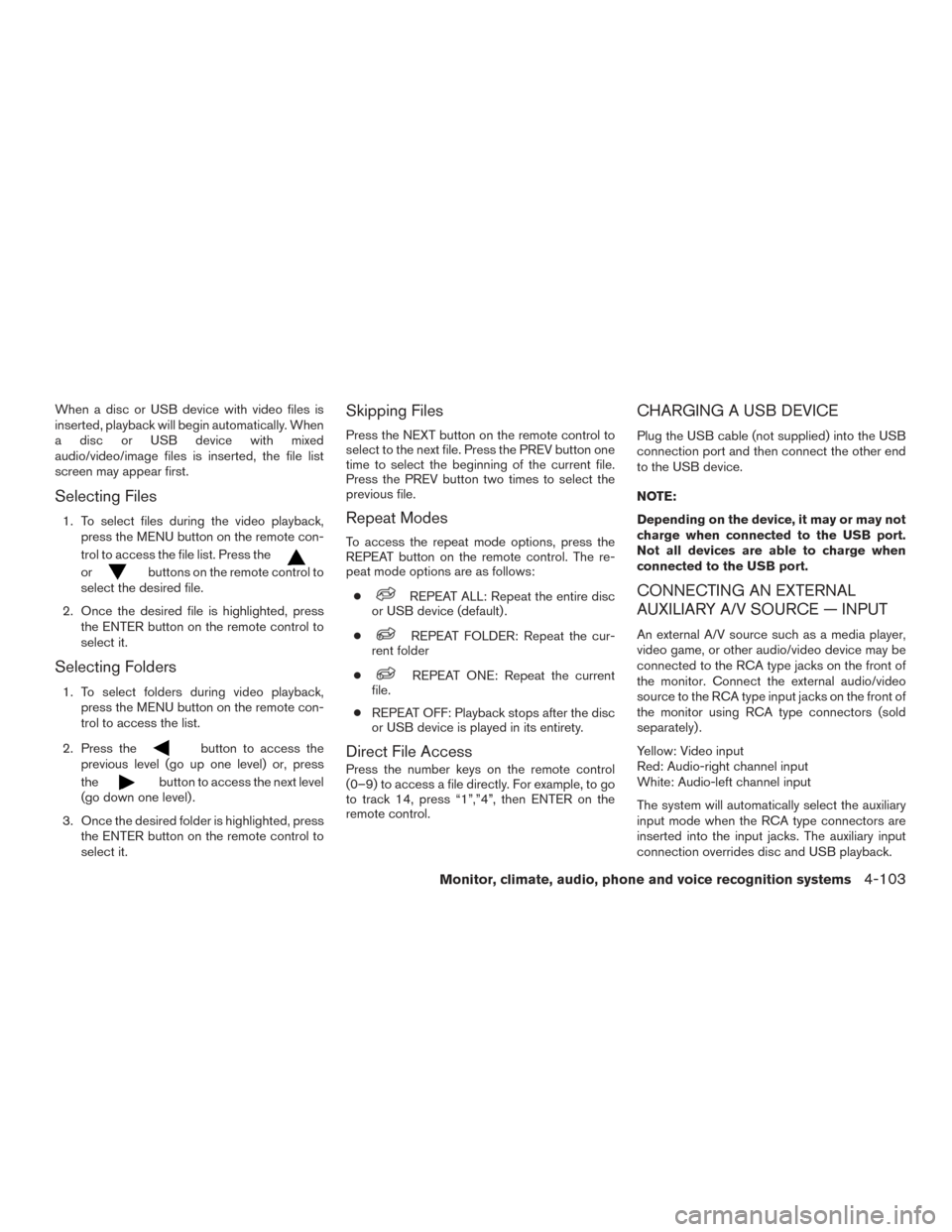
Yellow: Video input
Red: Audio-right channel input
White: Audio-left channel input
The system will automatically select the auxiliary
input mode when the RCA type connectors are
inserted into the input jacks. The auxiliary input
connection overrides disc and USB playback.
Monitor, climate, audio, phone and voice recognition systems4-103
Page 306 of 510
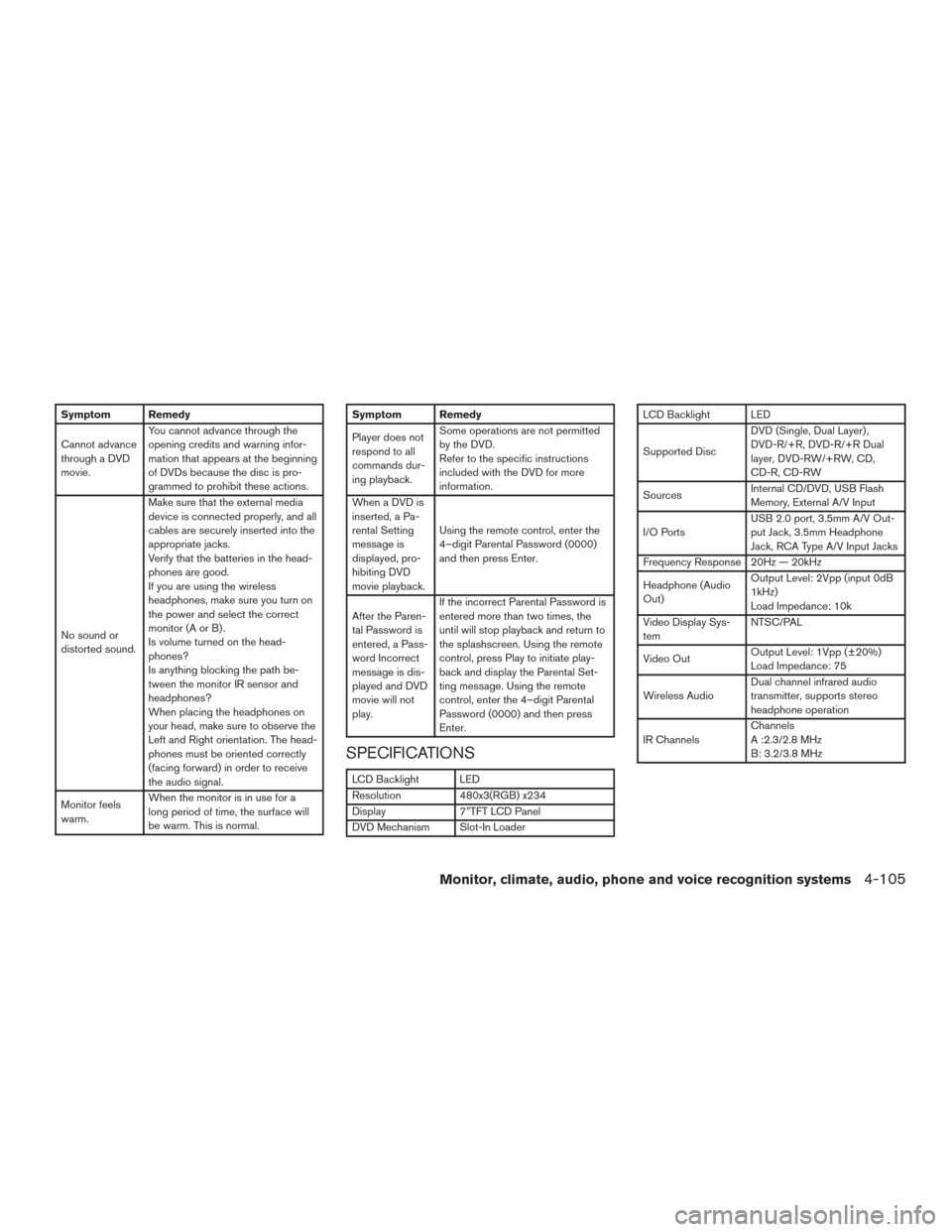
Symptom Remedy
Cannot advance
through a DVD
movie.You cannot advance through the
opening credits and warning infor-
mation that appears at the beginning
of DVDs because the disc is pro-
grammed to prohibit these actions.
No sound or
distorted sound. Make sure that the external media
device is connected properly, and all
cables are securely inserted into the
appropriate jacks.
Verify that the batteries in the head-
phones are good.
If you are using the wireless
headphones, make sure you turn on
the power and select the correct
monitor(AorB).
Is volume turned on the head-
phones?
Is anything blocking the path be-
tween the monitor IR sensor and
headphones?
When placing the headphones on
your head, make sure to observe the
Left and Right orientation. The head-
phones must be oriented correctly
(facing forward) in order to receive
the audio signal.
Monitor feels
warm. When the monitor is in use for a
long period of time, the surface will
be warm. This is normal.Symptom Remedy
Player does not
respond to all
commands dur-
ing playback.Some operations are not permitted
by the DVD.
Refer to the specific instructions
included with the DVD for more
information.
When a DVD is
inserted, a Pa-
rental Setting
message is
displayed, pro-
hibiting DVD
movie playback. Using the remote control, enter the
4–digit Parental Password (0000)
and then press Enter.
After the Paren-
tal Password is
entered, a Pass-
word Incorrect
message is dis-
played and DVD
movie will not
play. If the incorrect Parental Password is
entered more than two times, the
until will stop playback and return to
the splashscreen. Using the remote
control, press Play to initiate play-
back and display the Parental Set-
ting message. Using the remote
control, enter the 4–digit Parental
Password (0000) and then press
Enter.
SPECIFICATIONS
LCD Backlight LED
Resolution
480x3(RGB) x234
Display 7”TFT LCD Panel
DVD Mechanism Slot-In Loader
LCD Backlight LED
Supported Disc DVD (Single, Dual Layer) ,
DVD-R/+R, DVD-R/+R Dual
layer, DVD-RW/+RW, CD,
CD-R, CD-RW
Sources Internal CD/DVD, USB Flash
Memory, External A/V Input
I/O Ports USB 2.0 port, 3.5mm A/V Out-
put Jack, 3.5mm Headphone
Jack, RCA Type A/V Input Jacks
Frequency Response 20Hz — 20kHz
Headphone (Audio
Out) Output Level: 2Vpp (input 0dB
1kHz)
Load Impedance: 10k
Video Display Sys-
tem NTSC/PAL
Video Out Output Level: 1Vpp (±20%)
Load Impedance: 75
Wireless Audio Dual channel infrared audio
transmitter, supports stereo
headphone operation
IR Channels Channels
A :2.3/2.8 MHz
B: 3.2/3.8 MHz
Monitor, climate, audio, phone and voice recognition systems4-105
Page 367 of 510
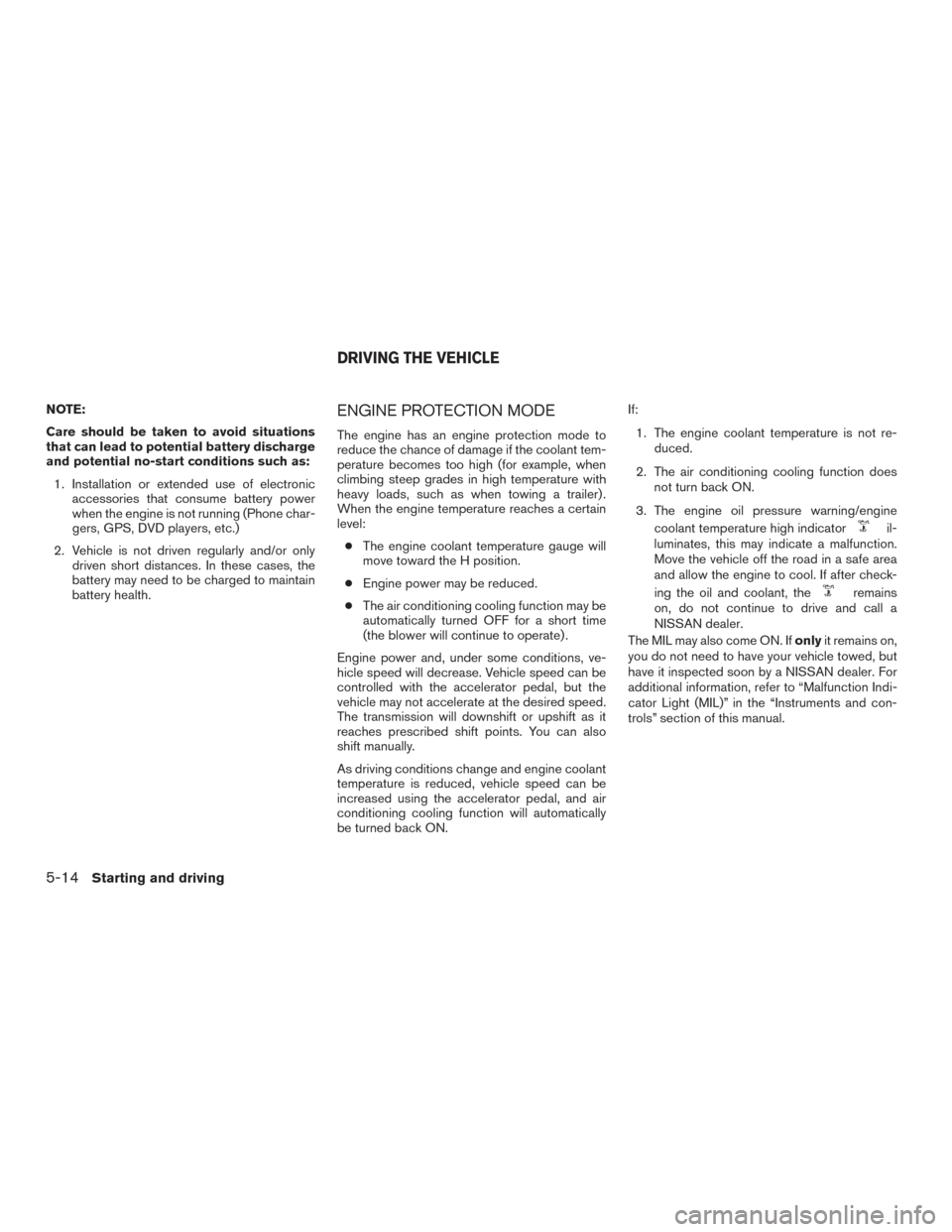
NOTE:
Care should be taken to avoid situations
that can lead to potential battery discharge
and potential no-start conditions such as:1. Installation or extended use of electronic accessories that consume battery power
when the engine is not running (Phone char-
gers, GPS, DVD players, etc.)
2. Vehicle is not driven regularly and/or only driven short distances. In these cases, the
battery may need to be charged to maintain
battery health.ENGINE PROTECTION MODE
The engine has an engine protection mode to
reduce the chance of damage if the coolant tem-
perature becomes too high (for example, when
climbing steep grades in high temperature with
heavy loads, such as when towing a trailer) .
When the engine temperature reaches a certain
level:
● The engine coolant temperature gauge will
move toward the H position.
● Engine power may be reduced.
● The air conditioning cooling function may be
automatically turned OFF for a short time
(the blower will continue to operate) .
Engine power and, under some conditions, ve-
hicle speed will decrease. Vehicle speed can be
controlled with the accelerator pedal, but the
vehicle may not accelerate at the desired speed.
The transmission will downshift or upshift as it
reaches prescribed shift points. You can also
shift manually.
As driving conditions change and engine coolant
temperature is reduced, vehicle speed can be
increased using the accelerator pedal, and air
conditioning cooling function will automatically
be turned back ON. If:
1. The engine coolant temperature is not re- duced.
2. The air conditioning cooling function does not turn back ON.
3. The engine oil pressure warning/engine coolant temperature high indicator
il-
luminates, this may indicate a malfunction.
Move the vehicle off the road in a safe area
and allow the engine to cool. If after check-
ing the oil and coolant, the
remains
on, do not continue to drive and call a
NISSAN dealer.
The MIL may also come ON. If onlyit remains on,
you do not need to have your vehicle towed, but
have it inspected soon by a NISSAN dealer. For
additional information, refer to “Malfunction Indi-
cator Light (MIL)” in the “Instruments and con-
trols” section of this manual.
DRIVING THE VEHICLE
5-14Starting and driving
Page 419 of 510
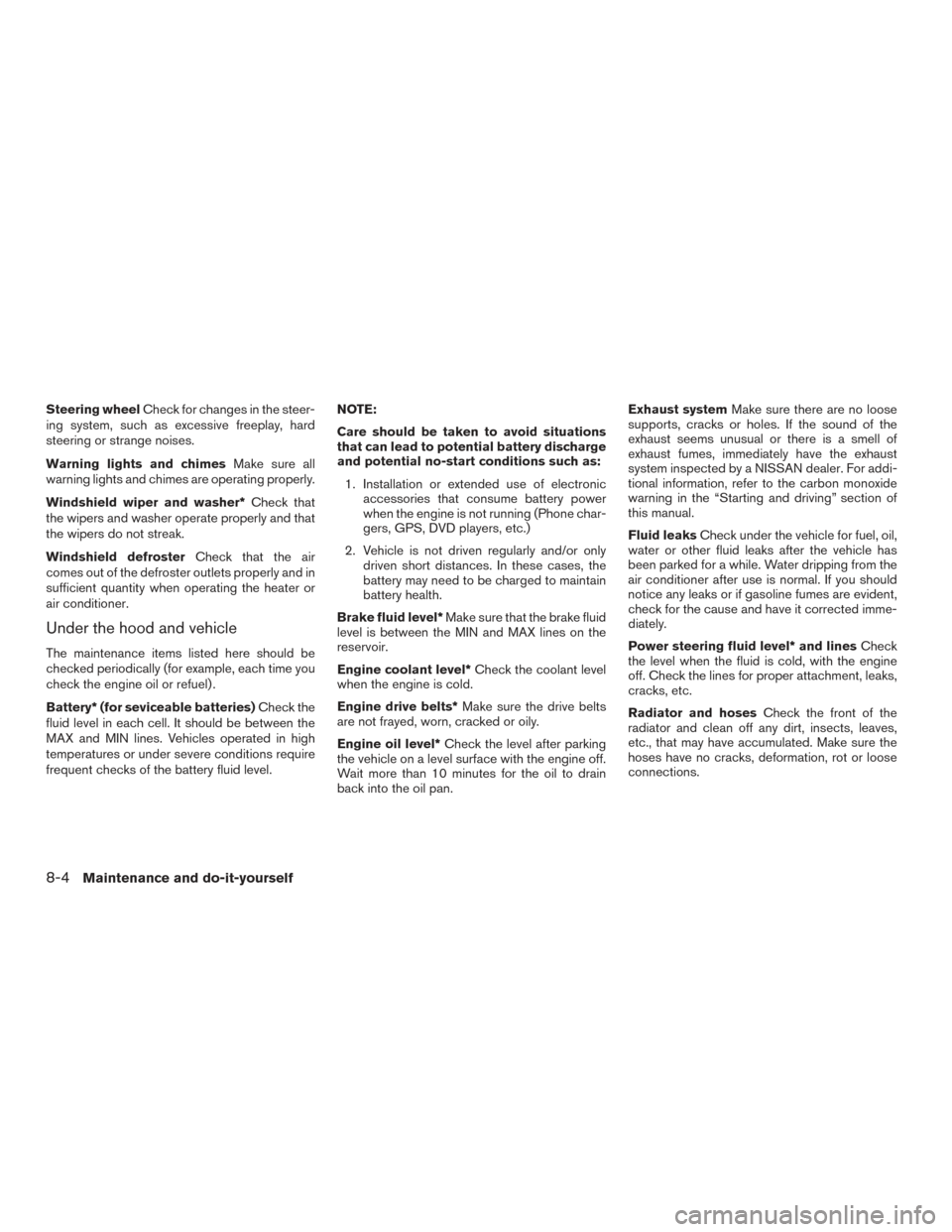
Steering wheelCheck for changes in the steer-
ing system, such as excessive freeplay, hard
steering or strange noises.
Warning lights and chimes Make sure all
warning lights and chimes are operating properly.
Windshield wiper and washer* Check that
the wipers and washer operate properly and that
the wipers do not streak.
Windshield defroster Check that the air
comes out of the defroster outlets properly and in
sufficient quantity when operating the heater or
air conditioner.
Under the hood and vehicle
The maintenance items listed here should be
checked periodically (for example, each time you
check the engine oil or refuel) .
Battery* (for seviceable batteries) Check the
fluid level in each cell. It should be between the
MAX and MIN lines. Vehicles operated in high
temperatures or under severe conditions require
frequent checks of the battery fluid level. NOTE:
Care should be taken to avoid situations
that can lead to potential battery discharge
and potential no-start conditions such as:
1. Installation or extended use of electronic accessories that consume battery power
when the engine is not running (Phone char-
gers, GPS, DVD players, etc.)
2. Vehicle is not driven regularly and/or only driven short distances. In these cases, the
battery may need to be charged to maintain
battery health.
Brake fluid level* Make sure that the brake fluid
level is between the MIN and MAX lines on the
reservoir.
Engine coolant level* Check the coolant level
when the engine is cold.
Engine drive belts* Make sure the drive belts
are not frayed, worn, cracked or oily.
Engine oil level* Check the level after parking
the vehicle on a level surface with the engine off.
Wait more than 10 minutes for the oil to drain
back into the oil pan. Exhaust system
Make sure there are no loose
supports, cracks or holes. If the sound of the
exhaust seems unusual or there is a smell of
exhaust fumes, immediately have the exhaust
system inspected by a NISSAN dealer. For addi-
tional information, refer to the carbon monoxide
warning in the “Starting and driving” section of
this manual.
Fluid leaks Check under the vehicle for fuel, oil,
water or other fluid leaks after the vehicle has
been parked for a while. Water dripping from the
air conditioner after use is normal. If you should
notice any leaks or if gasoline fumes are evident,
check for the cause and have it corrected imme-
diately.
Power steering fluid level* and lines Check
the level when the fluid is cold, with the engine
off. Check the lines for proper attachment, leaks,
cracks, etc.
Radiator and hoses Check the front of the
radiator and clean off any dirt, insects, leaves,
etc., that may have accumulated. Make sure the
hoses have no cracks, deformation, rot or loose
connections.
8-4Maintenance and do-it-yourself
Page 430 of 510
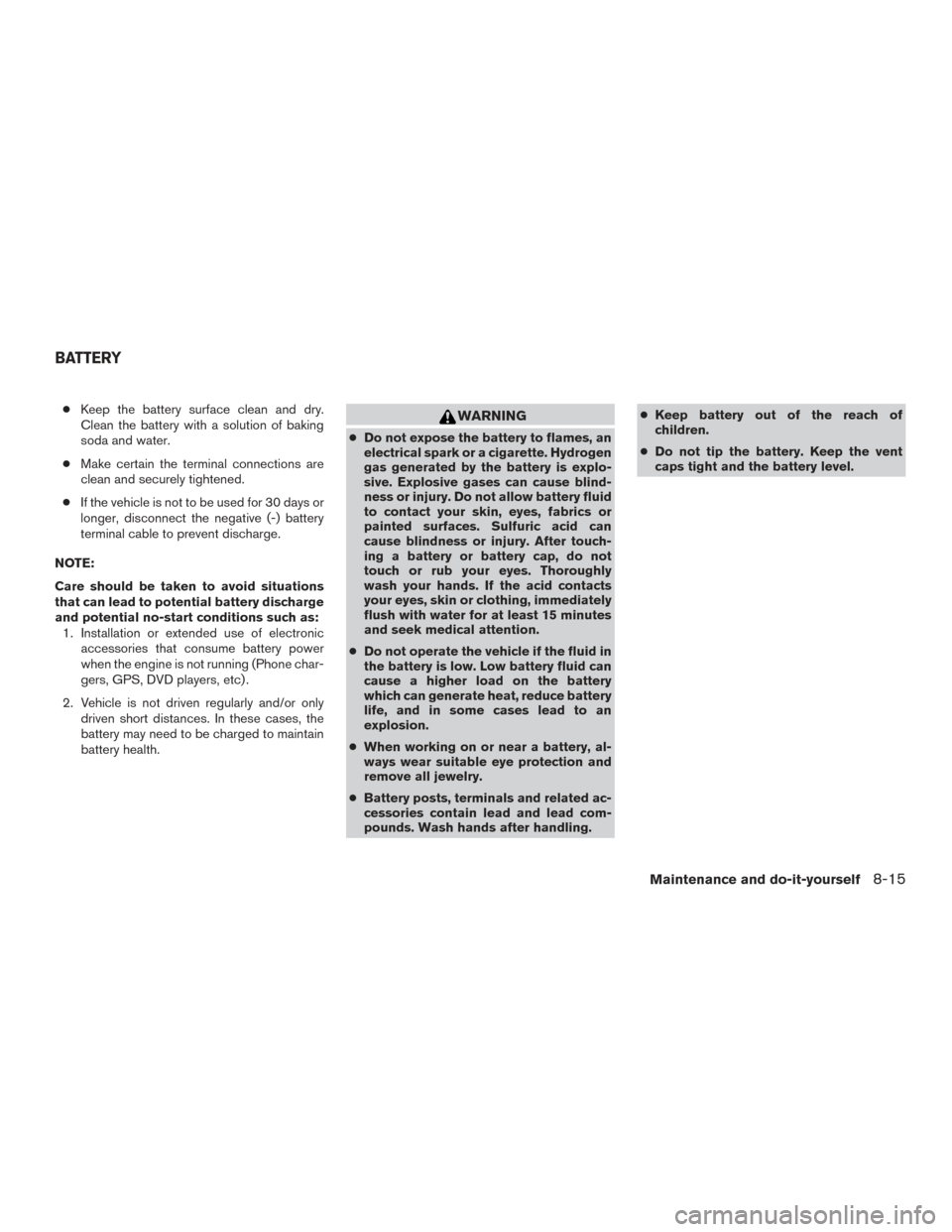
●Keep the battery surface clean and dry.
Clean the battery with a solution of baking
soda and water.
● Make certain the terminal connections are
clean and securely tightened.
● If the vehicle is not to be used for 30 days or
longer, disconnect the negative (-) battery
terminal cable to prevent discharge.
NOTE:
Care should be taken to avoid situations
that can lead to potential battery discharge
and potential no-start conditions such as: 1. Installation or extended use of electronic accessories that consume battery power
when the engine is not running (Phone char-
gers, GPS, DVD players, etc) .
2. Vehicle is not driven regularly and/or only driven short distances. In these cases, the
battery may need to be charged to maintain
battery health.WARNING
●Do not expose the battery to flames, an
electrical spark or a cigarette. Hydrogen
gas generated by the battery is explo-
sive. Explosive gases can cause blind-
ness or injury. Do not allow battery fluid
to contact your skin, eyes, fabrics or
painted surfaces. Sulfuric acid can
cause blindness or injury. After touch-
ing a battery or battery cap, do not
touch or rub your eyes. Thoroughly
wash your hands. If the acid contacts
your eyes, skin or clothing, immediately
flush with water for at least 15 minutes
and seek medical attention.
● Do not operate the vehicle if the fluid in
the battery is low. Low battery fluid can
cause a higher load on the battery
which can generate heat, reduce battery
life, and in some cases lead to an
explosion.
● When working on or near a battery, al-
ways wear suitable eye protection and
remove all jewelry.
● Battery posts, terminals and related ac-
cessories contain lead and lead com-
pounds. Wash hands after handling. ●
Keep battery out of the reach of
children.
● Do not tip the battery. Keep the vent
caps tight and the battery level.
BATTERY
Maintenance and do-it-yourself8-15