2015 NISSAN ARMADA phone
[x] Cancel search: phonePage 172 of 510
●When thebutton is pressed with all
doors locked, the hazard warning lights flash
twice and the horn beeps once as a re-
minder that the doors are already locked.
● If a door is open and you press the
button, the doors will lock but the horn will
not beep and the hazard warning lights will
not flash.
The horn may or may not beep. For vehicles
without navigation system, refer to “Silencing the
horn beep feature” in this section. For vehicles
with navigation system, refer to “Navigation sys-
tem” in the “Monitor, climate, audio, phone and
voice recognition system” section of this manual.
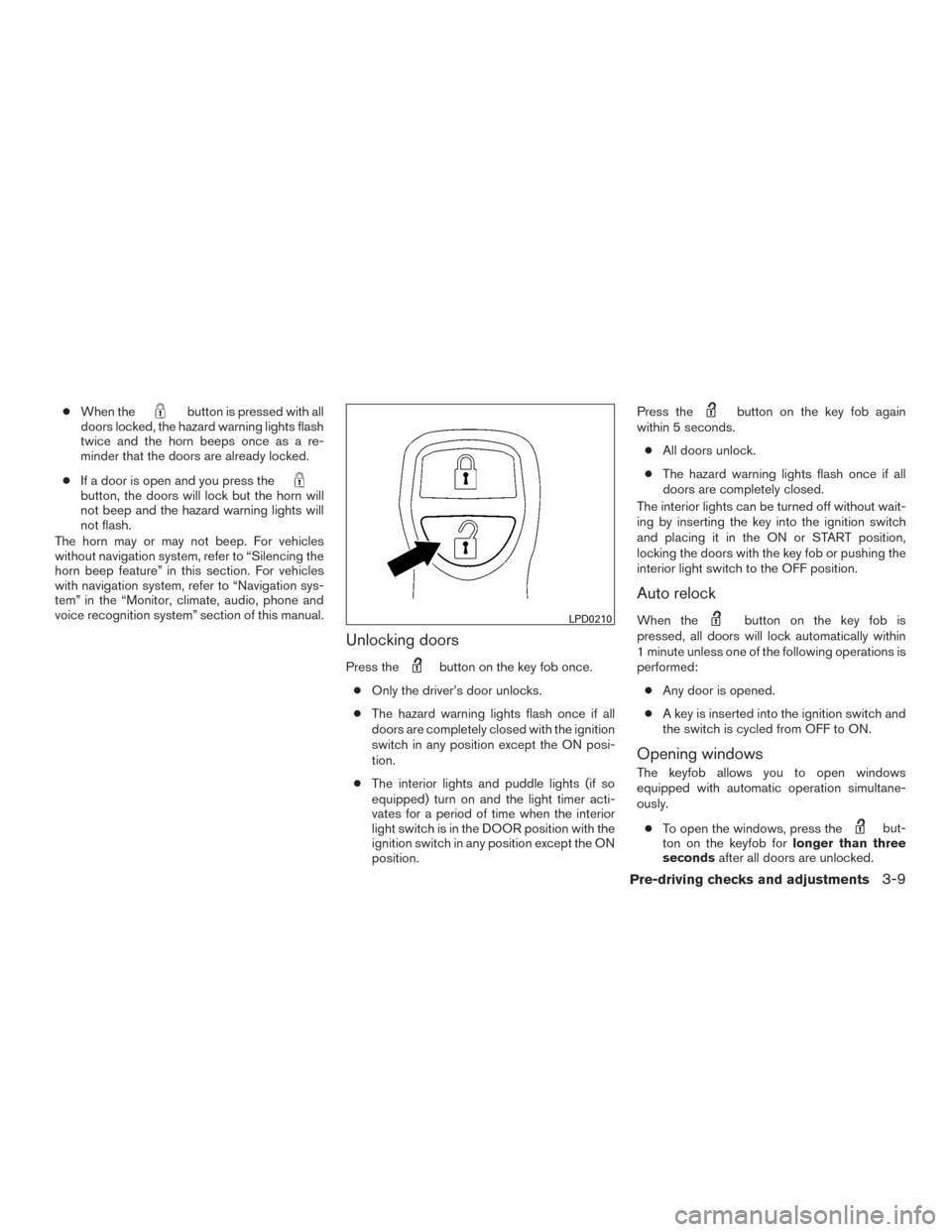
Unlocking doors
Press thebutton on the key fob once.
● Only the driver’s door unlocks.
● The hazard warning lights flash once if all
doors are completely closed with the ignition
switch in any position except the ON posi-
tion.
● The interior lights and puddle lights (if so
equipped) turn on and the light timer acti-
vates for a period of time when the interior
light switch is in the DOOR position with the
ignition switch in any position except the ON
position. Press the
button on the key fob again
within 5 seconds.
● All doors unlock.
● The hazard warning lights flash once if all
doors are completely closed.
The interior lights can be turned off without wait-
ing by inserting the key into the ignition switch
and placing it in the ON or START position,
locking the doors with the key fob or pushing the
interior light switch to the OFF position.
Auto relock
When thebutton on the key fob is
pressed, all doors will lock automatically within
1 minute unless one of the following operations is
performed:
● Any door is opened.
● A key is inserted into the ignition switch and
the switch is cycled from OFF to ON.
Opening windows
The keyfob allows you to open windows
equipped with automatic operation simultane-
ously.
● To open the windows, press the
but-
ton on the keyfob for longer than three
seconds after all doors are unlocked.
LPD0210
Pre-driving checks and adjustments3-9
Page 175 of 510
WARNING
●Radio waves could adversely affect
electric medical equipment. Those who
use a pacemaker should contact the
electric medical equipment manufac-
turer for the possible influences before
use.
● The Intelligent Key transmits radio
waves when the buttons are pressed.
The FAA advises the radio waves may
affect aircraft navigation and communi-
cation systems. Do not operate the In-
telligent Key while on an airplane. Make
sure the buttons are not operated unin-
tentionally when the unit is stored for a
flight.
The Intelligent Key can operate all the door locks
using the remote control function or pushing the
request switch on the vehicle without taking the
key out from a pocket or purse. The operating
environment and/or conditions may affect the
Intelligent Key operation.
Be sure to read the following before using the
Intelligent Key.
CAUTION
● Be sure to carry the Intelligent Key with
you when operating the vehicle.
● Never leave the Intelligent Key in the
vehicle when you leave the vehicle.
The Intelligent Key is always communicating with
the vehicle as it receives radio waves. The Intel-
ligent Key transmits weak radio waves. Environ-
mental conditions may interfere with the opera-
tion of the Intelligent Key under the following
operating conditions. ●
When operating near a location where strong
radio waves are transmitted, such as a TV
tower, power station and broadcasting station.
● When in possession of wireless equipment,
such as a cellular telephone, transceiver,
and CB radio.
● When the Intelligent Key is in contact with or
covered by metallic materials.
● When any type of radio wave remote control
is used nearby.
● When the Intelligent Key is placed near an
electric appliance such as a personal com-
puter.
● When the vehicle is parked near a parking
meter. In such cases, correct the operating conditions
before using the Intelligent Key function or use
the mechanical key.
Although the life of the battery varies depending
on the operating conditions, the battery’s life is
approximately two years. If the battery is dis-
charged, replace it with a new one.
When the Intelligent Key battery is low, the Intel-
ligent Key indicator will illuminate after the ignition
switch is placed in the ON position.
Since the Intelligent Key is continuously receiving
radio waves, if the key is left near equipment
which transmits strong radio waves, such as sig-
nals from a TV and personal computer, the bat-
tery life may become shorter.
For additional information regarding replacement
of a battery, refer to “Battery replacement” in the
“Maintenance and do-it-yourself” section of this
manual.
For models with a steering wheel lock mecha-
nism: Because the steering wheel is locked elec-
trically, unlocking the steering wheel with the
ignition switch in the LOCK position is impossible
when the vehicle battery is completely dis-
charged. Unlocking the steering wheel is impos-
sible even if the Intelligent Key is inserted into the
ignition switch. Pay special attention that the
vehicle battery is not completely discharged.
NISSAN INTELLIGENT KEY® (if so
equipped)
3-12Pre-driving checks and adjustments
Page 200 of 510
2. While the indicator light for the memoryswitch being set is illuminated for five sec-
onds, press the
button on the keyfob.
The indicator light will blink. After the indica-
tor light goes off, the keyfob is linked to that
memory setting.
With the key removed from the ignition switch or
the ignition switch is moved to OFF, press
the
button on the keyfob. The driver’s seat,
accelerator and brake pedals, and outside mir-
rors will move to the memorized position.
NOTE:
If a new memory position is saved to the
memory switch, the keyfob automatically
re-links.
Confirming memory storage
● Place the ignition switch in the ON position
and push the SET switch. If the main memory
has not been stored, the indicator light will
come on for approximately 0.5 seconds.
When the memory has stored the position,
the indicator light will stay on for approxi-
mately 5 seconds. ●
If the battery cable is disconnected, or if the
fuse opens, the memory storage function will
be canceled and must be restarted before a
stored memory position can be set again.
Drive the vehicle over 25 mph (40 km/h) to
restart the memory storage function. You
can also restart the memory storage function
using the following procedure.
1. Connect the battery cable or replace the fuse.
2. Open and close the driver’s door more than two times with the ignition switch in the
LOCK position.
Once the memory storage function has been
restarted, you can store a memory position.
For additional information, refer to “Memory
storage function” in this section.Selecting the memorized position
Set the shift lever to the P (Park) position, then: ● Within 45 seconds of opening the driver’s
door, push the memory switch (1 or 2) or
● Place the ignition switch in the ON position
and push the memory switch (1 or 2) .
The driver’s seat, accelerator and brake pedals,
and outside mirrors will move to the memorized
position with the indicator light blinking, and then
the light will stay on for approximately 5 seconds.
ENTRY/EXIT FUNCTION
This system is designed so that the driver’s seat will
automatically move when the shift lever is placed in
the P (Park) position. This allows the driver to get
into and out of the driver’s seat more easily.
The driver’s seat will slide backward: ● When the key is removed from the ignition
switch and the driver’s door is opened.
● When the driver’s door is opened with the
ignition switch placed in the LOCK position.
● When the ignition switch is turned from
ACC to LOCK with the driver’s door open.
The driver’s seat will return to the previous position:
● When the key is inserted into the ignition
switch and the driver’s door is closed.
● When the driver’s door is closed with the
ignition switch placed in the LOCK position.
● When the ignition switch is turned from
ACC to ON while the shift lever is in the P
(Park) position.
The entry/exit function can be adjusted or can-
celed. For vehicles with navigation system, refer
to “Navigation system” in the “Monitor, climate,
audio, phone and voice recognition systems”
section of this manual. For vehicles without navi-
gation system, see your NISSAN dealer.
Pre-driving checks and adjustments3-37
Page 201 of 510
Restarting the entry/exit function
If the battery cable is disconnected or if the fuse
opens, the entry/exit function will be disabled.
Drive the vehicle over 25 mph (40 km/h) to restart
the entry/exit function. You can also restart the
entry/exit function using the following procedure.1. Connect the battery cable or replace the fuse.
2. Open and close the driver’s door more than two times with the ignition switch in the
LOCK position.
The entry/exit function should now work properly.
SYSTEM OPERATION
The automatic drive positioner system will not
work or will stop operating under the following
conditions: ● When the vehicle speed is above 4 MPH
(7 km/h).
● When any of the memory switches are
pushed while the automatic drive positioner
is operating.
● When the adjusting switch for the driver’s
seat is turned on while the automatic drive
positioner is operating. ●
When the seat has been already moved to
the memorized position.
● When no seat position is stored in the
memory switch.
● When the shift lever is moved from P (Park)
to any other position.
● When the driver’s door remains open more
than 45 seconds and the ignition switch is
not in the ON position.
The automatic drive positioner system can be
adjusted and canceled. For vehicles with naviga-
tion system, refer to “Navigation system” in the
“Monitor, climate, audio, phone and voice recog-
nition systems” section of this manual. For ve-
hicles without navigation system, see your
NISSAN dealer.
3-38Pre-driving checks and adjustments
Page 202 of 510
4 Monitor, climate, audio, phone and voice
recognition systems
Control panel buttons — color screen without
Navigation System (if so equipped)..................4-4
How to use the NISSAN controller ...............4-5
How to select menus on the screen ..............4-6
How to use the STATUS button ..................4-6
How to use the INFO button .....................4-6
How to use the SETTING button .................4-8
OFF button............................. 4-10
Control panel buttons — color screen with
Navigation System (if so equipped) .................4-10
How to use the NISSAN controller ..............4-11
How to use the touch-screen . . .................4-11
How to select menus on the screen .............4-13
How to use the STATUS button .................4-14
How to use the INFO button ....................4-14
How to use the SETTING button ................4-16
OFF button............................. 4-19
Image viewer (if so equipped) ......................4-19
Using the image viewer ........................ 4-19
RearView Monitor (if so equipped) ..................4-21
How to read the displayed lines .................4-22How to park with predicted course lines
..........4-23
Difference between predicted and actual
distances ..................................... 4-24
How to adjust the screen .......................4-27
Operating tips ................................. 4-27
Vents ........................................... 4-28
Heater and air conditioner (automatic) ..............4-29
Automatic operation ........................... 4-29
Manual operation .............................. 4-30
Operating tips ................................. 4-31
Rear seat air conditioner .......................... 4-31
Controls ...................................... 4-32
Servicing air conditioner ........................... 4-33
Audio system .................................... 4-33
Radio ........................................ 4-33
FM radio reception ............................ 4-33
AM radio reception ............................ 4-34
Satellite radio reception ........................ 4-34
Audio operation precautions ....................4-34
FM/AM/SAT radio with compact disc (CD)
player (if so equipped) ......................... 4-49
Page 203 of 510
FM/AM/SAT radio with CD/DVD player
(if so equipped)............................... 4-55
Digital Versatile Disc (DVD) Player
Operation (models with Navigation System) ......4-63
USB (Universal Serial Bus) Connection Port
(models without Navigation System) .............4-66
USB (Universal Serial Bus) CONNECTION
PORT (models with Navigation System) ..........4-67
iPod®* player operation without Navigation
System ....................................... 4-71
iPod®* player operation with Navigation
System ....................................... 4-74
Bluetooth® streaming audio (if so equipped) .....4-77
CD care and cleaning .......................... 4-80
Steering wheel switch for audio control ..........4-81
Antenna ...................................... 4-82
NISSAN Mobile Entertainment System (MES)
(if so equipped) .................................. 4-83
Front panel buttons ............................ 4-85
Front panel buttons operation ...................4-86
Wireless Headphone Operation .................4-86
Remote control operation .......................4-88
Remote Control Buttons .......................4-89
General operating instructions . . ................4-91How to use the DVD OSD Menu
................4-93
How to use the Monitor OSD Menu .............4-98
Playing a CD .................................. 4-99
Playing Audio Files ........................... 4-100
Playing Image Files ........................... 4-101
Playing Video Files ............................ 4-102
Charging a USB Device ....................... 4-103
Connecting an External Auxiliary A/V Source
— Input ...................................... 4-103
Connecting an External A/V Monitor —
Output ...................................... 4-104
Selecting Monitor A or B as the Source .........4-104
Troubleshooting Guide ........................ 4-104
Specifications ................................ 4-105
FCC Notice .................................. 4-106
FCC Warning ................................ 4-106
ITE
Notice ................................... 4-106
WEEE Notice ................................ 4-107
Macrovision Notice ........................... 4-107
Dolby Digital . ................................ 4-107
Car phone or CB radio ........................... 4-108
Bluetooth® Hands-Free Phone System without
Navigation System (if so equipped) ................4-108
Regulatory Information ........................ 4-110
Page 204 of 510
Using the system............................. 4-110
Control buttons .............................. 4-112
Getting started ............................... 4-113
List of voice commands ....................... 4-115
Voice Adaptation (VA) mode ...................4-119
Manual control ............................... 4-120
Troubleshooting guide ........................ 4-121
Bluetooth® Hands-Free Phone System with
Navigation System (if so equipped) ................4-122
Regulatory Information ........................ 4-124
Using the system ............................. 4-124
Connecting procedure ........................ 4-125
Vehicle phonebook ........................... 4-126
Handset phonebook .......................... 4-128
Making a call ................................. 4-129
Receiving a call .............................. 4-130During a call
................................. 4-131
Ending a call ................................. 4-131
Phone settings ............................... 4-132
Bluetooth® settings .......................... 4-133
Call volume .................................. 4-134
NISSAN Voice Recognition System
(if so equipped) ................................. 4-135
NISSAN Voice Recognition Standard Mode .....4-135
Using the system ............................. 4-138
Before starting . . ............................. 4-138
Giving voice commands ....................... 4-138
NISSAN Voice Recognition Alternate
Command Mode ............................. 4-143
Using the system ............................. 4-148
Speaker Adaptation function ...................4-150
Troubleshooting guide ........................ 4-151
Page 205 of 510
WARNING
●Positioning of the heating or air condi-
tioning controls and display controls
should not be done while driving in or-
der that full attention may be given to
the driving operation.
● Do not disassemble or modify this sys-
tem. If you do, it may result in accidents,
fire, or electrical shock.
● Do not use this system if you notice any
abnormality, such as a frozen screen or
lack of sound. Continued use of the
system may result in accident, fire or
electric shock.
● In case you notice any foreign object in
the system hardware, spill liquid on it,
or notice smoke or smell coming from it,
stop using the system immediately. Ig-
noring such conditions may lead to ac-
cidents, fire or electrical shock. It is rec-
ommended you visit a NISSAN dealer
for servicing.
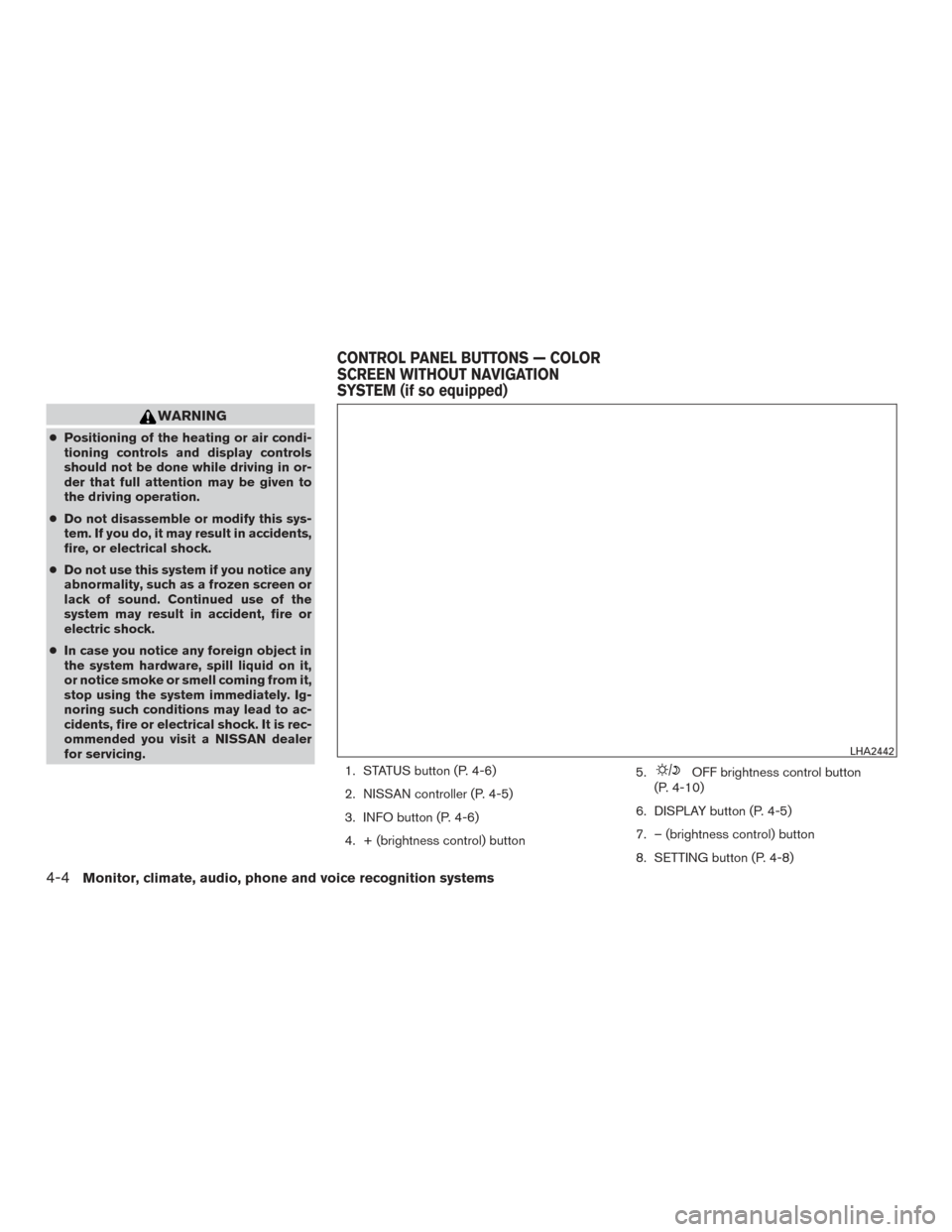
1. STATUS button (P. 4-6)
2. NISSAN controller (P. 4-5)
3. INFO button (P. 4-6)
4. + (brightness control) button 5.
OFF brightness control button
(P. 4-10)
6. DISPLAY button (P. 4-5)
7. – (brightness control) button
8. SETTING button (P. 4-8)
LHA2442
CONTROL PANEL BUTTONS — COLOR
SCREEN WITHOUT NAVIGATION
SYSTEM (if so equipped)
4-4Monitor, climate, audio, phone and voice recognition systems