2015 NISSAN ALTIMA navigation
[x] Cancel search: navigationPage 252 of 441
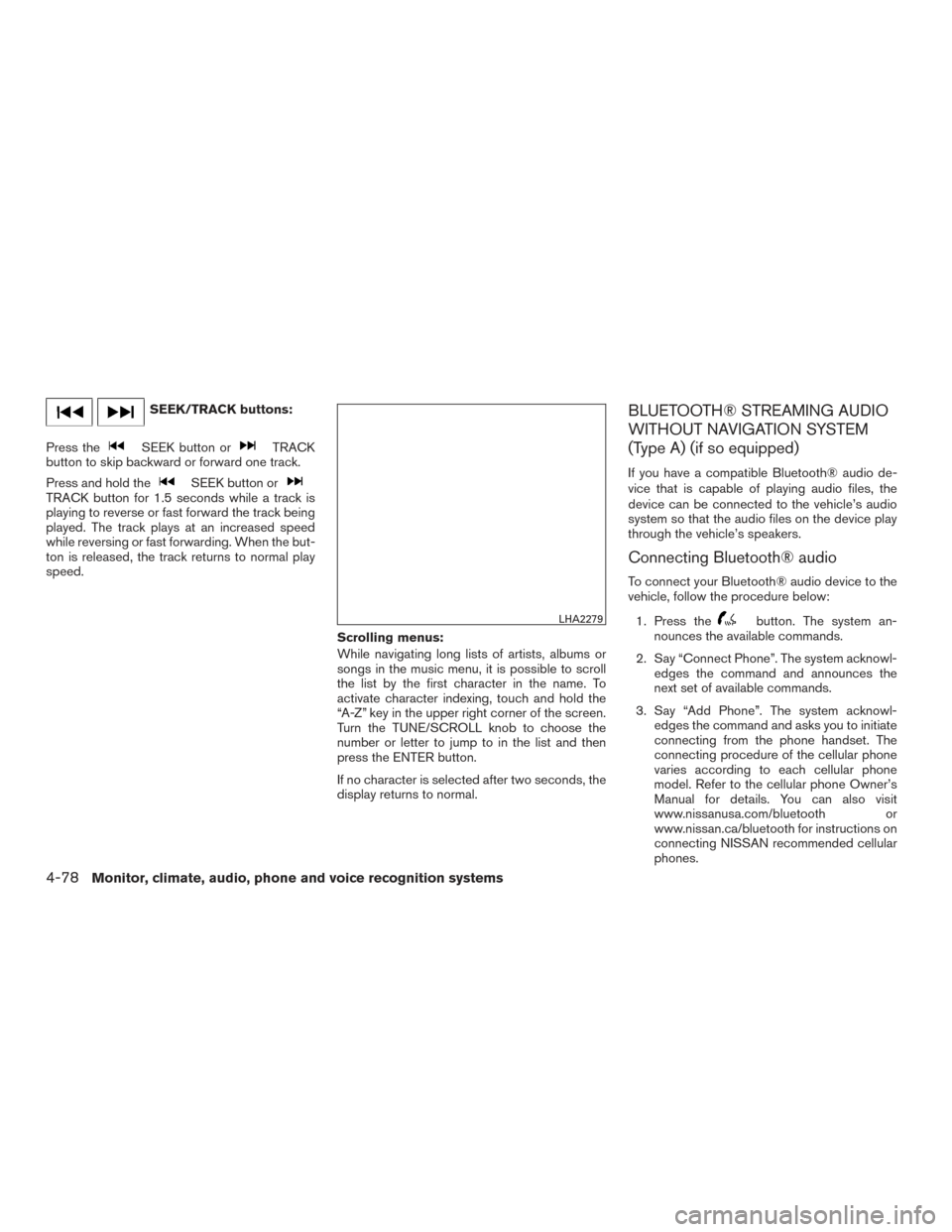
SEEK/TRACK buttons:
Press the
SEEK button orTRACK
button to skip backward or forward one track.
Press and hold the
SEEK button orTRACK button for 1.5 seconds while a track is
playing to reverse or fast forward the track being
played. The track plays at an increased speed
while reversing or fast forwarding. When the but-
ton is released, the track returns to normal play
speed.
Scrolling menus:
While navigating long lists of artists, albums or
songs in the music menu, it is possible to scroll
the list by the first character in the name. To
activate character indexing, touch and hold the
“A-Z” key in the upper right corner of the screen.
Turn the TUNE/SCROLL knob to choose the
number or letter to jump to in the list and then
press the ENTER button.
If no character is selected after two seconds, the
display returns to normal.
BLUETOOTH® STREAMING AUDIO
WITHOUT NAVIGATION SYSTEM
(Type A) (if so equipped)
If you have a compatible Bluetooth® audio de-
vice that is capable of playing audio files, the
device can be connected to the vehicle’s audio
system so that the audio files on the device play
through the vehicle’s speakers.
Connecting Bluetooth® audio
To connect your Bluetooth® audio device to the
vehicle, follow the procedure below:1. Press the
button. The system an-
nounces the available commands.
2. Say “Connect Phone”. The system acknowl- edges the command and announces the
next set of available commands.
3. Say “Add Phone”. The system acknowl- edges the command and asks you to initiate
connecting from the phone handset. The
connecting procedure of the cellular phone
varies according to each cellular phone
model. Refer to the cellular phone Owner’s
Manual for details. You can also visit
www.nissanusa.com/bluetooth or
www.nissan.ca/bluetooth for instructions on
connecting NISSAN recommended cellular
phones.LHA2279
4-78Monitor, climate, audio, phone and voice recognition systems
Page 253 of 441
4. When prompted for a PIN, enter “1234”from the handset. The PIN “1234” has been
assigned by NISSAN and cannot be
changed.
Audio main operation
To switch to the Bluetooth® audio mode, press
the AUX button repeatedly until the Bluetooth®
audio mode is displayed on the screen.
Use the vehicle audio controls or the Bluetooth®
device’s controls to play, pause, skip or reverse
tracks.
BLUETOOTH® STREAMING AUDIO
WITHOUT NAVIGATION SYSTEM
(Type B) (if so equipped)
If you have a compatible Bluetooth® audio de-
vice that is capable of playing audio files, the
device can be connected to the vehicle’s audio
system so that the audio files on the device play
through the vehicle’s speakers.
Connecting Bluetooth® audio
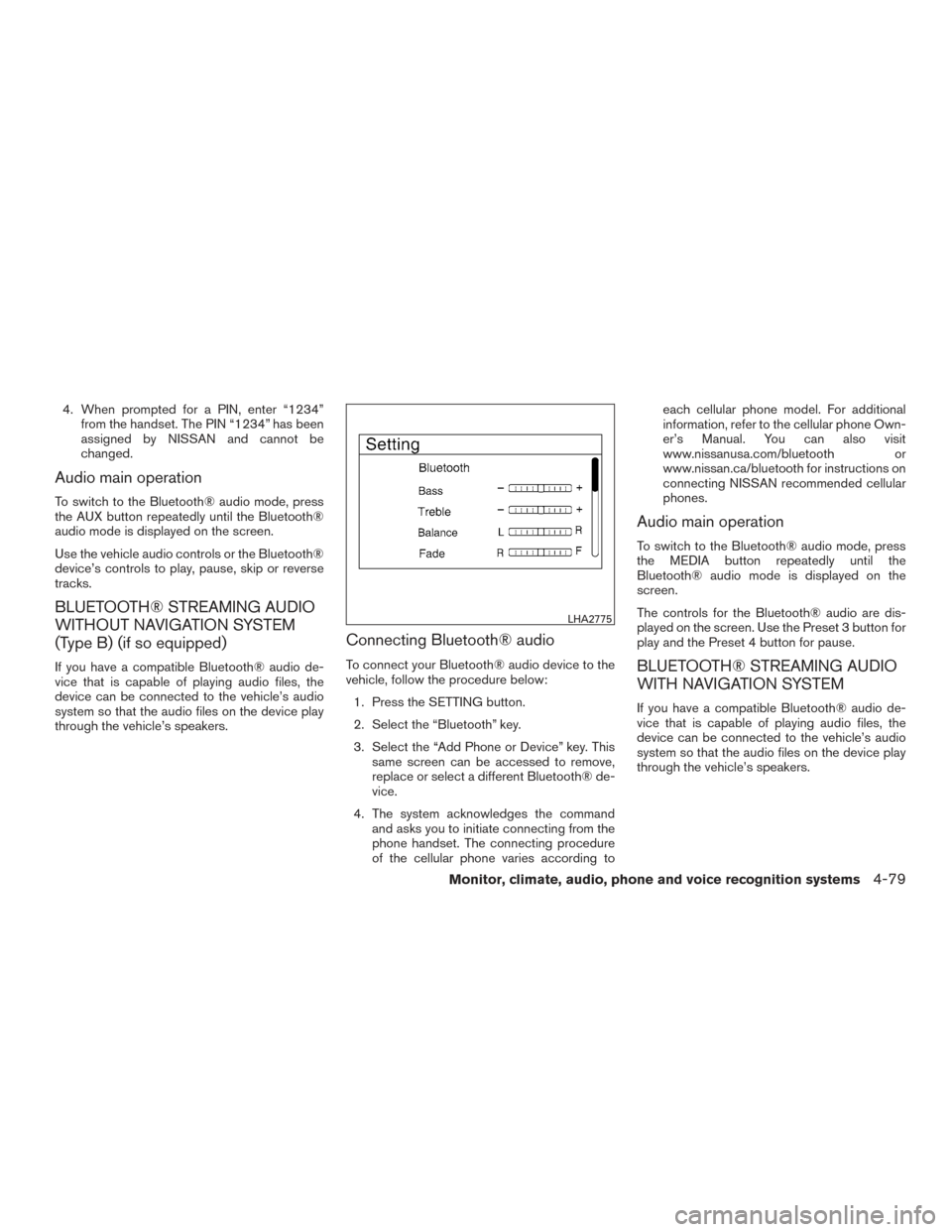
To connect your Bluetooth® audio device to the
vehicle, follow the procedure below:
1. Press the SETTING button.
2. Select the “Bluetooth” key.
3. Select the “Add Phone or Device” key. This same screen can be accessed to remove,
replace or select a different Bluetooth® de-
vice.
4. The system acknowledges the command and asks you to initiate connecting from the
phone handset. The connecting procedure
of the cellular phone varies according to each cellular phone model. For additional
information, refer to the cellular phone Own-
er’s Manual. You can also visit
www.nissanusa.com/bluetooth or
www.nissan.ca/bluetooth for instructions on
connecting NISSAN recommended cellular
phones.
Audio main operation
To switch to the Bluetooth® audio mode, press
the MEDIA button repeatedly until the
Bluetooth® audio mode is displayed on the
screen.
The controls for the Bluetooth® audio are dis-
played on the screen. Use the Preset 3 button for
play and the Preset 4 button for pause.
BLUETOOTH® STREAMING AUDIO
WITH NAVIGATION SYSTEM
If you have a compatible Bluetooth® audio de-
vice that is capable of playing audio files, the
device can be connected to the vehicle’s audio
system so that the audio files on the device play
through the vehicle’s speakers.
LHA2775
Monitor, climate, audio, phone and voice recognition systems4-79
Page 257 of 441
CAUTION
●Always properly tighten the antenna
rod during installation or the antenna
rod may break during vehicle operation.
● Be sure that the antenna is removed
before the vehicle enters an automatic
car wash.
● Be sure to fold down the antenna be-
fore the vehicle enters a garage with a
low ceiling.
Window antenna (if so equipped)
The antenna pattern is printed inside the rear
window.
CAUTION
●Do not place metalized film near the
rear window glass or attach any metal
parts to it. This may cause poor recep-
tion or noise.
● When cleaning the inside of the rear
window, be careful not to scratch or
damage the rear window antenna.
Lightly wipe along the antenna with a
dampened soft cloth. This vehicle is equipped with Smartphone Inte-
gration technology. This allows many compatible
Smartphone applications to be displayed and
easily controlled through the vehicle’s touch-
screen.
NOTE:
A compatible smartphone and registration
is required to use mobile applications or to
access connected features of certain ve-
hicle applications.
REGISTERING WITH
NISSANCONNECTSMMOBILE APPS
To use the Smartphone Integration feature, it is
necessary for the user to register. In order
to register, visit the NissanConnect
SM
website, www.nissanusa.com/connect/ or
https://canada.nissanconnect.com (For Canada)
and sign up or create an account through the
prompts on the NissanConnect
SMMobile App.
Once registered, download the NissanConnectSM
App from your compatible phone’s application
download source and then log into the application.
If you already have an account created through the
App, please log in.
CONNECT PHONE
To use this feature, a compatible smartphone
must be connected via Bluetooth® or USB to the
vehicle. For additional information on connecting
your phone, refer to “Bluetooth® Hands-Free
Phone System with Navigation System” in this
section.
NOTE:
For vehicles with Navigation, Apple
iPhones must be plugged in via USB for
NissanConnect
SMwith Mobile Apps to
function.
NOTE:
For vehicles without Navigation, Apple
iPhones must be paired via Bluetooth® for
NissanConnect
SMwith Mobile Apps to
function.
NOTE:
For Android phones, NissanConnectSMwith
Mobile Apps REQUIRES the phone to be
paired via Bluetooth® for NissanConnect
SM
Mobile Apps to function.
NISSANCONNECTSMMOBILE APPS
(if so equipped)
Monitor, climate, audio, phone and voice recognition systems4-83
Page 259 of 441
WARNING
●Use a phone after stopping your vehicle
in a safe location. If you have to use a
phone while driving, exercise extreme
caution at all times so full attention may
be given to vehicle operation.
● If you are unable to devote full attention
to vehicle operation while talking on
the phone, pull off the road to a safe
location and stop your vehicle.
CAUTION
To avoid discharging the vehicle battery,
use a phone after starting the engine.
Your NISSAN is equipped with the Bluetooth®
Hands-Free Phone System. If you have a com-
patible Bluetooth® enabled cellular phone, you
can set up the wireless connection between your
cellular phone and the in-vehicle phone module.
With Bluetooth® wireless technology, you can make or receive a hands-free telephone call with
your cellular phone in the vehicle.
Once your cellular phone is connected to the
in-vehicle phone module, no other phone con-
necting procedure is required. Your phone is
automatically connected with the in-vehicle
LHA3079
BLUETOOTH® HANDS-FREE PHONE
SYSTEM WITHOUT NAVIGATION
SYSTEM (Type A) (if so equipped)
Monitor, climate, audio, phone and voice recognition systems4-85
Page 273 of 441
WARNING
●Use a phone after stopping your vehicle
in a safe location. If you have to use a
phone while driving, exercise extreme
caution at all times so full attention may
be given to vehicle operation.
● If you are unable to devote full attention
to vehicle operation while talking on
the phone, pull off the road to a safe
location and stop your vehicle.
CAUTION
To avoid discharging the vehicle battery,
use a phone after starting the engine.
Your NISSAN is equipped with the Bluetooth®
Hands-Free Phone System. If you have a com-
patible Bluetooth® enabled cellular phone, you
can set up the wireless connection between your
cellular phone and the in-vehicle phone module.
With Bluetooth® wireless technology, you can make or receive a hands-free telephone call with
your cellular phone in the vehicle.
Once your cellular phone is connected to the
in-vehicle phone module, no other phone con-
necting procedure is required. Your phone is
automatically connected with the in-vehicle
LHA3127
BLUETOOTH® HANDS-FREE PHONE
SYSTEM WITHOUT NAVIGATION
SYSTEM (Type B) (if so equipped)
Monitor, climate, audio, phone and voice recognition systems4-99
Page 284 of 441
WARNING
●Use a phone after stopping your vehicle
in a safe location. If you have to use a
phone while driving, exercise extreme
caution at all times so full attention may
be given to vehicle operation.
● If you are unable to devote full attention
to vehicle operation while talking on
the phone, pull off the road to a safe
location and stop your vehicle.
CAUTION
To avoid discharging the vehicle battery,
use a phone after starting the engine.
Your NISSAN is equipped with the Bluetooth®
Hands-Free Phone System. If you have a com-
patible Bluetooth® enabled cellular phone, you
can set up the wireless connection between your
cellular phone and the in-vehicle phone module.
With Bluetooth® wireless technology, you can make or receive a hands-free telephone call with
your cellular phone in the vehicle.
Once your cellular phone is connected to the
in-vehicle phone module, no other phone con-
necting procedure is required. Your phone is
automatically reconnected with the in-vehicle
LHA3081
BLUETOOTH® HANDS-FREE PHONE
SYSTEM WITH NAVIGATION SYSTEM
(if so equipped)
4-110Monitor, climate, audio, phone and voice recognition systems
Page 292 of 441
The NISSAN Voice Recognition system allows
hands-free operation of the systems equipped on
this vehicle, such as the phone and navigation
systems.
To operate NISSAN Voice Recognition, press
the
button located on the steering wheel.
When prompted, speak the command for the
system you wish to activate. The command given
is picked up by the microphone and performed
when it is properly recognized. NISSAN Voice
Recognition will provide a voice response as well
as a message in the center display to inform you
of the command results.
USING THE SYSTEM
Initialization
When the ignition switch is in the ON position,
NISSAN Voice Recognition is initialized, which
takes a few seconds. When completed, the sys-
tem is ready to accept voice commands. If
the
button is pressed before the initializa-
tion completes, the system will announce: “Voice
Recognition System not ready. Please wait.”
Giving voice commands
1. Press thebutton.
2. The system announces: “Please say a cat- egory like phone or a command like points of
interest followed by a brand name”. A list of
available commands is then spoken by the
system.
3. After the tone sounds and the face icon on the display changes, speak a command.
Available commands are discussed in this
section. 4. Voice and display feedback are provided
when the command is accepted.
● If the command is not recognized, the sys-
tem announces: “Command not recog-
nized”. Repeat the command in a clear voice.
● If you want to cancel the command or go
back to the previous menu of commands,
press the
button. The system will an-
nounce: “Cancelling Voice Recognition” or
“Go back” depending on the current menu
level.
● Press the
button to move back
through the menus displayed on the screen.
● If you want to adjust the volume of the voice
feedback, use the volume control switches
on the steering wheel or the volume knob on
the control panel.
● The voice command screen can also be
accessed using the control panel display:
1. Press the [
] button.
2. Touch the “Voice Commands” key.
LHA2282
NISSAN VOICE RECOGNITION
SYSTEM (if so equipped)
4-118Monitor, climate, audio, phone and voice recognition systems
Page 293 of 441
Operating tips
To get the best performance out of NISSAN
Voice Recognition, observe the following:● Keep the interior of the vehicle as quiet as
possible. Close the windows to eliminate the
surrounding noises (traffic noises, vibration
sounds, etc.) , which may prevent the system
from recognizing the voice commands cor-
rectly.
● Wait until a tone sounds before speaking a
command. Otherwise, the command will not
be received properly.
● Start speaking a command within 3.5 sec-
onds after the tone sounds.
● Speak in a natural voice without pausing
between words.
SYSTEM FEATURES
NISSAN Voice Recognition can activate the fol-
lowing systems:
● Bluetooth® Hands-Free Phone System
● Navigation
● Audio
● Information
● My Apps
For additional information on the navigation sys-
tem, refer to the separate Navigation System
Owner’s Manual.
How to say numbers
NISSAN Voice Recognition requires a certain
way to speak numbers in voice commands. Refer
to the following examples.
General rule: Either “zero” or “oh” can be used for
“0”.
Phone numbers
Speak phone numbers according to the following
example. For 1-800-662-6200, say dial number
and then speak the phone number in any of the
following formats: ● “one eight oh oh six six two six two oh oh”
● “one eight hundred six six two six two oh oh”
● “one eight zero zero six six two six two oh oh”
For the best voice recognition phone dialing re-
sults, say phone numbers as single digits. Also,
full numbers can only be spoken for “800”. For
example, you cannot say 555-6000 as “five five
five six thousand”.
LHA2780
Monitor, climate, audio, phone and voice recognition systems4-119