2015 MERCEDES-BENZ S-Class lock
[x] Cancel search: lockPage 95 of 298

Using the map
0043
Crosshair
0044 Distance of crosshair position from current vehicle position
X To switch to navigation mode: press the00CBbutton.
X To show the menu: slide6the controller.
X To select Destination
Destination: turn and press the controller.
X Select Using Map
Using Map.
The map with crosshair is shown.
X To move the map: slide1, 4or2 the controller.
X To change the map scale: turn the controller until the desired map scale is selected.
The scale is displayed at the bottom. Turning clockwise zooms out from the map; turning
counter-clockwise zooms in. X
To select a destination: press the controller.
The list contains the Menu Menumenu item. If there are multiple destinations around the crosshair,
a selection list will also appear.
X To show the menu: press the controller. Destination input
93Navigation Z
Page 109 of 298
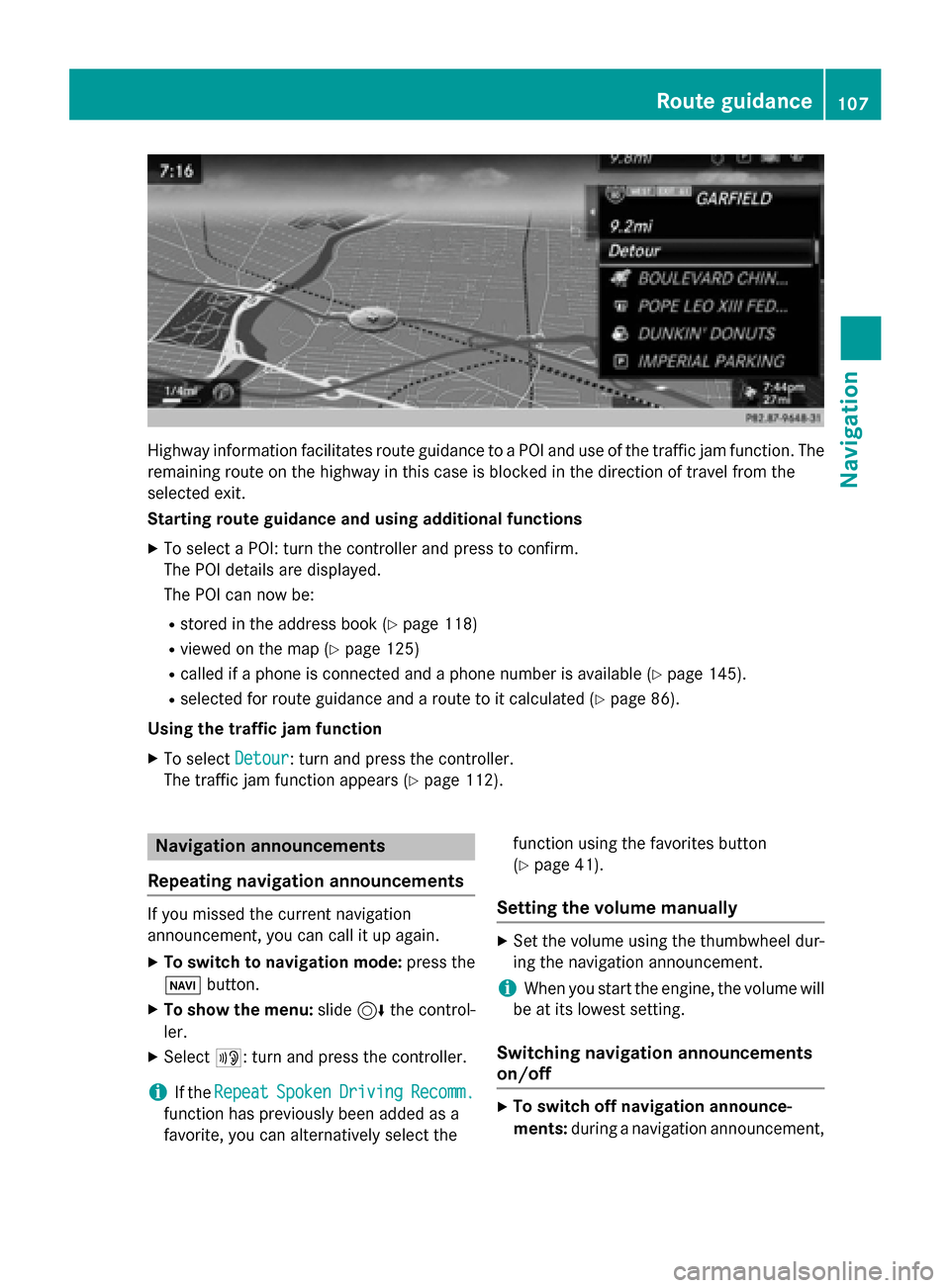
Highway information facilitates route guidance to a POI and use of the traffic jam function. The
remaining route on the highway in this case is blocked in the direction of travel from the
selected exit.
Starting route guidance and using additional functions
X To select a POI: turn the controller and press to confirm.
The POI details are displayed.
The POI can now be:
R stored in the address book (Y page 118)
R viewed on the map (Y page 125)
R called if a phone is connected and a phone number is available (Y page 145).
R selected for route guidance and a route to it calculated (Y page 86).
Using the traffic jam function X To select Detour
Detour: turn and press the controller.
The traffic jam function appears (Y page 112).Navigation announcements
Repeating navigation announcements If you missed the current navigation
announcement, you can call it up again.
X To switch to navigation mode: press the
00BE button.
X To show the menu: slide6the control-
ler.
X Select 006A: turn and press the controller.
i If the
Repeat
Repeat Spoken SpokenDriving
Driving Recomm.
Recomm.
function has previously been added as a
favorite, you can alternatively select the function using the favorites button
(Y
page 41).
Setting the volume manually X
Set the volume using the thumbwheel dur-
ing the navigation announcement.
i When you start the engine, the volume will
be at its lowest setting.
Switching navigation announcements
on/off X
To switch off navigation announce-
ments: during a navigation announcement, Route guidance
107Navigation Z
Page 116 of 298

Real-time traffic reports on the map
0043
Icon indicating an incident on the route (traffic jam icon)
0044 Display for traffic reports
0087 Map scale
0085 Icon delimiting the section of the route affected (color lines)
When 0044is displayed, traffic reports can be received or traffic reports are available. If it is not
displayed, no reception is possible.
COMAND can show certain traffic incidents on the map. Traffic reports are shown on the map
at scales of 1/32 mi to 20 mi.
X To hide the menu: slide5and press the controller.
The map can be seen in the full-screen display.
X To set the map scale: turn the controller until the desired map scale is selected.0043
Traffic jam on the route
0044 Slow-moving traffic on the route
0087 Road blocked
0085 Traffic disruption
0083 Traffic warning
0084 Dashed red and white line delimiting the traffic warning
006B Road block (crosses along the affected road) 114
Real-time traffic reportsNavigation
Page 129 of 298

Avoiding an area
General information COMAND enables you to avoid areas you do not wish to drive through.
If you activate or deactivate a route block while route guidance is active, COMAND will cal-
culate a new route. If you activate or deactivate a route block while route guidance is inactive, COMAND will use the new setting for the next route guidance.
The calculated route may include an area to be avoided if:
R your destination is located in such an area.
R there is no alternative route of comparable length available
Highways within blocked areas are always taken into consideration in the route calculation.
Avoiding a new area X
To switch to navigation mode: press the00CBbutton.
X To show the menu: slide6the controller.
X To select Options
Options: turn and press the controller.
X Select Route Settings
Route Settings.
X Select Avoid Options
Avoid Options.
X Select Avoid Area Avoid Area.
X Select Avoid New Area Avoid New Area.
A menu appears.
X Select Using Map
Using Map orAddress Entry
Address Entry.
If you select Using Map
Using Map , the map with crosshair appears.
If you select Address Entry
Address Entry, the address entry menu appears where you can enter the
address (Y page 83). The map appears with the crosshair after the address is entered.
i Equipment with a touchpad: alternatively you can carry out this operation using the touch-
pad (Y page 30). Map functions
127Navigation Z
Page 130 of 298

X
To select an area: when the map with crosshair appears, press the controller.
A red square appears on the map, symbolizing the area to be blocked.
X To change the size of the area, turn the controller.
The map scale is shown at the bottom of the display. The needle is on the map scale currently
selected.
X When the desired size is set, press the controller.
The area is entered into the list.
Avoiding an area: functions X
To switch to navigation mode: press the00CBbutton.
X To show the menu: slide6the controller.
X To select Options
Options: turn and press the controller.
X Select Route Settings Route Settings.
X Select Avoid Options
Avoid Options.
X Select Avoid Area
Avoid Area.
The "Avoid area" list appears.
Activating/deactivating the blocked area: X To select an area: turn and press the controller.
Switch blocking on 0073or off 0053.
Displaying/changing the area: X To select an area: turn the controller.
X Slide 9the controller.
X To select Display/Change
Display/Change: press the controller.
The map with the crosshair appears.
X Press the controller.
The area currently blocked is displayed as a red square.
X To move to a different area to block: slide 1,4,2the controller.
X To resize the blocked area: press the controller. 128
Map functionsNavigation
Page 131 of 298

X
Turn the controller.
The size of the blocked area changes.
X To accept changes: press the controller.
A message appears stating that the area has been set.
Deleting an area: X To select an area: turn the controller.
X Slide 9the controller.
X Select Delete
Delete.
A prompt appears asking whether you wish to delete the area.
X Select Yes
Yes orNo No.
After selecting Yes
Yes, the area is deleted.
Deleting all areas: X Slide 9and press the controller while the list is shown.
X Select Delete All
Delete All.
A prompt appears asking whether you wish to delete all areas.
X Select Yes
Yes orNo
No.
After selecting Yes
Yes, all areas are deleted.
i Equipment with a touchpad: alternatively you can carry out this operation using the touch-
pad (Y page 30). SIRIUS XM service
Displaying SIRIUS XM service informa-
tion You can display the SIRIUS XM service infor-
mation.
X To switch to navigation mode: press the
00BE button.
X To show the menu: press the controller.
X To select Traffic
Traffic: turn and press the con-
troller.
X Select SIRIUS Service
SIRIUS Service.
The window on the right half of the display shows the telephone number of the pro-
vider (SIRIUS XM) and the serial number of
your service module.
i Equipment with a touchpad: alternatively
you can carry out this operation using the
touchpad (Y page 30). Registering for the SIRIUS XM traffic
report service X
Call the provider telephone number shown
on the COMAND display.
i You can also have the satellite service
activated online. To do so, visit the SIRIUS
XM Radio website at
http://www.sirius.com (USA).
Once the connection has been established: X Follow the service employee's instructions.
The activation process may take up to ten
minutes.
If registration is not included when purchas-
ing the system, your credit card details will be required to activate your account. Map functions
129Navigation Z
Page 157 of 298

Messages (text messages and e-
mails) General notes
New messages are identified by the 008F
symbol in the COMAND display and an audi-
ble signal. Once you have read all the mes-
sages, the symbol is no longer displayed.
COMAND displays the 100 newest text mes-
sages and e-mails.
The ú symbol is displayed when the
mobile phone's message memory is full. The
symbol is no longer displayed if you delete
messages. Prerequisites
To use the message functions, the connected
mobile phone must support the Bluetooth ®
MAP profile. When connecting the mobile
phone, you may have to accept the prompt for
the MAP Bluetooth ®
profile.
With some mobile phones, some settings still
have to be made after connecting to
COMAND (see the manufacturer's operating
instructions). The messages are displayed the next time you connect to COMAND.
An e-mail account must be set up on the
mobile phone for the e-mail function (see the manufacturer’s operating instructions).
To read and write e-mails in COMAND, the e-
mail account first needs to be configured
(Y page 156).
Some mobile phones with the MAP Blue-
tooth ®
profile:
R only show new text messages.
R do not support the deleting or editing of
text messages.
R do not support the drafts folder for text
messages.
R do not support the sending of text mes-
sages.
R do not support the e-mail function.
R do not send messages in a locked status. Not all mobile phones available on the market
are equally suitable. You can obtain further
information about settings and supported
functions of Bluetooth ®
-capable mobile
phones on the Internet at
www.mercedes-benz-mobile.com .
You can also obtain more information by call-
ing.
In the USA, you can get in touch with the
Mercedes-Benz Customer Assistance Center
on 1-800-FOR-MERCedes (1-800-367-6372).
In Canada, you can get in touch with the Cus-
tomer Relations Center on 1-800-387-0100. Settings
Calling up the settings menu for mes-
sages X
To call up the telephone menu: press the
002B button.
X To switch to the menu bar: slide 6the
controller.
X To select 0083: turn and press the controller.
The message menu is displayed.
X To switch to the menu bar: slide 6the
controller.
X To select Settings Settings: turn and press the
controller.
The text message settings and the available e-mail accounts of the connected mobile
phone will be displayed. Messages (text messages and e-mails)
155Telephone Z
Page 195 of 298

X
To show the menu: press the0038but-
ton.
X To select 0057: turn and press the control-
ler.
A menu appears.
X Select Settings
Settings.
You can activate/deactivate the following
settings:
R Download Images Automatically
Download Images Automatically
It may take some time to download the
contents of websites that contain a large
amount of images. Therefore, it may be
useful to deactivate this option.
R Block Pop-Ups Block Pop-Ups
Pop-ups are windows (usually with adver-
tisements) which are displayed automati-
cally when you call up a website. You can
block these displays.
R Activate Javascript
Activate Javascript
Javascript makes it possible to display and
interact with dynamic content on the web-
site.
R Allow Cookies
Allow Cookies
Some websites save information in small
text files (cookies) in your system. You can
determine whether cookies may be stored.
R Enable Internet Audio Enable Internet Audio
You can switch the browser's audio play-
back on or off here.
R Hide Scroll Bars Hide Scroll Bars
You can show or hide the scroll bar here.
R Show Link Target Show Link Target
You can display the link's URL here.
R Character Size Character Size
You can select the font size which is used
when displaying the website.
R Character Code Character Code
You can select a different character set
here, e.g. if the characters of a website
appear distorted. Changing settings X
To select the desired setting: turn and
press the controller.
Switch the setting on 0073or off 0053.
Changing the character size or character code.
X Select Character Size Character Size orCharacter
Character
Code
Code.
X To select the setting you require: turn and
press the controller.
i If you change the settings, the websites
may not be displayed correctly.
Deleting private data X
Press the 002Bbutton.
X Select Internet Internet.
X To show the menu: slide 6the controller.
X To select Settings
Settings: slide 6the control-
ler, turn and press to confirm.
A menu appears.
X To select Delete DeletePrivate
Private Data
Data: turn and
press the controller.
A menu appears. The 003Bdot indicates the
current setting.
X To select the setting you require: turn and
press the controller.
or
X Select Delete All Data On Exit Delete All Data On Exit.
Switch the setting on 0073or off 0053. Web browser
193Online and Internet functions Z