2015 MERCEDES-BENZ GL-Class Camera
[x] Cancel search: CameraPage 237 of 462

0087
Yellow guide line at a distance of approx-
imately 3 ft (1.0 m) from the rear of the
vehicle
0085 Red guide line at a distance of approx-
imately 10 in (0.25 m) from the rear of the
vehicle
X Make sure that the rear view camera is
switched on (Y page 233).
The lane and the guide lines are shown.
X With the help of white guide line 0043, check
whether the vehicle will fit into the parking space.
X Using white guide line 0043as a guide, care-
fully back up until you reach the end posi-
tion.
Red guide line 0085is then at the end of the
parking space. The vehicle is almost paral-
lel in the parking space.
Reverse perpendicular parking with the
steering wheel at an angle Turning the steering wheel
0043
Red guide line for the vehicle width includ-
ing the exterior mirrors, for current steer-
ing wheel angle (dynamic)
0044 Parking space marking
X Make sure that the rear view camera is
switched on (Y page 233).
The lane and the guide lines are shown.
X Drive past the parking space and bring the
vehicle to a standstill.
X While the vehicle is at a standstill, turn the
steering wheel in the direction of the park- ing space until red guide line
0043reaches
parking space marking 0044.
X Keep the steering wheel in that position
and back up carefully. Backing up with the steering wheel turned
0043
Red guide line for the vehicle width includ-
ing the exterior mirrors, for current steer-
ing wheel angle (dynamic)
X Stop the vehicle when it is almost exactly in
front of the parking space.
The white lane should be as close to parallel with the parking space marking as possi-
ble. Driving to the final position
0043
White guide line at current steering wheel
angle
0044 Parking space marking
X Turn the steering wheel to the center posi-
tion while the vehicle is stationary. Driving systems
235Driving and parking Z
Page 239 of 462

apply to objects that are at the same level
as the ball coupling.
X Back up carefully, making sure that trailer
drawbar marker assistant 0087points
approximately in the direction of trailer
drawbar 0085.
X Reverse carefully until trailer drawbar 0085
reaches red guide line 0044.
X Couple up the trailer (Y page 265).360° camera (surround view)
General notes The 360° camera is a system consisting of
four cameras.
The system analyzes images from the follow-
ing cameras:
R Rear view camera
R Front camera
R Two cameras in the exterior rear view mir-
rors
The cameras capture the immediate sur-
roundings of the vehicle. The system sup-
ports you, e.g. when parking or if vision is
restricted at an exit.
The 360° camera images can be shown in full
screen mode or in seven different split-screen views on the COMAND display. A split-screenview also includes a top view of the vehicle.
This view is calculated from the data supplied
by the installed cameras (virtual camera).
The seven split-screen views are: R top view and picture from the rear view
camera (130° viewing angle)
R top view and picture from the front camera
(without displaying the maximum steering
wheel angle)
R top view and enlarged rear view
R top view and enlarged front view
R top view and trailer view (vehicles with
trailer tow hitch) R
top view and rear-view images from the
exterior mirror cameras (rear wheel view)
R top view and forward-view images from the
exterior mirror cameras (front wheel view)
i The top view and trailer view are available
for vehicles equipped with a trailer tow
hitch.
When the function is active and you shift the
transmission from position Dor Rto N, you
see the previous view in the COMAND dis-
play. The dynamic guidelines are hidden.
When you change between transmission
positions Dand R, you see the previously
selected front or rear view.
Important safety notes The 360° camera is only an aid. It is not a
replacement for your attention to your imme-
diate surroundings. You are always responsi- ble for safe maneuvering and parking. When
maneuvering or parking, make sure that there are no persons, animals or objects in the area
in which you are maneuvering.
The 360° camera may show a distorted view of obstacles, show them incorrectly or not at
all. It cannot show objects in the following
areas:
R under the front bumper
R very close to the front bumper
R very close to the rear bumper
R under the rear bumper
R in close range above the handle on the
trunk lid
R very close to the exterior mirrors
You are always responsible for safety, and
must always pay attention to your surround-
ings when parking and maneuvering. This
applies to the areas behind, in front of and
beside the vehicle. You could otherwise
endanger yourself and others.
The 360° camera will not function or will
function in a limited manner:
R if the doors are open
R if the exterior mirrors are folded in Driving systems
237Driving and parking Z
Page 240 of 462

R
if the tailgate is open
R in heavy rain, snow or fog
R at night or in very dark places
R if the cameras are exposed to very bright
light
R if the area is lit by fluorescent bulbs or LED
lighting (the display may flicker)
R if there is a sudden change in temperature,
e.g. when driving into a heated garage in
winter
R if the camera lenses are dirty or covered
R if the vehicle components in which the
cameras are installed are damaged. In this
event, have the camera position and setting
checked at a qualified specialist workshop.
Do not use the 360° camera in this case. You
can otherwise injure others or cause damage to objects or the vehicle.
Activation conditions The 360° camera image can be displayed if:
R your vehicle is equipped with a 360° cam-
era
R COMAND is switched on, see the separate
COMAND operating instructions
R the 360° Camera
360° Camera function is activated
Activating the 360° camera using the
SYS button X
Press and hold the 0066button for longer
than 2 seconds, see the separate COMAND
operating instructions.
Depending on whether position Dor Ris
engaged, the following is shown:
R full screen display with the image from
the front camera
R full screen display with the image from
the rear view camera Activating the 360° camera with
COMAND X
Press the 0066button, see the separate
COMAND operating instructions.
X Select System System by turning 00790052007Athe
COMAND controller and press 0098to con-
firm.
X Select 360° camera 360° camera and press0098to con-
firm.
Depending on whether position Dor Ris
engaged, the following is shown:
R a split screen with top view and the
image from the front camera or
R a split screen with top view and the
image from the rear view camera
For further information about the COMAND
controller, see the separate COMAND oper-
ating instructions.
Activating the 360° camera using
reverse gear The 360° camera images can be automati-
cally displayed by engaging reverse gear.
X Make sure that the SmartKey is in position
2 in the ignition lock.
X Make sure that the Activation by R Activation by R
gear
gear function is selected in COMAND, see
the separate COMAND operating instruc-
tions.
X To show the 360° camera image: engage
reverse gear.
The COMAND display shows the area
behind the vehicle in split screen:
R vehicle with guide lines
R top view of the vehicle
Selecting the split-screen and full
screen displays X
To switch between split screen views:
switch to the line with the vehicle icons by
sliding 00970052the COMAND controller.
X Turn 00790052007A the COMAND controller and
select one of the vehicle symbols. 238
Driving systemsDriving an
d parking
Page 241 of 462

X
To switch to full screen mode: select
Full Screen
Full Screen by turning00790052007Athe
COMAND controller and press 0098to con-
firm.
Displays in the COMAND display Important safety notes
! Objects not at ground level may appear to
be further away than they actually are, e.g.:
R the bumper of a parked vehicle
R the drawbar of a trailer
R the ball coupling of a trailer tow hitch
R the rear section of an HGV
R a slanted post
Use the guidelines only for orientation.
Approach objects no further than the bot-
tom-most guideline.
Top view with picture from the rear view
camera 0043
Symbol for the split screen setting with
top view and rear view camera image
0044 Yellow guide line at a distance of approx-
imately 13 ft (4.0 m) fromthe rear of the
vehicle
0087 Yellow guide line for the vehicle width
including the exterior mirrors, for current
steering wheel angle (dynamic)
0085 Yellow lane marking tires at current steer-
ing wheel angle (dynamic) 0083
Yellow guide line at a distance of approx-
imately 3 ft (1.0 m) fromthe rear of the
vehicle
0084 Vehicle center axle (marker assistance)
006B Red guide line at a distance of approx-
imately 12 in (0.30 m) fromthe rear of the
vehicle
006C Bumper
The guide lines are shown when the trans-
mission is in position R.
The distance specifications only apply to
objects that are at ground level.
Top view with picture from the front cam- era 0043
Symbol for the split screen setting with
top view and front camera image
0044 Yellow guide line at a distance of approx-
imately 13 ft (4.0 m)from the front of the
vehicle
0087 Yellow guide line for the vehicle width
including the exterior mirrors, for current
steering wheel angle (dynamic)
0085 Yellow lane marking tires at current steer-
ing wheel angle (dynamic) Driving systems
239Driving and parking Z
Page 242 of 462
0083
Yellow guide line at a distance of approx-
imately 3 ft (1.0 m) from the front of the
vehicle
0084 Red guide line at a distance of approx-
imately 12 in (0.30 m) from the front of the
vehicle
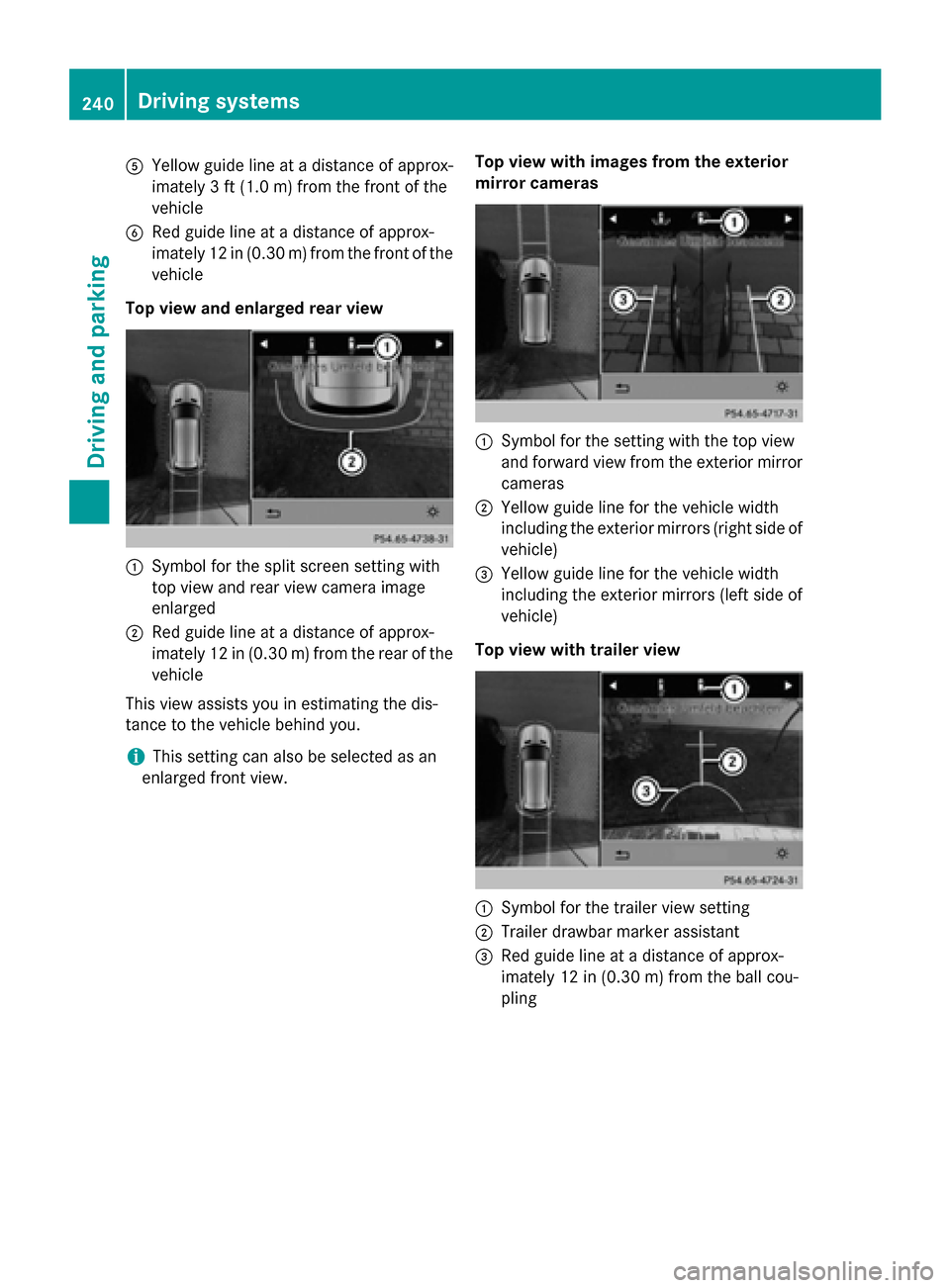
Top view and enlarged rear view 0043
Symbol for the split screen setting with
top view and rear view camera image
enlarged
0044 Red guide line at a distance of approx-
imately 12 in (0.30 m) from the rear of the
vehicle
This view assists you in estimating the dis-
tance to the vehicle behind you.
i This setting can also be selected as an
enlarged front view. Top view with images from the exterior
mirror cameras 0043
Symbol for the setting with the top view
and forward view from the exterior mirror
cameras
0044 Yellow guide line for the vehicle width
including the exterior mirrors (right side of vehicle)
0087 Yellow guide line for the vehicle width
including the exterior mirrors (left side of
vehicle)
Top view with trailer view 0043
Symbol for the trailer view setting
0044 Trailer drawbar marker assistant
0087 Red guide line at a distance of approx-
imately 12 in (0.30 m) from the ball cou-
pling 240
Driving systemsDriving and parking
Page 243 of 462

Wide-angle function
Example: full screen mode with PARKTRONIC dis-
play
0043 Symbol for the full screen setting with rear
view camera image
0044 PARKTRONIC warning display
If the vehicle is equipped with PARKTRONIC
and the function is active (Y page 227), warn-
ing displays 0044in the COMAND display are
also active or light up accordingly.
PARKTRONIC appears:
R in split screen view as red or yellow brack-
ets around the vehicle icon in the top view, or
R in the full screen view, on the right-hand
side at the bottom as red or yellow brackets
around the vehicle icon
i The full screen display can also be selec-
ted as front view.
Exiting 360° camera display mode As soon as your vehicle exceeds a speed of
19 mph (30 km/h) with the function activa-
ted, the function switches off. The COMAND
display switches back to the previously selec-
ted view. You can also switch the display by
selecting the 0039symbol in the display and
pressing 0098the COMAND controller to con-
firm. ATTENTION ASSIST
General notes ATTENTION ASSIST helps you during long,
monotonous journeys, such as on highways.
It is active in the range between 50 mph
(80 km/h) and 112 mph (180 km/h). If
ATTENTION ASSIST detects typical indicators
of fatigue or increasing lapses in concentra-
tion on the part of the driver, it suggests you
take a break.
Important safety notes ATTENTION ASSIST is only an aid to the
driver. It might not always recognize fatigue
or increasing inattentiveness in time or fail to
recognize them at all. The system is not a
substitute for a well-rested and attentive
driver.
The functionality of ATTENTION ASSIST is
restricted and warnings may be delayed or
not occur at all:
R if the road condition is poor, e.g. if the sur-
face is uneven or if there are potholes
R if there is a strong side wind
R if you have adopted a sporty driving style
with high cornering speeds or high rates of
acceleration
R if you are predominantly driving slower
than 50 mph (80 km/h) or faster than
112 mph (180 km/h)
R if the time has been set incorrectly
R in active driving situations, such as when
you change lanes or change your speed
ATTENTION ASSIST is reset when you con-
tinue your journey and starts assessing your
tiredness again if:
R you switch off the engine.
R you take off your seat belt and open the
driver's door, e.g. for a change of drivers or
to take a break. Driving systems
241Driving and parking Z
Page 244 of 462

Activating ATTENTION ASSIST
X
Activate ATTENTION ASSIST using the on-
board computer (Y page 284).
When ATTENTION ASSIST is deactivated, the 00D7 symbol appears in the multifunction
display in the assistance graphic display.
ATTENTION ASSIST is activated automatically
after the engine is started up.
Warning and display messages in the
multifunction display If fatigue or increasing lapses in concentra-
tion are detected, a warning appears in the
multifunction display: Attention Assist: Attention Assist:
Take a Break!
Take a Break!
In addition to the message shown in the mul-
tifunction display, you will then hear a warn-
ing tone.
X If necessary, take a break.
X Confirm the message by pressing the 0076
button on the steering wheel.
On long journeys, take regular breaks in good
time to allow yourself to rest properly. If you
do not take a break, you will be warned again
after 15 minutes at the earliest. The precon-
dition for this is that ATTENTION ASSIST still
detects typical indicators of fatigue or
increasing lapses in concentration. Night View Assist Plus
General notes In addition to the illumination provided by the
normal headlamps, Night View Assist Plus
uses infrared light to illuminate the road.
Night View Assist Plus camera 0043picks up the
infrared light and displays a monochrome
image in COMAND. The image displayed in
COMAND corresponds to a road lit up by high- beam headlamps. This enables you to see the
road's course and any obstacles in good time. If pedestrian recognition is activated, pedes-
trians recognized by the system are highligh-
ted in the Night View Assist Plus display.
Light from the headlamps of oncoming vehi-
cles does not affect the Night View Assist Plus
display in the multifunction display. This is
also the case if you cannot switch on the high-
beam headlamps due to oncoming traffic.
i Infrared light is not visible to the human
eye and therefore does not glare. Night
View Assist Plus can therefore remain
switched on even if there is oncoming traf- fic.
Important safety notes Night View Assist Plus is only an aid and is not
a substitute for attentive driving. Do not rely
on the Night View Assist Plus display. You are responsible for the distance to the vehicle in
front, for vehicle speed and for braking in
good time. Drive carefully and always adapt
your driving style to suit the prevailing road
and traffic conditions.
The system may be impaired or may not func-
tion if:
R there is poor visibility, e.g. due to snow,
rain, fog or spray
R the windshield is dirty, fogged up or cov-
ered, for instance by a sticker, in the vicinity
of the camera
R on bends, on uphill gradients or downhill
gradients 242
Driving systemsDriving and pa
rking
Page 246 of 462

It may be the case that objects are highlighted
as well as pedestrians.
Fogged up or dirty windshield If the windshield in front of the camera is fog-
ged up or dirty on the inside or outside, the
Night View Assist Plus display is affected.
X To defrost: check the automatic air condi-
tioning settings (Y page 160) and fold down
the camera cover (Y page 383).
X To defrost the inside of the windshield:
fold down the camera cover (Y page 383)
and clean the windshield (Y page 381).244
Driving systemsDriving and parking