2015 MERCEDES-BENZ E-CLASS SALOON display
[x] Cancel search: displayPage 285 of 497
Route guidanc
enotactive :
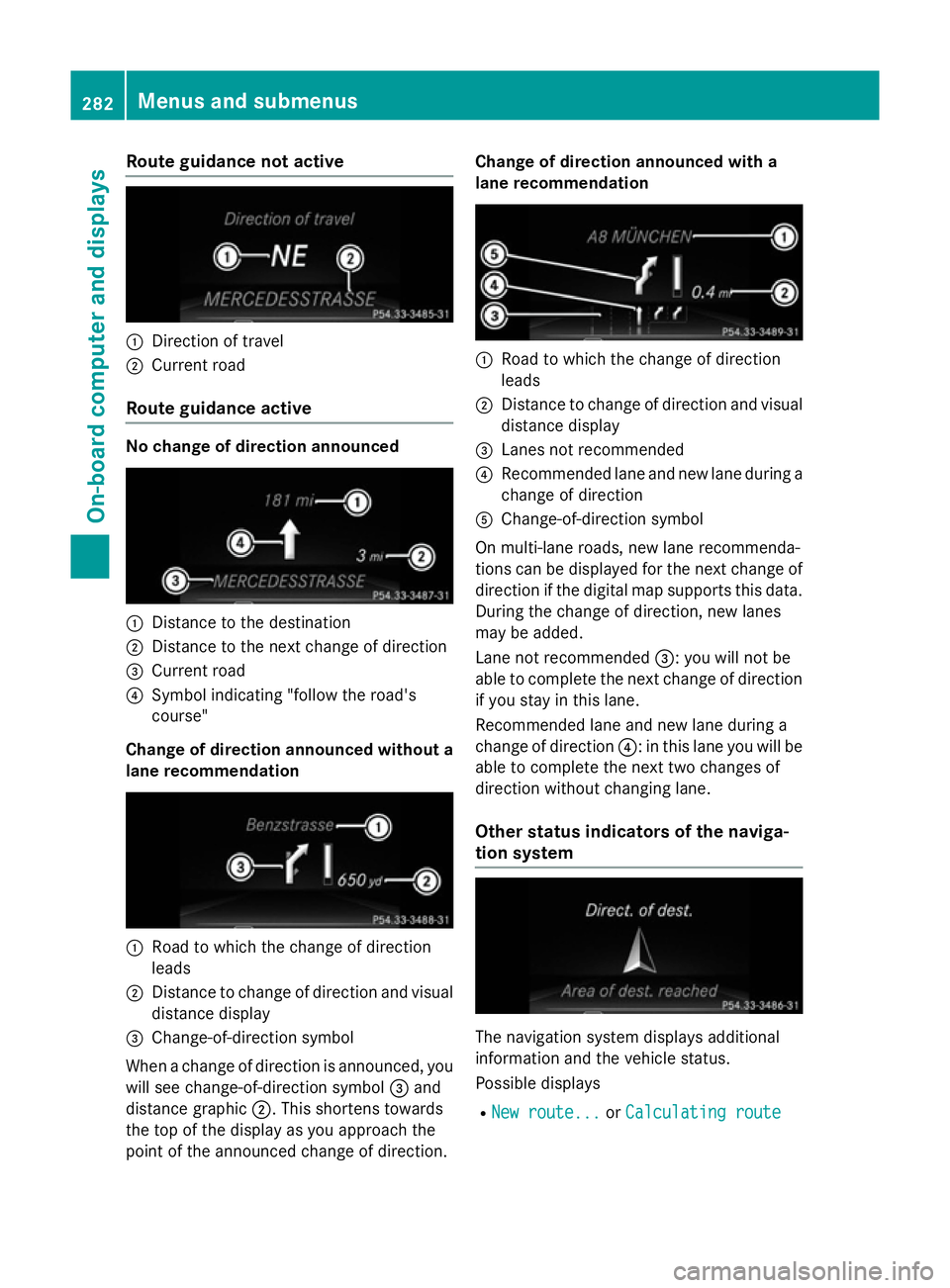
Direction of travel
; Current road
Route guidanc eactive No chang
eofdirection announced :
Distance to the destination
; Distance to the next change of direction
= Current road
? Symbol indicating "follow the road's
course"
Chang eofdirection announce dwithout a
lan erecommendation :
Road to which the change of direction
leads
; Distance to change of direction and visual
distance display
= Change-of-direction symbol
Whe nac hange of direction is announced, you
will see change-of-direction symbol =and
distance graphic ;.Thiss hortens towards
the top of the display as yo uapproach the
point of the announce dchange of direction. Chang
eofdirection announce dwitha
lan erecommendation :
Road to which the change of direction
leads
; Distance to change of direction and visual
distance display
= Lane snot recommended
? Recommended lane and new lane during a
change of direction
A Change-of-direction symbol
On multi-lane roads, new lane recommenda-
tions can be displayed for the next change of
direction if the digital map supports this data. During the change of direction, new lanes
may be added.
Lane not recommended =:youwill not be
able to complete the next change of direction
if yo ustay in this lane.
Recommended lane and new lane during a
change of direction ?:inthis lane yo uwillbe
able to complete the next two changes of
direction withou tchanging lane.
Othe rstatus indicators of the naviga-
tio ns ystem The navigation system display
saddit ional
information and the vehicl estatus.
Possible displays
R New route... New route... orCalculating route
Calculating route 282
Menus and submenusOn-board computer and displays
Page 286 of 497
An
ew route is calculated.
R Roa dnot mapped
Roa dnot mapped
The vehicl eposit ioni sinsid ethe area of the
digital ma pbutthe roa disnot recognised,
e.g .new roads ,car parks or private land.
R No route
No route
No route could be calculate dtothe selec-
ted destination.
R O:y ouhave reache dthe destination or an
intermediate destination. Audio menu
Selecting aradio station :
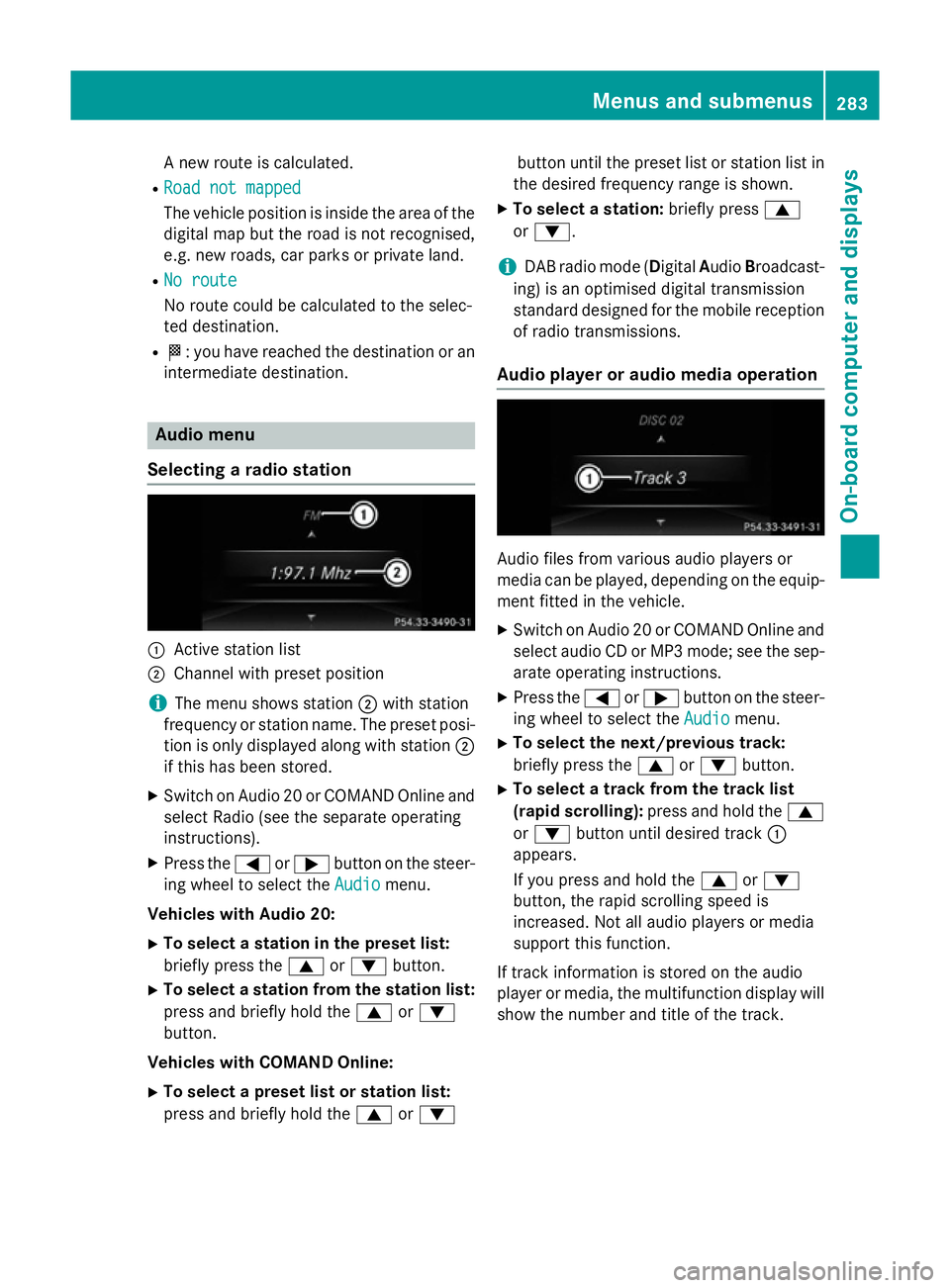
Activ estatio nlist
; Channe lwithp reset position
i The menu shows station
;with station
frequency or statio nname. The preset posi-
tio niso nlyd isplayed along with station ;
if thi shasbeen stored.
X Switch on Audio 20 or COMAND Online and
select Radi o(seet he separate operating
instructions).
X Press the =or; button on the steer-
ing whee ltoselect the Audio Audiomenu.
Vehicle swithA udio 20:
X To select astation in the preset list:
briefl ypress the 9or: button.
X To select astation from the station list:
press and briefl yholdt he 9 or:
button.
Vehicle swithC OMAN DOnline:
X To select apreset list or station list:
press and briefl yholdt he 9 or: button unti
lthe preset list or statio nlistin
the desired frequency range is shown.
X To select astation: brieflypress 9
or :.
i DAB radi
omode(Digit alAudio Broadcast-
ing )isano ptimised digital transmission
standard designe dfor the mobil ereception
of radi otransmissions.
Audio player or audi omediaoperation Audio files fro
mvarious audi oplayer sor
media can be played ,depen ding on the equip-
ment fitte dinthe vehicle.
X Switch on Audio 20 or COMAND Online and
select audi oCDorMP3 mode; see the sep-
arate operating instructions.
X Press the =or; button on the steer-
ing whee ltoselect the Audio
Audiomenu.
X To select the next/previous track:
briefl ypress the 9or: button.
X To select atrack fro mthe track list
(rapi dscrolling): press and hol dthe 9
or : button unti ldesir ed track :
appears.
If yo upress and hol dthe 9 or:
button, the rapi dscrolling spee dis
increased .Not al laudio players or media
support thi sfun ction.
If track informatio niss tored on the audio
player or media ,the multifunctio ndisplay will
sho wthe numbe rand titl eofthe track. Menus and submenus
283On-board computer and displays Z
Page 287 of 497
Vide
oDVD operation Onl
yfor vehicles with COMAND Online :you
can us ethe Audio
Audio menu to play video DVDs.
X Switch on COMAND Online and select
video DVD (se ethe separate operating
instructions).
X Press the =or; button on the steer-
ing whee ltoselect the Audio
Audio menu.
X To select the next or previous scene:
briefl ypress the 9or: button.
X To select ascene from the scen elist
(rapi dscrolling): press and hol dthe 9
or : button unti ldesir ed scene :has
been reached.
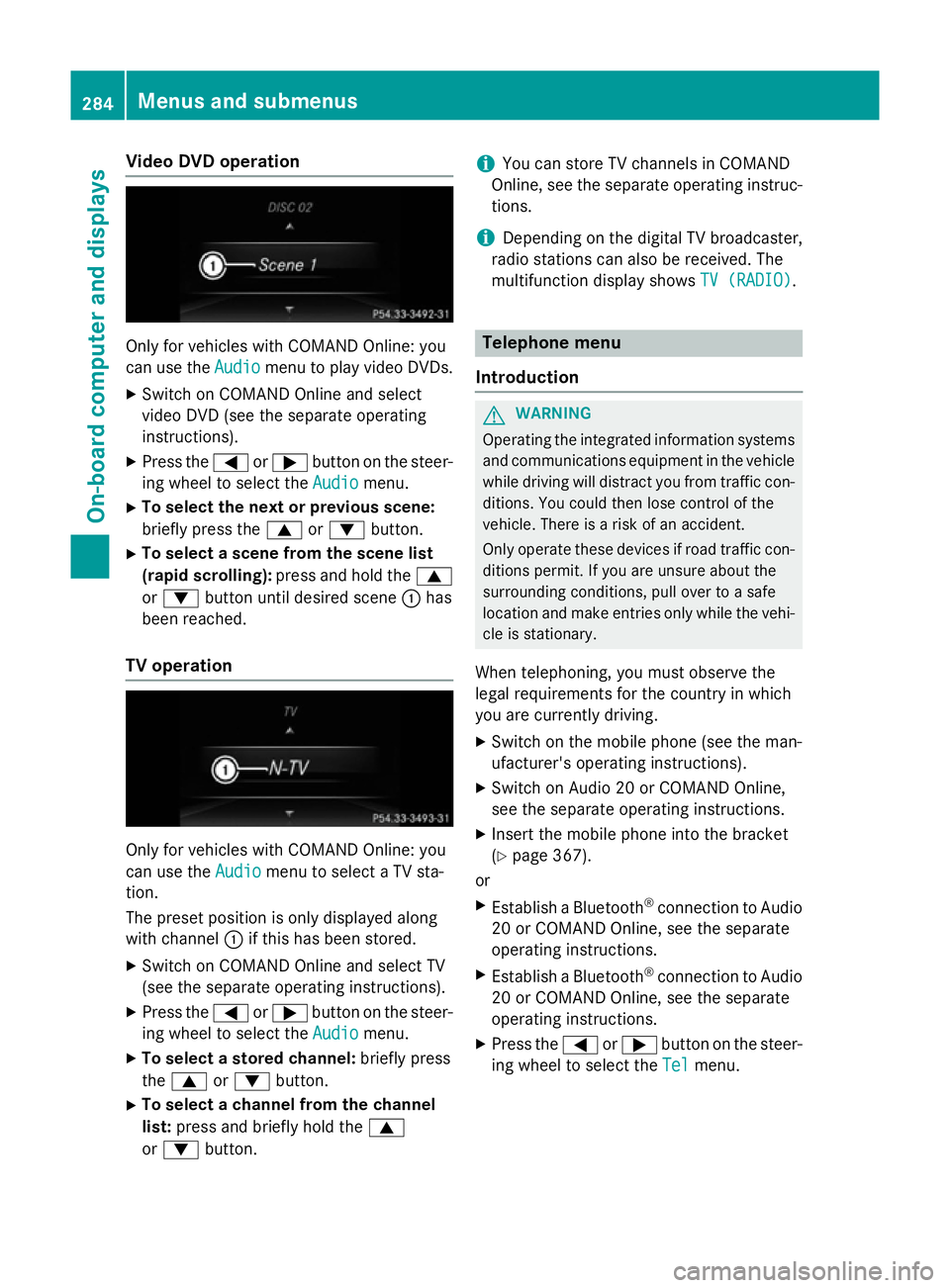
TV operation Onl
yfor vehicles with COMAND Online :you
can us ethe Audio
Audio menu to select aTVsta-
tion.
The preset positio niso nlyd isplayed along
with channel :if this ha sbeens tored.
X Switch on COMAND Online and select TV
(se ethe separate operating instructions).
X Press the =or; button on the steer-
ing whee ltoselect the Audio
Audio menu.
X To select astored channel: brieflypress
the 9 or: button.
X To select achannel from the channel
list: press and briefl yholdt he 9
or : button. i
Yo
uc an stor eTVchannel sinCOMAND
Online ,see the separate operating instruc-
tions.
i Depending on the digital TV broadcaster,
radi ostations can also be received. The
multifunctio ndisplay shows TV (RADIO)
TV (RADIO). Telephone menu
Introduction G
WARNING
Operating the integrated informatio nsystems
and communications equipment in the vehicle
whil edriving will distract yo ufrom traffic con-
ditions. Yo ucould then lose contro lofthe
vehicle. There is ariskofana ccident.
Onl yoperate thes edevice sifr oadt raffic con-
ditions permit. If yo uare unsur eabout the
surrounding conditions, pull ove rtoasafe
location and make entries onl ywhile the vehi-
cle is stationary.
Whe ntelephoning, yo umusto bserve the
lega lrequirements for the country in which
yo ua recurrentl ydriving.
X Switch on the mobil ephone (se ethe man-
ufacturer' soperating instructions).
X Switch on Audio 20 or COMAND Online,
see the separate operating instructions.
X Insert the mobil ephone into the bracket
(Y page 367).
or
X Establis haBluetooth ®
connectio ntoAudio
20 or COMAND Online ,see the separate
operating instructions.
X Establis haBluetooth ®
connectio ntoAudio
20 or COMAND Online ,see the separate
operating instructions.
X Press the =or; button on the steer-
ing whee ltoselect the Tel Telmenu. 284
Menus and submenusOn-board computer and displays
Page 288 of 497
You will see one of the followin
gdisplay mes-
sages in the multifunction display:
R Telephon eready
Telephon eready or the name of the net-
work provider: the mobile phon ehas found
an etwork and is ready to receive.
R Telephon eNoservice
Telephon eNoservice:t here is no net-
work available or the mobile phon eis
searching for anetwork.
i You can obtain further information about
suitable mobile phones and connecting
mobile phones via Bluetooth ®
:
R fro ma ny Mercedes-Ben zService Centre
R on the Internet at http://
www.mercedes-benz.com/connect
Accepting acall X
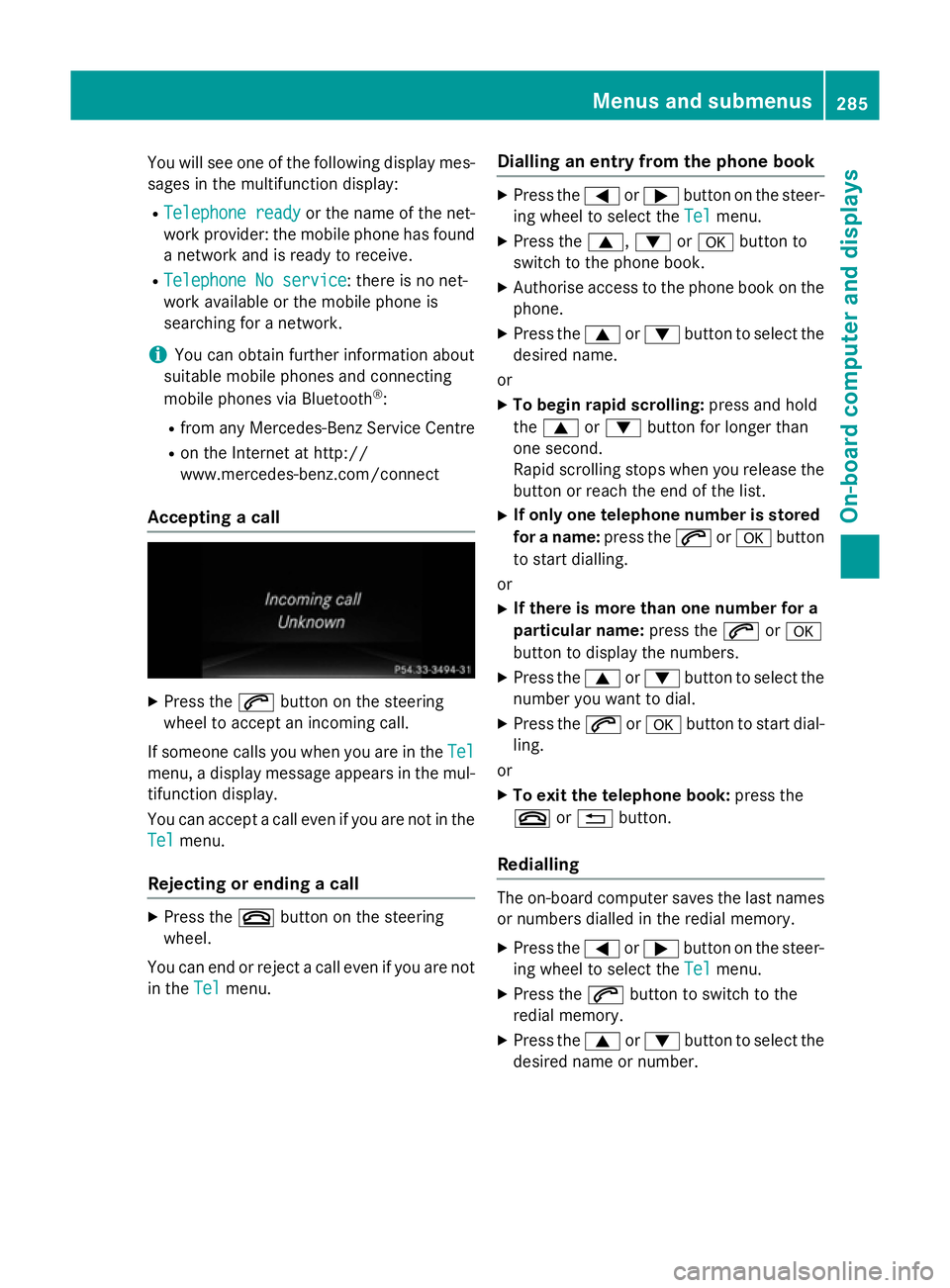
Press the 6button on the steering
wheel to accept an incomin gcall.
If someone calls you when you are in the Tel Tel
menu, adisplay message appears in the mul-
tifunction display.
You can accept acall even if you are not in the
Tel
Tel menu.
Rejecting or ending acall X
Press the ~button on the steering
wheel.
You can end or reject acall even if you are not
in the Tel
Tel menu. Dialling an entr
yfromt hephone book X
Press the =or; button on the steer-
ing wheel to selec tthe Tel Tel menu.
X Press the 9,:ora button to
switc htot he phon ebook.
X Authoris eaccess to the phon ebook on the
phone.
X Press the 9or: button to selec tthe
desired name.
or
X To begin rapid scrolling: press and hold
the 9 or: button for longer than
one second.
Rapid scrolling stops when you release the
button or reach the end of the list.
X If only one telephone number is stored
for aname: press the 6ora button
to star tdialling.
or
X If there is mor ethano ne number for a
particular name: press the6ora
button to display the numbers.
X Press the 9or: button to selec tthe
number you want to dial.
X Press the 6ora button to star tdial-
ling.
or
X To exit th etelephone book: press the
~ or% button.
Redialling The on-board computer saves the last names
or numbers dialled in the redial memory.
X Press the =or; button on the steer-
ing wheel to selec tthe Tel Tel menu.
X Press the 6button to switc htothe
redial memory.
X Press the 9or: button to selec tthe
desired name or number. Menus and submenus
285On-board computer and displays Z
Page 289 of 497
X
Press the 6ora button to start dial-
ling.
or
X To exit the redial memory: press the
~ or% button. Assistance menu
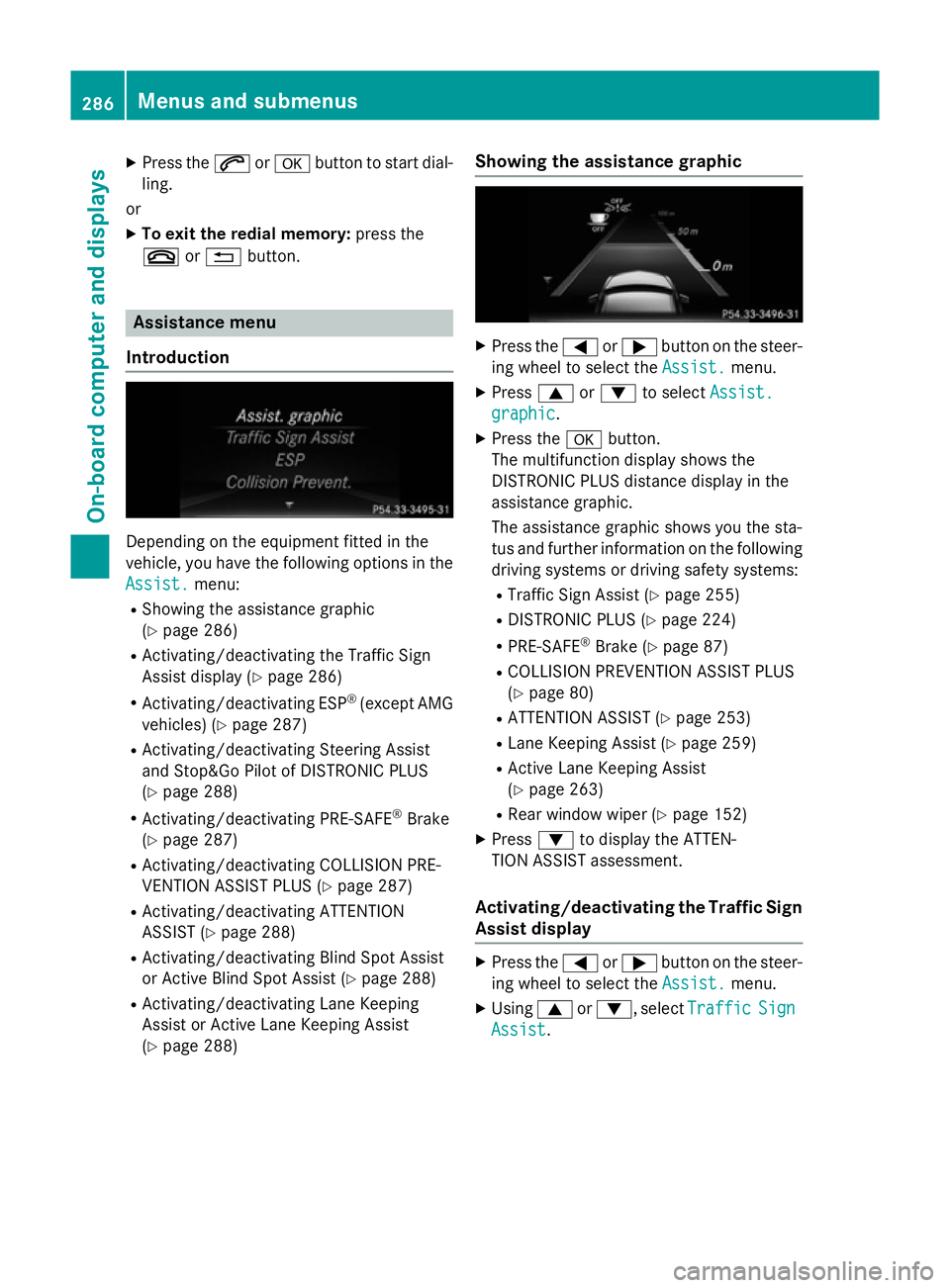
Introduction Dependin
gonthe equipment fitted in the
vehicle, you have the following options in the
Assist.
Assist. menu:
R Showing the assistanc egraphic
(Y page 286)
R Activating/deactivatin gthe Traffic Sign
Assist display (Y page 286)
R Activating/deactivatin gESP®
(except AMG
vehicles) (Y page 287)
R Activating/deactivatin gSteering Assist
and Stop&Go Pilot of DISTRONIC PLUS
(Y page 288)
R Activating/deactivatin gPRE-SAFE ®
Brake
(Y page 287)
R Activating/deactivatin gCOLLISION PRE-
VENTION ASSIST PLUS (Y page 287)
R Activating/deactivatin gATTENTION
ASSIST (Y page 288)
R Activating/deactivatin gBlind Spot Assist
or Active Blind Spot Assist (Y page 288)
R Activating/deactivatin gLane Keeping
Assist or Active Lane Keeping Assist
(Y page 288) Showing the assistance graphic X
Press the =or; button on the steer-
ing wheel to select the Assist. Assist.menu.
X Press 9or: to select Assist.
Assist.
graphic
graphic.
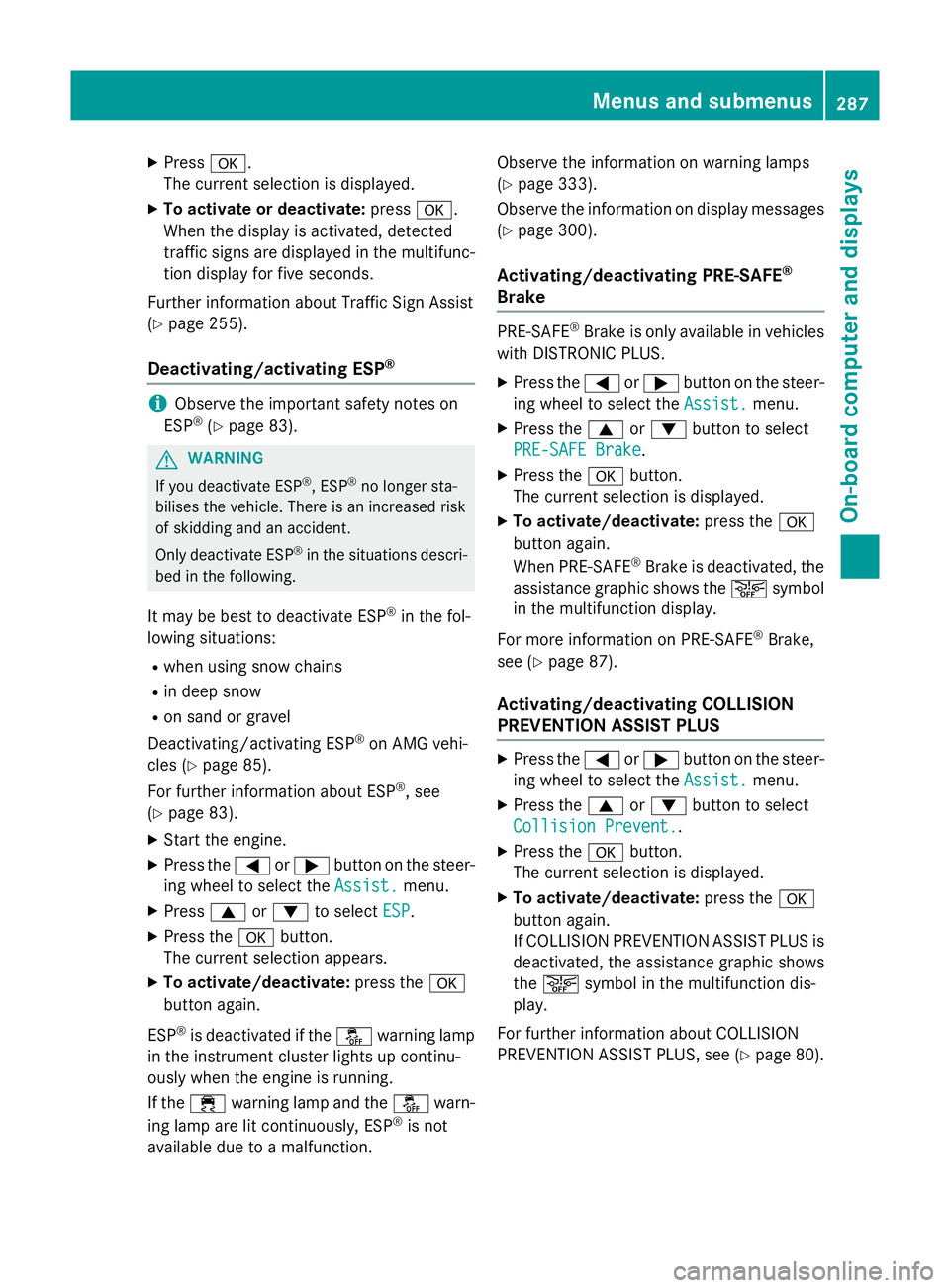
X Press the abutton.
The multifunction display shows the
DISTRONIC PLUS distanc edisplay in the
assistanc egraphic.
The assistanc egraphic shows you the sta-
tus and further information on the following
driving systems or driving safety systems:
R Traffic Sign Assist (Y page 255)
R DISTRONIC PLUS (Y page 224)
R PRE-SAFE ®
Brake (Y page 87)
R COLLISION PREVENTION ASSIST PLUS
(Y page 80)
R ATTENTION ASSIST (Y page 253)
R Lane Keeping Assist (Y page 259)
R Active Lane Keeping Assist
(Y page 263)
R Rear window wiper (Y page 152)
X Press :to display the ATTEN-
TION ASSIST assessment.
Activating/deactivating the Traffic Sign
Assist display X
Press the =or; button on the steer-
ing wheel to select the Assist. Assist.menu.
X Using 9or:,s electTraffic
Traffic Sign
Sign
Assist
Assist. 286
Menus and submenusOn-board computer and displays
Page 290 of 497
X
Press a.
The curren tselection is displayed.
X To activat eordeactivate: pressa.
When the display is activated, detected
traffic signs are displaye dinthe multifunc-
tion display for five seconds.
Further information about Traffic Sign Assist
(Y page 255).
Deactivating/activating ESP ®i
Observe the importan
tsafety notes on
ESP ®
(Y page 83). G
WARNING
If you deactivat eESP®
,E SP ®
no longer sta-
bilises the vehicle. There is an increased risk
of skidding and an accident.
Only deactivate ESP ®
in the situations descri-
bed in the following.
It may be best to deactivate ESP ®
in the fol-
lowing situations:
R when using snow chains
R in deep snow
R on sand or gravel
Deactivating/activating ESP ®
on AMG vehi-
cles (Y page 85).
For further information about ESP ®
,s ee
(Y page 83).
X Start the engine.
X Press the =or; button on the steer-
ing wheel to select the Assist.
Assist.menu.
X Press 9or: to select ESP
ESP.
X Press the abutton.
The curren tselection appears.
X To activate/deactivate: press thea
button again.
ESP ®
is deactivated if the åwarning lamp
in the instrument cluster lights up continu-
ously when the engine is running.
If the ÷ warning lamp and the åwarn-
ing lamp are lit continuously, ESP ®
is not
availabl edue to amalfunction. Observe the information on warning lamps
(Y
page 333).
Observe the information on display messages (Y page 300).
Activating/deactivating PRE-SAFE ®
Brake PRE‑SAFE
®
Brake is only availabl einvehicles
with DISTRONIC PLUS.
X Press the =or; button on the steer-
ing wheel to select the Assist. Assist.menu.
X Press the 9or: button to select
PRE-SAFE Brake
PRE-SAFE Brake.
X Press the abutton.
The curren tselection is displayed.
X To activate/deactivate: press thea
button again.
When PRE-SAFE ®
Brake is deactivated, the
assistanc egraphic shows the æsymbol
in the multifunction display.
For more information on PRE‑SAFE ®
Brake,
see (Y page 87).
Activating/deactivating COLLISION
PREVENTION ASSIST PLUS X
Press the =or; button on the steer-
ing wheel to select the Assist. Assist.menu.
X Press the 9or: button to select
Collision Prevent.
Collision Prevent..
X Press the abutton.
The curren tselection is displayed.
X To activate/deactivate: press thea
button again.
If COLLISION PREVENTION ASSIST PLUS is deactivated, the assistanc egraphic shows
the æ symbol in the multifunction dis-
play.
For further information about COLLISION
PREVENTION ASSIST PLUS, see (Y page 80). Menus and submenus
287On-board computer and displays Z
Page 291 of 497
Activating/deactivating Steering
Assis tand Stop&Go Pilot X
Press the =or; buttononthesteer-
ing whee ltos elect the Assist.
Assist. menu.
X Using 9or:,s electDTR+:
DTR+: steer.
steer.
asst.
asst.
X Press the abutton.
The curren tselection is displayed.
X To activate/deactivate: press thea
butto nagain.
When Steering Assis tand Stop&Go Pilot
are activated, th emultifunction display
shows the DTR+: steering assistant
DTR+: steering assistant
On
On message.
Further information about DISTRONI CPLUS
wit hS teering Assis tand Stop&Go Pilot
(Y page 226).
Activating/deactivating ATTENTION
ASSIST X
Press the =or; buttononthesteer-
ing whee ltos elect the Assist.
Assist. menu.
X Press the 9or: buttontos elect
Attention Assist
Attention Assist .
X Press the abutton.
The curren tselection is displayed.
X Press ato confirm.
X Press the :or9 buttontos etOff Off ,
Standard
Standard orSensitive
Sensitive .
X Press the abuttontos avet he setting.
When ATTENTION ASSIST is deactivated,
the é symbol appear sinthemultifunc-
tion display in th eassistanc egraphic dis-
play.
Fo rfurther information about ATTENTION
ASSIST ,see (Y page 253).
Activating/deactivating Blind Spot
Assist X
Press the =or; buttononthesteer-
ing whee ltos elect the Assist.
Assist. menu.
X Press the 9or: buttontos elect
Blind Spo tAssist
Blind Spo tAssist . X
Press the abutton.
The curren tselection appears.
X To activate/deactivate: press thea
butto nagain.
Further information about Blind Spot Assist
(Y page 257).
Further information about Active Blind Spot
Assis t(Y page 261).
Activating/deactivating Lan eKeeping
Assist X
Press the =or; buttononthesteer-
ing whee ltos elect the Assist. Assist.menu.
X Press the 9or: buttontos elect
Lan eK eep. Assist
Lan eK eep. Assist .
X Press the abutton.
The curren tselection appears.
X Press ato confirm.
X Press the :or9 buttontos etOff
Off ,
Standard
Standard orAdaptive
Adaptive.
X Press the abuttontos avet he setting.
When Lan eKeepin gAssistorA ctiveLane
Keepin gAssistisa ctivated, th emultifunc-
tion display shows th elan em arking sas
bright lines in th eassistanc egraphic.
Further information about Lan eKeeping
Assis t(Ypage 259).
Further information about Active Lan eKeep-
ing Assis t(Y page 263). Service menu
Dependin
gontheequipmen tfitte dint he
vehicle, you hav ethe followin goption sinthe
Serv.
Serv. menu: 288
Menu
sand sub menusOn-boardcomputer an ddisplays
Page 292 of 497
R
Callin gupd isplay message sinthemes-
sage memory (Y page 299)
R Restarting th etyrep ressur eloss warning
system (Y page 422)
R Checkin gthe tyrep ressur eelectronically
(Y page 423)
R Callin gupt heservic edue date
(Y page 384) Settings menu
Introduction Dependin
gontheequipmen tfitte dint he
vehicle ,Int he Settings
Settings menuyou have the
followin goptions:
R Changin gthe instrumen tcluste rsettings
(Y page 289)
R Changin gthe light settings (Y page 290)
R Changin gthe vehicle settings
(Y page 292)
R Changin gthe heating settings
(Y page 293)
R Changin gthe convenience settings
(Y page 294)
R Restoring th efactory settings
(Y page 295)
Instrumen tcluster Selecting th
eunitofm easurement for dis-
tance
The Displa yunitS peed-/odometer:
Displa yunitS peed-/odometer:
function allows you to choos ewhether cer-
tai nd isplays appear in kilometres or mile sin
th em ultifunction display. X
Press the =or; buttononthesteer-
ing wheel to select the Settings Settingsmenu.
X Press the :or9 buttontoselect the
Inst. cluster Inst. cluster submenu.
X Press ato confirm.
X Press the :or9 buttontoselect the
Displa yunitS peed-/odometer:
Displa yunitS peed-/odometer: func-
tion.
You will see th eselected setting: km kmor
miles
miles.
X Press the abuttontos ave th esetting.
The selected unit of measuremen tfor dis-
tance applie stothe:
R digital speedometer in the Trip
Trip menu
R total distanc erecorder and th etripm eter
R trip computer
R curren tconsum ption and th erange
R navigation instruction sintheNavi
Navi menu
R cruise control
R SPEEDTRONIC
R DISTRONI CPLUS
R ASSYS TPLUSs ervic einterval display
Switchin gthe additiona lspe edometer
on/off
Vehicle sfor th eUnite dKingdom :thisf unc-
tion is unavailable.
Only vehicle swithm anual transmission have
this function.
The Addit. speedo [km/h]: Addit. speedo [km/h]:or Addit.
Addit.
speedo [mph]:
speedo [mph]: function allows you to
choos ewhether th emultifunction display in
th es tatus area always shows th espee din
mph
mph or in km/h
km/h instead of th eoutside temper-
ature.
The Addit. Addit. speedo
speedo[mph]:
[mph]:function allows
you to choos ewhether th emultifunction dis-
play in th estatus area always shows the
spee dinmph
mph instead of th eoutside tempera-
ture.
X Press the =or; buttononthesteer-
ing wheel to select the Settings
Settingsmenu.
X Press the :or9 buttontoselect the
Inst. cluster
Inst. cluster submenu. Menu
sand submenus
289On-boardcomputer and displays Z