2015 MERCEDES-BENZ B-Class Open
[x] Cancel search: OpenPage 142 of 270

X
Select Yes
YesorNo
No and press 0098to confirm.
If you select Yes
Yes, a selection list will appear
containing the five existing numbers.
If you select No
No, the process will be can-
celed.
X Select the number to be overwritten by
turning 00790052007Athe COMAND controller and
press 0098to confirm.
An input menu appears. The data field for
entering the new phone number is high-
lighted.
X Enter characters (Y page 33)
X Store the entry (Y page 34)Using call lists
Introduction
While the telephone is being used, COMAND
stores individual lists for both incoming and
outgoing calls (including missed calls). Call
lists are not available unless a mobile phone is connected to COMAND.
COMAND supports the PBAP Bluetooth ®
pro-
file. How COMAND processes call lists
depends on the model of the mobile phone
connected:
R Bluetooth ®
telephone with PBAP Blue-
tooth ®
profile:
The call lists are downloaded automatically from the mobile phone by COMAND as
soon as the mobile phone is connected to
COMAND.
R Bluetooth ®
telephone without PBAP Blue-
tooth ®
profile:
COMAND creates the call lists from both
incoming and outgoing calls (including
missed calls) as soon as the mobile phone
is connected to COMAND.
i For Bluetooth ®
telephones without the
PBAP Bluetooth ®
profile, the call lists in
COMAND are not synchronized with those
on your mobile phone. These calls may or may not be listed on your mobile phone,
depending on the model.
i If no mobile phone is connected, then the
Call Lists
Call Lists menu item is grayed out and
cannot be selected. If you connect a mobile phone other than the previous one to
COMAND, the previously available call listsand their entries will be deleted automati-
cally. They are still available on the mobile
phone itself.
i You will only be able to select the respec-
tive menu items once calls have been
received or dialed from COMAND.
Displaying missed calls in the COMAND
display is not supported by all mobile
phones. Opening the call list and selecting an
entry
X Press the 002Bfunction button.
X Select Call Lists Call Lists in the telephone basic
menu by sliding 00520064and turning 00790052007Athe
COMAND controller and press 0098to con-
firm.
A menu appears.
X Select Calls Received Calls Received orCalls Dialed
Calls Dialed
by turning 00790052007Aand press 0098to confirm.
The corresponding list appears.
i You can also call up the list of dialed calls
by pressing the 0061button when the tele-
phone basic menu is shown. In this case,
the list will only show phone numbers.
X Select an entry by turning 00790052007Athe
COMAND controller.
X To dial a phone number: press0098.
X To close the list: select the0039symbol
and press 0098to confirm.
or X Press the 003Dback button. 140
Using call listsTelephone
Page 143 of 270
Displaying details from a list entry
COMAND can also show a shortened list entry in full.
X Select a list entry by turning 00790052007Athe
COMAND controller.
X Select the list symbol to the right of the
entry by sliding 00520096the controller and
press 0098to confirm.
X Select Details
Details and press 0098to confirm.
The detailed view appears.
X To go back to the list: slide009500520096 repeat-
edly until the list is highlighted. Storing a phone number
New address book entry For incoming calls from a person who is not in
the address book, COMAND displays the
phone number in the call list. You can save
this entry.
X Open a call list and select an entry
(Y page 140).
X Select the list symbol to the right of the
entry by sliding 00520096the COMAND control-
ler and press 0098to confirm.
X Select Save Saveand press 0098to confirm.
X Select New
NewEntry
Entry and press 0098to confirm.
X Select a category for the number, e.g. Home
Home,
and press 0098to confirm.
X Select a category for the phone, e.g.
Mobile
Mobile , and press 0098to confirm. Number category Display (phone
book and address
book)
Not Classified Not Classified No symbol
Home
Home 00D5
Work
Work 00D4 Telephone cate-
gory Display (phone
book and address
book)
Not Classified Not Classified 0066
Mobile
Mobile 00D3
Car
Car 00CE
Pager
Pager 009D
X
Select Save
Saveand press 0098to confirm.
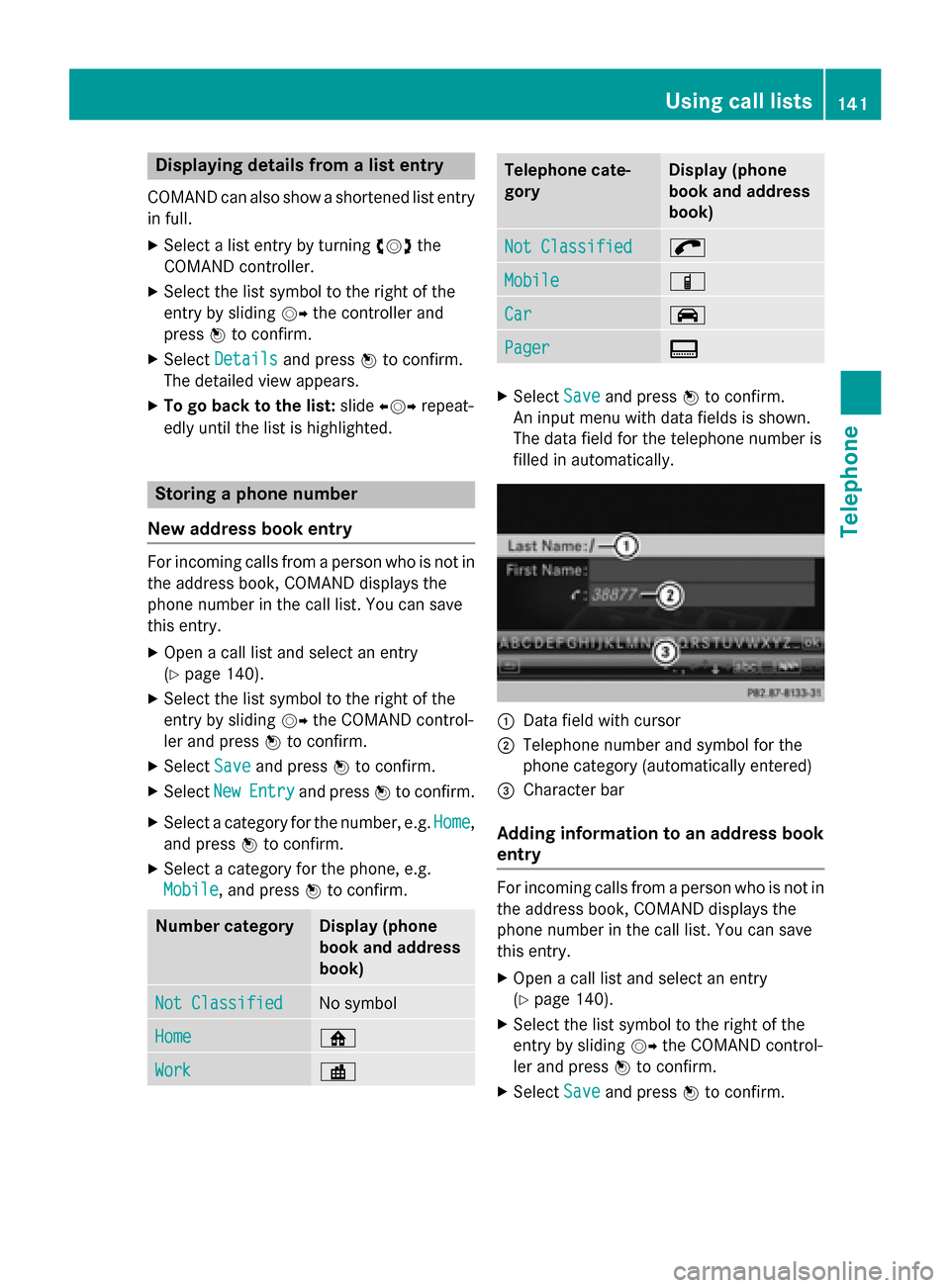
An input menu with data fields is shown.
The data field for the telephone number is
filled in automatically. 0043
Data field with cursor
0044 Telephone number and symbol for the
phone category (automatically entered)
0087 Character bar
Adding information to an address book
entry For incoming calls from a person who is not in
the address book, COMAND displays the
phone number in the call list. You can save
this entry.
X Open a call list and select an entry
(Y page 140).
X Select the list symbol to the right of the
entry by sliding 00520096the COMAND control-
ler and press 0098to confirm.
X Select Save
Save and press 0098to confirm. Using call lists
141Telephone Z
Page 180 of 270

Navigating the website
Overview Step Result
X
Turn 00790052007A the
controller. Navigates from one
item that can be
selected (e.g. link,
text field or selec-
tion list) to the next
and highlights the
respective element
on the website.
Sliding the control-
ler:
X Left or right 009500520096
X Up or down 009700520064
X Diagonally 009100520078 Moves the pointer
on the page.
X
Press 0098the con-
troller. Calls up the menu or
opens the selected
item. X
Press the 003D
button. Calls up the previ-
ous page.
X
Press the 0084
button. Closes the Internet
browser. If several
windows are open,
the current window
is closed.
Example: highlighting an item that can
be selected X
Turn 00790052007A the COMAND controller.
A button is highlighted in the example.
Example: entering text X
Select an input line by turning 00790052007Athe
COMAND controller and press 0098to con-
firm.
The character bar appears. X
Enter the text using the character bar or the
number keypad. Character entry
(Y page 33).
X If the text has been entered, select the
0054 symbol by turning 00790052007Athe COMAND
controller and press 0098to confirm.
The text has now been entered. 178
InternetOnline and
Internet functions
Page 181 of 270

Menu functions
Calling up the menu X
To call up the short menu: highlight the
selectable item on the page by turning
00790052007A the COMAND controller and press 0098
to confirm. X
To call up the entire menu: when the
short menu is displayed, slide 00520064the
COMAND controller downwards.
or X Select a free area on the website by sliding
009700520064, 009500520096or009100520078 the COMAND control-
ler and press 0098to confirm.
Open Opens the website to the selectable item.
X Call up the menu (Y page 179).
X Confirm Open Openby pressing 0098the COMAND
controller.
Enter URL X
Call up the menu (Y page 179).
X Select Enter URL
Enter URL by turning00790052007Aor slid-
ing 009700520064 the COMAND controller and press
0098 to confirm.
X Enter a web address (URL) (Y page 176).
Calling up the previous website X
Call up the menu (Y page 179).
X Select Previous
Previous by turning00790052007Aor sliding
009700520064 the COMAND controller and press 0098
to confirm.
Calling up the next website X
Call up the menu (Y page 179).
X Select Next
Nextby turning 00790052007Aor sliding 009700520064
the COMAND controller and press 0098to
confirm.
View You can use this function to:
R position a selection window on websites
that are larger than the display
R select a window that is already open Internet
179Online and Internet functions Z
Page 182 of 270

X
Call up the menu (Y page 179).
X Select View
Viewby turning 00790052007Aor sliding 009700520064
the COMAND controller and press 0098to
confirm.
or
X Press the 0090key on the number keypad.
i You cannot use the
0090key if a phone
call is being made.
X To position the selection window: con-
firm Fullscreen
Fullscreen View
Viewof
ofCurrent
Current Page
Page
by pressing 0098the COMAND controller.
A selection window appears on the web-
site.
X Slide 009500520096,009700520064 or009100520078 the COMAND
controller and position the selection win-
dow on the website.
X Press 0098the COMAND controller.
The selected section is enlarged.
X To display and select open windows:
select Display Open Windows
Display Open Windows by turning
00790052007A or sliding 009700520064the COMAND control-
ler and press 0098to confirm.
The carousel view appears.
X Press 0098the COMAND controller.
The website is displayed.
Exiting the menu X
Call up the menu (Y page 179).
X Select Exit Exitby turning 00790052007Aor sliding 009700520064
the COMAND controller and press 0098to
confirm.
The Internet browser is closed. If other win-
dows are opened in the background,
another prompt appears.
Other menu functions Opening in a new window
You can open up to five windows simultane-
ously. X
Call up the menu (Y page 179).
X Select Open In A New Window
Open In A New Window by turning
00790052007A or sliding 009700520064the COMAND control-
ler and press 0098to confirm.
X To select a window: selectView Viewand press
0098 to confirm.
X Select the website in the carousel view by
turning 00790052007Aor sliding 009500520096the COMAND
controller and press 0098to confirm.
Add To Favorites
Adds the current website to the favorites. The website can then be called up using the car-
ousel view. You can save up to 20 favorites in
the carousel view.
X Call up the menu (Y page 179).
X Select Add AddTo
ToFavorites
Favorites by turning00790052007A
or sliding 009700520064the COMAND controller and
press 0098to confirm.
The following message appears: The
Thepage
page
has been added to your favorites
has been added to your favorites .
Display favorites
X Call up the menu (Y page 179).
X Select Display Favorites
Display Favorites by turning
00790052007A or sliding 009700520064the COMAND control-
ler and press 0098to confirm.
The favorites are shown in the carousel
view.
Further information on favorites
(Y page 181).
Refreshing a website
X Call up the menu (Y page 179).
X Select Reload
Reload by turning 00790052007Aor sliding
009700520064 the COMAND controller and press 0098
to confirm.
Closing the active window
X Call up the menu (Y page 179).
X Select Close Active Window
Close Active Window by turning
00790052007A or sliding 009700520064the COMAND control-
ler and press 0098to confirm.
or X Press the 0084button to the right of the
COMAND controller. 180
InternetOnline and Internet functions
Page 183 of 270
i
You cannot use the
0084button if a
phone call is being made.
Displaying the complete web address of the
selected link
X Call up the menu (Y page 179).
X Select Link Details
Link Details by turning00790052007Aor
sliding 009700520064the COMAND controller and
press 0098to confirm.
The URL appears.
X Press 0098the COMAND controller and close
the display.
Settings
The settings are described in a separate sec- tion (Y page 183). Favorites
Introduction Favorites are frequently visited websites.
You have the following options for creating a
favorite:
R in the carousel view (Y page 181)
R via the menu item Add To Favorites Add To Favorites
(Y page 180)
Before creating a favorite in the carousel
view, you must first close active connections (Y page 166).
You can select and edit favorites that you
have created.
Creating favorites Creating favorites in the carousel view
X Call up the carousel view (Y page 176).
X Bring the Create New Favorite
Create New Favorite panel to
the front by turning 00790052007Aor sliding 009500520096
the COMAND controller.
X Press 0098the COMAND controller.
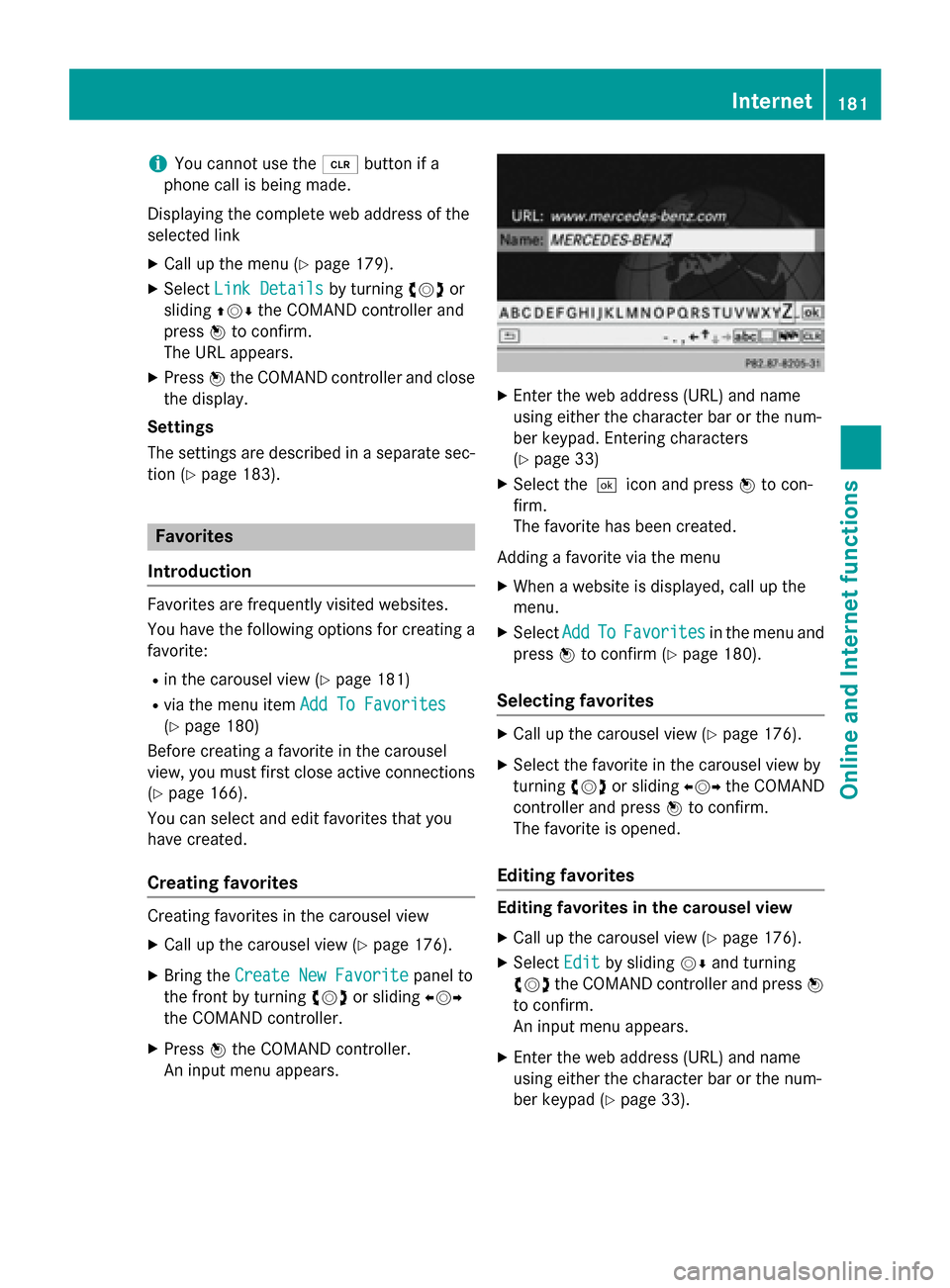
An input menu appears. X
Enter the web address (URL) and name
using either the character bar or the num-
ber keypad. Entering characters
(Y page 33)
X Select the 0054icon and press 0098to con-
firm.
The favorite has been created.
Adding a favorite via the menu
X When a website is displayed, call up the
menu.
X Select Add AddTo
ToFavorites
Favorites in the menu and
press 0098to confirm (Y page 180).
Selecting favorites X
Call up the carousel view (Y page 176).
X Select the favorite in the carousel view by
turning 00790052007Aor sliding 009500520096the COMAND
controller and press 0098to confirm.
The favorite is opened.
Editing favorites Editing favorites in the carousel view
X Call up the carousel view (Y page 176).
X Select Edit Editby sliding 00520064and turning
00790052007A the COMAND controller and press 0098
to confirm.
An input menu appears.
X Enter the web address (URL) and name
using either the character bar or the num-
ber keypad (Y page 33). Internet
181Online and Internet functions Z
Page 184 of 270

Editing favorites in the Favorites menu
X Call up the menu (Y page 179).
X Select Display Favorites
Display Favorites by turning
00790052007A the COMAND controller and press 0098
to confirm.
The favorite is displayed.
X Press 0098the COMAND controller.
The favorites menu appears.
X Select Edit
Edit by turning 00790052007Aor sliding 009700520064
the COMAND controller and press 0098to
confirm.
or
X Press the 007Dbutton on the number key-
pad (this function is not available if you are using the telephone at the same time).
An input menu appears.
X Enter the web address (URL) and name
using either the character bar or the num-
ber keypad. Character entry (Y page 33).
Other functions in the favorites menu Opening current favorites
X Call up the Favorites menu (Y page 181).
X Confirm Open Openby pressing 0098the COMAND
controller.
Opens the current favorites in a new window.
Opening in a new window
X Call up the Favorites menu (Y page 181).
X Select Open In A New Window
Open In A New Window by turning
00790052007A or sliding 009700520064the COMAND control-
ler and press 0098to confirm.
Calling up details X Call up the Favorites menu (Y page 181).
X Select Details
Details by turning 00790052007Aor sliding
009700520064 the COMAND controller and press 0098
to confirm.
or
X Press the 0090button on the number key-
pad (this function is not available if you are using the telephone at the same time).
The detailed view appears. Exiting
X Call up the Favorites menu (Y page 181).
X Select Exit
Exit by turning 00790052007Aor sliding 009700520064
the COMAND controller and press 0098to
confirm.
or
X Press the 003Dback button on the left next
to the COMAND controller.
The Favorites menu closes.
Deleting favorites Deleting favorites in the carousel view
X Call up the carousel view (Y page 176).
X Select Delete Delete by sliding 00520064and turning
00790052007A the COMAND controller and press 0098
to confirm.
A prompt appears.
X Select Yes
Yes and press 0098to confirm.
The favorite is deleted.
If you select No No, the process will be can-
celed.
Deleting favorites in the Favorites menu X Select Delete
Delete by turning 00790052007Aor sliding
009700520064 the COMAND controller and press 0098
to confirm.
or
X Press the 0084button to the right of the
COMAND controller.
The favorite is deleted. 182
InternetOnline and Internet functions
Page 189 of 270

0084
FM radio, AM radio or WB radio
006B Program information
006C Preset functions
006D Radio functions
X Select FM/AM Radio FM/AM Radio by turning00790052007Athe
COMAND controller and press 0098to con-
firm. Switching HD Radio on/off
You can switch off HD Radio™ in the radio
submenu:
X Select Radio
Radio in the radio display by sliding
00520064 the COMAND controller and press 0098
to confirm.
X Select HD Radio
HD Radio and press0098to confirm.
HD Radio™ on: 0073
HD Radio™ off: 0053
i Notes on HD Radio™:
HD Radio™ is a digital radio system from
the U.S.A. When HD Radio is off, you will
hear only analog programs on all frequen-
cies.
HD Radio™ provides:
R digital transmission on the same wave-
bands as analog AM/FM. The analog
AM/FM stations remain in the same
position when selecting a station.
R broadcasting of several program streams
over a single FM frequency (e.g. HD1,
HD2, etc.).
R clear, interference free reception. R
FM: CD quality sound.
AM: analog FM station sound quality.
R the display of text-based information
(e.g. artist, track name) in the display
For further information on HD Radio™, visit
http://www.hdradio.com. Switching wavebands
You can switch the radio between the FM, AM
and WB wavebands. 0043
Waveband submenu
X Option 1: press the002Afunction button
until the desired waveband is set.
i Repeatedly pressing this function button
switches through the wavebands in this
order: FM, AM, WB. You then call up satel-
lite radio mode. Pressing the button again
takes you back to FM radio mode.
X Option 2: selectFM FM,AM
AMorWB
WB in the radio
display by sliding 00520064and turning 00790052007Athe
COMAND controller and press 0098to con-
firm.
X The waveband submenu is opened.
X Select a waveband and press 0098to confirm.
You will hear the last station played on the
selected waveband. The 0036dot shows the
currently selected waveband. Radio mode
187Audio