Page 376 of 500
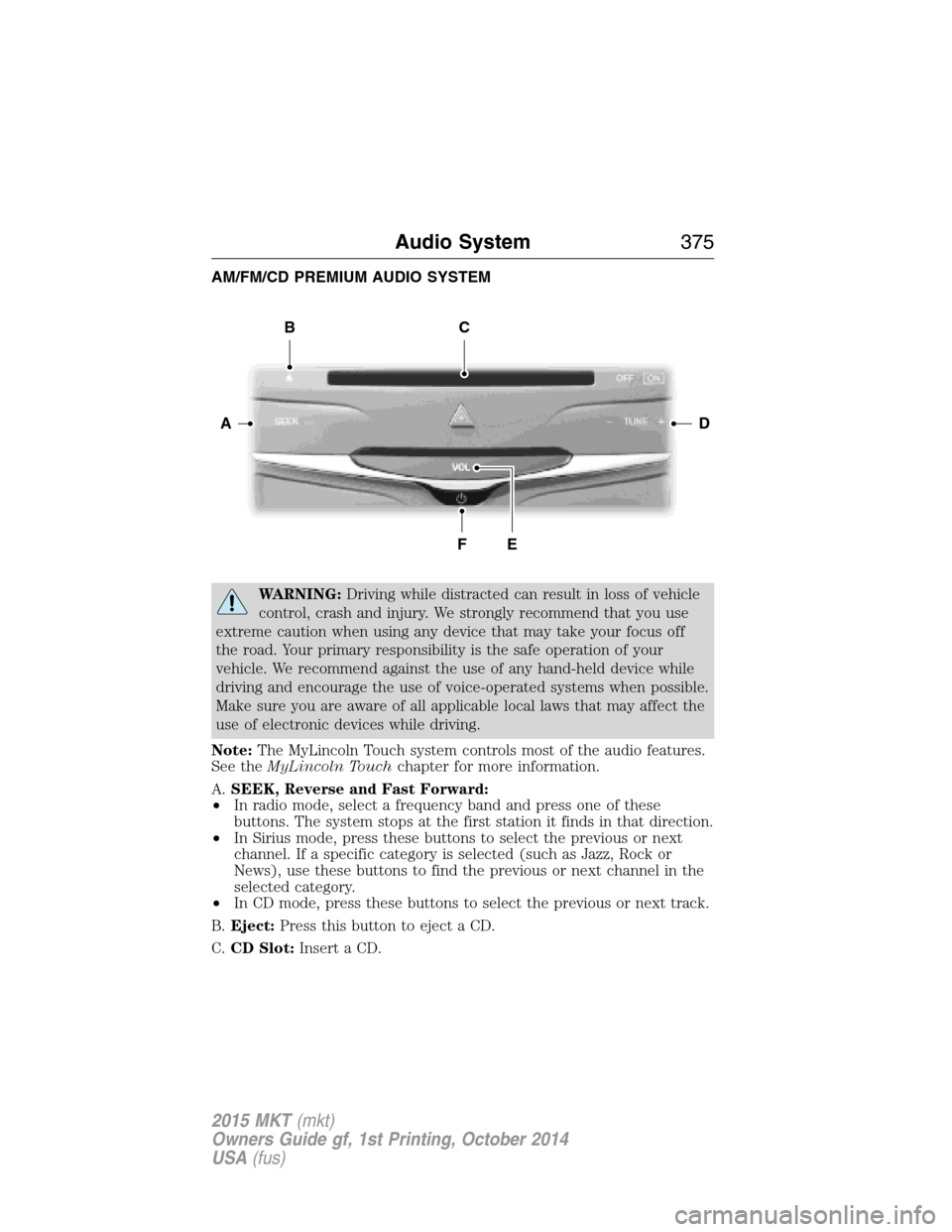
AM/FM/CD PREMIUM AUDIO SYSTEM
WARNING:Driving while distracted can result in loss of vehicle
control, crash and injury. We strongly recommend that you use
extreme caution when using any device that may take your focus off
the road. Your primary responsibility is the safe operation of your
vehicle. We recommend against the use of any hand-held device while
driving and encourage the use of voice-operated systems when possible.
Make sure you are aware of all applicable local laws that may affect the
use of electronic devices while driving.
Note:The MyLincoln Touch system controls most of the audio features.
See theMyLincoln Touchchapter for more information.
A.SEEK, Reverse and Fast Forward:
•In radio mode, select a frequency band and press one of these
buttons. The system stops at the first station it finds in that direction.
•In Sirius mode, press these buttons to select the previous or next
channel. If a specific category is selected (such as Jazz, Rock or
News), use these buttons to find the previous or next channel in the
selected category.
•In CD mode, press these buttons to select the previous or next track.
B.Eject:Press this button to eject a CD.
C.CD Slot:Insert a CD.
DA
BC
FE
Audio System375
2015 MKT(mkt)
Owners Guide gf, 1st Printing, October 2014
USA(fus)
Page 377 of 500
D.TUNE + and TUNE - :
•In radio mode, press these buttons to manually search through the
radio frequency band.
•In Sirius mode, press these buttons to find the next or previous
available satellite radio station.
E.Volume:Tap either side of the slider, or slide your finger across the
control to increase or decrease the volume level on the system. To slowly
increase or decrease the volume level, press and hold either end of the
slider.
F.Power:Press this button to switch the system off and on.
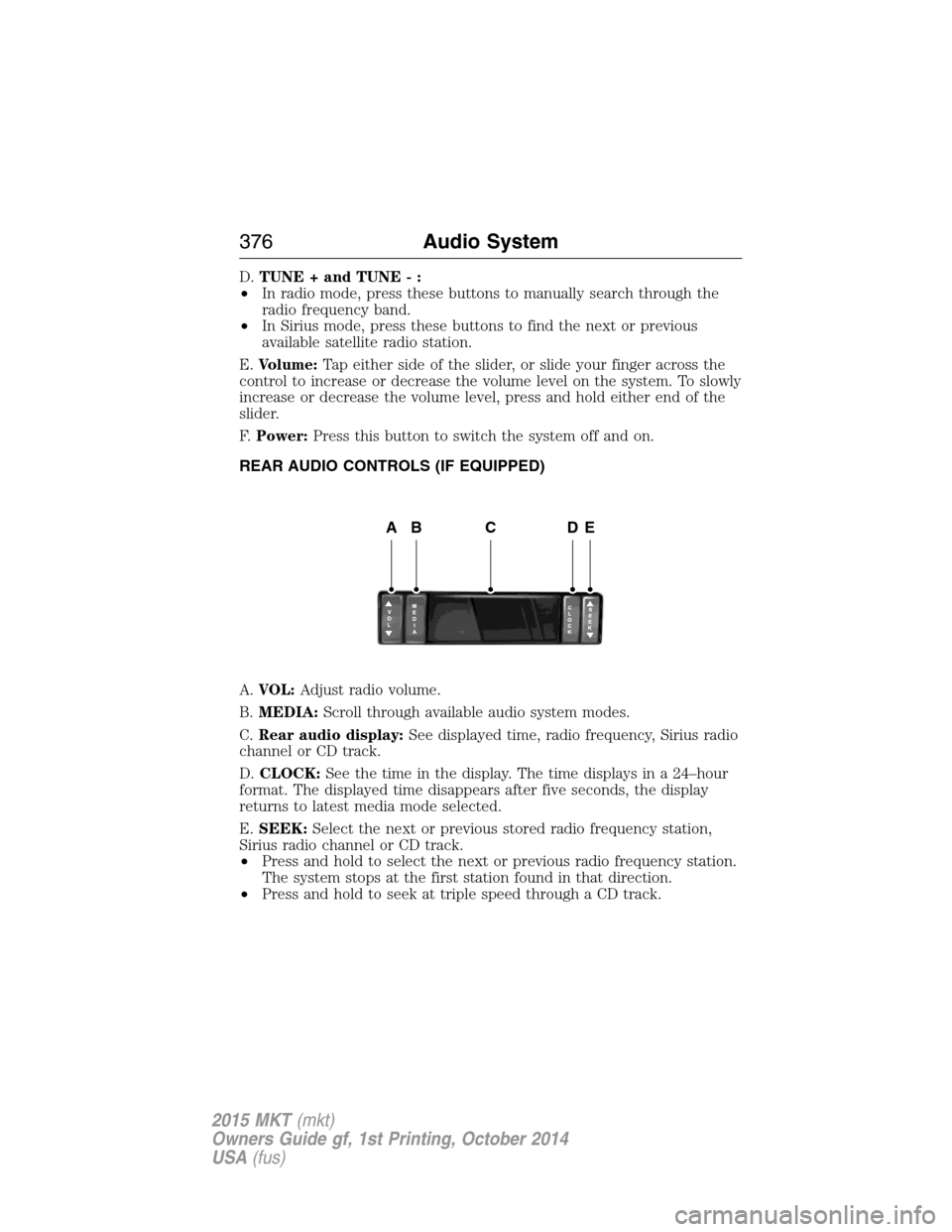
REAR AUDIO CONTROLS (IF EQUIPPED)
A.VOL:Adjust radio volume.
B.MEDIA:Scroll through available audio system modes.
C.Rear audio display:See displayed time, radio frequency, Sirius radio
channel or CD track.
D.CLOCK:See the time in the display. The time displays in a 24–hour
format. The displayed time disappears after five seconds, the display
returns to latest media mode selected.
E.SEEK:Select the next or previous stored radio frequency station,
Sirius radio channel or CD track.
•Press and hold to select the next or previous radio frequency station.
The system stops at the first station found in that direction.
•Press and hold to seek at triple speed through a CD track.
ABCDE
376Audio System
2015 MKT(mkt)
Owners Guide gf, 1st Printing, October 2014
USA(fus)
Page 387 of 500
Audio Sources and Memory Presets
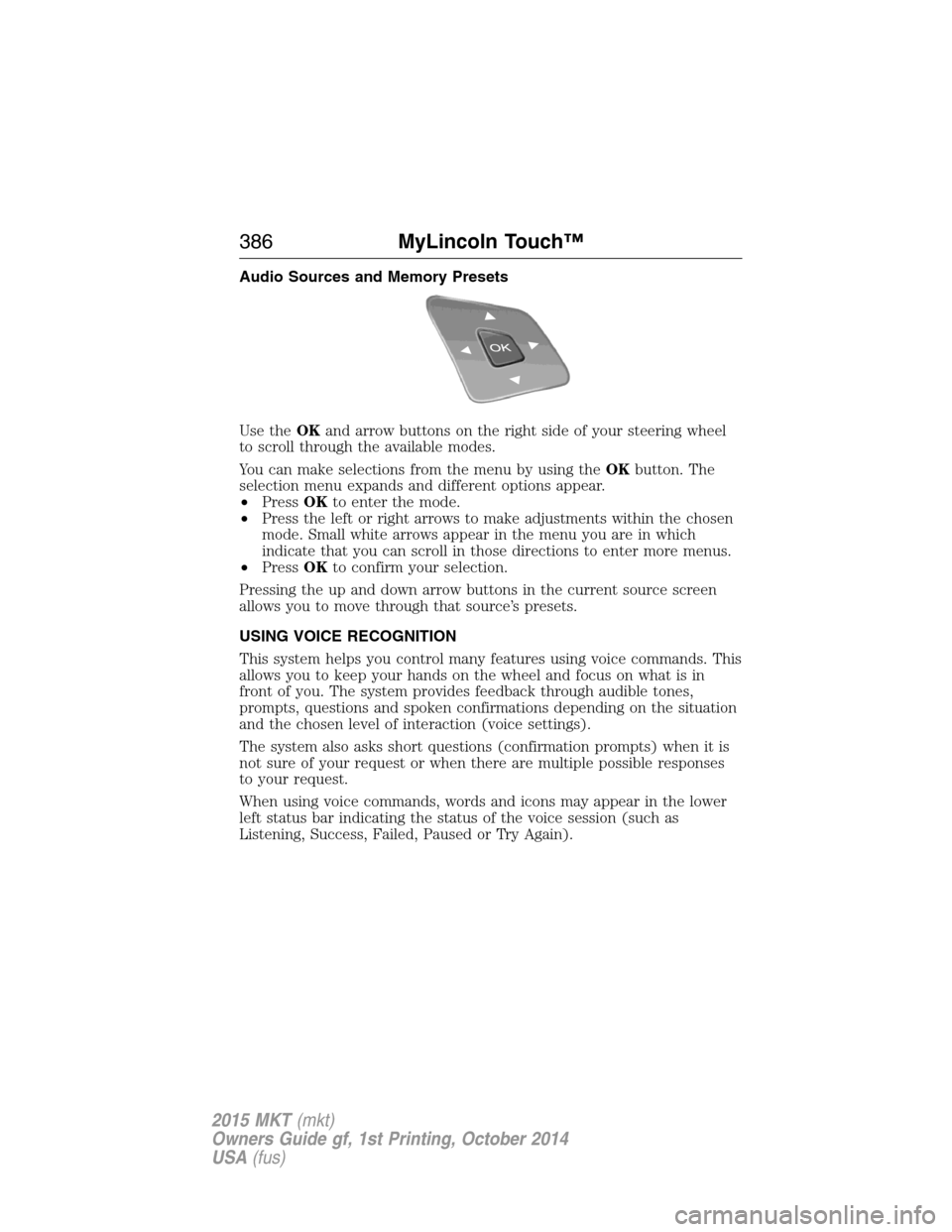
Use theOKand arrow buttons on the right side of your steering wheel
to scroll through the available modes.
You can make selections from the menu by using theOKbutton. The
selection menu expands and different options appear.
•PressOKto enter the mode.
•Press the left or right arrows to make adjustments within the chosen
mode. Small white arrows appear in the menu you are in which
indicate that you can scroll in those directions to enter more menus.
•PressOKto confirm your selection.
Pressing the up and down arrow buttons in the current source screen
allows you to move through that source’s presets.
USING VOICE RECOGNITION
This system helps you control many features using voice commands. This
allows you to keep your hands on the wheel and focus on what is in
front of you. The system provides feedback through audible tones,
prompts, questions and spoken confirmations depending on the situation
and the chosen level of interaction (voice settings).
The system also asks short questions (confirmation prompts) when it is
not sure of your request or when there are multiple possible responses
to your request.
When using voice commands, words and icons may appear in the lower
left status bar indicating the status of the voice session (such as
Listening, Success, Failed, Paused or Try Again).
386MyLincoln Touch™
2015 MKT(mkt)
Owners Guide gf, 1st Printing, October 2014
USA(fus)
Page 391 of 500
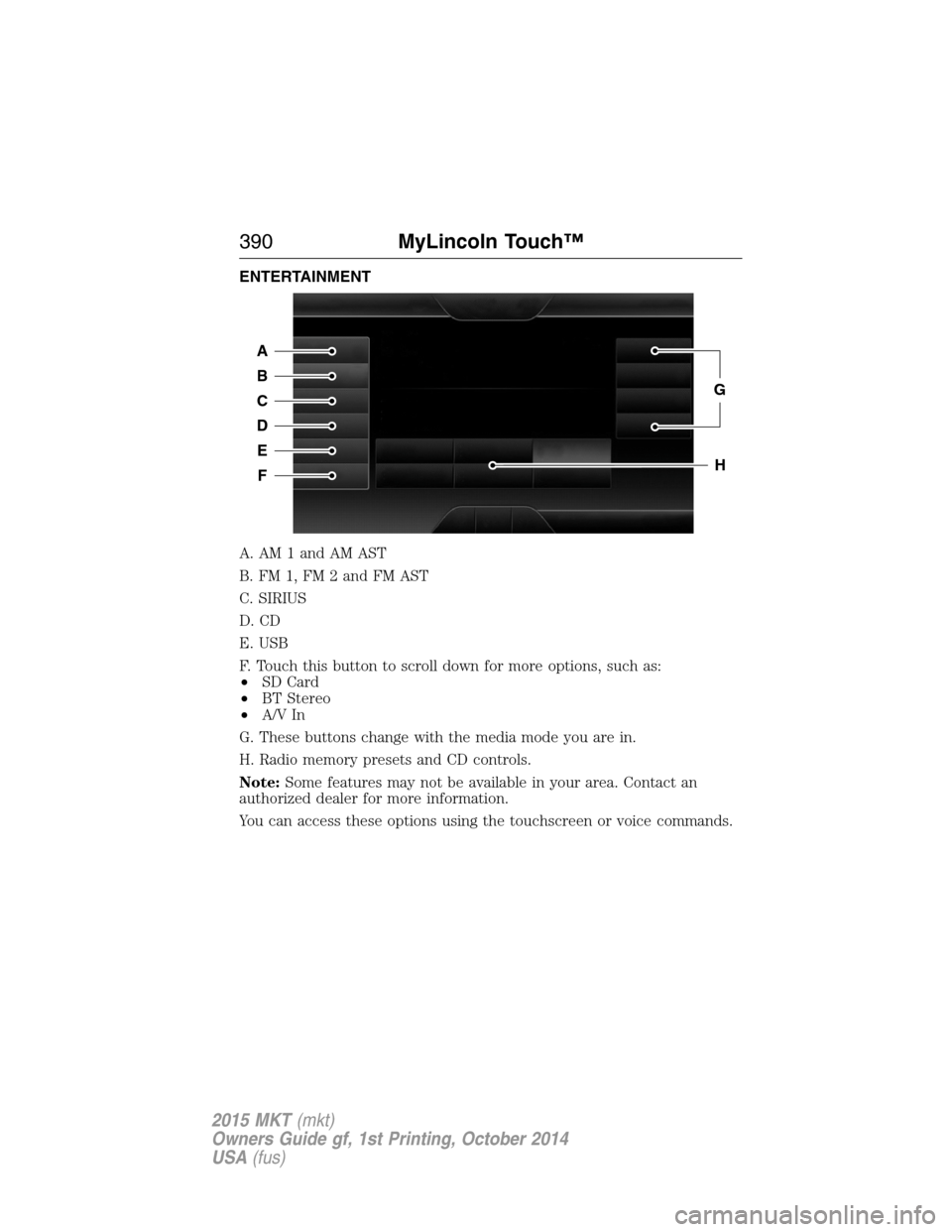
ENTERTAINMENT
A. AM 1 and AM AST
B. FM 1, FM 2 and FM AST
C. SIRIUS
D. CD
E. USB
F. Touch this button to scroll down for more options, such as:
•SD Card
•BT Stereo
•A/V In
G. These buttons change with the media mode you are in.
H. Radio memory presets and CD controls.
Note:Some features may not be available in your area. Contact an
authorized dealer for more information.
You can access these options using the touchscreen or voice commands.
A
B
C
D
E
F
G
H
390MyLincoln Touch™
2015 MKT(mkt)
Owners Guide gf, 1st Printing, October 2014
USA(fus)
Page 399 of 500
Sirius Satellite Radio (If Activated)
Press the lower left corner of the touchscreen, then select the
SIRIUStab.
Presets
Save a channel by pressing and holding one of the memory preset areas.
There is a brief mute while the radio saves the channel. Sound returns
when finished.
ALERT
Save the current song, artist, or team as a favorite. The system alerts
you when it plays again on any channel.
Replay
Replay audio on the current channel. You can replay approximately
45 minutes of audio as long as you have remained tuned to the current
station. Changing stations erases the previous audio.
While in replay mode:
•Press and release the seek buttons to hear the previous or next song.
•Press and hold the seek buttons to reverse or fast forward in the
current track.
•Press play or pause to play or pause the audio.
•PressReplayto return to live audio if you have been using the
feature to replay audio.
Scan
Touch this button to hear a brief sampling of channels.
Options
Sound Settingsallows you to adjust settings for:
•Bass
•Midrange
•Treble
•Balance and Fade
•DSP (Digital Signal Processing)
•Occupancy Mode
•Speed Compensated Volume.
Note:Your vehicle may not have all these sound settings.
398MyLincoln Touch™
2015 MKT(mkt)
Owners Guide gf, 1st Printing, October 2014
USA(fus)
Page 425 of 500

When you subscribe to Sirius Travel Link, it can help you locate the best
gas prices, find movie listings, get current traffic alerts, view the current
weather map, get accurate ski conditions and see scores to current
sports games.
If your vehicle is equipped with Navigation, touch the i
(Information) button to access these features. If your vehicle is
not equipped with Navigation, touch the corner of the
touchscreen with the green tab.
Traffic On Route and Traffic Nearby
Touch these buttons to identify traffic incidents on your route, nearby
your vehicle’s current location or near any of your favorite places, if
programmed.
Fuel Prices
Touch this button to view fuel prices at stations close to your vehicle’s
location or on an active navigation route.
Movie Listings
Touch this button to view nearby movie theaters and their show times, if
available.
Weather
Touch this button to view the nearby weather, current weather, or the
five day forecast for the chosen area. SelectMapto see the weather
map, which can show storms, radar information, charts and winds. Select
Areato select from a listing of weather locations.
Sports Info
Touch this button to view scores and schedules from a variety of sports.
You can also save up to 10 favorite teams for easier access. The score
automatically refreshes when a game is in progress.
Ski Conditions
Touch this button to view ski conditions for a specific area.
424MyLincoln Touch™
2015 MKT(mkt)
Owners Guide gf, 1st Printing, October 2014
USA(fus)
Page 443 of 500

Help
Press the Settings icon >Help,then select from the following:
Help
Where Am I?View your vehicle’s current location, if your
vehicle is equipped with navigation. If your
vehicle is not equipped with navigation,
nothing displays.
System InformationTouchscreen system serial number.
Your vehicle identification number (VIN).
Touchscreen system software version.
Navigation system version.
Map database version.
Sirius satellite radio electronic serial number
(ESN).
Gracenote Database Information and Library
version.
Software LicensesView the licenses for any software and
applications installed on your system.
Driving RestrictionsCertain features are not accessible when your
vehicle is moving.
911 AssistTurn on and turn off the 911 Assist feature.
See911 Assistin theSYNC applications
and servicessection.
In Case of Emergency (ICE) Speed Dial
allows you to save up to two numbers as ICE
contacts for quick access if there is an
emergency. SelectEditto access your
phonebook and then select the desired
contacts. The numbers then appear as options
on this screen for the ICE 1 and ICE 2
buttons. The ICE contacts you select appear
at the end of the 911 Assist call process.
Voice Command ListView categorized lists of voice commands.
To access Help using the voice commands, press the voice button, then,
after the tone, say “Help”. The system provides allowable voice
commands for the current mode.
442MyLincoln Touch™
2015 MKT(mkt)
Owners Guide gf, 1st Printing, October 2014
USA(fus)
Page 454 of 500

3D map modeprovides an elevated perspective of the map. This
viewing angle can be adjusted and the map can be rotated 180
degrees by touching the map twice, and then dragging your finger
along the shaded bar with arrows at the bottom of the map.
Vi e wswitches between full map, street list and exit view in route
guidance.
Menudisplays a pop-up box that allows direct access to navigation
settings, View/Edit Route, Sirius Travel Link, Guidance Mute and Cancel
Route.
Press the speaker button on the map to mute route guidance.
When the light on the button illuminates, the feature is on. The
speaker button appears on the map only when route guidance
is active.
Re-center the map by pressing this icon whenever you scroll
the map away from your vehicle’s current location.
Auto Zoom
Press the green bar to access map mode, then select the+or-zoom
button to bring up the zoom level and Auto buttons on the touchscreen.
When you pressAuto,Auto Zoom turns on andAutodisplays in the
bottom left corner of the screen in the map scale. The map zoom level
then synchronizes with vehicle speed. The slower your vehicle is
traveling, the farther in the map zooms in; the faster your vehicle is
traveling, the farther the map zooms out. To turn the feature off, just
press the+or-button again.
In 3D mode, rotate the map view by swiping your finger across the
shaded bar with the arrows.
The ETA box under the zoom buttons appears when a route is active
and displays the distance and time to your destination. If the button is
pressed, a pop up appears with the destination listed (and waypoint if
applicable) along with mileage and time to destination. You may also
select to have either the estimated time to reach your destination or
your estimated arrival time.
MyLincoln Touch™453
2015 MKT(mkt)
Owners Guide gf, 1st Printing, October 2014
USA(fus)