2015 LINCOLN MKC Back
[x] Cancel search: BackPage 310 of 490

Miscellaneous
•
Make sure all linkages, cables, levers and
pins under your vehicle are covered with
grease to prevent rust.
• Move vehicles at least 25 feet (8 meters)
every 15 days to lubricate working parts
and prevent corrosion.
Removing Vehicle From Storage
When your vehicle is ready to come out of
storage, do the following:
• Wash your vehicle to remove any dirt or
grease film build-up on window surfaces.
• Check windshield wipers for any
deterioration.
• Check under the hood for any foreign
material that may have collected during
storage (mice/squirrel nests).
• Check the exhaust for any foreign
material that may have collected during
storage.
• Check tire pressures and set tire inflation
per the Tire Label. •
Check brake pedal operation. Drive your
vehicle 15 feet (4.5 meters) back and forth
to remove rust build-up.
• Check fluid levels (including coolant, oil
and gas) to make sure there are no leaks,
and fluids are at recommended levels.
• If the battery was removed, clean the
battery cable ends and inspect.
Contact your authorized dealer if you have
any concerns or issues.
307
MKC (TME), enUSA Vehicle Care
Page 329 of 490

Understanding Your Tire Pressure
Monitoring System
The tire pressure monitoring system
measures pressure in your four road tires
and sends the tire pressure readings to your
vehicle. The low tire pressure warning light
will turn on if the tire pressure is significantly
low. Once the light is illuminated, your tires
are under-inflated and need to be inflated to
the manufacturer’
s recommended tire
pressure. Even if the light turns on and a
short time later turns off, your tire pressure
still needs to be checked. When Your Temporary Spare Tire is
Installed
When one of your road tires needs to be
replaced with the temporary spare, the
system will continue to identify an issue to
remind you that the damaged road wheel
and tire assembly needs to be repaired and
put back on your vehicle.
To restore the full function of the tire
pressure monitoring system, have the
damaged road wheel and tire assembly
repaired and remounted on your vehicle.
When You Believe Your System is Not
Operating Properly
The main function of the tire pressure
monitoring system is to warn you when your
tires need air. It can also warn you in the
event the system is no longer capable of
functioning as intended. See the following
chart for information concerning your tire
pressure monitoring system:
326
MKC (TME), enUSA Wheels and Tires
Page 335 of 490

13. Remove the jack and fully tighten the
lug nuts in the order shown. See
Technical Specifications (page 334).
Stowing the flat tire
1. Put the jack and lug wrench away. Make
sure the jack is fastened so it does not
rattle when you drive.
2. Unblock the wheels.
3. Stow the flat tire on the floor in the cargo
area. Secure with the flat tire retainer
strap by following the next steps: 4. Locate the cargo tie-down near the
seatback. Push the loop of the retainer
strap through the tie-down. Thread the
non-loop end through the loop. 5. Weave the retainer strap through the
wheel openings.
6. Locate the front cargo tie-down at the opposite corner of the cargo area to the
tie-down used in Step 4. Thread the
retainer strap through the tie-down and
pull tight.
7. Secure by tying a 2-half hitch knot.
332
MKC (TME), enUSA Wheels and TiresE142906 E157926
Page 349 of 490
Do not expose discs to direct sunlight or heat
sources for extended periods.
MP3 and WMA Track and Folder
Structure
Audio systems capable of recognizing and
playing MP3 and WMA individual tracks and
folder structures work as follows:
•
There are two different modes for MP3
and WMA disc playback: MP3 and WMA
track mode (system default) and MP3 and
WMA folder mode.
• MP3 and WMA track mode ignores any
folder structure on the MP3 and WMA
disc. The player numbers each MP3 and
WMA track on the disc (noted by the MP3
or WMA file extension) from T001 to a
maximum of T255. The maximum number
of playable MP3 and WMA files may be
less depending on the structure of the
CD and exact model of radio present. •
MP3 and WMA folder mode represents
a folder structure consisting of one level
of folders. The CD player numbers all
MP3 and WMA tracks on the disc (noted
by the MP3 or WMA file extension) and
all folders containing MP3 and WMA files,
from F001 (folder) T001 (track) to F253
T255.
• Creating discs with only one level of
folders helps with navigation through the
disc files.
If you are burning your own MP3 and WMA
discs, it is important to understand how the
system reads the structures you create. While
various files may be present, (files with
extensions other than MP3 and WMA), only
files with the MP3 and WMA extension are
played; other files are ignored by the system.
This enables you to use the same MP3 and
WMA disc for a variety of tasks on your work
computer, home computer and your
in-vehicle system. In track mode, the system displays and plays
the structure as if it were only one level deep
(all MP3 and WMA files play, regardless of
being in a specific folder). In folder mode,
the system only plays the MP3 and WMA files
in the current folder.
AUDIO UNIT - VEHICLES WITH:
PREMIUM AM/FM/CD
WARNING
Driving while distracted can result in
loss of vehicle control, crash and injury.
We strongly recommend that you use
extreme caution when using any device that
may take your focus off the road. Your
primary responsibility is the safe operation
of your vehicle. We recommend against the
use of any hand-held device while driving
and encourage the use of voice-operated
systems when possible. Make sure you are
aware of all applicable local laws that may
affect the use of electronic devices while
driving. 346
MKC (TME), enUSA Audio System
Page 362 of 490
The display is located on the center of your
instrument cluster. It allows you to view and
make minor adjustments to active modes
without taking your hands off the wheel. For
example:
•
In entertainment mode, you can view
what is now playing, change the audio
source, select presets and make some
adjustments.
• In navigation mode (if equipped), you can
view the current route or activate a route.
• In phone mode, you can accept or reject
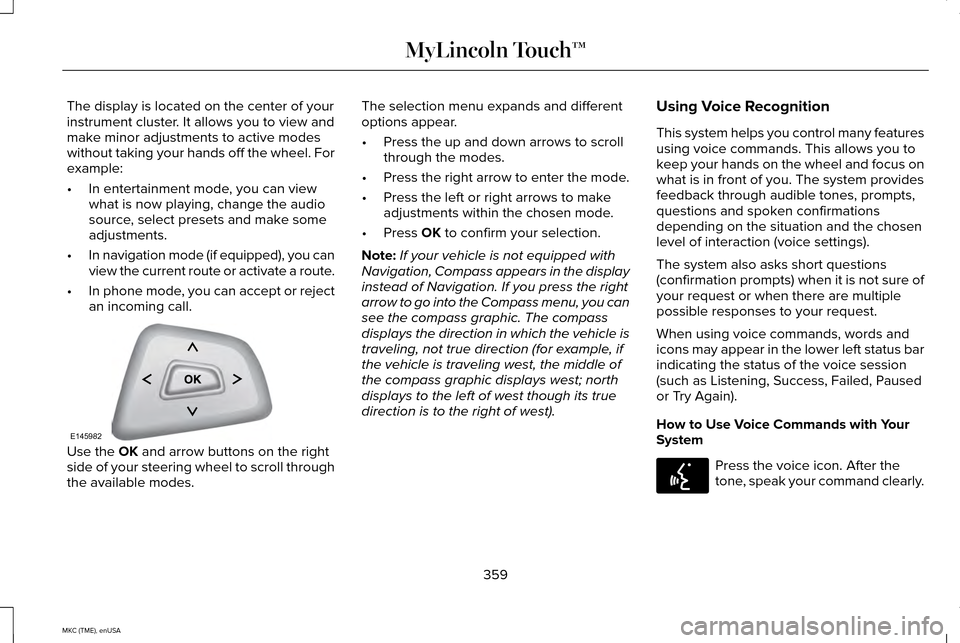
an incoming call. Use the OK and arrow buttons on the right
side of your steering wheel to scroll through
the available modes. The selection menu expands and different
options appear.
•
Press the up and down arrows to scroll
through the modes.
• Press the right arrow to enter the mode.
• Press the left or right arrows to make
adjustments within the chosen mode.
• Press
OK to confirm your selection.
Note: If your vehicle is not equipped with
Navigation, Compass appears in the display
instead of Navigation. If you press the right
arrow to go into the Compass menu, you can
see the compass graphic. The compass
displays the direction in which the vehicle is
traveling, not true direction (for example, if
the vehicle is traveling west, the middle of
the compass graphic displays west; north
displays to the left of west though its true
direction is to the right of west). Using Voice Recognition
This system helps you control many features
using voice commands. This allows you to
keep your hands on the wheel and focus on
what is in front of you. The system provides
feedback through audible tones, prompts,
questions and spoken confirmations
depending on the situation and the chosen
level of interaction (voice settings).
The system also asks short questions
(confirmation prompts) when it is not sure of
your request or when there are multiple
possible responses to your request.
When using voice commands, words and
icons may appear in the lower left status bar
indicating the status of the voice session
(such as Listening, Success, Failed, Paused
or Try Again).
How to Use Voice Commands with Your
System
Press the voice icon. After the
tone, speak your command clearly.
359
MKC (TME), enUSA MyLincoln Touch™E145982 E142599
Page 363 of 490

These commands can be said at any time
during a voice session
"Cancel""Exit"
"Go back"
"List of commands" "Main menu""Next page"
"Previous page"
"What can I say?" "Help" What Can I Say?
To access the available voice commands for
the current session, do one of the following:
•
During a voice session, press the help
icon (?) in the lower left status bar of the
screen.
• Say, "What can I say?" for an on-screen
listing of the possible voice commands
associated with your current voice
session.
• Press the voice icon. After the tone, say,
"Help" for an audible list of possible voice
commands.
Helpful Hints
• Make sure the interior of your vehicle is
as quiet as possible. Wind noise from
open windows and road vibrations may
prevent the system from correctly
recognizing spoken commands.
• After pressing the voice icon, wait until
after the tone sounds and Listening
appears before saying a command. Any
command spoken before this does not
register with the system. •
Speak naturally, without long pauses
between words.
• At any time, you can interrupt the system
while it is speaking by pressing the voice
icon.
Accessing a List of Available Commands
• If you use the touchscreen, press the
Settings icon >
Help > Voice Command
List.
• If you use the steering wheel control,
press the voice icon. After the tone,
speak your command clearly. Available voice commands
"Audio list of commands"
"Bluetooth audio list of commands" "Browse list of commands""CD list of commands"
"Climate control list of commands" "List of commands"
360
MKC (TME), enUSA MyLincoln Touch™
Page 364 of 490

Available voice commands
"Navigation list of commands" *
"Phone list of commands" "Radio list of commands"
"SD card list of commands"
"Sirius satellite list of commands" **
"Travel link list of commands" *
"USB list of commands"
"Voice instructions list of commands" "Voice settings list of commands" "Help"
* This command is only available when your
vehicle is equipped with the navigation
system, and the navigation system SD card
is in the card slot.
** This command is only available when you
have an active SIRIUS satellite radio
subscription. Voice Settings
Voice settings allow you to customize the
level of system interaction, help and
feedback. The system defaults to standard
interaction that uses candidate lists and
confirmation prompts as these provide the
highest level of guidance and feedback.
•
Interaction Mode: Novice mode provides
detailed interaction and guidance while
the advanced mode has less audible
interaction and more tone prompts.
• Confirmation Prompts: The system uses
these short questions to confirm your
voice request. If turned off, the system
simply makes a best guess as to what
you requested. The system may still
occasionally ask you to confirm settings.
• Phone and Media Candidate Lists:
Candidate lists are lists of possible results
from your voice commands. The system
creates these lists when it has the same
confidence level of several options based
on your voice command.
To access these settings using the
touchscreen: 1.
Press the Settings icon > Settings > then
Voice Control.
2. Select from the following:
• Interaction Mode
• Confirmation Prompts
• Media Candidate Lists
• Phone Candidate Lists
• Voice Control Volume.
To access these settings using voice
commands:
1. Press the voice icon. Wait for the prompt
"Please say a command". Another tone
sounds to let you know the system is
listening.
2. Say any of the following commands: Voice settings using voice commands
"Confirmation prompts off ""Confirmation prompts on"
"Interaction mode advanced" "Interaction mode novice"
361
MKC (TME), enUSA MyLincoln Touch™
Page 384 of 490

When HD Radio broadcasts are active, you
can access the following functions:
•
Scan allows you to hear a brief sampling
of all available stations. This feature still
works when HD Radio reception is on,
although it does not scan for HD2-HD7
channels. You may see the HD logo
appear if the station has a digital
broadcast. •
Memory presets
allow you to save an
active channel as a memory preset.
Touch and hold a memory preset slot
until the sound returns. There is a brief
mute while the radio saves the station.
Sound returns when finished. When
switching to an HD2 or HD3 memory
preset, the sound mutes before the
digital audio plays, because the system
has to reacquire the digital signal. Note:
As with any saved radio station, you
cannot access the saved station if your
vehicle is outside the station’ s reception
area.
HD Radio Reception and Station Troubleshooting Potential reception issues
If you are listening to a multicast station and you are on the fringe of\
the reception area, the station may mute
due to weak signal strength.
Reception area
If you are listening to HD1, the system switches back to the analog broa\
dcast until the digital broadcast is
available again. However, if you are listening to any of the possible HD2-HD7 multicast channels\
, the station
mutes and stays muted unless it is able to connect to the digital signal\
again.
When the system first receives a station (aside from HD2-HD7 multicast \
stations), it first plays the station in the
analog version. Once the receiver verifies the station is an HD Radio station, it shifts to the digital version.
Depending on the station quality, you may hear a slight sound change when the station changes from analo\
g
to digital. Blending is the shift from analog to digital sound or digita\
l back to analog sound.
Station blending
381
MKC (TME), enUSA MyLincoln Touch™