Page 305 of 499
![KIA Sportage 2015 QL / 4.G Owners Manual Features of your vehicle
218
4
Pairing through [PHONE]
Setup
Press the key Select
[Phone] Select [Pair Phone]
Select TUNE knob
1. The following steps are the same
as those described in the section](/manual-img/2/2970/w960_2970-304.png "KIA Sportage 2015 QL / 4.G Owners Manual Features of your vehicle
218
4
Pairing through [PHONE]
Setup
Press the key Select
[Phone] Select [Pair Phone]
Select TUNE knob
1. The following steps are the same
as those described in the section")
Features of your vehicle
218
4
Pairing through [PHONE]
Setup
Press the key Select
[Phone] Select [Pair Phone]
Select TUNE knob
1. The following steps are the same
as those described in the section
"When No Devices have been
Paired" on the previous page.
Bluetooth®Wireless Technology
features supported within the vehi-
cle are as follows. Some features
may not be supported depending
on your
Bluetooth®Wireless
Technology device.
- Outgoing/Incoming Handsfree calls
- Operations during a call (Switch to Private, Switch to call waiting,
MIC on/off)
- Downloading Call History
- Downloading Mobile Contacts
-
Bluetooth®Wireless Technology
device auto connection
- Bluetooth Audio Streaming
Bluetooth®Wireless
Technology devices can be paired
to the Car Handsfree system.
Bluetooth®device can be
connected at a time.
one
Bluetooth®Wireless
Technology device can be connect-
ed at a time.
while a
Bluetooth®Wireless
Technology device is connected.
Bluetooth®Wireless
Technology Handsfree and
Bluetooth audio related features
are supported.
possible only within devices that
support Handsfree or audio fea-
tures, such as a
Bluetooth®
Wireless Technology mobile phone
or a Bluetooth audio device.
Bluetooth®Wireless
Technology device becomes dis-
connected due to being out of com-
munication range, turning the
device OFF, or a
Bluetooth®
Wireless Technology communica-
tion error, corresponding
Bluetooth®
Wireless Technology devices are
automatically searched and recon-
nected.
due to communication errors
between the car Handsfree and the
Bluetooth®Wireless Technology
device, reset the device by turning
off and back on again. Upon reset-
ting
Bluetooth®Wireless
Technology device, the system will
be restored.
SETUPCLOCK
Page 306 of 499
4219
Features of your vehicle
tacts download request is sent
once to the mobile phone. Some
mobile phones may require confir-
mation upon receiving a download
request, ensure your mobile phone
accepts the connection. Refer to
your phones user’s manual for
additional information regarding
phone pairing and connections.Connecting a Device
Press the key Select
[Phone] Select [Phone List]
1) Connected Phone : Device that is currently connected
2) Paired Phone : Device that is paired but not connected From the paired phone list, select the
device you want to connect and
select [Connect].SETUPCLOCK
Page 307 of 499
Features of your vehicle
220
4
Changing Priority
What is Priority?
It is possible to pair up to five
Bluetooth®Wireless Technology
devices with the car audio system.
The "Change Priority" feature is used
to set the connection priority of
paired phones.
Press the key Select
[Phone] Select [Phone List] From the paired phone list, select
the phone you want to switch to the
highest priority
, then select [Change
Priority] button from the Menu. The
selected device will be changed to
the highest priority.
the selected phone is set as a pri-
ority phone.
SETUPCLOCK
Page 308 of 499
4221
Features of your vehicle
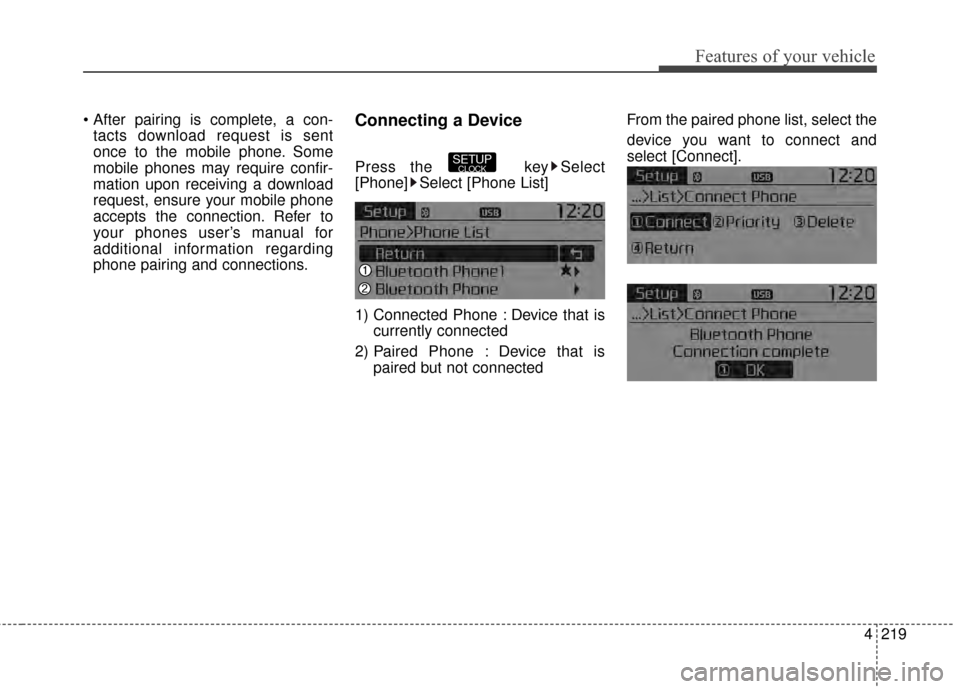
Disconnecting a Device
Press the key Select
[Phone] Select [Phone List]
From the paired phone list, select the
currently connected device and
select [Disconnect] button.
Deleting a Device
Press the key Select
[Phone] Select [Phone List]
From the paired phone list, select the
device you want to delete and select
[Delete] button.
nected device, the device will auto-
matically be disconnected to pro-
ceed with the deleting process.
Bluetooth®Wireless
Technology device is deleted, the
device’s call history and contacts
data will also be deleted.
must pair the device again.
SETUPCLOCKSETUPCLOCK
Page 312 of 499
4225
Features of your vehicle
Bluetooth®Wireless
Technology Setting
The Bluetooth®word mark and logos
are registered trademarks owned by
Bluetooth SIG, Inc. and any use of
such marks by Kia is under license.
Other trademarks and trade names
are those of their respective owners.
A
Bluetooth®enabled cell phone is
required to use
Bluetooth®Wireless
Technology
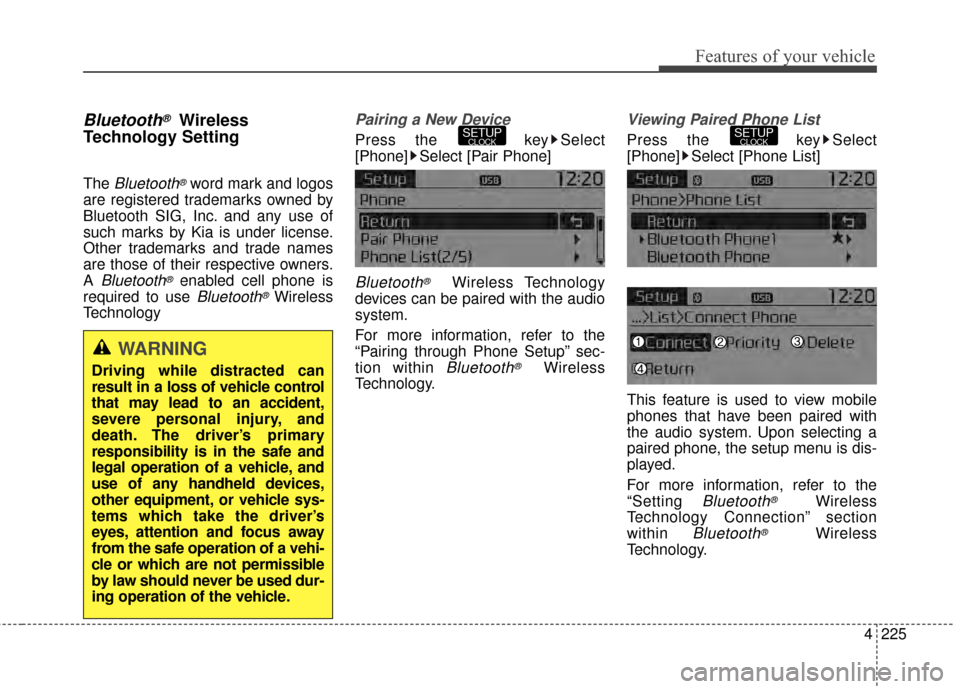
Pairing a New Device
Press the key Select
[Phone] Select [Pair Phone]
Bluetooth®Wireless Technology
devices can be paired with the audio
system.
For more information, refer to the
“Pairing through Phone Setup” sec-
tion within
Bluetooth®Wireless
Technology.
Viewing Paired Phone List
Press the key Select
[Phone] Select [Phone List]
This feature is used to view mobile
phones that have been paired with
the audio system. Upon selecting a
paired phone, the setup menu is dis-
played.
For more information, refer to the
“Setting
Bluetooth®Wireless
Technology Connection” section
within
Bluetooth®Wireless
Technology.
SETUPCLOCKSETUPCLOCK
WARNING
Driving while distracted can
result in a loss of vehicle control
that may lead to an accident,
severe personal injury, and
death. The driver’s primary
responsibility is in the safe and
legal operation of a vehicle, and
use of any handheld devices,
other equipment, or vehicle sys-
tems which take the driver’s
eyes, attention and focus away
from the safe operation of a vehi-
cle or which are not permissible
by law should never be used dur-
ing operation of the vehicle.
Page 313 of 499
Features of your vehicle
226
4
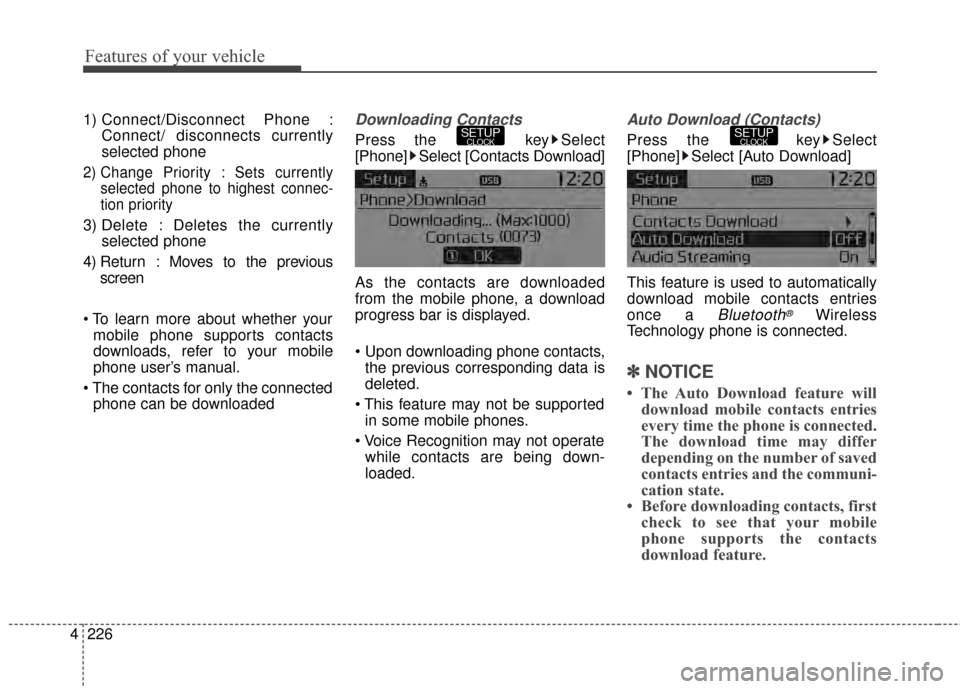
1) Connect/Disconnect Phone :
Connect/ disconnects currently
selected phone
2) Change Priority : Sets currentlyselected phone to highest connec-
tion priority
3) Delete : Deletes the currently selected phone
4) Return : Moves to the previous screen
mobile phone supports contacts
downloads, refer to your mobile
phone user’s manual.
phone can be downloaded
Downloading Contacts
Press the key Select
[Phone] Select [Contacts Download]
As the contacts are downloaded
from the mobile phone, a download
progress bar is displayed.
the previous corresponding data is
deleted.
in some mobile phones.
while contacts are being down-
loaded.
Auto Download (Contacts)
Press the key Select
[Phone] Select [Auto Download]
This feature is used to automatically
download mobile contacts entries
once a
Bluetooth®Wireless
Technology phone is connected.
✽ ✽ NOTICE
• The Auto Download feature will
download mobile contacts entries
every time the phone is connected.
The download time may differ
depending on the number of saved
contacts entries and the communi-
cation state.
• Before downloading contacts, first check to see that your mobile
phone supports the contacts
download feature.
SETUPCLOCKSETUPCLOCK
Page 314 of 499
4227
Features of your vehicle
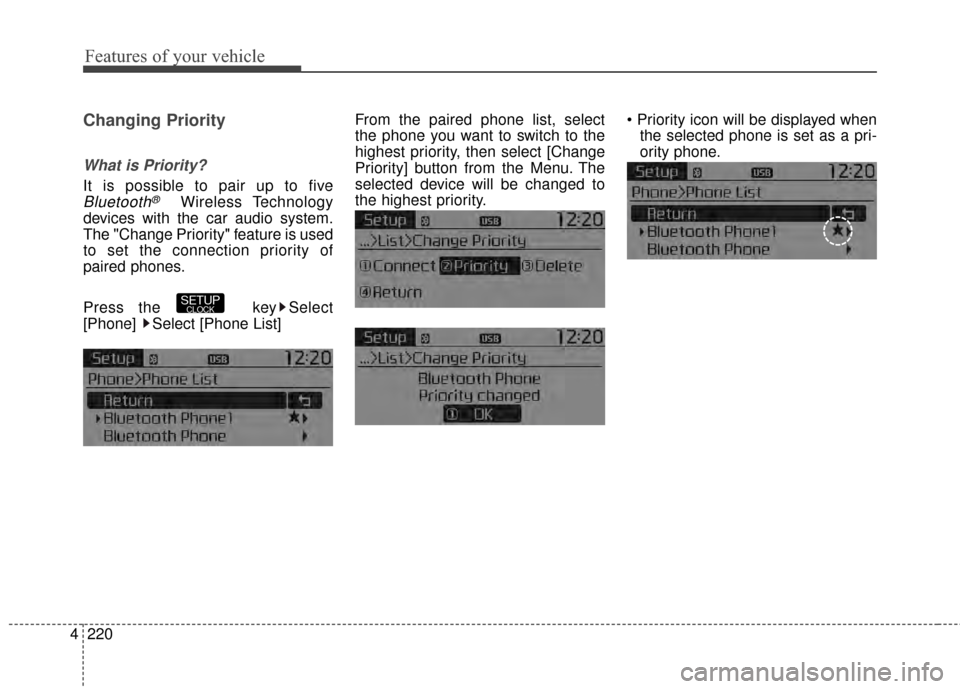
Audio Streaming
Press the key Select
[Phone] Select [Audio Streaming]
When Audio Streaming is turned on,
you can play music files saved in
your
Bluetooth®Wireless Technology
device through the audio system.
Outgoing Volume
Press the key Select
[Phone] Select [Outgoing Volume]
Use TUNE knob to adjust the out-
going volume level.
on a call, the volume can be
changed by using the
key.
Turning Bluetooth System Off
Press the key Select
[Phone] Select [Bluetooth System
Off]
Once
Bluetooth®Wireless
Technology is turned off,
Bluetooth®
Wireless Technology related features
will not be supported within the audio
system.
turn
Bluetooth®Wireless
Technology back on, go to [Phone] and select “Yes”.SETUPCLOCK
SETUPCLOCK
SEEK
TRACK
SETUPCLOCKSETUPCLOCK
Page 315 of 499
![KIA Sportage 2015 QL / 4.G Owners Manual Features of your vehicle
228
4
VOICE RECOGNITION
Using Voice Recognition
Starting Voice Recognition
Shortly press the key on the
steering wheel. Say a command If prompt feedback is in [ON], then
th](/manual-img/2/2970/w960_2970-314.png "KIA Sportage 2015 QL / 4.G Owners Manual Features of your vehicle
228
4
VOICE RECOGNITION
Using Voice Recognition
Starting Voice Recognition
Shortly press the key on the
steering wheel. Say a command If prompt feedback is in [ON], then
th")
Features of your vehicle
228
4
VOICE RECOGNITION
Using Voice Recognition
Starting Voice Recognition
Shortly press the key on the
steering wheel. Say a command If prompt feedback is in [ON], then
the system will say “Please say a
command after the beep (BEEP)”
mode, then the system will only say
“(BEEP)”
[On]/[Off], go to [System]
[Prompt Feedback]
command after the voice instruc-
tion and beep tone.
Contact List Best Practices
1)Do not store single-name entries (e.g., “Bob”, “Mom”, “Kim”, etc.).
Instead, always use full names
(including first and last names) for
all contacts (e.g., use “Jacob
Stevenson” instead of “Dad”).
2)Do not use abbreviations (i.e., use “Lieutenant” instead of “Lt.” or
“Sergeant” instead of “Sgt.”).
3)Do not use acronyms (i.e., use “County Finance Department”
instead of “CFD”).
4)Do not use special characters (e.g., “@”, “hyphen -“, “asterisk *”,
ampersand &”).
5)If a name is not recognized from the contact list, change it to a more
descriptive name (e.g., use
“Grandpa Joseph” instead of “Pa
Joe”).
SETUPCLOCK
![KIA Sportage 2015 QL / 4.G Owners Manual 4221
Features of your vehicle
Disconnecting a Device
Press the key Select
[Phone] Select [Phone List]
From the paired phone list, select the
currently connected device and
select [Disconnect] button.](/manual-img/2/2970/w960_2970-307.png "KIA Sportage 2015 QL / 4.G Owners Manual 4221
Features of your vehicle
Disconnecting a Device
Press the key Select
[Phone] Select [Phone List]
From the paired phone list, select the
currently connected device and
select [Disconnect] button.")
![KIA Sportage 2015 QL / 4.G Owners Manual 4227
Features of your vehicle
Audio Streaming
Press the key Select
[Phone] Select [Audio Streaming]
When Audio Streaming is turned on,
you can play music files saved in
your
Bluetooth®Wireless Tech](/manual-img/2/2970/w960_2970-313.png "KIA Sportage 2015 QL / 4.G Owners Manual 4227
Features of your vehicle
Audio Streaming
Press the key Select
[Phone] Select [Audio Streaming]
When Audio Streaming is turned on,
you can play music files saved in
your
Bluetooth®Wireless Tech")