Page 280 of 544
4203
Features of your vehicle
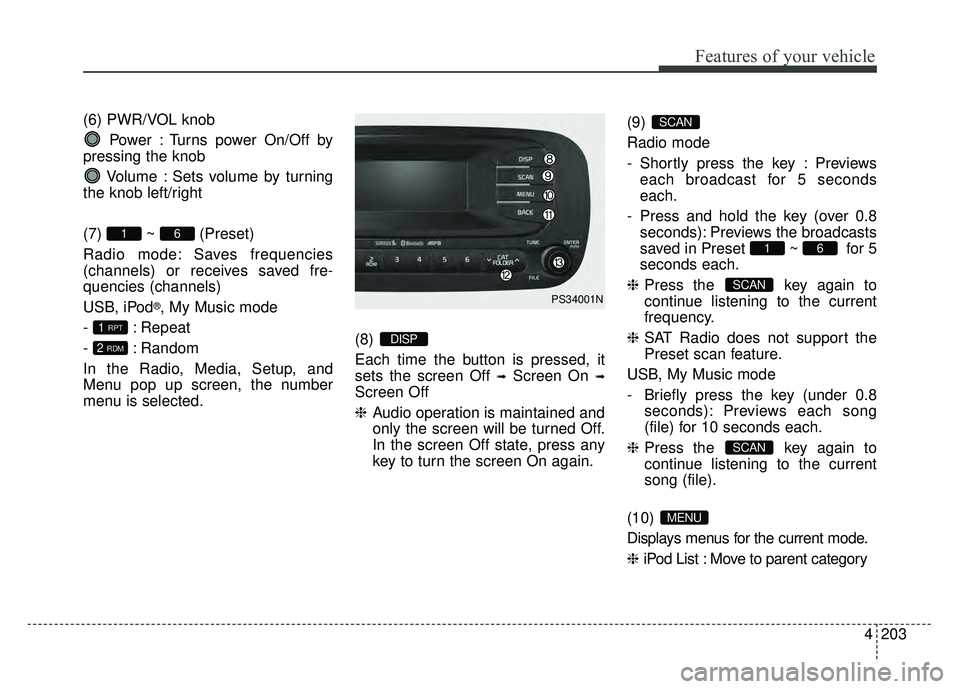
(6) PWR/VOL knobPower : Turns power On/Off by
pressing the knob
Volume : Sets volume by turning
the knob left/right
(7) ~ (Preset)
Radio mode: Saves frequencies
(channels) or receives saved fre-
quencies (channels)
USB, iPod
®, My Music mode
- : Repeat
- : Random
In the Radio, Media, Setup, and
Menu pop up screen, the number
menu is selected. (8)
Each time the button is pressed, it
sets the screen Off
➟Screen On ➟
Screen Off
❈
Audio operation is maintained and
only the screen will be turned Off.
In the screen Off state, press any
key to turn the screen On again. (9)
Radio mode
- Shortly press the key : Previews
each broadcast for 5 seconds
each.
- Press and hold the key (over 0.8 seconds): Previews the broadcasts
saved in Preset ~ for 5
seconds each.
❈ Press the key again to
continue listening to the current
frequency.
❈ SAT Radio does not support the
Preset scan feature.
USB, My Music mode
- Briefly press the key (under 0.8 seconds): Previews each song
(file) for 10 seconds each.
❈ Press the key again to
continue listening to the current
song (file).
(10)
Displays menus for the current mode.
❈ iPod List : Move to parent category
MENU
SCAN
SCAN
61
SCAN
DISP2 RDM
1 RPT
61
PS34001N
Page 282 of 544
4205
Features of your vehicle
SETUP
Display Settings
Press the key Select [Display]
through TUNE knob or key
Select menu through TUNE knob
Mode Pop up
[Mode Pop up] Changes /
selection mode
or key to display the mode
change pop up screen.
Text Scroll
[Text Scroll] Set /
Maintains scroll
: Scrolls only one (1) time.
Media Display
When playing an MP3 file, select the
desired display info from ‘Folder/File’
or ‘Album/Artist/Song’.
Off
On
OffOn
MEDIA
RADIO
OffOn
1
SETUP
Page 283 of 544
Features of your vehicle
206
4
SOUND SETTINGS
Press the key Select [Sound]
through TUNE knob or key
Select menu through TUNE knob
Sound Settings
This menu allows you to set the
‘Bass, Middle, Treble’ and the Sound
Fader and Balance.
Select [Sound Settings] Select
menu through
TUNE knobTu r n
TUNE knobleft/right to set
Bass, Middle, Treble : Selects the sound tone.
Fader, Balance : Moves the sound fader and balance.
Default : Restores default settings.
❈ Back : While adjusting values,
pressing the TUNE knob will
restore the parent menu. Speed Dependent Volume Control
This feature will gradually increase
the volume as speed increases to
offset outside noise.
Select [Speed Dependent Vol.] Set
in 4 levels [Off/Low/Mid/High] of
TUNE knob
Voice Recognition Volume
Adjusts voice recognition volume.
Select [Voice Recognition Vol.] Set
volume of
TUNEknob
2
SETUP
Page 284 of 544
4207
Features of your vehicle
CLOCK SETTINGS
Press the key Select [Clock]
through TUNE knob or key
Select menu through TUNE knob
Sound Settings
This menu is used to set the time.
Select [Clock Settings] Set throughTUNE knob Press TUNE knob
❈Adjust the number currently in
focus to set the [hour] and press
the tune knob to set the [minute].
Calendar Settings
This menu is used to set the date
(MM/DD/YYYY).
Select [Calendar Settings] Set through TUNE knob Press TUNE knob
❈Adjust the number currently in
focus to make the settings and
press the tune knob to move to the
next setting. (Set in order of
Year/Month/Day)
Time Format
This function is used to set the
12/24 hour time format of the
audio system. Select [Time
Format] Set 12Hr / 24Hr through
TUNEknob
Clock Display when Power is OFF
Select [Clock Disp.(Pwr Off) Set
/through TUNEknob
: Displays time/date on screen : Turn off.
Off
On
OffOn
3
SETUPCLOCK
Page 285 of 544
![KIA SOUL 2015 Owners Manual Features of your vehicle
208
4
SYSTEM SETTINGS
Press the key Select
[System] Select menu through
TUNE knob
Memory Information
Displays currently used memory and
total system memory.
Select [Memory](/manual-img/2/54647/w960_54647-284.png "KIA SOUL 2015 Owners Manual Features of your vehicle
208
4
SYSTEM SETTINGS
Press the key Select
[System] Select menu through
TUNE knob
Memory Information
Displays currently used memory and
total system memory.
Select [Memory")
Features of your vehicle
208
4
SYSTEM SETTINGS
Press the key Select
[System] Select menu through
TUNE knob
Memory Information
Displays currently used memory and
total system memory.
Select [Memory Information] OK
The currently used memory is dis-
played on the left side while the total
system memory is displayed on the
right side.
Prompt Feedback
This feature is used to change voice
command feedback between Normal
and Expert modes.
Select [Prompt Feedback] Set
through
TUNEknob
On : This mode is for beginner users and provides detailed
instructions during voice command
operation. Off : This mode is for expert users
and omits some information during
voice command operation. (When
using Expert mode, guidance
instructions can be heard through
the [Help] or [Menu] commands.
Language
This menu is used to set the display
and voice recognition language.
Select [Language]
Set through TUNE knob
❈ The system will reboot after the
language is changed.
❈ Language support by region
- English, Francais, Espanol
SETUP
Page 286 of 544
4209
Features of your vehicle
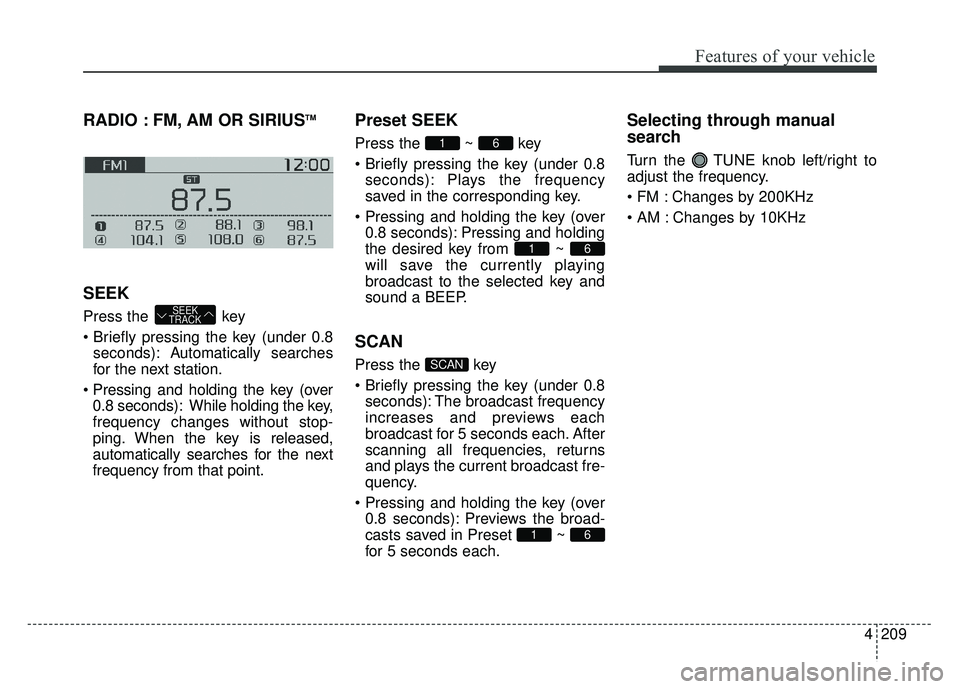
RADIO : FM, AM OR SIRIUSTM
SEEK
Press the key
pressing the key (under 0.8seconds): A utomatically searches
for the next station.
0.8 seconds): While holding the key,
frequency changes without stop-
ping. When the key is released,
automatically searches for the next
frequency from that point.
Preset SEEK
Press the ~ key
pressing the key (under 0.8 seconds): Plays the frequency
saved in the corresponding key.
0.8 seconds): Pressing and holding
the desired key from ~
will save the currently playing
broadcast to the selected key and
sound a BEEP.
SCAN
Press the key
pressing the key (under 0.8seconds): The broadcast frequency
increases and previews each
broadcast for 5 seconds each. After
scanning all frequencies, returns
and plays the current broadcast fre-
quency.
0.8 seconds): Previews the broad-
casts saved in Preset ~
for 5 seconds each.
Selecting through manual
search
Turn the TUNE knob left/right to
adjust the frequency.
Changes by 200KHz
Changes by 10KHz
61
SCAN
61
61
SEEK
TRACK
Page 287 of 544
Features of your vehicle
210
4
MENU
Within key are the A.Store
(Auto Store) and Info functions.
A.Store
Press the key Set [A.Store]
through TUNE knob or key.
Saves broadcasts with superior
reception to ~ keys. If no
frequencies are received, then the
most recently received frequency will
be broadcast.
61
1
MENU
MENU
Page 289 of 544
Features of your vehicle
212
4
SiriusXMTMRADIO
Using
SiriusXMTMSatellite
Radio
Your Kia vehicle is equipped with a 3
month complimentary period of
SiriusXM
TMSatellite Radio so you
have access to over 220 channels of
music, information, and entertain-
ment programming.
Activation
In order to extend or reactivate your
subscription to SiriusXMTMSatellite
Radio, you will need to contact
SiriusXM
TMCustomer Care at 1-800-
643-2112. Have your 12 digit SID
(Sirius Identification Number) / ESN
(Electronic Serial Number) ready. To
retrieve the SID / ESN, turn on the
radio, press the [RADIO] button, and
tune to channel zero. Please note that the vehicle will need
to be turned on, in Sirius mode, and
have an unobstructed view of the sky
in order for the radio to receive the
activation signal.
SEEK
Press the key
Shortly pressing the key (under 0.8
seconds): select previous or next
channel.
Pressing and holding the key (over 0.8 seconds): continuously move
to previous or next channel.
❈ If the “Category” icon is displayed,
channels are changed within the
current category.
SCAN
Press the key
Shortly pressing the key (under 0.8
seconds): Previews each broad-
cast for 10 seconds each
❈ Press the key again to
continue listening to the current
frequency
❈ If the “Category” icon is displayed,
channels are changed within the
current category.
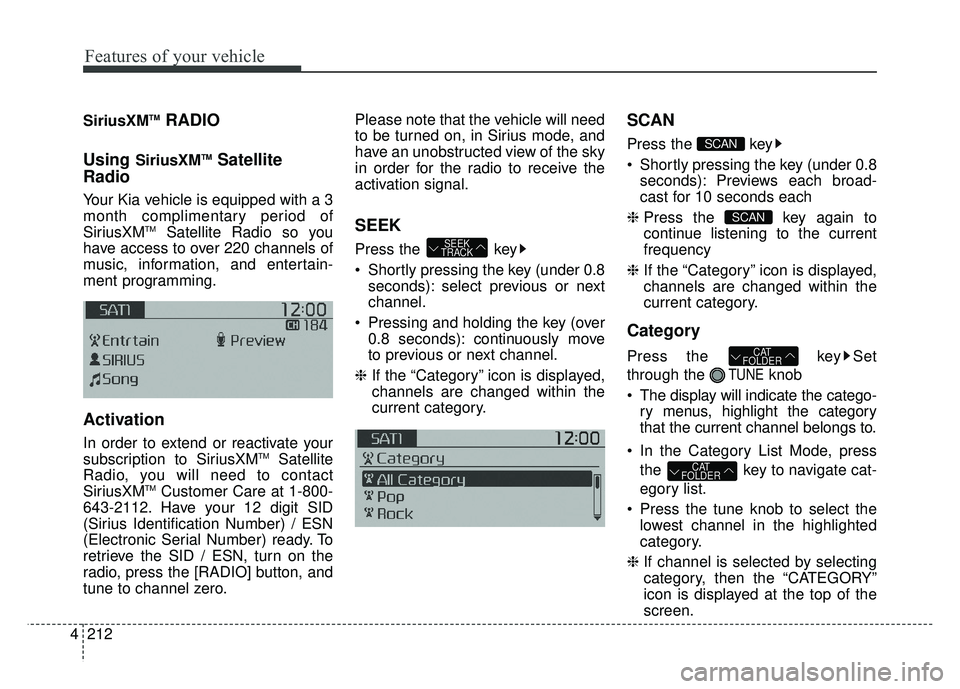
Category
Press the key Set
through the
TUNEknob
The display will indicate the catego- ry menus, highlight the category
that the current channel belongs to.
In the Category List Mode, press the key to navigate cat-
egory list.
Press the tune knob to select the lowest channel in the highlighted
category.
❈ If channel is selected by selecting
category, then the “CATEGORY”
icon is displayed at the top of the
screen.
CAT
FOLDER
CAT
FOLDER
SCAN
SCAN
SEEK
TRACK
![KIA SOUL 2015 Owners Manual 4205
Features of your vehicle
SETUP
Display Settings
Press the key Select [Display]
through TUNE knob or key
Select menu through TUNE knob
Mode Pop up
[Mode Pop up] Changes /
selection mode
or k](/manual-img/2/54647/w960_54647-281.png "KIA SOUL 2015 Owners Manual 4205
Features of your vehicle
SETUP
Display Settings
Press the key Select [Display]
through TUNE knob or key
Select menu through TUNE knob
Mode Pop up
[Mode Pop up] Changes /
selection mode
or k")
![KIA SOUL 2015 Owners Manual Features of your vehicle
206
4
SOUND SETTINGS
Press the key Select [Sound]
through TUNE knob or key
Select menu through TUNE knob
Sound Settings
This menu allows you to set the
‘Bass, Middle, Tr](/manual-img/2/54647/w960_54647-282.png "KIA SOUL 2015 Owners Manual Features of your vehicle
206
4
SOUND SETTINGS
Press the key Select [Sound]
through TUNE knob or key
Select menu through TUNE knob
Sound Settings
This menu allows you to set the
‘Bass, Middle, Tr")
![KIA SOUL 2015 Owners Manual 4207
Features of your vehicle
CLOCK SETTINGS
Press the key Select [Clock]
through TUNE knob or key
Select menu through TUNE knob
Sound Settings
This menu is used to set the time.
Select [Clock Set](/manual-img/2/54647/w960_54647-283.png "KIA SOUL 2015 Owners Manual 4207
Features of your vehicle
CLOCK SETTINGS
Press the key Select [Clock]
through TUNE knob or key
Select menu through TUNE knob
Sound Settings
This menu is used to set the time.
Select [Clock Set")
![KIA SOUL 2015 Owners Manual Features of your vehicle
210
4
MENU
Within key are the A.Store
(Auto Store) and Info functions.
A.Store
Press the key Set [A.Store]
through TUNE knob or key.
Saves broadcasts with superior
recepti](/manual-img/2/54647/w960_54647-286.png "KIA SOUL 2015 Owners Manual Features of your vehicle
210
4
MENU
Within key are the A.Store
(Auto Store) and Info functions.
A.Store
Press the key Set [A.Store]
through TUNE knob or key.
Saves broadcasts with superior
recepti")