2015 KIA RIO HATCHBACK ECO mode
[x] Cancel search: ECO modePage 202 of 447

4131
Features of your vehicle
It is recommended to disconnect
the external USB device when the
audio is turned off or in modes
other than USB.
(e.g, Radio, SIRIUS or CD)
Depending on the type and capac- ity of the external USB device or
the type of the files stored in the
device, there is a difference in the
time taken for recognition of the
device.
Do not use the USB device for pur- poses other than playing music
files.
Playing videos through the USB is not supported.
If you use devices such as a USB hub purchased separately, the
vehicle’s audio system may not
recognize the USB device. In that
case, connect the USB device
directly to the multimedia terminal
of the vehicle.
If the USB device is divided by log- ical drives, only the music files on
the highest-priority drive are recog-
nized by car audio.
(Continued)(Continued)
Some USB devices such as MP3
Player/Cellular phone/Digital cam-
era may be unrecognizable.
Charging through the USB may not be supported in some mobile
devices.
USB HDD or other USB types, may be liable to connection failures
due to vehicle vibrations.
(i-stick type)
Some non-standard USB devices (METAL COVER TYPE USB) can
be unrecognizable.
Some USB flash memory readers (such as CF, SD, micro SD, etc.) or
external-HDD type devices can be
unrecognizable.
Music files protected by DRM (DIGITAL RIGHTS MANAGE-
MENT) are not recognizable.CAUTION - USB JackDamage
The data in the USB memory
may be lost while using thisaudio.
Always back up importantdata on a personal storagedevice.
Please avoid using USB mem- ory products which can beused as key chains or cellularphone accessories as theycould cause damage to theUSB jack. Please make certainonly to use plug type connec-tor products as shown below.
Page 203 of 447

Features of your vehicle
132
4
BASIC METHOD OF USE :
Audio CD / MP3 CD / USB /
iPod
®/ My Music
Press the key to change the
mod mode in order of CD ➟
USB(iPod
®) ➟ AUX ➟ My Music ➟
BT Audio.
The folder/file name is displayed on
the screen.
❈ The CD is automatically played
when a CD is inserted.
❈ The USB music is automatically
played when a USB is connected.
Press the key Select [
Display] through the TUNE knob
or key Select [Media
Display] Media Display [Media Display] : The screen dis-
play info can be changed to
Album/Artist/ Song name.
Repeat
While song (file) is playing
(RPT) key
Audio CD, MP3 CD, USB, iPod
®, My
Music mode: RPT on screen
To repeat one song (Shortly press- ing the key (under 0.8 seconds)):
Repeats the current song.
MP3 CD, USB mode: FLD.RPT on
screen
To repeat folder (Pressing and holding the key (over 0.8 sec-
onds)): repeats all files within the
current folder.
❈ Press the key again to turn
off repeat.
Random
While song (file) is playing
(RDM) key
Audio CD, My Music mode: RDM on
screen
Random (Shortly pressing the key
(under 0.8 seconds)): Plays all
songs in random order.
MP3 CD, USB mode: FLD.RDM on
screen
Plays all files within the current fold-
er in random order.
iPod
®mode: ALL RDM on screen
Plays all files in random order.
2
1
1
1
SETUP
MEDIA
Page 204 of 447
4133
Features of your vehicle
MP3 CD, USB, iPod®mode: ALL
RDM on screen
All Random (pressing and holding the
key (over 0.8 seconds)): Plays all files
in random order.
❈ Press the key again to turn
off repeat.
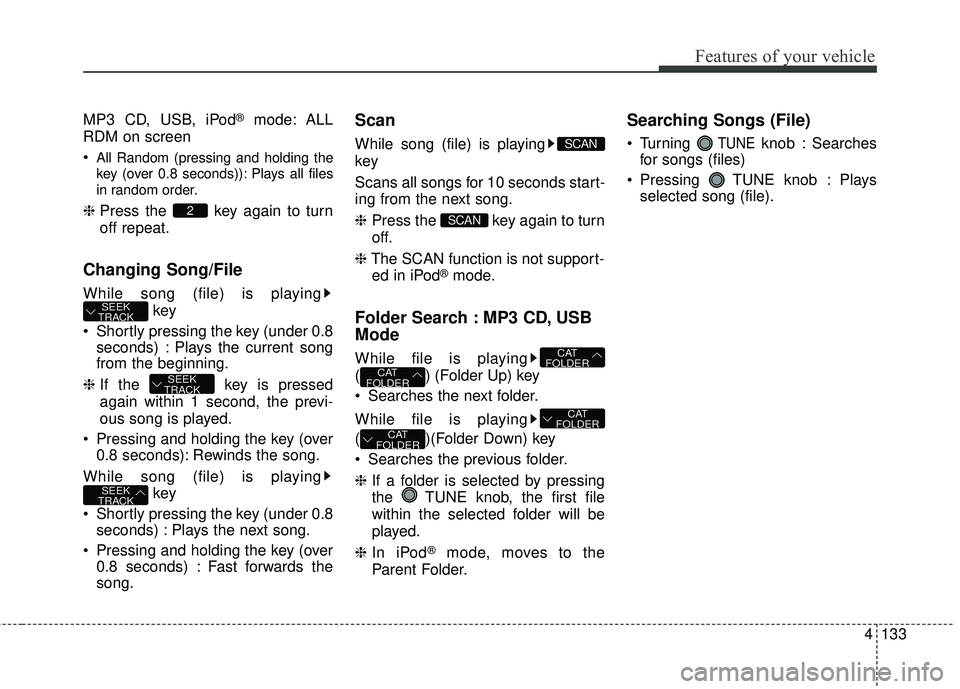
Changing Song/File
While song (file) is playing
key
Shortly pressing the key (under 0.8 seconds) : Plays the current song
from the beginning.
❈ If the key is pressed
again within 1 second, the previ-
ous song is played.
Pressing and holding the key (over 0.8 seconds): Rewinds the song.
While song (file) is playing key
Shortly pressing the key (under 0.8 seconds) : Plays the next song.
Pressing and holding the key (over 0.8 seconds) : Fast forwards the
song.
Scan
While song (file) is playing
key
Scans all songs for 10 seconds start-
ing from the next song.
❈ Press the key again to turn
off.
❈ The SCAN function is not support-
ed in iPod
®mode.
Folder Search : MP3 CD, USB
Mode
While file is playing
( ) (Folder Up) key
Searches the next folder.
While file is playing
( )(Folder Down) key
Searches the previous folder.
❈ If a folder is selected by pressing
the TUNE knob, the first file
within the selected folder will be
played.
❈ In iPod
®mode, moves to the
Parent Folder.
Searching Songs (File)
Turning TUNEknob : Searches
for songs (files)
Pressing TUNE knob : Plays selected song (file).
CAT
FOLDER
CAT
FOLDER
CAT
FOLDER
CAT
FOLDER
SCAN
SCAN
SEEK
TRACK
SEEK
TRACK
SEEK
TRACK
2
Page 213 of 447

Features of your vehicle
142
4
PHONE
Before using the Bluetooth®Wireless
Technology phone features
Bluetooth®Wireless
Technology phone, you must first
pair and connect the
Bluetooth®
Wireless Technology mobile phone.
connected, it is not possible to
enter Phone mode. Once a phone
is paired or connected, the guid-
ance screen will be displayed.
tion (IGN/ACC ON), the
Bluetooth®
Wireless Technology phone will be
automatically connected. Even if
you are outside the vehicle , the
Bluetooth®Wireless Technology
phone will be automatically con-
nected once you. are in the vicinity
of the vehicle. If you do not want
automatic
Bluetooth®Wireless
Technology phone connection, set
the
Bluetooth®Wireless Technology
power to OFF.
Making a call using the
Steering-wheel mount controls
(if equipped)
1) , button : Raises or
lowers speaker volume.
2) :Mode Change Each time the
button pressed.
3) :Turns the sound on and off.
4) button : Places and transfers calls.
5) button : Ends calls or cancels functions.
6. button : Activates voice recog- nition. Check call history and making call
➀
Shortly press (under 0.8 seconds)
the key on the steering
remote controller .
➁ The call history list will be dis-
played on the screen.
\b Press the key again to con-
nect a call to the selected number.
Redialing the most recently called number
➀ Press and hold (over 0.8 seconds)
the key on the steering
remote controller.
➁ The most recently called number
is redialed.
❈ If call history does not exist, a
screen asking whether to down-
load call history is displayed. (The
download feature may not be sup-
ported in some mobile phones)
MUTE
MODE
VOL _VOL +
Page 215 of 447

Features of your vehicle
144
4
When connecting aBluetooth®
Phone
with the mobile phone, check to
see that the mobile phone sup-
ports
Bluetooth®features.
Bluetooth®, the phone will not be
found during device searches if
the phone has been set to hidden
state or the
Bluetooth®power is
turned off. Disable the hidden
state or turn on the
Bluetooth®
power prior to searching/connect-
ing with the Head unit.
connected when the ignition on.
nection with your
Bluetooth®
device, turn off the Bluetooth®
feature within your mobile phone.
quality may differ depending on
the mobile phone.
the head unit with the mobile
phone.
Bluetooth®connection may
become intermittently discon-
nected in some mobile phones.
Follow these steps to try again.
1. Within the mobile phone, turn the
Bluetooth®function off/on
and try again.
2. Turn the mobile phone power Off/On and try again.
3. Completely remove the mobile phone battery, reboot, and then
again.
4. Reboot the
AudioSystem and
try again.
5. Delete all paired devices, pair and try again.
Handsfree call quality and volume may differ depending on the
model of your mobile phone.
Page 229 of 447

Features of your vehicle
158
4
Voice Recognition
feature, only commands listed
within the user's manual are sup-
ported.
of the voice recognition system,
pressing any key other than the key terminate voice recogni-
tion mode.
For superior voice recognition per- formance, position the microphone
used for voice recognition above
the head of the driver’s seat and
maintain a proper position when
saying commands.
voice recognition may not function
properly due to external sound.
- When the windows and sunroof are open
- When the wind of the cooling / heating device is strong
- When entering and passing through tunnels
(Continued)(Continued)
- When driving on rugged and uneven roads
- During severe rain (heavy rains, windstorms)
can be used only when a
Bluetooth®Wireless Technology
device is connected.
name, the corresponding contact
must be downloaded and stored
within the audio system.
Bluetooth®
Wireless Technology phone book,
it takes some times to convert the
phone book data into voice infor-
mation. During this time, voice
recognition may not properly oper-
ate.
naturally and clearly as if in a nor-
mal conversation.
Page 230 of 447
![KIA RIO HATCHBACK 2015 Owners Manual 4159
Features of your vehicle
VOICE RECOGNITION
Using Voice Recognition
Starting Voice Recognition
Shortly press the key on the
steering wheel. Say a commandIf prompt feedback is in [ON], then
the](/manual-img/2/57978/w960_57978-229.png "KIA RIO HATCHBACK 2015 Owners Manual 4159
Features of your vehicle
VOICE RECOGNITION
Using Voice Recognition
Starting Voice Recognition
Shortly press the key on the
steering wheel. Say a commandIf prompt feedback is in [ON], then
the")
4159
Features of your vehicle
VOICE RECOGNITION
Using Voice Recognition
Starting Voice Recognition
Shortly press the key on the
steering wheel. Say a commandIf prompt feedback is in [ON], then
the system will say “Please say a
command after the beep (BEEP)”
mode, then the system will only say
“(BEEP)”
[On]/[Off], go to [System] [Prompt Feedback]
command after the voice instruc-
tion and beep tone.
Contact List Best Practices
1)Do not store single-name entries (e.g., “Bob”, “Mom”, “Kim”, etc.).
Instead, always use full names
(including first and last names) for
all contacts (e.g., use “Jacob
Stevenson” instead of “Dad”).
2)Do not use abbreviations (i.e., use “Lieutenant” instead of “Lt.” or
“Sergeant” instead of “Sgt.”).
3)Do not use acronyms (i.e., use “County Finance Department”
instead of “CFD”).
4)Do not use special characters (e.g., “@”, “hyphen -“, “asterisk *”,
ampersand &”).
5)If a name is not recognized from the contact list, change it to a more
descriptive name (e.g., use
“Grandpa Joseph” instead of “Pa
Joe”).
SETUP
Page 231 of 447

Features of your vehicle
160
4
Skipping Prompt Messages
While prompt message is being stat-
ed Shortly press the key on the
steering remote controller (under 0.8
seconds)
The prompt message is immediately
ended and the beep tone will sound.
After the “beep”, say the voice com-
mand.
Re-starting Voice Recognition
While system waits for a command
Shortly press the key on the
steering remote controller (under 0.8
seconds)
The command wait state is immedi-
ately ended and the beep tone will
sound. After the “beep”, say the voice
command.
ENDING VOICE
RECOGNITION
While Voice Recognition is operating
Press and hold the key on the
steering remote controller (over 0.8
seconds)
ing any steering wheel control or a
different key will end voice com-
mand.
the system is waiting for a voice command, say “cancel” or
“end” to end voice command.
the system is waiting for a voice command, press and hold the key on the steering wheel to
end voice command.
Voice Recognition and Phone
Contact Tips:
The Kia Voice Recognition System
may have difficulty understanding
some accents or uncommon
names. When using Voice
Recognition to place a call, speak in
a moderate tone, with clear pronun-
ciation
To maximize the use of Voice
Recognition, consider these guide-
lines when storing contacts:
(e.g., “Bob”, “Mom”, etc.). Instead,
always use full names (including
first and last names) for these con-
tacts
'@', '-', '*', '&', etc.)
"Lieutenant" instead of "Lt.") or
acronyms (i.e., use "County
Finance Department" instead of
"C. F. D."; Be sure to say the name
exactly as it is entered in the con-
tacts list