Page 215 of 420
Features of your vehicle
142 4
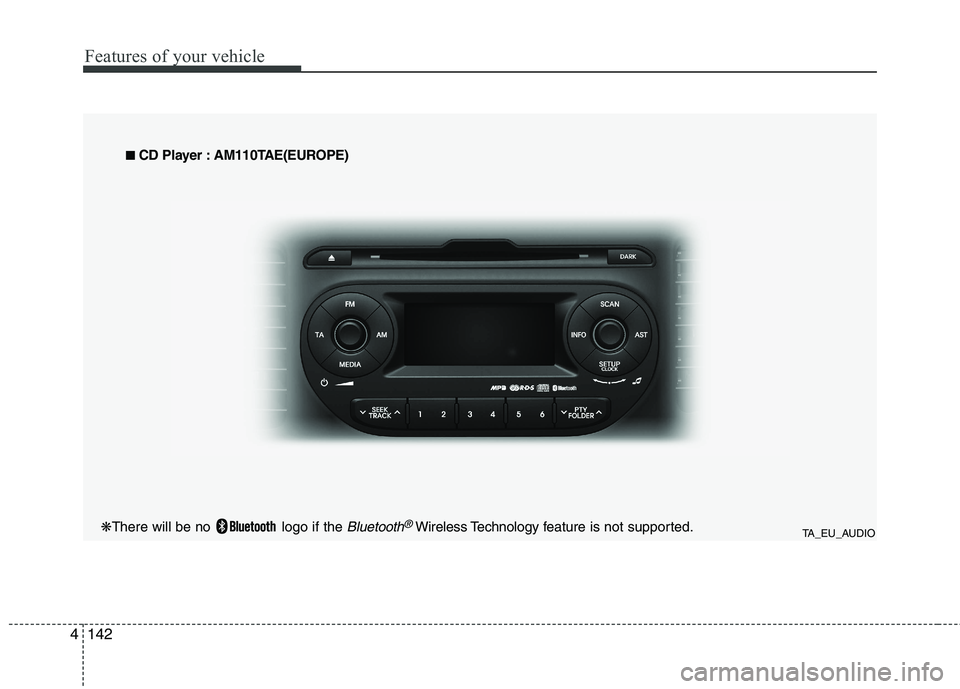
TA_EU_AUDIO
■ ■
CD Player : AM110TAE(EUROPE)
❋There will be no logo if the
Bluetooth®Wireless Technology feature is not supported.
Page 221 of 420

Features of your vehicle
148 4
Using CD Player
1. Button (CD)
If the CD is loaded, turns to CD mode.
If no CD, it displays “No Media” for 3 sec-
onds and returns to the previous mode.
2. Button
Press button for less than
0.8 seconds to play from the beginning
of current song.
Press button for less than
0.8 seconds and press again within
1 second to play the previous song. Press button for 0.8 seconds
or longer to initiate reverse direction
high speed sound search of current
song.
Press button for less than
0.8 seconds to play the next song.
Press button for 0.8 seconds
or longer to initiate forward direction
high speed sound search of current
song.
3. Button (RANDOM)
Press this button for less than 0.8 sec-
onds to activate ‘RDM’ mode and more
than 0.8 seconds to activate ‘ALL RDM’
mode.
RDM : Only files/tracks in a folder/disc
are played back in a random sequence.
ALL RDM (MP3/WMA Only) : All files in
a disc are played back in the random
sequence.
4. Button (REPEAT)
Press this button for less than 0.8 sec-
onds to activate 'RPT' mode and more
than 0.8 seconds to activate 'FLD RPT'
mode.
RPT : Only a track (file) is repeatedly
played back. FLD RPT (MP3/WMA Only) : Only files
in a folder are repeatedly played back.
5. Button (CD Eject)
Push button for less than 0.8 sec-
onds to eject the CD during CD playback.
This button is enabled when ignition switch
is off.
6. CD Slot
Insert a CD label side up and gently push
in whilst ignition switch is on ACC or ON.
The audio automatically switches to CD
mode and begins to play the CD.
If the audio was turned off, audio power
will automatically turned on as the CD is
inserted.
This audio only recognizes 12cm-size, CD-
DA (Audio CD) or ISO data-CD (MP3 CD).
If UDF data-CD or non-CD (e.g. DVD) is
inserted, "Reading Error" message will
be displayed and the disc will be ejected.2
1
SEEK
TRACK
SEEK
TRACK
SEEK
TRACK
SEEK
TRACK
SEEK
TRACKTRACK
MEDIA
TA_EU_CD
CAUTION
Do not insert a CD if CD indicator is
lit.
Page 224 of 420

4151
Features of your vehicle
CAUTION IN USING
USB DEVICE
To use an external USB device,
make sure the device is not con-
nected when starting up the vehi-
cle. Connect the device after
starting up.
If you start the engine when the
USB device is connected, it may
damage the USB device. (USB
flashdrives are very sensitive to
electric shock.)
If the engine is started up or
turned off whilst the external USB
device is connected, the external
USB device may not work.
It may not play inauthentic MP3 or
WMA files.
1) It can only play MP3 files with
the compression rate between
8Kbps~320Kbps.
2) It can only play WMA music
files with the compression rate
between 8Kbps~320Kbps.
Take precautions for static electrici-
ty when connecting or disconnect-
ing the external USB device.
(Continued)
(Continued)
An encrypted MP3 PLAYER is not
recognizable.
Depending on the condition of
the external USB device, the con-
nected external USB device can
be unrecognizable.
When the formatted byte/sector
setting of External USB device is
not either 512BYTE or 2048BYTE,
then the device will not be recog-
nized.
Use only a USB device formatted
to FAT 12/16/32.
USB devices without USB I/F
authentication may not be recog-
nizable.
Make sure the USB connection
terminal does not come in contact
with the human body or other
objects.
If you repeatedly connect or dis-
connect the USB device in a short
period of time, it may break the
device.
You may hear a strange noise
when connecting or disconnect-
ing a USB device.
(Continued)(Continued)
If you disconnect the external USB
device during playback in USB
mode, the external USB device can
be damaged or may malfunction.
Therefore, disconnect the external
USB device when the audio is
turned off or in another mode. (e.g,
Radio or CD)
Depending on the type and capacity
of the external USB device or the
type of the files stored in the device,
there is a difference in the time
taken for recognition of the device.
Do not use the USB device for pur-
poses other than playing music files.
Playing videos through the USB is
not supported.
Use of USB accessories such as
rechargers or heaters using USB
I/F may lower performance or
cause trouble.
If you use devices such as a USB
hub purchased separately, the
vehicle’s audio system may not
recognize the USB device. In that
case, connect the USB device
directly to the multimedia termi-
nal of the vehicle.
(Continued)
Page 225 of 420
Features of your vehicle
152 4
(Continued)
If the USB device is divided by
logical drives, only the music files
on the highest-priority drive are
recognized by car audio.
Devices such as MP3 Player/
Mobile phone/Digital camera can
be unrecognizable by standard
USB I/F can be unrecognizable.
Charging through the USB may
not be supported in some mobile
devices.
❋ A car exclusive cable is required
to use the iPod.
Some non-standard USB devices
(METAL COVER TYPE USB) can be
unrecognizable.
Some USB flash memory readers
(such as CF, SD, microSD, etc.) or
external-HDD type devices can be
unrecognizable.
Music files protected by DRM
(DIGITAL RIGHTS MANAGEMENT)
are not recognizable.
The data in the USB memory may
be lost whilst using this audio.
Always back up important data on
a personal storage device.
(Continued)
(Continued)
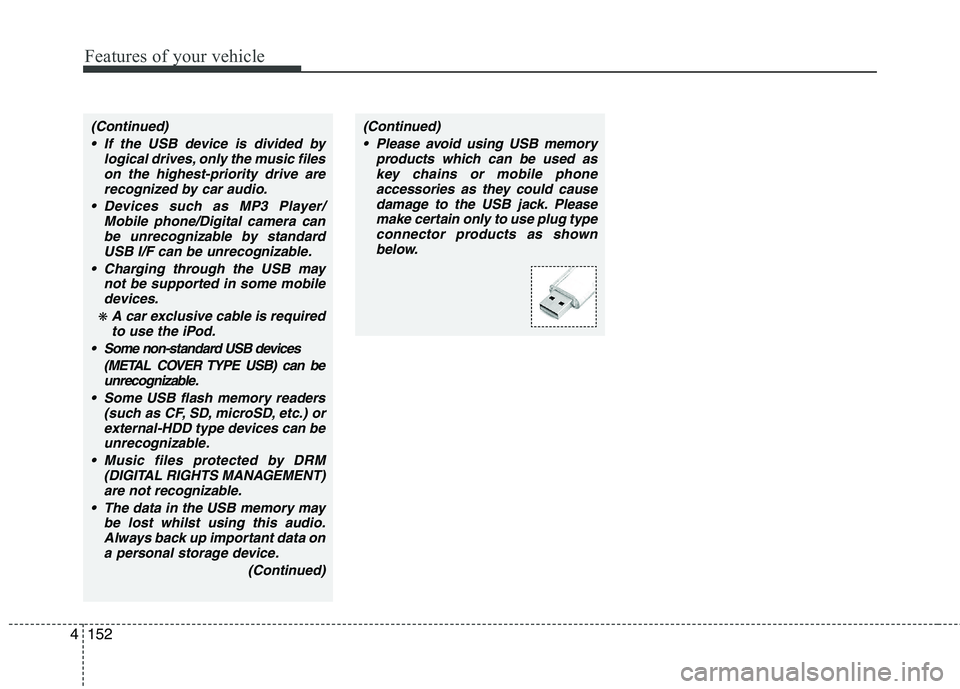
Please avoid using USB memory
products which can be used as
key chains or mobile phone
accessories as they could cause
damage to the USB jack. Please
make certain only to use plug type
connector products as shown
below.
Page 226 of 420
4153
Features of your vehicle
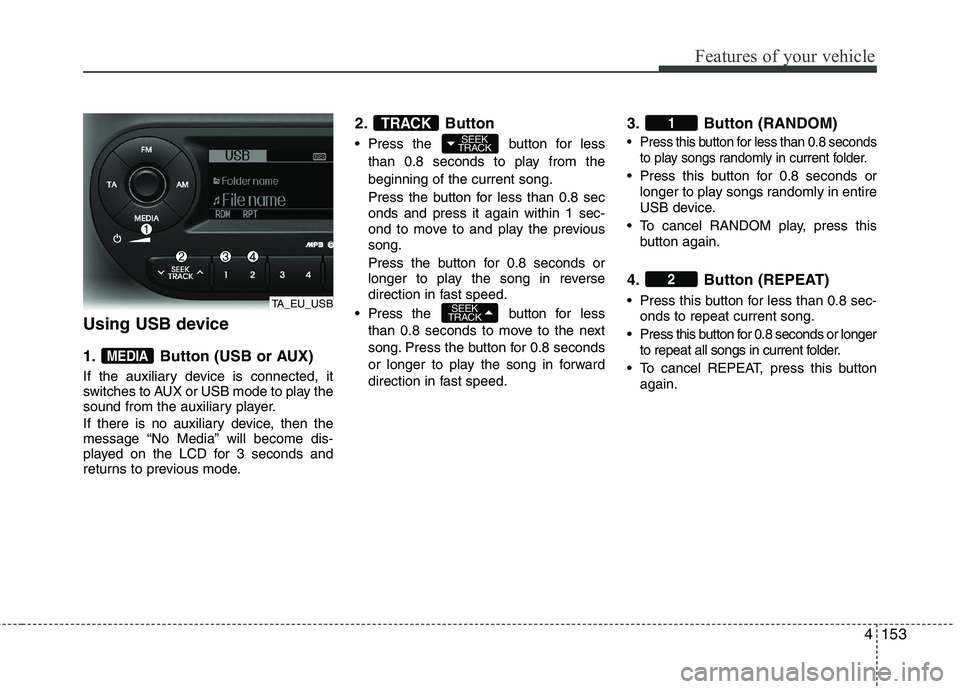
Using USB device
1. Button (USB or AUX)
If the auxiliary device is connected, it
switches to AUX or USB mode to play the
sound from the auxiliary player.
If there is no auxiliary device, then the
message “No Media” will become dis-
played on the LCD for 3 seconds and
returns to previous mode.
2. Button
Press the button for less
than 0.8 seconds to play from the
beginning of the current song.
Press the button for less than 0.8 sec
onds and press it again within 1 sec-
ond to move to and play the previous
song.
Press the button for 0.8 seconds or
longer to play the song in reverse
direction in fast speed.
Press the button for less
than 0.8 seconds to move to the next
song. Press the button for 0.8 seconds
or longer to play the song in forward
direction in fast speed.
3. Button (RANDOM)
Press this button for less than 0.8 seconds
to play songs randomly in current folder.
Press this button for 0.8 seconds or
longer to play songs randomly in entire
USB device.
To cancel RANDOM play, press this
button again.
4. Button (REPEAT)
Press this button for less than 0.8 sec-
onds to repeat current song.
Press this button for 0.8 seconds or longer
to repeat all songs in current folder.
To cancel REPEAT, press this button
again.
2
1
SEEK
TRACK
SEEK
TRACKTRACK
MEDIA
TA_EU_USB