2015 KIA CEED audio
[x] Cancel search: audioPage 275 of 1210

Features of your vehicle
194
4
BASIC METHOD OF USE :
Audio CD / MP3 CD / USB /
iPod / My Music
Press the key to change the mode in order of CD ➟USB(iPod) ➟AUX
➟ My Music ➟BT Audio.
The folder/file name is displayed on thescreen. ❈ The CD is automatically played when
a CD is inserted.
❈ The USB music is automatically
played when a USB is connected.Song Infomation
Press the key Select [ Display]
through the TUNE knob or key
Select [Song Info] Media Display
[Song Info ] : The screen display info
can be changed to Album/Artist/Song
name.
Repeat
While song (file) is playing
(RPT) key
Audio CD, MP3 CD, USB, iPod, My Music
mode: RPT on screen
To repeat one song (Shortly pressing the key (under 0.8 seconds)): Repeats the current song.
MP3 CD, USB mode: FLD.RPT onscreen
To repeat folder (Pressing and holding the key (over 0.8 seconds)): repeats all
files within the current folder.
❈ Press the key again to turn offrepeat. Random
While song (file) is playing
(RDM) key
Audio CD, My Music mode: RDM on screen
Random (Shortly pressing the key
(under 0.8 seconds)): Plays all songs in
random order.
MP3 CD, USB mode: FLD.RDM onscreen
Folder Random (Shortly pressing the key (under 0.8 seconds)): Plays all files
within the current folder in random
order.
iPod mode: ALB RDM on screen
Album Random (Shortly pressing the key (under 0.8 seconds)): Plays all files
within albums of the current category in
random order.
MP3 CD, USB, iPod mode: ALL RDM onscreen
All Random (pressing and holding the key (over 0.8 seconds)): Plays all files in
random order.
❈ Press the key again to turn offrepeat.
2RDM
2 RDM
1 RPT
1 RPT
1 RPT
SETUP
MEDIA
JD eng 4b(~211).QXP 3/4/2015 4:40 PM Page 194
Page 277 of 1210
![KIA CEED 2015 Owners Manual Features of your vehicle
196
4
MENU : Audio CD
Press the CD MP3 mode key to
set the Repeat, Random, Information
features. Repeat
Press the key Set [ RPT] through the
TUNEknob or
key to repeat t](/manual-img/2/57940/w960_57940-276.png "KIA CEED 2015 Owners Manual Features of your vehicle
196
4
MENU : Audio CD
Press the CD MP3 mode key to
set the Repeat, Random, Information
features. Repeat
Press the key Set [ RPT] through the
TUNEknob or
key to repeat t")
Features of your vehicle
196
4
MENU : Audio CD
Press the CD MP3 mode key to
set the Repeat, Random, Information
features. Repeat
Press the key Set [ RPT] through the
TUNEknob or
key to repeat the current song. ❈ Press the key again to turn off.
Random
Press the key Set [ RDM] through the
TUNEknob or
key to randomly play songs within
the current folder. ❈ Press the key again to turn off. Information
Press the key Set [ Info] through the
TUNEknob or
key to display information of the cur-rent song. ❈ Press the key to turn off info
display. MENU : MP3 CD / USB
Press the CD MP3 mode key to
set the Repeat, Folder Random, Folder
Repeat, All Random, Information, and
Copy features. Repeat
Press the key Set [ RPT] through the
TUNEknob or
key to repeat the current song. Folder Random
Press the key Set [ F.RDM] through the
TUNEknob or
key to randomly play songs within the
current folder.2 RDM
MENU
1 RPT
MENU
MENU
MENU
3
MENU
2 RDM
2 RDM
MENU
1 RPT
1 RPT
MENU
MENU
JD eng 4b(~211).QXP 3/4/2015 4:40 PM Page 196
Page 279 of 1210
![KIA CEED 2015 Owners Manual Features of your vehicle
198
4
All Random
Press the key Set [ A.RDM] through the TUNEknob or
key.
Plays all songs within the currently play-
ing category in random order.
Information
Press the](/manual-img/2/57940/w960_57940-278.png "KIA CEED 2015 Owners Manual Features of your vehicle
198
4
All Random
Press the key Set [ A.RDM] through the TUNEknob or
key.
Plays all songs within the currently play-
ing category in random order.
Information
Press the")
Features of your vehicle
198
4
All Random
Press the key Set [ A.RDM] through the TUNEknob or
key.
Plays all songs within the currently play-
ing category in random order.
Information
Press the key Set [ Info] through the
TUNEknob or
key.
Displays information of the current song.
Search
Press the key Set [ Search] through the TUNEknob or
key.
Some iPod models may not support communication protocol and files may
not properly play.
Supported iPod models:
- iPod Mini ®
- iPod 4th(Photo) ~ 6th(Classic) genera- tion
- iPod Nano ®
1st~4th generation
- iPod Touch ®
1st~2nd generation The order of search or playback of
songs in the iPod can be different from the order searched in the audio system.
If the iPod is disabled due to its own malfunction, reset the iPod. (Reset:
Refer to iPod manual)
An iPod may not operate normally on low battery.
Some iPod devices, such as the iPhone, can be connected through the
-interface. The device must have audio
Bluetooth®Wireless Technology capa-
bility (such as for stereo headphone
Bluetooth®Wireless Technology ). The
device can play, but it will not be con-
trolled by the audio system.
To use iPod features within the audio, use the cable provided upon purchasing an
iPod device.
Skipping or improper operation may occur depending on the characteristics of your
iPod/Phone device.
If your iPhone is connected to both the
Bluetooth®Wireless Technology and
USB, the sound may not be properly
played. In your iPhone, select the Dockconnector or
Bluetooth®Wireless
Technology to change the sound output
(source). When connecting iPod with the iPod
Power Cable, insert the connector to the
multimedia socket completely. If not
inserted completely, communications
between iPod and audio may be inter-
rupted.
When adjusting the sound effects of the iPod and the audio system, the sound
effects of both devices will overlap and
might reduce or distort the quality of thesound.
Deactivate (turn off) the equalizer func- tion of an iPod when adjusting the audio
system’s volume, and turn off the
equalizer of the audio system whenusing the equaliz
er of an iPod.
When not using iPod with car audio, detach the iPod cable from iPod. Otherwise, iPod
may remain in accessory mode, and may
not work properly.
5
MENU
4
MENU
3
MENU
JD eng 4b(~211).QXP 3/4/2015 4:40 PM Page 198
Page 282 of 1210

4 201
Features of your vehicle
Bluetooth®Wireless Technology
AUDIO
Before using
Bluetooth®Wireless
Technology
audio features
Bluetooth®Wireless Technology audio
may not be supported depending on
the compatibility of your
Bluetooth®
Wireless Technologymobile phone.
In order to use
Bluetooth®Wireless
Technologyaudio, you must first pair and
connect the Bluetooth®Wireless
Technologymobile phone.
Bluetooth®Wireless Technologyaudio
can be used only when the [Audio
Streaming] of Phone is turned .
❈ Setting
Bluetooth®Wireless TechnologyAudio Streaming : Press the
key Select [Phone] through the tune
knob or key Select [Audio
Streaming] through the TUNE
knob Set
/
Starting Bluetooth®Wireless
Technology
Audio
Press the key to change the mode in order of CD ➟USB ➟AUX ➟My
Music ➟BT Audio.
If BT Audio is selected,
Bluetooth®
Wireless Technology audio will start play-
ing.
❈ Audio may not automatically start play-
ing in some mobile phones.
Using the
Bluetooth®Wireless
Technologyaudio features
Play / Stop
Press the TUNE knob to play and pause the current song. ❈ The previous song / next song / play /
pause functions may not be supported
in some mobile phones. Changing Song/File
While song (file) is playing key
Press the key : Plays the
current song from the beginning.
❈ If the key is pressed again
within 1 second, the previous song is
played.
While song (file) is playing key
Press the key : Plays the
next song.SEEK
SEEK
TRACK
TRACK
TRACK
MEDIA
OffOn
3
SETUP
On
JD eng 4b(~211).QXP 3/4/2015 4:40 PM Page 201
Page 283 of 1210
Features of your vehicle
202
4
PHONE (if equipped)
Before using the
Bluetooth®Wireless
Technology
phone features
In order to use
Bluetooth®Wireless
Technologyphone, you must first pair
and connect the Bluetooth®Wireless
Technologymobile phone.
If the mobile phone is not paired or con- nected, it is not possible to enter Phone
mode. Once a phone is paired or con-nected, the guidance screen will be dis-
played.
If Priority is set upon vehicle ignition (IGN/ACC ON), the
Bluetooth®Wireless
Technologyphone will be automatically
connected. Even if you are outside, the
Bluetooth®Wireless Technologyphone
will be automatically connected once
you are in the vicinity of the vehicle. If
you do not want automatic
Bluetooth®
Wireless Technologyphone connection,
set the Bluetooth®Wireless Technologyto OFF. Making a call using the Steering
remote controller
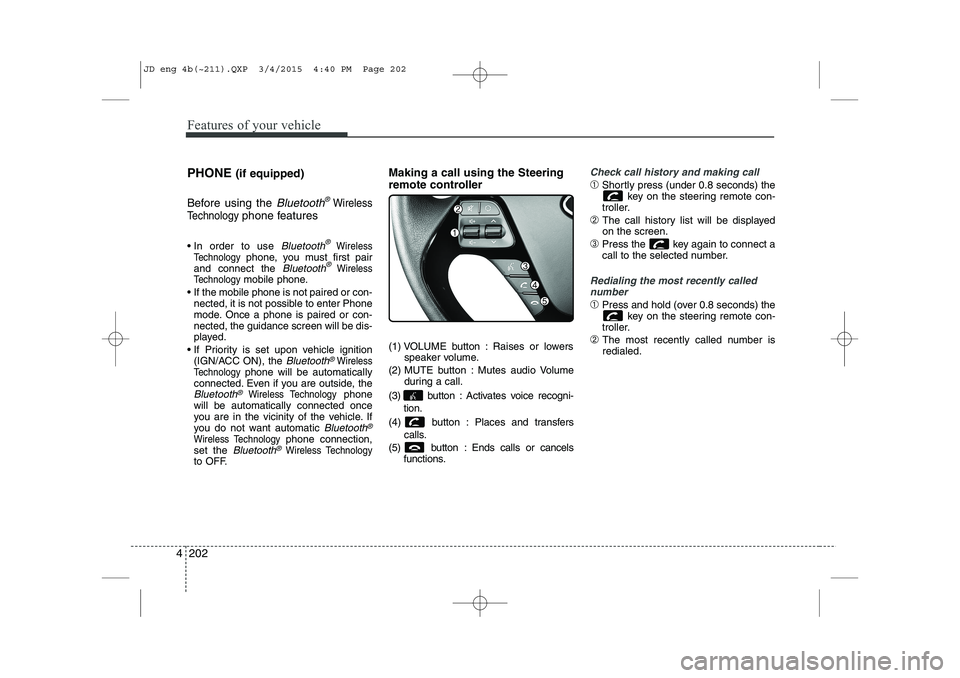
(1) VOLUME button : Raises or lowers
speaker volume.
(2) MUTE button : Mutes audio Volume during a call.
(3) button : Activates voice recogni- tion.
(4) button : Places and transfers calls.
(5) button : Ends calls or cancels functions.
Check call history and making call
➀Shortly press (under 0.8 seconds) the
key on the steering remote con-
troller.
➁ The call history list will be displayed on the screen.
➂ Press the key again to connect a
call to the selected number.
Redialing the most recently called
number
➀ Press and hold (over 0.8 seconds) the
key on the steering remote con-
troller.
➁ The most recently called number is redialed.
JD eng 4b(~211).QXP 3/4/2015 4:40 PM Page 202
Page 285 of 1210

Features of your vehicle
204
4
What is Bluetooth®
Wireless
Technology?
Bluetooth®Wireless Technology that
allows multiple devices to be connected
in a short range, low-powered devices
like hands-free, stereo headset, wireless
remote controller, etc. For more information,visit
the Bluetooth®Wireless Technologywebsite at www.Bluetooth.com
Bluetooth®Wireless Technology features
can be used only when the mobile phone has been paired and connected with the
device. For more information on pairingand connecting
Bluetooth®Wireless
Technology endbled mobile phones,
refer to the “Phone Setup” section.
When a
Bluetooth®Wireless
Technology mobile phone is connected,
a ( ) icon will appear at the top of the
screen. If a ( ) icon is not displayed,this indicates that a
Bluetooth®
Wireless Technology enabled device
has not been connected. Your must
connect the device before use. For
more information on
Bluetooth®
Wireless Technology mobile phones,
refer to the “Phone Setup” section.
Pairing and connecting a
Bluetooth®
Wireless Technology enabled mobile
phone will work only when the
Bluetooth®Wireless Technology option
within your mobile phone has been
turned on. (Methods of turning on the
Bluetooth®Wireless Technology
enabled feature may differ depending
on the mobile phone.)
In some mobile phones, starting the ignition while talking through
Bluetooth®
Wireless Technology handsfree call willresult in the call becoming disconnect-
ed. (Switch the call back to your mobile
phone when starting the ignition.) Some features may not be supported in
some
Bluetooth®Wireless Technology
enabled mobile phone and devices.
Bluetooth®Wireless Technology func-
tions may operate unstably depending
on the communication state.
Do not use a cellular phone or perform
Bluetooth®Wireless Technologysettings
(e.g. pairing a phone) while driving.
Some
Bluetooth®Wireless Technology-
enabled phones ma y not be recognized
by the system or fully compatible withthe system.
Before using
Bluetooth®Wireless
Technologyrelated features of the audio
system, refer your phone’s User’s
Manual for phone-side
Bluetooth®
Wireless Technologyoperations.
The phone must be paired to the audiosystem to use Bluetooth®Wireless
Technologyrelated features.
You will not be able to use the hands- free feature when your phone (in the
car) is outside of the cellular service
area (e.g. in a tunnel, in a underground,in a mountainous area, etc.).
(Continued)
JD eng 4b(~211).QXP 3/4/2015 4:40 PM Page 204
Page 286 of 1210

4 205
Features of your vehicle
(continued)
If the cellular phone signal is poor or thevehicles interior noise is too loud, it may
be difficult to hear the other person’s
voice during a call.
Do not place the phone near or inside metallic objects, otherwise communica-tions with
Bluetooth®Wireless
Technologysystem or cellular service
stations can be disturbed.
While a phone is connected through
Bluetooth®Wireless Technologyyour
phone may discharge quicker than usual
for additional
Bluetooth®Wireless
Technology-related operations.
Some cellular phones or other devices may cause interference noise or mal-
function to audio system. In this case,
store the device in a different location
may resolve the situation.
Please save your phone name in English, or your phone name may not
be displayed correctly.
If Priority is set upon vehicle ignition(IGN/ACC ON), the
Bluetooth®
Wireless Technologyphone will be auto-
matically connected.
Even if you are outside, the
Bluetooth®
Wireless Technology phone will be auto-
matically connected once you are in the
vicinity of the vehicle. If you do not want automatic
Bluetooth®
Wireless Technologypower off.
JD eng 4b(~211).QXP 3/4/2015 4:40 PM Page 205
Page 289 of 1210
Features of your vehicle
208
4
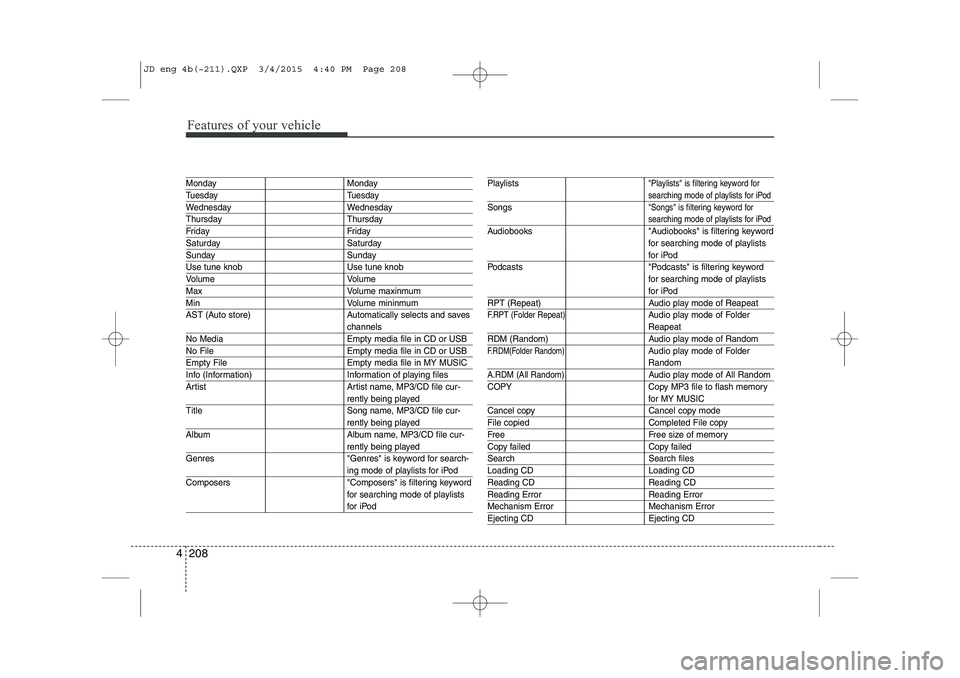
Monday Monday
Tuesday Tuesday
Wednesday Wednesday
Thursday Thursday
Friday Friday
Saturday Saturday
Sunday Sunday
Use tune knob Use tune knob
Volume Volume
Max Volume maxinmum
MinVolume mininmum
AST (Auto store) Automatically selects and saves
channels
No Media Empty media file in CD or USB
No File Empty media file in CD or USB
Empty File Empty media file in MY MUSIC
Info (Information) Information of playing files
Artist Artist name, MP3/CD file cur-
rently being played
Title Song name, MP3/CD file cur-
rently being played
Album Album name, MP3/CD file cur-
rently being played
Genres "Genres" is keyword for search-
ing mode of playlists for iPod
Composers "Composers" is filtering keyword for searching mode of playlists
for iPod
Playlists"Playlists" is filtering keyword for
searching mode of playlists for iPod
Songs"Songs" is filtering keyword for
searching mode of playlists for iPod
Audiobooks "Audiobooks" is filtering keywordfor searching mode of playlists
for iPod
Podcasts "Podcasts" is filtering keyword for searching mode of playlists
for iPod
RPT (Repeat) Audio play mode of Reapeat
F.RPT (Folder Repeat)Audio play mode of Folder
Reapeat
RDM (Random) Audio play mode of Random
F.RDM(Folder Random)Audio play mode of Folder
Random
A.RDM (All Random)Audio play mode of All Random
COPY Copy MP3 file to flash memory
for MY MUSIC
Cancel copy Cancel copy mode
File copied Completed File copy
Free Free size of memory
Copy failed Copy failed
Search Search files
Loading CD Loading CD
Reading CD Reading CD
Reading Error Reading Error
Mechanism Error Mechanism Error
Ejecting CD Ejecting CD
JD eng 4b(~211).QXP 3/4/2015 4:40 PM Page 208