Page 257 of 636
WARNING!
•Never leave children unattended in a vehicle, or
with access to an unlocked vehicle. Never leave the
Key Fob in or near the vehicle, or in a location
(Continued)
WARNING!(Continued)
accessible to children. Do not leave the ignition of
a vehicle equipped with Keyless Enter-N-Go™ in
the ACC or ON/RUN mode. Occupants, particu-
larly unattended children, can become entrapped
by the power sunroof while operating the power
sunroof switch. Such entrapment may result in
serious injury or death.
•In a collision, there is a greater risk of being thrown
from a vehicle with an open sunroof. You could
also be seriously injured or killed. Always fasten
your seat belt properly and make sure all passen-
gers are also properly secured.
•Do not allow small children to operate the sunroof.
Never allow your fingers, other body parts, or any
object, to project through the sunroof opening.
Injury may result.
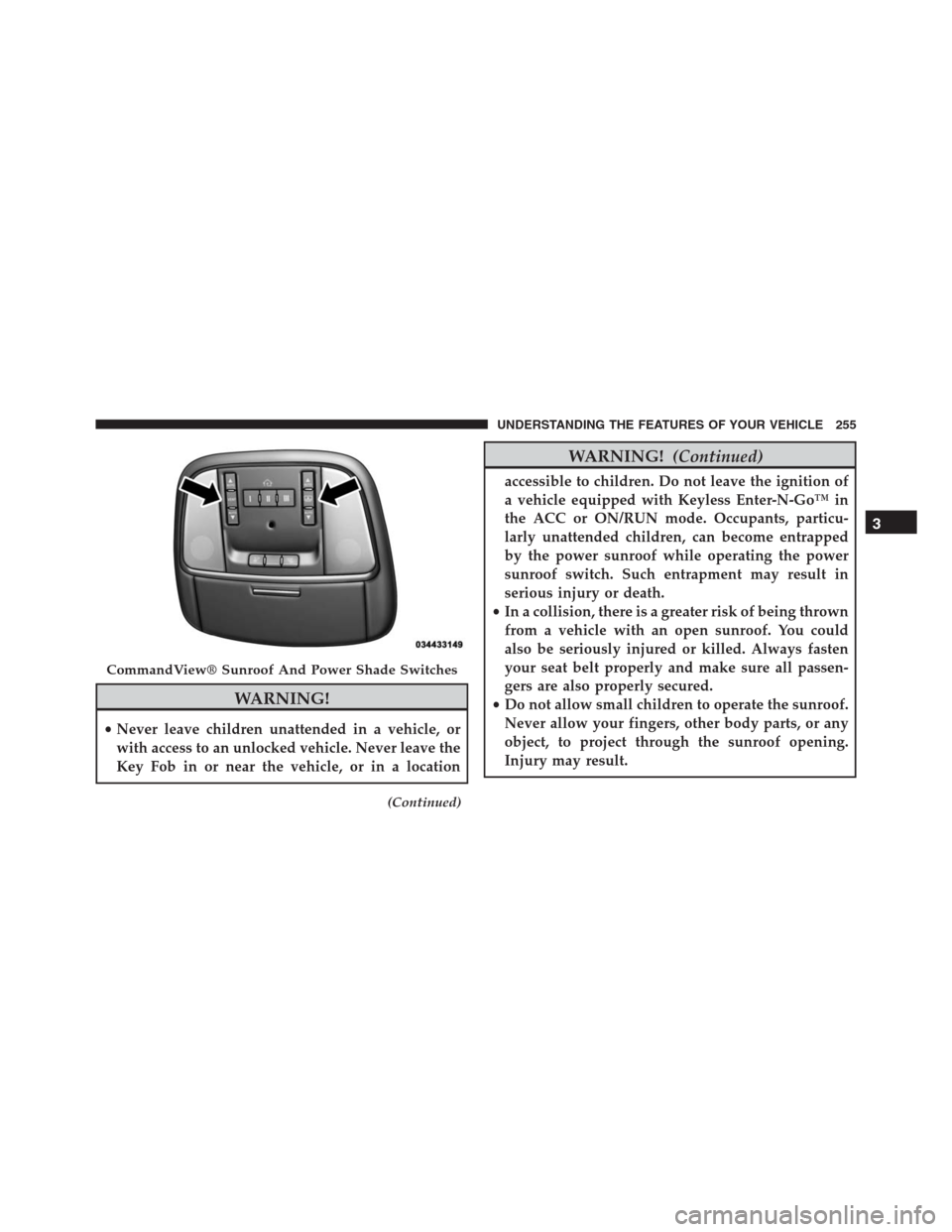
CommandView® Sunroof And Power Shade Switches
3
UNDERSTANDING THE FEATURES OF YOUR VEHICLE 255
Page 258 of 636
Opening Sunroof — Express
Push the switch rearward and release it within one-half
second. The sunroof and sunshade will open automati-
cally from any position. The sunroof and sunshade will
open fully and stop automatically. This is called “Express
Open.” During Express Open operation, any movement
of the sunroof switch will stop the sunroof.
Opening Sunroof — Manual Mode
To open the sunroof, push and hold the switch rearward
to full open. Any release of the switch will stop the
movement. The sunroof and sunshade will remain in a
partially opened condition until the switch is pushed and
held rearward again.
Closing Sunroof — Express
Push the switch forward and release it within one-half
second and the sunroof will close automatically from anyposition. The sunroof will close fully and stop automati-
cally. This is called “Express Close.” During Express
Close operation, any movement of the switch will stop
the sunroof.
Closing Sunroof — Manual Mode
To close the sunroof, push and hold the switch in the
forward position. Any release of the switch will stop the
movement and the sunroof will remain in a partially
closed condition until the switch is pushed and held
forward again.
Opening Power Shade — Express
Push the shade switch rearward and release it within
one-half second and the shade will open automatically
from any position. The shade will open and stop auto-
matically at the half-open position. Push the shade switch
rearward again and release it within one-half second and
256 UNDERSTANDING THE FEATURES OF YOUR VEHICLE
Page 259 of 636
the shade will open automatically to the full-open posi-
tion. This is called “Express Open”. During Express Open
operation, any movement of the shade switch will stop
the shade.
Opening Power Shade — Manual Mode
To open the shade, push and hold the switch rearward.
The shade will open and stop automatically at the
half-open position. Push and hold the shade switch
rearward again and the shade will open automatically to
the full-open position. Any release of the switch will stop
the movement and the shade will remain in a partially
opened condition until the switch is pushed and held
rearward again.
Closing Power Shade — Express
Push the switch forward and release it within one-half
second and the shade will close automatically from any
position. If the sunroof is completely closed the shade
will close fully and stop automatically. This is called“Express Close”. During Express Close operation, any
movement of the switch will stop the shade.
NOTE:If the sunroof is open, the shade will close to the
half-open position. Pushing the shade close button again
will automatically close both the sunroof and shade
completely.
Closing Power Shade — Manual Mode
To close the shade, push and hold the switch in the
forward position. Any release of the switch will stop the
movement and the shade will remain in a partially closed
condition until the switch is pushed and held forward
again.
Venting Sunroof — Express
Push and release the�Vent�button within one-half sec-
ond and the sunroof will open to the vent position. This
is called “Express Vent”, and it will occur regardless of
3
UNDERSTANDING THE FEATURES OF YOUR VEHICLE 257
Page 327 of 636

NOTE:If your vehicle has experienced any damage in
the area where the sensor is located, even if the fascia is
not damaged, the sensor may have become misaligned.
Take your vehicle to an authorized dealer to verify sensor
alignment. Having a sensor that is misaligned will result
in the BSM not operating to specification.
•ParkView® Backup Camera Active Guidelines
Your vehicle may be equipped with the ParkView® Rear
Back Up Camera Active Guidelines that allows you to see
active guidelines over the ParkView Back up camera
display whenever the shift lever is put into REVERSE.
The image will be displayed on the radio touchscreen
display along with a caution note to “check entire sur-
roundings” across the top of the screen. After five sec-
onds, this note will disappear. To change the mode status,
press the “ParkView Backup Camera Active Guidelines”
button on the touchscreen, until a check-mark appearsnext to setting, indicating that the setting had been
selected. Press the back arrow button on the touchscreen
to return to the previous menu.
•ParkView® Backup Camera Delay
When the vehicle is shifted out of REVERSE (with camera
delay turned OFF), the rear camera mode is exited and
the navigation or audio screen appears again. When the
vehicle is shifted out of REVERSE (with camera delay
turned ON), the rear view image with dynamic grid lines
will be displayed for up to 10 seconds after shifting out of
“REVERSE” unless the forward vehicle speed exceeds
8 mph (12 km/h), the transmission is shifted into
“PARK” or the ignition is switched to the OFF position.
To set the ParkView® Backup Camera Delay press the
“Controls” button on the touchscreen, the “settings”
button on the touchscreen, then the “Safety & Driving
Assistance” button on the touchscreen. Press the
4
UNDERSTANDING YOUR INSTRUMENT PANEL 325
Page 346 of 636
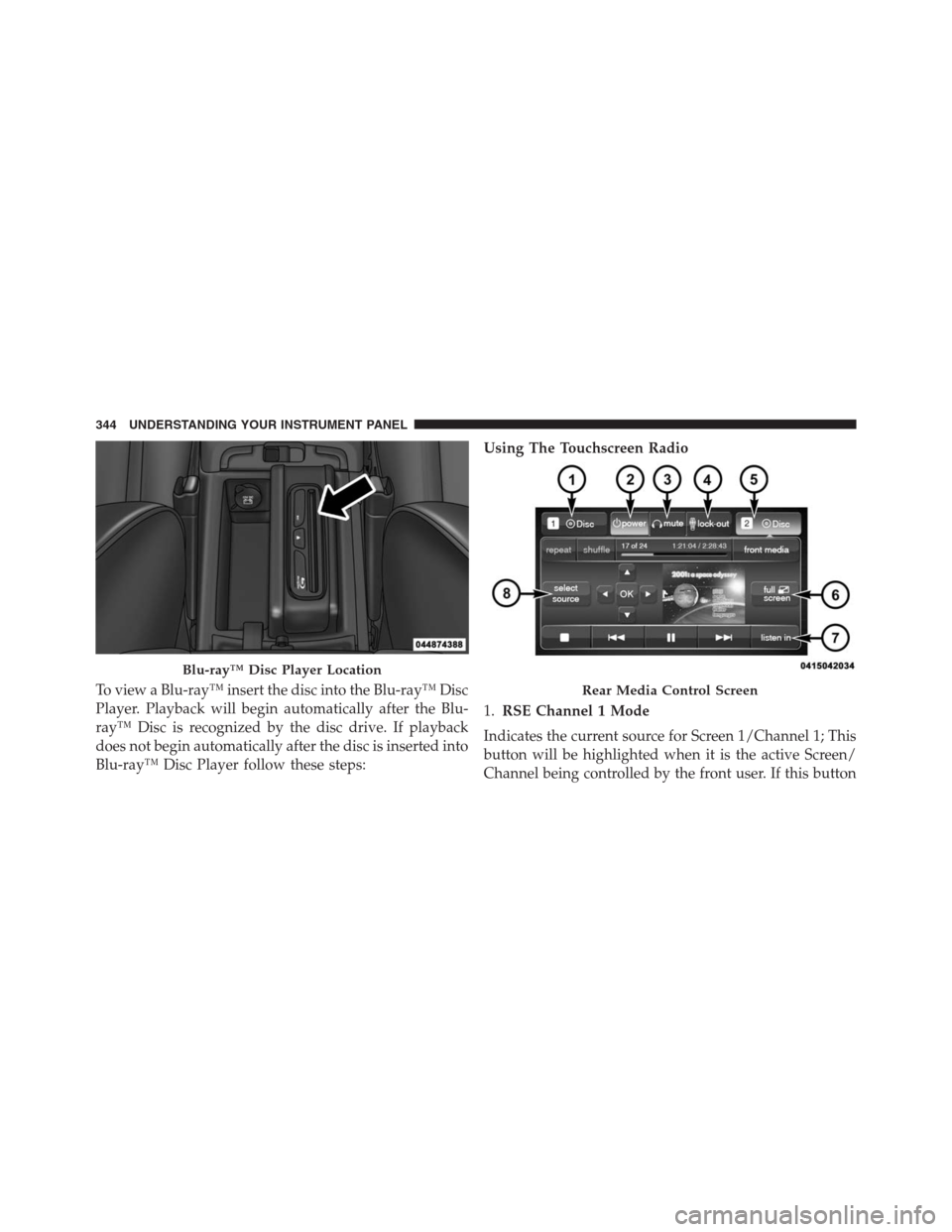
To view a Blu-ray™ insert the disc into the Blu-ray™ Disc
Player. Playback will begin automatically after the Blu-
ray™ Disc is recognized by the disc drive. If playback
does not begin automatically after the disc is inserted into
Blu-ray™ Disc Player follow these steps:Using The Touchscreen Radio
1.RSE Channel 1 Mode
Indicates the current source for Screen 1/Channel 1; This
button will be highlighted when it is the active Screen/
Channel being controlled by the front user. If this button
Blu-ray™ Disc Player Location
Rear Media Control Screen
344 UNDERSTANDING YOUR INSTRUMENT PANEL
Page 349 of 636

When connecting an external source to the AUX/HDMI
input, ensure to follow the standard color coding for the
audio/video jacks:
1. HDMI Input
2. Right audio in (red)
3. Left audio in (white)
4. Video in (yellow)
NOTE:Certain high-end video games, such as Playsta-
tion®4 and XBox One will exceed this power limit of the
vehicle’s Power Inverter.Play A DVD/Blu-ray™ Disc Using The
Touchscreen Radio
1. Insert the DVD/Blu-ray™ Disc with the label facing as
indicated on the DVD/Blu-ray™ Disc player. The
radio automatically selects the appropriate mode after
the disc is recognized and displays the menu screen or
starts playing the first track.
2. To watch a DVD/Blu-ray™ Disc on Rear 1 (driver ’s
side rear passenger) ensure the Remote Control and
Headphone channel selector switch is on Rear 1.
3. To watch a DVD/Blu-ray™ Disc on Rear 2 (passen-
ger ’s side rear passenger) ensure the Remote Control
and Headphone channel selector switch is on Rear 2.
4
UNDERSTANDING YOUR INSTRUMENT PANEL 347
Page 361 of 636
match in order for the disc to play. If the region code for
the DVD disc does not match the region code for the
player, the disc will not play.
DVD Audio Support
When a DVD-Audio disc is inserted in the Blu-ray™ Disc
player, the DVD-Audio title on the disc is played by
default (most DVD-Audio discs also have a Video title,
but the Video title is ignored). All multi-channel program
material is automatically mixed down to two channels,
which may result in a lowered apparent volume level. If
you increase the volume level to account for this change
in level, remember to lower the volume before changing
the disc or to another mode.
Recorded Discs
The Blu-ray™ Disc player will play CD-R and CD-RW
discs recorded in CD-Audio or Video-CD format, or as a
CD-ROM containing MP3 or WMA files. The player willalso play DVD-Video content recorded to a DVD-R or
DVD-RW disc. DVD-ROM discs (either pressed or re-
corded) are not supported.
If you record a disc using a personal computer, there may
be cases where the Blu-ray™ Disc player may not be able
to play some or the entire disc, even if it is recorded in a
compatible format and is playable on other players. To
help avoid playback problems, use the following guide-
lines when recording discs.
•Open sessions are ignored. Only sessions that are
closed are playable.
•For multi-session CDs that contain only multiple CD-
Audio sessions, the player will renumber the tracks so
each track number is unique.
4
UNDERSTANDING YOUR INSTRUMENT PANEL 359
Page 365 of 636
The right-hand control is a rocker-type switch with a
push-button in the center and controls the volume and
mode of the sound system. Pushing the top of the rocker
switch will increase the volume, and pushing the bottom
of the rocker switch will decrease the volume.
Pushing the center button will make the radio switch
between the various modes available (AM/FM/SXM/
CD/AUX/VES, etc.).
The left-hand control is a rocker-type switch with a
push-button in the center. The function of the left-hand
control is different depending on which mode you are in.
The following describes the left-hand control operation in
each mode.
Radio Operation
Pushing the top of the switch will “Seek” up for the next
listenable station and pushing the bottom of the switch
will “Seek” down for the next listenable station.The button located in the center of the left-hand control
will tune to the next preset station that you have pro-
grammed in the radio preset button.
CD Player
Pushing the top of the switch once will go to the next
track on the CD. Pushing the bottom of the switch once
will go to the beginning of the current track, or to the
beginning of the previous track if it is within one second
after the current track begins to play.
If you push the switch up or down twice, it plays the
second track; three times, it will play the third, etc.
CD/DVD DISC MAINTENANCE
To keep a CD/DVD in good condition, take the following
precautions:
1. Handle the disc by its edge; avoid touching the
surface.
4
UNDERSTANDING YOUR INSTRUMENT PANEL 363