Page 208 of 636
Precautions While Driving With ACC
In certain driving situations, ACC may have detection
issues. In these cases, ACC may brake late or unexpect-
edly. The driver needs to stay alert and may need to
intervene.
Towing A Trailer
Towing a trailer is not advised when using ACC.
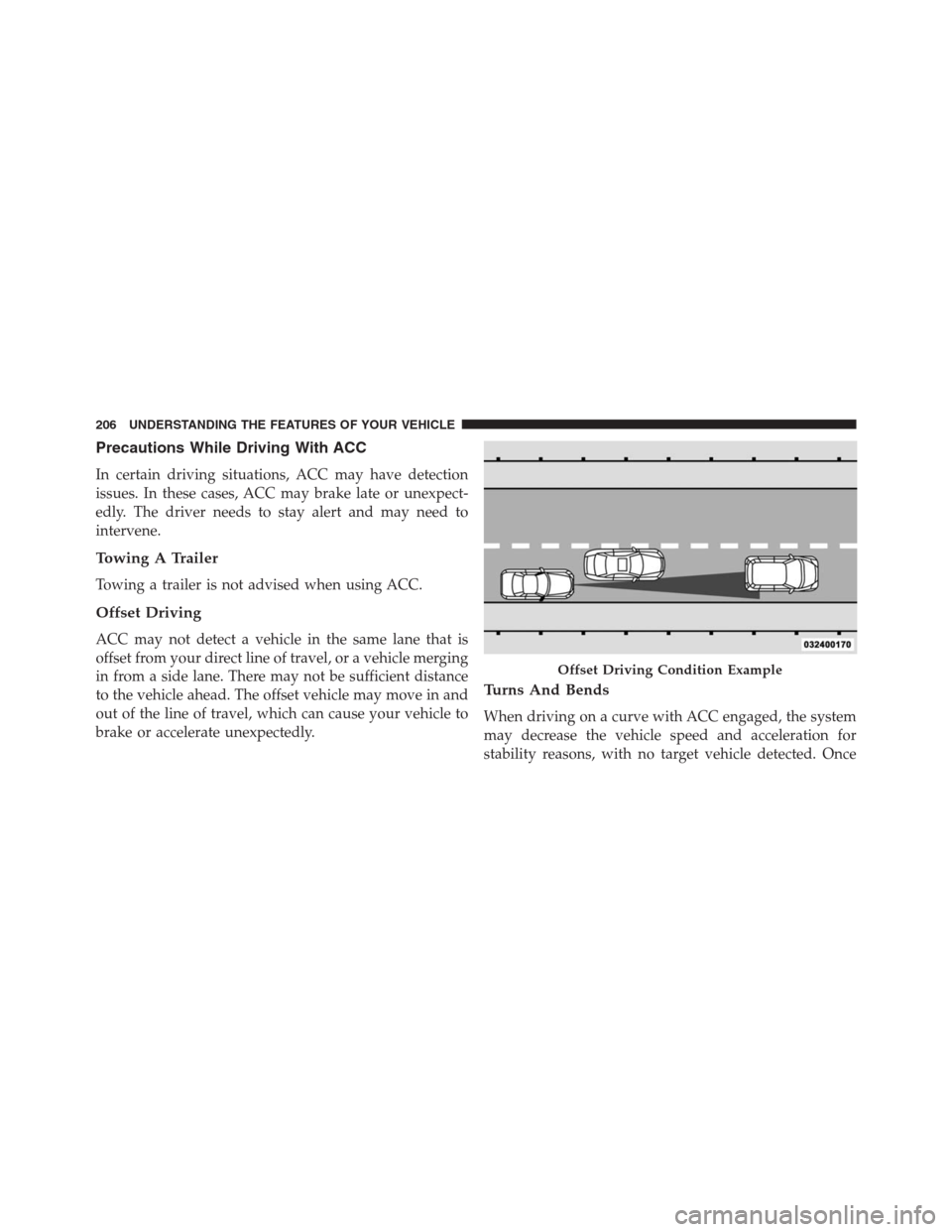
Offset Driving
ACC may not detect a vehicle in the same lane that is
offset from your direct line of travel, or a vehicle merging
in from a side lane. There may not be sufficient distance
to the vehicle ahead. The offset vehicle may move in and
out of the line of travel, which can cause your vehicle to
brake or accelerate unexpectedly.
Turns And Bends
When driving on a curve with ACC engaged, the system
may decrease the vehicle speed and acceleration for
stability reasons, with no target vehicle detected. Once
Offset Driving Condition Example
206 UNDERSTANDING THE FEATURES OF YOUR VEHICLE
Page 210 of 636
Lane Changing
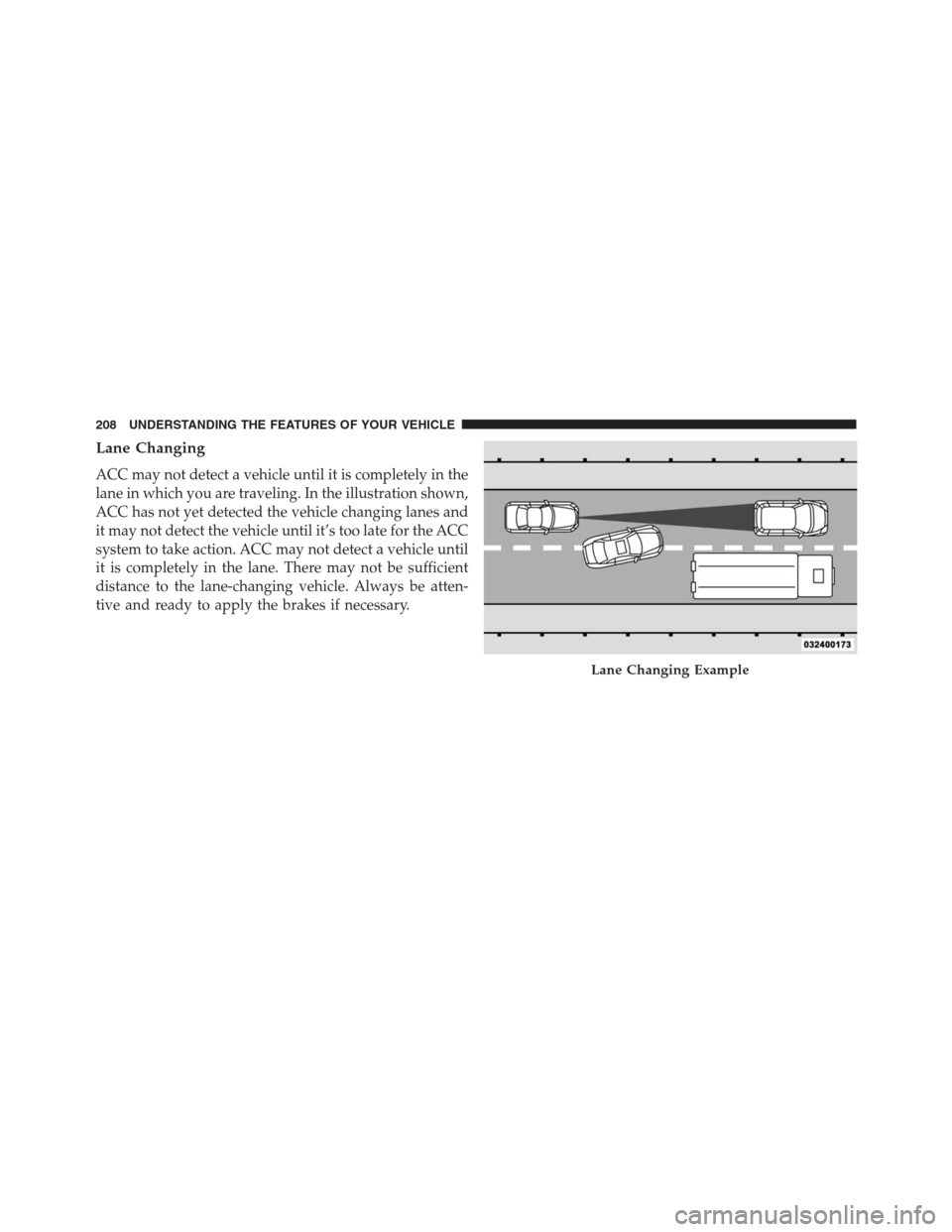
ACC may not detect a vehicle until it is completely in the
lane in which you are traveling. In the illustration shown,
ACC has not yet detected the vehicle changing lanes and
it may not detect the vehicle until it’s too late for the ACC
system to take action. ACC may not detect a vehicle until
it is completely in the lane. There may not be sufficient
distance to the lane-changing vehicle. Always be atten-
tive and ready to apply the brakes if necessary.
Lane Changing Example
208 UNDERSTANDING THE FEATURES OF YOUR VEHICLE
Page 211 of 636
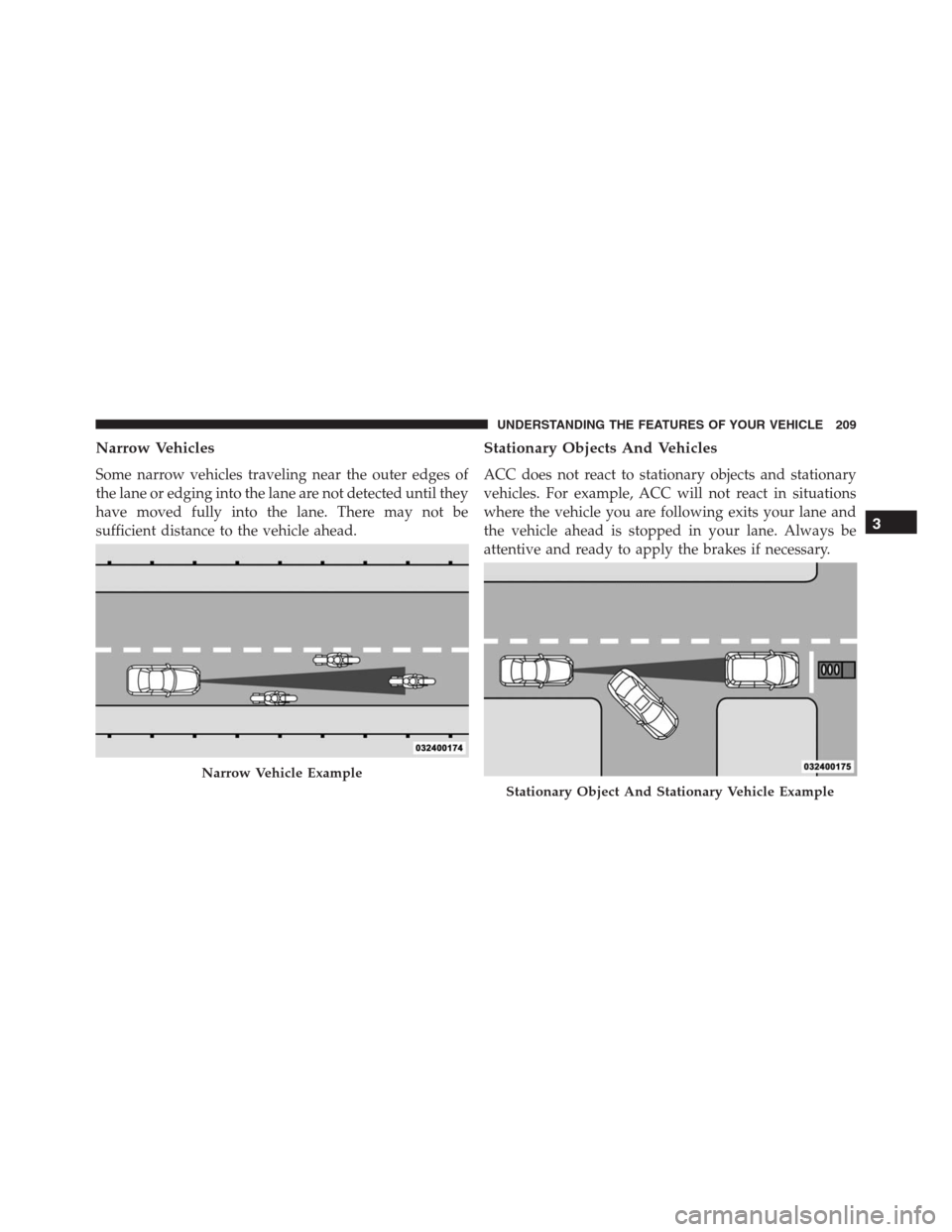
Narrow Vehicles
Some narrow vehicles traveling near the outer edges of
the lane or edging into the lane are not detected until they
have moved fully into the lane. There may not be
sufficient distance to the vehicle ahead.
Stationary Objects And Vehicles
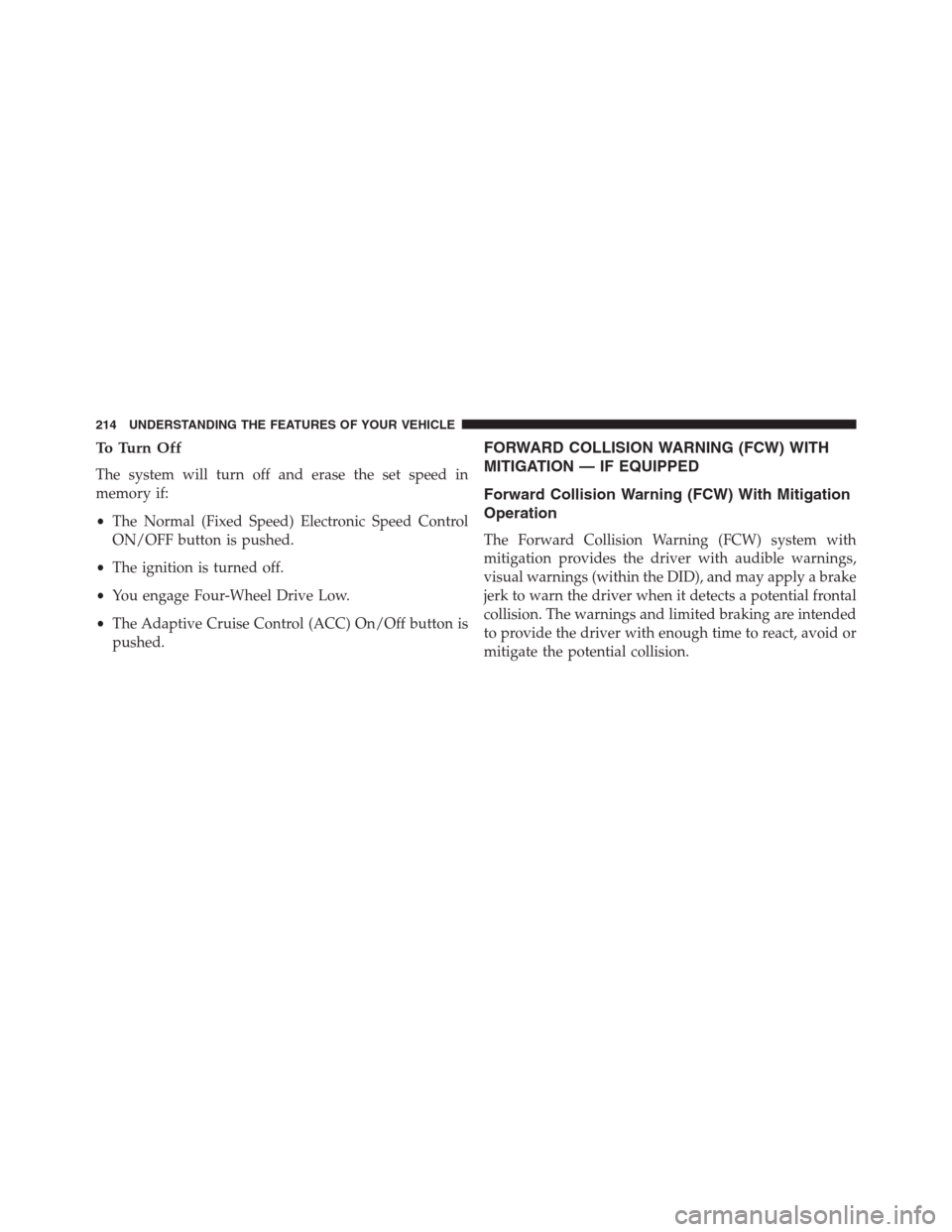
ACC does not react to stationary objects and stationary
vehicles. For example, ACC will not react in situations
where the vehicle you are following exits your lane and
the vehicle ahead is stopped in your lane. Always be
attentive and ready to apply the brakes if necessary.
Narrow Vehicle Example
Stationary Object And Stationary Vehicle Example
3
UNDERSTANDING THE FEATURES OF YOUR VEHICLE 209
Page 215 of 636

•If the button is continually pushed, the set speed will
continue to decrease in 5 mph decrements until the
button is released. The decrease in set speed is re-
flected in the DID display.
Metric Speed (km/h)
•Pushing the SET-button once will result in a 1 km/h
decrease in set speed. Each subsequent tap of the
button results in a decrease of 1 km/h.
•If the button is continually pushed, the set speed will
continue to decrease in 10 km/h decrements until the
button is released. The decrease in set speed is re-
flected in the DID display.
To Cancel
The following conditions will cancel the Normal (Fixed
Speed) Electronic Speed Control without clearing the
memory:•The brake pedal is applied.
•The CANCEL button is pushed.
•The Electronic Stability Control/Traction Control Sys-
tem (ESC/TCS) activates.
•The vehicle parking brake is applied.
•The braking temperature exceeds normal range (over-
heated).
•The shift lever/gear selector is removed from the
Drive position.
To Resume Speed
To resume a previously set speed, push the RES button
and release. Resume can be used at any speed above
20 mph (32 km/h).
3
UNDERSTANDING THE FEATURES OF YOUR VEHICLE 213
Page 216 of 636
To Turn Off
The system will turn off and erase the set speed in
memory if:
•The Normal (Fixed Speed) Electronic Speed Control
ON/OFF button is pushed.
•The ignition is turned off.
•You engage Four-Wheel Drive Low.
•The Adaptive Cruise Control (ACC) On/Off button is
pushed.
FORWARD COLLISION WARNING (FCW) WITH
MITIGATION — IF EQUIPPED
Forward Collision Warning (FCW) With Mitigation
Operation
The Forward Collision Warning (FCW) system with
mitigation provides the driver with audible warnings,
visual warnings (within the DID), and may apply a brake
jerk to warn the driver when it detects a potential frontal
collision. The warnings and limited braking are intended
to provide the driver with enough time to react, avoid or
mitigate the potential collision.
214 UNDERSTANDING THE FEATURES OF YOUR VEHICLE
Page 217 of 636

NOTE:FCW monitors the information from the forward
looking sensors as well as the Electronic Brake Controller
(EBC), to calculate the probability of a forward collision.
When the system determines that a forward collision is
probable, the driver will be provided with audible and
visual warnings and may provide a brake jerk warning. If
the driver does not take action based upon these progres-
sive warnings, then the system will provide a limited
level of active braking to help slow the vehicle and
mitigate the potential forward collision. If the driver
reacts to the warnings by braking and the system deter-
mines that the driver intends to avoid the collision by
braking but has not applied sufficient brake force, the
system will compensate and provide additional brake
force as required.When the system determines a collision with the vehicle
in front of you is no longer probable, the warning
message will be deactivated.
FCW Message
3
UNDERSTANDING THE FEATURES OF YOUR VEHICLE 215
Page 219 of 636
To turn the FCW system back ON, push the forward
collision button again to turn the system ON (led turns
off).
Changing the FCW status to “Off” prevents the system
from warning you of a possible collision with the vehicle
in front of you.
Changing the Active Braking status to “Off” prevents the
system from providing limited autonomous braking, or
additional brake support if the driver is not braking
adequately in the event of a potential frontal collision.
NOTE:The FCW system state is kept in memory from
one ignition cycle to the next. If the system is turned OFF,
it will remain off when the vehicle is restarted.Changing FCW And Active Braking Status
The FCW Sensitivity And Active Braking Settings are
programmable through the Uconnect® System. Refer to
“Uconnect® Settings” in “Understanding Your Instru-
ment Panel” for further information.
The default status of FCW is the “Far” setting and the
Active Braking is the “On” setting, this allows the system
to warn you of a possible collision with the vehicle in
front of you when you are farther away and it applies
limited braking. This gives you the most reaction time to
avoid a possible collision.
Changing the FCW status to the “Near” setting, allows
the system to warn you of a possible collision with the
vehicle in front of you when you are much closer. This
setting provides less reaction time than the “Far” setting,
which allows for a more dynamic driving experience.
3
UNDERSTANDING THE FEATURES OF YOUR VEHICLE 217
Page 235 of 636
Front Park Assist Audible Alerts
ParkSense® will turn off the Front Park Assist audible
alert (chime) after approximately 3 seconds when an
obstacle has been detected, the vehicle is stationary, and
brake pedal is applied.
Adjustable Chime Volume Settings
Front and Rear chime volume settings can be selected
from the Uconnect® System. Refer to�Uconnect® Set-
tings” in “Understanding Your Instrument Panel” for
further information.
The chime volume settings include LOW, MEDIUM, and
HIGH. The factory default volume setting is MEDIUM.
ParkSense® will retain its last known configuration state
through ignition cycles.Enabling And Disabling ParkSense®
ParkSense® can be enabled and disabled with the
ParkSense® switch.
When the ParkSense® switch is pushed to
disable the system, the instrument cluster will
display the “PARKSENSE OFF” message for
approximately five seconds. Refer to “Driver
Information Display (DID)” in “Understanding Your
Instrument Panel” for further information. When the
shift lever/gear selector is moved to REVERSE and the
system is disabled, the DID will display the
“PARKSENSE OFF” message for as long as the vehicle is
in REVERSE.
The ParkSense® switch LED will be ON when
ParkSense® is disabled or requires service. The
ParkSense® switch LED will be OFF when the system is
enabled. If the ParkSense® switch is pushed, and the
3
UNDERSTANDING THE FEATURES OF YOUR VEHICLE 233