Page 239 of 717
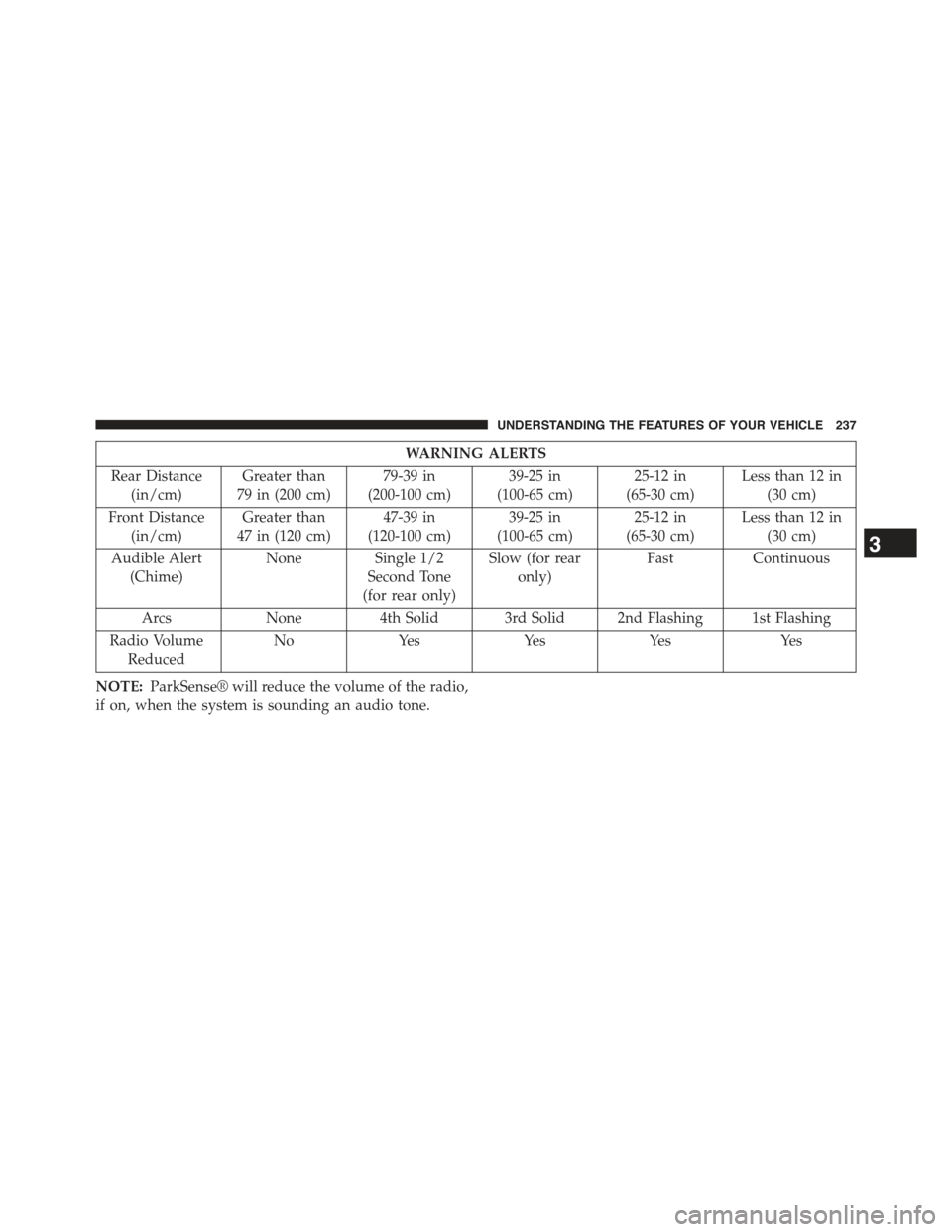
WARNING ALERTS
Rear Distance
(in/cm)
Greater than
79 in (200 cm)
79-39 in
(200-100 cm)
39-25 in
(100-65 cm)
25-12 in
(65-30 cm)
Less than 12 in
(30 cm)
Front Distance
(in/cm)
Greater than
47 in (120 cm)
47-39 in
(120-100 cm)
39-25 in
(100-65 cm)
25-12 in
(65-30 cm)
Less than 12 in
(30 cm)
Audible Alert
(Chime)
None Single 1/2
Second Tone
(for rear only)
Slow (for rear
only)
FastContinuous
ArcsNone4th Solid 3rd Solid 2nd Flashing 1st Flashing
Radio Volume
Reduced
NoYesYesYesYes
NOTE:ParkSense® will reduce the volume of the radio,
if on, when the system is sounding an audio tone.
3
UNDERSTANDING THE FEATURES OF YOUR VEHICLE 237
Page 242 of 717

Cleaning The ParkSense® System
Clean the ParkSense® sensors with water, car wash soap
and a soft cloth. Do not use rough or hard cloths. Do not
scratch or poke the sensors. Otherwise, you could dam-
age the sensors.
ParkSense® System Usage Precautions
NOTE:
•Ensure that the front and rear bumper are free of snow,
ice, mud, dirt and debris to keep the ParkSense®
system operating properly.
•Jackhammers, large trucks, and other vibrations could
affect the performance of ParkSense®.
•When you turn ParkSense® off, the instrument cluster
will display “PARKSENSE OFF.” Furthermore, once
you turn ParkSense® off, it remains off until you turn
it on again, even if you cycle the ignition key.
•When you move the shift lever to the REVERSE
position and ParkSense® is turned off, the instrument
cluster will display “PARKSENSE OFF” for as long as
the vehicle is in REVERSE.
•ParkSense®, when on, will reduce the volume of the
radio when it is sounding a tone.
•Clean the ParkSense® sensors regularly, taking care
not to scratch or damage them. The sensors must not
be covered with ice, snow, slush, mud, dirt or debris.
Failure to do so can result in the system not working
properly. The ParkSense® system might not detect an
obstacle behind or in front of the fascia/bumper, or it
could provide a false indication that an obstacle is
behind or in front of the fascia/bumper.
240 UNDERSTANDING THE FEATURES OF YOUR VEHICLE
Page 245 of 717

PARKVIEW® REAR BACK UP CAMERA — IF
EQUIPPED
Your vehicle may be equipped with the ParkView® Rear
Back Up Camera that allows you to see an on-screen
image of the rear surroundings of your vehicle whenever
the shift lever/gear selector is put into REVERSE. The
image will be displayed on the Navigation/Multimedia
radio display screen along with a caution note to “check
entire surroundings” across the top of the screen. After
five seconds this note will disappear. The ParkView®
camera is located on the rear of the vehicle above the rear
License plate.
When the vehicle is shifted out of REVERSE (with camera
delay turned OFF), the rear camera mode is exited and
the navigation or audio screen appears again.
When the vehicle is shifted out of REVERSE (with camera
delay turned ON), the rear view image with dynamic
grid lines will be displayed for up to 10 seconds after
shifting out of#REVERSE#unless the forward vehicle
speed exceeds 8 mph (13 km/h), the transmission is
shifted into#PARK#or the ignition is switched to the OFF
position.
NOTE:The ParkView® Rear Back Up Camera has pro-
grammable modes of operation that may be selected
through the Uconnect® System. Refer to “Uconnect®
Settings” in “Understanding Your Instrument Panel” for
further information.
When enabled, active guide lines are overlaid on the
image to illustrate the width of the vehicle and its
projected backup path based on the steering wheel
position. The active guide lines will show separate zones
that will help indicate the distance to the rear of the
vehicle while a dashed center-line will indicate the center
3
UNDERSTANDING THE FEATURES OF YOUR VEHICLE 243
Page 251 of 717
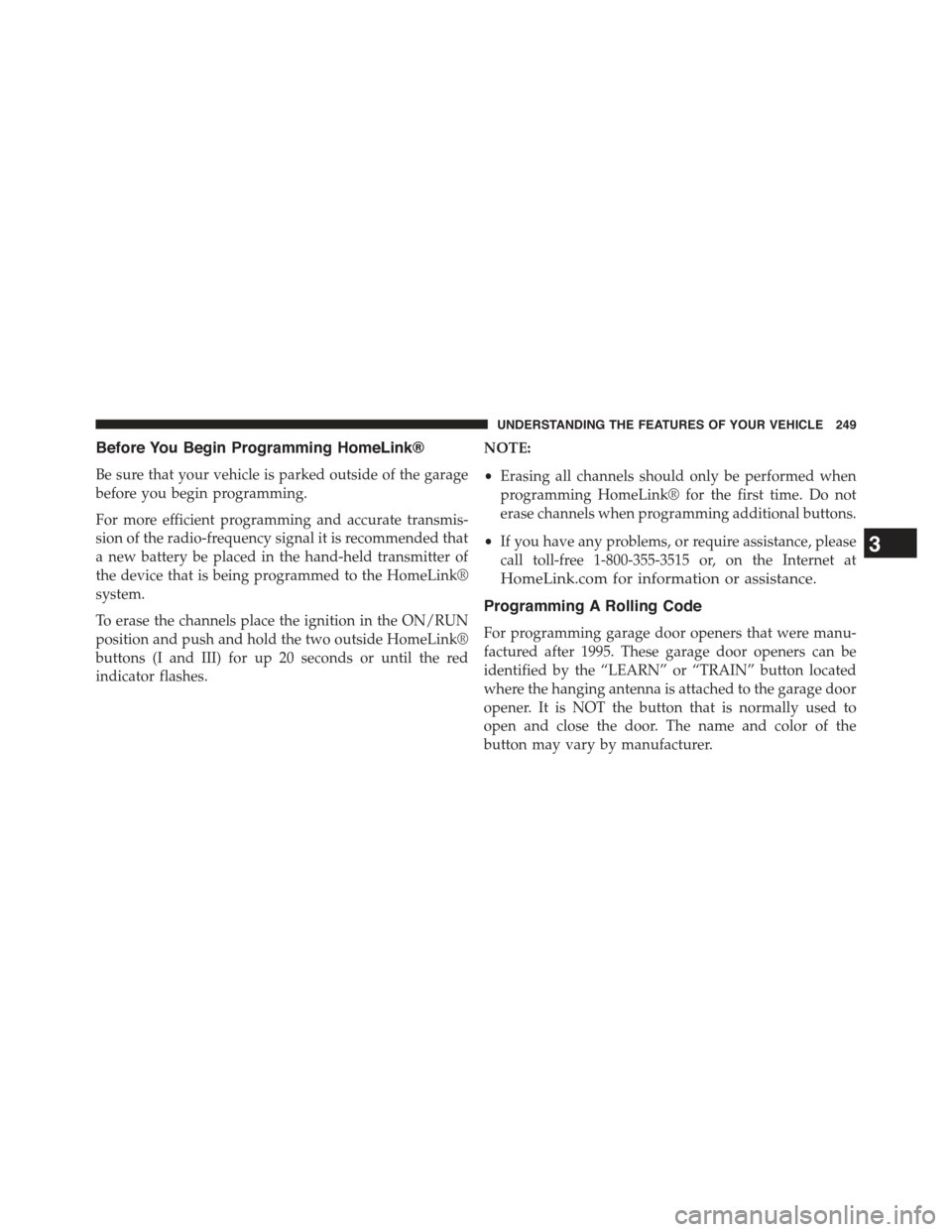
Before You Begin Programming HomeLink®
Be sure that your vehicle is parked outside of the garage
before you begin programming.
For more efficient programming and accurate transmis-
sion of the radio-frequency signal it is recommended that
a new battery be placed in the hand-held transmitter of
the device that is being programmed to the HomeLink®
system.
To erase the channels place the ignition in the ON/RUN
position and push and hold the two outside HomeLink®
buttons (I and III) for up 20 seconds or until the red
indicator flashes.
NOTE:
•Erasing all channels should only be performed when
programming HomeLink® for the first time. Do not
erase channels when programming additional buttons.
•If you have any problems, or require assistance, please
call toll-free 1-800-355-3515 or, on the Internet at
HomeLink.com for information or assistance.
Programming A Rolling Code
For programming garage door openers that were manu-
factured after 1995. These garage door openers can be
identified by the “LEARN” or “TRAIN” button located
where the hanging antenna is attached to the garage door
opener. It is NOT the button that is normally used to
open and close the door. The name and color of the
button may vary by manufacturer.
3
UNDERSTANDING THE FEATURES OF YOUR VEHICLE 249
Page 255 of 717
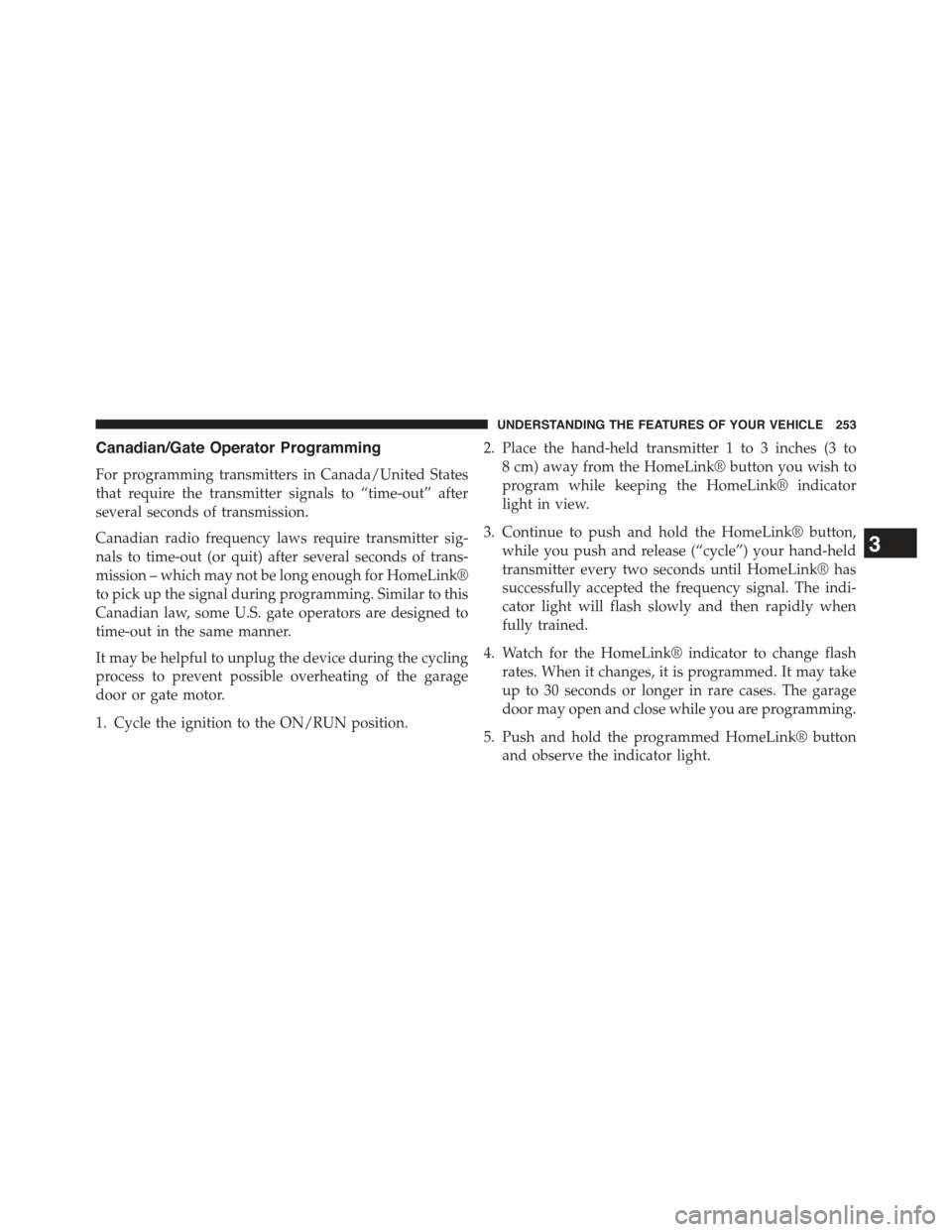
Canadian/Gate Operator Programming
For programming transmitters in Canada/United States
that require the transmitter signals to “time-out” after
several seconds of transmission.
Canadian radio frequency laws require transmitter sig-
nals to time-out (or quit) after several seconds of trans-
mission – which may not be long enough for HomeLink®
to pick up the signal during programming. Similar to this
Canadian law, some U.S. gate operators are designed to
time-out in the same manner.
It may be helpful to unplug the device during the cycling
process to prevent possible overheating of the garage
door or gate motor.
1. Cycle the ignition to the ON/RUN position.
2. Place the hand-held transmitter 1 to 3 inches (3 to
8 cm) away from the HomeLink® button you wish to
program while keeping the HomeLink® indicator
light in view.
3. Continue to push and hold the HomeLink® button,
while you push and release (“cycle”) your hand-held
transmitter every two seconds until HomeLink® has
successfully accepted the frequency signal. The indi-
cator light will flash slowly and then rapidly when
fully trained.
4. Watch for the HomeLink® indicator to change flash
rates. When it changes, it is programmed. It may take
up to 30 seconds or longer in rare cases. The garage
door may open and close while you are programming.
5. Push and hold the programmed HomeLink® button
and observe the indicator light.
3
UNDERSTANDING THE FEATURES OF YOUR VEHICLE 253
Page 287 of 717
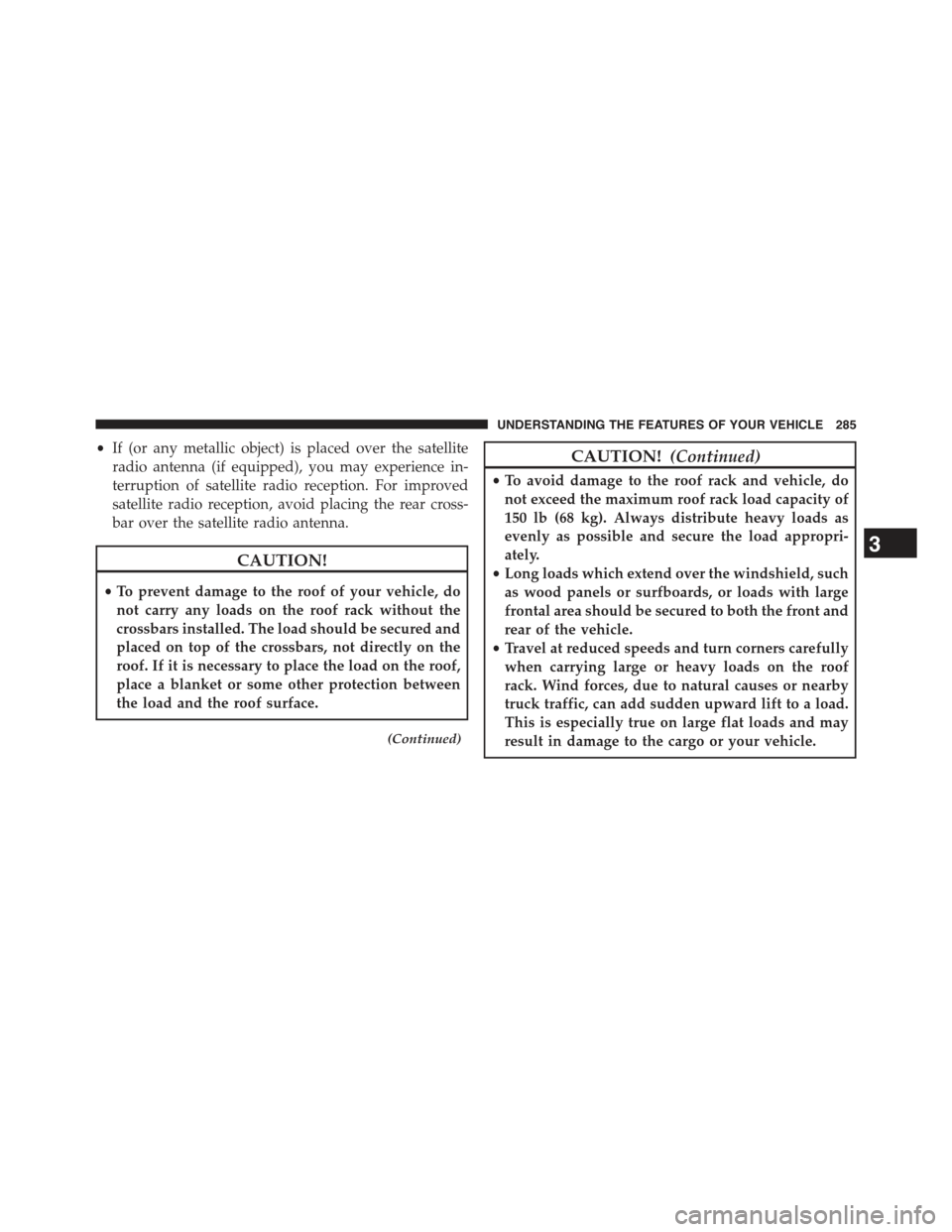
•If (or any metallic object) is placed over the satellite
radio antenna (if equipped), you may experience in-
terruption of satellite radio reception. For improved
satellite radio reception, avoid placing the rear cross-
bar over the satellite radio antenna.
CAUTION!
•To prevent damage to the roof of your vehicle, do
not carry any loads on the roof rack without the
crossbars installed. The load should be secured and
placed on top of the crossbars, not directly on the
roof. If it is necessary to place the load on the roof,
place a blanket or some other protection between
the load and the roof surface.
(Continued)
CAUTION!(Continued)
•To avoid damage to the roof rack and vehicle, do
not exceed the maximum roof rack load capacity of
150 lb (68 kg). Always distribute heavy loads as
evenly as possible and secure the load appropri-
ately.
•Long loads which extend over the windshield, such
as wood panels or surfboards, or loads with large
frontal area should be secured to both the front and
rear of the vehicle.
•Travel at reduced speeds and turn corners carefully
when carrying large or heavy loads on the roof
rack. Wind forces, due to natural causes or nearby
truck traffic, can add sudden upward lift to a load.
This is especially true on large flat loads and may
result in damage to the cargo or your vehicle.
3
UNDERSTANDING THE FEATURES OF YOUR VEHICLE 285
Page 290 of 717
!Uconnect® RADIOS — IF EQUIPPED........359
!iPod®/USB/MP3 CONTROL — IF EQUIPPED . . .359
!Uconnect® REAR SEAT ENTERTAINMENT
SYSTEM — IF EQUIPPED.................360
▫Getting Started.......................360
▫Dual Video Screen.....................362
▫Blu-ray™ Disc Player...................362
▫Play Video Games.....................365
▫Play A DVD/Blu-ray™ Disc Using The
Touchscreen Radio.....................366
▫Important Notes For Dual Video Screen
System.............................368
▫Blu-ray™ Disc Player Remote Control — If
Equipped...........................369
▫Replacing The Remote Control Batteries......370
▫Headphones Operation.................371
▫Controls............................372
▫Replacing The Headphone Batteries.........373
▫Unwired® Stereo Headphone Lifetime Limited
Warranty...........................373
!STEERING WHEEL AUDIO CONTROLS — IF
EQUIPPED...........................381
▫Radio Operation......................381
▫CD Player...........................382
!CD/DVD/Blu-ray™ Disc MAINTENANCE . . . .382
!RADIO OPERATION AND MOBILE PHONES . .383
▫Regulatory And Safety Information.........383
288 UNDERSTANDING YOUR INSTRUMENT PANEL
Page 291 of 717
!CLIMATE CONTROLS...................385
▫General Overview.....................385
▫Climate Control Functions...............391
▫Automatic Temperature Control (ATC)......392
▫Operating Tips.......................394
!Uconnect® VOICE RECOGNITION QUICK
TIPS................................397
▫Introducing Uconnect®.................397
▫Get Started..........................398
▫Basic Voice Commands..................399
▫Radio..............................401
▫Media..............................402
▫Phone..............................404
▫Voice Text Reply......................405
▫Climate (8.4A/8.4AN)..................406
▫Navigation (8.4A/8.4AN)................407
▫Uconnect® Access* (8.4A/8.4AN)..........407
▫Register (8.4A/8.4AN)..................408
▫Mobile App (8.4A/8.4AN)...............409
▫Voice Texting (8.4A/8.4AN)..............410
▫Yelp® (8.4A/8.4AN)....................411
▫SiriusXM Travel Link™ (8.4A/8.4AN).......412
▫Additional Information.................413
4
UNDERSTANDING YOUR INSTRUMENT PANEL 289