Page 313 of 554

Menu ItemResult
Bluetooth ON/OFF Allows user to switch Bluetooth® on and off. Bluetooth® must be on in order to connect device.
On Turns Bluetooth® on.
Off Turns Bluetooth® off.
Connect Bluetooth Upon pressing this button, a popup box will appear on the screen, prompting you to confirm that the connection is for the phone system. Touch the
�Ye s �key.
Yes Confirms that you are connecting a Bluetooth® device. Upon pressing this button, the following message will appear on screen. �The system is
searching for your phone. Using your handset, look for a Bluetooth® device called MY-CAR. When requested by the handset, enter the PIN 1234.
Exiting screen cancels search. �The connecting procedure phone varies by phone. For additional information, refer to phone Owner’s Manual. When
the connecting is complete, the screen will return to the Bluetooth® settings screen.
Cancel Cancels operation.
No Indicates to the system that you are connecting a Bluetooth® enabled audio device.
Cancel Cancels operation.
4-126Monitor, climate, audio, phone and voice recognition systems
Page 317 of 554
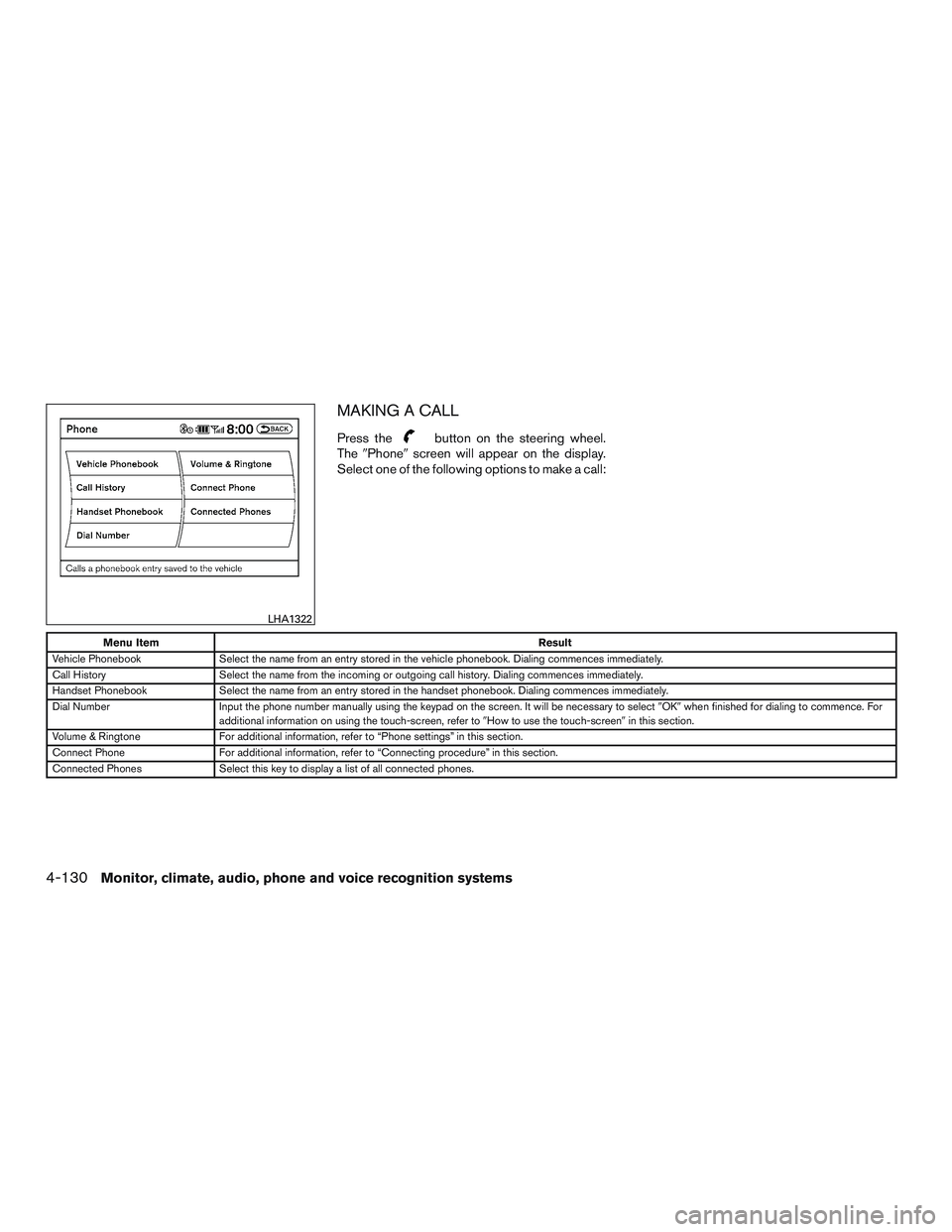
MAKING A CALL
Press thebutton on the steering wheel.
The �Phone� screen will appear on the display.
Select one of the following options to make a call:
Menu Item Result
Vehicle Phonebook Select the name from an entry stored in the vehicle phonebook. Dialing commences immediately.
Call History Select the name from the incoming or outgoing call history. Dialing commences immediately.
Handset Phonebook Select the name from an entry stored in the handset phonebook. Dialing commences immediately.
Dial Number Input the phone number manually using the keypad on the screen. It will be necessary to select �OK�when finished for dialing to commence. For
additional information on using the touch-screen, refer to �How to use the touch-screen�in this section.
Volume & Ringtone For additional information, refer to “Phone settings” in this section.
Connect Phone For additional information, refer to “Connecting procedure” in this section.
Connected Phones Select this key to display a list of all connected phones.
LHA1322
4-130Monitor, climate, audio, phone and voice recognition systems
Page 320 of 554

PHONE SETTINGS
To set up the Bluetooth® Hands-Free Phone
System to your preferred settings, press the SET-
TING button on the control panel and touch the
�Phone�key on the display.
Menu Item Result
Edit Vehicle Phonebook For additional information, refer to�Vehicle phonebook�in this section for adding, editing, and deleting contacts in the vehicle phonebook.
Delete Phonebook Delete a phonebook stored on the system.
Download Handset Phonebook For additional information, refer to�Handset phonebook�in this section for adding, editing, and deleting contacts in the handset
phonebook.
Volume and Ringtone Adjust the volume level of the ringtone, incoming call sound and outgoing call sound.
Automatic Hold When this option is turned on, an incoming call will be placed on hold automatically after several rings.
Vehicle Ringtone When this option is turned on, a specific ringtone that is different than the cellular phone’s will sound when receiving a call.
Auto Downloaded For additional information about automatically downloading the handset phonebook, refer to “Handset phonebook” in this section.
Monitor, climate, audio, phone and voice recognition systems4-133
Page 321 of 554
BLUETOOTH® SETTINGS
To set up the Bluetooth® Hands-Free Phone
System to your preferred settings, press the SET-
TING button on the control panel and touch the
�Bluetooth�key on the display.
Menu Item Result
Bluetooth Turn the Bluetooth system on or off.
Connect Bluetooth For additional information about connecting a phone, refer to �Connecting procedure�in this section.
Connected Devices Display a list of the Bluetooth devices connected to the system.
Edit Bluetooth Info Check information about the device name, device address, and device PIN.
Replaced Connected Phone Replace the phone currently connected to the system. This option allows you to keep an voicetags that were recorded using the previous
phone.
4-134Monitor, climate, audio, phone and voice recognition systems
Page 322 of 554
CALL VOLUME
Adjusting the incoming or outgoing call volume
may improve clarity if reception between callers is
unclear. To access the volume settings, press the
SETTING button, then select ”Volume and
Beeps”. You can also adjust the volume of an
incoming voice during a call by pushing the vol-
ume control switch on the steering wheel or by
turning the volume control knob on the control
panel:
Menu ItemResult
Ringtone Adjusting this setting allows ringer volume to be set at a desired level.
Incoming Call Adjusting this setting allowsyouto hear a difference in volume (You can also adjust the volume of an incoming voice during a call by
pushing the volume control switch on the steering wheel or by turning the volume control knob.
Outgoing Call Adjusting this setting allowsthe person you are talking with to hear a difference in volume.
Monitor, climate, audio, phone and voice recognition systems4-135
Page 325 of 554

Voice recognition settings
The available settings of the INFINITI Voice Rec-
ognition system are described.1. Press the SETTING button on the control panel
2. Touch the ”Others” key
3. Touch the “Voice Recognition” key
You can confirm the page by scrolling the screen
using the INFINITI controller.
Menu Item Result
Command List When Alternate Command Mode is activated, this key will allow user to access the list of Phone, Navigation, Information, Audio, and Help
commands.
User Guide Allows user access to user guide settings. For additional information, refer to “Displaying User Guide” in this section.
Speaker Adaptation When Alternate Command Mode is activated, this key will allow user to initiate a system function for better voice recognition performance. For
additional information, refer to “Speaker Adaptation Function” in this section.
Alternate Command Mode Allows user to activate Alternate Command Mode. A screen will appear prompting user to review the expanded command list and advises that
some command will be replaced and voice menu prompts turned off. User will have to confirm by pressing “OK” to proceed with activation.
Minimize Voice Feedback When Alternate Command Mode is activated, this key will allow user to reduce system voice feedback during voice recognition session.
4-138Monitor, climate, audio, phone and voice recognition systems
Page 331 of 554
●If you say “Change Number” during phone
number entry, the system will automatically
request that you repeat the number using
the 3-3-4 format. In this case please say the
area code first and then follow the prompts.
● Do not add a “1” in front of the area code
when speaking phone numbers.
● If the system does not recognize your com-
mand, please try repeating the command
using a natural voice. Speaking too slowly or
too loudly may further decrease recognition
performance.
Example 2 — Placing an international call
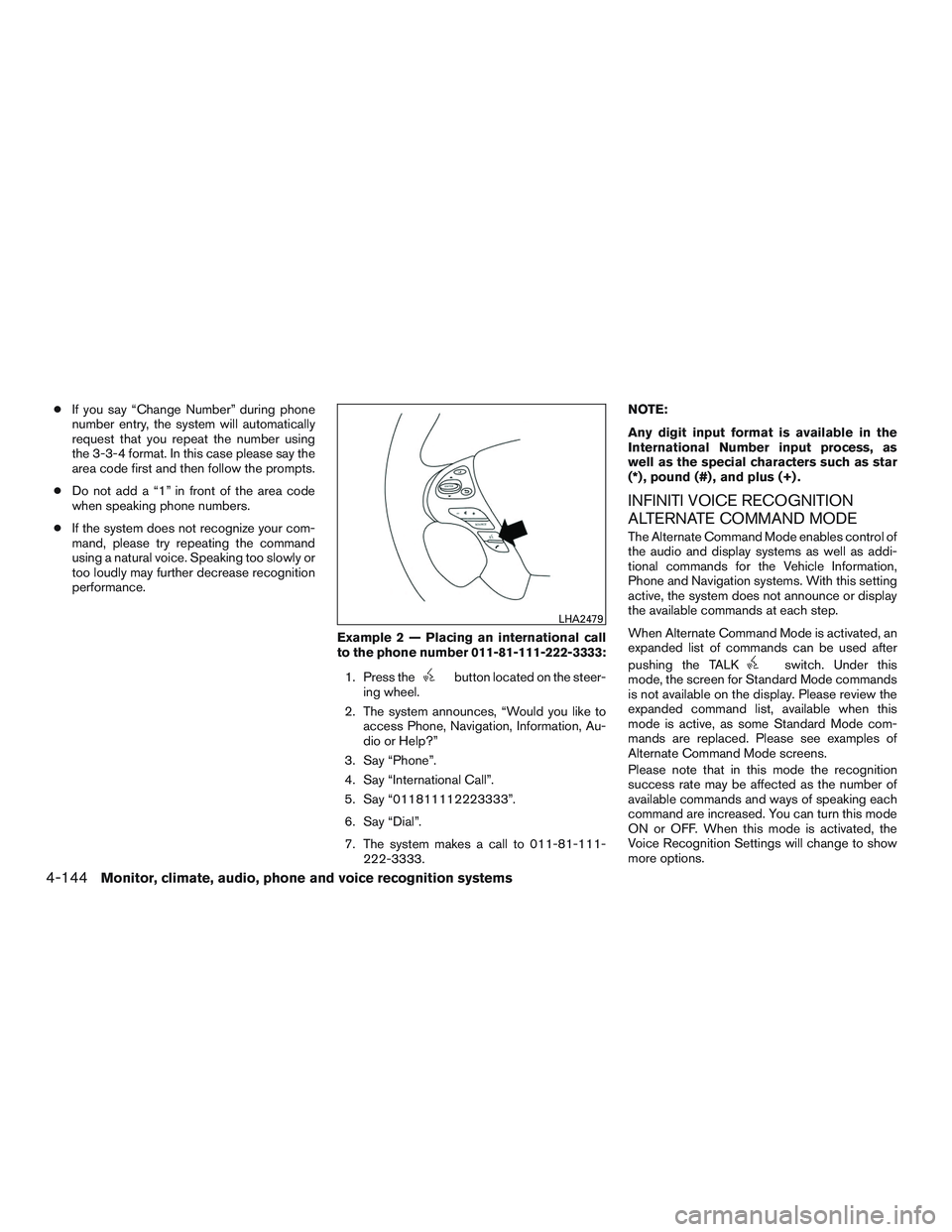
to the phone number 011-81-111-222-3333:1. Press the
button located on the steer-
ing wheel.
2. The system announces, “Would you like to access Phone, Navigation, Information, Au-
dio or Help?”
3. Say “Phone”.
4. Say “International Call”.
5. Say “011811112223333”.
6. Say “Dial”.
7. The system makes a call to 011-81-111- 222-3333. NOTE:
Any digit input format is available in the
International Number input process, as
well as the special characters such as star
(*) , pound (#) , and plus (+) .
INFINITI VOICE RECOGNITION
ALTERNATE COMMAND MODE
The Alternate Command Mode enables control of
the audio and display systems as well as addi-
tional commands for the Vehicle Information,
Phone and Navigation systems. With this setting
active, the system does not announce or display
the available commands at each step.
When Alternate Command Mode is activated, an
expanded list of commands can be used after
pushing the TALK
switch. Under this
mode, the screen for Standard Mode commands
is not available on the display. Please review the
expanded command list, available when this
mode is active, as some Standard Mode com-
mands are replaced. Please see examples of
Alternate Command Mode screens.
Please note that in this mode the recognition
success rate may be affected as the number of
available commands and ways of speaking each
command are increased. You can turn this mode
ON or OFF. When this mode is activated, the
Voice Recognition Settings will change to show
more options.
LHA2479
4-144Monitor, climate, audio, phone and voice recognition systems
Page 332 of 554

Activating Alternate Command Mode
1. Press the SETTING button on the controlpanel.
2. Touch the “Others” key on the display.
3. Touch the “Voice Recognition” key.
4. Touch the “Alternate Command Mode” key.
5. The confirmation message is displayed on the screen. Touch the “OK” key to activate
the Alternate Command Mode.
6. Alternate Command Mode is activated and the setting menu is expanded to include the
Alternate Command Mode options. Refer to
“Voice Recognition Settings” in this section
for an explanation of the options.
Displaying the command list
If you are controlling the system by voice com-
mands for the first time or do not know the
appropriate voice command, perform the follow-
ing procedure for displaying the voice command
list (available only in Alternate Command Mode) .
Press the
switch, listen for the tone and
say, “Help”. The system will respond by display-
ing the command list main menu.
Only manual controls such as the touch-screen
can navigate the command list menu.
As an alternative to the voice command “Help”,
you may access the command list using the fol-
lowing steps:
1. Press the SETTING button on the control panel.
2. Select the “Others” key using the INFINITI controller.
3. Select the “Voice Recognition” key using the INFINITI controller.
NOTE:
You can skip steps 1 to 3 if you say “Help”. 4. Select the “Command List” key using the
INFINITI controller.
5. Select a category using the INFINITI control- ler. The command list for the category se-
lected is shown.
6. If necessary, scroll the screen using the INFINITI controller to view the entire list.
7. Press the BACK button to return to the previous screen.
Monitor, climate, audio, phone and voice recognition systems4-145