Page 389 of 653
4-178
Multimedia System
Using SEEK
Press the key to play the
previous/next channel. ❈If the “Category” icon is displayed, channels are changed within the
current category.
Using Tune
Turn the TUNE knob to select the desired channel.
SCAN
Press the key to scan all
channels with superior reception for5 seconds each.
Once scan is complete, the previous-
ly played channel will be restored.
During Scan, pressing the
key again will cancel the scan opera-
tion and restore the previously
played channel.
If the “Category” icon is displayed, channels are changed within the cur-
rent category.
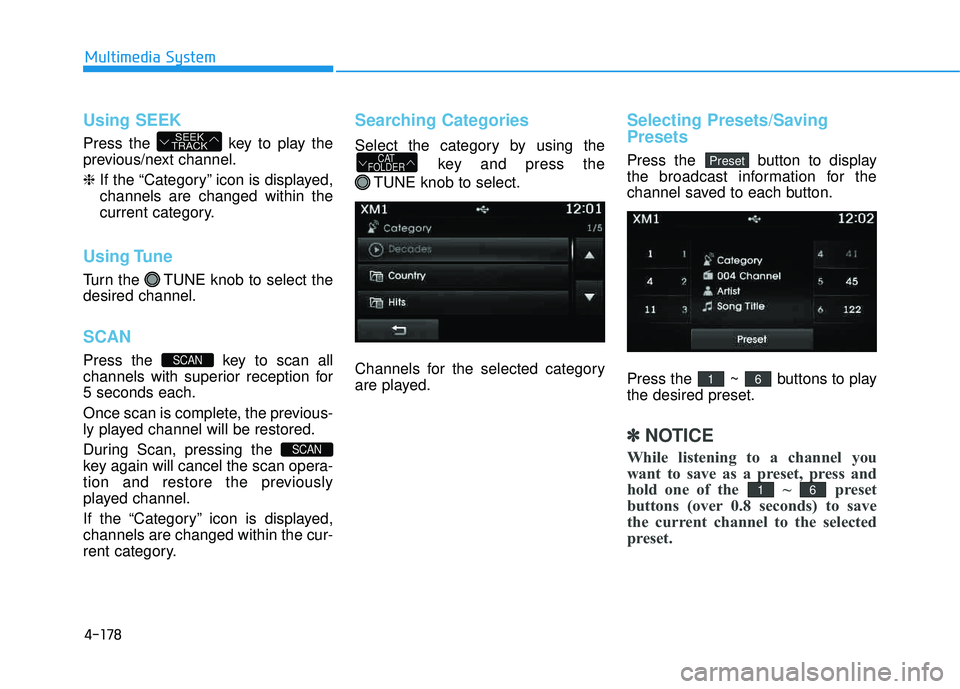
Searching Categories
Select the category by using the
key and press the
TUNE knob to select.
Channels for the selected category
are played.
Selecting Presets/Saving Presets
Press the button to display
the broadcast information for the
channel saved to each button.
Press the ~ buttons to play the desired preset.
✽✽ NOTICE
While listening to a channel you
want to save as a preset, press and
hold one of the ~ preset
buttons (over 0.8 seconds) to save
the current channel to the selected
preset.
61
61
PresetCAT
FOLDER
SCAN
SCAN
SEEK
TRACK
Page 405 of 653
4-194
Multimedia System
✽✽NOTICE - USING THE
iPod ®
DEVICE
iPod ®
is a registered trademark
of Apple Inc.
In order to use the iPod ®
while
operating the keys, you must use
a dedicated iPod ®
cable. (the
cable that is supplied when pur-
chasing iPod ®
/iPhone ®
prod-
ucts)
If the iPod ®
is connected to the
vehicle while it is playing, a high
pitch sound could occur for
approximately 1-2 seconds
immediately after connecting. If
possible, connect the iPod to the
vehicle with the iPod ®
stopped/paused.
During ACC ON state, connect- ing the iPod ®
through the iPod ®
cable will charge the iPod ®
through the car audio system.
When connecting with the iPod ®
cable, make sure to fully insert
the jack to prevent communica-
tion interference. (Continued)(Continued)
When the EQ features of an
external device, such as the
iPod ®
, and the audio system are
both active, EQ effects could
overlap and cause sound deteri-
oration and distortion.
Whenever possible, turn off the
EQ feature within the external
device upon use by connecting
with the audio system.
Noise may occur when an iPod ®
or AUX device is connected.
When such devices are not
being used, disconnect the
device for storage.
When the iPod ®
or AUX device
power is connected to the power
jack, playing the external device
may result in noise. In such
cases, disconnect the power con-
nection before use.
Skipping or improper operation may occur depending on the
characteristics of your iPod ®
/Phone ®
device.
(Continued) (Continued)
If your iPhone
®
is connected to
both the Bluetooth®
Wireless
Technology and USB, the sound
may not be properly played. In
your iPhone ®
, select the Dock
connector or Bluetooth®
Wireless Technology to change
the sound output (source).
iPod ®
mode cannot be operated
when the iPod ®
cannot be recog-
nized due to versions that do not
support communication proto-
cols.
For fifth generation iPod ®
Nano
devices, the iPod ®
may not be
recognized when the battery
level is low. Please charge the
iPod ®
for use.
Search/play orders shown within the iPod ®
device may differ with
the orders shown within the
audio system.
If the iPod ®
malfunctions due to
an iPod ®
device defect, reset the
iPod ®
and try again. (To learn
more, refer to your iPod®
manu-
al) (Continued)
Page 418 of 653
4-207
Multimedia System
4
✽✽NOTICE
Bluetooth ®
Wireless Technology
features supported within the
vehicle are as follows. Some fea-
tures may not be supported
depending on your Bluetooth®
Wireless Technology device.
- Outgoing/Incoming Handsfree calls
- Operations during a call (Switch to Private, Switch to call waiting,
MIC on/off)
- Downloading Call History
- Downloading Mobile Contacts- Bluetooth ®
Wireless Technology
device auto connection
- Bluetooth Audio Streaming
Up to five Bluetooth®
Wireless
Technology devices can be paired
to the Car Handsfree system.
Only one Bluetooth®
Wireless
Technology device can be con-
nected at a time.
Other devices cannot be paired while a Bluetooth®
Wireless
Technology device is connected. (Continued)(Continued)
Only Bluetooth®
Wireless
Technology Handsfree and
Bluetooth audio related features
are supported.
Normal operations are possible only within devices that support
Handsfree or audio features, such
as a Bluetooth ®
Wireless
Technology mobile phone or a
Bluetooth audio device.
If a connected Bluetooth®
Wireless
Technology device becomes dis-
connected due to being out of com-
munication range, turning the
device OFF, or a Bluetooth®
Wireless Technology communica-
tion error, corresponding
Bluetooth ®
Wireless Technology
devices are automatically searched
and connected. (Continued)(Continued)
If the system becomes unstable due to communication errors between
the car Handsfree and the
Bluetooth ®
Wireless Technology
device, reset the Bluetooth®
Wireless Technology and try
again. Upon resetting Bluetooth®
Wireless Technology, the system is
restored to its factory release state.
After Pairing is complete, a con- tacts download request is sent once
to the mobile phone. As some
mobile phones may require confir-
mation upon receiving a download
request, check the mobile phone
screen.
Page 431 of 653
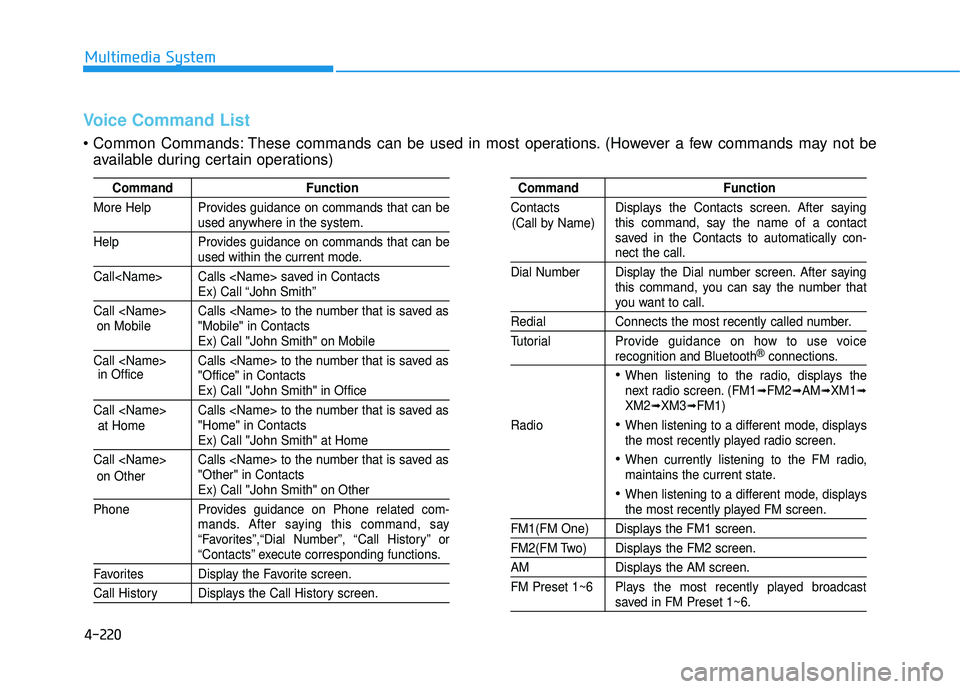
4-220
Multimedia System
Command Function
More Help Provides guidance on commands that can be
used anywhere in the system.
Help Provides guidance on commands that can be
used within the current mode.
Call Calls saved in Contacts
Ex) Call “John Smith”
Call Calls to the number that is saved as "Mobile" in Contacts
Ex) Call "John Smith" on Mobile
Call Calls to the number that is saved as "Office" in Contacts
Ex) Call "John Smith" in Office
Call Calls to the number that is saved as "Home" in Contacts
Ex) Call "John Smith" at Home
Call Calls to the number that is saved as "Other" in Contacts
Ex) Call "John Smith" on Other
Phone Provides guidance on Phone related com- mands. After saying this command, say
“Favorites”,“Dial Number”, “Call History” or
“Contacts” execute corresponding functions.
Favorites Display the Favorite screen.
Call History Displays the Call History screen.
Command Function
Contacts Displays the Contacts screen. After saying this command, say the name of a contact
saved in the Contacts to automatically con-
nect the call.
Dial Number Display the Dial number screen. After saying this command, you can say the number that
you want to call.
Redial Connects the most recently called number.
Tutorial Pro vide guidance on how to use voice
recognition and Bluetooth®connections.
When listening to the radio, displays the
next radio screen. (FM1➟FM2➟AM➟XM1➟XM2➟XM3➟FM1)
Radio
When listening to a different mode, displays
the most recently played radio screen.
When currently listening to the FM radio,
maintains the current state.
When listening to a different mode, displaysthe most recently played FM screen.
FM1(FM One) Displays the FM1 screen.
FM2(FM Two) Displays the FM2 screen.
AM Displays the AM screen.
FM Preset 1~6 Plays the most recently played broadcast
saved in FM Preset 1~6.
(Call by Name)
Voice Command List
These commands can be used in most operations. (However a few commands may not be
available during certain operations)
on Mobile
in Office
at Home
on Other
Page 432 of 653
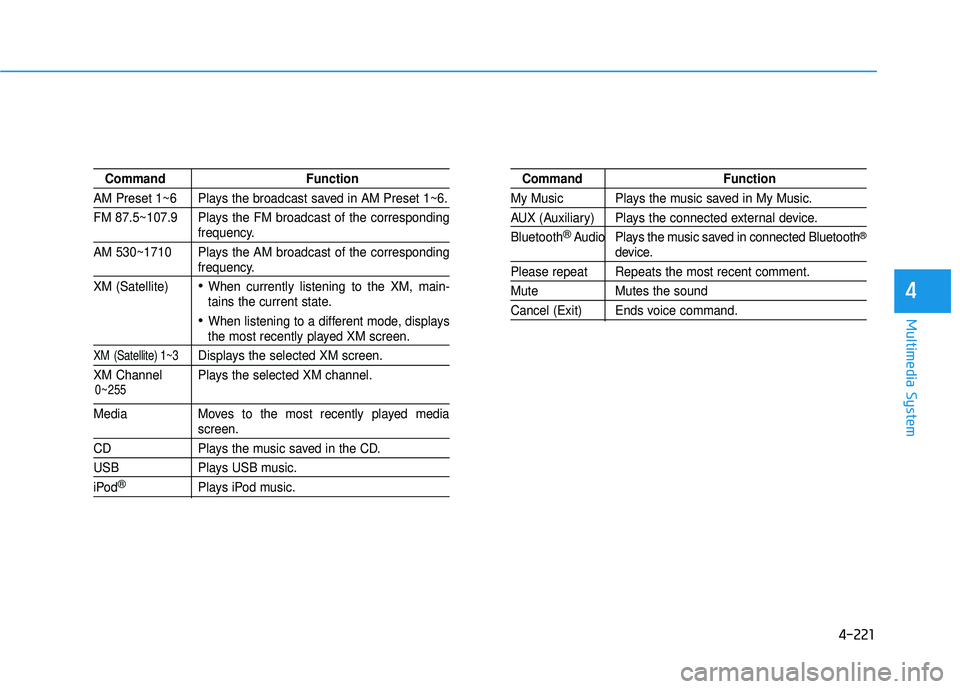
4-221
Multimedia System
4
Command Function
AM Preset 1~6 Plays the broadcast saved in AM Preset 1~6.
FM 87.5~107.9 Plays the FM broadcast of the corresponding
frequency.
AM 530~1710 Plays the AM broadcast of the corresponding
frequency.
XM (Satellite)
When currently listening to the XM, main-
tains the current state.
When listening to a different mode, displaysthe most recently played XM screen.
XM (Satellite) 1~3Displays the selected XM screen.
XM Channel Plays the selected XM channel.
Media Moves to the most recently played mediascreen.
CD Plays the music saved in the CD.
USB Plays USB music.
iPod®Plays iPod music.
Command Function
My Music Plays the music saved in My Music.
AUX (Auxiliary) Plays the connected external device. Bluetooth
®Audio Plays the music saved in connected Bluetooth®
device.
Please repeat Repeats the most recent comment.
Mute Mutes the sound
Cancel (Exit) Ends voice command.
0~255
Page 433 of 653
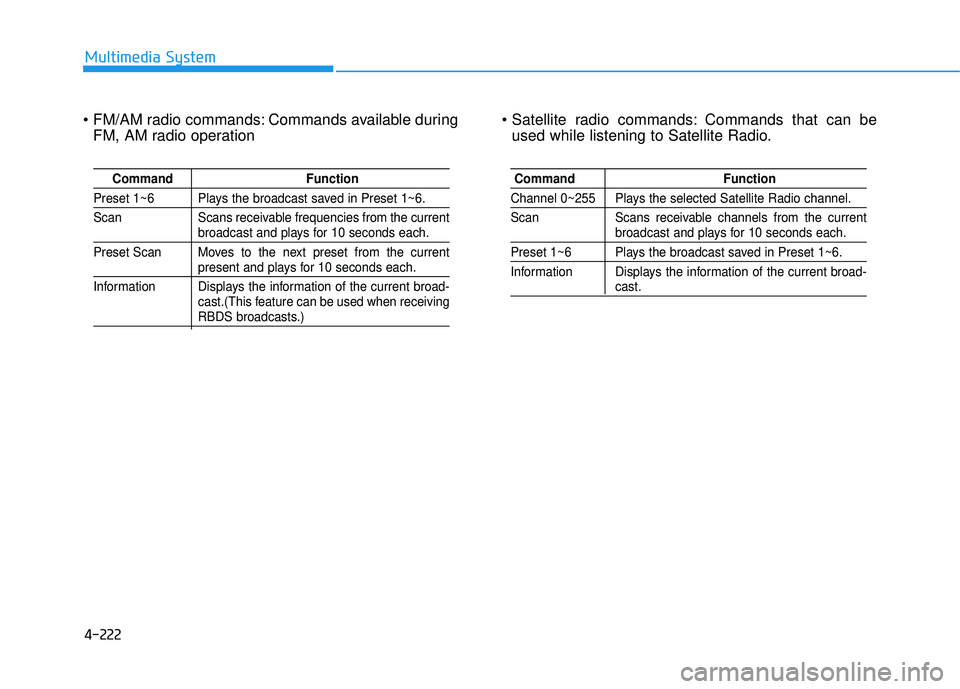
4-222
Multimedia System
Commands available duringFM, AM radio operation Commands that can be
used while listening to Satellite Radio.
Command Function
Preset 1~6 Plays the broadcast saved in Preset 1~6.
Scan Scans receivable frequencies from the current
broadcast and plays for 10 seconds each.
Preset Scan Moves to the next preset from the current
present and plays for 10 seconds each.
Information Displays the information of the current broad- cast.(This feature can be used when receiving
RBDS broadcasts.)
Command Function
Channel 0~255 Plays the selected Satellite Radio channel.
Scan Scans receivable channels from the current
broadcast and plays for 10 seconds each.
Preset 1~6 Plays the broadcast saved in Preset 1~6.
Information Displays the information of the current broad-
cast.
Page 436 of 653
4-225
Multimedia System
4
SSEE TT UU PP
Starting Mode
Press the key to display the Setup screen.
You can select and control options
related to [Display], [Sound],
[Clock/Calendar], [Phone] and[System].
Display Settings
Adjusting the Brightness
Press the key Select
[Display] Select [Brightness]
Use the , buttons to adjust the
screen brightness or set the
Brightness on Automatic, Daylight, or
Night mode.
Press the button to reset.
1) Automatic : Adjusts the brightness
automatically
2) Daylight : Always maintains the brightness on high
3) Night : Always maintains the
brightness on low
Pop-up Mode
Press the key Select
[Display] Select [Mode Pop up]
This feature is used to display the
Pop-up Mode screen when entering
radio and media modes.
When this feature is turned on, pressing the or key
will display the Pop-up Mode screen.
✽✽ NOTICE
The media Pop-up Mode screen can
be displayed only when two or more
media modes have been connected.
MEDIA RADIO
SETUP
Default
SETUP SETUP
Page 438 of 653
4-227
Multimedia System
4
Use the , , , buttons to
adjust the Fader/Balance settings.
Use the , buttons to adjust the
Bass/Middle/Treble settings.
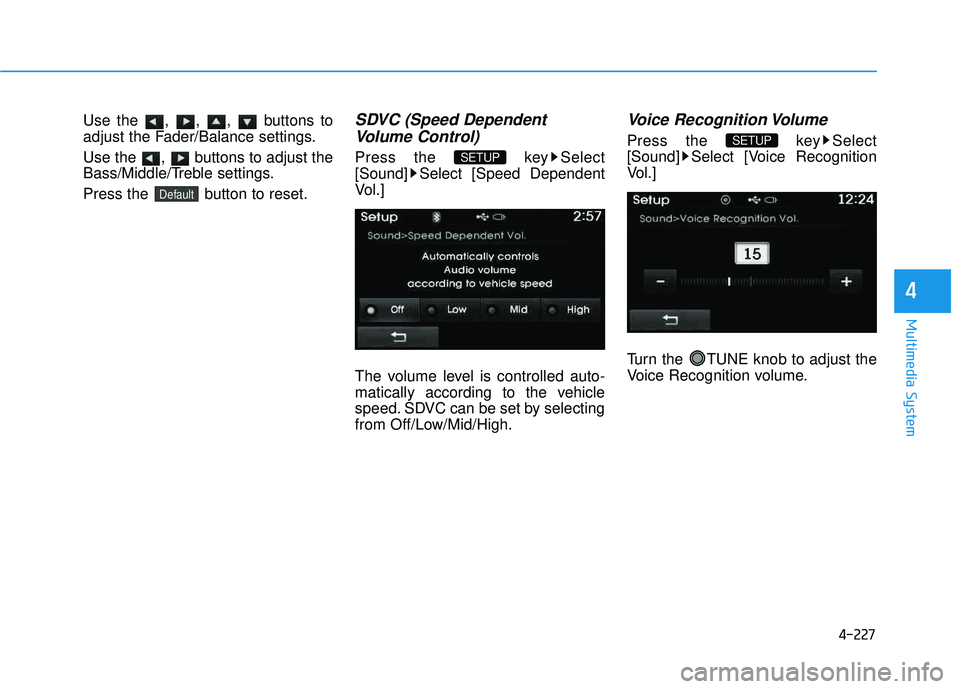
Press the button to reset.SDVC (Speed DependentVolume Control)
Press the key Select
[Sound] Select [Speed Dependent
Vol.]
The volume level is controlled auto-
matically according to the vehicle
speed. SDVC can be set by selecting
from Off/Low/Mid/High.
Voice Recognition Volume
Press the key Select
[Sound] Select [Voice Recognition
Vol.]
Turn the TUNE knob to adjust the
Voice Recognition volume.SETUP
SETUP
Default
![HYUNDAI TUCSON 2015 Owners Manual 4-225
Multimedia System
4
SSEE TT UU PP
Starting Mode
Press the key to display the Setup screen.
You can select and control options
related to [Display], [Sound],
[Clock/Calendar], [Phone] and[Syst](/manual-img/35/56202/w960_56202-435.png "HYUNDAI TUCSON 2015 Owners Manual 4-225
Multimedia System
4
SSEE TT UU PP
Starting Mode
Press the key to display the Setup screen.
You can select and control options
related to [Display], [Sound],
[Clock/Calendar], [Phone] and[Syst")