Page 427 of 653
4-216
Multimedia System
Outgoing Volume
Press the key Select
[Phone] Select [Outgoing Volume]
Use the , buttons to adjust the
outgoing volume level.
✽✽NOTICE
While on a call, the volume can be
changed by using the key.
Turning Bluetooth System Off
Press the key Select
[Phone] Select [Bluetooth SystemOff] Once
Bluetooth®Wireless Technology
is turned off,
Bluetooth®Wireless
Technology related features will not be
supported within the audio system.
SETUP
SEEK
TRACK
SETUP
Page 429 of 653
4-218
Multimedia System
VVOO IICC EE RR EECCOO GGNN IITT IIOO NN
Using Voice Recognition
Starting Voice Recognition
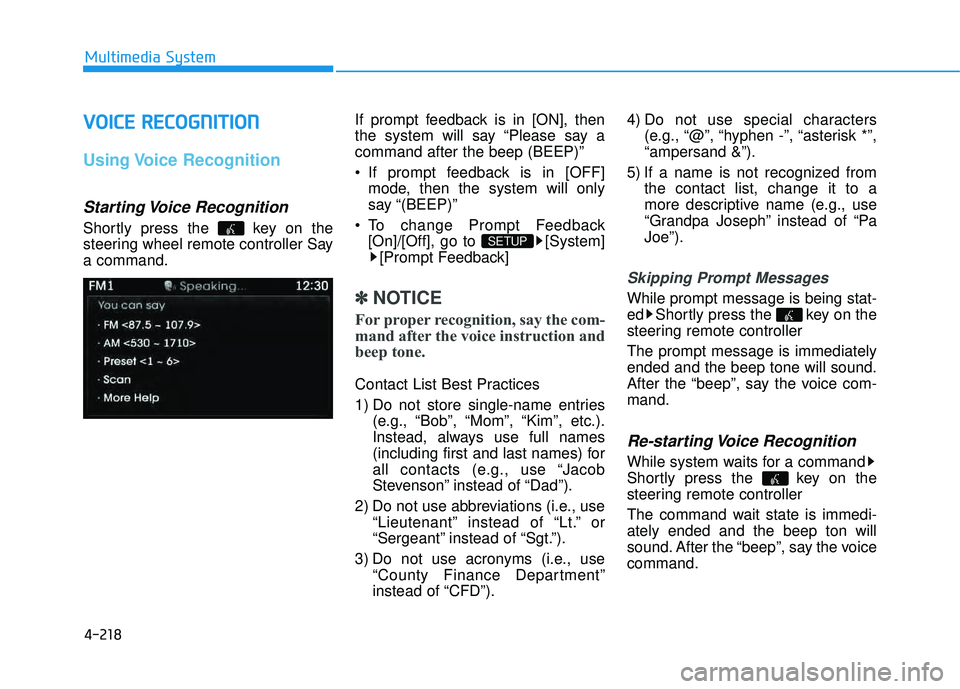
Shortly press the key on the
steering wheel remote controller Saya command. If prompt feedback is in [ON], then
the system will say “Please say acommand after the beep (BEEP)”
If prompt feedback is in [OFF]
mode, then the system will only
say “(BEEP)”
To change Prompt Feedback [On]/[Off], go to [System][Prompt Feedback]
✽✽ NOTICE
For proper recognition, say the com-
mand after the voice instruction and
beep tone.
Contact List Best Practices
1) Do not store single-name entries (e.g., “Bob”, “Mom”, “Kim”, etc.).
Instead, always use full names
(including first and last names) for
all contacts (e.g., use “Jacob
Stevenson” instead of “Dad”).
2) Do not use abbreviations (i.e., use “Lieutenant” instead of “Lt.” or
“Sergeant” instead of “Sgt.”).
3) Do not use acronyms (i.e., use “County Finance Department”
instead of “CFD”). 4) Do not use special characters
(e.g., “@”, “hyphen -”, “asterisk *”,“ampersand &”).
5) If a name is not recognized from the contact list, change it to a
more descriptive name (e.g., use
“Grandpa Joseph” instead of “PaJoe”).
Skipping Prompt Messages
While prompt message is being stat-
ed Shortly press the key on the
steering remote controller The prompt message is immediately ended and the beep tone will sound.
After the “beep”, say the voice com-mand.
Re-starting Voice Recognition
While system waits for a command
Shortly press the key on the
steering remote controller
The command wait state is immedi- ately ended and the beep ton will
sound. After the “beep”, say the voicecommand.
SETUP
Page 430 of 653
4-219
Multimedia System
4
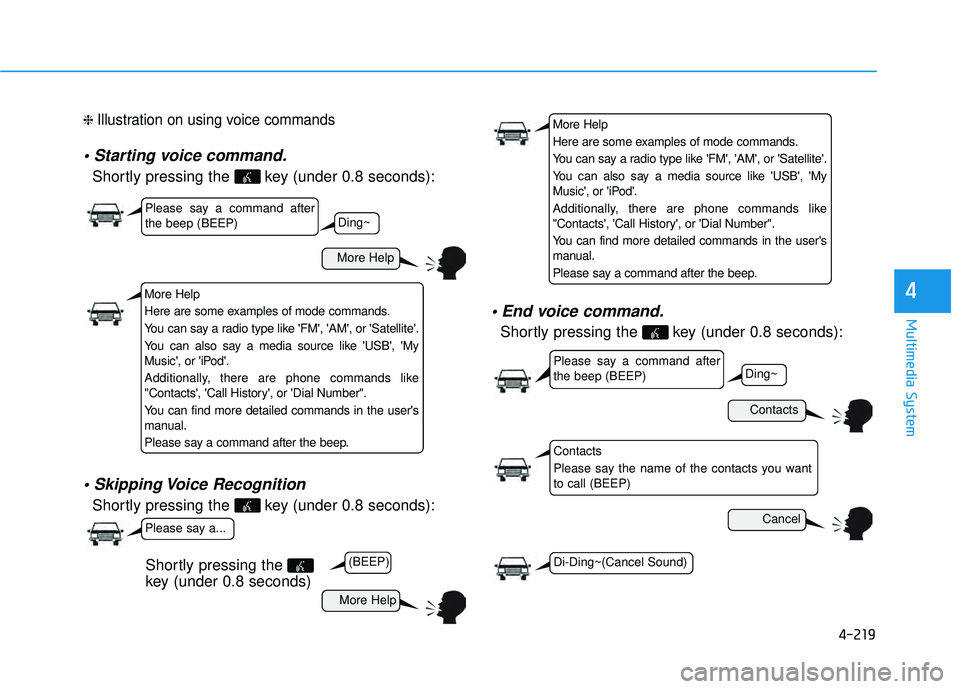
❈ Illustration on using voice commands
Shortly pressing the key (under 0.8 seconds):
Shortly pressing the key (under 0.8 seconds):
Shortly pressing the key (under 0.8 seconds):
More Help
Contacts
Cancel
More Help
Please say a command after the beep (BEEP)
Please say a command after the beep (BEEP)
Please say a...
Contacts
Please say the name of the contacts you want to call (BEEP)
Ding~
(BEEP)
Ding~
Di-Ding~(Cancel Sound)
Shortly pressing the
key (under 0.8 seconds)
More Help
Here are some examples of mode commands.
You can say a radio type like 'FM', 'AM', or 'Satellite'.
You can also say a media source like 'USB', 'My
Music', or 'iPod'.
Additionally, there are phone commands like
"Contacts', 'Call History', or 'Dial Number".
You can find more detailed commands in the user's
manual.
Please say a command after the beep.
More Help
Here are some examples of mode commands.
You can say a radio type like 'FM', 'AM', or 'Satellite'.
You can also say a media source like 'USB', 'My
Music', or 'iPod'.
Additionally, there are phone commands like
"Contacts', 'Call History', or 'Dial Number".
You can find more detailed commands in the user's
manual.
Please say a command after the beep.
Page 436 of 653
4-225
Multimedia System
4
SSEE TT UU PP
Starting Mode
Press the key to display the Setup screen.
You can select and control options
related to [Display], [Sound],
[Clock/Calendar], [Phone] and[System].
Display Settings
Adjusting the Brightness
Press the key Select
[Display] Select [Brightness]
Use the , buttons to adjust the
screen brightness or set the
Brightness on Automatic, Daylight, or
Night mode.
Press the button to reset.
1) Automatic : Adjusts the brightness
automatically
2) Daylight : Always maintains the brightness on high
3) Night : Always maintains the
brightness on low
Pop-up Mode
Press the key Select
[Display] Select [Mode Pop up]
This feature is used to display the
Pop-up Mode screen when entering
radio and media modes.
When this feature is turned on, pressing the or key
will display the Pop-up Mode screen.
✽✽ NOTICE
The media Pop-up Mode screen can
be displayed only when two or more
media modes have been connected.
MEDIA RADIO
SETUP
Default
SETUP SETUP
Page 437 of 653
4-226
Multimedia System
Text Scroll
Press the key Select
[Display] Select [Text Scroll]
This feature is used to scroll text dis-
played on the screen when it is too
long to be displayed at once.
When turned on, the text is repeat-
edly scrolled. When turned off, the
text is scrolled just once.
MP3 Information Display
Press the key Select
[Display] Select [Media Display]
This feature is used to change the
information displayed within USB
and MP3 CD modes.
1) Folder File : Displays file nameand folder name
2) Album Artist Song : Displays album name/artist name/song
Sound Settings
Sound Settings
Press the key Select
[Sound] Select [Sound Setting]SETUP
SETUP
SETUP
Page 438 of 653
4-227
Multimedia System
4
Use the , , , buttons to
adjust the Fader/Balance settings.
Use the , buttons to adjust the
Bass/Middle/Treble settings.
Press the button to reset.SDVC (Speed DependentVolume Control)
Press the key Select
[Sound] Select [Speed Dependent
Vol.]
The volume level is controlled auto-
matically according to the vehicle
speed. SDVC can be set by selecting
from Off/Low/Mid/High.
Voice Recognition Volume
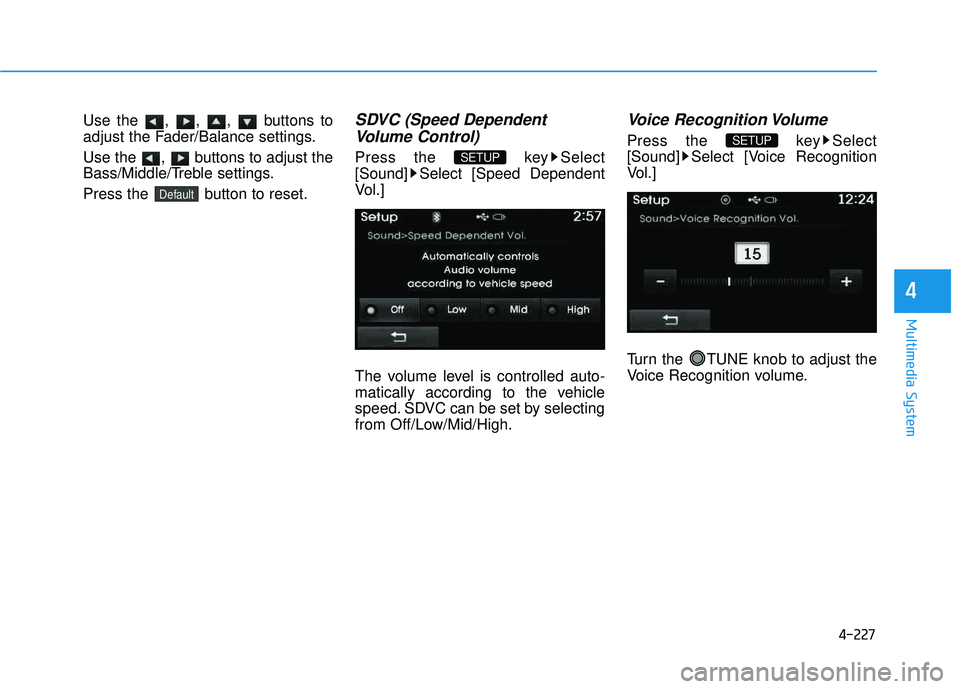
Press the key Select
[Sound] Select [Voice Recognition
Vol.]
Turn the TUNE knob to adjust the
Voice Recognition volume.SETUP
SETUP
Default
Page 439 of 653
4-228
Multimedia System
Touch Screen Beep
Press the key Select
[Sound] Select [Touch Screen Beep]
This feature is used to turn the touch
screen beep on/off.
Blue Link Voice Volume
Press the key Select
[Sound] Select [Blue Link Voice Vol.]
Turn the TUNE knob to adjust the
Blue Link Voice Volume. ❈ Blue Link
®may differ depending
on the selected audio.
Clock/Calendar Setting
Clock Setting
Press the key Select
[Clock/Calendar] Select [ClockSettings]
Use the , buttons to set the
Hour, Minutes and AM/PM setting.
✽✽ NOTICE
Press and hold the key (over
0.8 seconds) to set the Clock/Calendar
screen.
CLOCK
SETUP
SETUP SETUP
Page 440 of 653
4-229
Multimedia System
4
Calendar Setting
Press the key Select
[Clock/Calendar] Select [CalendarSettings]
Use the , buttons to set the
Month, Day and Year setting.
Time Format
Press the key Select
[Clock/Calendar] Select [Time Format]
This feature is used to change the
clock format between 12hr or 24hr.
Clock Display
Press the key Select
[Clock/Calendar] Select [Clock Display
(Power off)]
This feature is used to display a clock on the screen when the audio sys-
tem is turned off.SETUP SETUP SETUP
![HYUNDAI TUCSON 2015 Owners Manual 4-216
Multimedia System
Outgoing Volume
Press the key Select
[Phone] Select [Outgoing Volume]
Use the , buttons to adjust the
outgoing volume level.
✽✽NOTICE
While on a call, the volume can](/manual-img/35/56202/w960_56202-426.png "HYUNDAI TUCSON 2015 Owners Manual 4-216
Multimedia System
Outgoing Volume
Press the key Select
[Phone] Select [Outgoing Volume]
Use the , buttons to adjust the
outgoing volume level.
✽✽NOTICE
While on a call, the volume can")
![HYUNDAI TUCSON 2015 Owners Manual 4-225
Multimedia System
4
SSEE TT UU PP
Starting Mode
Press the key to display the Setup screen.
You can select and control options
related to [Display], [Sound],
[Clock/Calendar], [Phone] and[Syst](/manual-img/35/56202/w960_56202-435.png "HYUNDAI TUCSON 2015 Owners Manual 4-225
Multimedia System
4
SSEE TT UU PP
Starting Mode
Press the key to display the Setup screen.
You can select and control options
related to [Display], [Sound],
[Clock/Calendar], [Phone] and[Syst")
![HYUNDAI TUCSON 2015 Owners Manual 4-226
Multimedia System
Text Scroll
Press the key Select
[Display] Select [Text Scroll]
This feature is used to scroll text dis-
played on the screen when it is too
long to be displayed at once.](/manual-img/35/56202/w960_56202-436.png "HYUNDAI TUCSON 2015 Owners Manual 4-226
Multimedia System
Text Scroll
Press the key Select
[Display] Select [Text Scroll]
This feature is used to scroll text dis-
played on the screen when it is too
long to be displayed at once.")
![HYUNDAI TUCSON 2015 Owners Manual 4-228
Multimedia System
Touch Screen Beep
Press the key Select
[Sound] Select [Touch Screen Beep]
This feature is used to turn the touch
screen beep on/off.
Blue Link Voice Volume
Press the key](/manual-img/35/56202/w960_56202-438.png "HYUNDAI TUCSON 2015 Owners Manual 4-228
Multimedia System
Touch Screen Beep
Press the key Select
[Sound] Select [Touch Screen Beep]
This feature is used to turn the touch
screen beep on/off.
Blue Link Voice Volume
Press the key")
![HYUNDAI TUCSON 2015 Owners Manual 4-229
Multimedia System
4
Calendar Setting
Press the key Select
[Clock/Calendar] Select [CalendarSettings]
Use the , buttons to set the
Month, Day and Year setting.
Time Format
Press the key Se](/manual-img/35/56202/w960_56202-439.png "HYUNDAI TUCSON 2015 Owners Manual 4-229
Multimedia System
4
Calendar Setting
Press the key Select
[Clock/Calendar] Select [CalendarSettings]
Use the , buttons to set the
Month, Day and Year setting.
Time Format
Press the key Se")