2015 HYUNDAI TUCSON Esc
[x] Cancel search: EscPage 128 of 653
3-42
Electric Power Steering (EPS)
This system assists you with steering
the vehicle.
If the engine is turned off or if the
EPS becomes inoperative, you may
still steer the vehicle, but it will
require increased steering effort.
Should you notice any change in the
effort required to steer during normal
vehicle operation, have the EPS
checked by an authorized HYUNDAI
dealer.
✽✽NOTICE
The steering effort may be high immediately after placing the igni-
tion switch in the ON position.
This happens as the system per-
forms the EPS system diagnostics.
When the diagnostics is complet-
ed, the steering wheel will return
to its normal condition.
A click noise may be heard from the EPS relay after the ignition
switch is placed in the ON or
LOCK/OFF position.
A motor noise may be heard when the vehicle is at a stop or at a low
driving speed.
When you operate the steering wheel in low temperature, abnor-
mal noise may occur. If tempera-
ture rises, the noise will disappear.
This is a normal condition.Tilt steering/Telescope steering
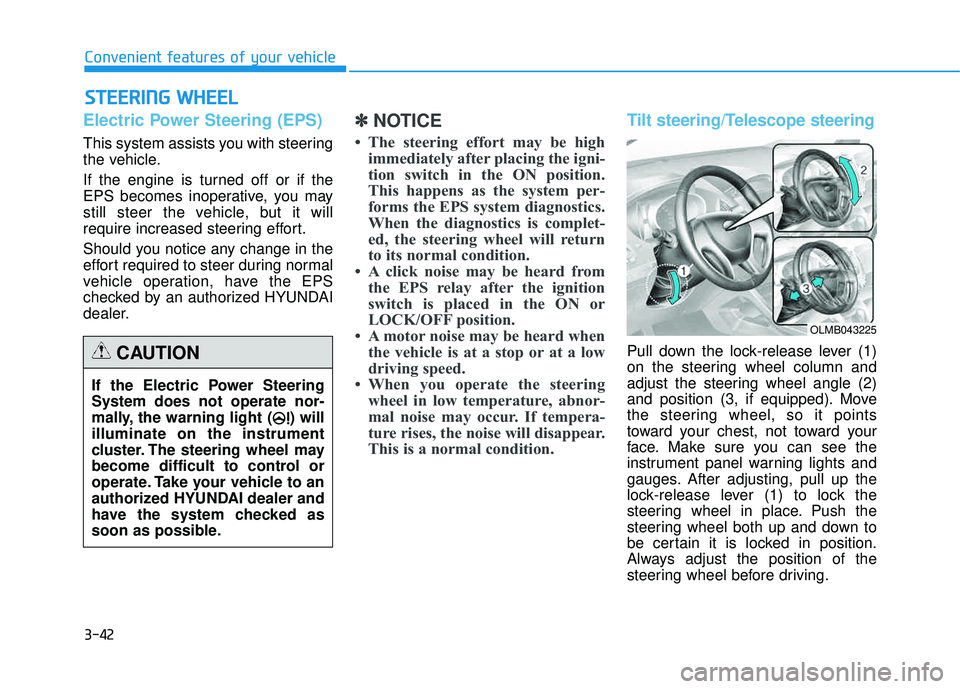
Pull down the lock-release lever (1)
on the steering wheel column and
adjust the steering wheel angle (2)
and position (3, if equipped). Move
the steering wheel, so it points
toward your chest, not toward your
face. Make sure you can see the
instrument panel warning lights and
gauges. After adjusting, pull up the
lock-release lever (1) to lock the
steering wheel in place. Push the
steering wheel both up and down to
be certain it is locked in position.
Always adjust the position of the
steering wheel before driving.
SSTT EEEERR IINN GG WW HHEEEELL
Convenient features of your vehicle
If the Electric Power Steering System does not operate nor-
mally, the warning light ( ) willilluminate on the instrument
cluster. The steering wheel may
become difficult to control or
operate. Take your vehicle to an
authorized HYUNDAI dealer and
have the system checked as
soon as possible.
CAUTION
OLMB043225
Page 168 of 653
3-82
Convenient features of your vehicle
Headlight escort function
If the key is removed from the ignition
switch or placed in the ACC positionor the LOCK/OFF position with theheadlights ON, the headlights (and/or
parking lights) remain on for about 5
minutes. However, if the driver’s dooris opened and closed, the headlights
are turned off after 15 seconds.
The headlights can be turned off by
pressing the LOCK button on the
remote key or smart key twice or
turning the light switch to the OFF or
AUTO position. However, if you turn
the light switch to the AUTO position
when it is dark outside, the head-
lights will not be turned off.
Headlight welcome function
When the headlight switch is in the
ON position or in the AUTO positionand all doors (and tailgate) are closed
and locked, if you press the door
unlock button on the remote transmit-
ter or smart key, the headlights will
come on for about 15 seconds.
If the headlight switch is in the AUTO position, the function can only oper-ate at night.
To turn off the headlights immediately,
do one of the following:
Press the door lock button.
Press the unlock button twice with-in 4 seconds.
Press the unlock button once more after 4 seconds.
If the driver gets out of the vehi-
cle through other doors (except
the driver’s door), the battery
saver function does not operate
and the headlight escort function
does not turn off automatically.
Therefore, it causes the battery
to be discharged. In this case,make sure to turn off the lamp
before getting out of the vehicle.CAUTION
Page 186 of 653
3-100
Convenient features of your vehicle
✽✽NOTICE
When using the air conditioning system, monitor the engine temper-
ature gauge closely while driving
up hills or in heavy traffic when
outside temperatures are high. Air
conditioning system operation may
cause engine overheating.
Continue to use the blower fan but
turn the air conditioning system off
if the engine temperature gauge
indicates engine overheating.
When opening the windows in humid weather, air conditioning
may create water droplets inside
the vehicle. Since excessive water
droplets may cause damage to
electrical equipment, air condi-
tioning should only be operated
with the windows closed. Air conditioning system operation
tips
If the vehicle has been parked in
direct sunlight during hot weather,
open the windows for a short time
to let the hot air inside the vehicle
escape.
To help reduce moisture inside of the windows on rainy or humid
days, decrease the humidity inside
the vehicle by operating the airconditioning system.
During air conditioning system operation, you may occasionallynotice a slight change in enginespeed as the air conditioning com-
pressor cycles. This is a normal
system operation characteristic.
Use the air conditioning system every month for a few minutes to
ensure maximum system perform-
ance. When using the air conditioning
system, you may notice clear water
dripping (or even puddling) on the
ground under the passenger side
of the vehicle. This is a normal sys-
tem operation characteristic.
Operating the air conditioning sys- tem in the recirculated air position
provides maximum cooling, how-
ever, continual operation in this
mode may cause the air inside the
vehicle to become stale.
During cooling operation, you may occasionally notice a misty air flow
because of rapid cooling and
humid air intake. This is a normal
system operation characteristics.
Page 214 of 653
4-3
Multimedia System
Steering wheel audio control (if equipped)
The steering wheel may incorporate
audio control buttons. These buttons
are installed to promote safe driving.
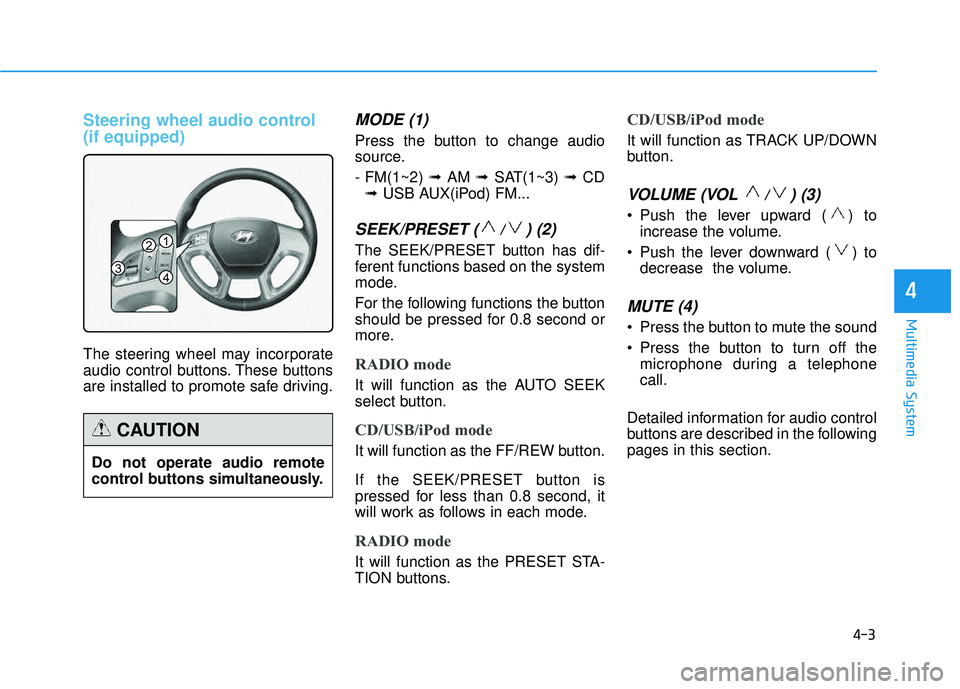
MODE (1)
Press the button to change audio
source. - FM(1~2) ➟ AM ➟ SAT(1~3) ➟ CD
➟ USB AUX(iPod) FM...
SEEK/PRESET ( / ) (2)
The SEEK/PRESET button has dif-
ferent functions based on the system
mode.
For the following functions the button
should be pressed for 0.8 second or
more.
RADIO mode
It will function as the AUTO SEEK
select button.
CD/USB/iPod mode
It will function as the FF/REW button.
If the SEEK/PRESET button is
pressed for less than 0.8 second, it
will work as follows in each mode.
RADIO mode
It will function as the PRESET STA-
TION buttons.
CD/USB/iPod mode
It will function as TRACK UP/DOWN
button.
VOLUME (VOL / ) (3)
• Push the lever upward ( ) to
increase the volume.
Push the lever downward ( ) to decrease the volume.
MUTE (4)
Press the button to mute the sound
Press the button to turn off themicrophone during a telephone call.
Detailed information for audio control
buttons are described in the followingpages in this section.
4
1
3
2
4
Do not operate audio remote
control buttons simultaneously.
CAUTION
Page 236 of 653
4-25
Multimedia System
4
XXMM RR AA DDIIOO
Using XM satellite™ Radio
Your vehicle is equipped with a 3
month complimentary period of XM
Satellite™ Radio. XM provides
access to over 130 channels of
music, information, and entertain-
ment programming.
SEEK
Press the key
select
previous or next channel.
0.8 seconds): continuously move to
previous or next channel.
❈ If the “Category” icon is displayed,channels are changed within the
current category.
SCAN
Press the key
Previews
each broadcast for 5 seconds each
❈ Press the key again to
continue listening to the currentfrequency
❈ If the “Category” icon is displayed,channels are changed within the
current category.
Category
Press the /key
Set through the
TUNEknob
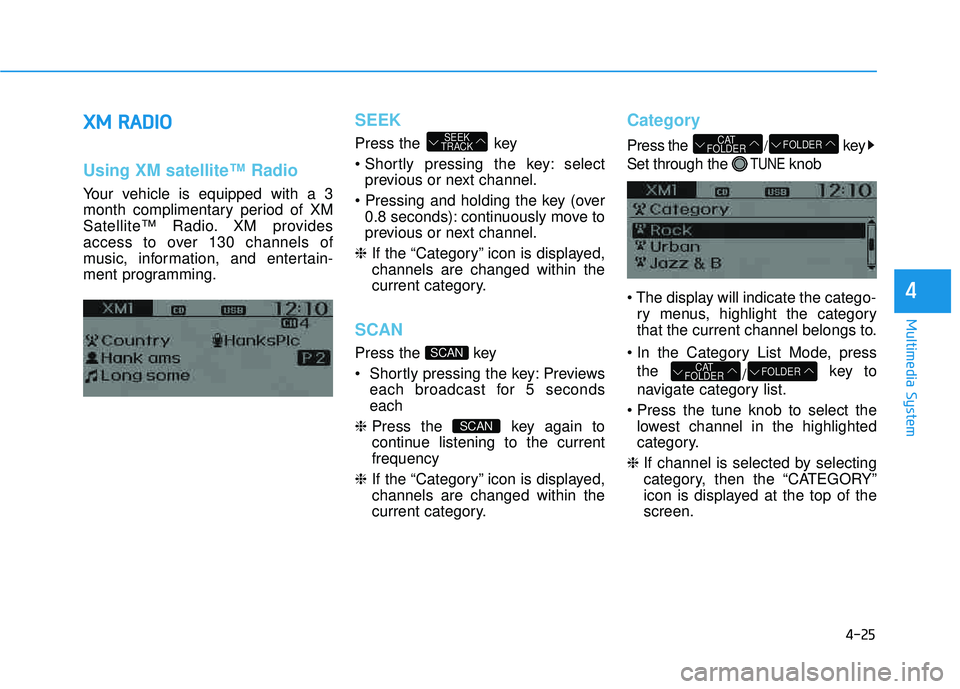
ry menus, highlight the category
that the current channel belongs to.
the /key to
navigate category list.
lowest channel in the highlighted
category.
❈ If channel is selected by selecting
category, then the “CATEGORY”
icon is displayed at the top of thescreen.
FOLDERCAT
FOLDER
FOLDERCAT
FOLDER
SCAN
SCAN
SEEK
TRACK
Page 250 of 653
4-39
Multimedia System
4
✽✽NOTICE
If Bluetooth ®
Wireless Technology
devices are paired but none are cur-
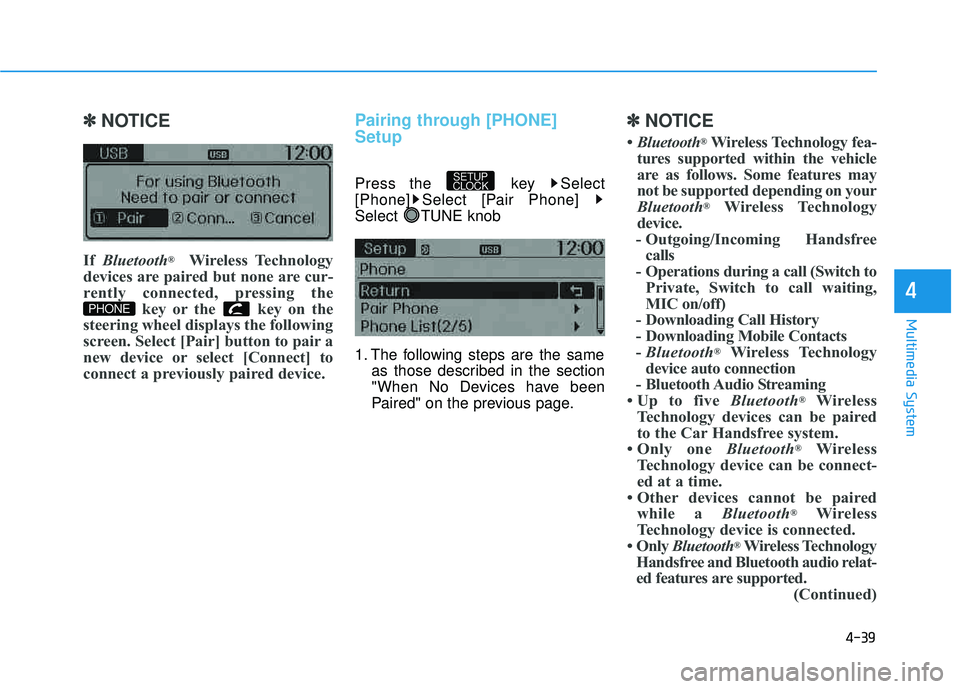
rently connected, pressing the key or the key on the
steering wheel displays the following
screen. Select [Pair] button to pair a
new device or select [Connect] to
connect a previously paired device.Pairing through [PHONE] Setup
Press the key Select
[Phone] Select [Pair Phone]
Select TUNE knob
1. The following steps are the same as those described in the section
"When No Devices have been
Paired" on the previous page.
✽✽ NOTICE
Bluetooth ®
Wireless Technology fea-
tures supported within the vehicle
are as follows. Some features may
not be supported depending on your
Bluetooth ®
Wireless Technology
device.
- Outgoing/Incoming Handsfree calls
- Operations during a call (Switch to Private, Switch to call waiting,
MIC on/off)
- Downloading Call History
- Downloading Mobile Contacts- Bluetooth ®
Wireless Technology
device auto connection
- Bluetooth Audio Streaming
Up to five Bluetooth®
Wireless
Technology devices can be paired
to the Car Handsfree system.
Only one Bluetooth®
Wireless
Technology device can be connect-
ed at a time.
Other devices cannot be paired while a Bluetooth®
Wireless
Technology device is connected.
Only Bluetooth ®
Wireless Technology
Handsfree and Bluetooth audio relat-
ed features are supported. (Continued)
SETUP
CLOCK
PHONE
Page 261 of 653
4-50
Multimedia System
VVOO IICC EE RR EECCOO GGNN IITT IIOO NN
Using Voice Recognition
Starting Voice Recognition
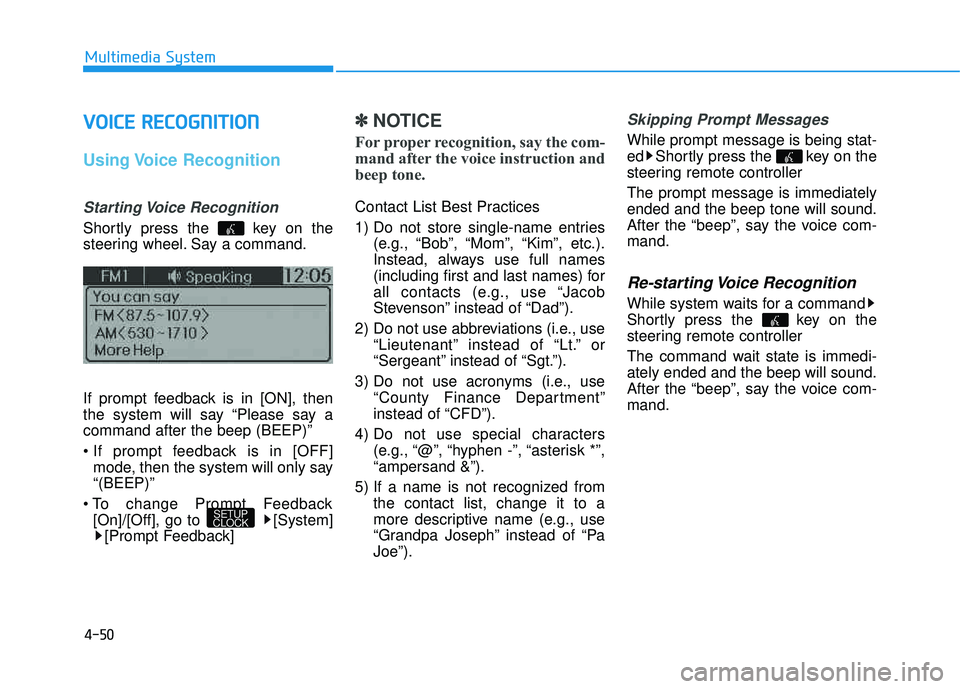
Shortly press the key on the
steering wheel. Say a command.
If prompt feedback is in [ON], then
the system will say “Please say acommand after the beep (BEEP)”
mode, then the system will only say “(BEEP)”
[On]/[Off], go to [System] [Prompt Feedback]
✽✽ NOTICE
For proper recognition, say the com-
mand after the voice instruction and
beep tone.
Contact List Best Practices
1) Do not store single-name entries (e.g., “Bob”, “Mom”, “Kim”, etc.).
Instead, always use full names
(including first and last names) for
all contacts (e.g., use “Jacob
Stevenson” instead of “Dad”).
2) Do not use abbreviations (i.e., use “Lieutenant” instead of “Lt.” or
“Sergeant” instead of “Sgt.”).
3) Do not use acronyms (i.e., use “County Finance Department”
instead of “CFD”).
4) Do not use special characters (e.g., “@”, “hyphen -”, “asterisk *”,“ampersand &”).
5) If a name is not recognized from the contact list, change it to a
more descriptive name (e.g., use
“Grandpa Joseph” instead of “PaJoe”).
Skipping Prompt Messages
While prompt message is being stat-
ed Shortly press the key on the
steering remote controller The prompt message is immediately ended and the beep tone will sound.
After the “beep”, say the voice com-mand.
Re-starting Voice Recognition
While system waits for a command
Shortly press the key on the
steering remote controller
The command wait state is immedi- ately ended and the beep will sound.
After the “beep”, say the voice com-mand.
SETUP
CLOCK
Page 307 of 653
![HYUNDAI TUCSON 2015 Owners Manual 4-96
Multimedia System
[Non SSP supported device]
(SSP: Secure Simple Pairing)
4. After a few moments, a screen isdisplayed where the passkey is entered.
Hear, enter the passkey “0000” to
pair yo](/manual-img/35/56202/w960_56202-306.png "HYUNDAI TUCSON 2015 Owners Manual 4-96
Multimedia System
[Non SSP supported device]
(SSP: Secure Simple Pairing)
4. After a few moments, a screen isdisplayed where the passkey is entered.
Hear, enter the passkey “0000” to
pair yo")
4-96
Multimedia System
[Non SSP supported device]
(SSP: Secure Simple Pairing)
4. After a few moments, a screen isdisplayed where the passkey is entered.
Hear, enter the passkey “0000” to
pair your
Bluetooth®Wireless
Technology device with the caraudio system.
[SSP supported device]
4. After a few moments, a screen is displayed 6 digits passkey.
Hear, check the passkey on your
Bluetooth®Wireless Technology
device and confirm.
5. Once pairing is complete, the fol- lowing screen is displayed.
✽✽ NOTICE
If Bluetooth ®
Wireless Technology
devices are paired but none are cur-
rently connected, pressing the key or the key on the
steering wheel displays the following
screen. Press the [Pair] button to
pair a new device or press the
[Connect] to connect a previously
paired device.Pairing through [PHONE] Setup
Press the key Select
[Phone] Select [Pair Phone]
Select TUNE knob
1. The following steps are the same as those described in the section
"When No Devices have been
Paired" on the previous page.SETUP
PHONE