Page 418 of 603
5-60
Driving your vehicle
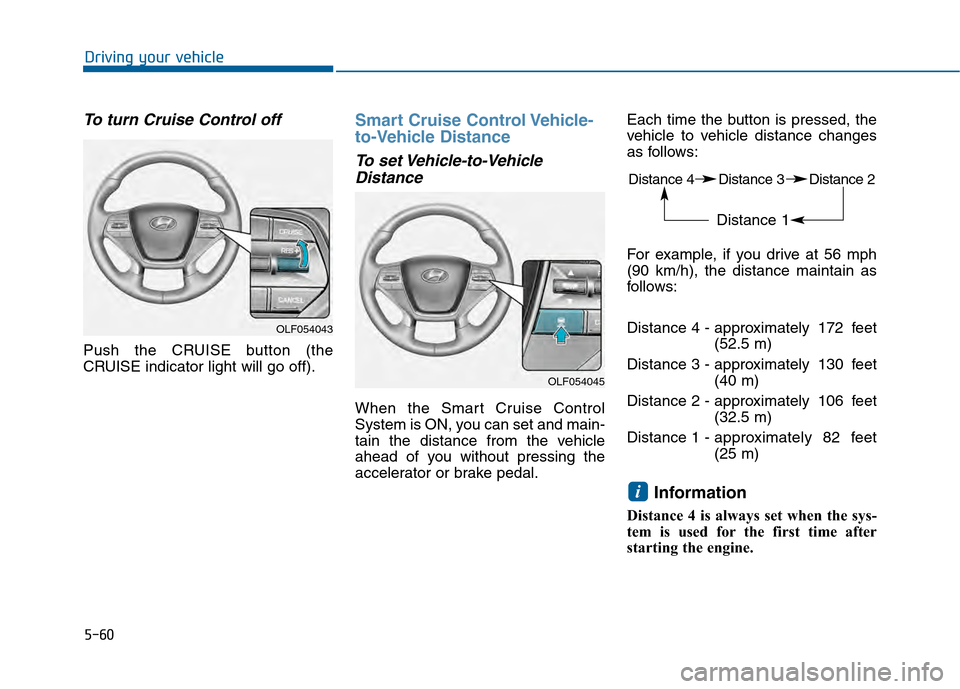
To turn Cruise Control off
Push the CRUISE button (the
CRUISE indicator light will go off).
Smart Cruise Control Vehicle-
to-Vehicle Distance
To set Vehicle-to-VehicleDistance
When the Smart Cruise Control
System is ON, you can set and main-
tain the distance from the vehicle
ahead of you without pressing the
accelerator or brake pedal. Each time the button is pressed, the
vehicle to vehicle distance changes
as follows:
For example, if you drive at 56 mph
(90 km/h), the distance maintain as
follows:
Distance 4 - approximately 172 feet
(52.5 m)
Distance 3 - approximately 130 feet (40 m)
Distance 2 - approximately 106 feet (32.5 m)
Distance 1 - approximately 82 feet
(25 m)
Information
Distance 4 is always set when the sys-
tem is used for the first time after
starting the engine.
i
OLF054043
OLF054045
Distance 4 Distance 3 Distance 2
Distance 1
Page 420 of 603
5-62
Driving your vehicle
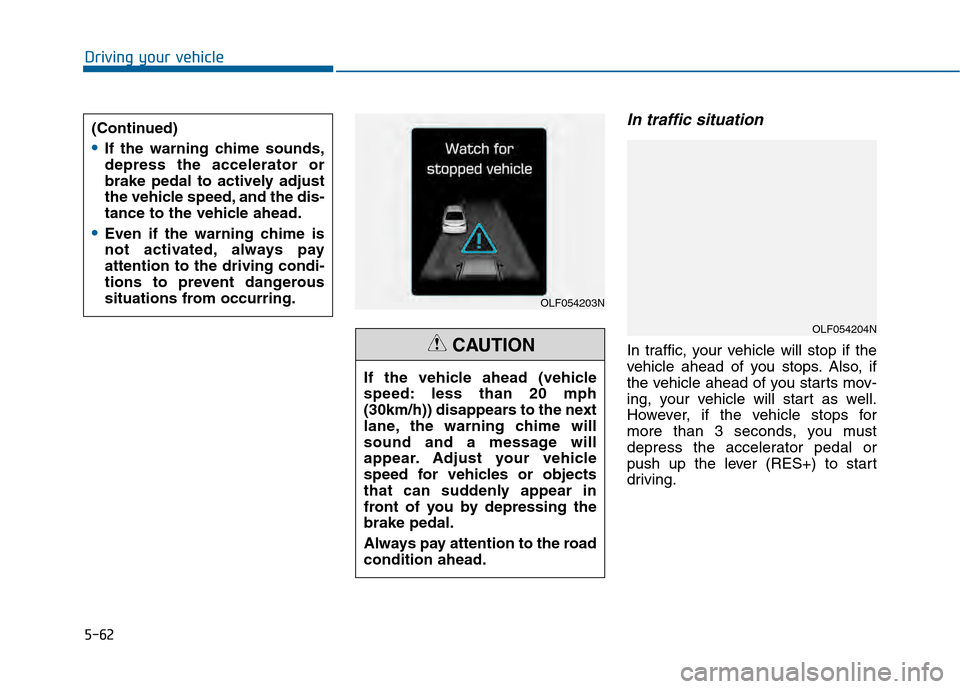
In traffic situation
In traffic, your vehicle will stop if the
vehicle ahead of you stops. Also, if
the vehicle ahead of you starts mov-
ing, your vehicle will start as well.
However, if the vehicle stops for
more than 3 seconds, you must
depress the accelerator pedal or
push up the lever (RES+) to start
driving.
(Continued)
If the warning chime sounds,
depress the accelerator or
brake pedal to actively adjust
the vehicle speed, and the dis-
tance to the vehicle ahead.
Even if the warning chime is
not activated, always pay
attention to the driving condi-
tions to prevent dangerous
situations from occurring.
OLF054203N
OLF054204N
If the vehicle ahead (vehicle
speed: less than 20 mph
(30km/h)) disappears to the next
lane, the warning chime will
sound and a message will
appear. Adjust your vehicle
speed for vehicles or objects
that can suddenly appear in
front of you by depressing the
brake pedal.
Always pay attention to the road
condition ahead.
CAUTION
Page 422 of 603
5-64
Driving your vehicle
Limitations of the System
The Smart Cruise Control System
may have limits to its ability to detect
distance to the vehicle ahead due to
road and traffic conditions.
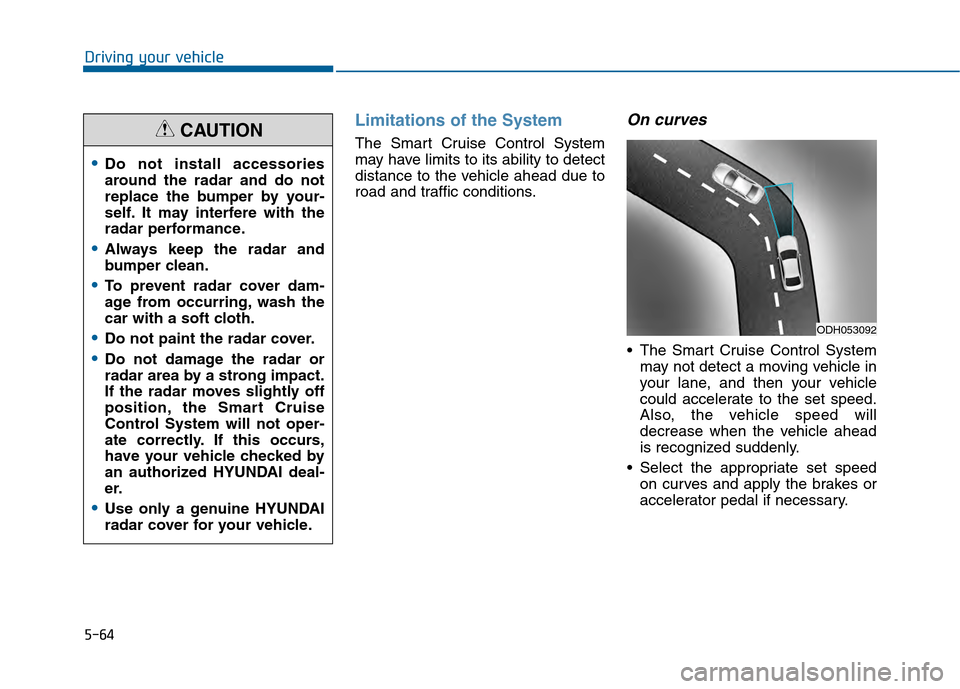
On curves
The Smart Cruise Control Systemmay not detect a moving vehicle in
your lane, and then your vehicle
could accelerate to the set speed.
Also, the vehicle speed will
decrease when the vehicle ahead
is recognized suddenly.
Select the appropriate set speed on curves and apply the brakes or
accelerator pedal if necessary.
Do not install accessories
around the radar and do not
replace the bumper by your-
self. It may interfere with the
radar performance.
Always keep the radar and
bumper clean.
To prevent radar cover dam-
age from occurring, wash the
car with a soft cloth.
Do not paint the radar cover.
Do not damage the radar or
radar area by a strong impact.
If the radar moves slightly off
position, the Smart Cruise
Control System will not oper-
ate correctly. If this occurs,
have your vehicle checked by
an authorized HYUNDAI deal-
er.
Use only a genuine HYUNDAI
radar cover for your vehicle.
CAUTION
ODH053092
Page 423 of 603
5-65
Driving your vehicle
5
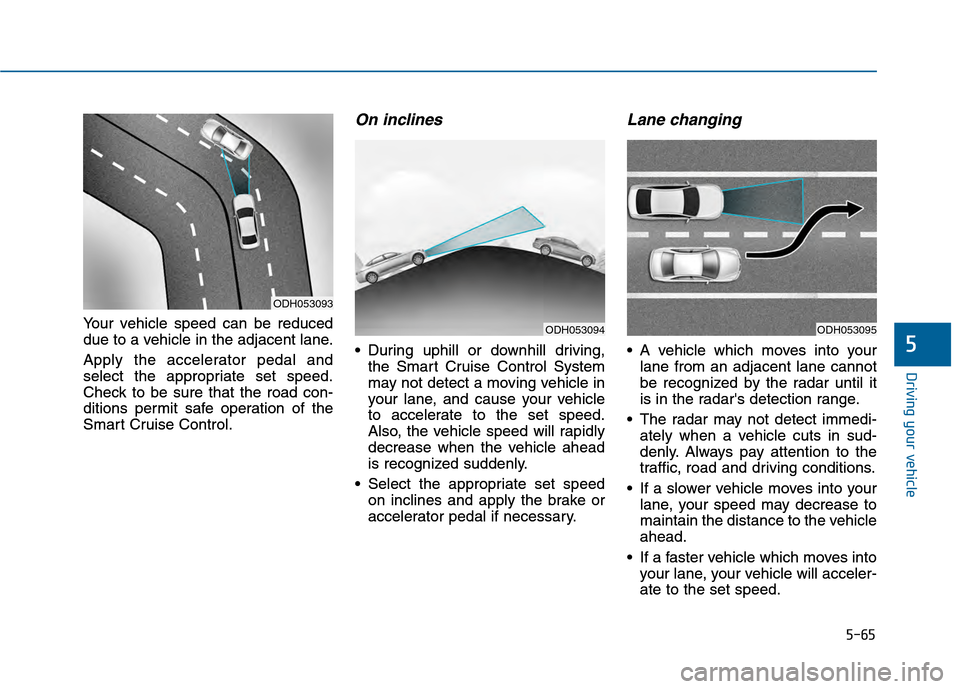
Your vehicle speed can be reduced
due to a vehicle in the adjacent lane.
Apply the accelerator pedal and
select the appropriate set speed.
Check to be sure that the road con-
ditions permit safe operation of the
Smart Cruise Control.
On inclines
During uphill or downhill driving,the Smart Cruise Control System
may not detect a moving vehicle in
your lane, and cause your vehicle
to accelerate to the set speed.
Also, the vehicle speed will rapidly
decrease when the vehicle ahead
is recognized suddenly.
Select the appropriate set speed on inclines and apply the brake or
accelerator pedal if necessary.
Lane changing
A vehicle which moves into yourlane from an adjacent lane cannot
be recognized by the radar until it
is in the radar's detection range.
The radar may not detect immedi- ately when a vehicle cuts in sud-
denly. Always pay attention to the
traffic, road and driving conditions.
If a slower vehicle moves into your lane, your speed may decrease to
maintain the distance to the vehicle
ahead.
If a faster vehicle which moves into your lane, your vehicle will acceler-
ate to the set speed.
Your vehicle speed can be reduced
due to a vehicle in the adjacent lane.
Apply the accelerator pedal and
select the appropriate set speed.
Check to be sure that the road con-
ditions permit safe operation of the
Smart Cruise Control.
On inclines
During uphill or downhill driving,
the Smart Cruise Control System
may not detect a moving vehicle in
your lane, and cause your vehicle
to accelerate to the set speed.
Also, the vehicle speed will rapidly
decrease when the vehicle ahead
is recognized suddenly.
Select the appropriate set speed on inclines and apply the brake or
accelerator pedal if necessary.
Lane changing
A vehicle which moves into yourlane from an adjacent lane cannot
be recognized by the radar until it
is in the radar's detection range.
The radar may not detect immedi- ately when a vehicle cuts in sud-
denly. Always pay attention to the
traffic, road and driving conditions.
If a slower vehicle moves into your lane, your speed may decrease to
maintain the distance to the vehicle
ahead.
If a faster vehicle which moves into your lane, your vehicle will acceler-
ate to the set speed.
ODH053093
ODH053094ODH053095
Page 424 of 603
5-66
Driving your vehicle
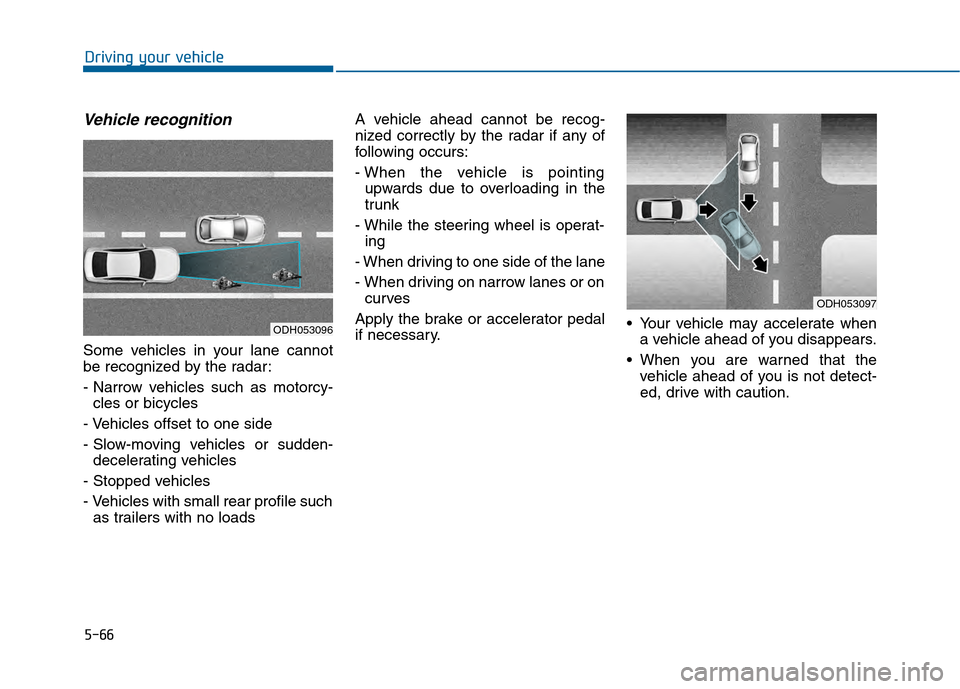
Vehicle recognition
Some vehicles in your lane cannot
be recognized by the radar:
- Narrow vehicles such as motorcy-cles or bicycles
- Vehicles offset to one side
- Slow-moving vehicles or sudden- decelerating vehicles
- Stopped vehicles
- Vehicles with small rear profile such as trailers with no loads A vehicle ahead cannot be recog-
nized correctly by the radar if any of
following occurs:
- When the vehicle is pointing
upwards due to overloading in the
trunk
- While the steering wheel is operat- ing
- When driving to one side of the lane
- When driving on narrow lanes or on curves
Apply the brake or accelerator pedal
if necessary. Your vehicle may accelerate when
a vehicle ahead of you disappears.
When you are warned that the vehicle ahead of you is not detect-
ed, drive with caution.
ODH053096
ODH053097
Page 426 of 603
5-68
Driving your vehicleThe Smart Cruise Control System
may not operate temporarily due
to electrical interference.
Information
This device complies with Part 15 of
the FCC rules.
Operation is subject to the following
two conditions:
1. This device may not cause harmfulinterference, and
2. This device must accept any inter- ference received, including interfer-
ence that may cause undesired
operation.
i
NOTICE
When using the Smart Cruise
Control take the following pre-
cautions:
If an emergency stop is nec-
essary, you must apply the
brakes. The vehicle cannot be
stopped by using the Smart
Cruise Control System.
Keep a safe distance accord-
ing to road conditions and
vehicle speed. If the vehicle to
vehicle distance is too close
during a high-speed driving, a
serious collision may result.
Always maintain sufficient
braking distance and deceler-
ate your vehicle by applying
the brakes if necessary.
(Continued)
WARNING (Continued)
The Smart Cruise Control
System cannot recognize a
stopped vehicle, pedestrians
or an oncoming vehicle.
Always look ahead cautiously
to prevent unexpected and
sudden situations from occur-
ring.
Vehicles moving in front of
you with a frequent lane
change may cause a delay in
the system's reaction or may
cause the system to react to a
vehicle actually in an adjacent
lane. Always drive cautiously
to prevent unexpected and
sudden situations from occur-
ring.
Always be aware of the select-
ed speed and vehicle to vehi-
cle distance.
The Smart Cruise Control
System may not recognize
complex driving situations so
always pay attention to driv-
ing conditions and control
your vehicle speed.
Page 432 of 603
5-74
Driving your vehicle
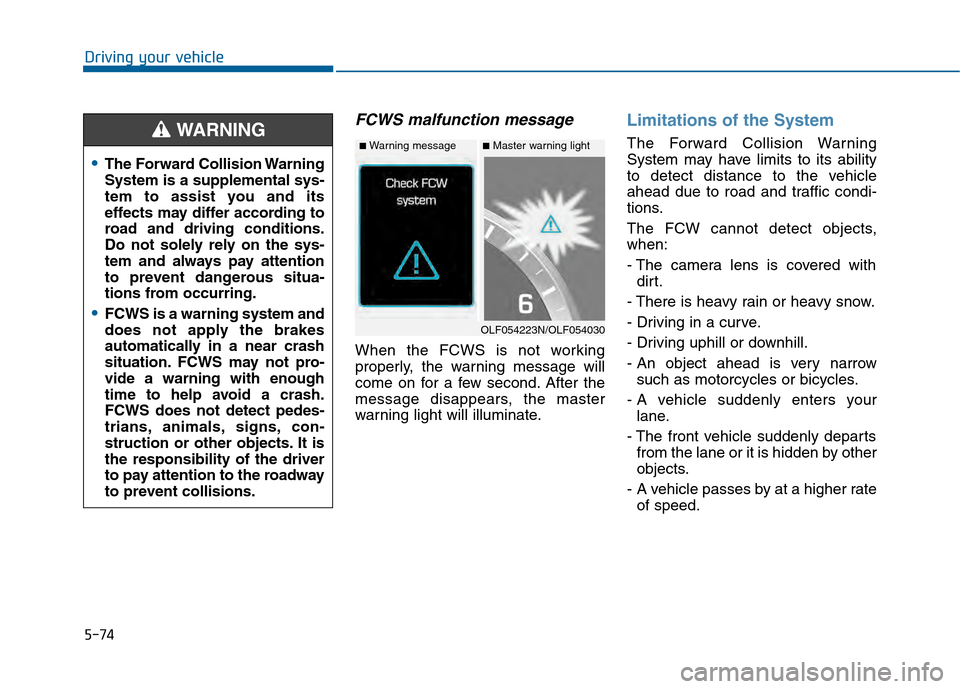
FCWS malfunction message
When the FCWS is not working
properly, the warning message will
come on for a few second. After the
message disappears, the master
warning light will illuminate.
Limitations of the System
The Forward Collision Warning
System may have limits to its ability
to detect distance to the vehicle
ahead due to road and traffic condi-
tions.
The FCW cannot detect objects,
when:
- The camera lens is covered withdirt.
- There is heavy rain or heavy snow.
- Driving in a curve.
- Driving uphill or downhill.
- An object ahead is very narrow such as motorcycles or bicycles.
- A vehicle suddenly enters your lane.
- The front vehicle suddenly departs from the lane or it is hidden by other
objects.
- A vehicle passes by at a higher rate of speed.
The Forward Collision Warning
System is a supplemental sys-
tem to assist you and its
effects may differ according to
road and driving conditions.
Do not solely rely on the sys-
tem and always pay attention
to prevent dangerous situa-
tions from occurring.
FCWS is a warning system and
does not apply the brakes
automatically in a near crash
situation. FCWS may not pro-
vide a warning with enough
time to help avoid a crash.
FCWS does not detect pedes-
trians, animals, signs, con-
struction or other objects. It is
the responsibility of the driver
to pay attention to the roadway
to prevent collisions.
WARNING
OLF054223N/OLF054030
■Master warning light■Warning message
Page 444 of 603
5-86
Driving your vehicle
Driving in the Rain
Rain and wet roads can make driving
dangerous. Here are a few things to
consider when driving in the rain or
on slick pavement:
Slow down and allow extra follow-ing distance. A heavy rainfall
makes it harder to see and increas-
es the distance needed to stop
your vehicle.
Turn OFF your Cruise Control. (if equipped)
Replace your windshield wiper blades when they show signs of
streaking or missing areas on the
windshield.
Be sure your tires have enough tread. If your tires do not have
enough tread, making a quick stop
on wet pavement can cause a skid
and possibly lead to an accident.
Refer to "Tire Tread" in chapter 7.
Turn on your headlamps to make it easier for others to see you.
Driving too fast through large pud- dles can affect your brakes. If you
must go through puddles, try to
drive through them slowly. If you believe your brakes may be
wet, apply them lightly while driv-
ing until normal braking operation
returns.
Hydroplaning
If the road is wet enough and you are
going fast enough, your vehicle may
have little or no contact with the road
surface and actually ride on the
water. The best advice is SLOW
DOWN when the road is wet. The
risk of hydroplaning increases as the
depth of tire tread decreases. (Refer
to "Tire Tread" in chapter 7.)
Driving in Flooded Areas
Avoid driving through flooded areas
unless you are sure the water is no
higher than the bottom of the wheel
hub. Drive through any water slowly.
Allow adequate stopping distance
because brake performance may be
reduced.
After driving through water, dry the
brakes by gently applying them sev-
eral times while the vehicle is moving
slowly.