Page 283 of 603
4-30
Multimedia System
Delete All
Set [ Del.All] through the TUNE
knob or key.
Deletes all songs of My Music.
Delete Selection
Press the key Set [ Del.Sel]
through the TUNEknob or key.
Songs within My Music are selected
and deleted.
➀Select the songs you wish to
delete from the list.
➁ After selecting, press the
key and select the delete menu.
AUX
AUX is used to play external MEDIA
currently connected with the AUX
terminal.
AUX mode will automatically start
when an external device is connect-
ed to the AUX terminal.
If an external device is connected,
you can also press the key to
change to AUX mode.
❈ AUX mode cannot be started
unless there is an external device
connected to the AUX terminal.
MEDIA
MENU
6
MENU
5
Page 284 of 603
4-31
Multimedia System
4
Bluetooth®Wireless
Technology AUDIO
What is
Bluetooth®Wireless
Technology?
Bluetooth®Wireless Technology allows
devices to be connected in a short dis-
tance, including hands-free devices,
stereo headsets, wireless remote con-
trollers, etc. For more information, visit
the
Bluetooth®Wireless Technology
website
at www.Bluetooth.com
Before using Bluetooth®Wireless
Technology audio features
Bluetooth®Wireless Technology
audio may not be supported
depending on the compatibility of
your
Bluetooth®Wireless
Technology mobile phone.
In order to use
Bluetooth®Wireless
Technology audio, you must first
pair and connect the
Bluetooth®
Wireless Technology mobile phone.
Bluetooth®Wireless Technology
audio can be used only when the
[Audio Streaming] of Phone is
turned .
❈ Setting
Bluetooth®Wireless
Technology Audio Streaming :
Press the key Select
[Phone] through the tune knob or key Select [Audio
Streaming] through the TUNE
knob Set /
Starting Bluetooth®Wireless
Technology Audio
Press the key to change
the mode in order of CD ➟ USB ➟
AUX ➟ My Music ➟ BT Audio.
If BT Audio is selected,
Bluetooth®
Wireless Technology audio will
start playing.
❈ Audio may not automatically start
playing in some mobile phones.
Using the Bluetooth®Wireless
Technology audio features
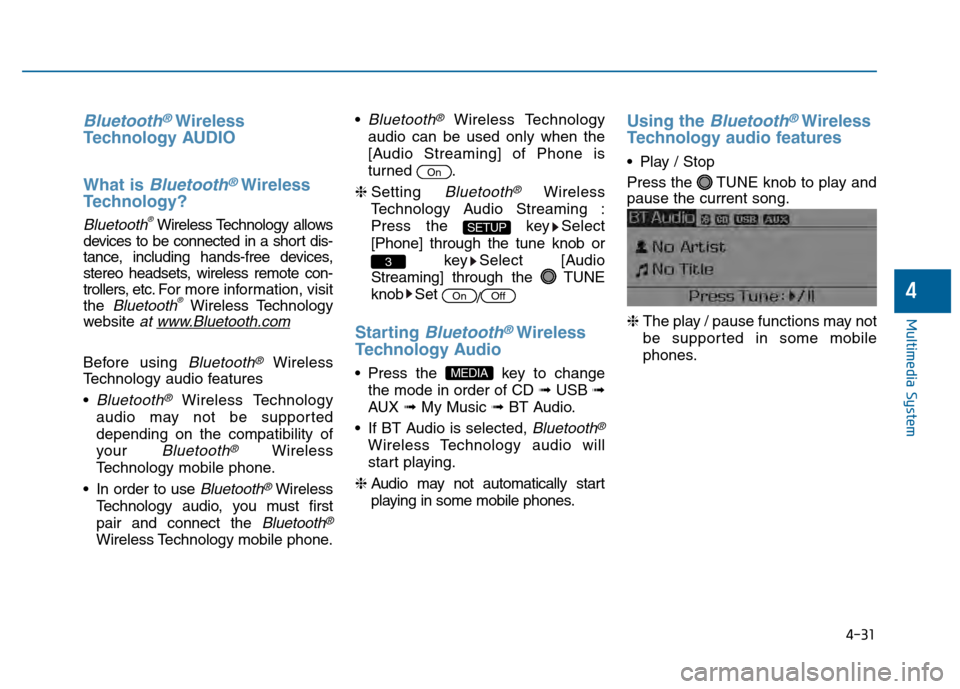
Play / Stop
Press the TUNE knob to play and
pause the current song.
❈ The play / pause functions may not
be supported in some mobile
phones.
MEDIA
OffOn
3
SETUP
On
Page 298 of 603
4-45
Multimedia System
4
V
VO
O I
IC
C E
E
R
R E
EC
CO
O G
GN
N I
IT
T I
IO
O N
N
Using Voice Recognition
Starting Voice Recognition
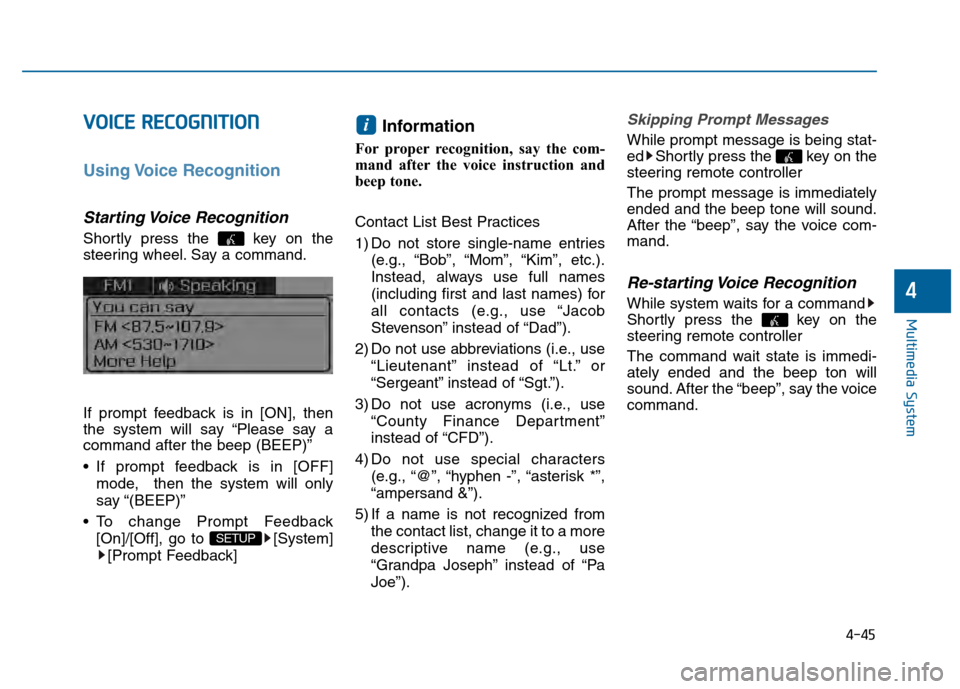
Shortly press the key on the
steering wheel. Say a command.
If prompt feedback is in [ON], then
the system will say “Please say a
command after the beep (BEEP)”
If prompt feedback is in [OFF]
mode, then the system will only
say “(BEEP)”
To change Prompt Feedback [On]/[Off], go to [System][Prompt Feedback]
Information
For proper recognition, say the com-
mand after the voice instruction and
beep tone.
Contact List Best Practices
1) Do not store single-name entries (e.g., “Bob”, “Mom”, “Kim”, etc.).
Instead, always use full names
(including first and last names) for
all contacts (e.g., use “Jacob
Stevenson” instead of “Dad”).
2) Do not use abbreviations (i.e., use “Lieutenant” instead of “Lt.” or
“Sergeant” instead of “Sgt.”).
3) Do not use acronyms (i.e., use “County Finance Department”
instead of “CFD”).
4) Do not use special characters (e.g., “@”, “hyphen -”, “asterisk *”,
“ampersand &”).
5) If a name is not recognized from the contact list, change it to a more
descriptive name (e.g., use
“Grandpa Joseph” instead of “Pa
Joe”).
Skipping Prompt Messages
While prompt message is being stat-
ed Shortly press the key on the
steering remote controller
The prompt message is immediately
ended and the beep tone will sound.
After the “beep”, say the voice com-
mand.
Re-starting Voice Recognition
While system waits for a command
Shortly press the key on the
steering remote controller
The command wait state is immedi-
ately ended and the beep ton will
sound. After the “beep”, say the voice
command.
i
SETUP
Page 300 of 603
4-47
Multimedia System
4
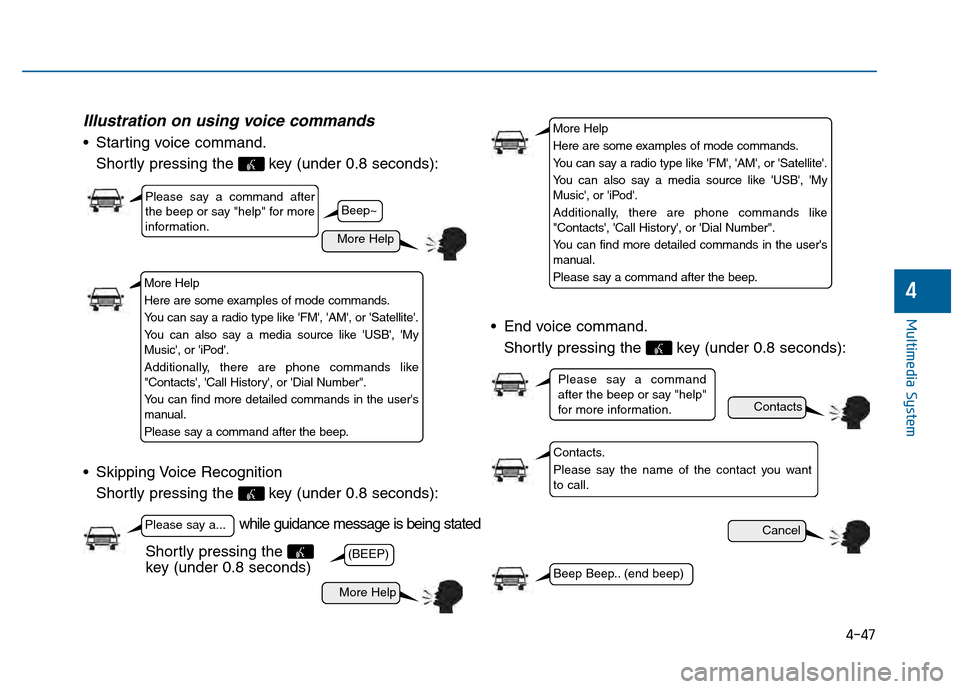
Illustration on using voice commands
Starting voice command.Shortly pressing the key (under 0.8 seconds):
Skipping Voice Recognition Shortly pressing the key (under 0.8 seconds): End voice command.
Shortly pressing the key (under 0.8 seconds):
while guidance message is being stated
More Help
Contacts
Cancel
More Help
Please say a command after
the beep or say "help" for more
information.
Please say a...
Contacts.
Please say the name of the contact you want
to call.
(BEEP)
Please say a command
after the beep or say "help"
for more information.
Beep Beep.. (end beep)
Shortly pressing the
key (under 0.8 seconds)
Beep~
More Help
Here are some examples of mode commands.
You can say a radio type like 'FM', 'AM', or 'Satellite'.
You can also say a media source like 'USB', 'My
Music', or 'iPod'.
Additionally, there are phone commands like
"Contacts', 'Call History', or 'Dial Number".
You can find more detailed commands in the user's
manual.
Please say a command after the beep.
More Help
Here are some examples of mode commands.
You can say a radio type like 'FM', 'AM', or 'Satellite'.
You can also say a media source like 'USB', 'My
Music', or 'iPod'.
Additionally, there are phone commands like
"Contacts', 'Call History', or 'Dial Number".
You can find more detailed commands in the user's
manual.
Please say a command after the beep.
Page 307 of 603

4-54
Multimedia System
Steering-Wheel Mounted Controls
The actual feature in the vehicle may differ from the illus-
tration.
Name
MODE
,
,VOL-VOL+
Description
When pressed shortly - Starts voice recognition
- When selecting during a voice prompt, stops theprompt and converts to voice command waiting state
When pressed and held (over 0.8 seconds) - Ends voice recognition
order of FM1
➟ FM2 ➟ AM ➟ XM1 ➟ XM2 ➟ XM3➟ CD ➟ USB or iPod ➟ AUX ➟ My Music ➟ BT
Audio
ed, corresponding modes will be disabled.
Used to control volume.
Mute the microphone during a call.
When pressed shortly (under 0.8 seconds)
- Radio mode : searches broadcast frequencies and channels saved to presets.
- Media(CD / USB / iPod
®/ My Music / BT Audio)
modes : changes the track, file or chapter.
When pressed and held (over 0.8 seconds)
- Radio mode, automatically searches broadcast fre- quencies and channels
- Media(CD / USB / iPod
®/ My Music) modes,
rewinds or fast forwards the track or song(file)
- BT Audio mode may not be supported in some mobile phones.
Page 314 of 603
4-61
Multimedia System
4
A
AU
U D
DI
IO
O
C
C D
D
M
M O
OD
DE
E
Using Audio CD Mode
Playing/Pausing CD Tracks
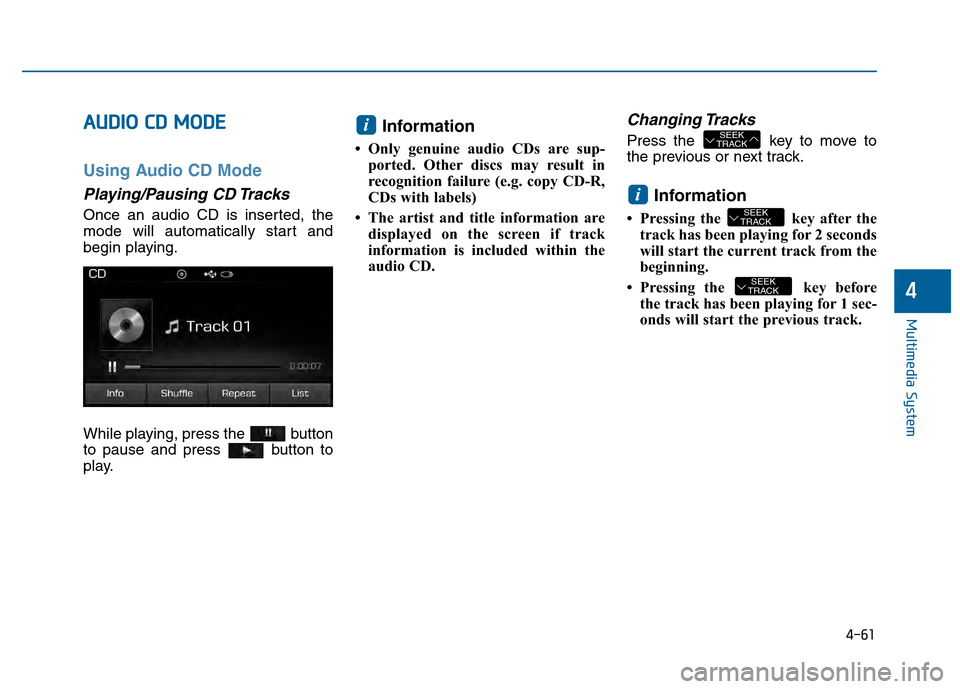
Once an audio CD is inserted, the
mode will automatically start and
begin playing.
While playing, press the button
to pause and press button to
play.
Information
• Only genuine audio CDs are sup-
ported. Other discs may result in
recognition failure (e.g. copy CD-R,
CDs with labels)
• The artist and title information are displayed on the screen if track
information is included within the
audio CD.
Changing Tracks
Press the key to move to
the previous or next track.
Information
• Pressing the key after thetrack has been playing for 2 seconds
will start the current track from the
beginning.
• Pressing the key before the track has been playing for 1 sec-
onds will start the previous track.
SEEK
TRACK
SEEK
TRACKi
SEEK
TRACKi
Page 315 of 603
4-62
Multimedia System
Selecting from the List
Turn the TUNE knob left/right to
search for the desired track.
Once you find the desired track,
press the TUNE knob to start
playing.
Rewinding / Fast-forwardingTracks
While playing, press and hold the
key to rewind or fast-for-
ward the current track.
Scan
Press the key to play the first
10 seconds of each file.
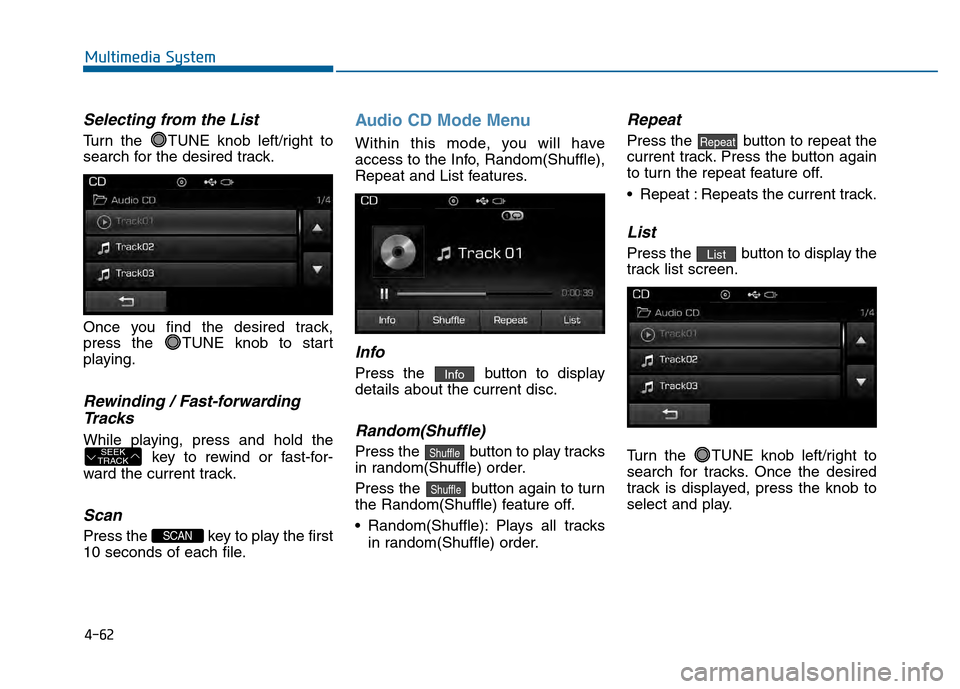
Audio CD Mode Menu
Within this mode, you will have
access to the Info, Random(Shuffle),
Repeat and List features.
Info
Press the button to display
details about the current disc.
Random(Shuffle)
Press the button to play tracks
in random(Shuffle) order.
Press the button again to turn
the Random(Shuffle) feature off.
Random(Shuffle): Plays all tracks in random(Shuffle) order.
Repeat
Press the button to repeat the
current track. Press the button again
to turn the repeat feature off.
Repeat : Repeats the current track.
List
Press the button to display the
track list screen.
Turn the TUNE knob left/right to
search for tracks. Once the desired
track is displayed, press the knob to
select and play.List
Repeat
Shuffle
Shuffle
Info
SCAN
SEEK
TRACK
Page 316 of 603
4-63
Multimedia System
4
M
MP
P3
3
C
C D
D
M
M O
OD
DE
E
Using MP3 CD Mode
Playing/Pausing MP3 Files
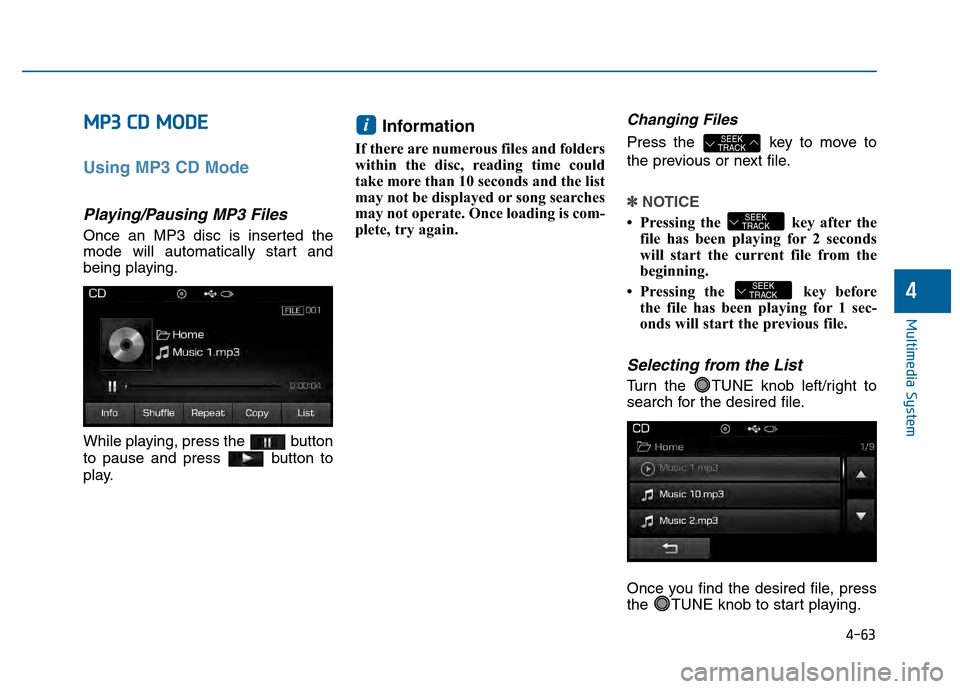
Once an MP3 disc is inserted the
mode will automatically start and
being playing.
While playing, press the button
to pause and press button to
play.
Information
If there are numerous files and folders
within the disc, reading time could
take more than 10 seconds and the list
may not be displayed or song searches
may not operate. Once loading is com-
plete, try again.
Changing Files
Press the key to move to
the previous or next file.
\b \b NOTICE
• Pressing the key after the file has been playing for 2 seconds
will start the current file from the
beginning.
• Pressing the key before the file has been playing for 1 sec-
onds will start the previous file.
Selecting from the List
Turn the TUNE knob left/right to
search for the desired file.
Once you find the desired file, press
the TUNE knob to start playing.
SEEK
TRACK
SEEK
TRACK
SEEK
TRACKi
![Hyundai Sonata 2015 Owners Manual 4-30
Multimedia System
Delete All
Set [ Del.All] through the TUNE
knob or key.
Deletes all songs of My Music.
Delete Selection
Press the key Set [ Del.Sel]
through the TUNEknob or key.
Songs withi](/manual-img/35/16796/w960_16796-282.png "Hyundai Sonata 2015 Owners Manual 4-30
Multimedia System
Delete All
Set [ Del.All] through the TUNE
knob or key.
Deletes all songs of My Music.
Delete Selection
Press the key Set [ Del.Sel]
through the TUNEknob or key.
Songs withi")