2015 Hyundai Sonata User settings
[x] Cancel search: User settingsPage 297 of 603
![Hyundai Sonata 2015 Owners Manual 4-44
Multimedia System
Contacts
Press the key Select
[Contacts]
The list of saved phone book entries
is displayed.
NOTE:
Find a contact in an alphabetical
order, press the key.
Information
• Up t](/manual-img/35/16796/w960_16796-296.png "Hyundai Sonata 2015 Owners Manual 4-44
Multimedia System
Contacts
Press the key Select
[Contacts]
The list of saved phone book entries
is displayed.
NOTE:
Find a contact in an alphabetical
order, press the key.
Information
• Up t")
4-44
Multimedia System
Contacts
Press the key Select
[Contacts]
The list of saved phone book entries
is displayed.
NOTE:
Find a contact in an alphabetical
order, press the key.
Information
• Up to 1,000 contacts saved in yourBluetooth®Wireless Technology
phone can be downloaded into the
car contacts. Contacts that have been
downloaded to the car cannot be edit-
ed or deleted on the phone.
• Mobile phone contacts are managed separately for each paired Bluetooth
®
Wireless Technology device (max 5
devices x 1,000 contacts each).
Previously downloaded data is main-
tained even if the Bluetooth
®Wireless
Technology device has been discon-
nected.
(However, the contacts and call histo-
ry saved to the phone will be deleted
if a paired phone is deleted.)
• It is possible to download contacts during Bluetooth streaming audio.
• When downloading contacts, the icon will be displayed within the status
bar. • It is not possible to begin download-
ing a contact list when the contact
download feature has been turned off
within the Bluetooth
®Wireless
Technology device. In addition, some
devices may require device authori-
zation upon attempting to download
contacts. If downloading does not
normally occur, check the Bluetooth
®
Wireless Technology device settings
or the screen state.
• The contacts download feature may not be supported in some mobile
phones. For more information of sup-
ported Bluetooth
®devices and func-
tion support, refer to your phone’s
user manual.
i
MENU
PHONE
Page 336 of 603
![Hyundai Sonata 2015 Owners Manual 4-83
Multimedia System
4
4) Contacts : Displays the Contactslist screen
5) Setup : Displays Phone related settings
Information
• If you press the [Call History] but-ton but there is no call history](/manual-img/35/16796/w960_16796-335.png "Hyundai Sonata 2015 Owners Manual 4-83
Multimedia System
4
4) Contacts : Displays the Contactslist screen
5) Setup : Displays Phone related settings
Information
• If you press the [Call History] but-ton but there is no call history")
4-83
Multimedia System
4
4) Contacts : Displays the Contactslist screen
5) Setup : Displays Phone related settings
Information
• If you press the [Call History] but-ton but there is no call history data,
a prompt is displayed which asks to
download call history data.
• If you press the [Contacts] button but there is no contacts data stored,
a prompt is displayed which asks to
download contacts data.
• This feature may not be supported in some mobile phones. For more
information on download support,
refer to your mobile phone user’s
manual.
Favorites
Press the key Select
[Favorites]
1) Saved favorite contact : Connects
call upon selection
2) To add favorite : Downloaded con- tacts be saved as favorite.
3) Delete All : Delete all stored favorite contactsInformation
• To save Favorite, contacts should bedownloaded.
• Contact saved in Favorites will not be automatically updated if the contact
has been updated in the phone. To
update Favorites, delete the Favorite
and create a new Favorite.
iPHONE
i
Page 339 of 603
![Hyundai Sonata 2015 Owners Manual 4-86
Multimedia System
Contacts
Press the key Select
[Contacts]
The list of saved phone book entries
is displayed. Press the but-
ton to download the call history.
1) Contacts List :- Displays downl](/manual-img/35/16796/w960_16796-338.png "Hyundai Sonata 2015 Owners Manual 4-86
Multimedia System
Contacts
Press the key Select
[Contacts]
The list of saved phone book entries
is displayed. Press the but-
ton to download the call history.
1) Contacts List :- Displays downl")
4-86
Multimedia System
Contacts
Press the key Select
[Contacts]
The list of saved phone book entries
is displayed. Press the but-
ton to download the call history.
1) Contacts List :- Displays downloaded contactsentries
- Connects call upon selection
2) Sort by : Find a contact in an alphabetical order.
3) Download : Download contacts entries
Information
• Up to 1,000 contacts saved in yourBluetooth®Wireless Technology
phone can be downloaded into the
car contacts. Contacts that have
been downloaded to the car cannot
be edited or deleted on the phone.
• Mobile phone contacts are managed separately for each paired Bluetooth
®
Wireless Technology device (max 5
devices x 1,000 contacts each).
Previously downloaded data is main-
tained even if the Bluetooth
®Wireless
Technology device has been discon-
nected.
(However, the contacts and call histo-
ry saved to the phone will be deleted
if a paired phone is deleted.)
• It is possible to download contacts during Bluetooth streaming audio.
• When downloading contacts, the icon will be displayed within the sta-
tus bar.
(Continued)(Continued)
• It is not possible to begin download-
ing a contact list when the contact
download feature has been turned
off within the Bluetooth
®Wireless
Technology device. In addition,
some devices may require device
authorization upon attempting to
download contacts. If downloading
does not normally occur, check the
Bluetooth
®Wireless Technology
device settings or the screen state.
• The contacts download feature may not be supported in some mobile
phones. For more information of
supported Bluetooth
®devices and
function support, refer to your
phone’s user manual.
i
Download
PHONE
Page 413 of 603
5-55
Driving your vehicle
5
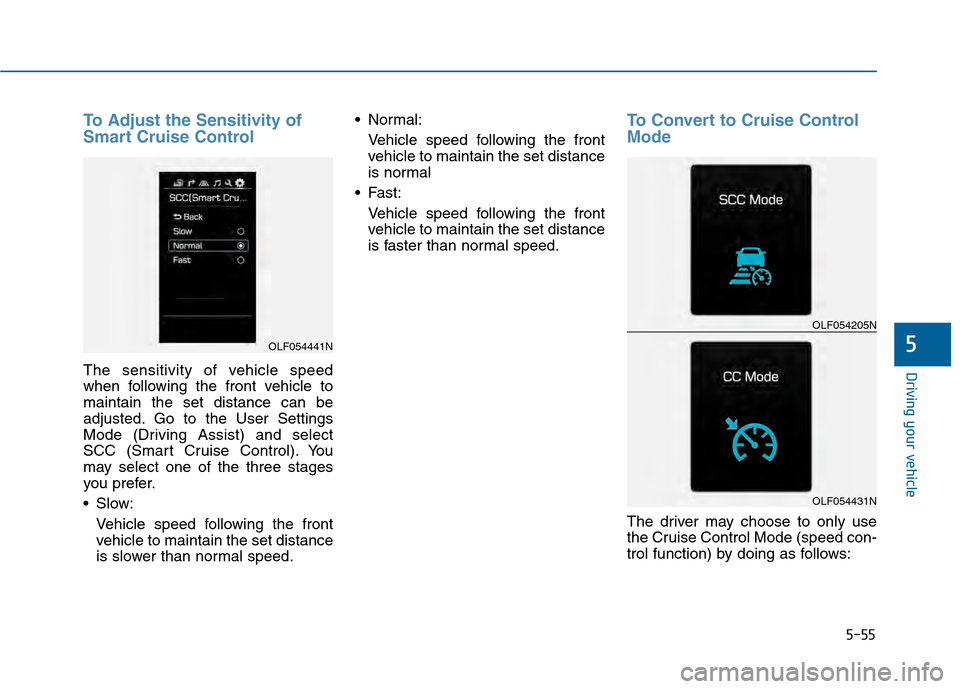
To Adjust the Sensitivity of
Smart Cruise Control
The sensitivity of vehicle speed
when following the front vehicle to
maintain the set distance can be
adjusted. Go to the User Settings
Mode (Driving Assist) and select
SCC (Smart Cruise Control). You
may select one of the three stages
you prefer.
Slow:Vehicle speed following the front
vehicle to maintain the set distance
is slower than normal speed. Normal:
Vehicle speed following the front
vehicle to maintain the set distance
is normal
Fast: Vehicle speed following the front
vehicle to maintain the set distance
is faster than normal speed.
To Convert to Cruise Control
Mode
The driver may choose to only use
the Cruise Control Mode (speed con-
trol function) by doing as follows:
OLF054441N
OLF054205N
OLF054431N
Page 431 of 603
5-73
Driving your vehicle
5
The Foward Collision Warning
System helps avoid accidents by
identifying critical situations early and
warning the driver.FCWS Operation
To operate:
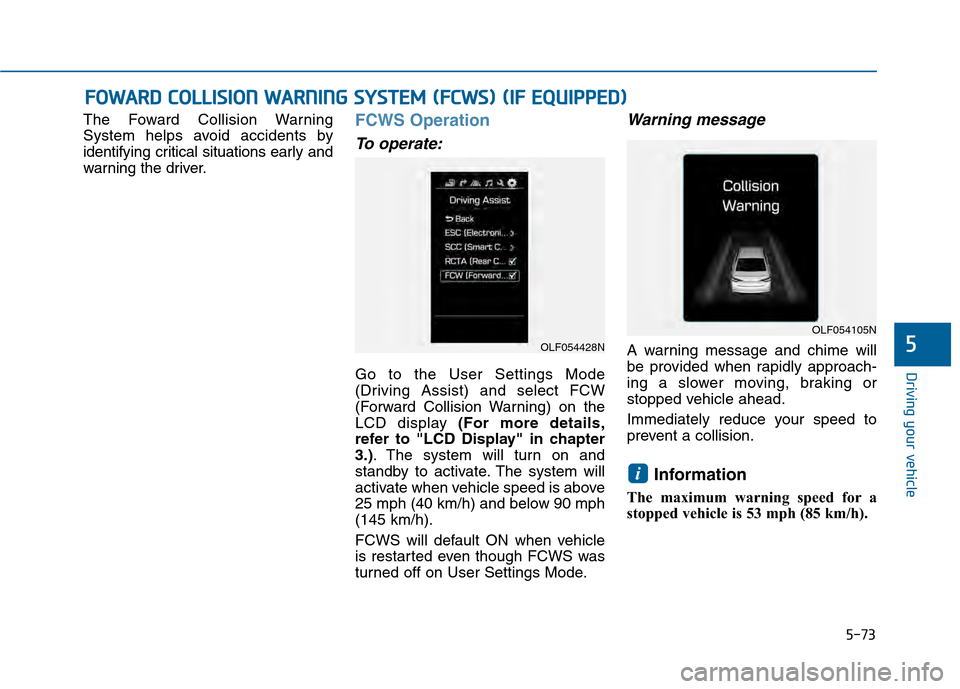
Go to the User Settings Mode
(Driving Assist) and select FCW
(Forward Collision Warning) on the
LCD display (For more details,
refer to "LCD Display" in chapter
3.). The system will turn on and
standby to activate. The system will
activate when vehicle speed is above
25 mph (40 km/h) and below 90 mph
(145 km/h).
FCWS will default ON when vehicle
is restarted even though FCWS was
turned off on User Settings Mode.
Warning message
A warning message and chime will
be provided when rapidly approach-
ing a slower moving, braking or
stopped vehicle ahead.
Immediately reduce your speed to
prevent a collision.
Information
The maximum warning speed for a
stopped vehicle is 53 mph (85 km/h).
i
F FO
O W
W A
AR
RD
D
C
C O
O L
LL
LI
IS
S I
IO
O N
N
W
W A
AR
RN
N I
IN
N G
G
S
S Y
Y S
ST
T E
EM
M
(
( F
F C
C W
W S
S)
)
(
( I
IF
F
E
E Q
Q U
UI
IP
P P
PE
ED
D )
)
OLF054428N
OLF054105N
Page 438 of 603
5-80
Driving your vehicle
RCTA (Rear Cross Traffic Alert)
Operating conditions
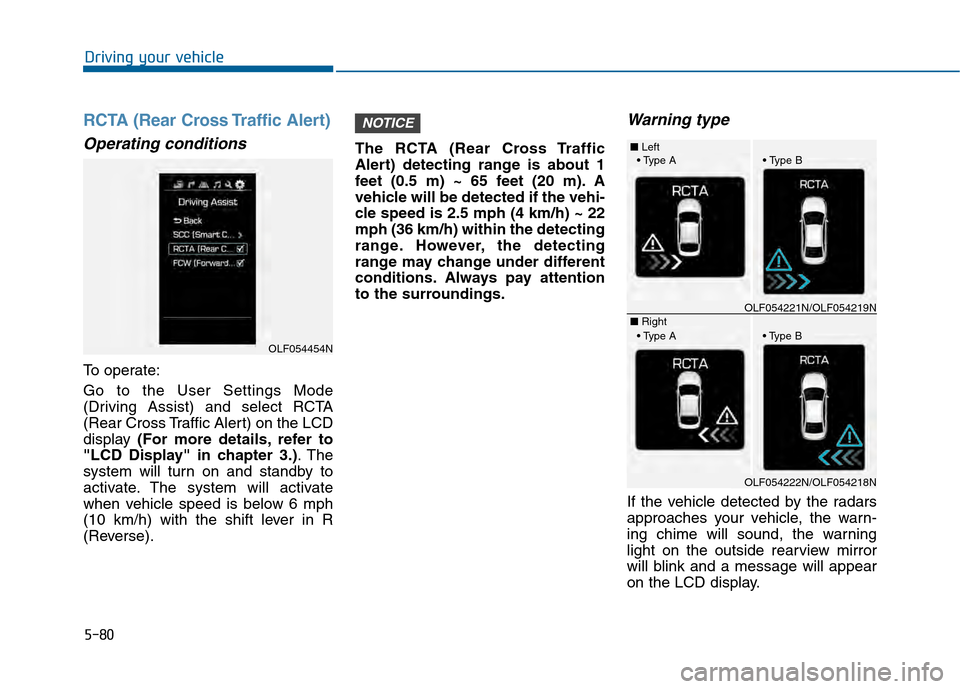
To operate:
Go to the User Settings Mode
(Driving Assist) and select RCTA
(Rear Cross Traffic Alert) on the LCD
display (For more details, refer to
"LCD Display" in chapter 3.) . The
system will turn on and standby to
activate. The system will activate
when vehicle speed is below 6 mph
(10 km/h) with the shift lever in R
(Reverse). The RCTA (Rear Cross Traffic
Alert) detecting range is about 1
feet (0.5 m) ~ 65 feet (20 m). A
vehicle will be detected if the vehi-
cle speed is 2.5 mph (4 km/h) ~ 22
mph (36 km/h) within the detecting
range. However, the detecting
range may change under different
conditions. Always pay attention
to the surroundings.
Warning type
If the vehicle detected by the radars
approaches your vehicle, the warn-
ing chime will sound, the warning
light on the outside rearview mirror
will blink and a message will appear
on the LCD display.
NOTICE
OLF054454N
■
Left
■ RightOLF054221N/OLF054219N
OLF054222N/OLF054218N
Page 463 of 603

6-9
What to do in an emergency
6
T
TI
IR
R E
E
P
P R
R E
ES
SS
SU
U R
RE
E
M
M O
ON
NI
IT
T O
O R
RI
IN
N G
G
S
S Y
Y S
ST
T E
EM
M
(
( T
T P
P M
M S
S)
)
(1) Low Tire Pressure Telltale/TPMS
Malfunction Indicator
(2) Low Tire Pressure Position Telltale and Tire Pressure Telltale
(Shown on the LCD display)
Check Tire Pressure
You can check the tire pressure inthe Information Mode on the clus-
ter.
Refer to the "User Settings
Mode" section in chapter 3.
Tire pressure is displayed after a few minutes of driving after initial
engine start up.
If tire pressure is not displayed when the vehicle is stopped, “Drive
to display” message will appear.
After driving, check the tire pres-
sure. You can change the tire pressure
unit in the User Settings Mode on
the cluster.
- psi, kpa, bar (Refer to the "User
Settings Mode" section in
chapter 3).
OLF064003
OLF044147N
OLF064028N
Page 599 of 603
 mode .......................")
I-8
SCC/LDWS mode ......................................................3-73
Trip computer modes..................................................3-72\
Turn by turn (TBT) mode ..........................................3-73
User settings mode .....................................................3-76
Warning messages ......................................................3-81
LCD Display Control......................................................3-66
LCD modes .....................................................................3-7\
1
Light ........................................................................\
......3-105 Auto light position....................................................3-105
Battery saver function...............................................3-111
Daytime running light ..............................................3-112
Headlamp delay function..........................................3-111
Headlamp position......................................................3-89
High - beam operation..............................................3-107
Interior lights ............................................................3-116
Parking lamp position ..............................................3-106
Smart high beam ......................................................3-107
Turn signals ..............................................................3-110
Light bulbs ......................................................................7-\
69
Lubricants and capacities..................................................8-6
Luggage net holder .......................................................3-138
Main fuse ........................................................................\
7-60
Maintenance Explanation of scheduled maintenance items ............7-21
Maintenance services ...................................................7-6 Owner maintenance ......................................................7-7
Scheduled maintenance service....................................7-9
Tire maintenance ........................................................7-47
Maintenance schedule .......................................................7-9 Maintenance under severe usage conditions ..............7-20
Normal maintenance schedule ..................................7-10
Maintenance services ........................................................7-6
Manual climate control system .....................................3-125 Air conditioning .......................................................3-130
Climate control air filter ...........................................3-133
Heating and air conditioning ....................................3-126
Map lamp ......................................................................3-\
114
Mirrors ........................................................................\
....3-25 Blind zone mirror .......................................................3-41
Day/night rearview mirror..........................................3-25
Electric chromic mirror (ECM) with compass and HomeLink
®system ..................................................3-33
Electric chromic mirror (ECM) with HomeLink®
system, compass and Blue Link®.............................3-26
Folding the outside rearview mirror...........................3-42
Inside rearview mirror ................................................3-25
Outside rearview mirror .............................................3-42
Reverse parking aid function ....................................3-43
Moonroof, see panorama sunroof ...................................3-48
Multi box.......................................................................3\
-151
Multi fuse ........................................................................\
7-60
Multimedia system............................................................4-2 3.8 Inch Mono TFT ....................................................4-17
5 Inch Color TFT LCD. .............................................4-52
Index
M