Page 267 of 603

4-14
(Continued)
• If your iPhone
®is connected to both
the Bluetooth®Wireless Technology
and USB, the sound may not be
properly played. In your iPhone
®,
select the Dock c onnector or
Bluetooth
®Wireless Technology to
change the sound output (source).
• iPod mode cannot be operated when the iPod
®cannot be recognized due
to versions that do not support com-
munication protocols.
• For fifth generation iPod
®Nano
devices, the iPod®may not be recog-
nized when the battery level is low.
Please charge the iPod
®for use.
• Search/play orders shown within the iPod
®device may differ with the
orders shown within the audio sys-
tem.
• If the iPod
®malfunctions due to an
iPod®device defect, reset the iPod®
and try again. (To learn more, refer to
your iPod®manual)
(Continued) (Continued)
• Some iPod
®s may not sync with the
System depending on its version. If
the Media is removed before the
Media is recognized, then the sys-
tem may not properly restore the
previously operated mode. (iPad
®
charging is not supported.)
Information - Using the AUX
device
• If an external device connector is connected with the AUX terminal,
then AUX mode will automatically
operate. Once the connector is dis-
connected, the previous mode will
be restored.
• AUX mode can be used only when an external audio player (cam-
corder, car VCR, etc.) has been con-
nected.
• The AUX volume can be controlled separately from other audio modes.
• Connecting a connector jack to the AUX terminal without an external
device will convert the system to
AUX mode, but only output noise.
When an external device is not
being used, also remove the connec-
tor jack.
• When the external device power is connected to the power jack, play-
ing the external device may output
noise. In such cases, disconnect the
power connection before use.
• Fully insert the AUX cable to the AUX jack upon use.i
Multimedia System
Page 270 of 603
S
SY
Y S
ST
T E
EM
M
C
C O
O N
NT
TR
R O
O L
LL
LE
E R
R S
S
A
A N
N D
D
F
F U
U N
NC
CT
T I
IO
O N
NS
S
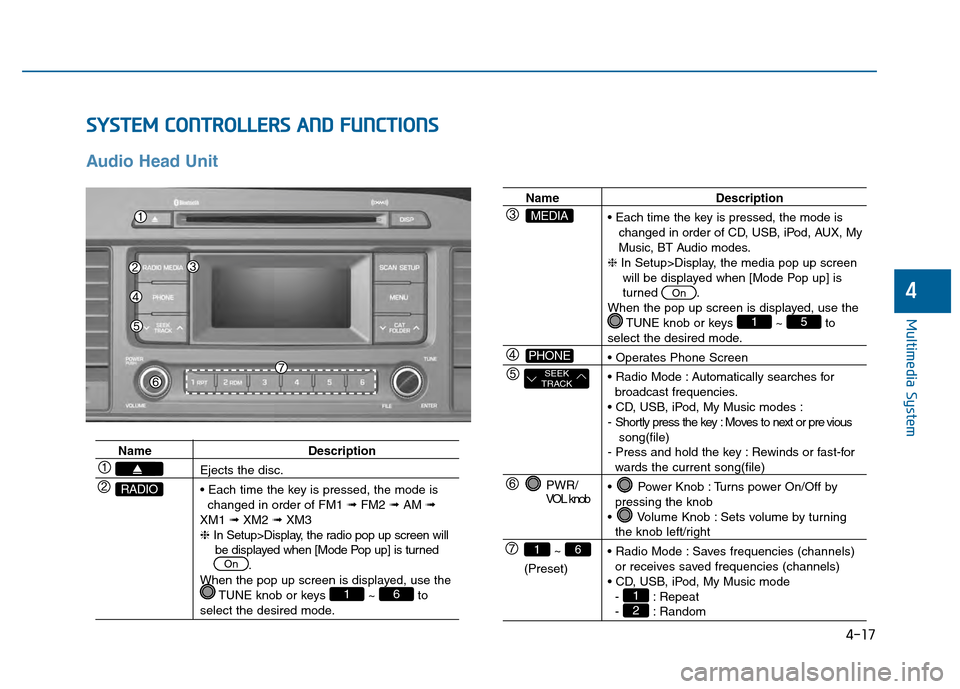
Audio Head Unit
4-17
Multimedia System
4
Name Description
Ejects the disc.
changed in order of FM1 ➟FM2 ➟AM ➟
XM1 ➟XM2 ➟XM3
❈ In Setup>Display, the radio pop up screen will
be displayed when [Mode Pop up] is turned .
When the pop up screen is displayed, use the TUNE knob or keys ~ to
select the desired mode.
61
On
RADIO
Name Description
changed in order of CD, USB, iPod, AUX, My
Music, BT Audio modes.
❈ In Setup>Display, the media pop up screen
will be displayed when [Mode Pop up] is
turned .
When the pop up screen is displayed, use the TUNE knob or keys ~ to
select the desired mode.
Automatically searches for broadcast frequencies.
- Shortly press the key : Moves to next or pre vious song(file)
- Press and hold the key : Rewinds or fast-for
wards the current song(file)
Power Knob : Turns power On/Off by pressing the knob
Volume Knob : Sets volume by turning
the knob left/right
Saves frequencies (channels) or receives saved frequencies (channels)
- : Repeat
- : Random21
51
On
PWR/
VOL knob
~
(Preset)
61
SEEK
TRACK
PHONE
MEDIA
Page 278 of 603
4-25
Multimedia System
4
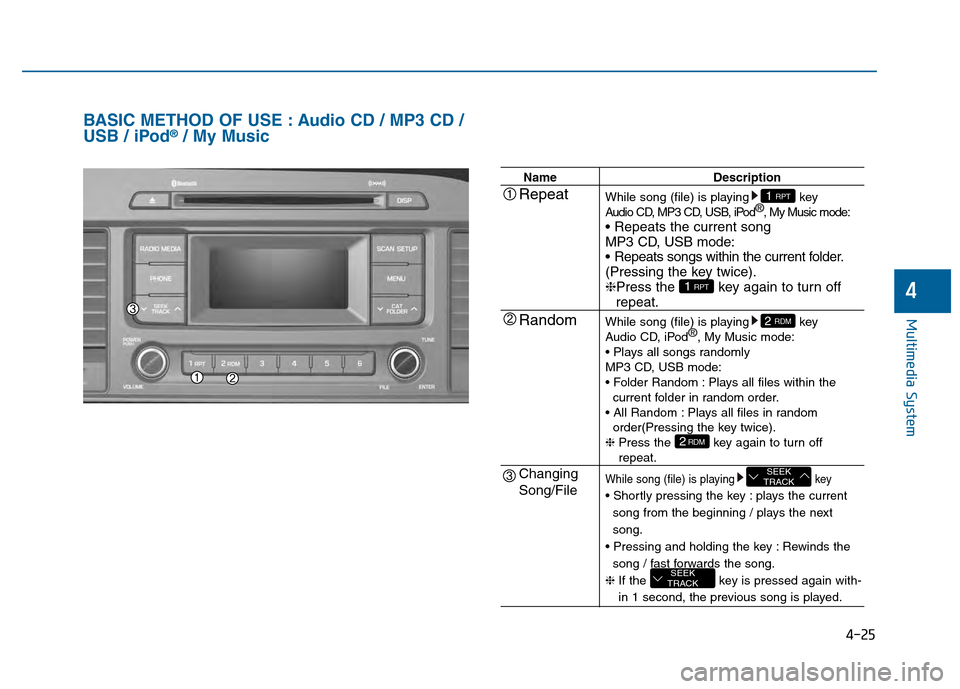
BASIC METHOD OF USE : Audio CD / MP3 CD /
USB / iPod®/ My Music
NameDescription
While song (file) is playing key
Audio CD, MP3 CD, USB, iPod ®
, My Music mode:
MP3 CD, USB mode:
(Pressing the key twice).
❈ Press the key again to turn off
repeat.
While song (file) is playing key
Audio CD, iPod ®
, My Music mode:
MP3 CD, USB mode:
Plays all files within the current folder in random order.
Plays all files in random order(Pressing the key twice).
❈ Press the key again to turn off
repeat.
While song (file) is playing key
plays the current
song from the beginning / plays the next
song.
Rewinds the song / fast forwards the song.
❈ If the key is pressed again with-
in 1 second, the previous song is played.
SEEK
TRACK
SEEK
TRACK
2RDM
2 RDM
1 RPT
1 RPTRepeat
Random
Changing
Song/File
Page 279 of 603
4-26
Multimedia System
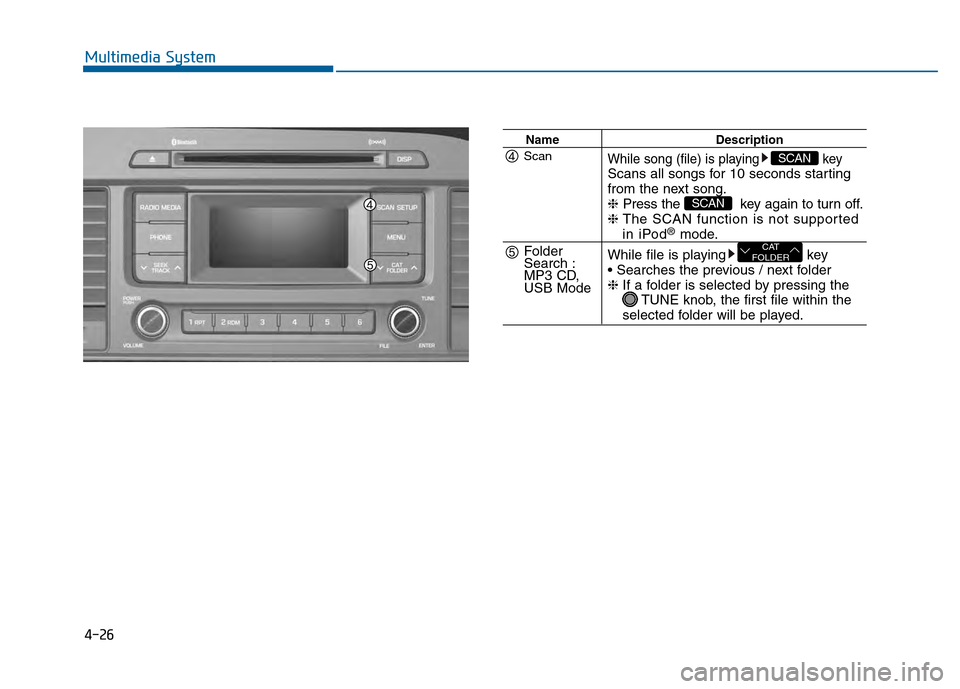
NameDescription
While song (file) is playing keyScans all songs for 10 seconds starting
from the next song.
❈Press the key again to turn off.
❈ The SCAN function is not supported
in iPod®mode.
While file is playing key
❈ If a folder is selected by pressing the
TUNE knob, the first file within the
selected folder will be played.
CAT
FOLDER
SCAN
SCANScan
Folder
Search :
MP3 CD,
USB Mode
Page 280 of 603
4-27
Multimedia System
4
MENU : Audio CD
In CD mode, press key.
Repeat
Set [ RPT] through the TUNE
knob or key to repeat the cur-
rent song.
❈Press RPT again to turn off.
Random
Set [ RDM] through the TUNE
knob or key to randomly play
songs within the current folder.
❈Press RDM again to turn off.
Information
Set [ Info] through the TUNE
knob or key to display informa-
tion of the current song.
❈ Press the key to turn off
info display.
MENU : MP3 CD / USB
In MP3 CD / USB mode, press
key.
Repeat
Set [ RPT] through the TUNE
knob or key to repeat the cur-
rent song.
❈Press RPT again to turn off.
Folder Random
Set [ F.RDM] through the TUNE
knob or key to randomly play
songs within the current folder.
❈Press F.RDM again to turn off.2 RDM
1 RPT
MENU
MENU
3
2 RDM
1 RPT
MENU
Page 281 of 603
![Hyundai Sonata 2015 Owners Manual 4-28
Multimedia System
Folder Repeat
Set [ F.RPT] through the TUNE
knob or key to repeat songs
within the current folder.
❈Press F.RPT again to turn off.
All Random
Set [ A.RDM] through the TUNE
kn](/manual-img/35/16796/w960_16796-280.png "Hyundai Sonata 2015 Owners Manual 4-28
Multimedia System
Folder Repeat
Set [ F.RPT] through the TUNE
knob or key to repeat songs
within the current folder.
❈Press F.RPT again to turn off.
All Random
Set [ A.RDM] through the TUNE
kn")
4-28
Multimedia System
Folder Repeat
Set [ F.RPT] through the TUNE
knob or key to repeat songs
within the current folder.
❈Press F.RPT again to turn off.
All Random
Set [ A.RDM] through the TUNE
knob or key to randomly play all
songs within the CD.
❈Press A.RDM again to turn off.
Information
Set [ Info] through the TUNE
knob or key to display informa-
tion of the current song.
❈Press the key to turn off
info display.
Copy
Set [ Copy] through the TUNE
knob or key.
❈This is used to copy the current
song into My Music. You can play
the copied Music in My Music
mode.
❈ If another key is pressed while
copying is in progress, a pop up
asking you whether to cancel
copying is displayed.
❈ If another media is connected or
inserted (USB, CD, iPod
®, AUX)
while copying is in progress, copy-
ing is canceled.
❈ Music will not be played while
copying is in progress.
MENU : iPod®
In iPod mode, press key.
Repeat
Set [ RPT] through the TUNE
knob or key to repeat the cur-
rent song.
❈ Press RPT again to turn repeat off.
Random
Set [ RDM] through the TUNE
knob or key.
Plays all songs within the currently
playing category in random order.
❈ Press RDM again to turn off.
2 RDM
1 RPT
MENU
6
MENU
5
4
3
Page 284 of 603
4-31
Multimedia System
4
Bluetooth®Wireless
Technology AUDIO
What is
Bluetooth®Wireless
Technology?
Bluetooth®Wireless Technology allows
devices to be connected in a short dis-
tance, including hands-free devices,
stereo headsets, wireless remote con-
trollers, etc. For more information, visit
the
Bluetooth®Wireless Technology
website
at www.Bluetooth.com
Before using Bluetooth®Wireless
Technology audio features
Bluetooth®Wireless Technology
audio may not be supported
depending on the compatibility of
your
Bluetooth®Wireless
Technology mobile phone.
In order to use
Bluetooth®Wireless
Technology audio, you must first
pair and connect the
Bluetooth®
Wireless Technology mobile phone.
Bluetooth®Wireless Technology
audio can be used only when the
[Audio Streaming] of Phone is
turned .
❈ Setting
Bluetooth®Wireless
Technology Audio Streaming :
Press the key Select
[Phone] through the tune knob or key Select [Audio
Streaming] through the TUNE
knob Set /
Starting Bluetooth®Wireless
Technology Audio
Press the key to change
the mode in order of CD ➟ USB ➟
AUX ➟ My Music ➟ BT Audio.
If BT Audio is selected,
Bluetooth®
Wireless Technology audio will
start playing.
❈ Audio may not automatically start
playing in some mobile phones.
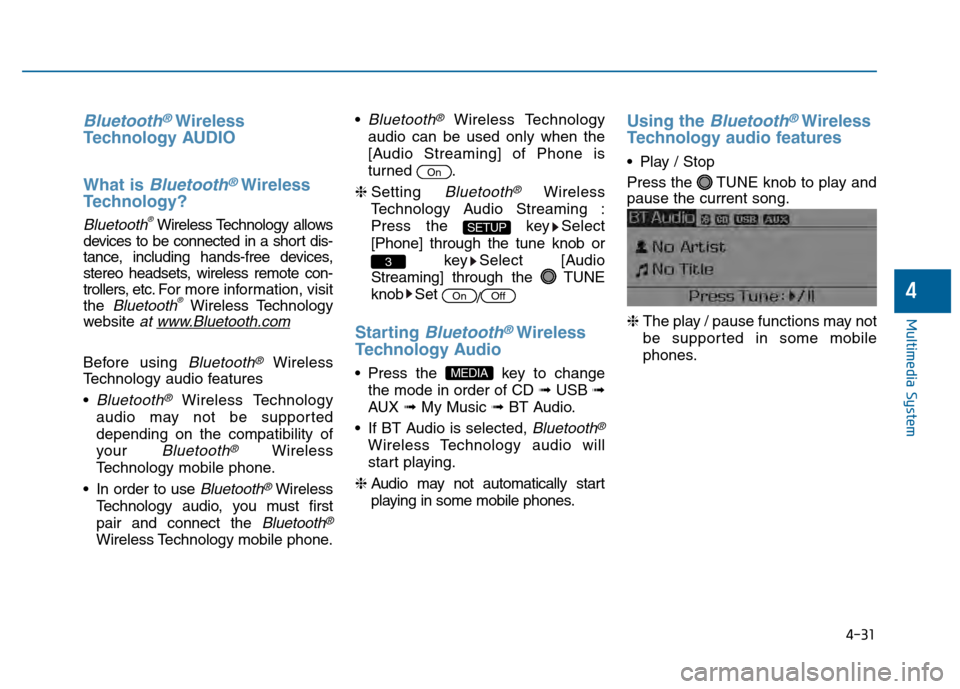
Using the Bluetooth®Wireless
Technology audio features
Play / Stop
Press the TUNE knob to play and
pause the current song.
❈ The play / pause functions may not
be supported in some mobile
phones.
MEDIA
OffOn
3
SETUP
On
Page 285 of 603
4-32
Multimedia System
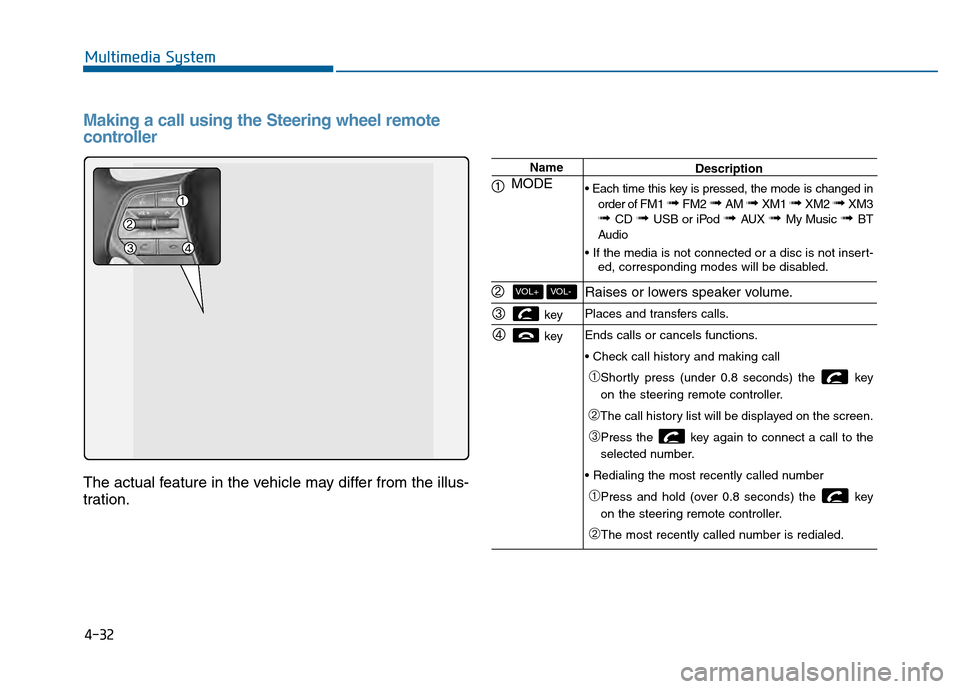
Making a call using the Steering wheel remote
controller
The actual feature in the vehicle may differ from the illus-
tration.
Name
MODE
key
key
VOL-VOL+
Description
order of FM1
➟ FM2 ➟ AM ➟ XM1 ➟ XM2 ➟ XM3➟ CD ➟ USB or iPod ➟ AUX ➟ My Music ➟ BT
Audio
ed, corresponding modes will be disabled.
Raises or lowers speaker volume.
Places and transfers calls.
Ends calls or cancels functions.
➀Shortly press (under 0.8 seconds) the key
on the steering remote controller.
➁The call history list will be displayed on the screen.
➂Press the key again to connect a call to the
selected number.
➀Press and hold (over 0.8 seconds) the key
on the steering remote controller.
➁The most recently called number is redialed.
![Hyundai Sonata 2015 Owners Manual 4-27
Multimedia System
4
MENU : Audio CD
In CD mode, press key.
Repeat
Set [ RPT] through the TUNE
knob or key to repeat the cur-
rent song.
❈Press RPT again to turn off.
Random
Set [ RDM] through](/manual-img/35/16796/w960_16796-279.png "Hyundai Sonata 2015 Owners Manual 4-27
Multimedia System
4
MENU : Audio CD
In CD mode, press key.
Repeat
Set [ RPT] through the TUNE
knob or key to repeat the cur-
rent song.
❈Press RPT again to turn off.
Random
Set [ RDM] through")