2015 Hyundai H350 ECO mode
[x] Cancel search: ECO modePage 227 of 473
4-35
Multimedia System
4
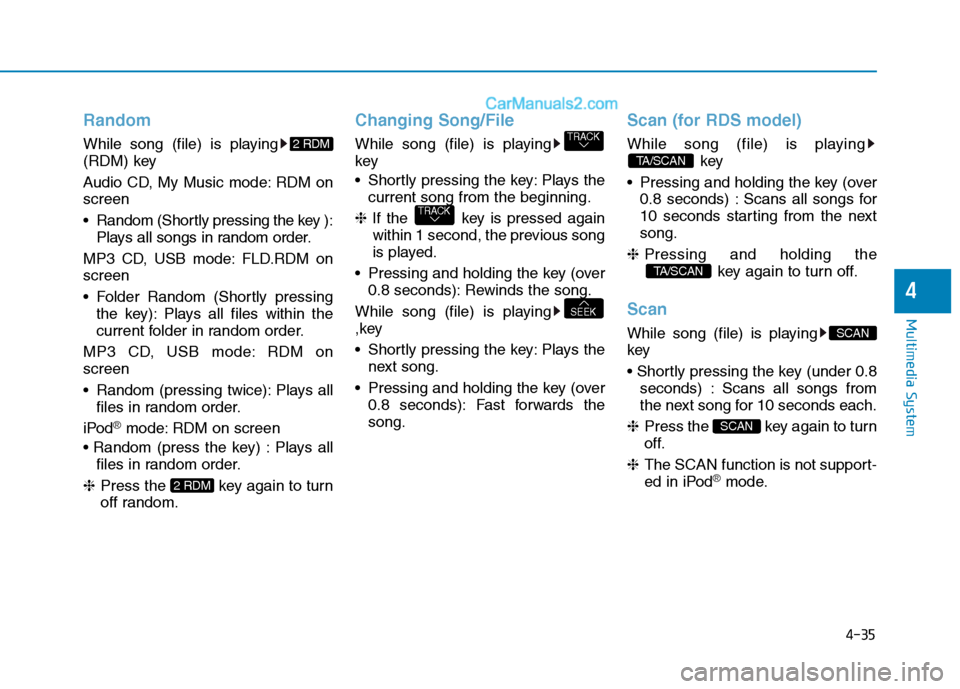
Random
While song (file) is playing
(RDM) key
Audio CD, My Music mode: RDM on screen
Random (Shortly pressing the key ):Plays all songs in random order.
MP3 CD, USB mode: FLD.RDM on screen
Folder Random (Shortly pressing the key): Plays all files within the
current folder in random order.
MP3 CD, USB mode: RDM onscreen
Random (pressing twice): Plays all files in random order.
iPod
®mode: RDM on screen
Plays all files in random order.
❈ Press the key again to turn
off random.
Changing Song/File
While song (file) is playing key
Shortly pressing the key: Plays the
current song from the beginning.
❈ If the key is pressed again
within 1 second, the previous song
is played.
Pressing and holding the key (over 0.8 seconds): Rewinds the song.
While song (file) is playing
,key
Shortly pressing the key: Plays the next song.
Pressing and holding the key (over 0.8 seconds): Fast forwards the song.
Scan (for RDS model)
While song (file) is playing key
Pressing and holding the key (over 0.8 seconds) : Scans all songs for
10 seconds starting from the nextsong.
❈ Pressing and holding the
key again to turn off.
Scan
While song (file) is playing key
seconds) : Scans all songs from
the next song for 10 seconds each.
❈ Press the key again to turn
off.
❈ The SCAN function is not support-
ed in iPod
®mode.
SCAN
SCAN
TA/SCAN
TA/SCAN
SEEK
TRACK
TRACK
2 RDM
2 RDM
Page 235 of 473
4-43
Multimedia System
4
➀Shortly press (under 0.8 seconds)
the key on the steering
remote controller.
➁ The call history list will be dis-
played on the screen.
➂ Press the key again to con-
nect a call to the selected number.
number
➀ Press and hold (over 0.8 seconds)
the key on the steering
remote controller.
➁ The most recently called numberis redialed.Phone MENU (for RDS model)
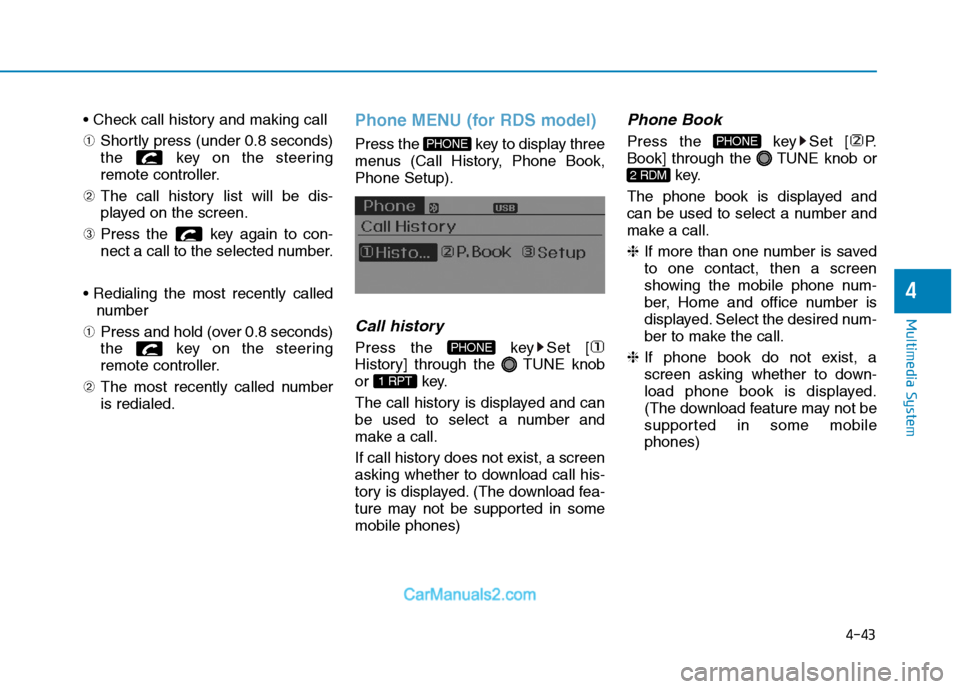
Press the key to display three
menus (Call History, Phone Book,Phone Setup).
Call history
Press the key Set [
History] through the TUNE knob
or key.
The call history is displayed and can
be used to select a number and
make a call.
If call history does not exist, a screen
asking whether to download call his-
tory is displayed. (The download fea-
ture may not be supported in somemobile phones)
Phone Book
Press the key Set [ P.
Book] through the TUNE knob or
key.
The phone book is displayed and
can be used to select a number and
make a call. ❈ If more than one number is saved
to one contact, then a screen
showing the mobile phone num-
ber, Home and office number is
displayed. Select the desired num-
ber to make the call.
❈ If phone book do not exist, a
screen asking whether to down-
load phone book is displayed.
(The download feature may not be
supported in some mobilephones)
2 RDM
PHONE
1 RPT
PHONE
PHONE
Page 240 of 473

4-48
Multimedia System
RRAA DDIIOO ,, SS EE TT UU PP,, VV OO LLUU MM EE
C
C OO NNTTRR OO LL
1. FM/AM Button
Each press of the button
will change the radio mode in the
following order. - FM1 ➟
FM2 ➟ AM
2. BSM (Best Station
Memory) Button
Press and hold the button to listen to the presets saved in FM BAND FM1, FM2, and AM BAND
AM for 5 seconds each.
Shortly press the button to
automatically save frequencies with
superior reception in presets (~ ). 3.
/Broadcast
Manual Search (FLDR) Button
As button used to search frequen- cies manually, a press of the SEEK
STEP will change the frequency.
Pressing and holding the button will
continue changing the frequency.
Releasing the button will stop the
search at the current frequency. -
: Searches frequencies
higher than current frequency
- :Searches frequencies
lower than current frequency
4. POWER/VOL /Sound Setting Knob
POWER Knob to turn on the audio. While the audio is
operating, press the Knob to
turn the power off.
Turn the Knob clockwise to
increase the volume and counter-
clockwise to decrease the volume.
FLDR
FLDR
FLDRFLDR
6 INFO
1 REW
BSM
BSM
BSM
FM/AM
FM/AMDo not turn up the volume to the
level that it covers the sur-
rounding traffic noises. If not, it
may cause an accident.
CAUTION
Page 242 of 473
4-50
Multimedia System
BEEP Control
VOLUME Knob clock-wise/counter-clockwise to the
BEEP sound ON/OFF.
LANGUAGE (Only AM210MDEE)
VOLUME Knob clock- wise/counter-clockwise to the select the desired Language
Language setting are as shown
below - English ➟➟
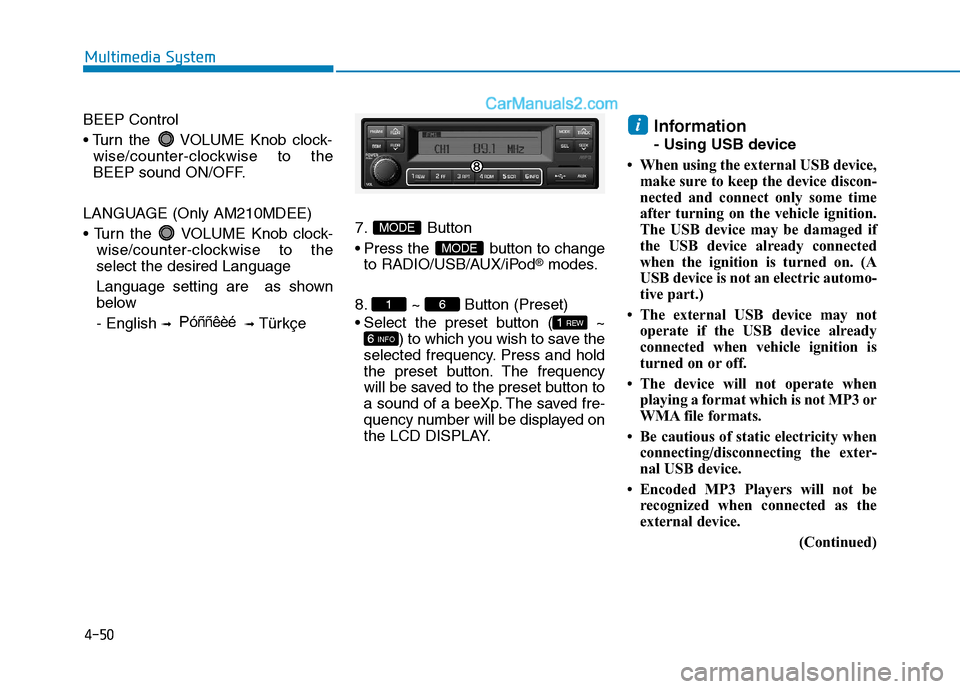
Türkçe7. Button
Press the button to change
to RADIO/USB/AUX/iPod
®modes.
8. ~ Button (Preset)
Select the preset button ( ~ ) to which you wish to save the
selected frequency. Press and hold
the preset button. The frequency
will be saved to the preset button to
a sound of a beeXp. The saved fre-
quency number will be displayed on
the LCD DISPLAY. Information
- Using USB device
When using the external USB device, make sure to keep the device discon-
nected and connect only some time
after turning on the vehicle ignition.
The USB device may be damaged if
the USB device already connected
when the ignition is turned on. (A
USB device is not an electric automo-
tive part.)
The external USB device may not operate if the USB device already
connected when vehicle ignition is
turned on or off.
The device will not operate when playing a format which is not MP3 or
WMA file formats.
Be cautious of static electricity when connecting/disconnecting the exter-
nal USB device.
Encoded MP3 Players will not be recognized when connected as the
external device.
(Continued)
i
6 INFO
1 REW
61
MODE
MODE
P óññêèé
Page 243 of 473

4-51
Multimedia System
4
(Continued)
When connecting an external USBdevice, the device may not be proper-
ly recognize the USB when the USB
is in some states.
When formatting the external USB device, the device may not be proper-
ly recognize a Byte/Sector selection
other than 512Byte or 2048Byte.
The device will only recognize USB devices formatted in FAT 12/16/32.
Some USB devices may not operate properly because of compatibility
issues. Verify that the external device
is supported by the device before
starting use.
Avoid contact between the USB con- nector with bodily parts and foreign
substances.
Repeatedly connecting/disconnecting the USB in a short period of time
may cause damage to the device.
When disconnecting the USB, an abnormal sound may occur occasion-
ally.
(Continued)(Continued)
Abruptly disconnecting the external
USB device while the USB is operat-
ing may cause the device to become
damaged or function abnormally. -
Make sure to disconnect the USB
device only after the audio power is
turned off or when the audio is oper-
ating in a different mode.
The amount of time required to rec- ognize the external USB device may
differ depending on the type, size, or
file formats stored on the USB. Such
differences in the required time are
not indications of malfunction.
The song name (ID3Tag) or com- mand icons (RPT/RDM) may take
time to be displayed on the LCD
DISPLAY depending the complexity
of the USB memory/folder structure.
Please wait the period of time required to recognize the device. The
device supports only USB devices
used to play music files.
(Continued)(Continued)
Do not use the USB I/F to charge bat-
teries or USB accessories which gen-
erate heat. Such acts may lead to
deteriorated performance or damage
to the device.
The device may not recognize the USB device if separately purchased
USB hubs and extension cables are
being used. Connect the USB direct-
ly to the multimedia terminal of the
vehicle.
In the case of high capacity USB devices, there are instances where the
logical drives are partitioned for user
convenience. - In this case, only the
USB music in the top-level logical
drive will be possible to play.
When using partitioned drives, save
the songs desired to play on the
device only in the top-level logical
drive. In addition, certain UBS
devices are configured with a sepa-
rate drive used to install application
programs and songs from such
drives may not be possible to play for
the reasons as described above.
(Continued)
Page 244 of 473

4-52
Multimedia System
(Continued)
The device may not support normaloperation if MP3 Players, cellular
phones, digital cameras, or other
electronic devices (USB devices not
recognized as portable disk drives)
are connected to the device.
This product does guarantees proper operation of only standard (METAL
COVER TYPE) USB MEMORY.
The device may not support normal operation when using formats such
as HDD Type, CF, or SD Memory.
The device will not support files locked by DRM (Digital Rights
Management).
This product does not recognize SD Type USB MEMORY STICK, CF
Type USB MEMORY STICK and
other USB MEMORY STICKS con-
nected to a different Adaptor.
(Continued)(Continued)
This product does not guarantee
proper operation of USB HDD or
USB MEMORY with defective con-
nection caused by vehicle vibrations.
UBS memory products used as key
chains and mobile phone accessories
(i-stick type) may cause damage to
the USB Jack. Refrain from using
such products.
USB CONNECTOR PIN wear and tear can lead to inferior USB signal
delivery with the SET.UUSSIINN GG UU SSBB //AA UU XX
1. USB Selection Button
While playing a different mode,
press the button to convert
to USB/AUX mode. Connecting a
USB/AUX to the audio will auto-
matically convert to USB/AUX
mode even if another mode is play-
ing and automatically play the
songs within the USB/AUX.
2. / Button While playing USB, press the
button to play the begin-
ning of the next song.
Press the button to
return to the beginning of the cur-
rent song. Press the button again
to play the beginning of the previ-ous song.
SEEK
TRACK
SEEKTRACK
MODE
MODE
Page 245 of 473
4-53
Multimedia System
4
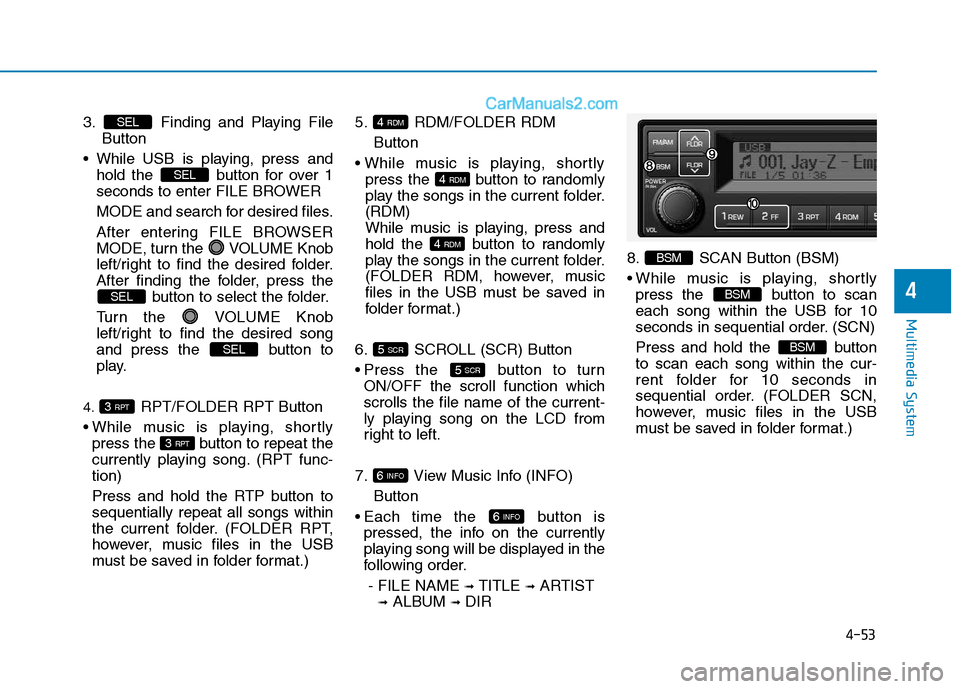
3. Finding and Playing File Button
While USB is playing, press and hold the button for over 1
seconds to enter FILE BROWER
MODE and search for desired files.
After entering FILE BROWSER
MODE, turn the VOLUME Knob
left/right to find the desired folder.
After finding the folder, press the button to select the folder.
Turn the VOLUME Knob
left/right to find the desired song
and press the button to
play.
4. RPT/FOLDER RPT Button
While music is playing, shortly press the button to repeat the
currently playing song. (RPT func-tion)
Press and hold the RTP button to sequentially repeat all songs within
the current folder. (FOLDER RPT,
however, music files in the USB
must be saved in folder format.) 5. RDM/FOLDER RDM
Button
press the button to randomly
play the songs in the current folder.(RDM)
While music is playing, press and
hold the button to randomly
play the songs in the current folder.
(FOLDER RDM, however, music
files in the USB must be saved in
folder format.)
6. SCROLL (SCR) Button
Press the button to turn ON/OFF the scroll function which scrolls the file name of the current-
ly playing song on the LCD from
right to left.
7. View Music Info (INFO) Button
Each time the button is pressed, the info on the currently
playing song will be displayed in the
following order.
- FILE NAME ➟
TITLE ➟ARTIST
➟ ALBUM ➟DIR 8. SCAN Button (BSM)
While music is playing, shortly
press the button to scan
each song within the USB for 10
seconds in sequential order. (SCN)
Press and hold the button to scan each song within the cur-
rent folder for 10 seconds in
sequential order. (FOLDER SCN,
however, music files in the USB
must be saved in folder format.)
BSM
BSM
BSM
6 INFO
6 INFO
5 SCR
5 SCR
4 RDM
4 RDM
4 RDM
3 RPT
3 RPT
SEL
SEL
SEL
SEL
Page 247 of 473
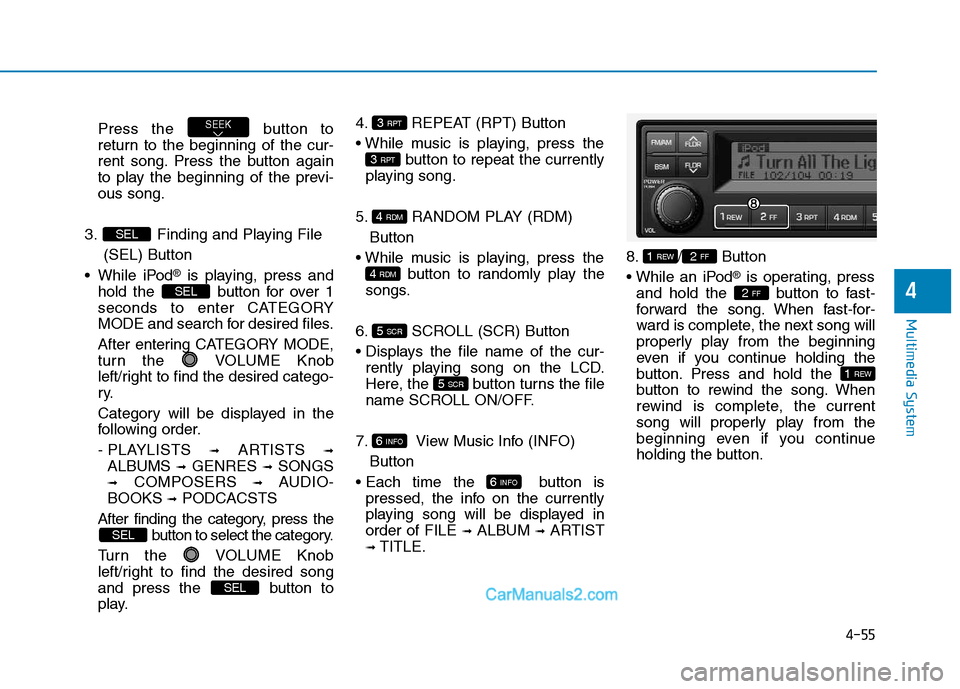
4-55
Multimedia System
4
Press the button to
return to the beginning of the cur-
rent song. Press the button again
to play the beginning of the previ-ous song.
3. Finding and Playing File (SEL) Button
While iPod
®is playing, press and
hold the button for over 1
seconds to enter CATEGORY
MODE and search for desired files.
After entering CATEGORY MODE,
turn the VOLUME Knob
left/right to find the desired catego-
ry.
Category will be displayed in the
following order.
- PLAYLISTS ➟
ARTISTS ➟
ALBUMS ➟GENRES ➟SONGS
➟ COMPOSERS ➟AUDIO-
BOOKS ➟PODCACSTS
After finding the category, press the button to select the category.
Turn the VOLUME Knob
left/right to find the desired song
and press the button to
play. 4. REPEAT (RPT) Button
button to repeat the currently
playing song.
5. RANDOM PLAY (RDM) Button
button to randomly play the
songs.
6. SCROLL (SCR) Button
rently playing song on the LCD.
Here, the button turns the file
name SCROLL ON/OFF.
7. View Music Info (INFO) Button
button is pressed, the info on the currently
playing song will be displayed inorder of FILE ➟
ALBUM ➟ARTIST
➟ TITLE. 8. / Button
®is operating, press
and hold the button to fast-
forward the song. When fast-for-
ward is complete, the next song will
properly play from the beginning
even if you continue holding the
button. Press and hold the
button to rewind the song. When
rewind is complete, the current
song will properly play from the
beginning even if you continue
holding the button.
1 REW
2 FF
2 FF1 REW
6 INFO
6 INFO
5 SCR
5 SCR
4 RDM
4 RDM
3 RPT
3 RPT
SEL
SEL
SEL
SEL
SEEK