2015 Hyundai Genesis Coupe radio
[x] Cancel search: radioPage 215 of 438
4131
Features of your vehicle
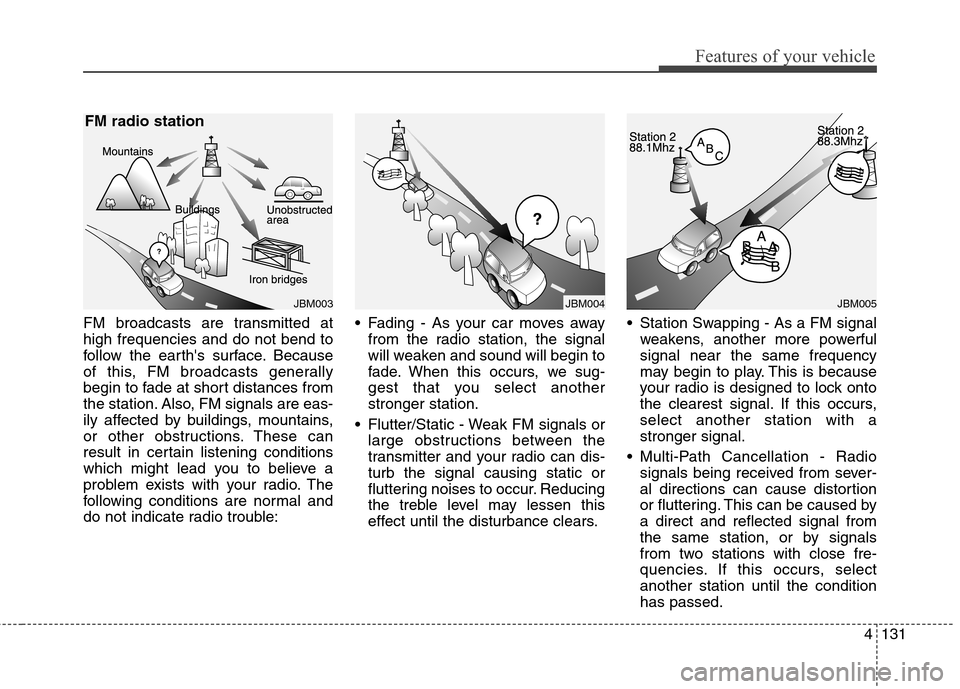
FM broadcasts are transmitted at
high frequencies and do not bend to
follow the earth's surface. Because
of this, FM broadcasts generally
begin to fade at short distances from
the station. Also, FM signals are eas-
ily affected by buildings, mountains,
or other obstructions. These can
result in certain listening conditions
which might lead you to believe a
problem exists with your radio. The
following conditions are normal and
do not indicate radio trouble: Fading - As your car moves away
from the radio station, the signal
will weaken and sound will begin to
fade. When this occurs, we sug-
gest that you select another
stronger station.
Flutter/Static - Weak FM signals or
large obstructions between the
transmitter and your radio can dis-
turb the signal causing static or
fluttering noises to occur. Reducing
the treble level may lessen this
effect until the disturbance clears. Station Swapping - As a FM signal
weakens, another more powerful
signal near the same frequency
may begin to play. This is because
your radio is designed to lock onto
the clearest signal. If this occurs,
select another station with a
stronger signal.
Multi-Path Cancellation - Radio
signals being received from sever-
al directions can cause distortion
or fluttering. This can be caused by
a direct and reflected signal from
the same station, or by signals
from two stations with close fre-
quencies. If this occurs, select
another station until the condition
has passed.
JBM005JBM003
FM radio station
JBM004
Page 216 of 438
Features of your vehicle
132 4
Satellite radio reception
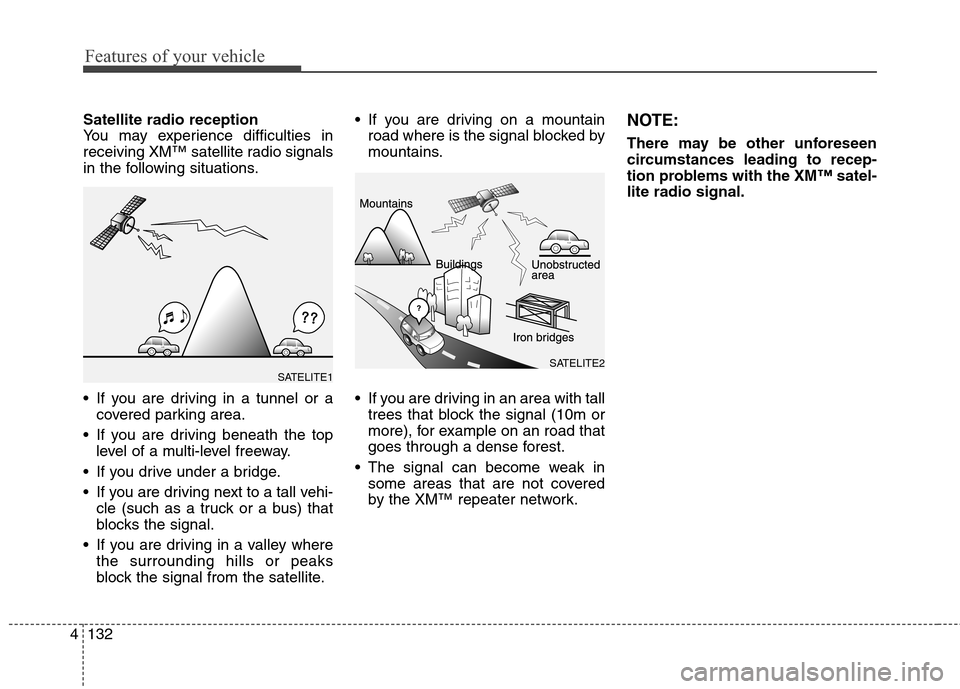
You may experience difficulties in
receiving XM™ satellite radio signals
in the following situations.
If you are driving in a tunnel or a
covered parking area.
If you are driving beneath the top
level of a multi-level freeway.
If you drive under a bridge.
If you are driving next to a tall vehi-
cle (such as a truck or a bus) that
blocks the signal.
If you are driving in a valley where
the surrounding hills or peaks
block the signal from the satellite. If you are driving on a mountain
road where is the signal blocked by
mountains.
If you are driving in an area with tall
trees that block the signal (10m or
more), for example on an road that
goes through a dense forest.
The signal can become weak in
some areas that are not covered
by the XM™ repeater network.NOTE:
There may be other unforeseen
circumstances leading to recep-
tion problems with the XM™ satel-
lite radio signal.
SATELITE2SATELITE1
Page 217 of 438
4133
Features of your vehicle
Using a cellular phone or a two-
way radio
When a cellular phone is used inside
the vehicle, noise may be produced
from the audio equipment. This does
not mean that something is wrong
with the audio equipment. In such a
case, use the cellular phone at a
place as far as possible from the
audio equipment.
Care of discs
If the temperature inside the car is
too high, open the car windows for
ventilation before using your car
audio.
It is illegal to copy and use
MP3/WMA/WAVE files without per-
mission. Use CDs that are created
only by lawful means.
Do not apply volatile agents such as
benzene and thinner, normal clean-
ers and magnetic sprays made for
analogue disc onto CDs.
To prevent the disc surface from
getting damaged. Hold and carry
CDs by the edges or the edges of
the center hole only.
Clean the disc surface with a piece
of soft cloth before playback (wipe it
from the center to the outside
edge).
Do not damage the disc surface or
attach pieces of sticky tape or paper
onto it.
Make sure on undesirable matter
other than CDs are inserted into the
CD player (Do not insert more than
one CD at a time). Keep CDs in their cases after use to
protect them from scratches or dirt.
Depending on the type of CD-
R/CD-RW CDs, certain CDs may
not operate normally according to
manufacturing companies or mak-
ing and recording methods. In such
circumstances, if you still continue
to use those CDs, they may cause
the malfunction of your car audio
system.
✽ ✽
NOTICE - Playing an
Incompatible Copy
Protected Audio CD
Some copy protected CDs, which do
not comply with the international
audio CD standards (Red Book),
may not play on your car audio.
Please note that if you try to play
copy protected CDs and the CD
player does not perform correctly
the CDs maybe defective, not the CD
player.
WARNING
Do not use a cellular phone
while driving. Stop at a safe
location to use a cellular phone.
WARNING
When using a communication
system such a cellular phone or
a radio set inside the vehicle, a
separate external antenna must
be fitted. When a cellular phone
or a radio set is used with an
internal antenna alone, it may
interfere with the vehicle's elec-
trical system and adversely
affect safe operation of the vehi-
cle.
Page 222 of 438
Features of your vehicle
138 4
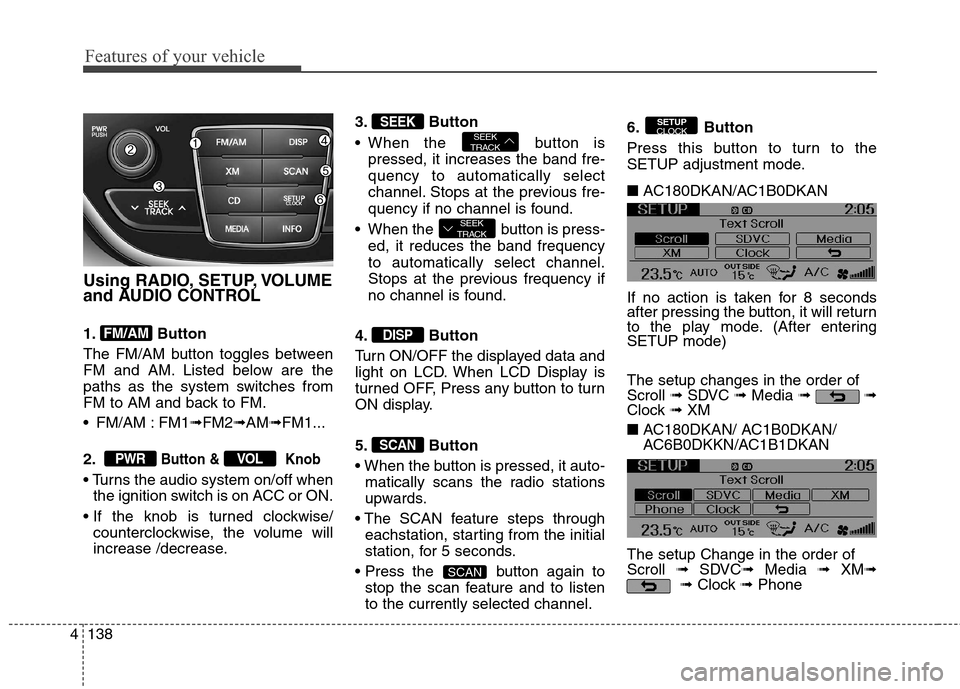
Using RADIO, SETUP, VOLUME
and AUDIO CONTROL
1. Button
The FM/AM button toggles between
FM and AM. Listed below are the
paths as the system switches from
FM to AM and back to FM.
FM/AM : FM1➟FM2➟AM➟FM1...
2.
Button & Knob
the ignition switch is on ACC or ON.
counterclockwise, the volume will
increase /decrease.3. Button
When the button is
pressed, it increases the band fre-
quency to automatically select
channel. Stops at the previous fre-
quency if no channel is found.
When the button is press-
ed, it reduces the band frequency
to automatically select channel.
Stops at the previous frequency if
no channel is found.
4. Button
Turn ON/OFF the displayed data and
light on LCD. When LCD Display is
turned OFF, Press any button to turn
ON display.
5. Button
matically scans the radio stations
upwards.
eachstation, starting from the initial
station, for 5 seconds.
button again to
stop the scan feature and to listen
to the currently selected channel.6. Button
Press this button to turn to the
SETUP adjustment mode.
■ AC180DKAN/AC1B0DKAN
If no action is taken for 8 seconds
after pressing the button, it will return
to the play mode. (After entering
SETUP mode)
The setup changes in the order of
Scroll ➟SDVC ➟Media ➟ ➟
Clock ➟ XM
■ AC180DKAN/ AC1B0DKAN/
AC6B0DKKN/AC1B1DKAN
The setup Change in the order of
Scroll ➟SDVC➟Media ➟ XM➟
➟Clock ➟Phone
SETUP
CLOCK
SCAN
SCAN
DISP
SEEK
TRACK
SEEK
TRACKSEEK
VOLPWR
FM/AM
Page 229 of 438

4145
Features of your vehicle
CAUTION IN USING
USB DEVICE
To use an external USB
device, make sure the device
is not connected when start-
ing up the vehicle. Connect
the device after starting up.
If you start the engine when
the USB device is connected,
it may damage the USB
device. (USB flashdrives are
very sensitive to electric
shock.)
If the engine is started up or
turned off while the external
USB device is connected, the
external USB device may not
work.
It may not play inauthentic
MP3 or WMA files.
1) It can only play MP3 files
with the compression rate
between 8Kbps~320Kbps.
2) It can only play WMA music
files with the compression
rate between 8Kbps ~
320Kbps.
(Continued)
(Continued)
Take precautions for static
electricity when connecting or
disconnecting the external
USB device.
An encrypted MP3 PLAYER is
not recognizable.
Depending on the condition of
the external USB device, the
connected external USB
device can be unrecognizable.
When the formatted byte/sec-
tor setting of External USB
device is not either 512BYTE
or 2048BYTE, then the device
will not be recognized.
Use only a USB device format-
ted to FAT 12/16/32.
USB devices without USB I/F
authentication may not be rec-
ognizable.
Make sure the USB connec-
tion terminal does not come in
contact with the human body
or other objects.
(Continued)(Continued)
If you repeatedly connect or
disconnect the USB device in
a short period of time, it may
break the device.
You may hear a strange noise
when connecting or discon-
necting a USB device.
If you disconnect the external
USB device during playback in
USB mode, the external USB
device can be damaged or may
malfunction. Therefore, discon-
nect the external USB device
when the audio is turned off or
in another mode. (e.g, Radio or
CD)
Depending on the type and
capacity of the external USB
device or the type of the files
stored in the device, there is a
difference in the time taken for
recognition of the device.
Do not use the USB device for
purposes other than playing
music files.
(Continued)
Page 237 of 438
4153
Features of your vehicle
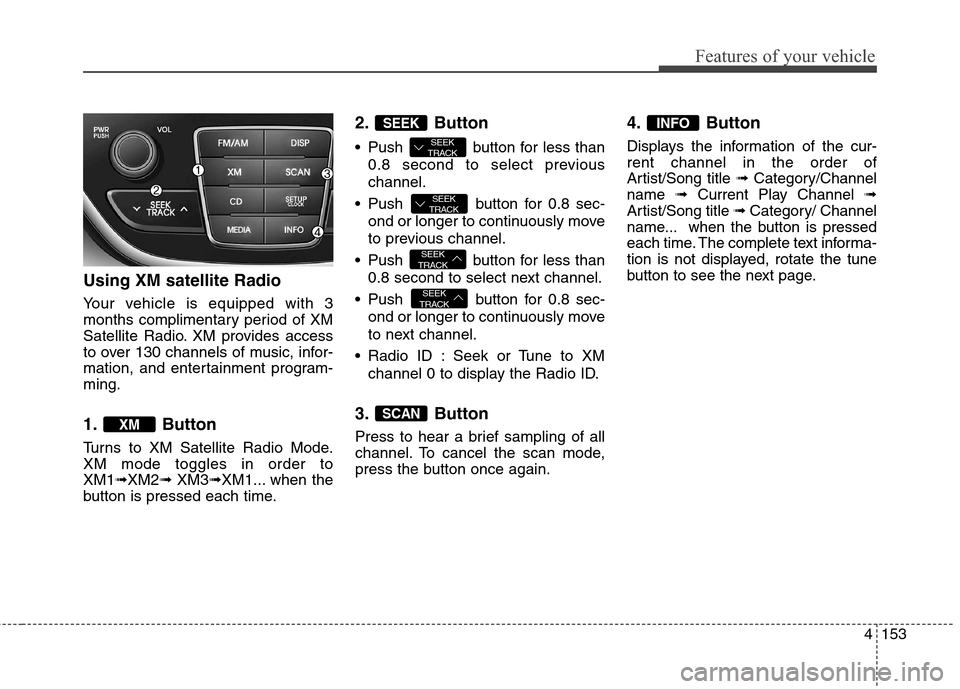
Using XM satellite Radio
Your vehicle is equipped with 3
months complimentary period of XM
Satellite Radio. XM provides access
to over 130 channels of music, infor-
mation, and entertainment program-
ming.
1. Button
Turns to XM Satellite Radio Mode.
XM mode toggles in order to
XM1➟XM2➟ XM3➟XM1... when the
button is pressed each time.
2. Button
Push button for less than
0.8 second to select previous
channel.
Push button for 0.8 sec-
ond or longer to continuously move
to previous channel.
Push button for less than
0.8 second to select next channel.
Push button for 0.8 sec-
ond or longer to continuously move
to next channel.
Radio ID : Seek or Tune to XM
channel 0 to display the Radio ID.
3. Button
Press to hear a brief sampling of all
channel. To cancel the scan mode,
press the button once again.
4. Button
Displays the information of the cur-
rent channel in the order of
Artist/Song title ➟ Category/Channel
name ➟ Current Play Channel ➟
Artist/Song title ➟ Category/ Channel
name... when the button is pressed
each time. The complete text informa-
tion is not displayed, rotate the tune
button to see the next page.
INFO
SCAN
SEEK
TRACK
SEEK
TRACK
SEEK
TRACK
SEEK
TRACK
SEEK
XM
Page 246 of 438
Features of your vehicle
162 4
The paired phone can be deleted.
- When the phone is deleted, all the
information associated with that
phone is also deleted (including
phonebook).
- If you want to use the deleted
phone with the audio system
again, pairing procedure must be
completed once more.
➀Press button to enter
SETUP mode.
➁ Select “Phone”, then “Delete” in
PHONE menu.
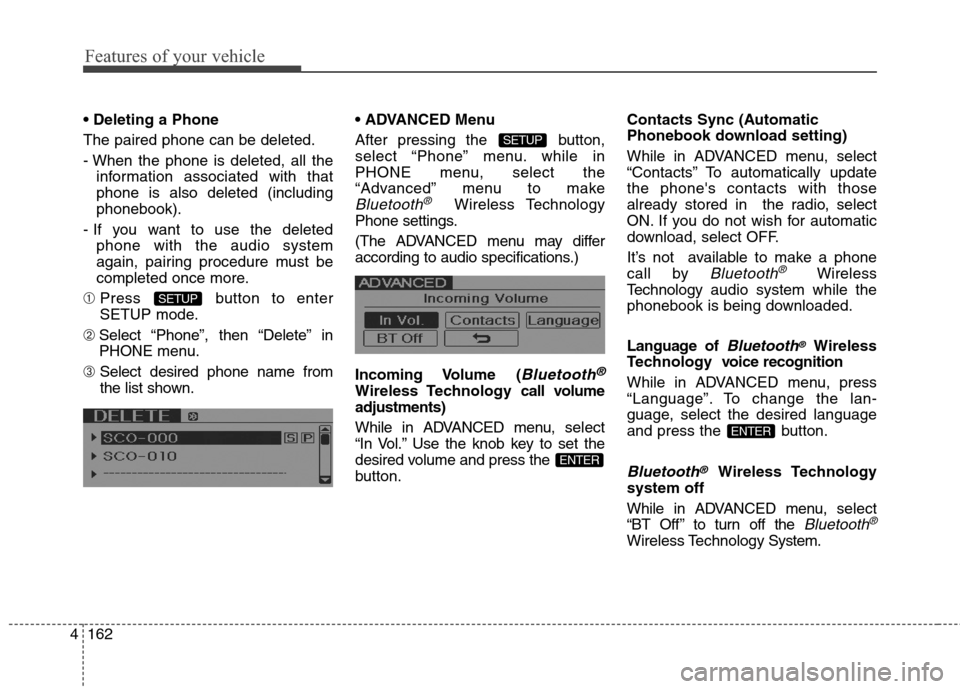
➂ Select desired phone name from
the list shown. Menu
After pressing the button,
select “Phone” menu. while in
PHONE menu, select the
“Advanced” menu to make
Bluetooth®Wireless Technology
Phone settings.
(The ADVANCED menu may differ
according to audio specifications.)
Incoming Volume (
Bluetooth®
Wireless Technology call volume
adjustments)
While in ADVANCED menu, select
“In Vol.” Use the knob key to set the
desired volume and press the
button.Contacts Sync (Automatic
Phonebook download setting)
While in ADVANCED menu, select
“Contacts” To automatically update
the phone's contacts with those
already stored in the radio, select
ON. If you do not wish for automatic
download, select OFF.
It’s not available to make a phone
call by
Bluetooth®Wireless
Technologyaudio system while the
phonebook is being downloaded.
Language of
Bluetooth®Wireless
Technology voice recognition
While in ADVANCED menu, press
“Language”. To change the lan-
guage, select the desired language
and press the button.
Bluetooth®Wireless Technology
system off
While in ADVANCED menu, select
“BT Off ” to turn off the
Bluetooth®
Wireless TechnologySystem.
ENTER
ENTER
SETUP
SETUP
Page 249 of 438
4165
Features of your vehicle
■Bluetooth®Wireless
Technology Audio Speaker
Adaptation
Speaker adaptation will improve per-
formance of voice recognition sys-
tem to a particular user voice.
This will degrade the performance for
other users.
➀ Press button for 10sec.
➁ Say “Record profile”.
➂ Say “Yes”.
➃ Say the word displayed on Radio.
➀ Press button for 10sec.
➁ Say “Delete profile”.
➂ Say “Yes”.