Page 255 of 498
4175
Features of your vehicle
• Language Support
(Unicode Support)
1. English: 94 characters
2. Special characters and Symbols :
986 characters
❈Languages other than Korean and
English (including Chinese) are
not included.
3. Text Display (Based on Unicode)
- File name: Maximum 64 English
characters
- Folder name: Max 32 English
characters
❈Using the scroll feature allows you
to see the entire name of files with
names that are too long to be dis-
played at once.
• Compatibility by Disc Type
1. Playing MIXED CDs: First plays
the audio CD, then plays the com-
pressed file(s).
2. Playing EXTRA CDs: First plays
the audio CD, then plays the com-
pressed file(s).
3. Playing multisession CDs: Plays in
order of sessions
- MIXED CD : CD type in which
both MP3 and audio CD files are
recognised in one disc.
- Multisession CD type that
includes more than two ses-
sions. Different from Extra CDs,
multisession CDs are recorded
by sessions and have no media
limitation.
• Precautions upon Writing
CDs
1. In all cases except when creating
multisession discs, check the
close session option before creat-
ing the disc. Though product mal-
functions will not occur, some time
may be required for the device to
check whether the session state is
closed (approximately 25 sec-
onds). Additional time may also be
required depending on the num-
ber of folders or files.
2. Changing the MP3/WMA file
extensions or changing files of
other extensions to MP3/WMA
may result in product malfunction.
3. When naming files with
MP3/WMA file extensions, write
using only Korean and English.
Languages other than Korean and
English are not supported and are
displayed as blank.
4. Unauthorised use or duplication of
music files are prohibited by law.
Page 257 of 498
4177
Features of your vehicle
MEDIA MODE
- AM910MDMG, AM911MDMG,
AM910MDMN, AM910MDEE,
AM911MDMN, AM910MDXN
Switching to Media Mode
(for
Bluetooth®Wireless
Technologyequipped model)
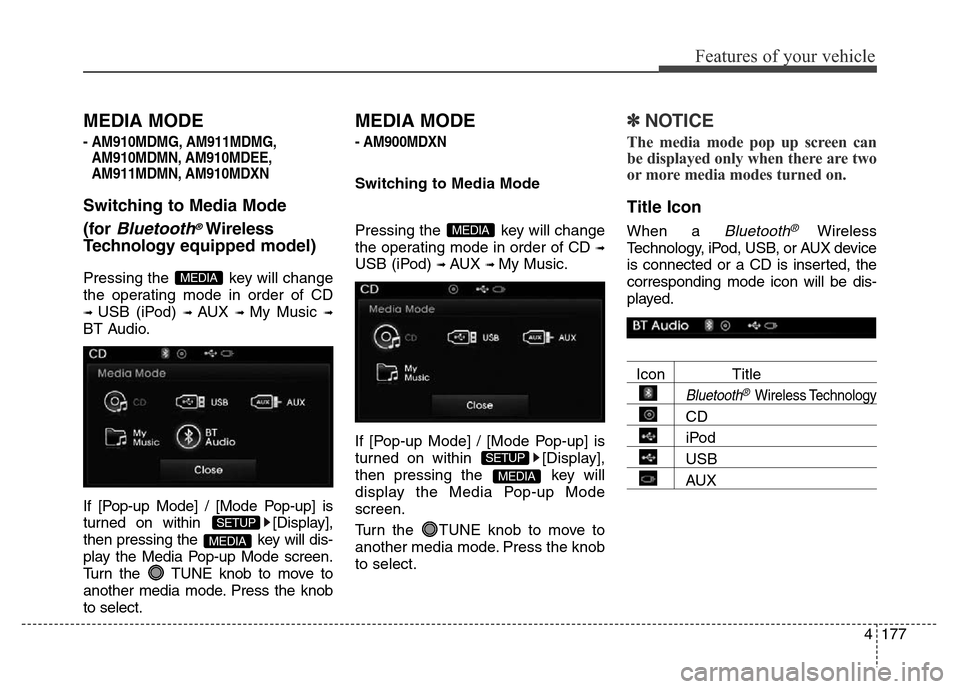
Pressing the key will change
the operating mode in order of CD
➟ USB (iPod) ➟ AUX ➟ My Music ➟
BT Audio.
If [Pop-up Mode] / [Mode Pop-up] is
turned on within [Display],
then pressing the key will dis-
play the Media Pop-up Mode screen.
Turn the TUNE knob to move to
another media mode. Press the knob
to select.
MEDIA MODE
- AM900MDXN
Switching to Media Mode
Pressing the key will change
the operating mode in order of CD
➟
USB (iPod) ➟ AUX ➟ My Music.
If [Pop-up Mode] / [Mode Pop-up] is
turned on within [Display],
then pressing the key will
display the Media Pop-up Mode
screen.
Turn the TUNE knob to move to
another media mode. Press the knob
to select.
✽NOTICE
The media mode pop up screen can
be displayed only when there are two
or more media modes turned on.
Title Icon
When a Bluetooth®Wireless
Technology, iPod, USB, or AUX device
is connected or a CD is inserted, the
corresponding mode icon will be dis-
played.
Icon Title
Bluetooth®Wireless Technology
CD
iPod
USB
AUXMEDIA
SETUP
MEDIA
MEDIA
SETUP
MEDIA
Page 258 of 498
Features of your vehicle
178 4
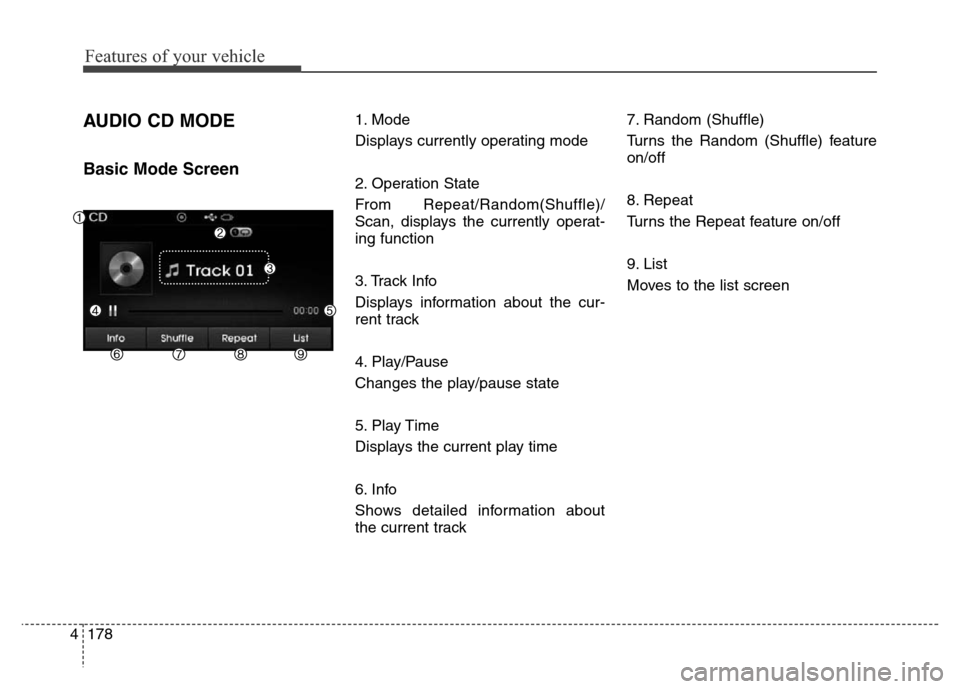
AUDIO CD MODE
Basic Mode Screen
1. Mode
Displays currently operating mode
2. Operation State
From Repeat/Random(Shuffle)/
Scan, displays the currently operat-
ing function
3. Track Info
Displays information about the cur-
rent track
4. Play/Pause
Changes the play/pause state
5. Play Time
Displays the current play time
6. Info
Shows detailed information about
the current track7. Random (Shuffle)
Turns the Random (Shuffle) feature
on/off
8. Repeat
Turns the Repeat feature on/off
9. List
Moves to the list screen
Page 259 of 498
4179
Features of your vehicle
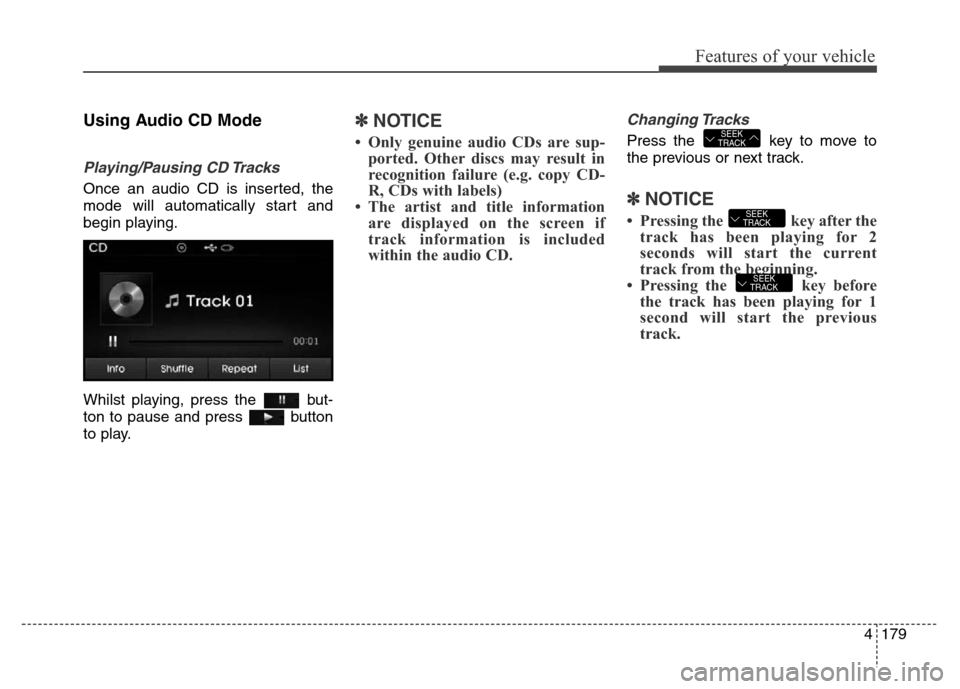
Using Audio CD Mode
Playing/Pausing CD Tracks
Once an audio CD is inserted, the
mode will automatically start and
begin playing.
Whilst playing, press the but-
ton to pause and press button
to play.
✽NOTICE
• Only genuine audio CDs are sup-
ported. Other discs may result in
recognition failure (e.g. copy CD-
R, CDs with labels)
• The artist and title information
are displayed on the screen if
track information is included
within the audio CD.
Changing Tracks
Press the key to move to
the previous or next track.
✽NOTICE
• Pressing the key after the
track has been playing for 2
seconds will start the current
track from the beginning.
• Pressing the key before
the track has been playing for 1
second will start the previous
track.
SEEK
TRACK
SEEK
TRACK
SEEK
TRACK
Page 260 of 498
Features of your vehicle
180 4
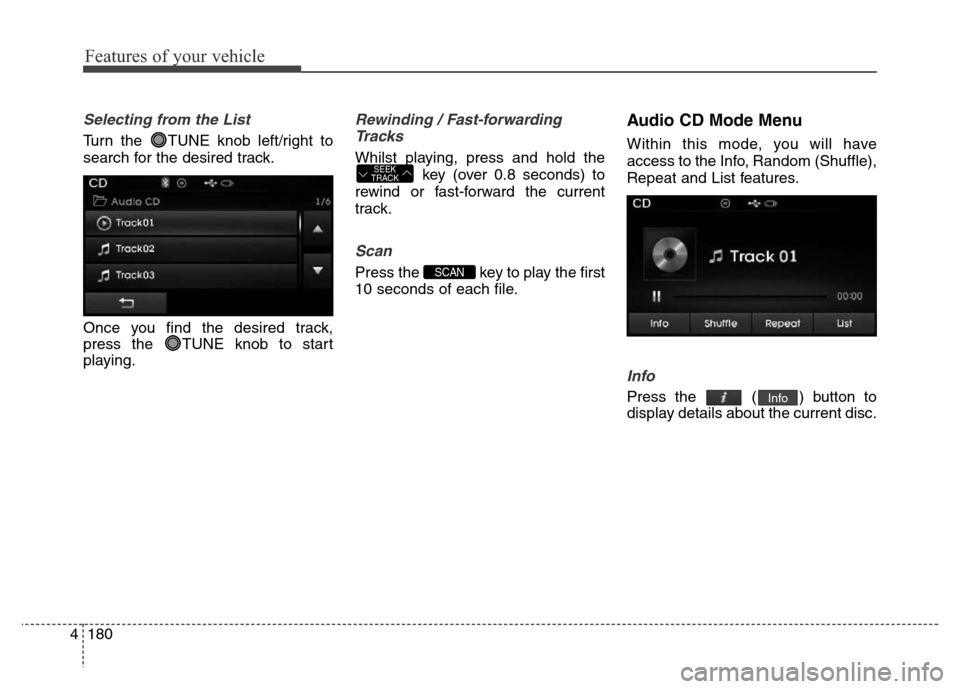
Selecting from the List
Turn the TUNE knob left/right to
search for the desired track.
Once you find the desired track,
press the TUNE knob to start
playing.
Rewinding / Fast-forwarding
Tracks
Whilst playing, press and hold the
key (over 0.8 seconds) to
rewind or fast-forward the current
track.
Scan
Press the key to play the first
10 seconds of each file.
Audio CD Mode Menu
Within this mode, you will have
access to the Info, Random (Shuffle),
Repeat and List features.
Info
Press the ( ) button to
display details about the current disc.Info
SCAN
SEEK
TRACK
Page 266 of 498
Features of your vehicle
186 4
✽NOTICE - USING THE USB
DEVICE
• Connect the USB device after
turning on the engine. The USB
device may become damaged if it
is already connected when the
ignition is turned on. The USB
device may not operate properly if
the ignition is turned on or off
with the USB device connected.
• Heed caution to static electricity
when connecting/disconnecting
USB devices.
• Encoded MP3 Players will not be
recognised when connected as an
external device.
• When connecting an external USB
device, the device may not proper-
ly recognise the USB.
• Only products formatted with
byte/sectors under 64Kbyte will be
recognised.
• This device recognises USB
devices formatted in FAT 12/16/32
file formats. This device does not
recognise files in NTFS file for-
mat.
(Continued)(Continued)
• Some USB devices may not be
supported due to compatibility
issues.
• Avoid contact between the USB
connector with bodily parts or for-
eign objects.
• Repeated connecting/disconnect-
ing of USB devices within short
periods of time may result in prod-
uct malfunction.
• A strange noise may occur when
disconnecting the USB.
• Make sure to connect/disconnect
external USB devices with the
audio power turned off.
• The amount of time required to
recognise the USB device may dif-
fer depending on the type, size or
file formats stored in the USB.
Such differences in time are not
indications of malfunctions.
• The device only supports USB
devices used to play music files.
• USB images and videos are not
supported.
(Continued)(Continued)
• Do not use the USB I/F to charge
batteries or USB accessories that
generate heat. Such acts may lead
to worsened performance or dam-
age to the device.
• The device may not recognise the
USB device if separately pur-
chased USB hubs and extension
cables are being used. Connect the
USB directly with the multimedia
terminal of the vehicle.
• When using mass storage USB
devices with separate logical
drives, only files saved to the root
drive can be played.
• Files may not properly operate if
application programs are installed
to the USBs.
• The device may not operate nor-
mally if MP3 Players, mobile
phones, digital cameras, or other
electronic devices (USB devices
not recognised as portable disk
drives) are connected with the
device.
(Continued)
Page 267 of 498
4187
Features of your vehicle
(Continued)
• Charging through the USB may
not work for some mobile devices.
• The device may not support nor-
mal operation when using a USB
memory type besides (Metal
Cover Type) USB Memory.
• The device may not support nor-
mal operation when using formats
such as HDD Type, CF, or SD
Memory.
• The device will not support files
locked by DRM (Digital Rights
Management).
• USB memory sticks used by con-
necting an Adaptor (SD Type or
CF Type) may not be properly
recognised.
• The device may not operate prop-
erly when using USB HDDs or
USBs subject to connection fail-
ures caused by vehicle vibrations.
(e.g. i-stick type)
(Continued)(Continued)
• Avoid use of USB
memory products that
can also be used as key
chains or mobile phone
accessories.
Use of such products may cause
damage to the USB jack.
• Connecting an MP3 device or
phone through various channels,
such as AUX/BT or Audio/USB
mode may result in pop noises or
abnormal operation.
Page 273 of 498
4193
Features of your vehicle
✽NOTICE- USING THE iPod®
DEVICE
•iPod®is a registered trademark of
Apple Inc.
• In order to use the iPod
®whilst
operating the keys, you must use a
dedicated iPod
®cable (the cable
that is supplied when purchasing
iPod
®/iPhone®products).
• If the iPod
®is connected to the
vehicle whilst it is playing, a high
pitch sound could occur for
approximately 1-2 seconds imme-
diately after connecting. If possi-
ble, connect the iPod
®to the vehi-
cle with the iPod®stopped/paused.
• When the ignition switch is in
ACC/ON, connecting the iPod
®
through the iPod®cable will
charge the iPod®through the
audio system.
• When connecting with the iPod
®
cable, make sure to fully insert the
jack to prevent communication
interference.
(Continued)(Continued)
• When the EQ features of an exter-
nal device, such as the iPod
®, and
the audio system are both active,
EQ effects could overlap and
cause sound deterioration and dis-
tortion. Whenever possible, turn
off the EQ feature within the
external device upon use by con-
necting with the audio system.
• Noise may occur when an iPod
®or
AUX device is connected. When
such devices are not being used,
disconnect the device for storage.
• When the iPod
®or AUX device
power is connected to the power
jack, playing the external device
may result in noise. In such cases,
disconnect the power connection
before use.
• Skipping or improper operation
may occur depending on the char-
acteristics of your iPod
®/Phone®
device.
(Continued)(Continued)
• If your iPhone is connected to both
the Bluetooth
®Wireless
Technology and USB, the sound
may not be properly played. In
your iPhone
®, select the Dock con-
nector orBluetooth®Wireless
Technology to change the sound
output (source).
•iPod
®mode cannot be operated
when the iPod®cannot be recog-
nised due to the playing of ver-
sions that do not support commu-
nication protocols. iPod
®abnor-
malities and defects may occur.
• For fifth generation iPod
®Nano
devices, the iPod®may not be
recognised when the battery level
is low. Please charge the iPod
®for
use.
• Search/play orders shown within
the iPod
®device may differ with
the orders shown within the audio
system.
(Continued)