Page 252 of 473
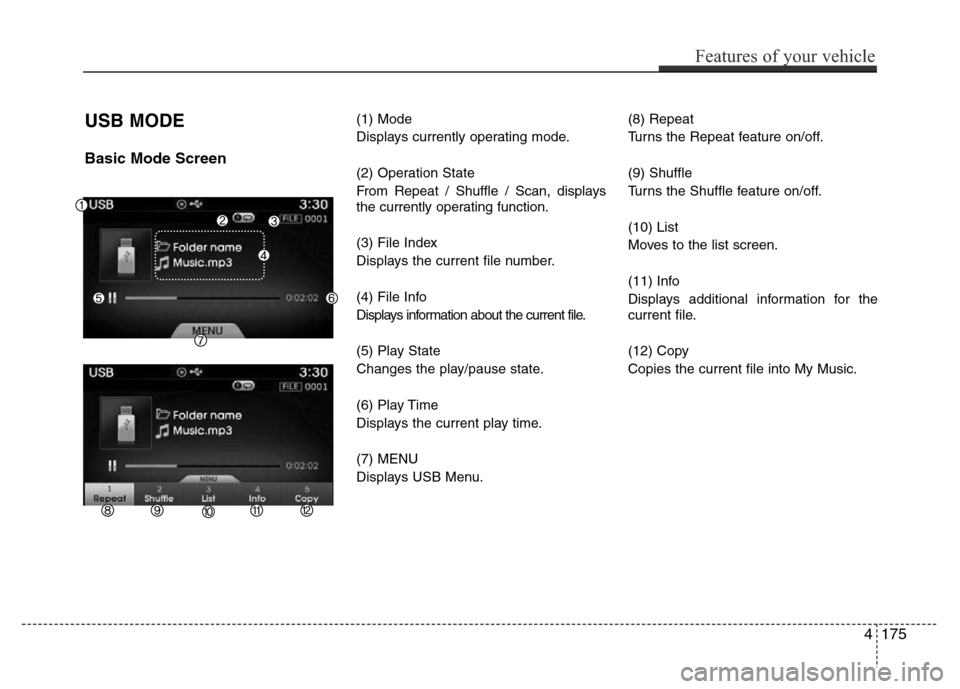
USB MODE
Basic Mode Screen
(1) Mode
Displays currently operating mode.
(2) Operation State
From Repeat / Shuffle / Scan, displays
the currently operating function.
(3) File Index
Displays the current file number.
(4) File Info
Displays information about the current file.
(5) Play State
Changes the play/pause state.
(6) Play Time
Displays the current play time.
(7) MENU
Displays USB Menu.(8) Repeat
Turns the Repeat feature on/off.
(9) Shuffle
Turns the Shuffle feature on/off.
(10) List
Moves to the list screen.
(11) Info
Displays additional information for the
current file.
(12) Copy
Copies the current file into My Music.
Features of your vehicle
175 4
Page 253 of 473
Using USB Mode
Playing/Pausing USB Files
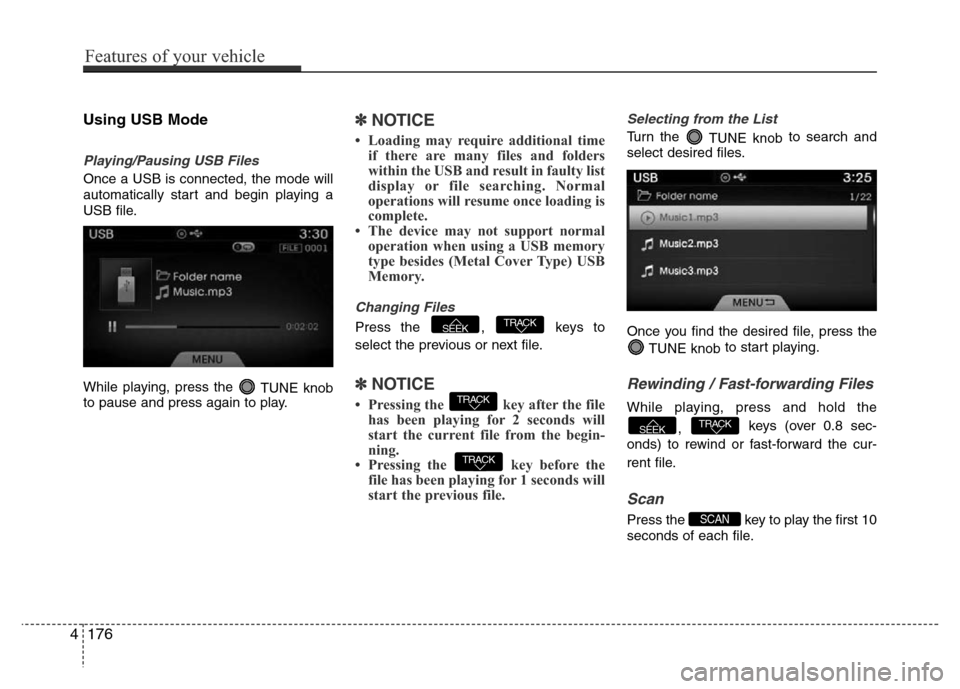
Once a USB is connected, the mode will
automatically start and begin playing a
USB file.
While playing, press the
TUNE knob
to pause and press again to play.
✽NOTICE
• Loading may require additional time
if there are many files and folders
within the USB and result in faulty list
display or file searching. Normal
operations will resume once loading is
complete.
• The device may not support normal
operation when using a USB memory
type besides (Metal Cover Type) USB
Memory.
Changing Files
Press the , keys to
select the previous or next file.
✽NOTICE
• Pressing the key after the file
has been playing for 2 seconds will
start the current file from the begin-
ning.
• Pressing the key before the
file has been playing for 1 seconds will
start the previous file.
Selecting from the List
Turn the
TUNE knobto search and
select desired files.
Once you find the desired file, press the
TUNE knobto start playing.
Rewinding / Fast-forwarding Files
While playing, press and hold the
, keys (over 0.8 sec-
onds) to rewind or fast-forward the cur-
rent file.
Scan
Press the key to play the first 10
seconds of each file.SCAN
TRACKSEEK
TRACK
TRACK
TRACKSEEK
4176
Features of your vehicle
Page 254 of 473
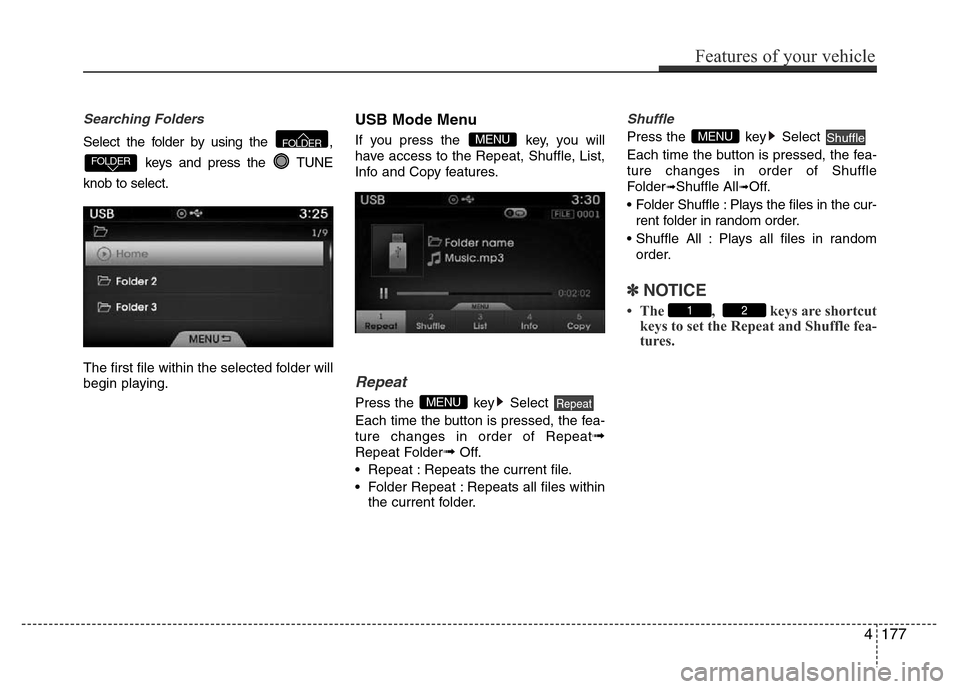
Searching Folders
Select the folder by using the ,
keys and press the TUNE
knob to select.
The first file within the selected folder will
begin playing.
USB Mode Menu
If you press the key, you will
have access to the Repeat, Shuffle, List,
Info and Copy features.
Repeat
Press the key Select
Each time the button is pressed, the fea-
ture changes in order of Repeat
➟
Repeat Folder➟Off.
• Repeat : Repeats the current file.
• Folder Repeat : Repeats all files within
the current folder.
Shuffle
Press the key Select
Each time the button is pressed, the fea-
ture changes in order of Shuffle
Folder
➟Shuffle All➟Off.
• Folder Shuffle : Plays the files in the cur-
rent folder in random order.
• Shuffle All : Plays all files in random
order.
✽NOTICE
• The , keys are shortcut
keys to set the Repeat and Shuffle fea-
tures.21
ShuffleMENU
RepeatMENU
MENU
FOLDER
FOLDER
Features of your vehicle
177 4
Page 276 of 473
4199
Features of your vehicle
Text Scroll
Press the key Select [Display]
Select [Text Scroll]
This feature is used to scroll text dis-
played on the screen when it is too long
to be displayed at once.
When turned on, the text is repeatedly
scrolled. When turned off, the text is
scrolled just once.
MP3 Information Display
Press the key Select [Display]
Select [Media Display]
This feature is used to change the infor-
mation displayed within USB and MP3
CD modes.
(1) Folder File : Displays file name and
folder name
(2) Album Artist Song : Displays
album name/artist name/song
Sound Settings
Sound Settings
Press the key Select [Sound]
Select [Sound Setting]
Use
TUNE knobto adjust the Bass/
Middle/ Treble and Fader/ Balance settings.SETUP
SETUP SETUP
![Hyundai Azera 2015 Owners Manual 4199
Features of your vehicle
Text Scroll
Press the key Select [Display]
Select [Text Scroll]
This feature is used to scroll text dis-
played on the screen when it is too long
to be displayed at once](/manual-img/35/14466/w960_14466-275.png "Hyundai Azera 2015 Owners Manual 4199
Features of your vehicle
Text Scroll
Press the key Select [Display]
Select [Text Scroll]
This feature is used to scroll text dis-
played on the screen when it is too long
to be displayed at once")