Page 6 of 453
5
Quick Reference Guide
❙Wipers/Washers (P126)
❙Paddle Shifter (Shift Up)* (P324)
❙ (Select/Reset) Knob (P83)
❙Brightness Control (P128)
❙ Display Button* (P192)
❙Paddle Shifter (Shift Down)* (P 324)
❙Headlights/Turn Signals (P121)
❙Fog Lights* (P124)
❙LaneWatchTM* (P334)
❙Audio Remote Control Buttons* (P168)
❙Horn (Press an area around .)
❙Cruise Control Buttons* (P329)
❙Bluetooth® HandsFreeLink ® System
(P248, 271)
❙Voice Control Buttons (P248, 271)
❙Navigation System Voice Control Buttons*
() See the Navigation System Manual
* Not available on all models
15 US FIT-31T5A6000.book 5 ページ 2014年3月6日 木曜日 午後7時5分
Page 19 of 453
18
Quick Reference Guide
Features (P161)
Audio Remote Controls*
(P168)
● / Button
Press to adjust the volume up/down.
● SOURCE Button
Press to change the audio mode: FM/AM/
CD/USB/iPod/Bluetooth/Pandora®
*/AhaTM */
AUX.
● / Button
Radio: Press to change the preset station. Press and hold to select the next or
previous strong station.
CD/USB device: Press to skip to the beginning of
the next song or return to the
beginning of the current song.
Press and hold to change a folder.
Models without navigation system
/ / / Buttons
SOURCE Button
Audio System (P162)
For navigation system operation () See the Navigation System Manual
Models with color audio system
MENU/CLOCK Button
LIST/SELECT
Knob
Button
(Back) Button
(Sound) Button
VOL
/
(Volume/Power)
Knob
CD Slot
(CD Eject) Button
Preset Buttons (1-6) (Phone) Button
RADIO
Button
/
(Skip/Seek) Buttons
CD/AUX
Button Audio/Information Screen
15 US FIT-31T5A6000.book 18 ページ 2014年3月6日 木曜日 午後7時5分
Page 70 of 453
69
Instrument Panel
This chapter describes the buttons, indicators, and gauges that are used while driving.
Indicators............................................ 70
Information Display Warning and Information Messages ...................... 80
Gauges and Displays Gauges .............................................. 82
Information Display............................ 83
15 US FIT-31T5A6000.book 69 ページ 2014年3月6日 木曜日 午後7時5分
Page 163 of 453

162
Features
Audio System
About Your Audio System
See the navigation system manual for operation of the audio system.
The audio system features AM/FM radio. It can also play audio CDs, WMA/MP3/AAC
files, USB flash drives, and iPod, iPhone and Bluetooth® devices.
You can operate the audio system from the buttons and switches on the panel, the
remote controls on the steering wheel, or the icons on the touchscreen interface
*.
1About Your Audio System
Video CDs, DVDs, and 3-inch (8-cm) mini CDs are not
supported.
iPod, iPhone and iTunes are trademarks of Apple Inc.
State or local laws may pr ohibit the operation of
handheld electronic devi ces while operating a
vehicle.
When the screen is vi ewed through polarized
sunglasses, a rainbow pa ttern may appear on the
screen due to optical characteristics of the screen. If
this is disturbing, please operate the screen without
polarized sunglasses.Models with navigation system
Models without navigation system
iPod
USB Flash
Drive
USB Port
Auxiliary Input Jack
*
Remote Controls*
HDMI ®*
* Not available on all models
15 US FIT-31T5A6000.book 162 ページ 2014年3月6日 木曜日 午後7時5分
Page 166 of 453
165
uuAudio System uAuxiliary Input Jack*
Features
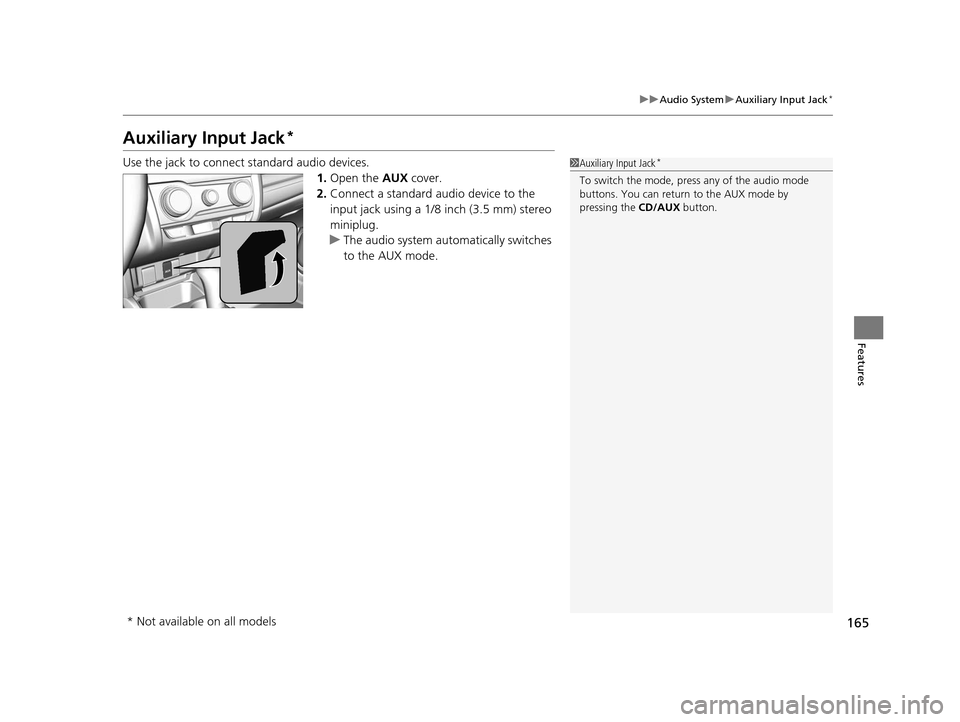
Auxiliary Input Jack*
Use the jack to connect standard audio devices.
1.Open the AUX cover.
2. Connect a standard audio device to the
input jack using a 1/8 inch (3.5 mm) stereo
miniplug.
u The audio system auto matically switches
to the AUX mode.1 Auxiliary Input Jack*
To switch the mode, pres s any of the audio mode
buttons. You can return to the AUX mode by
pressing the CD/AUX button.
* Not available on all models
15 US FIT-31T5A6000.book 165 ページ 2014年3月6日 木曜日 午後7時5分
Page 169 of 453
168
uuAudio System uAudio Remote Controls*
Features
Audio Remote Controls*
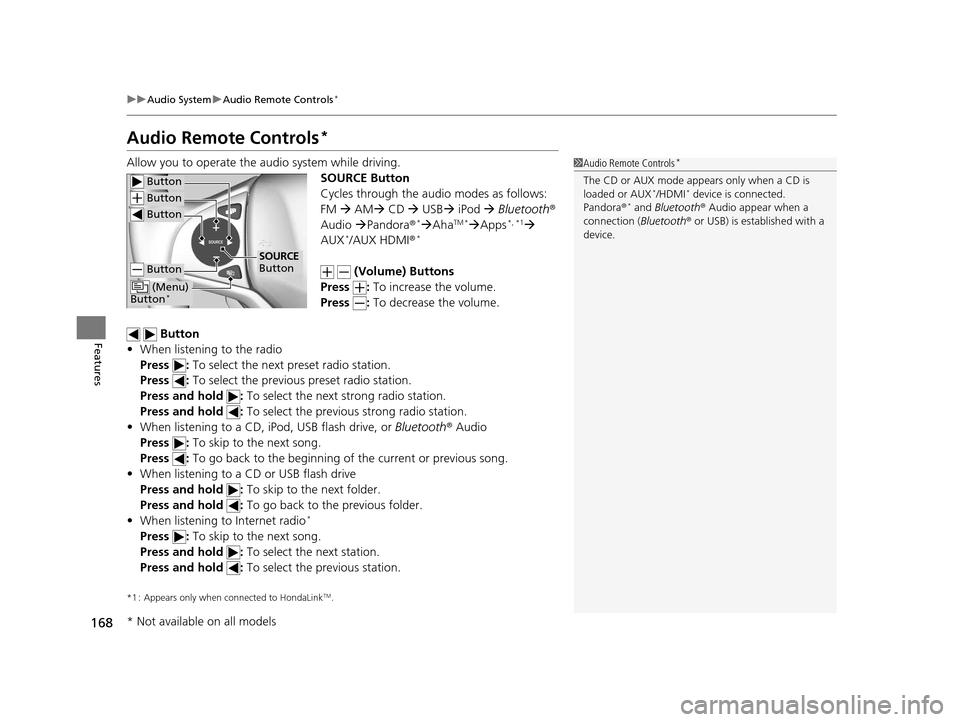
Allow you to operate the au dio system while driving.
SOURCE Button
Cycles through the audio modes as follows:
FM AM CD USB iPod Bluetooth ®
Audio Pandora®
*AhaTM *Apps*, *1
AUX*/AUX HDMI ®*
(Volume) Buttons
Press : To increase the volume.
Press : To decrease the volume.
Button
• When listening to the radio
Press : To select the next preset radio station.
Press : To select the previous preset radio station.
Press and hold : To select the next strong radio station.
Press and hold : To select the previous strong radio station.
• When listening to a CD, iPod, USB flash drive, or Bluetooth® Audio
Press : To skip to the next song.
Press : To go back to the beginning of the current or previous song.
• When listening to a CD or USB flash drive
Press and hold : To skip to the next folder.
Press and hold : To go back to the previous folder.
• When listening to Internet radio
*
Press : To skip to the next song.
Press and hold : To select the next station.
Press and hold : To select the previous station.
*1 : Appears only when co nnected to HondaLinkTM.
1Audio Remote Controls*
The CD or AUX mode appears only when a CD is
loaded or AUX*/HDMI* device is connected.
Pandora ®* and Bluetooth ® Audio appear when a
connection (Bluetooth ® or USB) is established with a
device.
Button
Button
Button
Button
(Menu)
Button*
SOURCE
Button
* Not available on all models
15 US FIT-31T5A6000.book 168 ページ 2014年3月6日 木曜日 午後7時5分
Page 178 of 453
177
uuAudio System Basic Operation uPlaying the AM/FM Radio
Continued
Features
Playing the AM/FM Radio
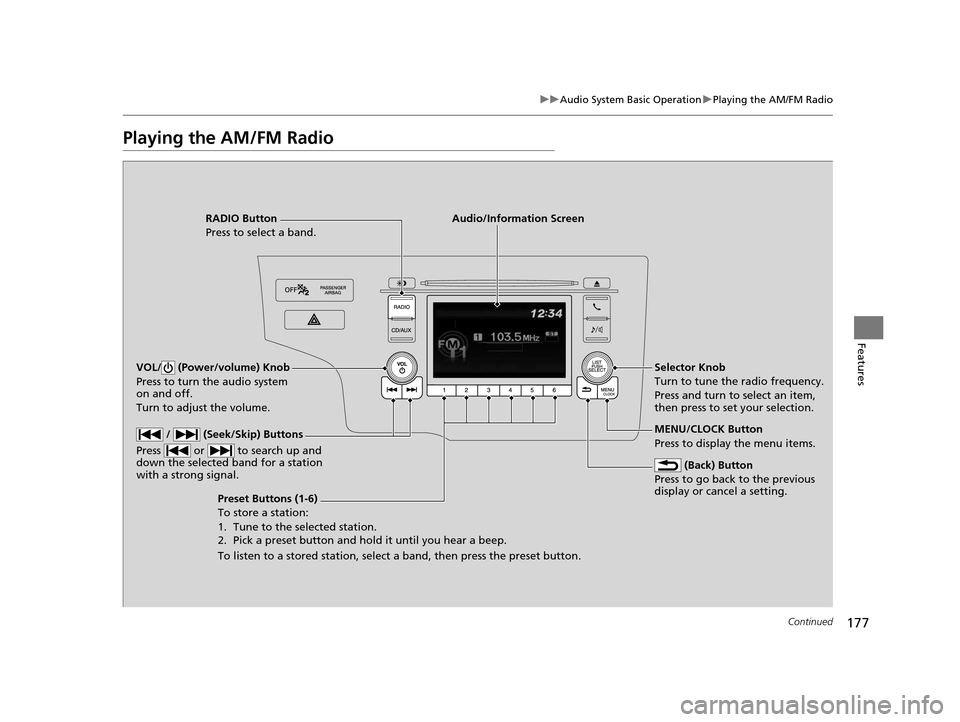
RADIO Button
Press to select a band.
(Back) Button
Press to go back to the previous
display or cancel a setting.
/ (Seek/Skip) Buttons
Press or to search up and
down the selected band for a station
with a strong signal.
VOL/ (Power/volume) Knob
Press to turn the audio system
on and off.
Turn to adjust the volume.
Preset Buttons (1-6)
To store a station:
1. Tune to the selected station.
2. Pick a preset button and hold it until you hear a beep.
To listen to a stored station, select a band, then press the preset button. Selector Knob
Turn to tune the radio frequency.
Press and turn to select an item,
then press to set your selection.
MENU/CLOCK Button
Press to display the menu items.
Audio/Information Screen
15 US FIT-31T5A6000.book 177 ページ 2014年3月6日 木曜日 午後7時5分
Page 180 of 453
179
uuAudio System Basic Operation uPlaying a CD
Continued
Features
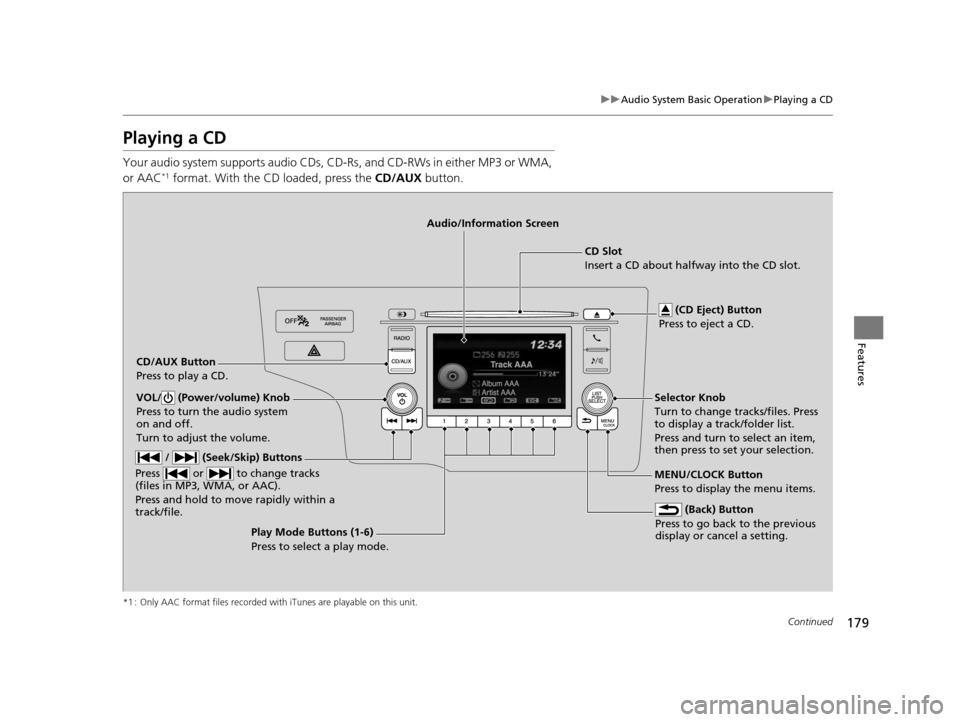
Playing a CD
Your audio system supports audio CDs, CD-Rs , and CD-RWs in either MP3 or WMA,
or AAC*1 format. With the CD loaded, press the CD/AUX button.
*1 : Only AAC format files recorded with iTunes are playable on this unit.
CD/AUX Button
Press to play a CD. (CD Eject) Button
Press to eject a CD.
CD Slot
Insert a CD about halfway into the CD slot.
(Back) Button
Press to go back to the previous
display or cancel a setting.
/ (Seek/Skip) Buttons
Press or to change tracks
(files in MP3, WMA, or AAC).
Press and hold to mo ve rapidly within a
track/file.
VOL/ (Power/volume) Knob
Press to turn the audio system
on and off.
Turn to adjust the volume.Selector Knob
Turn to change tracks/files. Press
to display a track/folder list.
Press and turn to select an item,
then press to set your selection.
MENU/CLOCK Button
Press to display the menu items.
Audio/Information Screen
Play Mode Buttons (1-6)
Press to select a play mode.
15 US FIT-31T5A6000.book 179 ページ 2014年3月6日 木曜日 午後7時5分