Page 118 of 329

117
uuOperating the Switches Around the Steering Wheel uBrightness Control
Controls
Brightness Control
When the ignition switch is in ON (w, you can
use the brightness control knob to adjust
instrument panel brightness.
Brighten: Turn the knob to the right.
Dim: Turn the knob to the left.
You will hear a beeper when the brightness
reaches minimum or maximum. The multi-
information display will return to its original
state several seconds after you adjust the
brightness.
■Brightness level indicator
The brightness level is shown on the multi-
information display whil e you are adjusting it.
1Brightness Control
Instrument panel brightne ss varies, depending on
whether the exterior lights are on or off. The
instrument panel dims to reduce glare when they are
on.
Pressing either (i nformation) button
changes to a different display.
If you turn the knob to the right until the brightness
display is up to max, the beeper sounds. This cancels
the reduced instrument panel brightness when the
parking lights are on.
The brightness can be set differently for when the
exterior lights are on, and when they are off.
Control Knob
15 CR-Z-31SZT6400.book 117 ページ 2014年8月1日 金曜日 午後1時59分
Page 119 of 329

118
uuOperating the Switches Around the Steering Wheel uRear Defogger/Heated Door Mirror* Button
Controls
Rear Defogger/Heated Door Mirror* Button
Press the rear defogger and heated door
mirror button to defog the rear window and
mirrors when the ignition switch is in ON
(w.
The rear defogger and heated door mirrors
automatically switch off after 10-30 minutes
depending on the outside temperature.
However, if the outside temperature is 32°F
(0°C) or below, they do not automatically
switch off.
1 Rear Defogger/Heated Door Mirror* Button
NOTICE
When cleaning the inside of the rear window, be
careful not to damage the heating wires.
It is critical to wipe the window from side to side
along the defogger heating wires.
This system consumes a lot of power, so turn it off
when the window has been defogged.
Also, do not use the system for a long period when
the engine is idling. This may weaken the 12 volt
battery, making it difficult to start the engine.
* Not available on all models
15 CR-Z-31SZT6400.book 118 ページ 2014年8月1日 金曜日 午後1時59分
Page 120 of 329

119
uuOperating the Switches Around the Steering Wheel uAdjusting the Steering Wheel
Controls
Adjusting the Steering Wheel
The steering wheel height and distance from your body can be adjusted so that you
can comfortably grip the steering wheel in an appropriate driving posture.
1. Pull the steering wheel adjustment lever up.
u The steering wheel adjustment lever is
under the steering column.
2. Move the steering wheel up or down, and
in or out.
u Make sure you can see the instrument
panel gauges and indicators.
3. Push the steering wheel adjustment lever
down to lock the steering wheel in position.
u After adjusting the position, make sure
you have securely locked the steering
wheel in place by trying to move it up,
down, in, and out.1Adjusting the Steering Wheel
Make any steering wheel adjustments before you
start driving.
3WARNING
Adjusting the steering wheel position while
driving may cause you to lose control of the
vehicle and be seriously injured in a crash.
Adjust the steering wh eel only when the
vehicle is stopped.To adjust
To lock
Lever
15 CR-Z-31SZT6400.book 119 ページ 2014年8月1日 金曜日 午後1時59分
Page 123 of 329

122
Controls
Adjusting the Seats
Adjusting the Seat Positions
Adjust the driver's seat as far back as possible
while allowing you to maintain full control of
the vehicle. You should be able to sit upright,
well back in the seat and be able to
adequately press the pedals without leaning
forward, and grip the steering wheel
comfortably. The passenger's seat should be
adjusted in a similar manner, so that it is as far
back from the front airbag in the dashboard
as possible.1Adjusting the Seats
The National Highway Traffic Safety Administration
and Transport Cana da recommend that drivers allow
at least 10 inches (25 cm) between the center of the
steering wheel and the chest.
Always make seat adjustments before driving.
Once a seat is adjusted co rrectly, rock it back and
forth to make sure it is locked in position.
3WARNING
Sitting too close to a front airbag can result
in serious injury or death if the front
airbags inflate.
Always sit as far back from the front
airbags as possible while maintaining
control of the vehicle.
Move back.
Allow sufficient
space.
Horizontal Position
Adjustment
Pull up on the bar to move the
seat, then release the bar.
Height Adjustment(Driver side only)
Pull up or push down the lever
to raise or lower the seat.
Seat-back Angle
Adjustment
Pull up the lever to
change the angle.
Driver’s seat is shown.
15 CR-Z-31SZT6400.book 122 ページ 2014年8月1日 金曜日 午後1時59分
Page 124 of 329
Continued123
uuAdjusting the Seats uAdjusting the Seat Positions
Controls
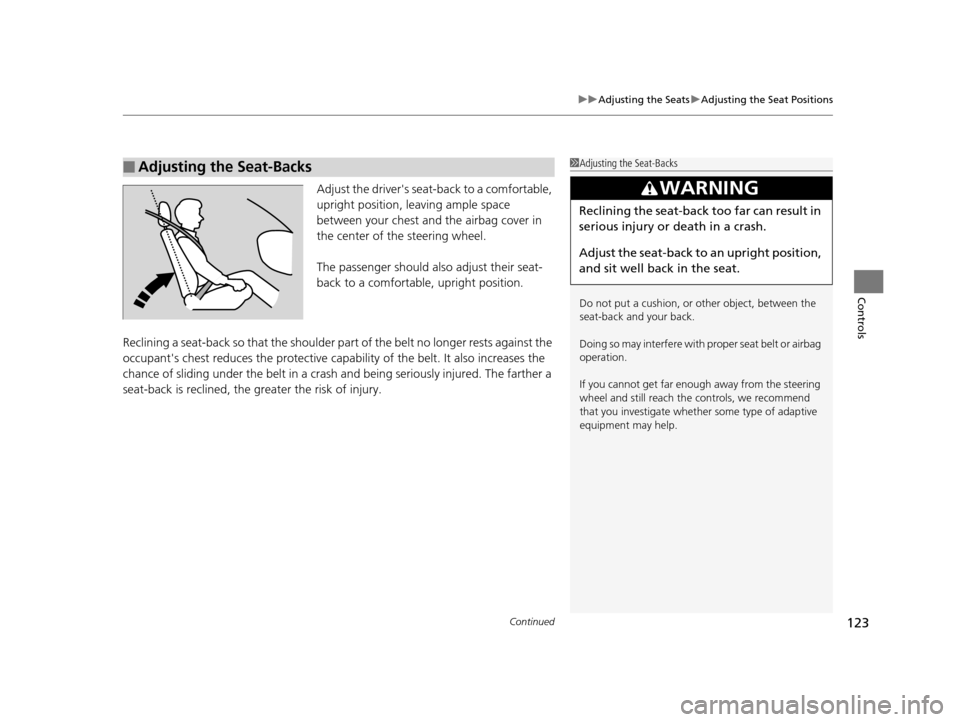
Adjust the driver's seat -back to a comfortable,
upright position, leaving ample space
between your chest and the airbag cover in
the center of the steering wheel.
The passenger should also adjust their seat-
back to a comfortable, upright position.
Reclining a seat-back so that the shoulder part of the belt no longer rests against the
occupant's chest reduces the protective capa bility of the belt. It also increases the
chance of sliding under the belt in a crash and being seriously injured. The farther a
seat-back is reclined, the gr eater the risk of injury.
■Adjusting the Seat-Backs1Adjusting the Seat-Backs
Do not put a cushion, or other object, between the
seat-back and your back.
Doing so may interfere with proper seat belt or airbag
operation.
If you cannot get far e nough away from the steering
wheel and still reach th e controls, we recommend
that you investigate whether some type of adaptive
equipment may help.
3WARNING
Reclining the seat-back too far can result in
serious injury or death in a crash.
Adjust the seat-back to an upright position,
and sit well back in the seat.
15 CR-Z-31SZT6400.book 123 ページ 2014年8月1日 金曜日 午後1時59分
Page 141 of 329

140
Features
Audio System
About Your Audio System
On models with navigation system, see the Navigation System Manual for operation
of the audio system, Bluetooth® HandsFreeLink ®, and voice commands for these
features.
The audio system features AM/FM radio. It can also play audio CDs, WMA/MP3/AAC
files, USB flash drives, and iPod devices.
You can operate the audio system from the buttons and switches on the panel or
the remote controls on the steering wheel.1About Your Audio System
Video CDs, DVDs, and 3-inch (8-cm) mini CDs are not
supported.
iPod and iTunes are trademarks of Apple Inc.
You can operate the audio system by voice
commands. See the navigation system manual for full
details.
State or local laws may li mit the circumstances in
which you can launch or cont rol your attached audio
device.
Models with navigation system
Remote Control iPod
USB Flash
DriveUSB
Adapter
Cable
Models with navigation system
Models without navigation system
Auxiliary
Input Jack
Auxiliary
Input Jack
15 CR-Z-31SZT6400.book 140 ページ 2014年8月1日 金曜日 午後1時59分
Page 146 of 329
145
uuAudio System uAudio System Basic Operation
Continued
Features
Audio System Basic Operation
To use the audio system function, the ignition swit ch must be in ACCESSORY (q or
ON
(w. Use the selector knob to access some audio
functions.
Selector knob: Rotate left or right to scroll
through the available ch oices. Press to set
your selection. button: Press to select the Sound
Setting mode.
button: Press to go back to the
previous display.
1 Audio System Basic Operation
These indications are used to show how to operate
the selector knob.
Rotate to select.
Press to ENTER.
Press the MODE,
( +, (-, or button on the
steering wheel to cha nge any audio setting.
2 Audio Remote Controls P. 14434
Button
Selector Knob
15 CR-Z-31SZT6400.book 145 ページ 2014年8月1日 金曜日 午後1時59分
Page 149 of 329

uuAudio System uPlaying the AM/FM Radio
148
Features
Use the auto select feature to scan both bands and store the strongest station in
each preset.
Press the A.SEL button to activate the feature.
To turn off auto select, press the A.SEL button again. This restores the presets you
originally set.
Provides text data information related to your selected RDS capable FM station.
■RDS INFO ON
Press the TITLE button while listening to an RDS capable station. RDS INFO ON
appears, and the station name is displayed.
1.Press the / button to
display and select an RDS category.
2. Use SEEK or SCAN to select an RDS station.
■Auto Select (A.SEL)
■Radio Data System (RDS)
■To find an RDS station from your selected program category
1Playing the AM/FM Radio
The ST indicator appears on the display indicating
stereo FM broadcasts.
Stereo reproduction in AM is not available.
Switching the Audio Mode
Press the MODE button on the steering wheel.
2 Audio Remote Controls P. 144
You can store 6 AM stations and 12 FM stations into
the preset button memory. FM1 and FM2 let you
store 6 stations each.
Auto Select function scans and stores up to 6 AM
stations and 12 FM stations with a strong signal into
the preset button memory.
If you do not like the stati ons auto select has stored,
you can manually store your preferred frequencies.
1Radio Data System (RDS)
The display shows up to 31 ch aracters of text data.
Press and hold the TITLE button to see additional
characters. indicates that the text data continues.
The display goes back to th e previous screen if you
press and hold the button again.
RDS Category
15 CR-Z-31SZT6400.book 148 ページ 2014年8月1日 金曜日 午後1時59分
