Page 135 of 253
134
uuPlaying FM/AM Radio uAudio Screen Control
Audio
Audio Screen Control
H HOME uAudio uSOURCE uFM or AM icon
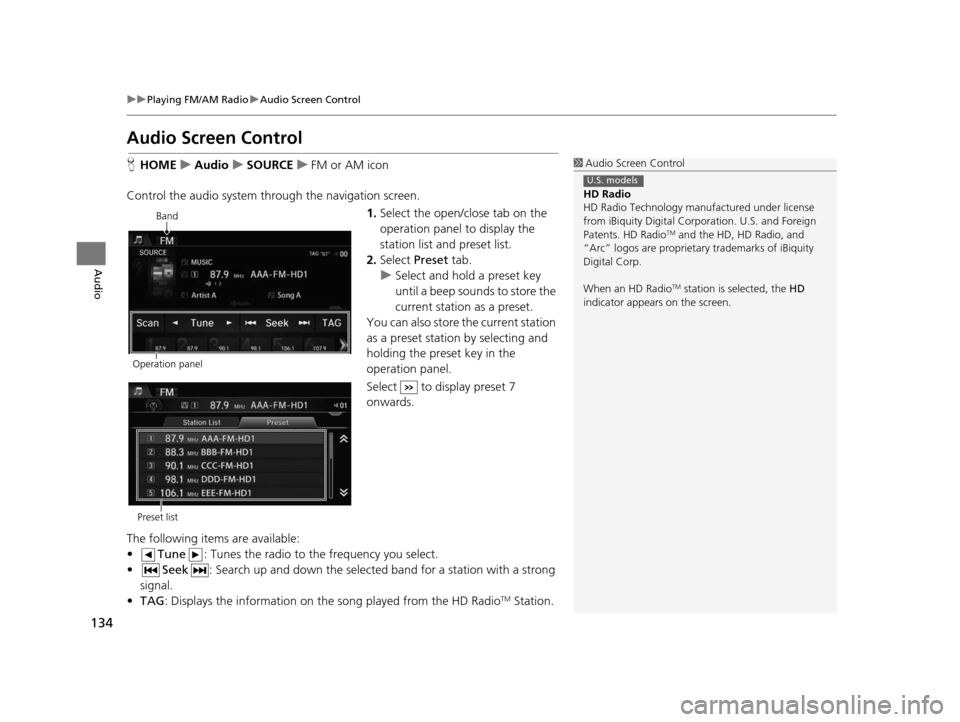
Control the audio system th rough the navigation screen.
1.Select the open/close tab on the
operation panel to display the
station list and preset list.
2. Select Preset tab.
u Select and hold a preset key
until a beep sounds to store the
current station as a preset.
You can also store the current station
as a preset station by selecting and
holding the preset key in the
operation panel.
Select to display preset 7
onwards.
The following items are available:
• Tune : Tunes the radio to the frequency you select.
• Seek : Search up and down the selected band for a station with a strong
signal.
• TAG : Displays the information on th e song played from the HD Radio
TM Station.
1Audio Screen Control
HD Radio
HD Radio Technology manufactured under license
from iBiquity Digital Cor poration. U.S. and Foreign
Patents. HD Radio
TM and the HD, HD Radio, and
“Arc” logos are proprietary trademarks of iBiquity
Digital Corp.
When an HD Radio
TM station is selected, the HD
indicator appears on the screen.
U.S. models
Band
Operation panel
Preset list
15 CIVIC NAVI-31TR38300.book 134 ページ 2014年8月7日 木曜日 午前11時49分
Page 136 of 253
Continued135
uuPlaying FM/AM Radio uAudio Menu
Audio
• Scan : Scans for stations with a strong sign al in the current band and plays a 10-
second sample. Select Cancel to stop scanning and play the current selection.
Audio Menu
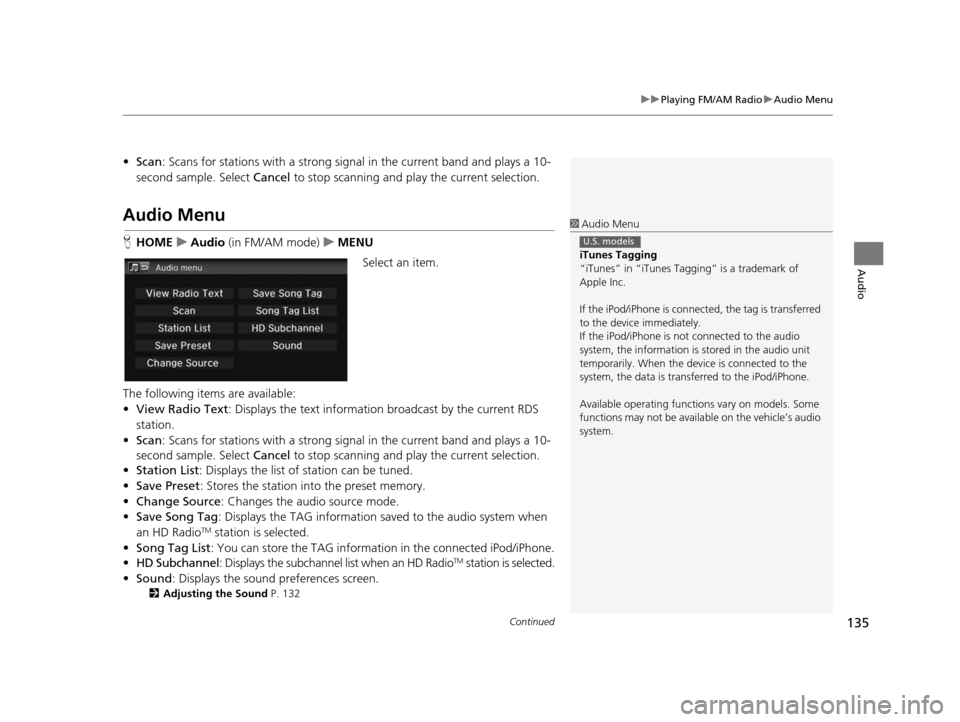
HHOME uAudio (in FM/AM mode) uMENU
Select an item.
The following items are available:
• View Radio Text : Displays the text informatio n broadcast by the current RDS
station.
• Scan : Scans for stations with a strong sign al in the current band and plays a 10-
second sample. Select Cancel to stop scanning and pl ay the current selection.
• Station List : Displays the list of station can be tuned.
• Save Preset : Stores the station into the preset memory.
• Change Source : Changes the audio source mode.
• Save Song Tag : Displays the TAG information sa ved to the audio system when
an HD Radio
TM station is selected.
• Song Tag List : You can store the TAG information in the connected iPod/iPhone.
• HD Subchannel : Displays the subchannel list when an HD Radio
TM station is selected.
• Sound : Displays the sound preferences screen.
2Adju sting the Sound P. 132
1Audio Menu
iTune s Tagging
“iTunes” in “iTunes Ta gging” is a trademark of
Apple Inc.
If the iPod/iPhone is connect ed, the tag is transferred
to the device immediately.
If the iPod/iPhone is not connected to the audio
system, the information is stored in the audio unit
temporarily. When the device is connected to the
system, the data is transferred to the iPod/iPhone.
Available operating function s vary on models. Some
functions may not be availa ble on the vehicle’s audio
system.
U.S. models
15 CIVIC NAVI-31TR38300.book 135 ページ 2014年8月7日 木曜日 午前11時49分
Page 137 of 253
uuPlaying FM/AM Radio uAudio Menu
136
Audio
H HOME uAudio (in FM/AM mode) uMENU uStation Li st
Provides text data information related to your selected RDS-capable FM station.
Select one of the lists.
■Radio Data System1
Radio Data System
To update the station li st manually, select Refresh.
15 CIVIC NAVI-31TR38300.book 136 ページ 2014年8月7日 木曜日 午前11時49分
Page 138 of 253
137
Audio
Playing SiriusXM® Radio
Selecting SiriusXM ® Mode
1. Select Audio on the HOME screen.
2. Select SOURCE .
3. Select the XM icon.
4. Select the channel with Category, Channel , SCAN or open the
tab and select from stored presets.
u The channel is displayed.1Playing SiriusXM ® Radio
“ Radio select XM ”, “Radio XM ”
You can control the radio using voice control
commands. 2 Radio Command s P. 237
A visual guide helps you operate the audio system.
2 System Control s P. 4
2 Basic Operation P. 9
In the channel mode, all available channels are
selectable. In the categor y mode, you can select a
channel within a ca tegory (Jazz, Rock, Classical, etc.).
There may be instances when SiriusXM ® Radio does
not broadcast all the data fi elds (artist name, title).
This does not indicate a problem with your audio
system.
You can store 12 SiriusXM ® stations in the presets.
SiriusXM ® Radio display message s will be displayed
on the audio screen.
2 Siriu sXM® Radio Di splay Messages P. 140
15 CIVIC NAVI-31TR38300.book 137 ページ 2014年8月7日 木曜日 午前11時49分
Page 139 of 253
138
uuPlaying SiriusXM ® Radio uAudio Screen Control
Audio
Audio Screen Control
H HOME uAudio uSOURCE uXM icon
Control the audio system th rough the navigation screen.
1.Select the open/close tab on the
operation panel to display the
channel list and preset list.
2. Select Preset tab.
u Select and hold a preset until a
beep sounds to store the
current station as a preset.
You can also store the current station
as a preset station by selecting and
holding the preset key in the
operation panel.
Select to display preset 7
onwards.
The following items are available:
• Category : Display and select an SiriusXM® Radio category.
• Channel : Select the previous or next channel.
Operation panelBand
Preset list
15 CIVIC NAVI-31TR38300.book 138 ページ 2014年8月7日 木曜日 午前11時49分
Page 140 of 253
139
uuPlaying SiriusXM ® Radio uAudio Menu
Audio
• Scan : Scans for channels in the selected mode and plays a 10-second sample.
Select Cancel to stop scanning and pl ay the current selection.
Audio Menu
HHOME uAudio (in SiriusXM ® mode) uMENU
Select an item.
The following items are available:
• Scan : Scans for channels in the selected mode and plays a 10-second sample.
Select Cancel to stop scanning and pl ay the current selection.
• Save Preset : Stores the station into the preset memory.
• Change Source : Changes the audio source mode.
• Channel List : Displays the list of available channels.
• XM Tune Mode : Sets Channel Mode or Category Mode .
– Channel Mode : Scans to select a ll available channels.
– Category Mode : Scans to select a channel within a category (Jazz, Rock,
Classic, etc.).
• Sound : Displays the sound preferences screen.
2Adju sting the Sound P. 132
15 CIVIC NAVI-31TR38300.book 139 ページ 2014年8月7日 木曜日 午前11時49分
Page 141 of 253
140
uuPlaying SiriusXM ® Radio uSiriusXM ® Radio Service
Audio
Siriu sXM® Radio Service
1. Retrieve your radio ID before registering for subscription.
u To see the radio ID, select (channel) to select “000” channel. You can also
select “000” channel from Channel List.
2. Have your radio ID and credit card number ready, and either call SiriusXM ® or visit
the SiriusXM® website to subscribe.
Select the SiriusXM ® icon and stay in this mode for about 30 minutes until the
service is activated. Make sure your vehicl e is in an open area with good reception.
Loading : SiriusXM ® is loading the audio or program information.
Channel Off Air : The channel is not currently broadcasting.
Channel Not Authorized: The encryption code is being updated. Channels 0 and
1 still work normally.
No Signal : The signal is too weak in the current location.
Channel Not Available : No such channel exists, the channel is not part of your
subscription, or the artist or ti tle information is not available.
Check Antenna : There is a problem with the SiriusXM ® antenna. Contact a dealer.
■Subscribing to SiriusXM
® Radio
■ Receiving SiriusXM
® Radio
■ SiriusXM
® Radio Display Messages
1 Subscribing to SiriusXM ® Radio
Contact Information for SiriusXM ® Radio:
U.S.: SiriusXM ® Radio at www.siriusxm.com , or
(800) 852-9696
Canada: SiriusXM ® Canada at www.xmradio.ca , or
(877) 209-0079
1 Receiving SiriusXM ® Radio
The SiriusXM ® satellites are in orbit over the equator;
therefore, objects south of the vehicle may cause
satellite reception interruptions. Sa tellite signals are
more likely to be blocked by tall buildings and
mountains the farther north you travel from the
equator.
You may experience rece ption problems under the
following circumstances:
•In a location with an obstruction to the south of
your vehicle
•In tunnels•On the lower level of a multi-tiered road
•Large items are carried on the roof rack
15 CIVIC NAVI-31TR38300.book 140 ページ 2014年8月7日 木曜日 午前11時49分
Page 155 of 253
154
Audio
Playing Pandora®*
Pandora is a personalized Internet radio serv ice that selects music based on an artist,
song, or genre a user enters, and stream s what is likely to be of interest.
Selecting Pandora® Mode
1.Connect a compatible phone through Bluetooth®.
u You can also connect the phone using your dock connector to the USB port if
you use the iPhone.
2. Select Audio on the HOME screen.
3. Select SOURCE .
4. Select the PANDORA icon.
u A pop-up message may appear on your phone requesting you to allow access
for the app to launch.
u The current station name, artist name, rating, and track name are displayed.
1Playing Pandora ®*
“Pandora play”
Pandora is available on U.S. models only.
You can control Pandora using voice commands. 2 Pandora ®
* Command s P. 239
A visual guide helps you operate the audio system.
2 System Control s P. 4
2 Basic Operation P. 9
Pandora, the Pandora logo, and the Pandora trade
dress are trademarks or registered trademarks of
Pandora Media, Inc., used with permission. Pandora
is currently available exclusively in the United States.
To use this service in your vehicle, the Pandora app
must first be installed on your smartphone. Visit
www.pandora.com for more information.
If there is a problem, you may see an error message
on the display. 2 Error Me ssages P. 214
* Not available on all models
15 CIVIC NAVI-31TR38300.book 154 ページ 2014年8月7日 木曜日 午前11時49分


