Page 149 of 593
148Controls
Adjusting the SeatsAdjusting the Seat Positions
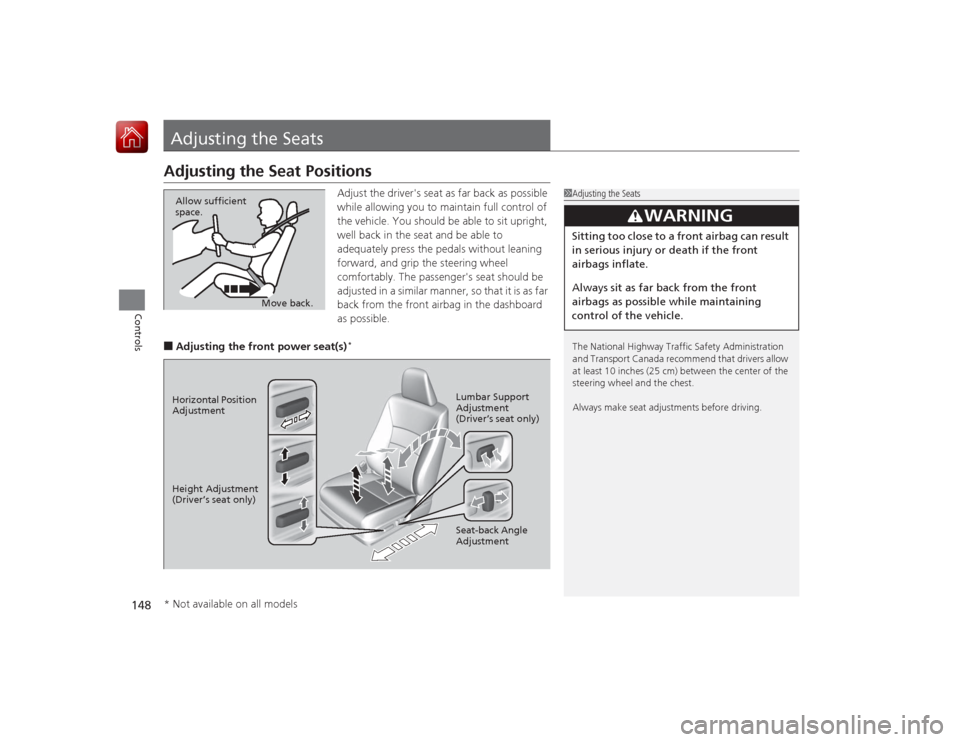
Adjust the driver's seat as far back as possible
while allowing you to maintain full control of
the vehicle. You should be able to sit upright,
well back in the seat and be able to
adequately press the pedals without leaning
forward, and grip the steering wheel
comfortably. The passenger's seat should be
adjusted in a similar manner, so that it is as far
back from the front airbag in the dashboard
as possible.
■Adjusting the front power seat(s)
*
1 Adjusting the Seats
The National Highway Traffic Safety Administration
and Transport Canada recommend that drivers allow
at least 10 inches (25 cm) between the center of the
steering wheel and the chest.
Always make seat adjustments before driving.
3
WARNING
Sitting too close to a front airbag can result
in serious injury or death if the front
airbags inflate.
Always sit as far back from the front
airbags as possible while maintaining
control of the vehicle.
Move back.
Allow sufficient
space.
Horizontal Position
Adjustment
Height Adjustment
(Driver’s seat only)
Seat-back Angle
Adjustment Lumbar Support
Adjustment
(Driver’s seat only)* Not available on all models
Page 157 of 593

156Controls
Interior Lights/Interior Convenience ItemsInterior Lights
■ON
The interior lights come on regardless of
whether the doors are open or closed.■Door activated
The interior lights come on in the following
situations:
• When any of the doors are opened.
• You unlock the driver's door.
• You remove the key from the ignition
switch.
• When the power mode is set to VEHICLE
OFF (LOCK).■OFF
The interior lights remain off regardless of
whether the doors are open or closed.
■
Interior Light Switches
1 Interior Light Switches
In the door activated position, the interior lights fade out
and go off about 30 seconds after the doors are closed.
The lights go off after 30 seconds in the following
situations:•When you unlock the driver's door but do not open it.•When you remove the key from the ignition switch
but do not open a door.•When you set the power mode to VEHICLE OFF
(LOCK) but do not open a door.
You can change the interior lights dimming time. 2 Customized Features P. 97, 298
The interior lights go off immediately in the following
situations:•When you lock the driver's door.•When you turn the ignition switch to ON
( w*1.
•When you close the driver's door with the key in
the ignition switch.•When you close the driver's door in ACCESSORY
mode.
If you leave any of the doors open without the key in
the ignition switch
*1, the interior lights go off after
about 15 minutes.
*1: Models with the smart entry system have an ENGINE
START/STOP button instead of an ignition switch.
Models without smart entry systemModels with smart entry systemModels without smart entry systemModels with smart entry system
Door Activated Position
Off
Door Activated
Position
On
Off
Models without smart entry systemModels with smart entry system
Page 169 of 593

uuHeating and Cooling
*uUsing Vents, Heating and A/C
168Controls
1. Adjust the fan speed using the fan control
dial.
2. Select .
3. Adjust the temperature using the
temperature control dial.
4. Press the A/C button (the indicator on).■To rapidly cool down the interior
1. Set the fan to the maximum speed.
2. Set the temperature to maximum cool.
3. Press the button (the indicator on).
Pressing the button turns the air
conditioning system on and automatically
switches the system to fresh air mode.■To rapidly defrost the windows
1. Set the fan to the maximum speed.
2. Press the button.
3. Press the button.
4. Set the temperature to maximum warm.
■
Cooling
1To rapidly cool down the interior
If the interior is very warm, you can cool it down
more rapidly by partially opening the windows.
While in the ECON mode, the system has greater
temperature fluctuations.
Pressing the button bypasses the ECON mode
control, and cools down the interior more rapidly.
■
Defrosting the Windshield and Windows
1Defrosting the Windshield and Windows
For your safety, make sure you have a clear view
through all the windows before driving.
Do not set the temperature near the upper or lower
limit.
When cold air hits the windshield, the outside of the
windshield may fog up.
If the side windows fog up, adjust the vents so that
the air hits the side windows.1To rapidly defrost the windows
After defrosting the windows, switch over to fresh air
mode.
If you keep the system in recirculation mode, the
windows may fog up from humidity. This impedes
visibility.
Page 176 of 593
175
uuAudio System uUSB Port
Features
USB Port
Install the iPod dock connector or the USB
flash drive to the USB port.
1USB Port•Do not leave the iPod or USB flash drive in the
vehicle. Direct sunlight and high temperatures may
damage it.•We recommend using an extension cable with the
USB port.•Do not connect the iPod or USB flash drive using a
hub.•Do not use a device such as a card reader or hard
disk drive, as the device or your files may be
damaged.•We recommend backing up your data before using
the device in your vehicle.•Displayed messages may vary depending on the
device model and software version.
If the audio system does not recognize the iPod, try
reconnecting it a few times or reboot the device. To
reboot, follow the manufacturer's instructions
provided with the iPod or visit www.apple.com/ipod.
Page 178 of 593

177
uuAudio System uAudio System Theft Protection
*
Features
Audio System Theft Protection
*
The audio system is disabled when it is disconnected from the power source, such as
when the 12-volt battery is disconnected or goes dead.■Reactivating the audio system
1. Set the power mode to ON, and turn on the audio system.
u If you set the power mode to ACCESSORY, you will be requested to enter the
audio security code. See step 3.
2. Press and hold the power button again for more than two seconds.
u The audio system is reactivated when the system’s control unit recognizes that
the system is in your vehicle.
If the control unit fails to recognize, Enter PIN Code appears on the audio/
information screen.
3. If the two steps do not work, you can enter the audio security code using the
touch screen. If you enter an incorrect digit, continue to the last digit, then try
again. If you do not enter code correctly after 10 tries, leave the system for one
hour before trying again, or visit a dealer to have the system reset.
1 Audio System Theft Protection
*
Find the audio system's security code and serial
number label in your owner’s manual kit.
We recommend that you write down the serial
number in this owner’s manual.
Do not store the label in your vehicle. If you lose the
label, you must first retrieve the serial number, and
then obtain the code.
You can find out about your serial number and
security code from a dealer.
You can register the security code at Honda Owners
(owners.honda.com. ), and find information on how
to retrieve the serial number and obtain the code at
radio-navicode.honda.com .U.S. models
* Not available on all models
Page 189 of 593

uuAudio System Basic Operation uPlaying AM/FM Radio
188Features
Provides text data information related to your selected RDS-capable FM station.■To find an RDS stat ion from Station List
1. Press while listening to an FM station.
2. Rotate to select the station, then press .■Manual update
Updates your available station list at any time.
1. Press while listening to an FM station.
2. Rotate to select Refresh, then press .■Radio text
Displays the radio text information of the selected RDS station.
1. Press the MENU button.
2. Rotate to select Radio Text, then press .■Scan
Samples each of the strongest stations on the selected band for 10 seconds.
1. Press the MENU button.
2. Rotate to select Scan, then press .
To turn off scan, press to select Stop, or press the BACK button.■
Radio Data System (RDS)
1Playing AM/FM Radio
The ST indicator appears on the display indicating
stereo FM broadcasts.
Stereo reproduction in AM is not available.
Switching the Audio Mode
Press the SOURCE button on the steering wheel.
2 Audio Remote Controls P. 179
You can also switch the mode by pressing the MENU
button and selecting Change Source on the MENU
screen.
You can store 6 AM stations and 12 FM stations into
the preset memory.1 Radio Data System (RDS)
When you select an RDS-capable FM station, the RDS
automatically turns on, and the frequency display
changes to the station name. However, when the
signals of that station become weak, the display
changes from the station name to the frequency.
Page 191 of 593
uuAudio System Basic Operation uPlaying a CD
190Features
1. Press the MENU button.
2. Rotate to select Music Search, then
press .
3. Rotate to select a folder.
4. Press to change the display to a list of
files in that folder.
5. Rotate to select a file, then press .
■
How to Select a File from the Music Search List
(MP3/WMA/AAC)
1Playing a CDNOTICEDo not use CDs with adhesive labels. The label can
cause the CD to jam in the unit.
WMA files protected by digital rights management
(DRM) cannot be played.
The audio system displays Unplayable File, then
skips to the next file.
Text data appears on the display under the following
circumstances:•When you select a new folder, file, or track.•When you change the audio mode to CD.•When you insert a CD.
If you eject the CD but do not remove it from the slot,
the system reloads the CD automatically after several
seconds.
File Selection Folder Selection
Page 192 of 593
191
uuAudio System Basic Operation uPlaying a CD
Features
You can select scan, repeat, and random modes when playing a track or file.
1.Press the MENU button.
2. Rotate to select Scan or Random/
Repeat , then press .
3. Rotate to select a mode, then press .■To turn off a play mode
1. Press the MENU button.
2. Rotate to select the mode you want to turn off, then press .■
How to Select a Play Mode
1How to Select a Play Mode
Play Mode Menu Items
Scan
Scan Folders (MP3/WMA/AAC): Provides 10-second
sampling of the first file in each of the main folders.
Scan Tracks : Provides 10-second sampling of all
tracks on the CD (all files in the current folder in MP3,
WMA, or AAC).
Random/Repeat
Repeat Folder (MP3/WMA/AAC): Repeats all files in
the current folder.
Repeat Track : Repeats the current track/file.
Random in Folder (MP3/WMA/AAC): Plays all files
in the current folder in random order.
Random All Tracks: Plays all tracks/files in random
order.
Random/Repeat
is selected.


