2015 GMC CANYON ESP
[x] Cancel search: ESPPage 37 of 433
Black plate (8,1)GMC Canyon Owner Manual (GMNA-Localizing-U.S./Canada-7587000) -
2015 - CRC - 3/17/15
2-8 Keys, Doors, and Windows
Door Locks
{Warning
Unlocked doors can be
dangerous.
.Passengers, especially
children, can easily open the
doors and fall out of a moving
vehicle. When a door is
locked, the handle will not
open it. The chance of being
thrown out of the vehicle in a
crash is increased if the
doors are not locked. So, all
passengers should wear
safety belts properly and the
doors should be locked
whenever the vehicle is
driven.
.Young children who get into
unlocked vehicles may be
unable to get out. A child can
be overcome by extreme heat
and can suffer permanent(Continued)
Warning (Continued)
injuries or even death from
heat stroke. Always lock the
vehicle whenever leaving it.
.Outsiders can easily enter
through an unlocked door
when you slow down or stop
the vehicle. Locking the doors
can help prevent this from
happening.
To lock or unlock a door from the
outside press
QorKon the
Remote Keyless Entry (RKE)
transmitter or use the key in the
driver door.
To lock a door from the inside, push
down on the door lock knob. To
unlock, pull the door handle once to
unlock the door and again to
unlatch it.
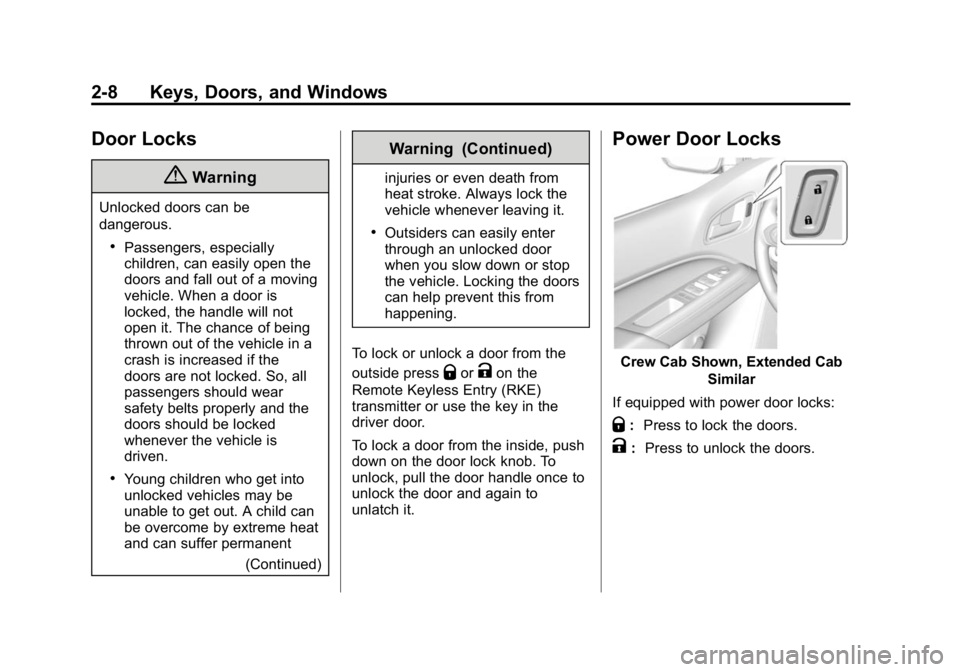
Power Door Locks
Crew Cab Shown, Extended Cab
Similar
If equipped with power door locks:
Q: Press to lock the doors.
K: Press to unlock the doors.
Page 39 of 433
Black plate (10,1)GMC Canyon Owner Manual (GMNA-Localizing-U.S./Canada-7587000) -
2015 - CRC - 3/17/15
2-10 Keys, Doors, and Windows
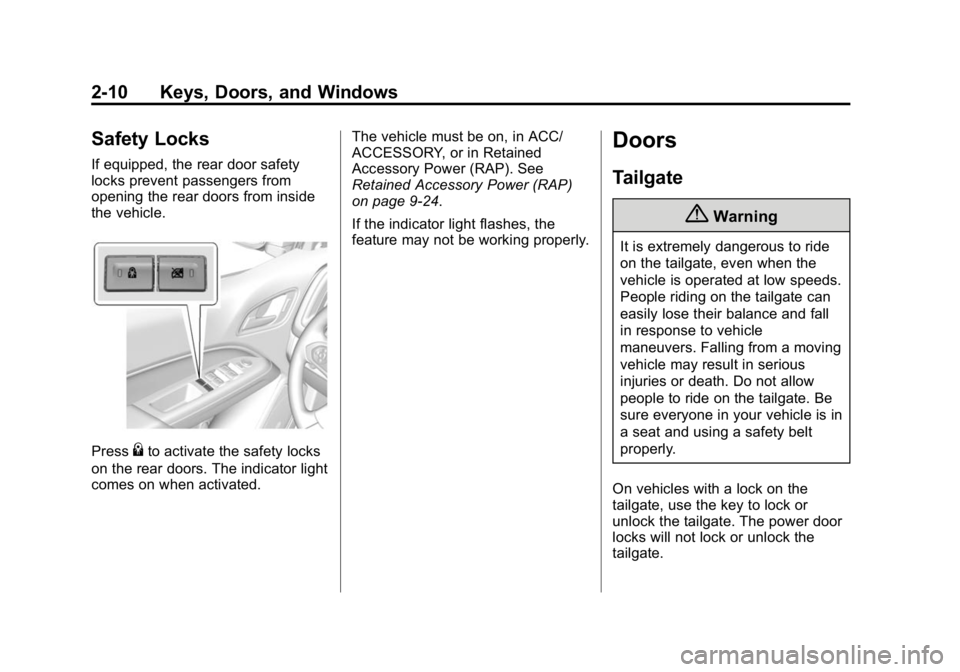
Safety Locks
If equipped, the rear door safety
locks prevent passengers from
opening the rear doors from inside
the vehicle.
Press{to activate the safety locks
on the rear doors. The indicator light
comes on when activated. The vehicle must be on, in ACC/
ACCESSORY, or in Retained
Accessory Power (RAP). See
Retained Accessory Power (RAP)
on page 9-24.
If the indicator light flashes, the
feature may not be working properly.
Doors
Tailgate
{Warning
It is extremely dangerous to ride
on the tailgate, even when the
vehicle is operated at low speeds.
People riding on the tailgate can
easily lose their balance and fall
in response to vehicle
maneuvers. Falling from a moving
vehicle may result in serious
injuries or death. Do not allow
people to ride on the tailgate. Be
sure everyone in your vehicle is in
a seat and using a safety belt
properly.
On vehicles with a lock on the
tailgate, use the key to lock or
unlock the tailgate. The power door
locks will not lock or unlock the
tailgate.
Page 46 of 433
Black plate (17,1)GMC Canyon Owner Manual (GMNA-Localizing-U.S./Canada-7587000) -
2015 - CRC - 3/17/15
Keys, Doors, and Windows 2-17
Interior Mirrors
Interior Rearview Mirrors
Adjust the rearview mirror for a clear
view of the area behind your
vehicle.
If equipped with OnStar, the vehicle
may have three control buttons at
the bottom of the mirror. See your
dealer for more information about
OnStar and how to subscribe to it.
SeeOnStar Overview on page 14-1.
Do not spray glass cleaner directly
on the mirror. Use a soft towel
dampened with water.
Manual Rearview Mirror
If equipped, push the tab forward for
daytime use and pull it rearward for
nighttime use to avoid glare from
the headlamps from behind.
Automatic Dimming
Rearview Mirror
If equipped, the mirror will
automatically reduce the glare of the
headlamps from behind. The
dimming feature comes on each
time the vehicle is started.
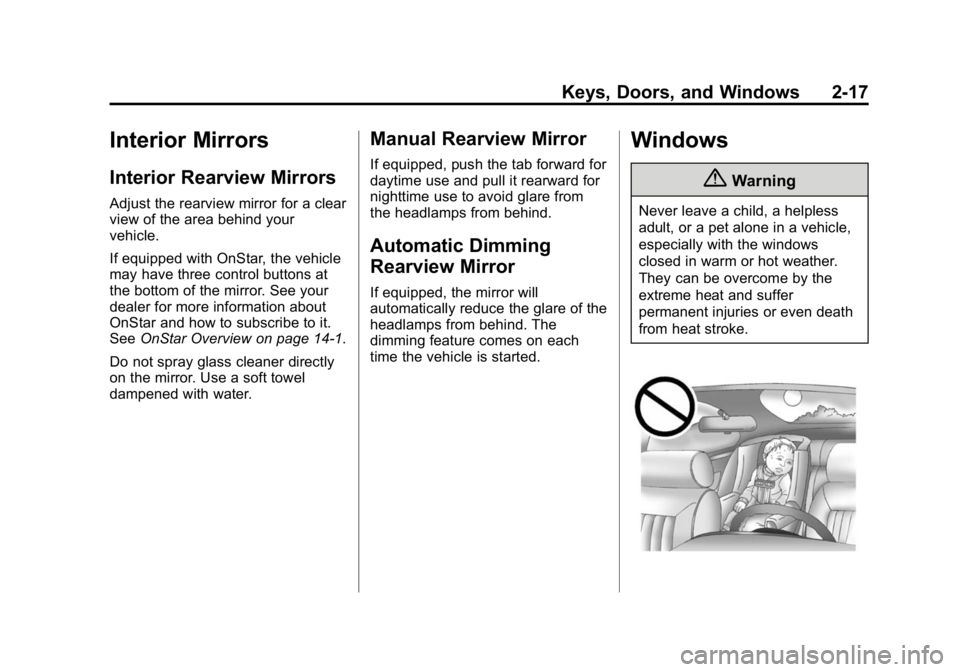
Windows
{Warning
Never leave a child, a helpless
adult, or a pet alone in a vehicle,
especially with the windows
closed in warm or hot weather.
They can be overcome by the
extreme heat and suffer
permanent injuries or even death
from heat stroke.
Page 55 of 433

Black plate (6,1)GMC Canyon Owner Manual (GMNA-Localizing-U.S./Canada-7587000) -
2015 - CRC - 3/17/15
3-6 Seats and Restraints
2. Push and pull on the seatback tomake sure it is locked.
Heated Front Seats
{Warning
If you cannot feel temperature
change or pain to the skin, the
seat heater may cause burns. To
reduce the risk of burns, people
with such a condition should use
care when using the seat heater,
especially for long periods of
time. Do not place anything on
the seat that insulates against
heat, such as a blanket, cushion,
cover, or similar item. This may
cause the seat heater to
overheat. An overheated seat
heater may cause a burn or may
damage the seat.
If equipped, the buttons are on the
center stack. To operate, the engine
must be running.
This feature will heat the cushion
and back of the seats.
Press
+to heat the driver or
passenger seatback only.
Press
zto heat the driver or
passenger cushion and seatback.
The indicator light comes on when
this feature is on. Press the button once for the
highest setting. With each press of
the button, the seat will change to
the next lower setting, and then to
the off setting. The indicator lights
next to the buttons indicate three for
the highest setting and one for the
lowest. If the heated seats are on
high, their level may automatically
be lowered after approximately
30 minutes.
Remote Start Auto Heated
Seats
During a remote start, the heated
seats can be turned on
automatically. The heated seats are
canceled when the ignition is turned
on. Press the heated seat button to
use the heated seats after the
vehicle is started.
Page 176 of 433
Black plate (9,1)GMC Canyon Owner Manual (GMNA-Localizing-U.S./Canada-7587000) -
2015 - CRC - 3/17/15
Infotainment System 7-9
Radio Reception
Frequency interference and static
can occur during normal radio
reception if items such as cell phone
chargers, vehicle convenience
accessories, and external electronic
devices are plugged into the
accessory power outlet. If there is
interference or static, unplug the
item from the accessory power
outlet.
FM
FM signals only reach about 16 to
65 km (10 to 40 mi). Although the
radio has a built-in electronic circuit
that automatically works to reduce
interference, some static can occur,
especially around tall buildings or
hills, causing the sound to fade in
and out.
AM
The range for most AM stations is
greater than for FM, especially at
night. The longer range can cause
station frequencies to interfere with
each other. Static can occur whenthings like storms and power lines
interfere with radio reception. When
this happens, try reducing the treble
on the radio.
SiriusXM Satellite Radio
Service
If equipped, SiriusXM Satellite
Radio Service provides digital radio
reception. Tall buildings or hills can
interfere with satellite radio signals,
causing the sound to fade in and
out. In addition, traveling or standing
under heavy foliage, bridges,
garages, or tunnels may cause loss
of the SiriusXM signal for a period
of time.
Cell Phone Usage
Cell phone usage, such as making
or receiving phone calls, charging,
or just having the phone on may
cause static interference with the
radio. Unplug the phone or turn it off
if this happens.
Multi-Band Antenna
The multi-band antenna is on the
roof of the vehicle. The antenna is
used for the AM-FM radio, OnStar,
the SiriusXM Satellite Radio Service
System, and GPS (Global
Positioning System), if the vehicle
has these features. Keep the
antenna clear of obstructions for
clear reception.
Pandora Internet Radio
If equipped, Pandora®is a free
Internet radio service that streams
personalized radio stations based
on artists, tracks, genres, and
comedians. Create stations using
the Pandora website or Smartphone
application, then use
-(thumbs up)
or
,(thumbs down) to personalize
stations. To set up an account, or for
more information, go to
www.pandora.com. Pandora may
not be available in Canada or
Mexico.
Page 180 of 433
Black plate (13,1)GMC Canyon Owner Manual (GMNA-Localizing-U.S./Canada-7587000) -
2015 - CRC - 3/17/15
Infotainment System 7-13
Audio Players
USB Port
Playing from a USB
A USB mass storage device can be
connected to the USB port.
There is a USB port on the center
console. SeeCenter Console
Storage on page 4-2.
USB MP3 Player and USB Drives
.The USB MP3 players and USB
drives connected must comply
with the USB Mass Storage
Class specification (USB MSC).
.Hard disk drives are not
supported.
To play a USB device:
.Connect the USB.
.Press the MEDIA button on the
faceplate until the connected
device is shown. While the USB source is active,
press the corresponding faceplate
button for the icons on the screen to
operate USB function:
.t(Seek Previous/Fast
Reverse)
.u(Seek Next/Fast Forward)
.j/r(Play/Pause)
.Z(Shuffle)
USB Menu
Press the MENU knob to display the
USB menu and the following may
display:
Browse: Select to display the files
and folders on the USB device.
Tone Settings: Select to adjust
Bass, Midrange, Treble, Balance,
Fade, and EQ (Equalizer).
Auto Volume: If equipped, this
feature adjusts the volume based on
vehicle speed and ambient noise. EQ (Equalizer):
If equipped, this
feature adjusts the equalizer
settings. See “EQ (Equalizer)
Settings” inAM-FM Radio on
page 7-7.
Playing from an iPod®/iPad®/
iPhone®
This feature supports the following
devices:
.iPod nano®(1st, 2nd, 3rd, and
4th generation)
.iPod with video (5.0 and 5.5
generation)
.iPod classic®(6th generation)
.iPod touch®(1st and 2nd
generation)
.iPad
.iPhone 3G, iPhone 3GS,
iPhone 4
Page 187 of 433
Black plate (20,1)GMC Canyon Owner Manual (GMNA-Localizing-U.S./Canada-7587000) -
2015 - CRC - 3/17/15
7-20 Infotainment System
There are two voice prompt modes
supported:
.Long verbal prompts: The longer
prompts provide more
information regarding the
supported actions.
.Short prompts: The short
prompts provide simple
instructions about what can be
stated.
If a command is not spoken, the
voice recognition system says a
help prompt.
Prompts and Screen Displays
While a voice recognition session is
active, there will be corresponding
buttons on screens displayed.
Manual interaction in the voice
recognition session is permitted.
Interaction during a voice session
may be completed entirely using
voice commands, or some
selections may expedite a session.
If a selection is made using a
manual control, the dialog will
progress in the same way as if the selection was made through a voice
command. Once the system is able
to complete the task, or the session
is terminated, the voice recognition
dialog stops.
An example of this type of manual
intervention is pressing on an entry
of a displayed number list instead of
speaking the number associated
with the entry desired.
Canceling Voice Recognition
.Select the Home screen button
to terminate the voice
recognition session which was
initiated by selecting
gon the
infotainment screen.
.Select or say “Cancel”or“Exit”
to terminate the voice
recognition session and display
the screen from which voice
recognition was initiated.
Helpful Hints for Speaking
Commands
Voice recognition can understand
commands that are either naturally
stated in sentence form (English
only), or direct commands that state
the application and the task.
For languages that do not support
natural language commands in
sentence form, use the direct
commands shown as examples on
the display screen.
For best results:
.Listen for the prompt and wait
for the beep before saying a
command or reply.
.Say “Help” or look at the screen
display for commands.
.Voice recognition system
prompts can be interrupted
during a prompt by selecting
g
again.
For example, if the prompt
seems to be taking too long to
finish, or if what is being
Page 188 of 433
Black plate (21,1)GMC Canyon Owner Manual (GMNA-Localizing-U.S./Canada-7587000) -
2015 - CRC - 3/17/15
Infotainment System 7-21
prompted causes a need for an
immediate reply, select
gagain
and wait for the beep.
.Speak the command naturally,
not too fast, not too slow. Use
direct commands without a lot of
extra words.
.Usually Phone and Audio
commands can be spoken in a
single command.
For example, “Call Dave Smith
at work,” “Play” followed by the
artist or song name, or “Tune”
followed by the radio station
number.
There is no need to memorize
specific command words. Direct
commands might be more clearly
understood by the system. An
example of a direct command would
be “Call 555-1212.” Examples of
these direct commands are
displayed on most of the screens
while a voice session is active.
If “Phone” or“Phone Commands” is
stated, the system understands that a phone call is requested and will
respond with questions until enough
details are gathered.
If the phone number has been
saved with a name and a place, the
direct command should include
both, for example
“Call Dave Smith
at work.”Using Voice Recognition for
List Options
When a list is displayed, a voice
prompt will ask to confirm or select
an option from that list. A selection
can be made by manually selecting
the item, or by speaking the line
number for the item.
When a screen contains a list,
options may be available but not
displayed. The list on a voice
recognition screen functions the
same as a list on other screens.
Scrolling can be used to help
display other entries from the list.
Manually scrolling or paging the list
on a screen during a voice
recognition session suspends the current voice recognition event and
plays the prompt
“Make your
selection from the list using the
manual controls or press the
o
BACK button to try again.”
If manual selection takes more than
15 seconds, the session terminates
and prompts that it has timed out.
The screen returns to the screen
where voice recognition was
initiated.
The Back Command
Say “Back” or press the
oBACK
button to go to the previous screen.
If in voice recognition, and “Back”is
stated all the way through to the
initial screen, then “Back”is stated
one more time, the voice recognition
session will cancel.
Help
Say “Help” on any voice recognition
screen and the help prompt for the
screen is played. Additionally, a
pop-up displays a text version of the
help prompt. Depending on how