2015 GMC CANYON radio controls
[x] Cancel search: radio controlsPage 188 of 433
Black plate (21,1)GMC Canyon Owner Manual (GMNA-Localizing-U.S./Canada-7587000) -
2015 - CRC - 3/17/15
Infotainment System 7-21
prompted causes a need for an
immediate reply, select
gagain
and wait for the beep.
.Speak the command naturally,
not too fast, not too slow. Use
direct commands without a lot of
extra words.
.Usually Phone and Audio
commands can be spoken in a
single command.
For example, “Call Dave Smith
at work,” “Play” followed by the
artist or song name, or “Tune”
followed by the radio station
number.
There is no need to memorize
specific command words. Direct
commands might be more clearly
understood by the system. An
example of a direct command would
be “Call 555-1212.” Examples of
these direct commands are
displayed on most of the screens
while a voice session is active.
If “Phone” or“Phone Commands” is
stated, the system understands that a phone call is requested and will
respond with questions until enough
details are gathered.
If the phone number has been
saved with a name and a place, the
direct command should include
both, for example
“Call Dave Smith
at work.”Using Voice Recognition for
List Options
When a list is displayed, a voice
prompt will ask to confirm or select
an option from that list. A selection
can be made by manually selecting
the item, or by speaking the line
number for the item.
When a screen contains a list,
options may be available but not
displayed. The list on a voice
recognition screen functions the
same as a list on other screens.
Scrolling can be used to help
display other entries from the list.
Manually scrolling or paging the list
on a screen during a voice
recognition session suspends the current voice recognition event and
plays the prompt
“Make your
selection from the list using the
manual controls or press the
o
BACK button to try again.”
If manual selection takes more than
15 seconds, the session terminates
and prompts that it has timed out.
The screen returns to the screen
where voice recognition was
initiated.
The Back Command
Say “Back” or press the
oBACK
button to go to the previous screen.
If in voice recognition, and “Back”is
stated all the way through to the
initial screen, then “Back”is stated
one more time, the voice recognition
session will cancel.
Help
Say “Help” on any voice recognition
screen and the help prompt for the
screen is played. Additionally, a
pop-up displays a text version of the
help prompt. Depending on how
Page 192 of 433
Black plate (25,1)GMC Canyon Owner Manual (GMNA-Localizing-U.S./Canada-7587000) -
2015 - CRC - 3/17/15
Infotainment System 7-25
Phone
Bluetooth (Overview)
Instructions for using the cell phone
may differ between infotainment
systems. The base radio and base
radio with connectivity instructions
are included in this manual. See the
infotainment manual for instructions
on the uplevel radios.
Bluetooth-capable systems can
interact with many cell phones,
allowing:
.Placement and receipt of calls in
a hands-free mode.
.Sharing of the cell phone’s
address book or contact list with
the vehicle.
To minimize driver distraction,
before driving, and with the vehicle
parked:
.Become familiar with the
features of the cell phone.
Organize the phone book and
contact lists clearly and delete duplicate or rarely used entries.
If possible, program speed dial
or other shortcuts.
.Review the controls and
operation of the infotainment
system.
.Pair cell phone(s) to the vehicle.
The system may not work with
all cell phones. See
“Pairing”in
this section.
.If the cell phone has voice
dialing capability, learn to use
that feature to access the
address book or contact list.
See “Voice Pass-Thru” in this
section.
.See “Storing and Deleting Phone
Numbers” in this section.
{Warning
When using a cell phone, it can
be distracting to look too long or
too often at the screen of the
phone or the infotainment system.
(Continued)
Warning (Continued)
Taking your eyes off the road too
long or too often could cause a
crash resulting in injury or death.
Focus your attention on driving.
Vehicles with a Bluetooth system
can use a Bluetooth-capable cell
phone with a Hands-Free Profile to
make and receive phone calls. The
infotainment system and voice
recognition are used to control the
system. The system can be used
while in ON/RUN or ACC/
ACCESSORY. The range of the
Bluetooth system can be up to 9.1 m
(30 ft). Not all phones support all
functions and not all phones work
with the Bluetooth system. See
www.gm.com/bluetooth for more
information about compatible
phones.
Page 193 of 433
Black plate (26,1)GMC Canyon Owner Manual (GMNA-Localizing-U.S./Canada-7587000) -
2015 - CRC - 3/17/15
7-26 Infotainment System
Bluetooth Controls
Infotainment System Controls
For information about how to
navigate the menu system using the
infotainment controls, seeOverview
on page 7-2.
MENU: Turn to scroll through a list.
Press to select the highlighted list
option.
{(Home Page): Press to go to the
Home Page. See Home Page on
page 7-4.
PHONE: Select to enter the phone
main menu. See Bluetooth
(Overview) on page 7-25 or
Bluetooth (Infotainment Controls -
Base Radio) on page 7-26 or
Bluetooth (Infotainment Controls -
Base Connected Radio) on
page 7-30.
Voice Recognition
The voice recognition system uses
commands to control the system
and dial phone numbers. Noise:
The system may not
recognize voice commands if there
is too much background noise, such
as noise from open windows or loud
talking inside the vehicle.
When to Speak: A tone sounds to
indicate that the system is ready for
a voice command. Wait for the tone
and then speak.
How to Speak: Speak clearly in a
calm and natural voice.
Audio System
When using the Bluetooth system,
sound comes through the vehicle's
front audio system speakers and
overrides the audio system. Use the
Oknob during a call to change the
volume level. The system maintains
a minimum volume level.
Bluetooth Audio Quality
Turn off the Echo and Noise
cancellation feature on your phone,
if supported, for the best hands-free
performance.
See www.gm.com/bluetooth.
Bluetooth (Infotainment
Controls - Base Radio)
For information about how to
navigate the menu system using the
infotainment controls, see Overview
on page 7-2.
Switching to Handset or
Hands-Free Mode
To switch between handset mode
and hands-free mode, use the
OnStar command, “transfer call.”
Pairing
A Bluetooth-enabled cell phone
must be paired to the Bluetooth
system and then connected to the
vehicle before it can be used. See
your cell phone manufacturer's user
guide for Bluetooth functions before
pairing the cell phone. If a Bluetooth
phone is not connected, calls can
be made using OnStar Hands-Free
Calling, if available. See OnStar
Overview on page 14-1, if equipped.
Page 197 of 433
Black plate (30,1)GMC Canyon Owner Manual (GMNA-Localizing-U.S./Canada-7587000) -
2015 - CRC - 3/17/15
7-30 Infotainment System
Call Waiting
Call waiting must be supported on
the Bluetooth phone and enabled by
the wireless service carrier to work.
Accepting a Call Waiting Call
To accept a call waiting call, press
the button just below the SWITCH
screen button.
Declining a Call Waiting Call
To decline a call waiting call, do one
of the following:
.Press the button just below the
IGNORE screen button.
.Do nothing.
Ending a Call
To end a call, press the button just
below the END screen button.
Dual Tone Multi-Frequency
(DTMF) Tones
The in-vehicle Bluetooth system can
send numbers during a call. This is
used when calling a menu-driven
phone system.1. When a call is active, press the
button just below the KEYPAD
screen button.
2. Turn the MENU knob to highlight the first digit and press to select.
If not initially in the phone
application, from the Home Page,
turn the MENU knob, then press to
select the PHONE screen button.
From the PHONE main menu, turn
the MENU knob to highlight Active
Call and press to select.
Bluetooth (Infotainment
Controls - Base
Connected Radio)
For information about how to
navigate the menu system using the
infotainment controls, see Overview
on page 7-2.
Switching to Handset or
Hands-Free Mode
To switch between handset or
hands-free mode, from the Home
Page select the PHONE to display
Call View.
.While the active call is
hands-free, press the Handset
screen button to switch to the
handset mode. The screen
button changes to Hands-Free
once the Bluetooth device
confirms it is operating as
handset.
.While the active call is handset,
select the Hands-Free screen
button to switch to the
hands-free mode. The screen
button changes to Handset once
the Bluetooth device confirms it
is operating as hands-free.
Pairing
A Bluetooth-enabled cell phone
must be paired to the Bluetooth
system and then connected to the
vehicle before it can be used. See
Page 320 of 433
Black plate (39,1)GMC Canyon Owner Manual (GMNA-Localizing-U.S./Canada-7587000) -
2015 - CRC - 3/17/15
Vehicle Care 10-39
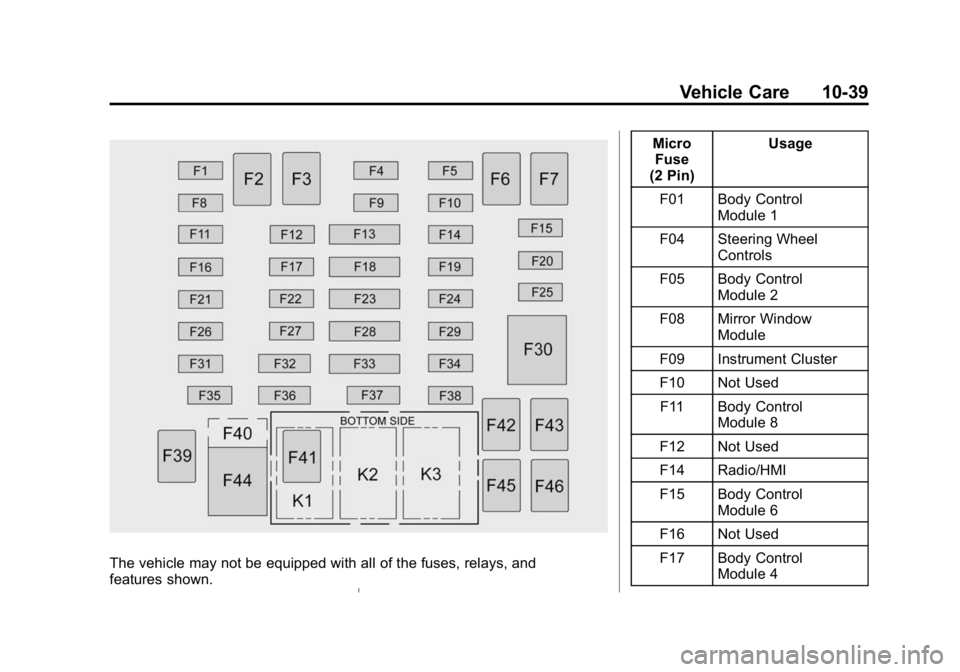
The vehicle may not be equipped with all of the fuses, relays, and
features shown.Micro
Fuse
(2 Pin) Usage
F01 Body Control Module 1
F04 Steering Wheel Controls
F05 Body Control Module 2
F08 Mirror Window Module
F09 Instrument Cluster
F10 Not Used F11 Body Control Module 8
F12 Not Used
F14 Radio/HMI
F15 Body Control Module 6
F16 Not Used
F17 Body Control Module 4
Page 425 of 433

Black plate (6,1)GMC Canyon Owner Manual (GMNA-Localizing-U.S./Canada-7587000) -
2015 - CRC - 3/17/15
i-6 INDEX
Heated Mirrors . . . . . . . . . . . . . . . . . 2-15
HeaterEngine Coolant . . . . . . . . . . . . . . . 9-25
Heating and Air Conditioning . . . . . . . . . . . . . . . 8-1, 8-3
High-Beam On Light . . . . . . . . . . . 5-25
Hill and Mountain Roads . . . . . . . 9-11
Hill Descent Control (HDC) . . . . 9-45
Hill Descent Control Light . . . . . . 5-22
Hill Start Assist (HSA) . . . . . . . . . 9-42
Home Page . . . . . . . . . . . . . . . . . . . . . 7-4
Hood . . . . . . . . . . . . . . . . . . . . . . . . . . 10-5
Horn . . . . . . . . . . . . . . . . . . . . . . . . . . . . 5-3
How to Wear Safety Belts Properly . . . . . . . . . . . . . . . . . . . . . . 3-10
Hydraulic Clutch . . . . . . . . . . . . . . 10-13
I
Ignition Positions . . . . . . . . . . . . . . 9-22
Ignition Transmission Lock
Check . . . . . . . . . . . . . . . . . . . . . . . 10-28
Immobilizer . . . . . . . . . . . . . . . . . . . . 2-13
Indicator Vehicle Ahead . . . . . . . . . . . . . . . . 5-22
Infants and Young Children, Restraints . . . . . . . . . . . . . . . . . . . . 3-32 Infotainment . . . . . . . . . . . . . . . . . . . . 7-1
Infotainment System . . . . . . . . . . 13-15
Instrument Cluster . . . . . . . . 5-8, 5-10
Interior Rearview Mirrors . . . . . . . 2-17
Internet Radio
Pandora . . . . . . . . . . . . . . . . . . . . . . . 7-9
Introduction . . . . . . . . . . . . . . . . . . . . . . . iii
J
Jack
Auxiliary . . . . . . . . . . . . . . . . . . . . . . 7-15
Jump Starting - North America . . . . . . . . . . . . . . . . . . . . . 10-75
K
Key and Lock Messages . . . . . . . 5-36
Keyless Entry
Remote (RKE) System . . . . . . . . 2-4
Keys . . . . . . . . . . . . . . . . . . . . . . . . . . . . 2-1
L
Labeling, Tire Sidewall . . . . . . . . 10-43 Lamps
Cargo . . . . . . . . . . . . . . . . . . . . . . . . . . 6-6
Daytime Running (DRL) . . . . . . . 6-3
Dome . . . . . . . . . . . . . . . . . . . . . . . . . . 6-6
Exterior Controls . . . . . . . . . . . . . . . 6-1
Exterior Lamps OffReminder . . . . . . . . . . . . . . . . . . . . 6-2
Fog . . . . . . . . . . . . . . . . . . . . . . . . . . . . 6-5
Malfunction Indicator . . . . . . . . . 5-18
Messages . . . . . . . . . . . . . . . . . . . . 5-36
On Reminder . . . . . . . . . . . . . . . . . 5-26
Reading . . . . . . . . . . . . . . . . . . . . . . . 6-7
Lane Departure Warning (LDW) . . . . . . . . . . . . . . . 9-52
Lane Departure Warning Light . . . . . . . . . . . . . . . . . . . . . . . . . 5-22
Lap-Shoulder Belt . . . . . . . . . . . . . 3-11
LATCH System Replacing Parts after aCrash . . . . . . . . . . . . . . . . . . . . . . . 3-53
LATCH, Lower Anchors and
Tethers for Children . . . . . . . . . . 3-38
Light Hill Decent Control . . . . . . . . . . . 5-22