2015 GMC CANYON buttons
[x] Cancel search: buttonsPage 186 of 433
Black plate (19,1)GMC Canyon Owner Manual (GMNA-Localizing-U.S./Canada-7587000) -
2015 - CRC - 3/17/15
Infotainment System 7-19
Voice Recognition
If equipped, voice recognition allows
for hands-free operation within the
audio and phone applications. This
feature can be started by pressing
the button below
gon the
infotainment screen.
However, not all features within
these areas are supported by voice
commands. Generally, only complex
tasks that require multiple manual
interactions to complete are
supported by voice commands.
For example, tasks that take more
than one or two button presses such
as selecting a song or artist to play
from a media device would be
supported by voice commands.
Other tasks, like adjusting the
volume or seeking up or down are
audio features that are easily
performed by pressing one or two
buttons, and are not supported by
voice commands. In general there are flexible ways to
speak commands for completing the
tasks. Most of them, except
destination entry and voice keypad,
can be completed in a single
command. If the task takes more
than one command to complete, the
first command would be to indicate
the kind of task that is to be
performed. The system replies with
prompts that lead through a dialog
to enter the necessary information.
Voice recognition can be used when
the ignition is on or when Retained
Accessory Power (RAP) is active.
See
Retained Accessory Power
(RAP) on page 9-24.
Using Voice Recognition
Voice recognition becomes available
once the system has been
initialized. This begins when the
ignition is turned on. Initialization
may take a few moments. 1. Press the button below the
g
screen button.
When voice recognition is
started from the infotainment
screen, the selections and visual
dialog content are displayed on
both the center stack display
and the instrument cluster
display.
2. The audio system mutes and the system plays a prompt followed
by a beep.
3. Wait until the beep stops, then clearly speak one of the
commands described in this
section.
Press the button below the
g
screen button to interrupt any
voice recognition system prompt.
For example, if the prompt
seems to be taking too long to
finish, press the button below
the
gscreen button again and
the beep should happen
right away.
Page 187 of 433
Black plate (20,1)GMC Canyon Owner Manual (GMNA-Localizing-U.S./Canada-7587000) -
2015 - CRC - 3/17/15
7-20 Infotainment System
There are two voice prompt modes
supported:
.Long verbal prompts: The longer
prompts provide more
information regarding the
supported actions.
.Short prompts: The short
prompts provide simple
instructions about what can be
stated.
If a command is not spoken, the
voice recognition system says a
help prompt.
Prompts and Screen Displays
While a voice recognition session is
active, there will be corresponding
buttons on screens displayed.
Manual interaction in the voice
recognition session is permitted.
Interaction during a voice session
may be completed entirely using
voice commands, or some
selections may expedite a session.
If a selection is made using a
manual control, the dialog will
progress in the same way as if the selection was made through a voice
command. Once the system is able
to complete the task, or the session
is terminated, the voice recognition
dialog stops.
An example of this type of manual
intervention is pressing on an entry
of a displayed number list instead of
speaking the number associated
with the entry desired.
Canceling Voice Recognition
.Select the Home screen button
to terminate the voice
recognition session which was
initiated by selecting
gon the
infotainment screen.
.Select or say “Cancel”or“Exit”
to terminate the voice
recognition session and display
the screen from which voice
recognition was initiated.
Helpful Hints for Speaking
Commands
Voice recognition can understand
commands that are either naturally
stated in sentence form (English
only), or direct commands that state
the application and the task.
For languages that do not support
natural language commands in
sentence form, use the direct
commands shown as examples on
the display screen.
For best results:
.Listen for the prompt and wait
for the beep before saying a
command or reply.
.Say “Help” or look at the screen
display for commands.
.Voice recognition system
prompts can be interrupted
during a prompt by selecting
g
again.
For example, if the prompt
seems to be taking too long to
finish, or if what is being
Page 260 of 433
Black plate (45,1)GMC Canyon Owner Manual (GMNA-Localizing-U.S./Canada-7587000) -
2015 - CRC - 3/17/15
Driving and Operating 9-45
Adding accessories can affect the
vehicle performance. See
Accessories and Modifications on
page 10-3.
Hill Descent
Control (HDC)
If equipped, HDC can be used when
driving downhill. It sets and
maintains vehicle speed while
descending a very steep incline in a
forward or reverse gear.
The HDC switch is on the center
stack, below the climate controls.
Press
5to enable or disable HDC.
Vehicle speed must be below
60 km/h (37 mph).
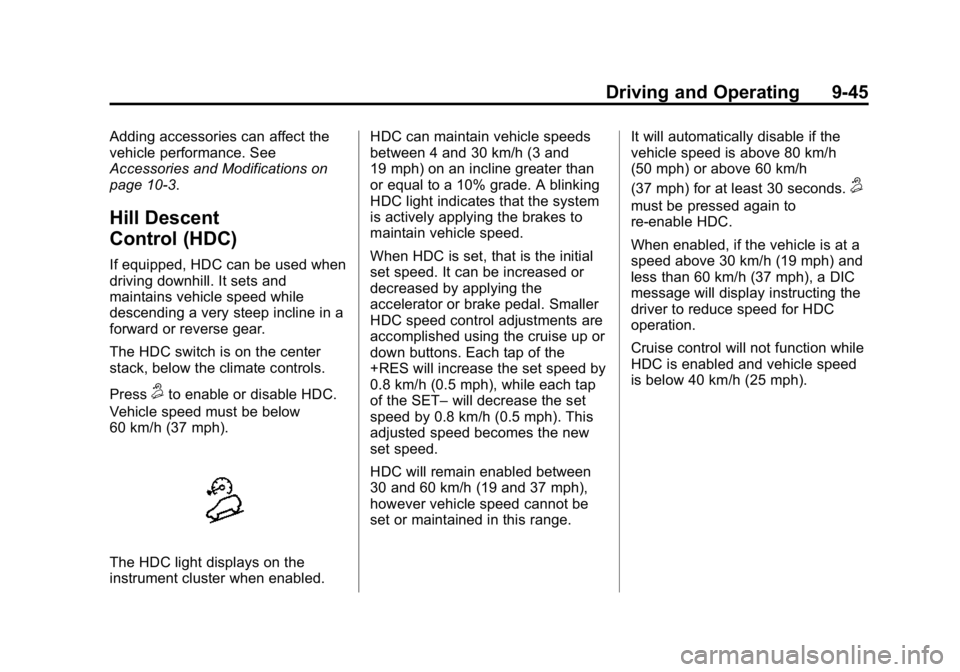
The HDC light displays on the
instrument cluster when enabled. HDC can maintain vehicle speeds
between 4 and 30 km/h (3 and
19 mph) on an incline greater than
or equal to a 10% grade. A blinking
HDC light indicates that the system
is actively applying the brakes to
maintain vehicle speed.
When HDC is set, that is the initial
set speed. It can be increased or
decreased by applying the
accelerator or brake pedal. Smaller
HDC speed control adjustments are
accomplished using the cruise up or
down buttons. Each tap of the
+RES will increase the set speed by
0.8 km/h (0.5 mph), while each tap
of the SET–
will decrease the set
speed by 0.8 km/h (0.5 mph). This
adjusted speed becomes the new
set speed.
HDC will remain enabled between
30 and 60 km/h (19 and 37 mph),
however vehicle speed cannot be
set or maintained in this range. It will automatically disable if the
vehicle speed is above 80 km/h
(50 mph) or above 60 km/h
(37 mph) for at least 30 seconds.
5
must be pressed again to
re-enable HDC.
When enabled, if the vehicle is at a
speed above 30 km/h (19 mph) and
less than 60 km/h (37 mph), a DIC
message will display instructing the
driver to reduce speed for HDC
operation.
Cruise control will not function while
HDC is enabled and vehicle speed
is below 40 km/h (25 mph).
Page 293 of 433
Black plate (12,1)GMC Canyon Owner Manual (GMNA-Localizing-U.S./Canada-7587000) -
2015 - CRC - 3/17/15
10-12 Vehicle Care
On some vehicles, when the system
has calculated that oil life has been
diminished, a CHANGE ENGINE
OIL SOON message comes on to
indicate that an oil change is
necessary. SeeEngine Oil
Messages on page 5-35. Change
the oil as soon as possible within
the next 1 000 km (600 mi). It is
possible that, if driving under the
best conditions, the oil life system
might indicate that an oil change is
not necessary for up to a year.
The engine oil and filter must be
changed at least once a year and,
at this time, the system must be
reset. For vehicles without the
CHANGE ENGINE OIL SOON
message, an oil change is needed
when the OIL LIFE REMAINING
percentage is near 0%. Your dealer
has trained service people who will
perform this work and reset the
system. It is also important to check
the oil regularly over the course of
an oil drain interval and keep it at
the proper level. If the system is ever reset
accidentally, the oil must be
changed at 5 000 km (3,000 mi)
since the last oil change.
Remember to reset the oil life
system whenever the oil is changed.
How to Reset the Engine Oil
Life System
Reset the system whenever the
engine oil is changed so that the
system can calculate the next
engine oil change. Always reset the
engine oil life to 100% after every oil
change. It will not reset itself. To
reset the engine oil life system:
1. Display OIL LIFE REMAINING
on the DIC. See Driver
Information Center (DIC) (Base
Level) on page 5-27 orDriver
Information Center (DIC)
(Uplevel) on page 5-29. If the
vehicle does not have DIC
buttons, the vehicle must be in
P (Park) to access this display. 2. Press and hold the
Vbutton on
the DIC, or the SET/CLR button
on the turn signal lever if the
vehicle does not have DIC
buttons, for several seconds.
The oil life will change to 100%.
The oil life system can also be reset
as follows:
1. Turn the ignition to ON/RUN with the engine off.
2. Fully press the accelerator pedal slowly three times within
five seconds.
3. Display OIL LIFE REMAINING on the DIC. If the display shows
100%, the system is reset.
If the vehicle has a CHANGE
ENGINE OIL SOON message and it
comes back on when the vehicle is
started and/or the OIL LIFE
REMAINING is near 0%, the engine
oil life system has not been reset.
Repeat the procedure.
Page 410 of 433
Black plate (1,1)GMC Canyon Owner Manual (GMNA-Localizing-U.S./Canada-7587000) -
2015 - CRC - 3/17/15
OnStar 14-1
OnStar
OnStar Overview
OnStar Overview . . . . . . . . . . . . 14-1
OnStar Services
Emergency . . . . . . . . . . . . . . . . . . 14-2
Security . . . . . . . . . . . . . . . . . . . . . . 14-3
Navigation . . . . . . . . . . . . . . . . . . . 14-3
Connections . . . . . . . . . . . . . . . . . 14-4
Vehicle Diagnostics . . . . . . . . . . 14-6
OnStar Additional Information
OnStar AdditionalInformation . . . . . . . . . . . . . . . . . 14-6
OnStar Overview
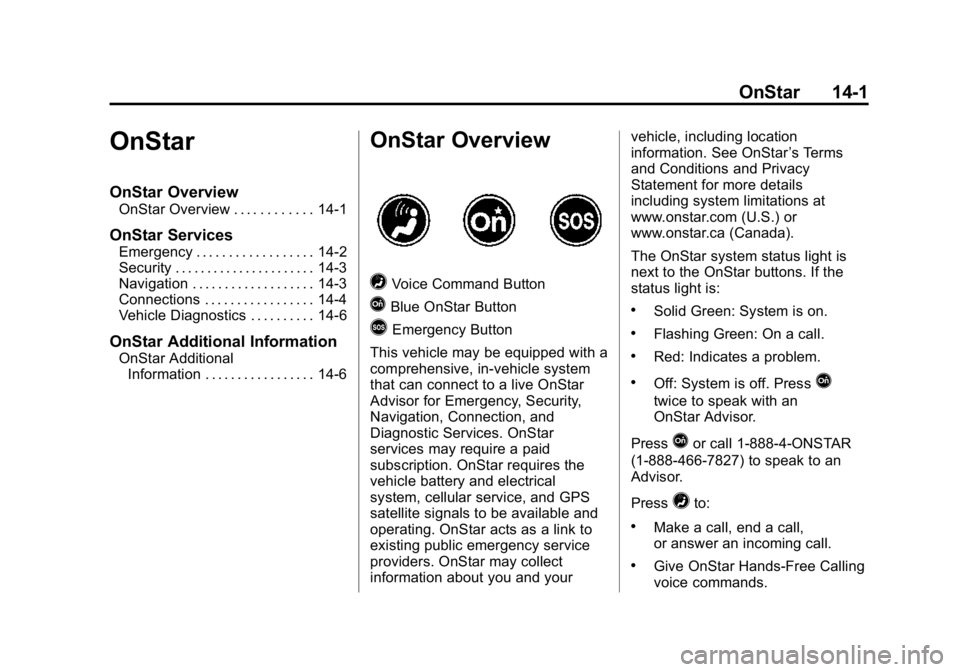
=Voice Command Button
QBlue OnStar Button
>Emergency Button
This vehicle may be equipped with a
comprehensive, in-vehicle system
that can connect to a live OnStar
Advisor for Emergency, Security,
Navigation, Connection, and
Diagnostic Services. OnStar
services may require a paid
subscription. OnStar requires the
vehicle battery and electrical
system, cellular service, and GPS
satellite signals to be available and
operating. OnStar acts as a link to
existing public emergency service
providers. OnStar may collect
information about you and your vehicle, including location
information. See OnStar
’s Terms
and Conditions and Privacy
Statement for more details
including system limitations at
www.onstar.com (U.S.) or
www.onstar.ca (Canada).
The OnStar system status light is
next to the OnStar buttons. If the
status light is:
.Solid Green: System is on.
.Flashing Green: On a call.
.Red: Indicates a problem.
.Off: System is off. PressQ
twice to speak with an
OnStar Advisor.
Press
Qor call 1-888-4-ONSTAR
(1-888-466-7827) to speak to an
Advisor.
Press
=to:
.Make a call, end a call,
or answer an incoming call.
.Give OnStar Hands-Free Calling
voice commands.