2015 FORD TRANSIT CONNECT radio
[x] Cancel search: radioPage 287 of 428

Advanced
The Advanced menu allows you to access
and set prompts, languages, defaults,
perform a master reset, install an
application and view system information.
In the Advanced settings menu, you can select any of the following Action and Description
Message
Get help from SYNC by using questions, helpful hints or asking
you for a specific action. To turn these prompts on or off:
Confirmation Prompts
1.Press the OK button to select and scroll to select between
On and Off.
2. Press the
OK button when the desired selection appears
in the display. SYNC returns you to the Advanced menu.
1. Press
OK to select and then scroll through the languages.
Choose between English, Français and Español. Once
selected, all of the radio displays and prompts are in the
selected language.
2. Press
OK when the desired selection appears in the
display. If you change the language setting, the display
indicates that the system is updating. When complete,
SYNC returns you to the Advanced menu.
Language
Return to the factory default settings. This selection does
not erase your indexed information, for example phonebook,
call history, text messages or paired devices.
Factory Defaults
Press the OK button to select and then press OK again when
the following message appears in the display.
Restore Defaults?
Completely erase all information stored on SYNC, for example
phonebook, call history, text messages and paired devices,
and return the system to the factory default settings.
Master reset
Press
OK to select. The display indicates when complete.
SYNC returns you to the Advanced menu.
Install applications you have downloaded.
Install Applications
Press the
OK button and scroll to select. Press the OK button
to confirm.
Access the Auto Version number as well as the FDN number.
System info
Press the
OK button to select.
Exit the current menu.
Return
284
Transit Connect (CHC) Canada/United States of America, enUSA, First Printing SYNC™
Page 289 of 428

Setting 911 Assist On or Off
1. Press the phone button to enter the
phone menu.
2. Scroll to select 911 Assist.
3. Press OK to confirm and enter the 911
Assist menu.
4. Scroll to select between On or Off.
5. Press
OK when the desired option
appears in the radio display. Set On or
Set Off
appears in the display as
confirmation.
Off selections include:
• Off with reminder: Provides a display
and voice reminder at phone
connection at vehicle start.
• Off without reminder: Provides a
display reminder only without a voice
reminder at phone connection.
To make sure that 911 Assist works
properly:
• SYNC must be powered and working
properly at the time of the incident and
throughout feature activation and use.
• The 911 Assist feature must be set on
before the incident.
• You must pair and connect a
Bluetooth-enabled and compatible
cell phone to SYNC.
• A connected Bluetooth-enabled phone
must have the ability to make and
maintain an outgoing call at the time
of the incident.
• A connected Bluetooth-enabled phone
must have adequate network coverage,
battery power and signal strength.
• The vehicle must have battery power
and be located in the U.S., Canada or
in a territory in which 911 is the
emergency number. In the Event of a Crash
Not all crashes will deploy an airbag or
activate the fuel pump shut-off (the
triggers for 911 Assist). If a connected cell
phone sustains damage or loses its
connection to SYNC during a crash, SYNC
will search for and try to connect to a
previously paired cell phone; SYNC will
then attempt to call the emergency
services.
Before making the call:
•
SYNC provides a short window of time
(about 10 seconds) to cancel the call.
If you fail to cancel the call, SYNC
attempts to dial 911.
• SYNC says the following, or a similar
message: "SYNC will attempt to call
911, to cancel the call, press Cancel on
your screen or press and hold the
phone button on your steering wheel."
If you do not cancel the call, and SYNC
makes a successful call, a pre-recorded
message plays for the 911 operator, and
then the occupant(s) in your vehicle is able
to talk with the operator. Be prepared to
provide your name, phone number and
location immediately, because not all 911
systems are capable of receiving this
information electronically.
911 Assist May Not Work If
• Your cellular phone or 911 Assist
hardware sustains damage in a crash.
• The vehicle's battery or the SYNC
system has no power.
• The phone(s) previously paired or
connected to the system are thrown
from your vehicle.
286
Transit Connect (CHC) Canada/United States of America, enUSA, First Printing SYNC™
Page 296 of 428
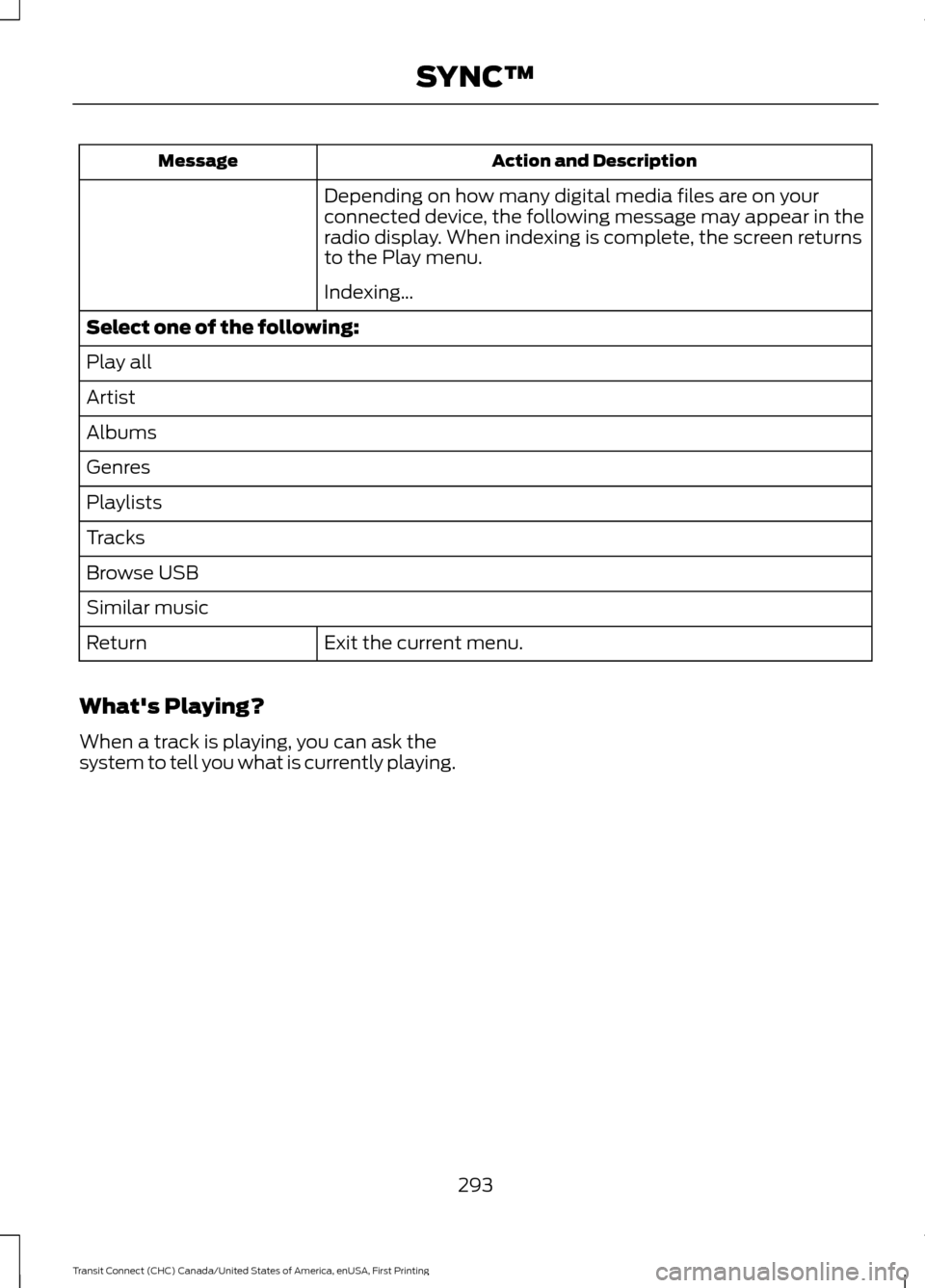
Action and Description
Message
Depending on how many digital media files are on your
connected device, the following message may appear in the
radio display. When indexing is complete, the screen returns
to the Play menu.
Indexing…
Select one of the following:
Play all
Artist
Albums
Genres
Playlists
Tracks
Browse USB
Similar music Exit the current menu.
Return
What's Playing?
When a track is playing, you can ask the
system to tell you what is currently playing.
293
Transit Connect (CHC) Canada/United States of America, enUSA, First Printing SYNC™
Page 318 of 428

Action and Description
Message
Press this button to switch the display screen off. Press again,
or touch the screen to switch the display screen on.
Display
Touch the control repeatedly to switch between media
modes.
Source
Adjust the settings for:
Sound
•Bass.
• Treble.
• Midrange.
• Balance.
• Fade.
• DSP (Digital Signal Processing).
• Occupancy Mode.
• Speed Compensated Volume.
Using the Steering Wheel Controls
Depending on your vehicle, it may also have the following controls: Action and Description
Control
Adjust the volume of playing media.
VOL
Press to start a voice session. Press again to end an active
voice prompt so you can begin speaking. Press and hold to
end a voice session.
Voice
While in radio mode, press to seek between memory presets.
Seek and Phone Accept
While in radio mode, press to seek between memory presets.
Seek and Phone Reject
Cleaning the Touchscreen Display
Use a dry, clean, soft cloth. If dirt or
fingerprints are still visible, apply a small
amount of alcohol to the cloth. Do not pour
or spray alcohol onto the display. Do not
use detergent or any type of solvent to
clean the display. Support
The SYNC support team is available:
•
Monday-Saturday, 8:30am-8:00pm
EST.
• United States: 1-888-270-1055
• Canada: 1-800-565-3673
Note: Times are subject to change due to
holidays.
315
Transit Connect (CHC) Canada/United States of America, enUSA, First Printing MyFord Touch
™
Page 322 of 428

Helpful Hints
•
Make sure the interior of your vehicle is
as quiet as possible. Wind noise from
open windows and road vibrations may
prevent the system from correctly
recognizing spoken voice commands.
• After pressing the voice command icon,
wait until after the tone sounds and
Listening appears before saying a voice
command. Any voice command spoken
prior to this does not register with the
system.
• Speak naturally, without long pauses
between words.
• At any time, you can interrupt the
system while it is speaking by pressing
the voice command icon.
Accessing a List of Available Voice
Commands
To access a list of available voice
commands you can do either of the
following.
Using the touchscreen, press: Message
Settings
Help
Voice Command List
Using the steering wheel control, press
the voice button and when prompted
say one of the following: Voice Commands
(music | audio) [system] list of
commands
(browse | show | search) list of
commands
(Bluetooth (audio | stereo) [<1-n>])
list of commands Voice Commands
(disc | CD [player]) list of commands
climate [control] list of commands *
(nav | navigation) list of commands
(phone | Blackberry | I Phone) list of
commands
radio list of commands
(SD card | memory card) list of
commands
*
(Sirius [satellite radio | radio] | sat |
satellite radio) list of commands
*
[show] [Sirius] Travel Link list of
commands
(browse | show | search) (USB [<1-
n>] | iPod | MP3 [player])
voice instructions list of commands
voice settings list of commands
voice settings help
* These voice commands are only available
when your vehicle is fitted with a
navigation system, and the navigation
system SD card is in the SD card slot.
Voice Command Settings
These allow you to customize the level of
system interaction, help and feedback. The
system defaults to standard interaction
that uses candidate lists and confirmation
prompts as these provide the highest level
of guidance and feedback.
319
Transit Connect (CHC) Canada/United States of America, enUSA, First Printing MyFord Touch
™
Page 332 of 428

Action and Description
Message
Have the system display areas where difficult driving condi-
tions may occur.
Have the system display areas where snow and ice on the
road may occur.
Have the system display any smog alerts.
Have the system display weather warnings.
Have the system display where there may be reduced visib-
ility.
Have the system turn on your radio for traffic announcements.
Enter specific areas that would like to avoid on planned
navigation routes.
Avoid Areas
Phone To make adjustments using the touchscreen, select:
Action and Description
Message
Press the settings icon.
Settings
Phone
Then select from the following:
Connect, disconnect, add or delete a device, as well as save
it as a favorite.
Bluetooth Devices
Turn Bluetooth on and off.
Bluetooth
Have all calls go directly to your voice mail and not ring inside
your vehicle. With this feature turned on, text message noti-
fications are also suppressed and do not ring inside your
vehicle.
Do Not Disturb
Turn on or turn off the 911 Assist feature. See Information
(page 358).
911 Assist
Select the type of notification for phone calls - ring tone,
beep, text to speech or silent.
Phone Ringer
329
Transit Connect (CHC) Canada/United States of America, enUSA, First Printing MyFord Touch
™E142607
Page 335 of 428

To make adjustments using the touchscreen, select:
Action and Description
Message
Press the settings icon.
Settings
Help
Then select from the following:
Touchscreen system serial number
System Information
Your vehicle identification number (VIN)
Touchscreen system software version
Navigation system version
Map database version
Sirius satellite radio ESN
Gracenote® Database Information and Library version
View the licenses for any software and applications installed
on your system.
Software Licenses
Certain features are not accessible when your vehicle is
moving.
Driving Restrictions
Turn on and turn off the 911 Assist feature. See Information
(page 358).
911 Assist
In Case of Emergency (ICE) Quick Dial: allows you to save
up to two numbers as ICE contacts for quick access if there
is an emergency. Select
Edit to access your phonebook and
then select the desired contacts. The numbers then appear
as options on this screen for the ICE 1 and ICE 2 buttons. The
ICE contacts you select appear at the end of the 911 Assist
call process.
View categorized lists of voice commands.
Voice Command List
You can also access Help using the voice
commands. The system provides
allowable voice commands for the current
mode. Press the voice button and when
prompted say:
Voice command
Help
332
Transit Connect (CHC) Canada/United States of America, enUSA, First Printing MyFord Touch
™E142599
Page 336 of 428

ENTERTAINMENT
Message and Description
Message
AMA
FMB
SIRIUS
C
CDD
USBE
Touch this button to scroll down
for more options, for example
SD Card and A/V In
F
These buttons change with the
media mode you are in.
G
Radio memory presets.
H
Note: Some features may not be available
in your area. Contact an authorized dealer
for more information.
You can access these options using the
touchscreen or voice commands. Browsing Device Content
When listening to audio on a device, you
can browse through other devices without
having to change sources. For example, if
you are currently listening to audio on an
SD card, you can browse all the artists that
are stored on your USB device.
Browse Within Devices
Press the voice button and when
prompted say one of the following: Voice command
(browse | show | search) *
(browse | show | search)
games
*
(browse | show | search) (Sirius
[(channel | station) (guide | list)]| All
Sirius Channels)
(browse | show | search) (SD card
[<1-9>] | memory card
333
Transit Connect (CHC) Canada/United States of America, enUSA, First Printing MyFord Touch
™A
B
C
D
E
F
G
H
E161892 E142599