2015 FORD TAURUS radio controls
[x] Cancel search: radio controlsPage 438 of 558
Using the Touch-sensitive Controls on Your System
To turn a feature on and off, just touch the graphic with your finger. To
get the best performance from the touch-sensitive controls:
•
Do not press hard on the controls. They are sensitive to light touch.
• Use your bare finger to touch the center of a touch-control graphic.
Touching off-center of the graphic may affect operation of a nearby control.
• Make sure your hands are clean and dry.
• Keep metal and other conductive material away from the surface of the
touchscreen as this may cause electronic interference (for example,
inadvertently turning on a feature other than the one you meant to turn on).
Depending on your vehicle and option package, you may also have these
controls on your bezel:
•
Power: Switch the media or climate features off and on.
• VOL: Control the volume of playing media.
• Seek and Tune buttons: Use as you normally would in media modes.
• Eject: Eject a CD from the entertainment system.
• SOURCE: Touch the word repeatedly to see all available media modes.
The screen does not change, but you see the media change in the lower
left status bar.
• SOUND: Touch the word to access the Sound menu where you can
adjust settings such as: Bass, Treble, Midrange, Balance and Fade, THX
Deep Note Demo, DSP (Digital Signal Processing), Occupancy Mode
and Speed Compensated Volume. (Your vehicle may not have all of
these sound options.)
• Climate control: Control the temperature, fan speed or settings of the
climate control system.
Using Your Steering Wheel Controls
Depending on your vehicle and option package, you can use your
steering wheel controls to interact with the touchscreen system.
• VOL: Control the volume of audio output.
• SEEK:
• While in radio mode, press to seek between memory presets or
press and hold to seek between stations.
• While in USB or CD mode, press to seek between stations or press
and hold to fast seek.
• Voice: Press to start a voice session. Press again and hold to end a
voice session.
• Phone: Press to answer a call, or to switch between calls. Press and
hold to end a call, or to reject and incoming call.
See the Steering Wheel chapter for more information.
MyFord Touch® (If Equipped) 437
2015 Taurus
Owners Guide gf, 1st Printing, April 2014
USA(fus)
Page 447 of 558
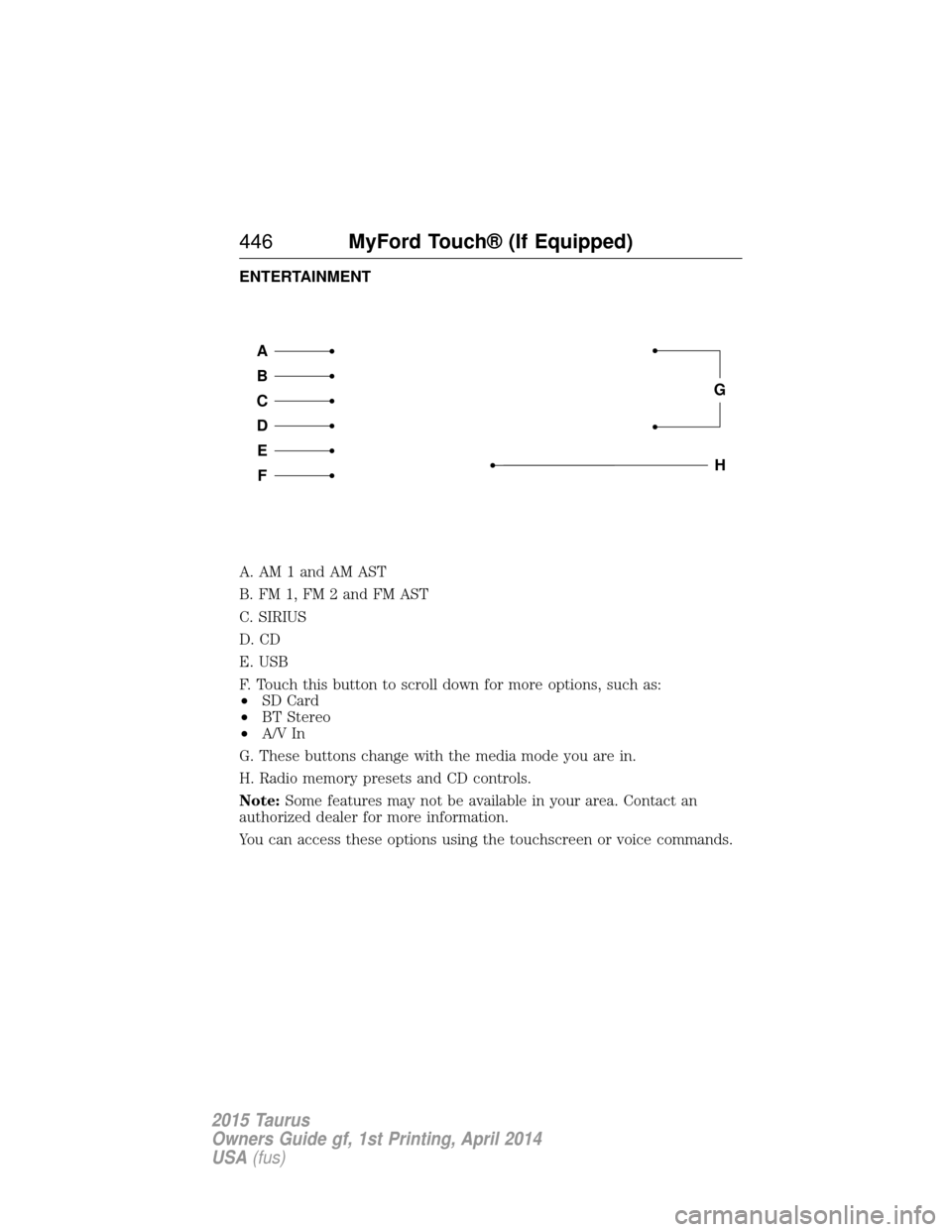
ENTERTAINMENT
A. AM 1 and AM AST
B. FM 1, FM 2 and FM AST
C. SIRIUS
D. CD
E. USB
F. Touch this button to scroll down for more options, such as:
•SD Card
• BT Stereo
• A/V In
G. These buttons change with the media mode you are in.
H. Radio memory presets and CD controls.
Note: Some features may not be available in your area. Contact an
authorized dealer for more information.
You can access these options using the touchscreen or voice commands.
A
B
C
D
E
F
G
H
446 MyFord Touch® (If Equipped)
2015 Taurus
Owners Guide gf, 1st Printing, April 2014
USA(fus)
Page 449 of 558

Your voice system allows you to change audio sources with a simple
voice command. For example, if you are listening to music on a USB
device, then want to switch to a satellite radio channel, simply press the
voice button on the steering wheel controls and say the name of the
Sirius station (such as, “the Highway”). The following voice commands
are available at the top level of the voice session no matter which
current audio source you are listening to (such as a USB device or Sirius
satellite radio).Note:This is only available when your MyFord Touch
system language is set to North American English.
“AM <530 - 1710>” “FM <87.9 – 107.9>”
“<530 - 1710>” “<87.9 – 107.9>”
“Sirius <0-223>”
*“
“Play [genre]
“Play [artist]
“Play [album]
“Play
*
*
This command is only usable if you have an active subscription to Sirius
satellite radio.
**The commands that have [ ] around the word means that the word is
optional. For example, if you say, “Play Metallica”, this is the same as the
voice command, “Play [artist]
AM and FM
Touch the AMorFM tab to listen to the radio.
To change between AM and FM presets, just touch the AMor
FM tab.
Memory Presets
Save a station by pressing and holding one of the memory preset areas.
There is a brief mute while the radio saves the station. Sound returns
when finished.
HD Radio
Touch this button to turn HD Radio on. The light on the button
illuminates when the feature is on. HD Radio allows you to receive radio
broadcasts digitally, where available, providing free, crystal-clear sound.
See HD Radio information later in this chapter.
448MyFord Touch® (If Equipped)
2015 Taurus
Owners Guide gf, 1st Printing, April 2014
USA(fus)
Page 467 of 558
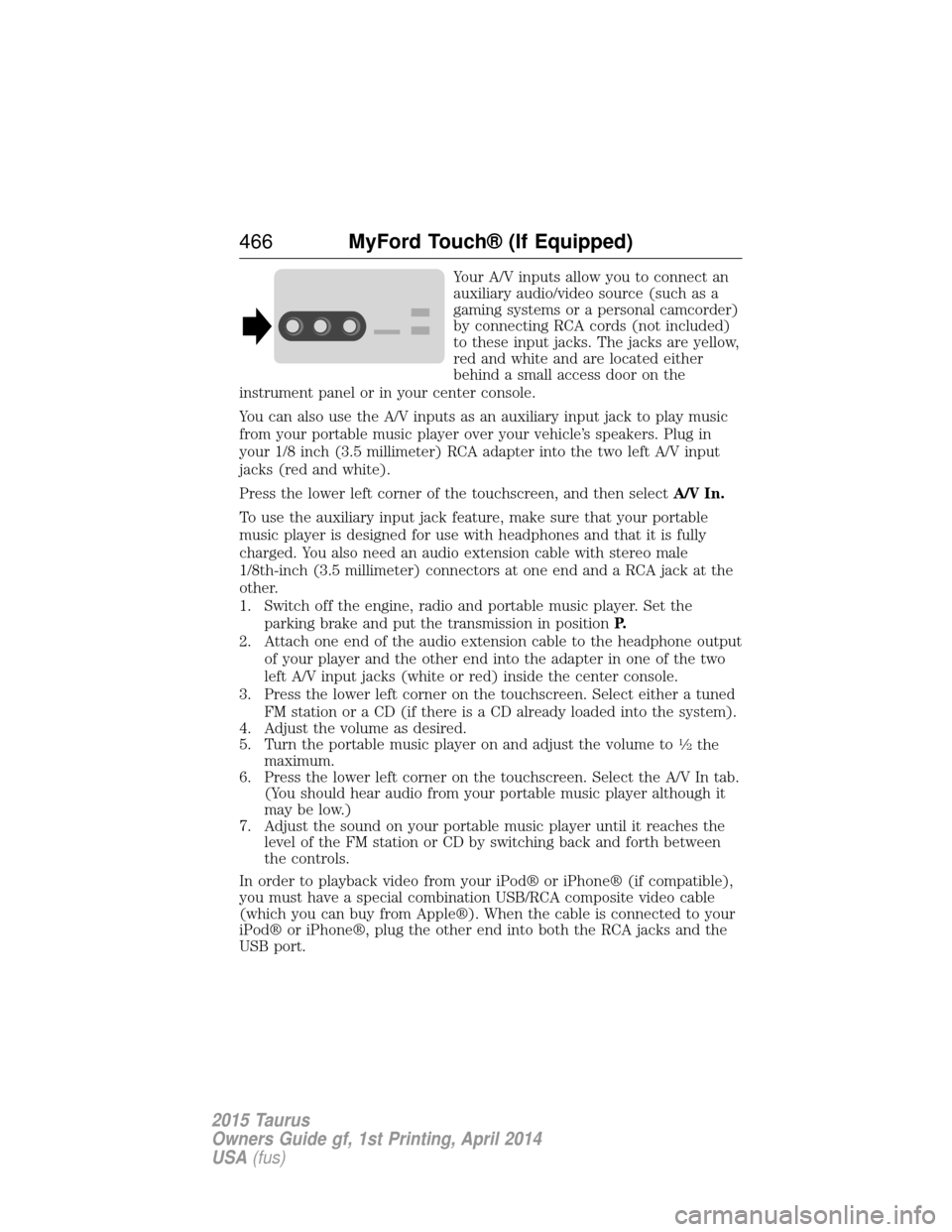
Your A/V inputs allow you to connect an
auxiliary audio/video source (such as a
gaming systems or a personal camcorder)
by connecting RCA cords (not included)
to these input jacks. The jacks are yellow,
red and white and are located either
behind a small access door on the
instrument panel or in your center console.
You can also use the A/V inputs as an auxiliary input jack to play music
from your portable music player over your vehicle’s speakers. Plug in
your 1/8 inch (3.5 millimeter) RCA adapter into the two left A/V input
jacks (red and white).
Press the lower left corner of the touchscreen, and then select A/V In.
To use the auxiliary input jack feature, make sure that your portable
music player is designed for use with headphones and that it is fully
charged. You also need an audio extension cable with stereo male
1/8th-inch (3.5 millimeter) connectors at one end and a RCA jack at the
other.
1. Switch off the engine, radio and portable music player. Set the parking brake and put the transmission in position P.
2. Attach one end of the audio extension cable to the headphone output of your player and the other end into the adapter in one of the two
left A/V input jacks (white or red) inside the center console.
3. Press the lower left corner on the touchscreen. Select either a tuned FM station or a CD (if there is a CD already loaded into the system).
4. Adjust the volume as desired.
5. Turn the portable music player on and adjust the volume to
12the
maximum.
6. Press the lower left corner on the touchscreen. Select the A/V In tab. (You should hear audio from your portable music player although it
may be low.)
7. Adjust the sound on your portable music player until it reaches the level of the FM station or CD by switching back and forth between
the controls.
In order to playback video from your iPod® or iPhone® (if compatible),
you must have a special combination USB/RCA composite video cable
(which you can buy from Apple®). When the cable is connected to your
iPod® or iPhone®, plug the other end into both the RCA jacks and the
USB port.
466 MyFord Touch® (If Equipped)
2015 Taurus
Owners Guide gf, 1st Printing, April 2014
USA(fus)
Page 470 of 558

3. If you are prompted to enter a PIN on your device, it does notsupport Secure Simple Pairing. To pair, enter the PIN displayed on
the touchscreen. Skip the next step.
4. When prompted on your phone’s display, confirm that the PIN provided by SYNC matches the PIN displayed on your cellular phone.
5. The display indicates when the pairing is successful.
SYNC may prompt you with more phone options. For more information
on your phone’s capability, see your phone’s manual and visit the
website.
Pairing Subsequent Phones
Note: Put the transmission in position P.Turn on your vehicle ignition
and the radio.
1. Press the Phonecorner of the touchscreen > Settings>BT
Devices >Add Device.
2. Make sure that Bluetooth is set to Onand that your cellular phone is
in the proper mode. See your phone’s manual if necessary.
• Select SYNC, and a six-digit PIN appears on your device.
3. If you are prompted to enter a PIN on your device, it does not support Secure Simple Pairing. To pair, enter the PIN displayed on
the touchscreen. Skip the next step.
4. When prompted on your phone’s display, confirm that the PIN provided by SYNC matches the PIN displayed on your cellular phone.
5. The display indicates when the pairing is successful.
SYNC may prompt you with more phone options. For more information
on your phone’s capability, see your phone’s user guide and visit the
website.
Making Calls
Press the voice button on your steering wheel controls. When
prompted, say, “Call
number.
To end the call or exit phone mode, press and hold this phone
button on your steering wheel controls.
MyFord Touch® (If Equipped) 469
2015 Taurus
Owners Guide gf, 1st Printing, April 2014
USA(fus)
Page 557 of 558

Setting a destination by
voice ...........................................503
Settings ......................................487
Setting the clock ...............373, 487
Side air curtain ...........................52
Side-curtain airbags system .......52
SIRIUS® satellite radio ....373, 454
SIRIUS satellite radio voice
commands .................................456
SIRIUS Travel Link ...................479
SIRIUS Travel Link voice
commands .................................481
SOS Post Crash Alert .................44
Spark plugs,
specifications .....................356, 363
Specification chart,
lubricants ...................................358
Stability system .........................199
Starting your vehicle ................166jump starting ..........................260
push button start system .......165
Steering wheel ............................81 controls ......................................83
tilting .........................................81
Sunshade ...................................101
Sun visor ....................................100
Supplemental Restraint System
(SRS) (see airbags) ....................45
Supported media file types ......464
Supported player, media
formats and metadata
information ................................464
SYNC® customer
support ..............................390, 438
SYNC® Services ................413, 475 System settings .........................490
T
Temperature control
(see Climate control) ......130–131,
133, 135, 499
Temporary mobility kit .............345
Text messaging .................401, 471
Text messaging (sending,
downloading, deleting) .....401, 403
Tilt steering wheel ......................81
Tires ...........................318–319, 339 alignment ................................332
care ..........................................318
changing ..........................339, 341
checking the pressure ............328
inflating ...................................326
label .........................................325
replacing ..................................330
rotating ....................................333
safety practices .......................332
sidewall information ...............321
snow tires and chains ............334
spare tire .................................339
Temporary mobility kit ..........345
terminology .............................319
tire grades ...............................319
treadwear ........................318, 328
Touchscreen features
(climate) ....................................499
Towing .......................247, 251–252 recreational towing .................252
trailer towing ..........................247
wrecker ....................................251
Traction control ........................197
Traffic, Directions and
Information ................................413
Traffic preferences ...................506
556 Index
2015 Taurus
Owners Guide gf, 1st Printing, April 2014
USA(fus)