2015 FORD TAURUS center console
[x] Cancel search: center consolePage 168 of 558

Before starting the engine check the following:
•Make sure all occupants have fastened their safety belts.
• Make sure the headlamps and electrical accessories are off.
• Make sure the parking brake is on.
• Make sure the gearshift is in position P.
• Turn the ignition key to the on position. If your vehicle is equipped
with a keyless ignition, see the following instructions.
Vehicles with an Ignition Key
Note: Do not touch the accelerator pedal.
1. Fully press the brake pedal.
2. Turn the key to the start position. Release the key when the engine starts.
Note: The engine may continue cranking for up to 15 seconds or until it
starts.
Note: If you cannot start the engine on the first try, wait for a short
period and try again.
Vehicles with Keyless Start
Note: Do not touch the accelerator pedal.
1. Fully press the brake pedal.
2. Press the button.
The system does not function if:
• The key frequencies are jammed.
• The key battery has no charge.
If you are unable to start your vehicle, do the following: 1. Locate the key backup slot in thecenter console utility
compartment.
2. With the buttons facing the rear of the vehicle and the key ring
up, place the key into backup
slot.
3. With the key in this position, press the brake pedal, then the
button to switch the ignition on
and start your vehicle.
Starting and Stopping the Engine 167
2015 Taurus
Owners Guide gf, 1st Printing, April 2014
USA(fus)
Page 199 of 558

PRINCIPLES OF OPERATION
WARNING:Vehicle modifications involving braking system,
aftermarket roof racks, suspension, steering system, tire
construction and wheel or tire size may change the handling
characteristics of your vehicle and may adversely affect the
performance of the AdvanceTrac® system. In addition, installing any
stereo loudspeakers may interfere with and adversely affect the
AdvanceTrac® system. Install any aftermarket stereo loudspeaker as far
as possible from the front center console, the tunnel, and the front
seats in order to minimize the risk of interfering with the
AdvanceTrac® sensors. Reducing the effectiveness of the
AdvanceTrac® system could lead to an increased risk of loss of vehicle
control, vehicle rollover, personal injury and death.
WARNING: Remember that even advanced technology cannot
defy the laws of physics. It is always possible to lose control of a
vehicle due to inappropriate driver input for the conditions. Aggressive
driving on any road condition can cause you to lose control of your
vehicle increasing the risk of personal injury or property damage.
Activation of the AdvanceTrac® system is an indication that at least
some of the tires have exceeded their ability to grip the road; this could
reduce the operator’s ability to control the vehicle potentially resulting
in a loss of vehicle control, vehicle rollover, personal injury and death. If
your AdvanceTrac® system activates, SLOW DOWN.
The AdvanceTrac system helps you keep control of your vehicle when on
a slippery surface. The electronic stability control portion of the system
helps avoid skids and lateral slides and the traction control system helps
avoid drive wheel spin and loss of traction. See the Traction Control
chapter for details on traction control system operation.
198 Stability Control
2015 Taurus
Owners Guide gf, 1st Printing, April 2014
USA(fus)
Page 225 of 558
LANE KEEPING SYSTEM (IF EQUIPPED)
WARNING:The system is designed to aid the driver. It is not
intended to replace the driver’s attention and judgment. The
driver is still responsible to drive with due care and attention.
The system detects unintentional drifting toward the outside of the lane
and alerts and/or aids the driver to stay in the lane through the steering
system and instrument cluster display. The system automatically detects
and tracks the road lane markings using a camera that is mounted
behind the interior rear view mirror.
Note: The system works above 40 mph (64 km/h).
Note: The system works as long as one lane marking can be detected by
the camera.
Note: If the camera is blocked or if the windshield is damaged, the
system may not function.
Note: When Aid mode is on and the system detects no driver steering
activity for a short period after system activation, the system alerts the
driver to keep their hands on the steering wheel. The system may detect
a light touch or grip on the steering wheel as hands-off driving.
Switching the System On and Off
Press the button located on the center console to switch the
system on or off.
Note: The system on/off setting is stored until it is manual changed,
unless a MyKey® is detected. If a MyKey® is detected, the system is
defaulted to on and the mode is set to Alert.
Note: If a MyKey® is detected, pressing the button will not affect the
on/off status of the system. Only the Mode and Intensity settings can be
changed when a MyKey® is present.
System Settings
The system has one standard feature setting and one optional setting
menu available. To view or adjust the settings, refer to the Information
Displays chapter. The last-known selection for each of these settings is
stored by the system. You do not need to readjust your settings each
time you turn on the system.
Mode: This setting allows you to enable one of the system features.
224 Driving Aids
2015 Taurus
Owners Guide gf, 1st Printing, April 2014
USA(fus)
Page 387 of 558

Radio displayCondition Possible action
Call SIRIUS
1–888–539–7474 Your satellite service is
no longer available.Call Sirius at
1–888–539–7474 to
resolve subscription
issues.
None Found. Check
Channel Guide. All the channels in the
selected category are
either skipped or
locked.Use the channel guide
to turn off the Lock or
Skip function on that
station.
Subscription Updated Sirius has updated the channels available for
your vehicle.No action required.
AUXILIARY INPUT JACK
WARNING: Driving while distracted can result in loss of vehicle
control, crash and injury. We strongly recommend that you use
extreme caution when using any device that may take your focus off
the road. Your primary responsibility is the safe operation of your
vehicle. We recommend against the use of any hand-held device while
driving and encourage the use of voice-operated systems when possible.
Make sure you are aware of all applicable local laws that may affect the
use of electronic devices while driving.
WARNING: For safety reasons, do not connect or adjust the
settings on your portable music player while your vehicle is
moving.
WARNING: Store the portable music player in a secure location,
such as the center console or the glove box, when your vehicle is
moving. Hard objects may become projectiles in a crash or sudden stop,
which may increase the risk of serious injury. The audio extension cable
must be long enough to allow the portable music player to be safely
stored while your vehicle is moving.
386 Audio System
2015 Taurus
Owners Guide gf, 1st Printing, April 2014
USA(fus)
Page 388 of 558

The auxiliary input jack allows you
to connect and play music from
your portable music player through
your vehicle speakers. You can use
any portable music player designed
for use with headphones. Your audio
extension cable must have male
18-inch (3.5 millimeter) connectors
at each end.
1. Switch off the engine, radio and portable music player. Set the parking brake and put the transmission in position P.
2. Plug the extension cable from the portable music player into the auxiliary input jack.
3. Switch the radio on. Select either a tuned FM station or a CD.
4. Adjust the volume as desired.
5. Switch your portable music player on and adjust its volume to half its maximum level.
6. Press AUXuntilLINE orLINE IN appears in the display. You
should hear music from your device even if it is low.
7. Adjust the volume on your portable music player until it reaches the volume level of the FM station or CD. Do this by switching back and
forth between the AUX and FM or CD controls.
USB PORT (IF EQUIPPED)
WARNING: Driving while distracted can result in loss of vehicle
control, crash and injury. We strongly recommend that you use
extreme caution when using any device that may take your focus off
the road. Your primary responsibility is the safe operation of your
vehicle. We recommend against the use of any hand-held device while
driving and encourage the use of voice-operated systems when possible.
Make sure you are aware of all applicable local laws that may affect the
use of electronic devices while driving.
The USB port is located in the center console. It allows you to plug in
media playing devices, memory sticks and charge devices (if supported).
See the SYNCchapter for more information.
LINE IN
Audio System 387
2015 Taurus
Owners Guide gf, 1st Printing, April 2014
USA(fus)
Page 389 of 558

MEDIA HUB (IF EQUIPPED)
The media hub is located in the center console and has the following
features:A. A/V inputs
B. SD card slot
C. USB ports
For more information, see the MyFord Touchchapter.
C
BA
388 Audio System
2015 Taurus
Owners Guide gf, 1st Printing, April 2014
USA(fus)
Page 462 of 558
SD Card Slot and USB Port
SD Card Slot
Note:Your SD card slot is spring-loaded. To remove the SD card, press
the card in and the system ejects it. Do not attempt to pull the card to
remove it as this could cause damage.
Note: The navigation system also uses this card slot. See Navigation
system later in this chapter for more information.
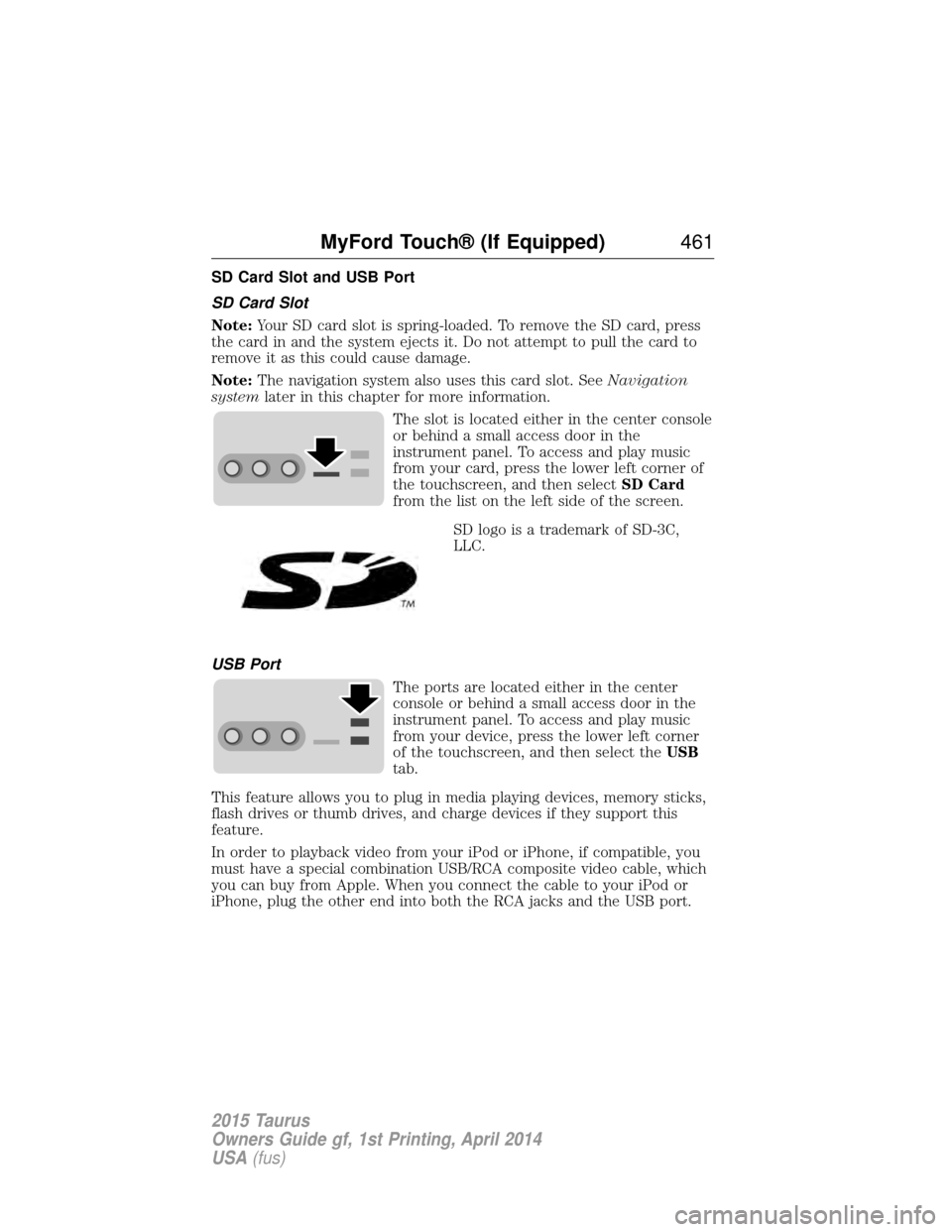
The slot is located either in the center console
or behind a small access door in the
instrument panel. To access and play music
from your card, press the lower left corner of
the touchscreen, and then select SD Card
from the list on the left side of the screen.
SD logo is a trademark of SD-3C,
LLC.
USB Port The ports are located either in the center
console or behind a small access door in the
instrument panel. To access and play music
from your device, press the lower left corner
of the touchscreen, and then select the USB
tab.
This feature allows you to plug in media playing devices, memory sticks,
flash drives or thumb drives, and charge devices if they support this
feature.
In order to playback video from your iPod or iPhone, if compatible, you
must have a special combination USB/RCA composite video cable, which
you can buy from Apple. When you connect the cable to your iPod or
iPhone, plug the other end into both the RCA jacks and the USB port.
MyFord Touch® (If Equipped) 461
2015 Taurus
Owners Guide gf, 1st Printing, April 2014
USA(fus)
Page 466 of 558
Bluetooth Audio
Your system allows you to stream audio over your vehicle’s speakers from
your connected, Bluetooth-enabled cellular phone.To access, press the lower left corner on the touchscreen, then
select the BT Stereo tab.
Bluetooth Audio Voice Commands If you are listening to a Bluetooth audio device, press the voice
button on the steering wheel control. When prompted, say
“Next song”, “Pause”, “Play” or “Previous song”.
If you are not listening to a Bluetooth audio device, press the voice
button and, after the tone, say “Bluetooth Audio”, then “Next song”,
“Pause”, “Play” or “Previous song”.
A/V Inputs
WARNING: Driving while distracted can result in loss of vehicle
control, crash and injury. We strongly recommend that you use
extreme caution when using any device that may take your focus off
the road. Your primary responsibility is the safe operation of your
vehicle. We recommend against the use of any hand-held device while
driving and encourage the use of voice-operated systems when possible.
Make sure you are aware of all applicable local laws that may affect the
use of electronic devices while driving.
WARNING: For safety reasons, do not connect or adjust the
settings on your portable music player while your vehicle is
moving.
WARNING: Store the portable music player in a secure location,
such as the center console or the glove box, when your vehicle is
in motion. Hard objects may become projectiles in a crash or sudden
stop, which may increase the risk of serious injury. The audio extension
cable must be long enough to allow the portable music player to be
safely stored while your vehicle is moving.
MyFord Touch® (If Equipped) 465
2015 Taurus
Owners Guide gf, 1st Printing, April 2014
USA(fus)