2015 FORD TAURUS light
[x] Cancel search: lightPage 381 of 558

•In Sirius mode, press these buttons to select the previous or next
channel. If a specific category is selected (such as Jazz, Rock or
News), use these buttons to find the previous or next channel in the
selected category.
• In CD mode, press these buttons to select the previous or next track.
C. SOUND: Press this button to access settings for Treble, Midrange,
Bass, Balance and Fade.
D. TUNE + and TUNE - :
• In radio mode, press these buttons to manually search through the
radio frequency band.
• In Sirius mode, press these buttons to find the next or previous
available satellite radio station.
E. Power and Volume:
• Press this button to switch the system off and on.
• Turn it to adjust the volume.
HD RADIO™ INFORMATION (IF AVAILABLE)
Note: HD Radio broadcasts are not available in all markets.
HD Radio technology is the digital evolution of analog AM/FM radio. Your
system has a special receiver that allows it to receive digital broadcasts
(where available) in addition to the analog broadcasts, it already
receives. Digital broadcasts provide a better sound quality than analog
broadcasts with free, crystal-clear audio and no static or distortion. For
more information, and a guide to available stations and programming,
please visit www.hdradio.com.
When HD Radio is on and you tune to a station broadcasting HD Radio
technology, you may notice the HD Radio logo on your screen. When this
logo is available, you may also see Title and Artist fields on-screen.
The multicast indicator appears in FM mode (only) if the current station
is broadcasting multiple digital broadcasts. The highlighted numbers
signify available digital channels where new or different content is
available. HD1 signifies the main programming status and is available in
analog and digital broadcasts. Other multicast stations (HD2 through
HD7) are only available digitally.
380 Audio System
2015 Taurus
Owners Guide gf, 1st Printing, April 2014
USA(fus)
Page 383 of 558
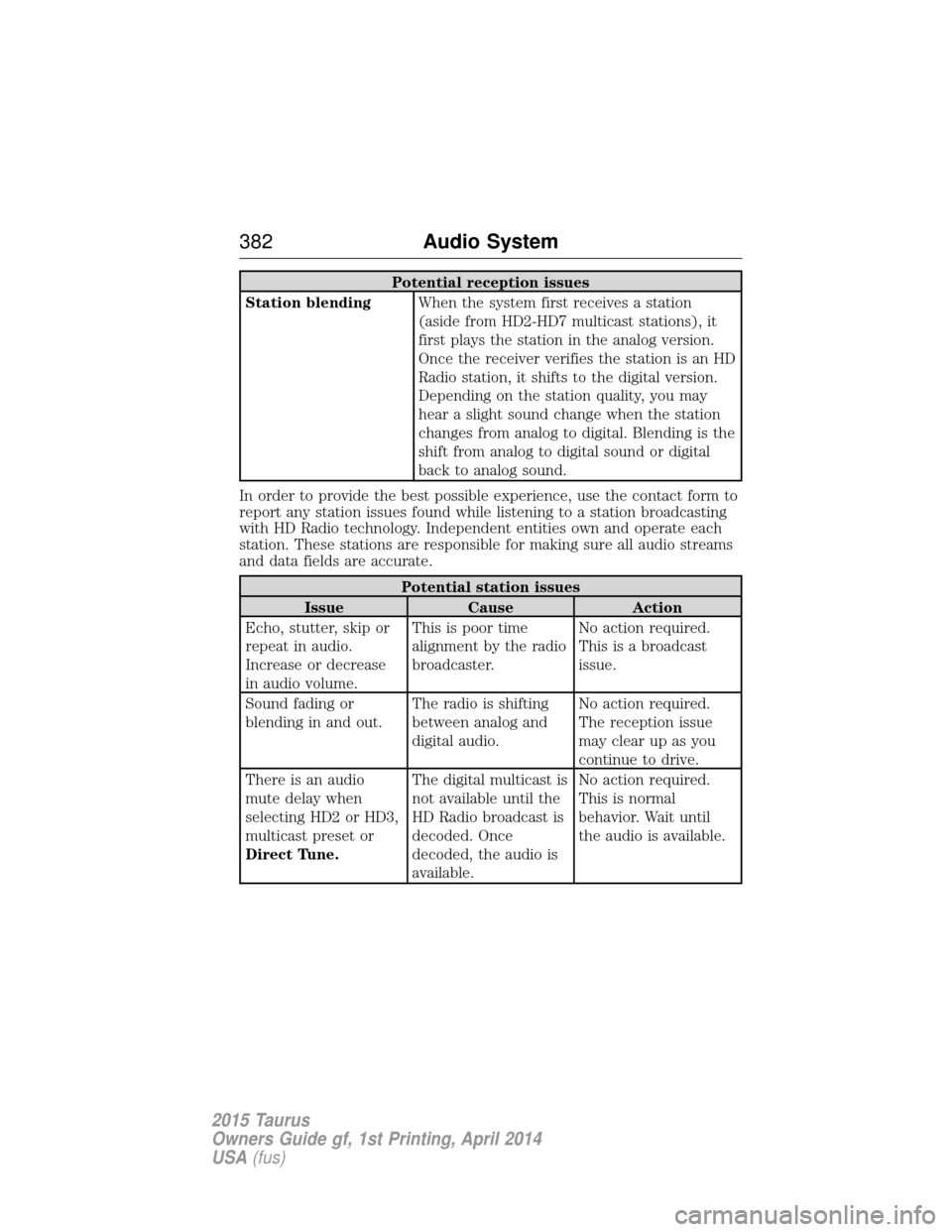
Potential reception issues
Station blending When the system first receives a station
(aside from HD2-HD7 multicast stations), it
first plays the station in the analog version.
Once the receiver verifies the station is an HD
Radio station, it shifts to the digital version.
Depending on the station quality, you may
hear a slight sound change when the station
changes from analog to digital. Blending is the
shift from analog to digital sound or digital
back to analog sound.
In order to provide the best possible experience, use the contact form to
report any station issues found while listening to a station broadcasting
with HD Radio technology. Independent entities own and operate each
station. These stations are responsible for making sure all audio streams
and data fields are accurate.
Potential station issues
Issue Cause Action
Echo, stutter, skip or
repeat in audio.
Increase or decrease
in audio volume. This is poor time
alignment by the radio
broadcaster.
No action required.
This is a broadcast
issue.
Sound fading or
blending in and out. The radio is shifting
between analog and
digital audio.No action required.
The reception issue
may clear up as you
continue to drive.
There is an audio
mute delay when
selecting HD2 or HD3,
multicast preset or
Direct Tune. The digital multicast is
not available until the
HD Radio broadcast is
decoded. Once
decoded, the audio is
available.No action required.
This is normal
behavior. Wait until
the audio is available.
382
Audio System
2015 Taurus
Owners Guide gf, 1st Printing, April 2014
USA(fus)
Page 438 of 558
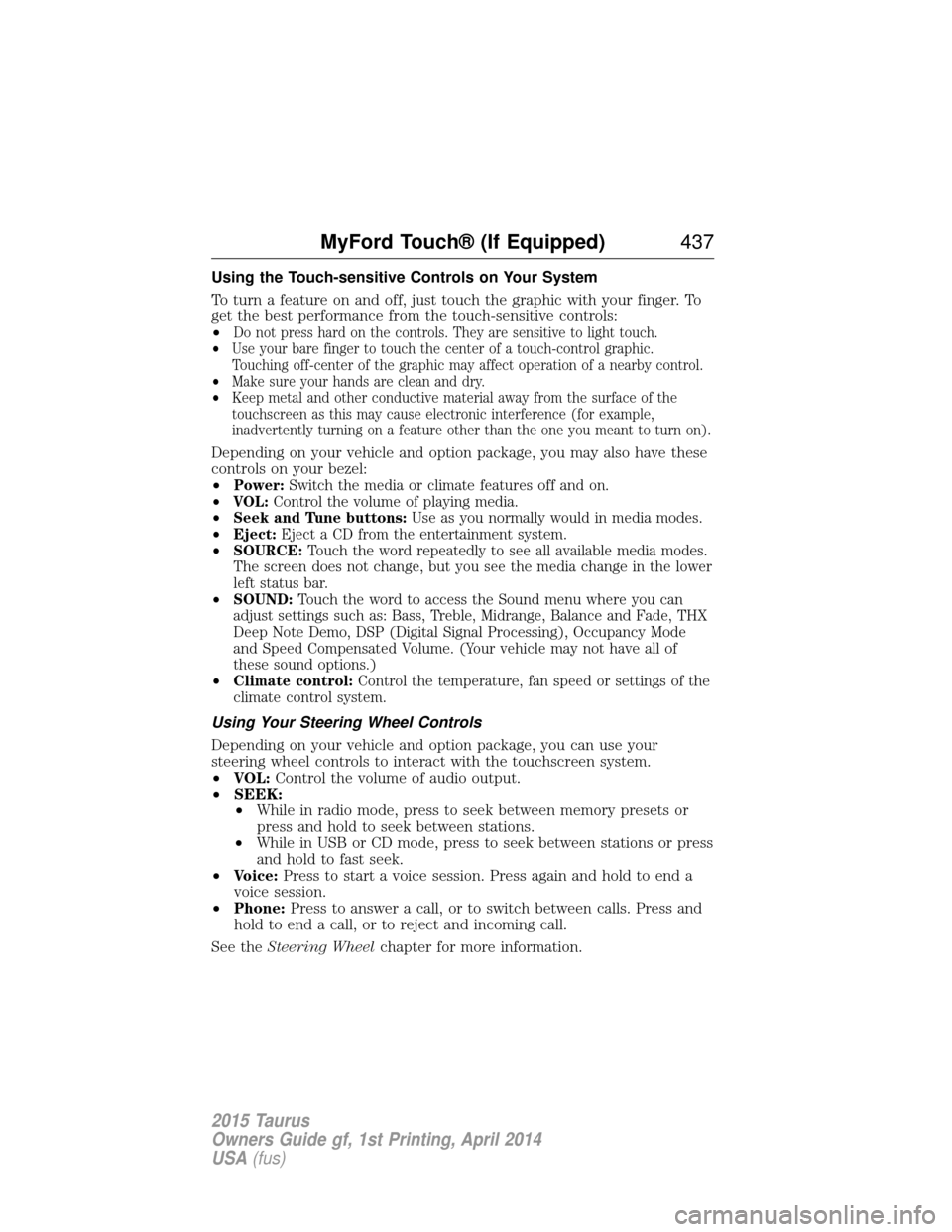
Using the Touch-sensitive Controls on Your System
To turn a feature on and off, just touch the graphic with your finger. To
get the best performance from the touch-sensitive controls:
•
Do not press hard on the controls. They are sensitive to light touch.
• Use your bare finger to touch the center of a touch-control graphic.
Touching off-center of the graphic may affect operation of a nearby control.
• Make sure your hands are clean and dry.
• Keep metal and other conductive material away from the surface of the
touchscreen as this may cause electronic interference (for example,
inadvertently turning on a feature other than the one you meant to turn on).
Depending on your vehicle and option package, you may also have these
controls on your bezel:
•
Power: Switch the media or climate features off and on.
• VOL: Control the volume of playing media.
• Seek and Tune buttons: Use as you normally would in media modes.
• Eject: Eject a CD from the entertainment system.
• SOURCE: Touch the word repeatedly to see all available media modes.
The screen does not change, but you see the media change in the lower
left status bar.
• SOUND: Touch the word to access the Sound menu where you can
adjust settings such as: Bass, Treble, Midrange, Balance and Fade, THX
Deep Note Demo, DSP (Digital Signal Processing), Occupancy Mode
and Speed Compensated Volume. (Your vehicle may not have all of
these sound options.)
• Climate control: Control the temperature, fan speed or settings of the
climate control system.
Using Your Steering Wheel Controls
Depending on your vehicle and option package, you can use your
steering wheel controls to interact with the touchscreen system.
• VOL: Control the volume of audio output.
• SEEK:
• While in radio mode, press to seek between memory presets or
press and hold to seek between stations.
• While in USB or CD mode, press to seek between stations or press
and hold to fast seek.
• Voice: Press to start a voice session. Press again and hold to end a
voice session.
• Phone: Press to answer a call, or to switch between calls. Press and
hold to end a call, or to reject and incoming call.
See the Steering Wheel chapter for more information.
MyFord Touch® (If Equipped) 437
2015 Taurus
Owners Guide gf, 1st Printing, April 2014
USA(fus)
Page 449 of 558

Your voice system allows you to change audio sources with a simple
voice command. For example, if you are listening to music on a USB
device, then want to switch to a satellite radio channel, simply press the
voice button on the steering wheel controls and say the name of the
Sirius station (such as, “the Highway”). The following voice commands
are available at the top level of the voice session no matter which
current audio source you are listening to (such as a USB device or Sirius
satellite radio).Note:This is only available when your MyFord Touch
system language is set to North American English.
“AM <530 - 1710>” “FM <87.9 – 107.9>”
“<530 - 1710>” “<87.9 – 107.9>”
“Sirius <0-223>”
*“
“Play [genre]
“Play [artist]
“Play [album]
“Play
*
*
This command is only usable if you have an active subscription to Sirius
satellite radio.
**The commands that have [ ] around the word means that the word is
optional. For example, if you say, “Play Metallica”, this is the same as the
voice command, “Play [artist]
AM and FM
Touch the AMorFM tab to listen to the radio.
To change between AM and FM presets, just touch the AMor
FM tab.
Memory Presets
Save a station by pressing and holding one of the memory preset areas.
There is a brief mute while the radio saves the station. Sound returns
when finished.
HD Radio
Touch this button to turn HD Radio on. The light on the button
illuminates when the feature is on. HD Radio allows you to receive radio
broadcasts digitally, where available, providing free, crystal-clear sound.
See HD Radio information later in this chapter.
448MyFord Touch® (If Equipped)
2015 Taurus
Owners Guide gf, 1st Printing, April 2014
USA(fus)
Page 450 of 558

Scan
Touch this button to go to the next strong AM or FM radio station. The
light on the button illuminates when the feature is on.
Options
Sound Settingsallows you to adjust settings for:
• Bass
• Midrange
• Treble
• Balance and Fade
• DSP (Digital Signal Processing)
• Occupancy Mode
• Speed Compensated Volume.
Note: Your vehicle may not have all these sound settings.
Set PTY for Seek/Scan allows you to select a category of music you
would like to search for. You can then choose to either seek or scan for
the stations playing that category.
RDS Text Display allows you to view the information broadcast by FM
stations.
AST allows you to have the system automatically store the six strongest
stations in your current location.
TAG Button is available when HD Radio is on, and allows you to tag a
song to download later. When you select On,TAG appears on-screen
when HD Radio is active. You can touch TA Gto save the information of
the song that is playing. When you plug in your portable music player,
the information transfers, if supported by your device. When you are
connected to iTunes, the tags appear to remind you of the songs you
would like to download. See HD Radio informationlater in this chapter.
Direct Tune
Touch this button to manually enter the desired station number. Touch
Enter when you are done.
HD Radio™ Information (If Available)
Note: HD Radio broadcasts are not available in all markets.
HD Radio technology is the digital evolution of analog AM/FM radio. Your
system has a special receiver that allows it to receive digital broadcasts
(where available) in addition to the analog broadcasts, it already
receives. Digital broadcasts provide a better sound quality than analog
broadcasts with free, crystal-clear audio and no static or distortion. For
MyFord Touch® (If Equipped) 449
2015 Taurus
Owners Guide gf, 1st Printing, April 2014
USA(fus)
Page 451 of 558
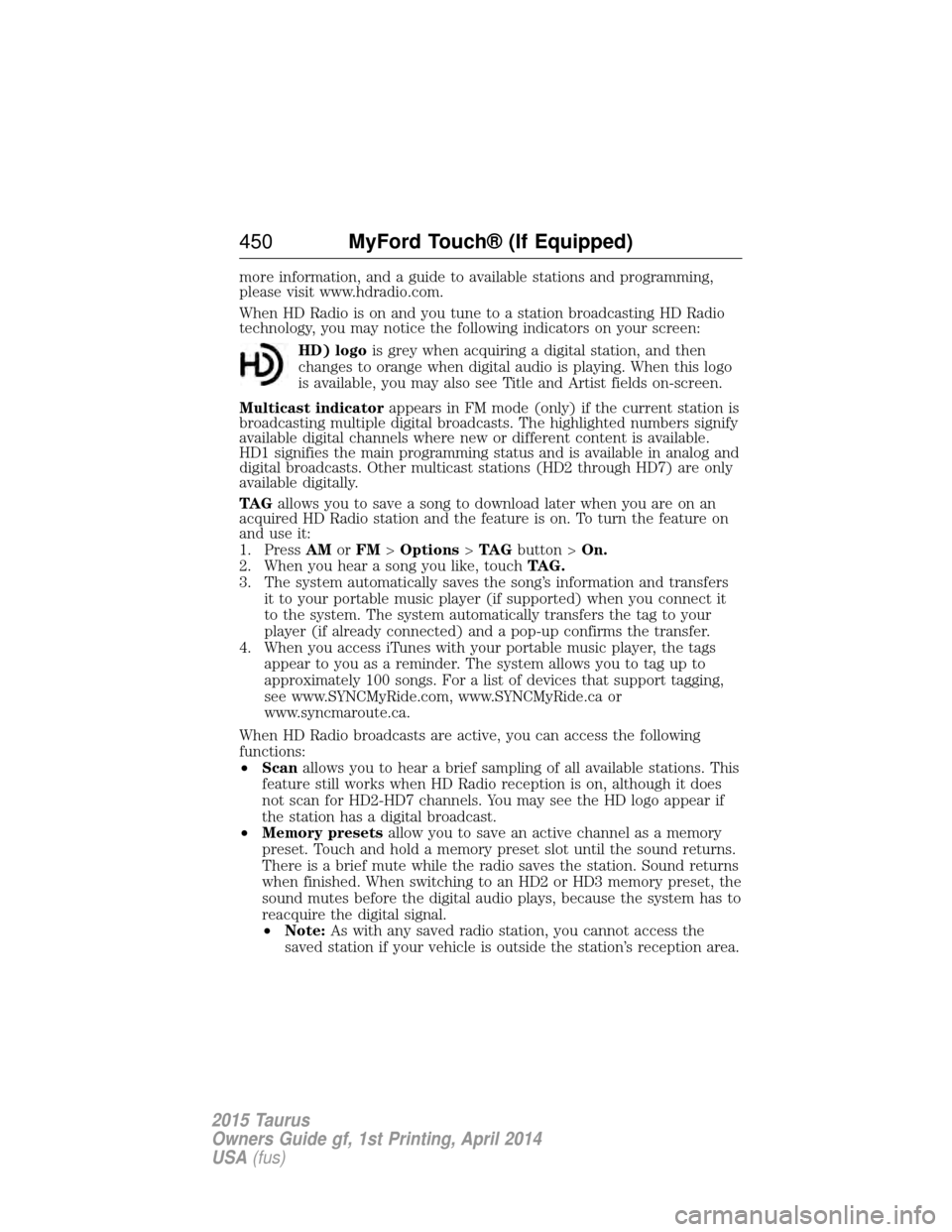
more information, and a guide to available stations and programming,
please visit www.hdradio.com.
When HD Radio is on and you tune to a station broadcasting HD Radio
technology, you may notice the following indicators on your screen:HD) logo is grey when acquiring a digital station, and then
changes to orange when digital audio is playing. When this logo
is available, you may also see Title and Artist fields on-screen.
Multicast indicator appears in FM mode (only) if the current station is
broadcasting multiple digital broadcasts. The highlighted numbers signify
available digital channels where new or different content is available.
HD1 signifies the main programming status and is available in analog and
digital broadcasts. Other multicast stations (HD2 through HD7) are only
available digitally.
TA G allows you to save a song to download later when you are on an
acquired HD Radio station and the feature is on. To turn the feature on
and use it:
1. Press AMorFM >Options >TA G button > On.
2. When you hear a song you like, touch TAG.
3. The system automatically saves the song’s information and transfers it to your portable music player (if supported) when you connect it
to the system. The system automatically transfers the tag to your
player (if already connected) and a pop-up confirms the transfer.
4. When you access iTunes with your portable music player, the tags appear to you as a reminder. The system allows you to tag up to
approximately 100 songs. For a list of devices that support tagging,
see www.SYNCMyRide.com, www.SYNCMyRide.ca or
www.syncmaroute.ca.
When HD Radio broadcasts are active, you can access the following
functions:
• Scan allows you to hear a brief sampling of all available stations. This
feature still works when HD Radio reception is on, although it does
not scan for HD2-HD7 channels. You may see the HD logo appear if
the station has a digital broadcast.
• Memory presets allow you to save an active channel as a memory
preset. Touch and hold a memory preset slot until the sound returns.
There is a brief mute while the radio saves the station. Sound returns
when finished. When switching to an HD2 or HD3 memory preset, the
sound mutes before the digital audio plays, because the system has to
reacquire the digital signal.
• Note: As with any saved radio station, you cannot access the
saved station if your vehicle is outside the station’s reception area.
450 MyFord Touch® (If Equipped)
2015 Taurus
Owners Guide gf, 1st Printing, April 2014
USA(fus)
Page 452 of 558
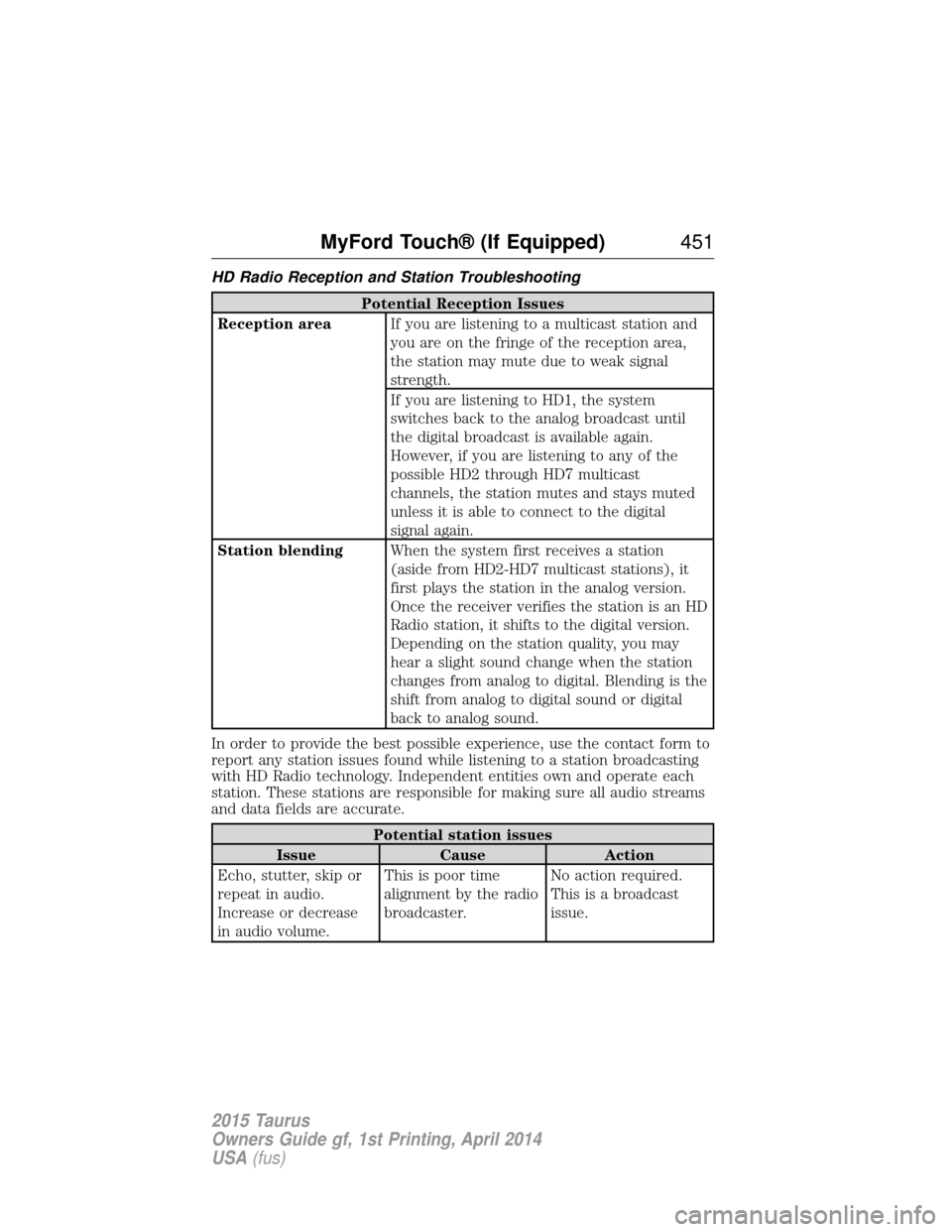
HD Radio Reception and Station Troubleshooting
Potential Reception Issues
Reception area If you are listening to a multicast station and
you are on the fringe of the reception area,
the station may mute due to weak signal
strength.
If you are listening to HD1, the system
switches back to the analog broadcast until
the digital broadcast is available again.
However, if you are listening to any of the
possible HD2 through HD7 multicast
channels, the station mutes and stays muted
unless it is able to connect to the digital
signal again.
Station blending When the system first receives a station
(aside from HD2-HD7 multicast stations), it
first plays the station in the analog version.
Once the receiver verifies the station is an HD
Radio station, it shifts to the digital version.
Depending on the station quality, you may
hear a slight sound change when the station
changes from analog to digital. Blending is the
shift from analog to digital sound or digital
back to analog sound.
In order to provide the best possible experience, use the contact form to
report any station issues found while listening to a station broadcasting
with HD Radio technology. Independent entities own and operate each
station. These stations are responsible for making sure all audio streams
and data fields are accurate.
Potential station issues
Issue Cause Action
Echo, stutter, skip or
repeat in audio.
Increase or decrease
in audio volume. This is poor time
alignment by the radio
broadcaster.
No action required.
This is a broadcast
issue.
MyFord Touch® (If Equipped)
451
2015 Taurus
Owners Guide gf, 1st Printing, April 2014
USA(fus)
Page 489 of 558

You can also turn the outside air temperature display on and off. It
appears at the top center of the touchscreen, next to the time and date.
The system automatically saves any updates you make to the settings.
Display
You can adjust the touchscreen display through the touchscreen or by
pressing the voice button on your steering wheel controls and when
prompted, say, “Display settings”.Press the Settings icon > Display,to access and make
adjustments using the touchscreen.
• Brightness allows you to make the screen display brighter or
dimmer.
• Auto DIM, when set to On,lets you use the Auto Dim Manual Offset
feature. When set to Off,screen brightness does not change.
• Mode allows you to set the screen to a certain brightness or have the
system automatically change based on the outside light level, or turn
the display off.
• If you select AUTOorNIGHT, you have the options of turning
the display’s Auto Dim feature on or off and changing the Auto
Dim Manual Offset feature.
• Auto Dim Manual Offset allows you to adjust screen dimming as
the outside lighting conditions change from day to night. This feature
also allows you to adjust screen brightness using the instrument panel
dimming control.
Edit Wallpaper
• You can have your touchscreen display the default photo or upload
your own.
Uploading Photos for Your Home Screen Wallpaper
Note: You cannot load photos directly from your camera. You must
access the photos either from your USB mass storage device or from an
SD card.
Note: Photographs with extremely large dimensions (such as 2048 x
1536) may not be compatible and appear as a blank (black) image on the
display.
Your system allows you to upload and view up to 32 photos.
To access, press the Settings icon > Display>Edit Wallpaper, and
then follow the system prompts to upload your photographs.
488 MyFord Touch® (If Equipped)
2015 Taurus
Owners Guide gf, 1st Printing, April 2014
USA(fus)