2015 FORD FOCUS ELECTRIC light
[x] Cancel search: lightPage 284 of 369
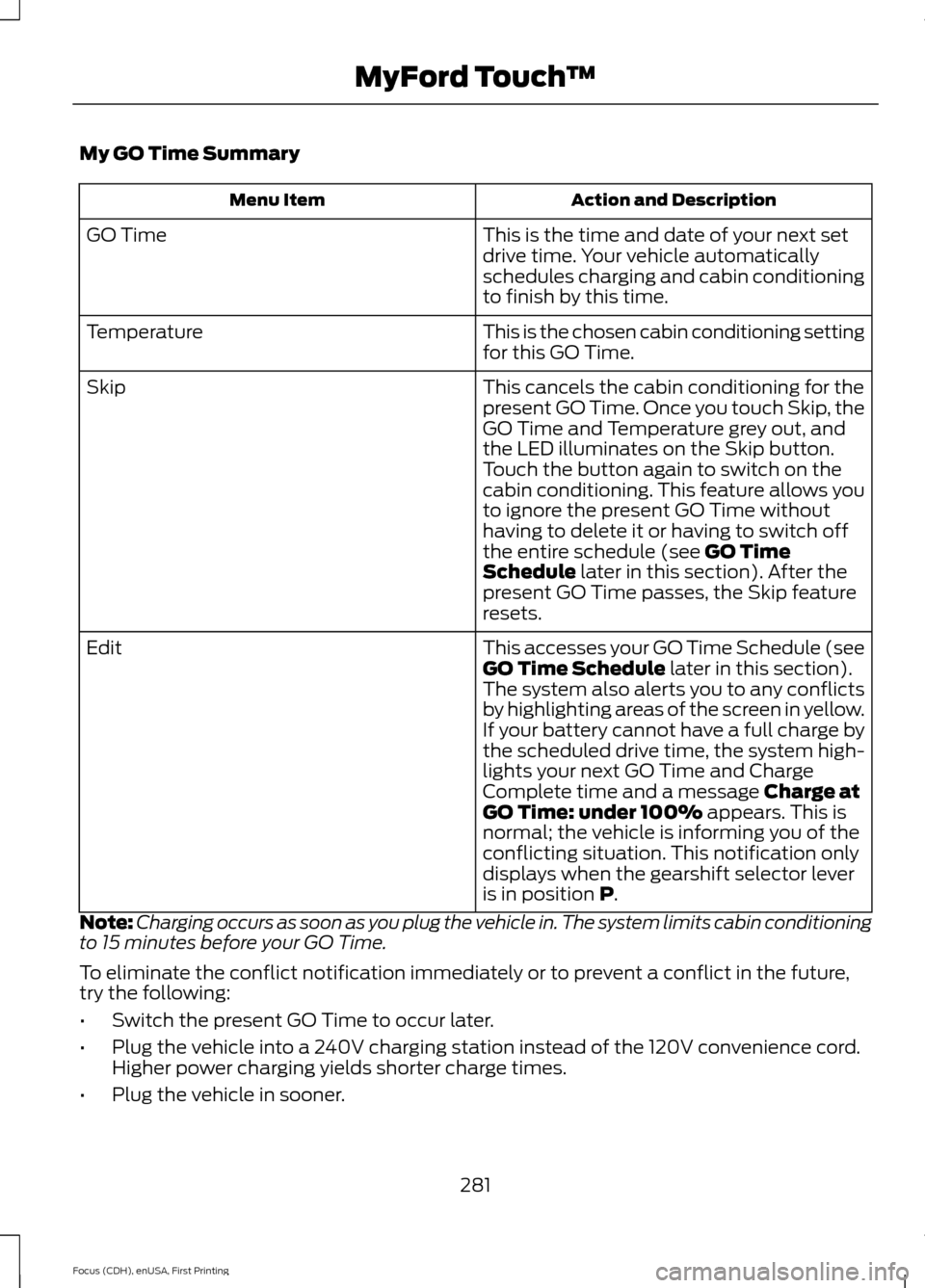
My GO Time Summary
Action and Description
Menu Item
This is the time and date of your next set
drive time. Your vehicle automatically
schedules charging and cabin conditioning
to finish by this time.
GO Time
This is the chosen cabin conditioning setting
for this GO Time.
Temperature
This cancels the cabin conditioning for the
present GO Time. Once you touch Skip, the
GO Time and Temperature grey out, and
the LED illuminates on the Skip button.
Touch the button again to switch on the
cabin conditioning. This feature allows you
to ignore the present GO Time without
having to delete it or having to switch off
the entire schedule (see GO Time
Schedule later in this section). After the
present GO Time passes, the Skip feature
resets.
Skip
This accesses your GO Time Schedule (see
GO Time Schedule
later in this section).
The system also alerts you to any conflicts
by highlighting areas of the screen in yellow.
If your battery cannot have a full charge by
the scheduled drive time, the system high-
lights your next GO Time and Charge
Complete time and a message
Charge at
GO Time: under 100% appears. This is
normal; the vehicle is informing you of the
conflicting situation. This notification only
displays when the gearshift selector lever
is in position
P.
Edit
Note: Charging occurs as soon as you plug the vehicle in. The system limits cabin conditioning
to 15 minutes before your GO Time.
To eliminate the conflict notification immediately or to prevent a conflict in the future,
try the following:
• Switch the present GO Time to occur later.
• Plug the vehicle into a 240V charging station instead of the 120V convenience cord.
Higher power charging yields shorter charge times.
• Plug the vehicle in sooner.
281
Focus (CDH), enUSA, First Printing MyFord Touch
™
Page 288 of 369
Action and Description
Menu Item
This is the estimated time of charge completion.
Complete
When the vehicle is in Charge Now
mode, and unplugged, the system
displays the charging duration in
hours. Once you plug in the vehicle,
the value shows the estimated time
to finish charging.
Charge Now Duration
When the vehicle is in Value Charge
mode, the system displays the
estimated charge complete time. It
is normal for the estimated complete
time to switch when charging. The
vehicle keeps charging until the high-
voltage battery is fully charged.
Scheduled Charge
Complete Time
GO Time Schedule Action and Description
Menu Item
Touch this button to see the GO Time Schedule.
Edit
This turns on the GO Time schedule.
On
This turns off the GO Time schedule. This also turns off the
cabin conditioning function. Use this mode to prevent using
energy for cabin preconditioning when you leave your vehicle
plugged in and do not plan to use it for a while, such as when
on vacation.
Off
This displays the GO Time day-of-week and time. The blue
highlighted GO Time is the present GO Time, which the vehicle
is using for charge scheduling and cabin conditioning. You can
schedule two GO Time events per day for each day of the week.
GO Time 1
allows you to edit the GO Time and
cabin conditioning temperature.
GO Time
GO Time 2
indicates that you can add a GO
Time to this slot.
--:--
Note: If you choose to perform Value Charging with the schedule off, the vehicle schedules
charging to finish at the lowest cost within 24 hours of plugging the vehicle in.
Note: If you set GO Time 2 to occur before GO Time 1, a message pops up alerting you. You
need to go back to the previous screen and switch the times so GO Time 1 occurs before GO
Time 2.
285
Focus (CDH), enUSA, First Printing MyFord Touch
™
Page 293 of 369
Description
Item
Callout
Includes all power usage from the low voltageaccessories such as the climate control fan,
headlights and heated seats. The higher the power usage is from these accessories, the
larger the circle around the node. This node illuminates anytime the vehicle is on since
there is always some low level power in use.
2
Other
E
Includes the power usage from the high-
voltage climate control components such as the electric A/C compressor and the electric heater. The higher the power usage is from
these components, the larger the circle around this node.
2,3
Climate
F
Represents your high-voltage battery. A circleilluminates around the node when the high- voltage battery is receiving power from
regenerative braking, engine charging or
external charging (when you plug it in). The
higher the power going into the high-voltage
battery, the larger the circle around this node.
High Voltage
Battery Power
G
Represents the power going to the wheels.
The higher the wheel power is, the larger the circle around this node.
Drive Power
H
1 The battery-to-motor flow includes
battery power the vehicle is using for
acceleration. It does not include energy the
vehicle is using for accessories (such as air
conditioning, headlights and radio). This
screen displays accessories and climate
usage separately.
2 Accessories indicates electrical power
demands from your vehicle ’s accessory
systems. Accessories use power but do not
contribute to making the vehicle move. The
power flow displays power usage from the
climate control system and other
accessories separately. 3
The climate control system may
determine A/C is necessary even when you
switch it off. In this case, you may see some
climate power when the A/C is off.
Status
This indicates which mode is active within
the vehicle system.
290
Focus (CDH), enUSA, First Printing MyFord Touch
™
Page 307 of 369
NAVIGATION
Note:
The navigation SD card must be in
the SD card slot to operate the navigation
system. If you need a replacement SD card,
see an authorized dealer.
Note: The SD card slot is spring-loaded. To
remove the SD card, just push the card in
and release it. Do not attempt to pull the
card out to remove it; this could cause
damage.
Your navigation system is comprised of
two main features, destination mode and
map mode.
Destination Mode
To set a destination press the green
corner of your touchscreen, then the
press: Menu Item
Dest.
Choose any of the following:
My Home
Favorites
Previous Destinations
Point of Interest
Emergency Menu Item
Street Address
Intersection
City Center
Map
Edit Route
Cancel Route
To set your destination, enter the
necessary information into the highlighted
text fields (in any order).
For an address destination entry, press: Action and Descrip-
tion
Menu Item
Pressing this button
makes the address
location appear on
the map.
Go
To choose a previous destination,
press: Action and Descrip-
tion
Menu Item
The last 20 destina-
tions you have
selected appear.
Previous Destina-
tions
304
Focus (CDH), enUSA, First Printing MyFord Touch
™
Page 309 of 369
Main Categories
Entertainment & Arts
Recreation & Sports
Government
Domestic Services Subcategories
Restaurant
Golf
Parking
Home & Garden Subcategories
Personal Care Services
Auto Dealership
Govt Office
Public Transit
Education
To expand these listings, press the + in
front of the listing.
The system also allows you to sort
alphabetically, by distance or by cityseekr
listings (if available).
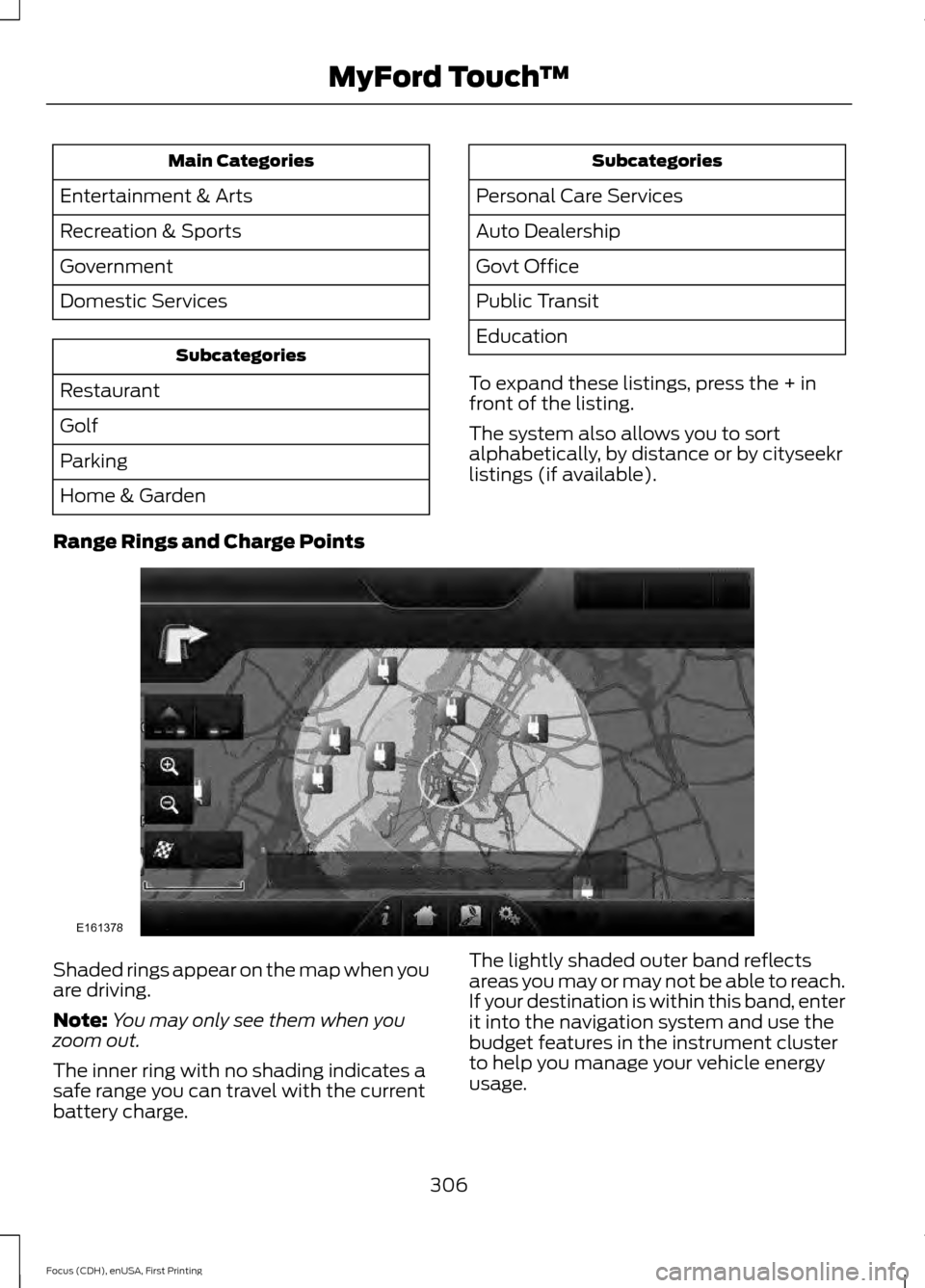
Range Rings and Charge Points Shaded rings appear on the map when you
are driving.
Note:
You may only see them when you
zoom out.
The inner ring with no shading indicates a
safe range you can travel with the current
battery charge. The lightly shaded outer band reflects
areas you may or may not be able to reach.
If your destination is within this band, enter
it into the navigation system and use the
budget features in the instrument cluster
to help you manage your vehicle energy
usage.
306
Focus (CDH), enUSA, First Printing MyFord Touch
™E161378
Page 314 of 369
Map Mode
Press the green bar in the upper right area
of the touchscreen to view map mode. Map
mode shows advanced viewing comprised
of both 2D city maps as well as 3D
landmarks (when available).
2D city maps show detailed outlines of
buildings, visible land use and land
elements and detailed railway
infrastructure for the most essential cities
around the globe. These maps also contain
features, such as town blocks, building
footprints and railways.
3D landmarks appear as clear, visible
objects that are typically recognizable and
have a certain tourist value. The 3D
landmarks appear in 3D map mode only.
Coverage varies, and improves with
updated map releases.
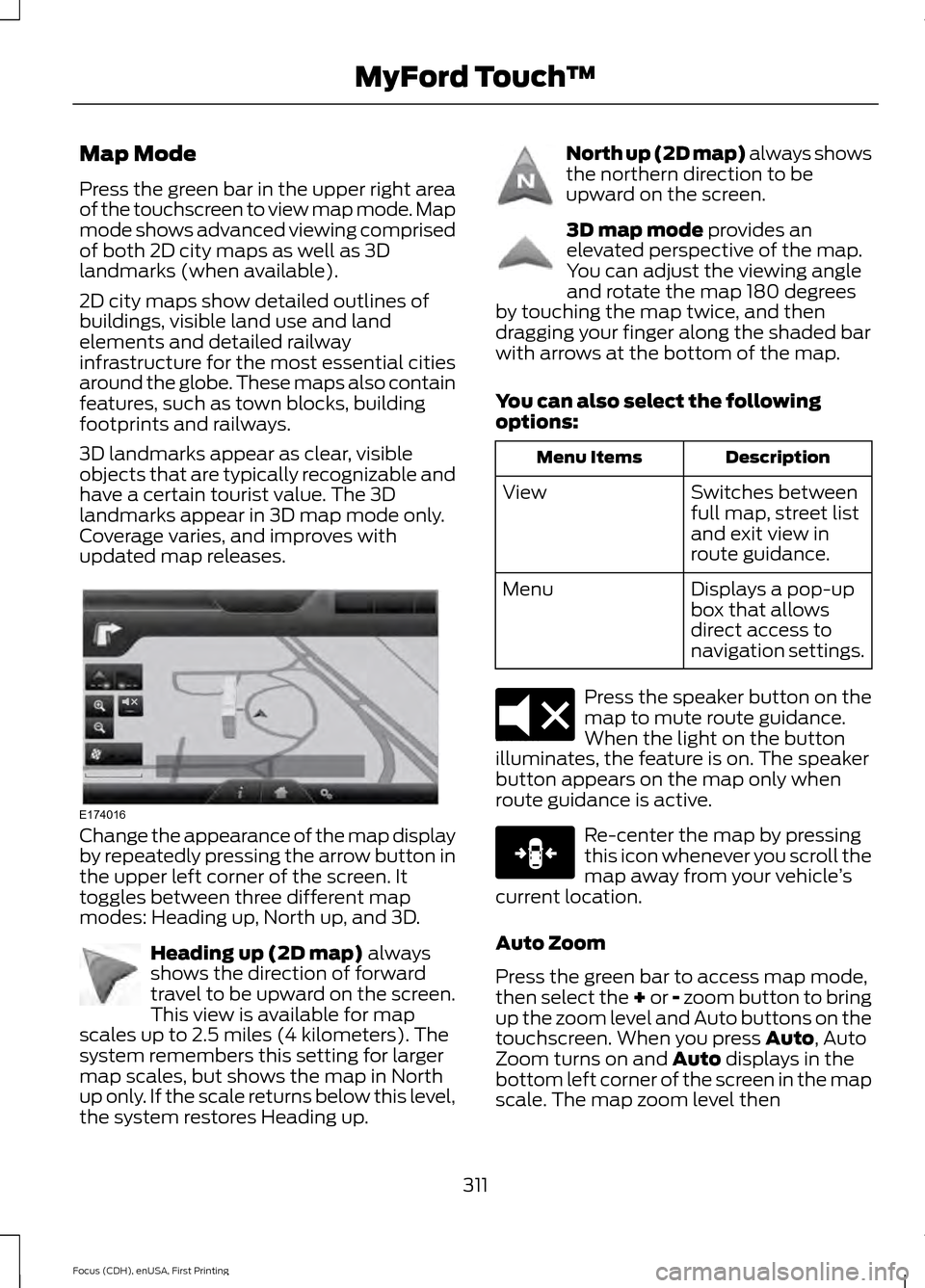
Change the appearance of the map display
by repeatedly pressing the arrow button in
the upper left corner of the screen. It
toggles between three different map
modes: Heading up, North up, and 3D.
Heading up (2D map) always
shows the direction of forward
travel to be upward on the screen.
This view is available for map
scales up to 2.5 miles (4 kilometers). The
system remembers this setting for larger
map scales, but shows the map in North
up only. If the scale returns below this level,
the system restores Heading up. North up (2D map) always shows
the northern direction to be
upward on the screen.
3D map mode
provides an
elevated perspective of the map.
You can adjust the viewing angle
and rotate the map 180 degrees
by touching the map twice, and then
dragging your finger along the shaded bar
with arrows at the bottom of the map.
You can also select the following
options: Description
Menu Items
Switches between
full map, street list
and exit view in
route guidance.
View
Displays a pop-up
box that allows
direct access to
navigation settings.
Menu Press the speaker button on the
map to mute route guidance.
When the light on the button
illuminates, the feature is on. The speaker
button appears on the map only when
route guidance is active. Re-center the map by pressing
this icon whenever you scroll the
map away from your vehicle
’s
current location.
Auto Zoom
Press the green bar to access map mode,
then select the + or - zoom button to bring
up the zoom level and Auto buttons on the
touchscreen. When you press
Auto, Auto
Zoom turns on and Auto displays in the
bottom left corner of the screen in the map
scale. The map zoom level then
311
Focus (CDH), enUSA, First Printing MyFord Touch
™E174016 E142642 E142643 E142644 E174017 E146188
Page 324 of 369
For a complete listing of the accessories
that are available for your vehicle, contact
an authorized dealer or visit our online
store at www.Accessories.Ford.com
(United States only).
Ford Accessories are available for your
vehicle through an authorized Ford dealer.
Ford Motor Company repairs or replaces
any properly authorized dealer-installed
Ford Original Accessory found to be
defective in factory-supplied materials or
workmanship during the warranty period,
as well as any component damaged by the
defective accessories. Ford Motor
Company warrants your Ford Original
Accessory through the warranty that
provides the greatest benefit:
•
24 months, unlimited mileage.
• The remainder of your new vehicle
limited warranty.
Contact an authorized dealer for details
and a copy of the warranty.
Exterior style
• Accent lights.
• Graphics.
• Keyless entry.
• Side window deflectors.
• Splash guards.
• Spoilers.
Interior style
• All-weather floor mats.
• Cargo area protectors.
• Cargo organizers.
• Illuminated door sills.
• Premium carpeted floor mats.
• Rear seat entertainment*.
• Shift knobs. Lifestyle
•
Ash cup and smokers packages.
• Roof racks and carriers*.
Peace of mind
• Bumper-mounted parking sensor*.
• Full vehicle covers*.
• Locking fuel plug.
• Vehicle security systems.
• Wheel locks.
*Ford Licensed Accessory. The accessory
manufacturer designs, develops and
therefore warrants Ford Licensed
Accessories, and does not design or test
these accessories to Ford Motor Company
engineering requirements. Contact an
authorized Ford dealer for the
manufacturer's limited warranty details
and request a copy of the Ford Licensed
Accessories product limited warranty from
the accessory manufacturer.
321
Focus (CDH), enUSA, First Printing Accessories
Page 351 of 369
Ford Motor Company has recommended
maintenance intervals for various parts
and component systems based upon
engineering testing. Ford Motor Company
relies upon this testing to determine the
most appropriate mileage for replacement
of oils and fluids to protect your vehicle at
the lowest overall cost to you and
recommends against maintenance
schedules that deviate from the scheduled
maintenance information.
We strongly recommend the use of only
genuine Ford, Motorcraft or
Ford-authorized re-manufactured
replacement parts engineered for your
vehicle.
Additives and Chemicals
This owner's manual and the Ford
Workshop Manual list the recommended
additives and chemicals for your vehicle.
We do not recommend using chemicals or
additives not approved by us as part of
your vehicle
’s normal maintenance. Please
consult your warranty information. Oils, Fluids and Flushing
In many cases, fluid discoloration is a
normal operating characteristic and, by
itself, does not necessarily indicate a
concern or that the fluid needs to be
changed. However, a qualified expert, such
as the factory-trained technicians at your
dealership, should inspect discolored fluids
that also show signs of overheating or
foreign material contamination
immediately.
Make sure to change your vehicle
’s oils and
fluids at the specified intervals or in
conjunction with a repair. Flushing is a
viable way to change fluid for many vehicle
sub-systems during scheduled
maintenance. It is critical that systems are
flushed only with new fluid that is the same
as that required to fill and operate the
system or using a Ford-approved flushing
chemical.
Owner Checks and Services
Make sure you perform the following basic
maintenance checks and inspections every
month or at six-month intervals. Check every month
Function of all interior and exterior lights.
Tires (including spare) for wear and proper pressure. Windshield washer fluid level. Check every six months
Battery connections. Clean if necessary.
Body and door drain holes for obstructions. Clean if necessary. Cooling system fluid level and coolant strength.
Door weatherstrips for wear. Lubricate if necessary.
Hinges, latches and outside locks for proper operation. Lubricate if necessary.
348
Focus (CDH), enUSA, First Printing Scheduled Maintenance