2015 FORD FIESTA Air con
[x] Cancel search: Air conPage 362 of 423
WARNINGS
Always place your phone in a secure
location in your vehicle so it does not
become a projectile or damaged in
a crash. Failure to do so may cause serious
injury to someone or damage the phone,
which could prevent 911 Assist from
working properly. Note:
The SYNC 911 Assist feature must be
set on prior to the incident.
Note: Before setting this feature on, make
sure that you read the 911 Assist Privacy
Notice later in this section for important
information.
Note: If any user turns 911 Assist on or off,
that setting applies for all paired phones. If
911 Assist is turned off, either a voice
message plays or a display message (or
icon) comes on (or both) when your vehicle
is started after a previously paired phone
connects.
Note: Every phone operates differently.
While SYNC 911 Assist works with most
cellular phones, some may have trouble
using this feature.
If a crash deploys an airbag, excluding knee
airbags and rear inflatable safety belts
where fitted or activates the fuel pump
shut-off, your SYNC-equipped vehicle may
be able to contact emergency services by
dialing 911 through a paired and connected
Bluetooth-enabled phone. You can learn
more about the 911 Assist feature, visit
www.SYNCMyRide.com,
www.SYNCMyRide.ca or
www.syncmaroute.ca.
See Supplementary Restraints System
(page 34). Important information
regarding airbag deployment is in this
chapter.
See
Roadside Emergencies (page 157).
Important information regarding the fuel
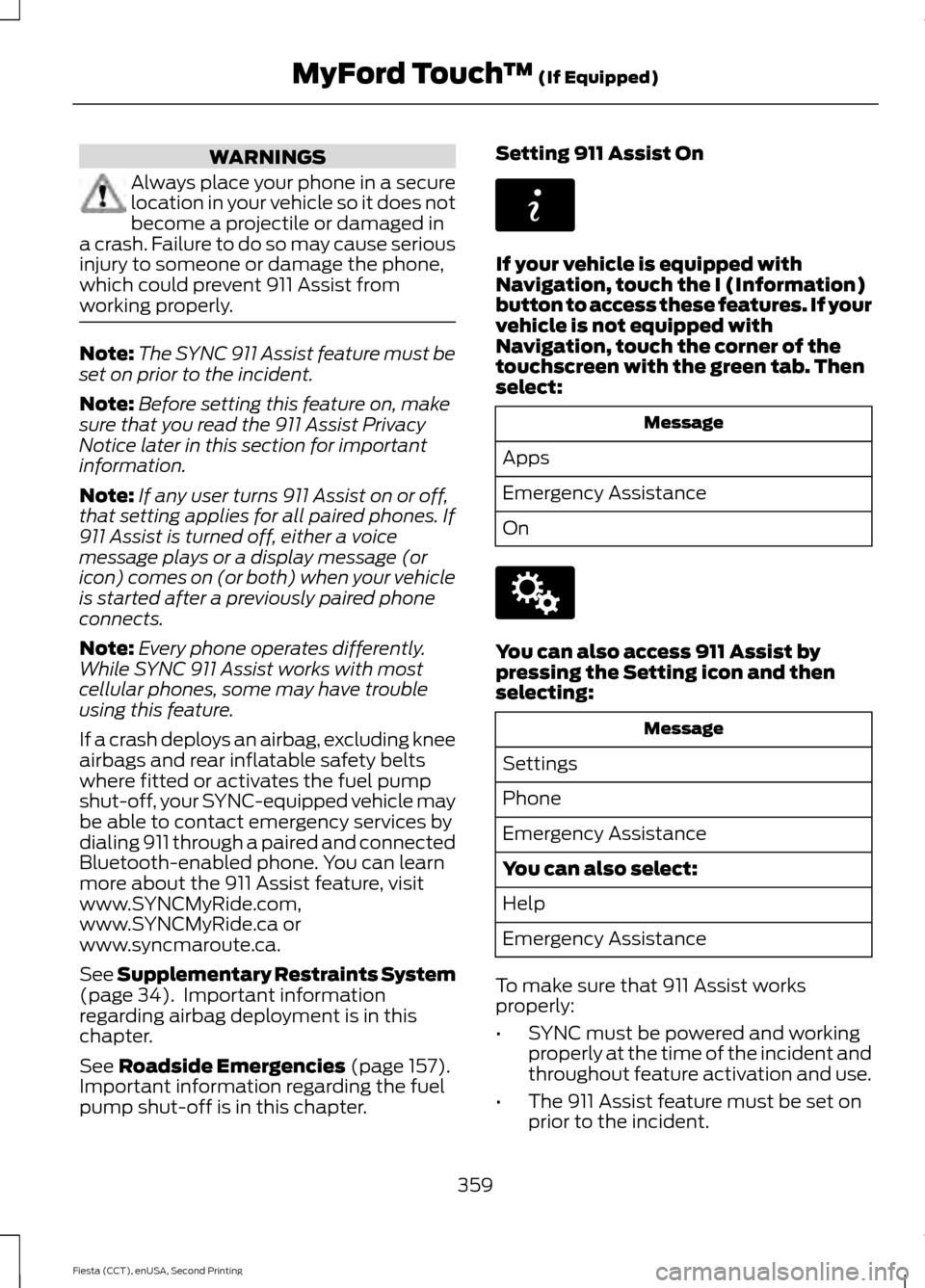
pump shut-off is in this chapter. Setting 911 Assist On If your vehicle is equipped with
Navigation, touch the I (Information)
button to access these features. If your
vehicle is not equipped with
Navigation, touch the corner of the
touchscreen with the green tab. Then
select:
Message
Apps
Emergency Assistance
On You can also access 911 Assist by
pressing the Setting icon and then
selecting:
Message
Settings
Phone
Emergency Assistance
You can also select:
Help
Emergency Assistance
To make sure that 911 Assist works
properly:
• SYNC must be powered and working
properly at the time of the incident and
throughout feature activation and use.
• The 911 Assist feature must be set on
prior to the incident.
359
Fiesta (CCT), enUSA, Second Printing MyFord Touch
™
(If Equipped)E142608 E142607
Page 363 of 423
•
You must pair and connect a
Bluetooth-enabled and compatible
phone to SYNC.
• A connected Bluetooth-enabled phone
must have the ability to make and
maintain an outgoing call at the time
of the incident.
• A connected Bluetooth-enabled phone
must have adequate network coverage,
battery power and signal strength.
• The vehicle must have battery power
and be located in the United States,
Canada or in a territory in which 911 is
the emergency number.
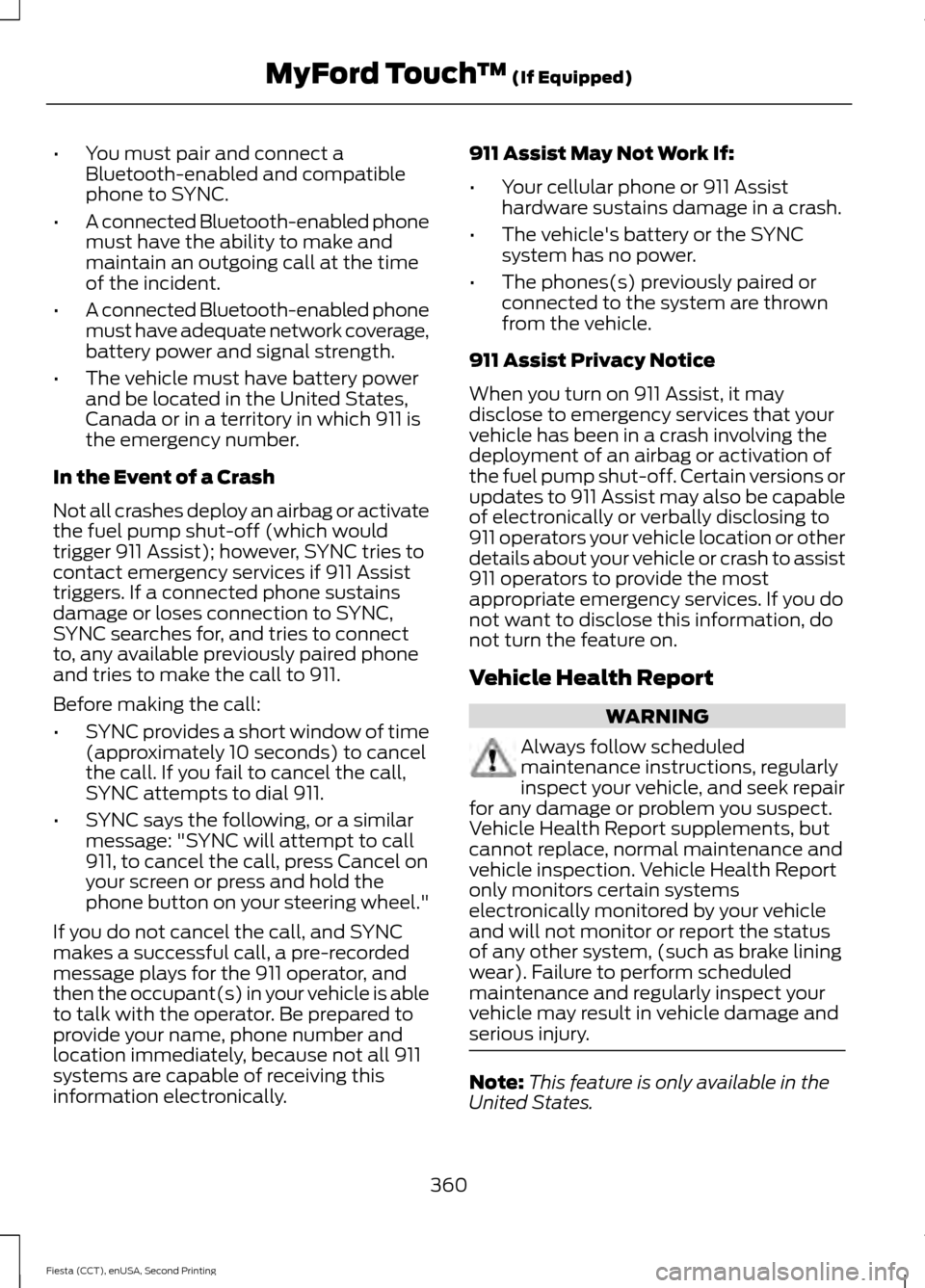
In the Event of a Crash
Not all crashes deploy an airbag or activate
the fuel pump shut-off (which would
trigger 911 Assist); however, SYNC tries to
contact emergency services if 911 Assist
triggers. If a connected phone sustains
damage or loses connection to SYNC,
SYNC searches for, and tries to connect
to, any available previously paired phone
and tries to make the call to 911.
Before making the call:
• SYNC provides a short window of time
(approximately 10 seconds) to cancel
the call. If you fail to cancel the call,
SYNC attempts to dial 911.
• SYNC says the following, or a similar
message: "SYNC will attempt to call
911, to cancel the call, press Cancel on
your screen or press and hold the
phone button on your steering wheel."
If you do not cancel the call, and SYNC
makes a successful call, a pre-recorded
message plays for the 911 operator, and
then the occupant(s) in your vehicle is able
to talk with the operator. Be prepared to
provide your name, phone number and
location immediately, because not all 911
systems are capable of receiving this
information electronically. 911 Assist May Not Work If:
•
Your cellular phone or 911 Assist
hardware sustains damage in a crash.
• The vehicle's battery or the SYNC
system has no power.
• The phones(s) previously paired or
connected to the system are thrown
from the vehicle.
911 Assist Privacy Notice
When you turn on 911 Assist, it may
disclose to emergency services that your
vehicle has been in a crash involving the
deployment of an airbag or activation of
the fuel pump shut-off. Certain versions or
updates to 911 Assist may also be capable
of electronically or verbally disclosing to
911 operators your vehicle location or other
details about your vehicle or crash to assist
911 operators to provide the most
appropriate emergency services. If you do
not want to disclose this information, do
not turn the feature on.
Vehicle Health Report WARNING
Always follow scheduled
maintenance instructions, regularly
inspect your vehicle, and seek repair
for any damage or problem you suspect.
Vehicle Health Report supplements, but
cannot replace, normal maintenance and
vehicle inspection. Vehicle Health Report
only monitors certain systems
electronically monitored by your vehicle
and will not monitor or report the status
of any other system, (such as brake lining
wear). Failure to perform scheduled
maintenance and regularly inspect your
vehicle may result in vehicle damage and
serious injury. Note:
This feature is only available in the
United States.
360
Fiesta (CCT), enUSA, Second Printing MyFord Touch
™ (If Equipped)
Page 364 of 423

Note:
Your Vehicle Health Report feature
requires activation prior to use. Visit
www.SYNCMyRide.com to register. There
is no fee or subscription associated with
Vehicle Health Report, but you must register
to use this feature.
Note: This feature may not function
properly if you have enabled caller ID
blocking on your cellular phone. Before
running a report, review the Vehicle Health
Report Privacy Notice.
Note: In order to allow a break-in period for
your vehicle, you may not be able to create
a Vehicle Health Report until your vehicle
odometer has reached 200 miles.
Note: Cellular phone and SMS charges may
apply when making a report.
Register for Vehicle Health Report and set
your report preferences at
www.SYNCMyRide.com. After registering,
you can request a Vehicle Health Report
(inside your vehicle). Return to your
account at www.SYNCMyRide.com to view
your report. You can also choose for SYNC
to remind you automatically to run reports
at specific mileage intervals. Cellular phone
airtime usage may apply when reporting.
The system allows you to check your
vehicle ’s overall health in the form of a
diagnostic report card. The Vehicle Health
Report contains valuable information, for
example:
• Vehicle diagnostic information.
• Scheduled maintenance.
• Open recalls and Field Service Actions.
• Items noted during vehicle inspections
by your authorized dealer that still need
servicing.
Making a Report If you want to run a report by using the
touchscreen, select:
Message
Apps
Vehicle Health Report You can also run a vehicle health
report by voice command.
Press the voice button and when
prompted say: Voice command
Vehicle Health Report
Vehicle Health Report Privacy Notice
When you create a Vehicle Health Report,
Ford Motor Company may collect your
cellular phone number (to process your
report request) and diagnostic information
about your vehicle. Certain versions or
updates to Vehicle Health Report may also
collect more vehicle information. Ford may
use your vehicle information it collects for
any purpose. If you do not want to disclose
your cellular phone number or vehicle
information, do not run the feature or set
up your Vehicle Health Report profile at
www.SYNCMyRide.com. See
www.SYNCMyRide.com (Vehicle Health
Report Terms and Conditions, and Privacy
Statement) for more information.
361
Fiesta (CCT), enUSA, Second Printing MyFord Touch
™ (If Equipped)E142608 E142599
Page 377 of 423
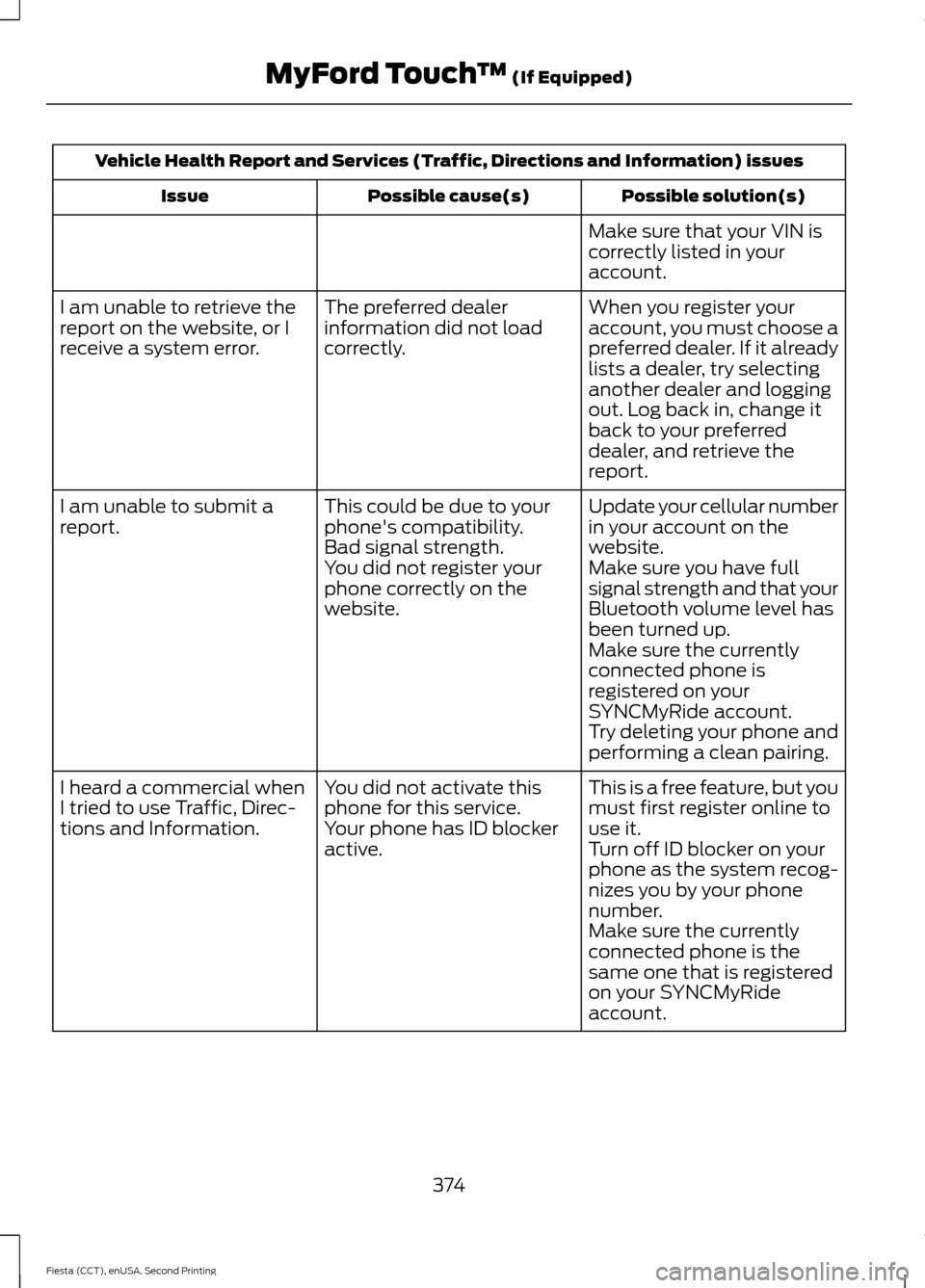
Vehicle Health Report and Services (Traffic, Directions and Information) issues
Possible solution(s)
Possible cause(s)
Issue
Make sure that your VIN is
correctly listed in your
account.
When you register your
account, you must choose a
preferred dealer. If it already
lists a dealer, try selecting
another dealer and logging
out. Log back in, change it
back to your preferred
dealer, and retrieve the
report.
The preferred dealer
information did not load
correctly.
I am unable to retrieve the
report on the website, or I
receive a system error.
Update your cellular number
in your account on the
website.
This could be due to your
phone's compatibility.
Bad signal strength.
I am unable to submit a
report.
Make sure you have full
signal strength and that your
Bluetooth volume level has
been turned up.
You did not register your
phone correctly on the
website.
Make sure the currently
connected phone is
registered on your
SYNCMyRide account.
Try deleting your phone and
performing a clean pairing.
This is a free feature, but you
must first register online to
use it.
You did not activate this
phone for this service.
Your phone has ID blocker
active.
I heard a commercial when
I tried to use Traffic, Direc-
tions and Information.
Turn off ID blocker on your
phone as the system recog-
nizes you by your phone
number.
Make sure the currently
connected phone is the
same one that is registered
on your SYNCMyRide
account.
374
Fiesta (CCT), enUSA, Second Printing MyFord Touch
™ (If Equipped)
Page 379 of 423
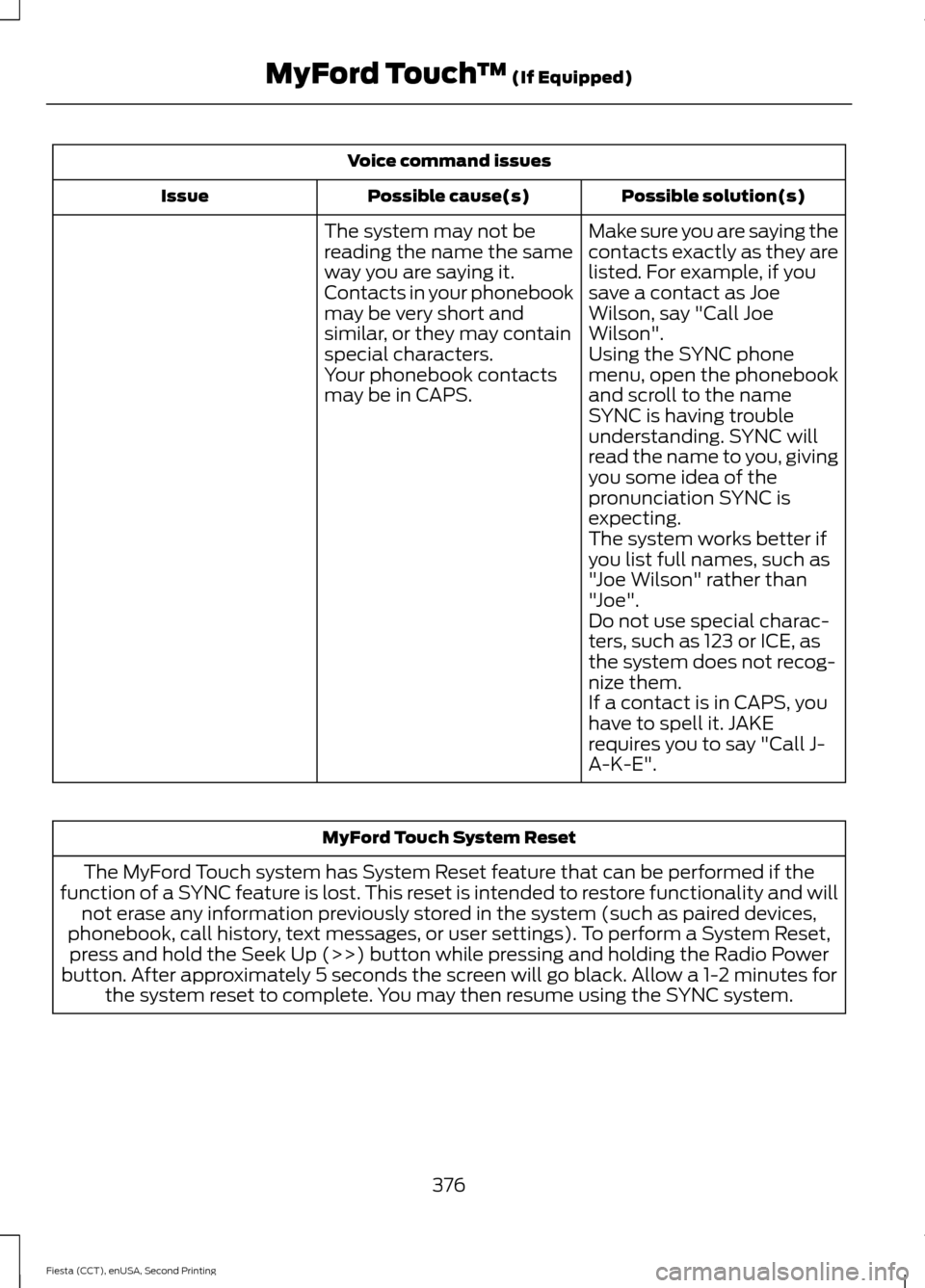
Voice command issues
Possible solution(s)
Possible cause(s)
Issue
Make sure you are saying the
contacts exactly as they are
listed. For example, if you
save a contact as Joe
Wilson, say "Call Joe
Wilson".
The system may not be
reading the name the same
way you are saying it.
Contacts in your phonebook
may be very short and
similar, or they may contain
special characters.
Using the SYNC phone
menu, open the phonebook
and scroll to the name
SYNC is having trouble
understanding. SYNC will
read the name to you, giving
you some idea of the
pronunciation SYNC is
expecting.
Your phonebook contacts
may be in CAPS.
The system works better if
you list full names, such as
"Joe Wilson" rather than
"Joe".
Do not use special charac-
ters, such as 123 or ICE, as
the system does not recog-
nize them.
If a contact is in CAPS, you
have to spell it. JAKE
requires you to say "Call J-
A-K-E". MyFord Touch System Reset
The MyFord Touch system has System Reset feature that can be performed if the
function of a SYNC feature is lost. This reset is intended to restore functionality and will not erase any information previously stored in the system (such as paired devices,
phonebook, call history, text messages, or user settings). To perform a System Reset, press and hold the Seek Up (>>) button while pressing and holding the Radio Power
button. After approximately 5 seconds the screen will go black. Allow a 1-2 minutes for the system reset to complete. You may then resume using the SYNC system.
376
Fiesta (CCT), enUSA, Second Printing MyFord Touch
™ (If Equipped)
Page 380 of 423

For a complete listing of the accessories
that are available for your vehicle, please
contact your dealer or visit our online store
at www.Accessories.Ford.com (United
States only).
Ford Custom Accessories are available for
your vehicle through an authorized Ford
dealer. Ford Motor Company will repair or
replace any properly authorized
dealer-installed Ford Genuine Accessory
found to be defective in factory-supplied
materials or workmanship during the
warranty period, as well as any component
damaged by the defective accessories.
Ford Motor Company will warrant your
accessory through the warranty that
provides the greatest benefit:
•
24 months, unlimited miles.
• The remainder of your new vehicle
limited warranty.
Contact an authorized dealer for details
and a copy of the warranty.
Exterior style
• Vehicle covers.
• Body kits.
• Graphics kit.
• Side window deflectors.
• Splash guards.
• Rear spoiler.
• Wheels.
• Bumper protectors.
Interior style
• All-weather floor mats.
• Rear seat entertainment*.
• Premium carpeted floor mats.
• Lighted door sill plates.
• Ambient lighting.
• Gear shift knob. Lifestyle
•
Ash cup and smokers packages.
• Roof racks and carriers*.
• Cargo organization.
Peace of mind
• Remote start.
• Vehicle security systems.
• Keyless entry keypad.
• Wheel locks.
• Bumper-mounted parking sensor*.
• Locking fuel plug for capless fuel
system.
*Ford Licensed Accessory. The accessory
manufacturer designs, develops and
therefore warrants Ford Licensed
Accessories, and does not design or test
these accessories to Ford Motor Company
engineering requirements. Contact an
authorized Ford dealer for the
manufacturer's limited warranty details,
and request a copy of the Ford Licensed
Accessories product limited warranty from
the accessory manufacturer.
For maximum vehicle performance, keep
the following information in mind when
adding accessories, equipment,
passengers and luggage to your vehicle:
377
Fiesta (CCT), enUSA, Second Printing Accessories
Page 386 of 423
TRADEMARKS: This EULA does not grant
you any rights in connection with any
trademarks or service marks of FORD
MOTOR COMPANY, MS, Microsoft
Corporation, third party software or service
providers, their affiliates or suppliers.
PRODUCT SUPPORT: Product support
for the SOFTWARE is not provided by MS,
its parent corporation Microsoft
Corporation, or their affiliates or
subsidiaries. For product support, please
refer to FORD MOTOR COMPANY
instructions provided in the documentation
for the DEVICE. Should you have any
questions concerning this EULA, or if you
desire to contact FORD MOTOR
COMPANY for any other reason, please
refer to the address provided in the
documentation for the DEVICE.
No Liability for Certain Damages:
EXCEPT AS PROHIBITED BY LAW, FORD
MOTOR COMPANY, ANY THIRD PARTY
SOFTWARE OR SERVICES SUPPLIERS,
MS, MICROSOFT CORPORATION AND
THEIR AFFILIATES SHALL HAVE NO
LIABILITY FOR ANY INDIRECT, SPECIAL,
CONSEQUENTIAL OR INCIDENTAL
DAMAGES ARISING FROM OR IN
CONNECTION WITH THE USE OR
PERFORMANCE OF THE SOFTWARE. THIS
LIMITATION SHALL APPLY EVEN IF ANY
REMEDY FAILS OF ITS ESSENTIAL
PURPOSE. IN NO EVENT SHALL MS,
MICROSOFT CORPORATION AND/OR
THEIR AFFILIATES BE LIABLE FOR ANY
AMOUNT IN EXCESS OF U.S. TWO
HUNDRED FIFTY DOLLARS (U.S.
$250.00).
• THERE ARE NO WARRANTIES OTHER
THAN THOSE THAT MAY EXPRESSLY
BE PROVIDED FOR YOUR NEW
VEHICLE. Adobe
Contains Adobe® [Flash® Player] or
[AIR®] technology by Adobe Systems
Incorporated. This [Licensee Product]
contains [Adobe® Flash® Player]
[Adobe® AIR®] software under license
from Adobe Systems Incorporated,
Copyright ©1995-2009 Adobe
Macromedia Software LLC. All rights
reserved. Adobe, Flash and AIR are
trademarks of Adobe Systems
Incorporated.
End User Notice
Microsoft® Windows® Mobile for
Automotive Important Safety
Information
This system Ford SYNC contains software
that is licensed to Manufacturer FORD
MOTOR COMPANY by an affiliate of
Microsoft Corporation pursuant to a license
agreement. Any removal, reproduction,
reverse engineering or other unauthorized
use of the software from this system in
violation of the license agreement is strictly
prohibited and may subject you to legal
action.
Read and follow instructions:
Before
using your Windows Automotive- based
system, read and follow all instructions
and safety information provided in this end
user manual ("User's Guide"). Not
following precautions found in this User's
Guide can lead to an accident or other
serious consequences.
Keep User's Guide in vehicle: When kept
in the vehicle, the User's Guide will be a
ready reference for you and other users
unfamiliar with the Windows
Automotive-based system. Please make
certain that before using the system for
the first time, all persons have access to
the User's Guide and read its instructions
and safety information carefully.
383
Fiesta (CCT), enUSA, Second Printing Appendices
Page 388 of 423
Potential Map Inaccuracy: Maps used
by this system may be inaccurate because
of changes in roads, traffic controls or
driving conditions. Always use good
judgment and common sense when
following the suggested routes.
Emergency Services:
Do not rely on any
navigation features included in the system
to route you to emergency services. Ask
local authorities or an emergency services
operator for these locations. Not all
emergency services such as police, fire
stations, hospitals and clinics are likely to
be contained in the map database for such
navigation features.
TeleNav Software End User License
Agreement
Please read these terms and conditions
carefully before you use the Telenav
Software. Your use of the Telenav
Software indicates that you accept these
terms and conditions. If you do not accept
these terms and conditions, do not break
the seal of the package, launch, or
otherwise use the Telenav Software.
These terms and conditions represent the
agreement (“ Agreement”) between you
and Telenav, Inc. (“Telenav ”) with respect
to the Telenav Software (including
upgrades, modifications, or additions
thereto) (collectively “Telenav Software”).
All references herein to “you” and “your ”
means you, your employees, agents, and
contractors, and any other entity on whose
behalf you accept these terms and
conditions, all of whom shall also be bound
by this Agreement. Additionally, all of your
account information, as well as other
payment and personal information
provided by you to Telenav (directly or
through the use of the Telenav Software,
is subject to Telenav ’s privacy policy
located at http://www.telenav.com. Telenav may revise this Agreement and
the privacy policy at any time, with or
without notice to you. You agree to visit
http://www.telenav.com from time to time
to review the then current version of this
Agreement and of the privacy policy.
1. Safe and Lawful Use
You acknowledge that devoting attention
to the Telenav Software may pose a risk
of injury or death to you and others in
situations that otherwise require your
undivided attention, and you therefore
agree to comply with the following when
using the Telenav Software: (a) observe
all traffic laws and otherwise drive safely;
(b) use your own personal judgment while
driving. If you feel that a route suggested
by the Telenav Software instructs you to
perform an unsafe or illegal maneuver,
places you in an unsafe situation, or directs
you into an area that you consider to be
unsafe, do not follow such instructions; (c)
do not input destinations, or otherwise
manipulate the Telenav Software, unless
your vehicle is stationary and parked; (d)
do not use the Telenav Software for any
illegal, unauthorized, unintended, unsafe,
hazardous, or unlawful purposes, or in any
manner inconsistent with this Agreement;
(e) arrange all GPS and wireless devices
and cables necessary for use of the
Telenav Software in a secure manner in
your vehicle so that they will not interfere
with your driving and will not prevent the
operation of any safety device (such as an
airbag).
You agree to indemnify and hold Telenav
harmless against all claims resulting from
any dangerous or otherwise inappropriate
use of the Telenav Software in any moving
vehicle, including as a result of your failure
to comply with the directions above.
385
Fiesta (CCT), enUSA, Second Printing Appendices